Using SecureAuth Agent Authority
How to connect your AI assistant and the services you use, and see your activity through SecureAuth Agent Authority
A short guide for everyone in your organization who uses an AI assistant such as Claude Desktop or Claude Code to work with company tools and data. It's written for end users, not administrators: your IT team has set up SecureAuth Agent Authority and handles the configuration, so there's nothing for you to set up or understand. This page walks you through connecting your assistant, connecting the services you use, and seeing what your assistant has done on your behalf.
Your user portal link
Your administrator will give you a link to the user portal. It opens the Quickstart page, which lists the AI assistants your organization supports and the steps to connect each one. If you don't have the link yet, ask your administrator.
Administrators: open Agents & NHIs and click Copy portal link to get the link to share. See Share the portal link.
Why your organization uses Agent Authority
Your assistant can act on your behalf: draft a reply, post an update, open a pull request. Agent Authority is what lets your organization allow that safely. It gives your assistant an identity tied to you, so your assistant works with your own accounts and never reaches further than you can, and it keeps a record of what was done.
What that means day to day depends on the work you do:
These are examples. Your administrators decide which tools your assistant can use and which actions it can take, so your own setup will differ.
What you authorize, and when
Agent Authority asks you to authorize two different things. They are separate steps, not alternatives.
| What you authorize | How often | What it allows |
|---|---|---|
| Your AI assistant | Once per assistant | The assistant can act as you through Agent Authority. |
| Each service account | Once per service | Agent Authority can use your own Slack, Jira, or GitHub account on your behalf. |
The two are independent: connecting your assistant does not reach any service on its own, and a connected service account sits unused until you connect an assistant too. Most people connect an assistant first, then connect each service the first time they need it.
Connect your AI assistant
Your IT team has already added the SecureAuth AI Gateway connector to your AI assistant. You don't need to install or configure anything. You just need to find the connector, click it, and authorize it to act on your behalf.
Authorizing opens a sign-in page in your browser. After you sign in, you're granting Agent Authority permission to interact with your organization's tools and resources on your behalf, always using your own identity.
Claude Desktop
-
In Claude Desktop, go to Settings > Connectors.
-
Find SecureAuth AI Gateway in your list of connectors and click it.
-
Click Connect. A browser window opens for sign-in.
-
Sign in and approve. Your assistant is connected. You're ready to go.
Claude Code
-
Start Claude Code in your terminal:
claude -
Type
/mcpand select SecureAuth AI Gateway. -
Choose Authenticate. A browser window opens for sign-in.
-
Sign in and approve. Your assistant is connected. You're ready to go.
Your assistant now appears on the Agents page.
Using a different assistant?
Cursor, Codex, GitHub Copilot, and more are also supported. Open the Quickstart page in the Agent Authority user portal for the current list and the exact steps for each one.
Connect your accounts
Agent Authority always acts using your accounts. You connect each service once, and you can do it either of two ways. Both give the same result, so use whichever you meet first.
Wait for your assistant to ask
The first time your assistant tries to use a tool that needs sign-in, for example sending a Slack message, it asks you to connect that account:
- Your assistant tries to use a tool that requires sign-in.
- Agent Authority replies with a link asking you to connect that account.
- You click the link and sign in with the service the normal way.
- Agent Authority securely stores the result and uses it for you from then on. You don't need to sign in again for that service.
Connect it yourself first
Open the Connections page to see every service available to you and connect one before your assistant needs it.
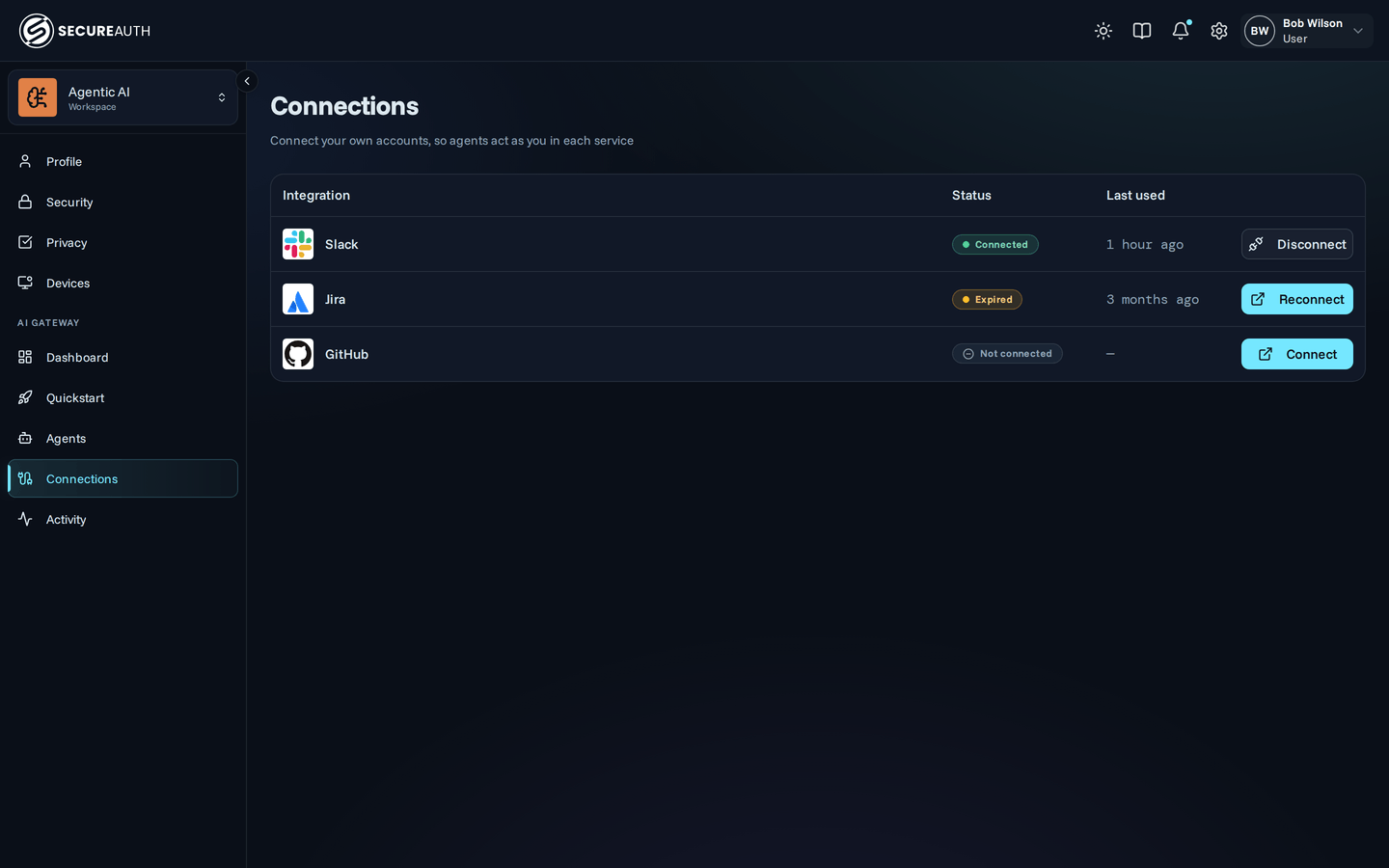
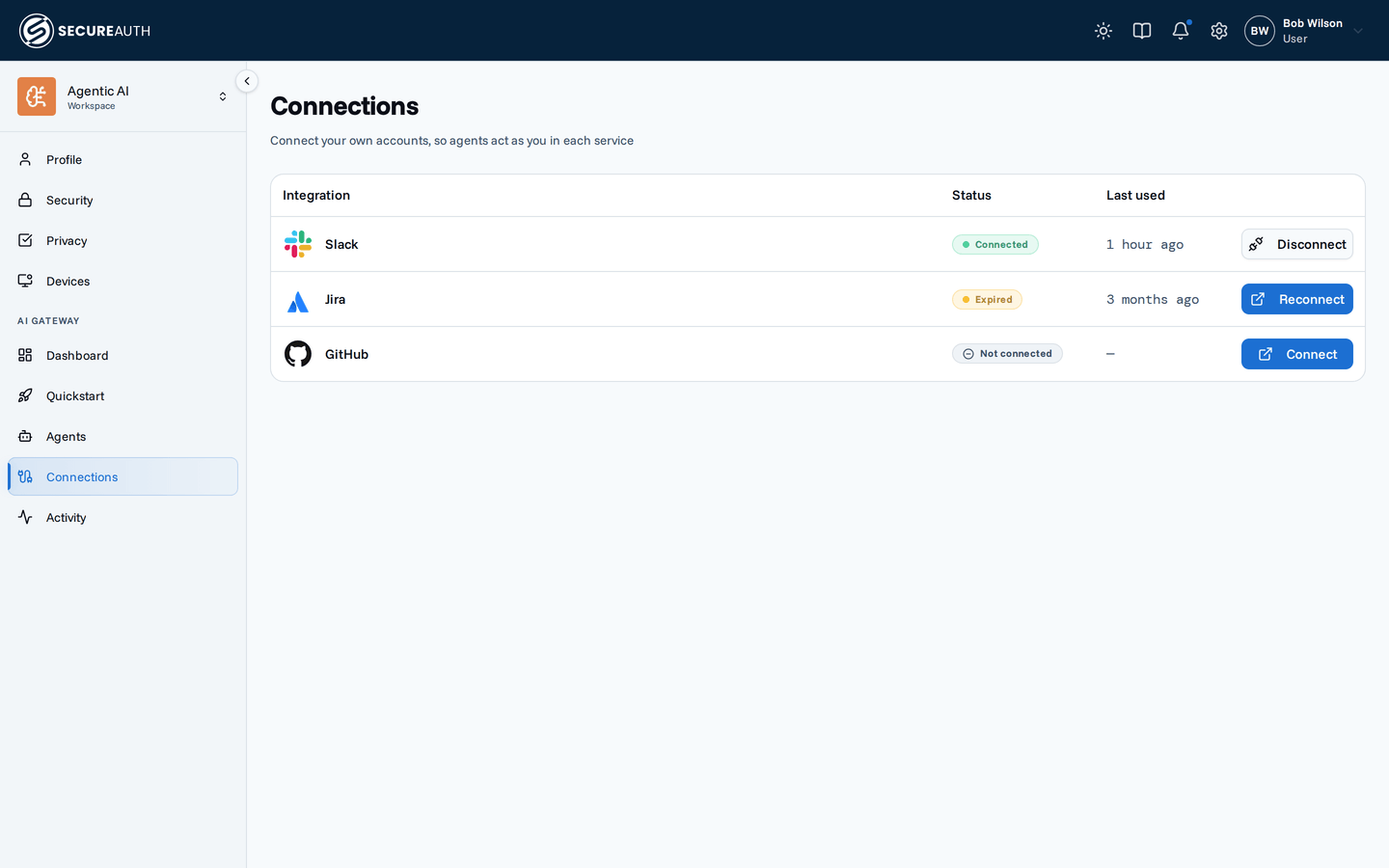
Each service shows one of two statuses:
- Connected. Ready to use. Select Disconnect to remove the connection and delete the stored access.
- Not connected. Select Connect and sign in to the service.
A working connection keeps working without you signing in again, because Agent Authority renews your access in the background. If the service provider withdraws access, for example because you removed the app in that service's own settings, the service goes back to Not connected and the next tool call gives you a fresh link.
Your connections are yours alone
An assistant acting for you can only use your connections and can only see what your account can see. Another person's assistant can never reach your accounts, and vice versa.
What you'll see
Open your user portal link and sign in. In the left menu you'll find a group called AI Gateway with five pages:
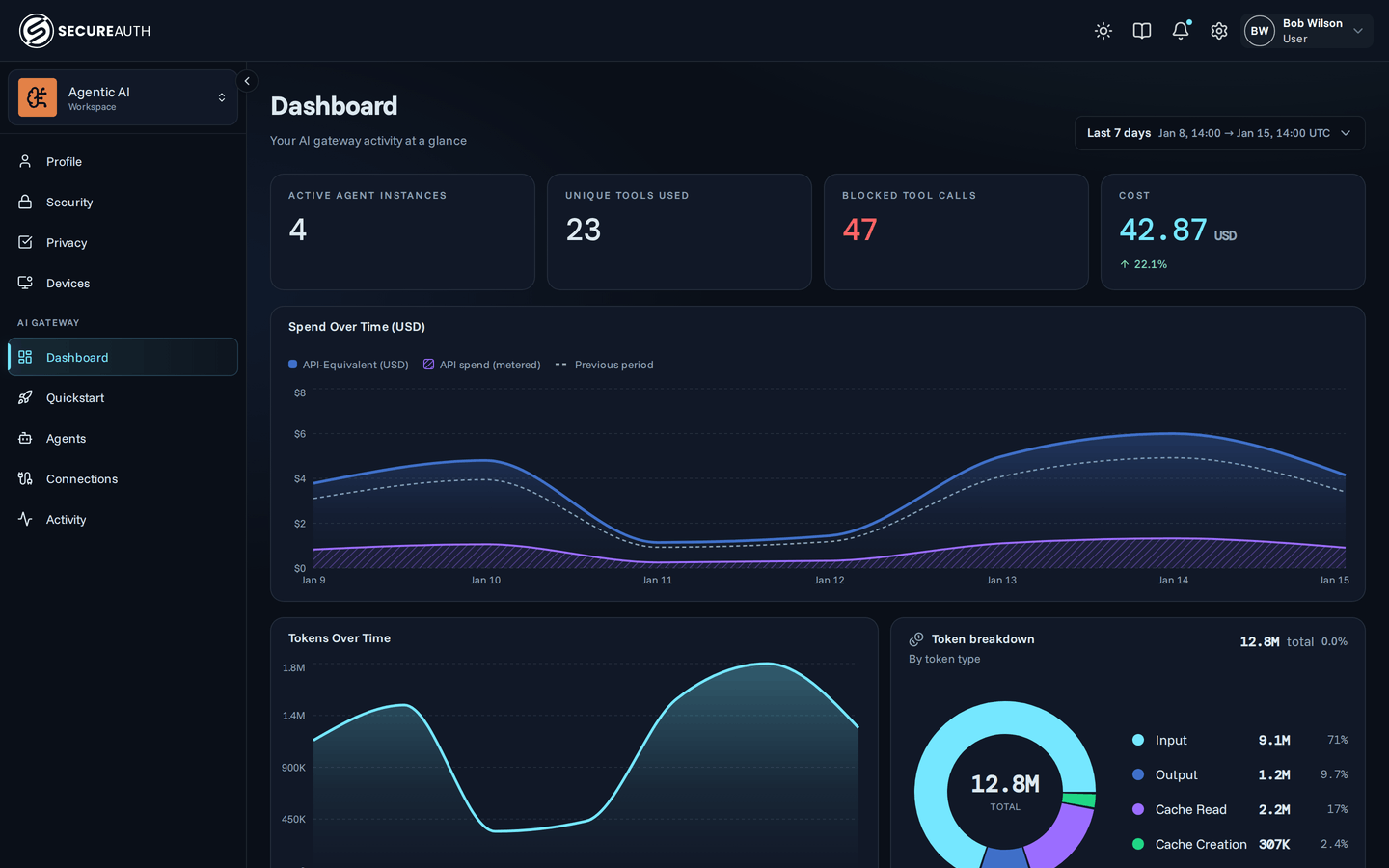
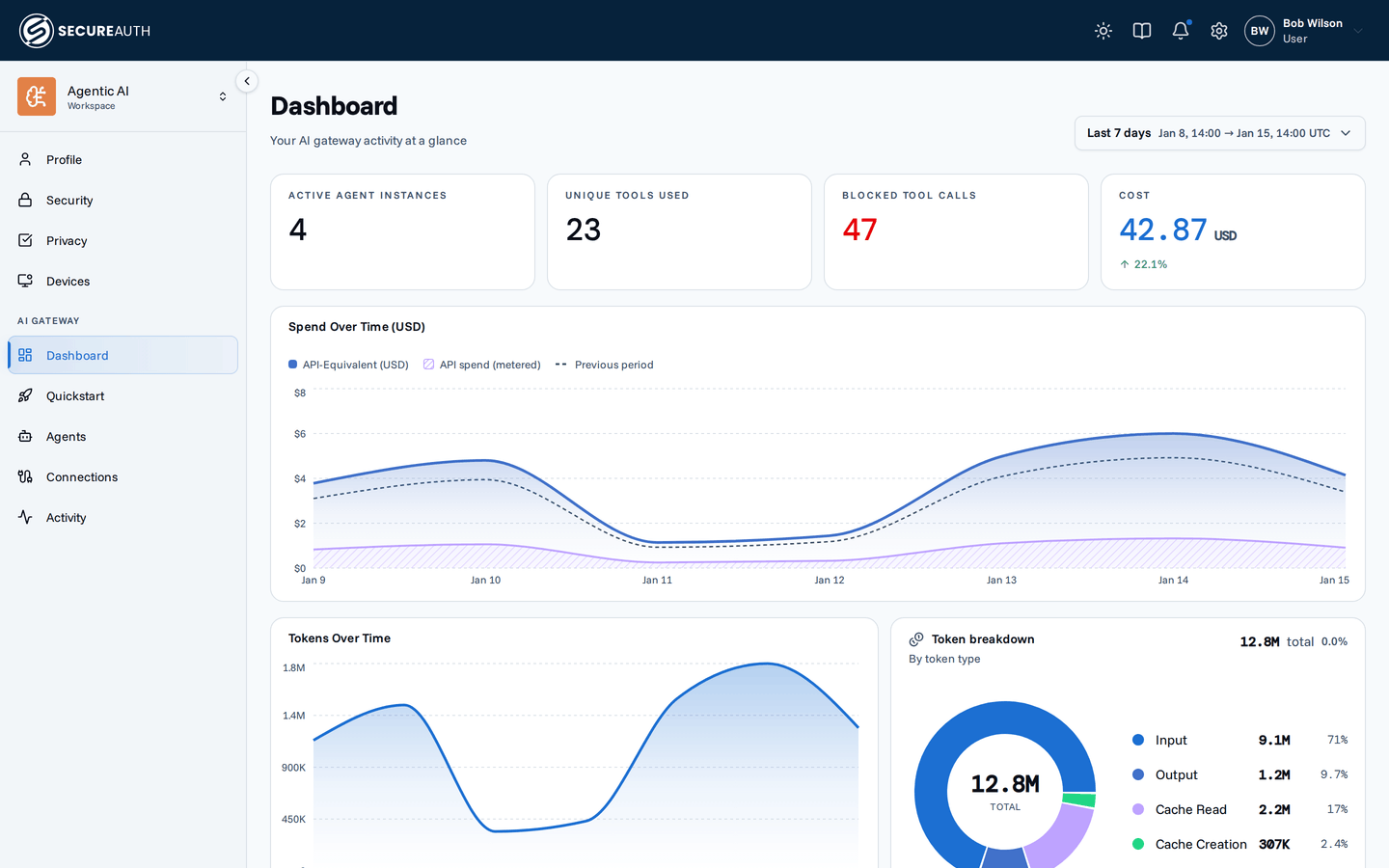
- Dashboard. Your own activity at a glance, explained in What your dashboard is telling you.
- Quickstart. Connect an AI assistant.
- Agents. The assistants you've connected. Open one to see its client name and version, when it was last active, and which tools it can use.
- Connections. The service accounts you've connected, such as Slack or Jira.
- Activity. A running list of what your assistants have done for you: which tool, when, and whether it succeeded. This is your own audit trail.
Everything here is yours only. You won't see anyone else's assistants or activity, and they won't see yours.
To stop an assistant from acting for you, disconnect it from Agents. To remove access to a service, use Connections.
What your dashboard is telling you
The Dashboard answers three questions about your own AI use: whether your assistants are actually working, where they keep getting stopped, and roughly what they cost. Every figure counts only your activity, over the date range you pick at the top right, starting at Last 7 days.
The cards along the top
| Card | What it means | Why you might care |
|---|---|---|
| Active Agent Instances | Assistants of yours that did something in this range. | Tells you which of your assistants you actually use. |
| Unique Tools Used | How many different tools those assistants called. | Shows how far your assistant reaches on your behalf. |
| Blocked Tool Calls | Calls your organization's rules refused. Shown in red, but not a mistake you made. | The one number worth acting on. A high count means your assistant keeps hitting a limit, so ask your IT team if you need that access. |
| Cost | An estimate of what your usage would have cost at list price, which nobody paid. | A rough sense of what your AI use is worth. It is not your organization's invoice. |
The percentage under a figure compares your chosen range against the previous stretch of the same length. If you see No LLM usage yet in place of the cost card, your assistants have not reported any AI usage. Connect one from Quickstart.
Your token usage
Tokens are the units AI models count and bill by. Once your assistants report AI usage, a token section appears under the spend chart:
| Element | What it shows |
|---|---|
| Tokens Over Time | Your tokens per day, with a line for the previous period. |
| Token breakdown | Your total tokens, split into input, output, cache read, and cache creation. Cache read tokens are context the model reused, which costs less. |
| Top Models by Tokens | The models you use most. |
The charts below
| Chart | What it shows |
|---|---|
| Spend Over Time (USD) | Your cost per day, with a shaded band for the part that is real metered usage and a dashed line for the previous period. |
| Tool Executions Over Time | How many tool calls you made per day, gaining a red line once you have blocked calls. |
| Activity by Hour (UTC) | The hours you work through your assistants. It reads in UTC, so it may not match your own clock. |
| Top Tools and Top Agent Instances | What you use most. Each has a blocked counterpart showing what gets refused most. |