Connect your AI agent
Connect an AI agent and your accounts in services like Jira and Slack so it can work there with your own access
When you finish this page, an AI agent such as Claude or Claude Code can work in company tools with your own access. For what Agent Authority does and what it records, see What Agent Authority does for you.
Claude connects from inside its own settings. For any other agent, go to Other agents.
Connect Claude
Use the Claude desktop app or claude.ai.
Claude moves its menus from time to time. If your screen looks different, see Anthropic's custom connectors guide.
If SecureAuth Agent Authority isn't in the list, ask your IT team to add it.
Other agents
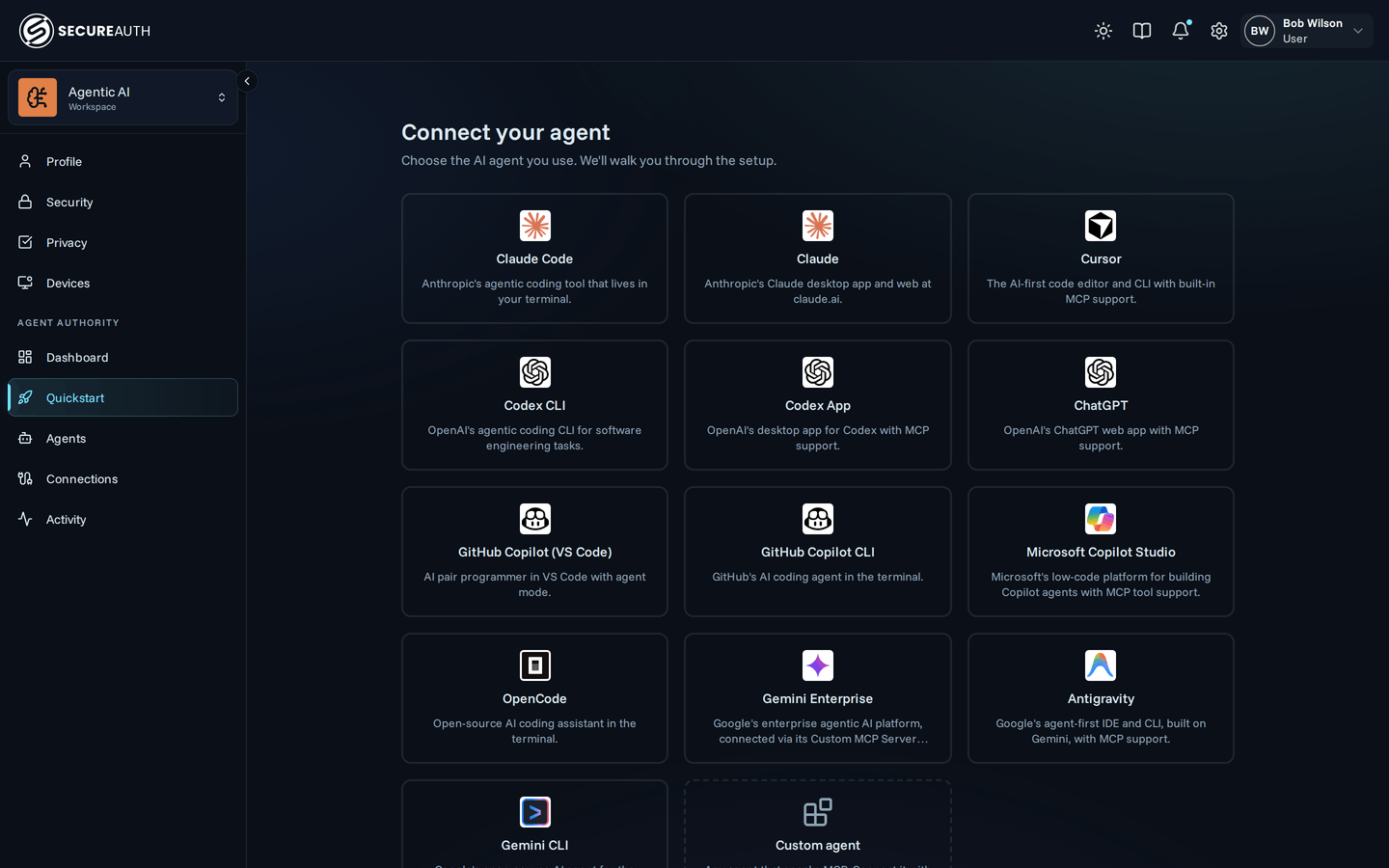
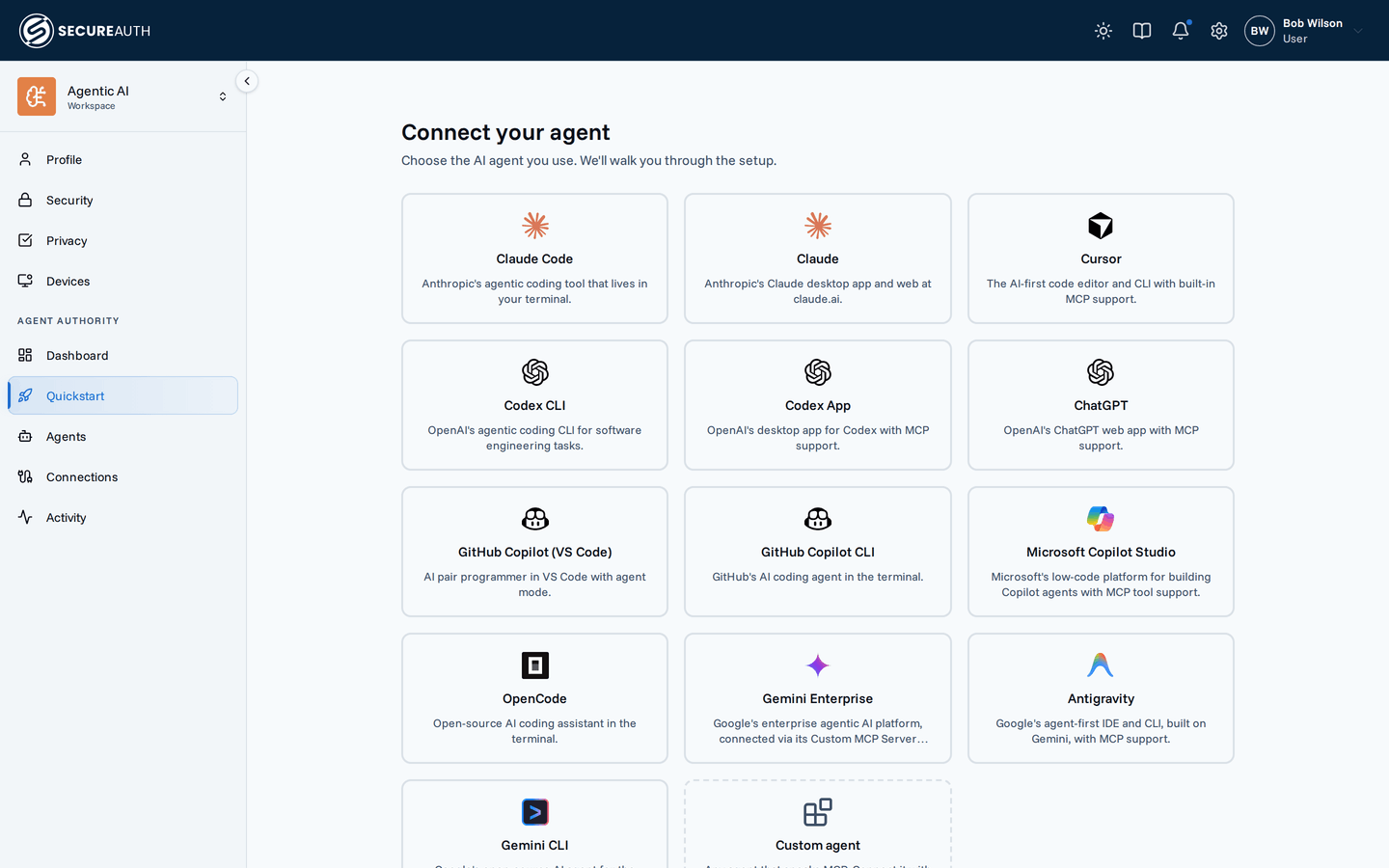
Every other agent starts from Quickstart in the user portal. Select the agent's tile to see the address or command the steps below ask for. When the sign-in page opens, sign in with your work account and select Allow access.
The user portal link
Your IT team sends a link to the user portal. It opens the Quickstart page, which has a tile for each agent that Agent Authority supports. If you don't have the link, ask your IT team.
| Agent | Steps |
|---|---|
| Claude Code | Run the claude mcp add command from Quickstart. Start claude, type /mcp, select secureauth, and choose Authenticate. |
| ChatGPT | On chatgpt.com, go to Settings > Apps > Advanced settings and turn on Developer mode. Select Create app, enter the address, choose OAuth, then Connect. |
| Codex CLI or Codex App | Add the server block from Quickstart to ~/.codex/config.toml, then run codex mcp login secureauth. |
| Cursor | Add the server block from Quickstart to .cursor/mcp.json, or to ~/.cursor/mcp.json for every project. Sign in when Cursor first uses a tool. |
| GitHub Copilot (VS Code) | Add the server block from Quickstart to .vscode/mcp.json. Sign in when Copilot first uses a tool. |
Quickstart also has steps for GitHub Copilot CLI, Gemini CLI, Antigravity, and OpenCode.
Connect your accounts
The first time the agent needs a service, such as Jira, it replies with a link instead of an answer. Select it and sign in the way you normally do. When the page says Connected to and the service name, go back to the agent and ask again.
Access renews in the background. If a service later shows Expired or Revoked on the Connections page of the user portal, select Reconnect. You can also connect services in advance from that page.
Need help?
If a tool you expect is missing, your organization may not allow it. Contact your IT team. For what gets recorded, the portal's pages, and common questions, see What Agent Authority does for you.