What Agent Authority does for you
See what happens when an AI agent works in company tools for you, what gets recorded, and what you control
Once connected, an AI agent can act for you in company tools, such as posting in Slack or updating a Jira ticket. SecureAuth Agent Authority sits between the agent and those tools. The agent uses only your own accounts and stays inside the limits your IT team sets, and every action is recorded.
Not connected yet?
Start with Connect your AI agent.
What it lets the agent do
What the agent can do depends on the work you do and the limits your IT team sets:
Agent Authority
- Microsoft 365Can: Read mail and draft repliesCannot: Send, delete, or forward it
- SlackCan: Read and post in one channelCannot: Reach the rest of Slack
- GitHubCan: Open and review pull requestsCannot: Delete code or skip review
These are examples. Your IT team decides which tools the agent can use and which actions it can take, so each setup differs.
What you authorize, and when
Agent Authority asks you to authorize two different things. They are separate steps, not alternatives.
| What you authorize | How often | What it allows |
|---|---|---|
| The AI agent | Once per agent | The agent can act as you through Agent Authority. |
| Your account in each service | Once per service | Agent Authority can use your own Slack, Jira, or GitHub account on your behalf. |
The two are independent: connecting an agent does not reach any service on its own, and a connected account sits unused until you connect an agent too. Most people connect an agent first, then connect each service the first time they need it.
Your connections are yours alone
An agent acting for you can only use your connections and can only see what your account can see. Another person's agent can never reach your accounts, and yours can never reach theirs.
What gets recorded
For each action, Agent Authority records which tool the agent used, when, from which network address and device, and whether it was allowed. It does not record the contents of messages or files. Your IT team can see this record, and you can see yours on the Activity page of the user portal.
Your user portal
Your IT team sends a link to the user portal. Open it and sign in. The left menu has a group called Agent Authority with these pages:
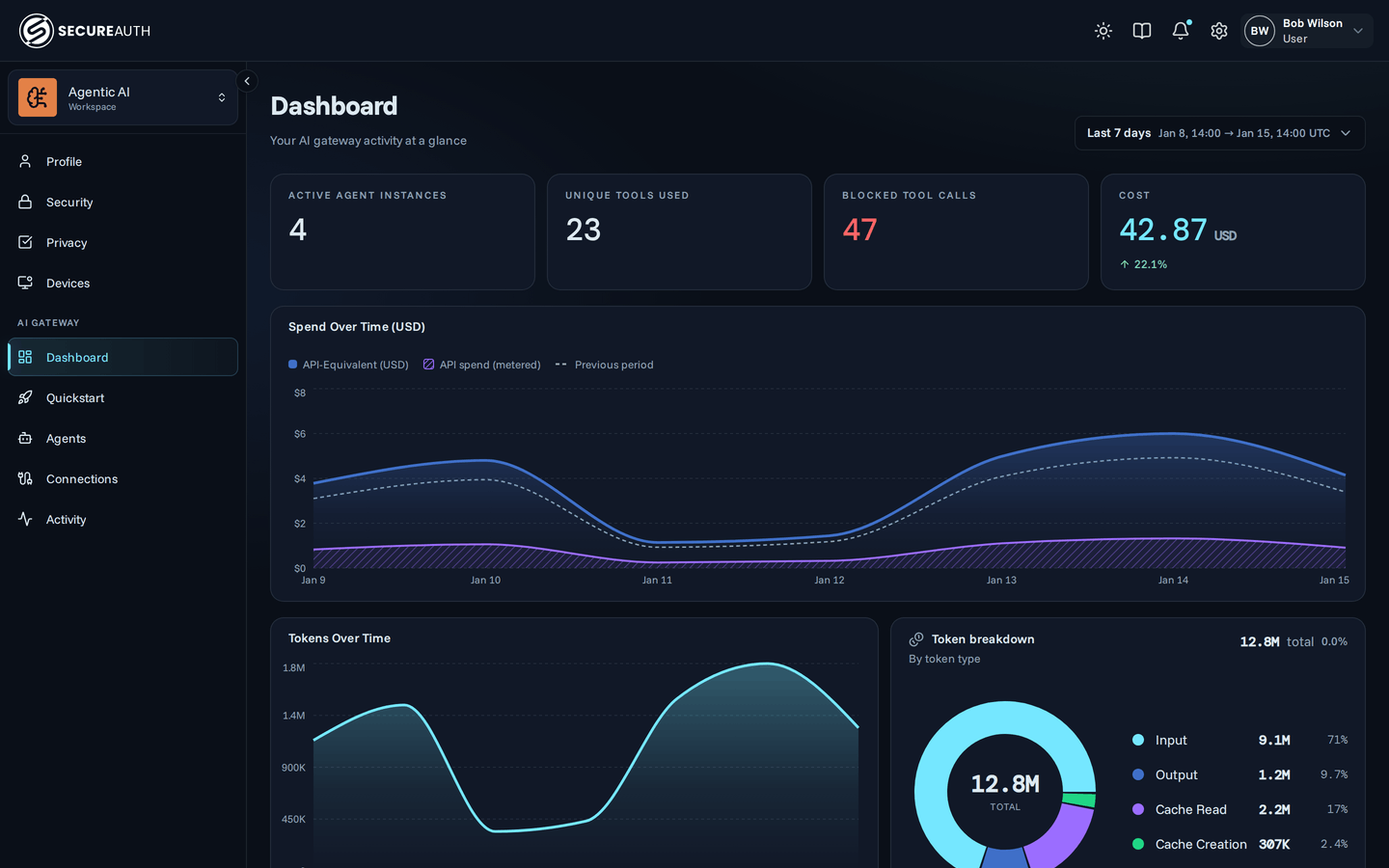
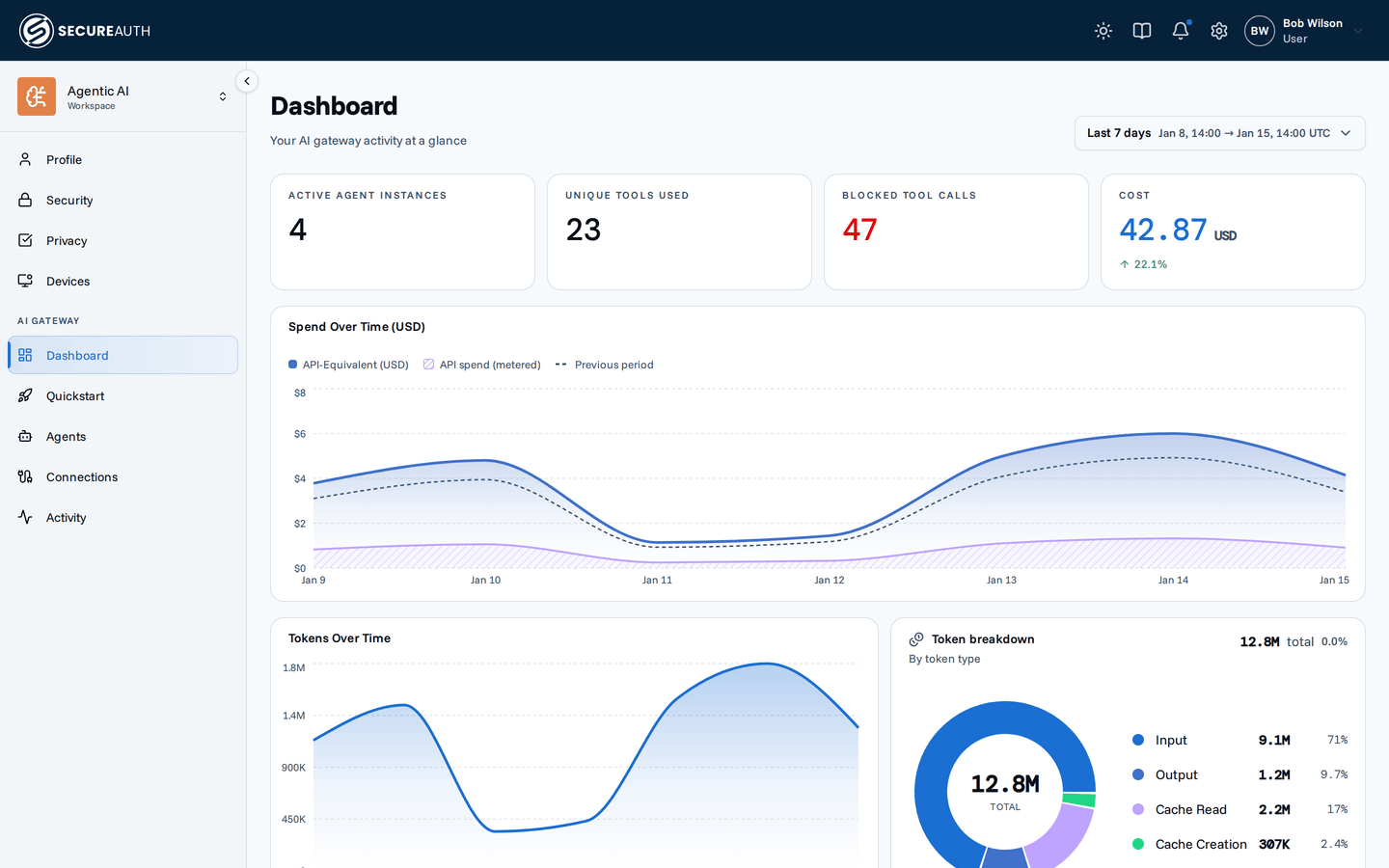
- Dashboard. Your own activity at a glance, explained in What your dashboard is telling you.
- Quickstart. Connect an AI agent.
- Agents. The agents you've connected. Open one to see its client name and version, when it was last active, and which tools it can use.
- Connections. Your accounts in each service, such as Slack or Jira.
- Activity. A running list of what your agents have done for you: which tool, when, and whether it succeeded. This is your own audit trail.
Everything here is yours only. You won't see anyone else's agents or activity, and they won't see yours.
Connection statuses
The Connections page shows one status for each service:
- Connected – ready to use. Select Disconnect to remove the connection and delete the stored access.
- Not connected – select Connect and sign in to the service.
- Expired or Revoked – the access stopped working. Select Reconnect and sign in again.
Services that sign in through the company account work differently. Before you first use one, it shows Signs in through your organization, with no Connect button. Once connected, it shows an Enterprise-managed label and a Reset button instead of Disconnect or Reconnect. Reset clears the sign-in, and a new one is issued the next time the agent uses the service.
What your dashboard is telling you
The Dashboard answers three questions about your own AI use: whether the agents are actually working, where they keep getting stopped, and roughly what they cost. Every figure counts only your activity, over the date range you pick at the top right, starting at Last 7 days.
The cards along the top
| Card | What it means | Why you might care |
|---|---|---|
| Active Agent Instances | Agents of yours that did something in this range. | Shows which agents you actually use. |
| Unique Tools Used | How many different tools those agents called. | Shows how far the agents reach on your behalf. |
| Blocked Tool Calls | Calls your organization's rules refused. Shown in red, but not a mistake on your part. | The one number worth acting on. A high count means an agent keeps hitting a limit, so ask your IT team if you need that access. |
| Cost | An estimate of what the usage would have cost at list price, which nobody paid. | A rough sense of what the AI use is worth. It is not the organization's invoice. |
The percentage under a figure compares the chosen range against the previous stretch of the same length. If No LLM usage yet shows in place of the cost card, your agents have not reported any AI usage. Connect one from Quickstart.
Your token usage
Tokens are the units AI models count and bill by. Once your agents report AI usage, a token section appears under the spend chart:
| Element | What it shows |
|---|---|
| Tokens Over Time | Tokens per day, with a line for the previous period. |
| Token breakdown | Total tokens, split into input, output, cache read, and cache creation. Cache read tokens are context the model reused, which costs less. |
| Top Models by Tokens | The models you use most. |
The charts below
| Chart | What it shows |
|---|---|
| Spend Over Time (USD) | Cost per day, with a shaded band for the part that is real metered usage and a dashed line for the previous period. |
| Tool Executions Over Time | How many tool calls you made per day, gaining a red line once you have blocked calls. |
| Activity by Hour (UTC) | The hours you work through your agents. It reads in UTC, so it may not match your local clock. |
| Top Tools and Top Agent Instances | What you use most. Each has a blocked counterpart showing what gets refused most. |
FAQ
Next steps
You now know what Agent Authority does when an agent acts for you, and where to see and change it. If you haven't connected yet, follow Connect your AI agent.