Support
Get help from SecureAuth Support by creating a Support Portal account, submitting requests, and tracking your cases.
Whenever you need help with a product question, an upgrade, a sign-in issue, or anything else, SecureAuth Support can help. This page walks you through creating your SecureAuth Support account, signing in, submitting a request, and managing your cases through to resolution.
Urgent or P1 issues
For Urgent or P1 issues, submit a request, then call SecureAuth Support at +1 866 859 1526.
Create a SecureAuth Support account
Before you can submit or track requests, you need a Support account. You only have to do this once.
-
Go to support.secureauth.com.
-
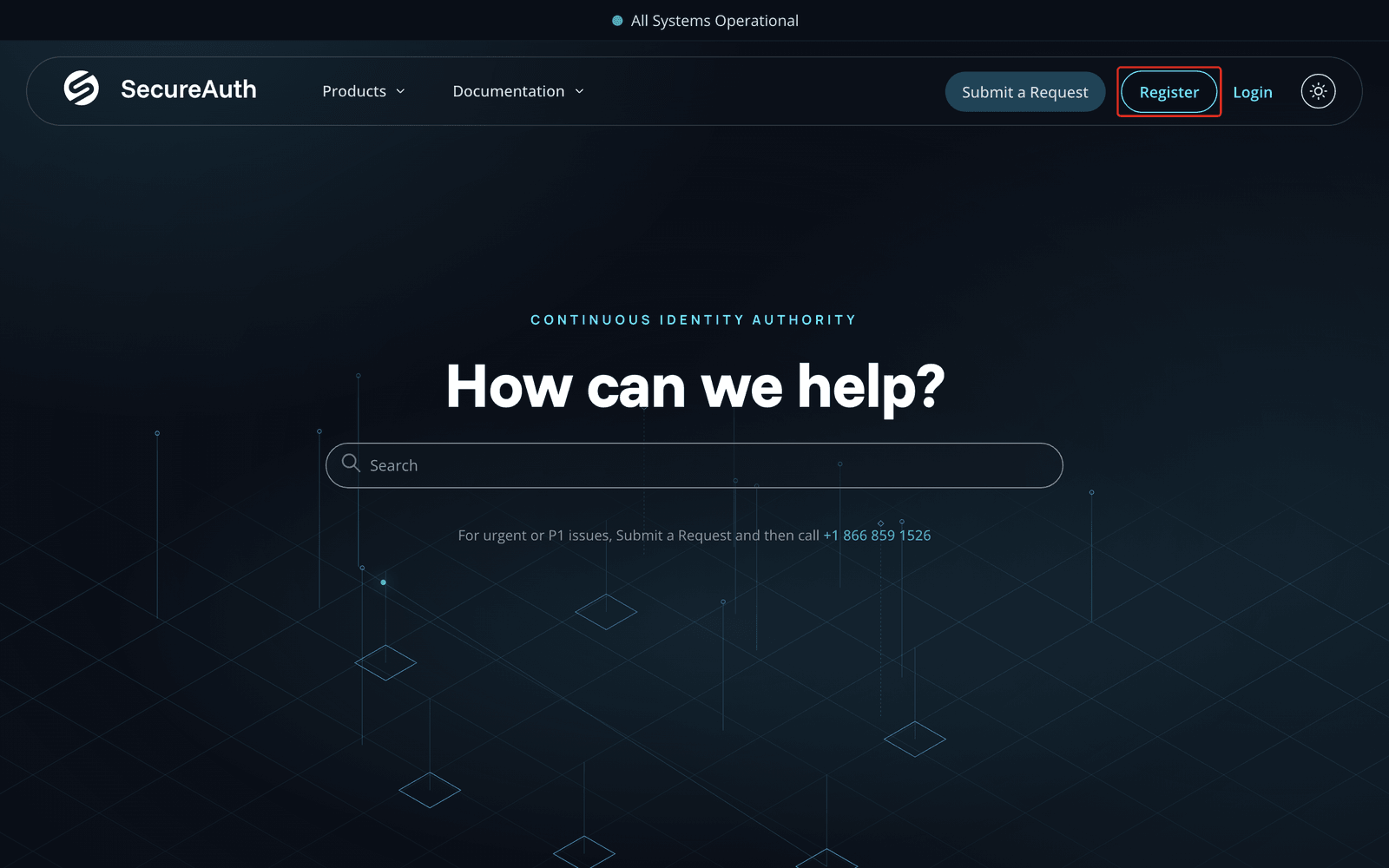
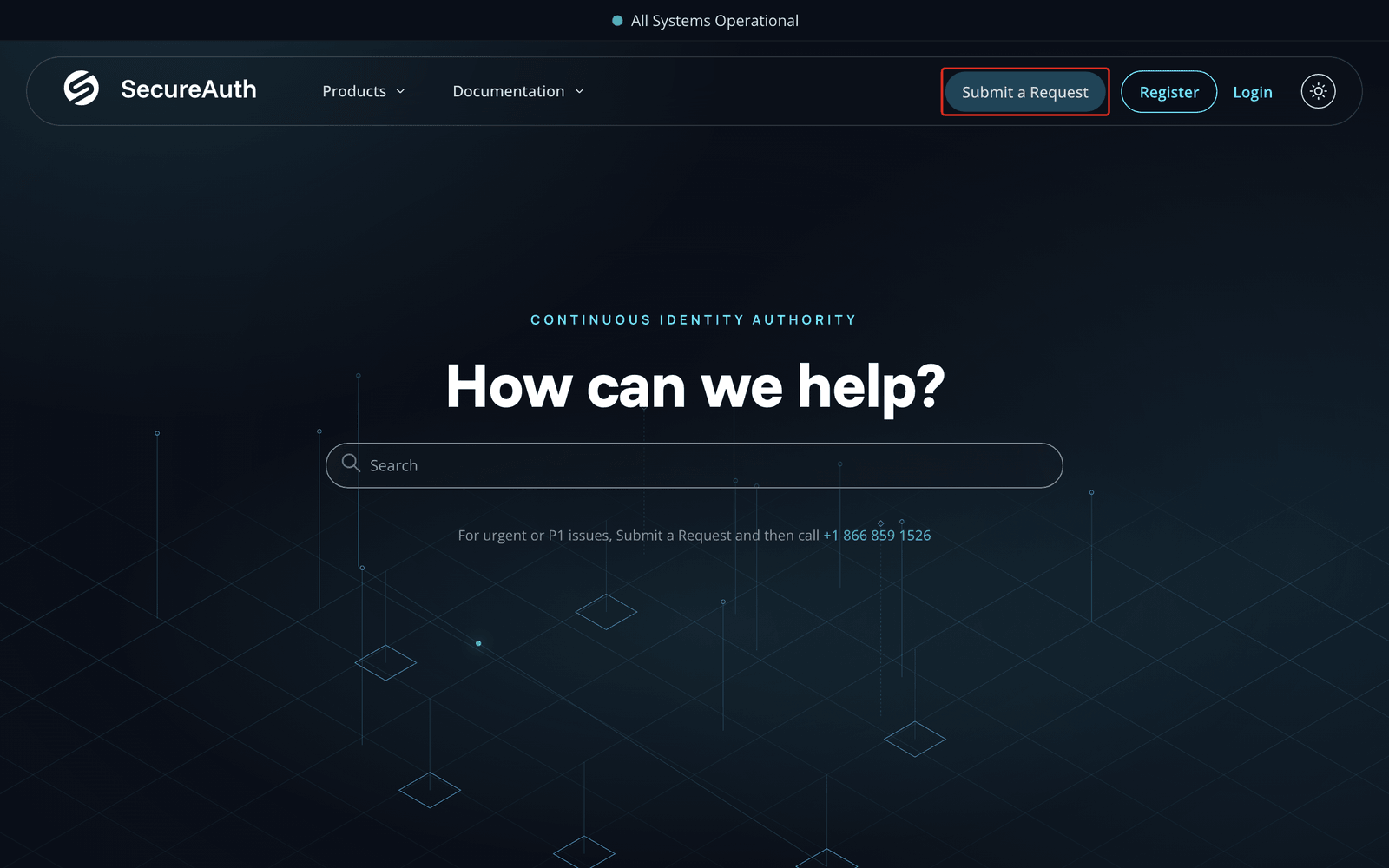
At the top right, click Register.
-
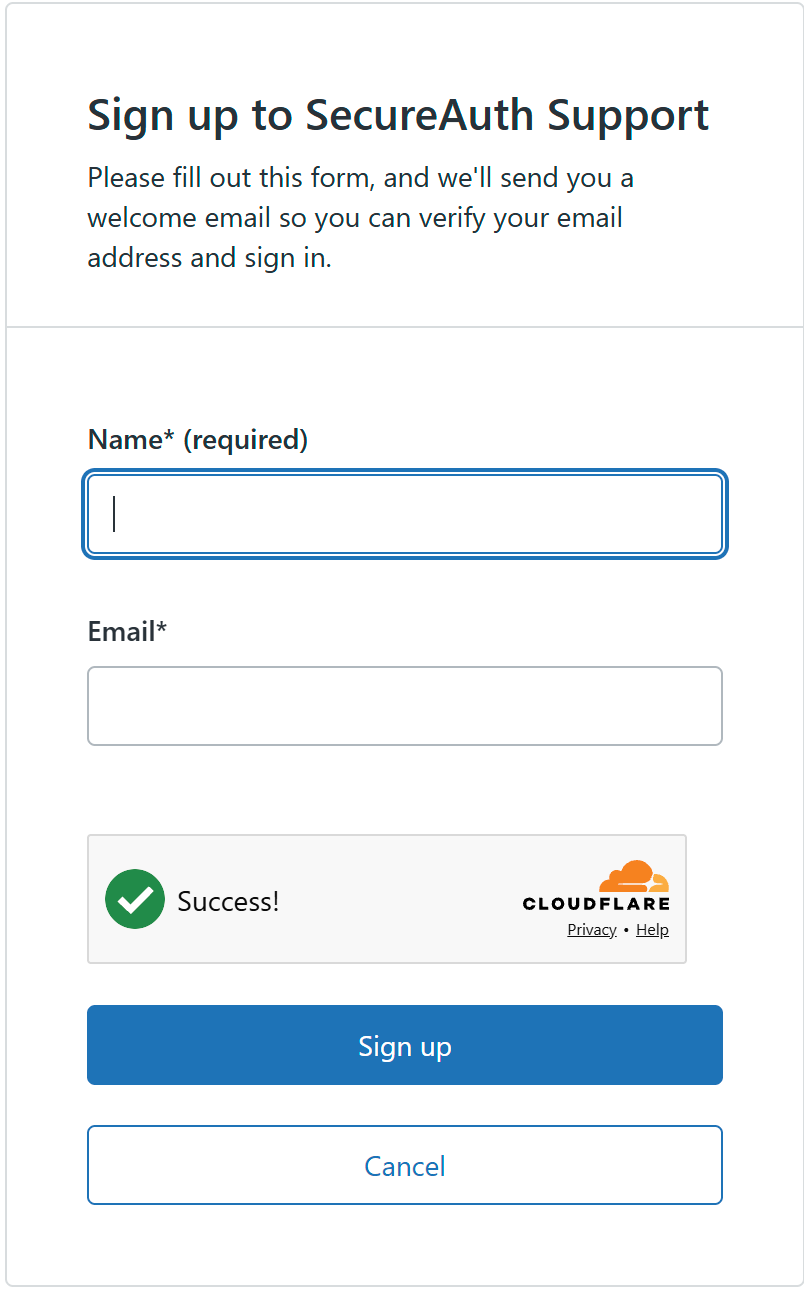
On the Sign up to SecureAuth Support form, enter your Name and Email address, then click Sign up.
Tip
Use your work email address. It helps us match your account to your organization and your existing support entitlements.
-
SecureAuth sends a welcome email to the address you entered. Open it and follow the link to verify your email address and create a password.
-
You can now sign in with your email address and password.
Sign in and manage your account
-
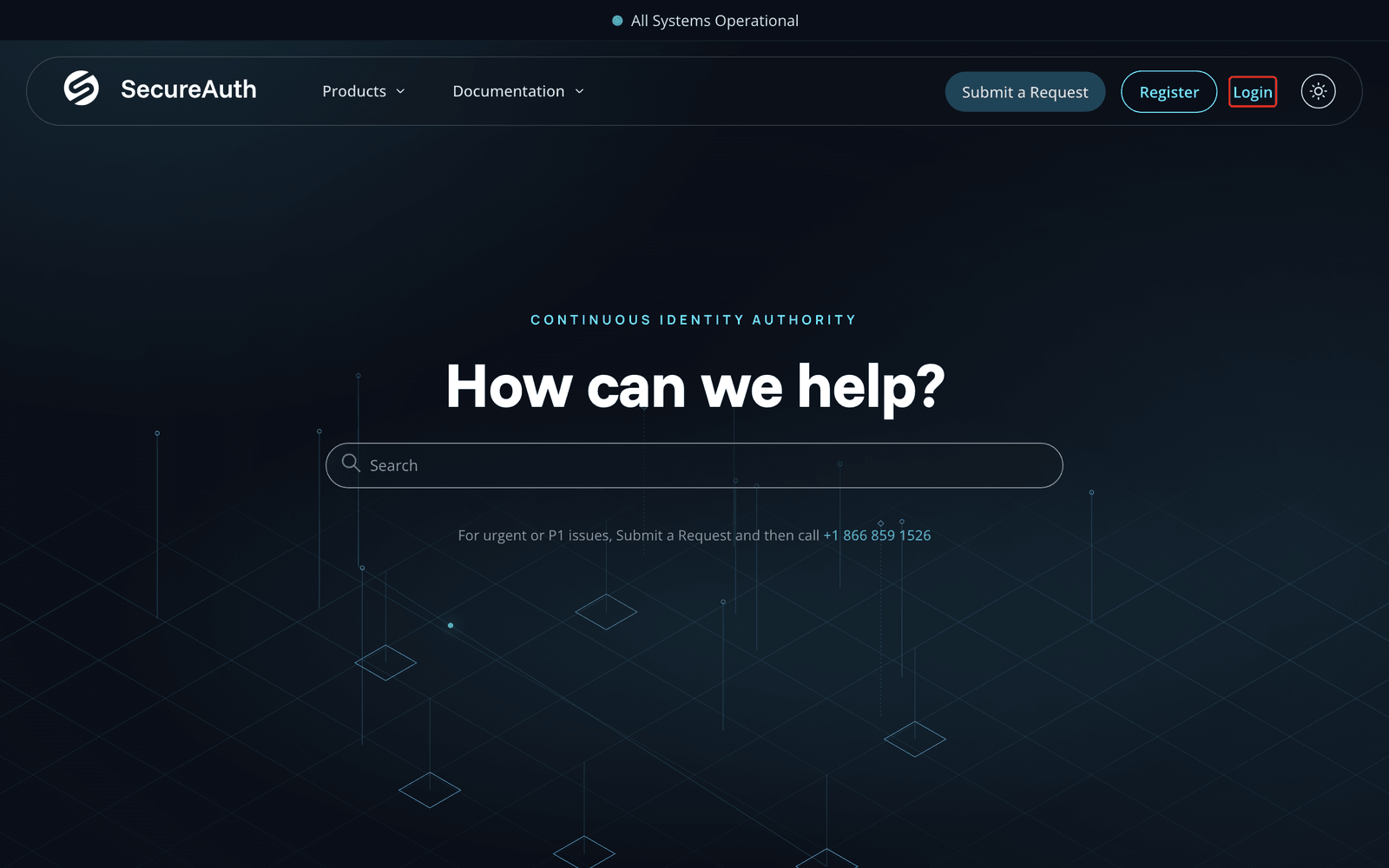
Go to support.secureauth.com and click Login at the top right.
-
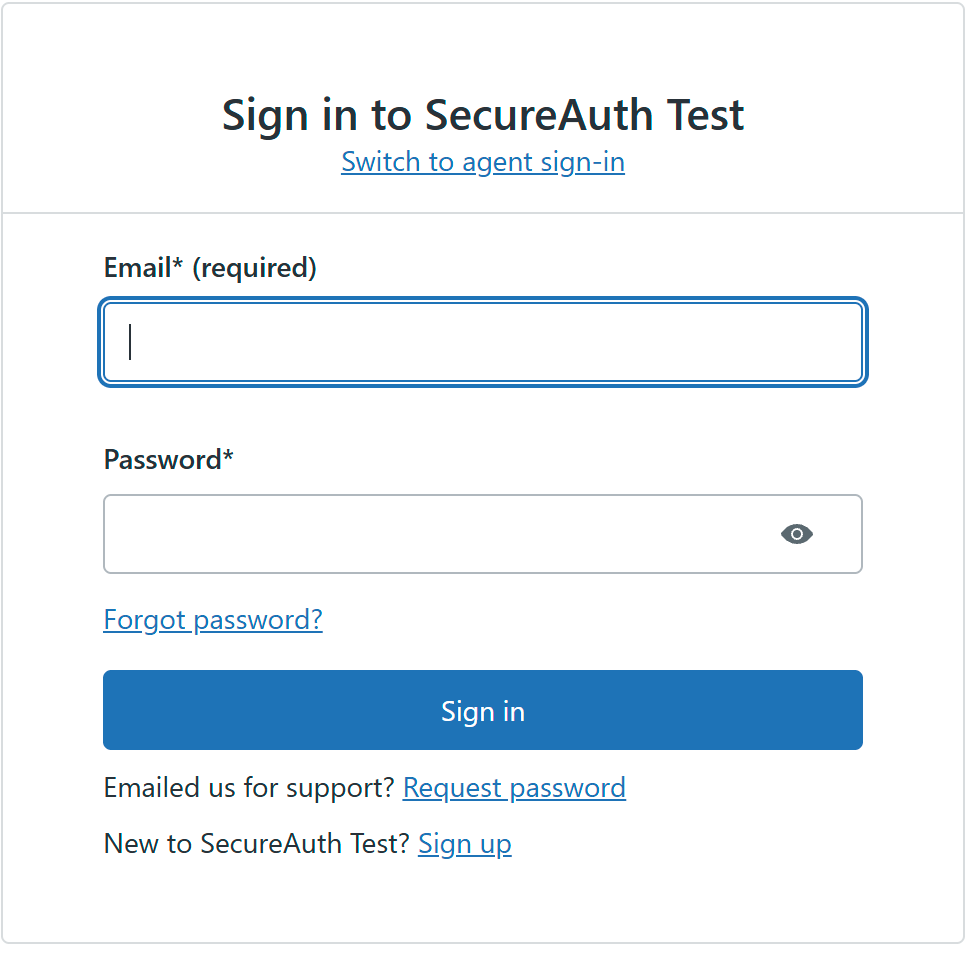
Enter your email address and password, then click Sign in.
When you're signed in, your name appears at the top right, alongside Submit a Request and My Requests. Use these to raise a new request or to see and manage the ones you've already submitted.
Forgot your password?
If you forgot your password, use the Forgot password? link on the sign-in form to have a reset link emailed to you. If you haven't registered yet, the same form also has a Sign up link.
Submit a request
Submitting a request gives Support Engineers the detail they need to respond directly through the portal.
-
From the top navigation, click Submit a Request.
-
Choose the product your request is about. Picking the correct product makes sure your request is routed to the right team. If you're signed in, key details are filled in for you automatically.
-
Complete the fields that appear. They depend on the product you chose. Give us as much detail as you can: your product version, any relevant logs or screenshots, and the exact time the issue happened, including time zone.
-
Click Submit.
You get email updates as we work on your request, and you can follow it under My Requests.
Manage your cases
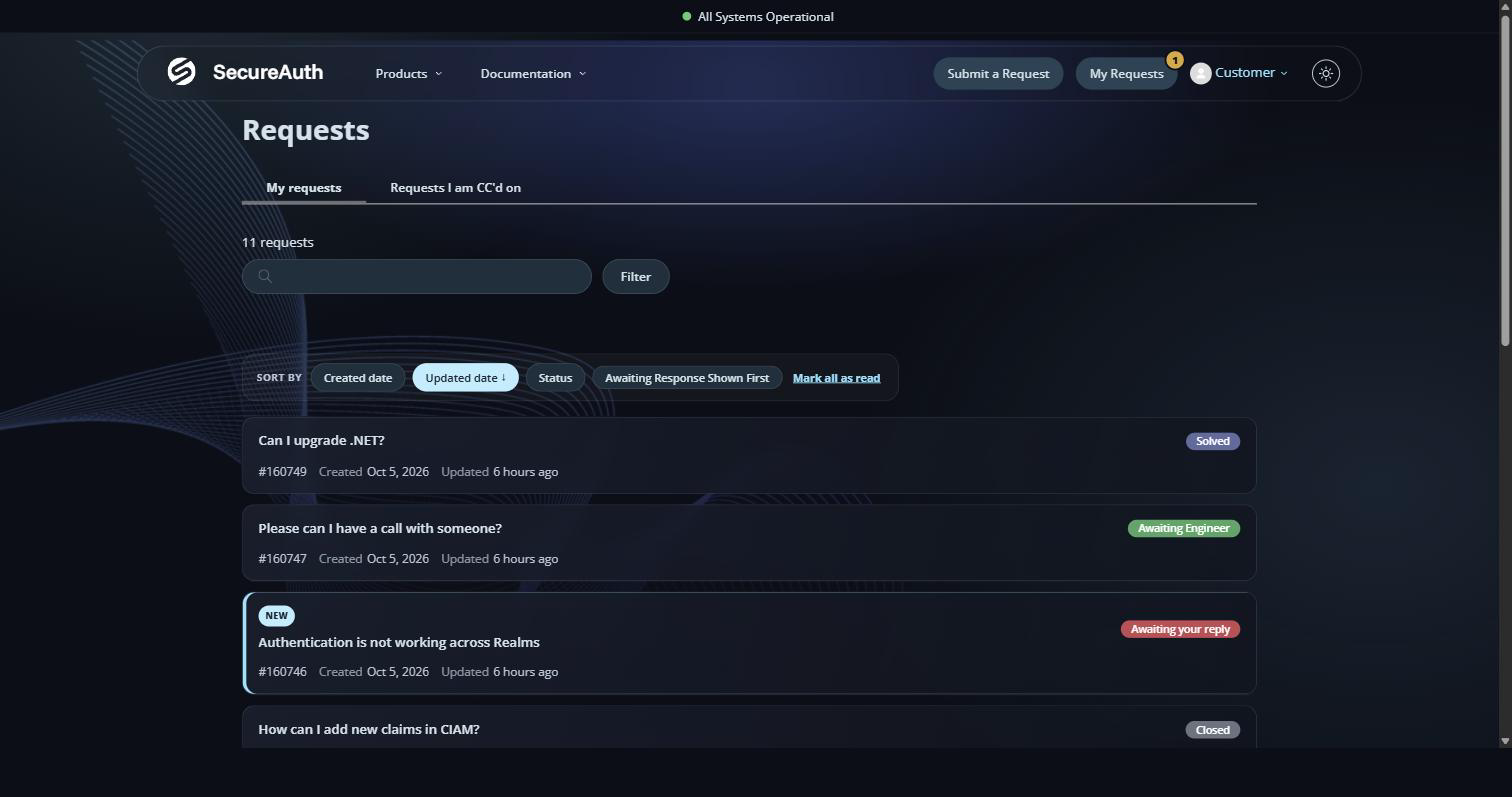
After you submit a request, it becomes a case that you can follow, reply to, and track to resolution. To see your cases, sign in and click My Requests, from the top navigation or from the menu under your name.
The list shows every case you've raised, each with its subject, the time of its most recent reply, and a color-coded status so you can see where it stands at a glance. You can sort by Created date, Updated date, or Status, show the ones awaiting your reply first, or click Mark all as read.
Priority and response times
SecureAuth Support sets a priority for each request from its impact and urgency. The priority sets the response time.
- Impact – The impact of the issue on the business, such as whether a production or test environment is affected and how many users are affected.
- Urgency – How quickly the issue must be resolved.
| High urgency | Medium urgency | Low urgency | |
|---|---|---|---|
| High impact | Urgent | High | Normal |
| Medium impact | High | Normal | Low |
| Low impact | Normal | Low | Low |
Service Level Agreement (SLA) for Basic Support
The following table lists the target response time for each severity level with Basic Support. Response time is the time between when SecureAuth Support is notified of an issue and when a Support Engineer responds by email, by phone, or through the Support Portal.
| Severity | Description | Response time |
|---|---|---|
| 1 - Urgent | Coverage: 24 x 7 A health, safety, or security issue could occur, or has already occurred. Potential for an operational or financial impact to the business. A business critical, Tier 1 system, application, or function is completely unavailable, severely corrupted, or degraded for more than one authorized user. Note: For Severity Level 1 issues, submit a request, then call SecureAuth Support at +1 866 859 1526. | 4 hours |
| 2 - High | A non-business critical system, application, or function is unavailable, severely corrupted, or severely degraded for more than one authorized user. | 8 hours |
| 3 - Normal | Level 3 is the default severity setting. System performance is impaired, but there is no business or customer impact for more than one authorized user. | 1 business day |
| 4 - Low | A user level fault only affecting one authorized user but not affecting ability to perform business functions, with no business or customer impact. Enhancement requests. | 2 business days |
For Preferred and Elite Support SLAs, see the Standard Global Support & Maintenance Policy.