Policies
Define security policies that control which tools agents can use
Policies are the security rules that govern how agents interact with tools through the gateway. They control which tools are available, to whom, and under what conditions. Without any rules, all requests are denied by default.
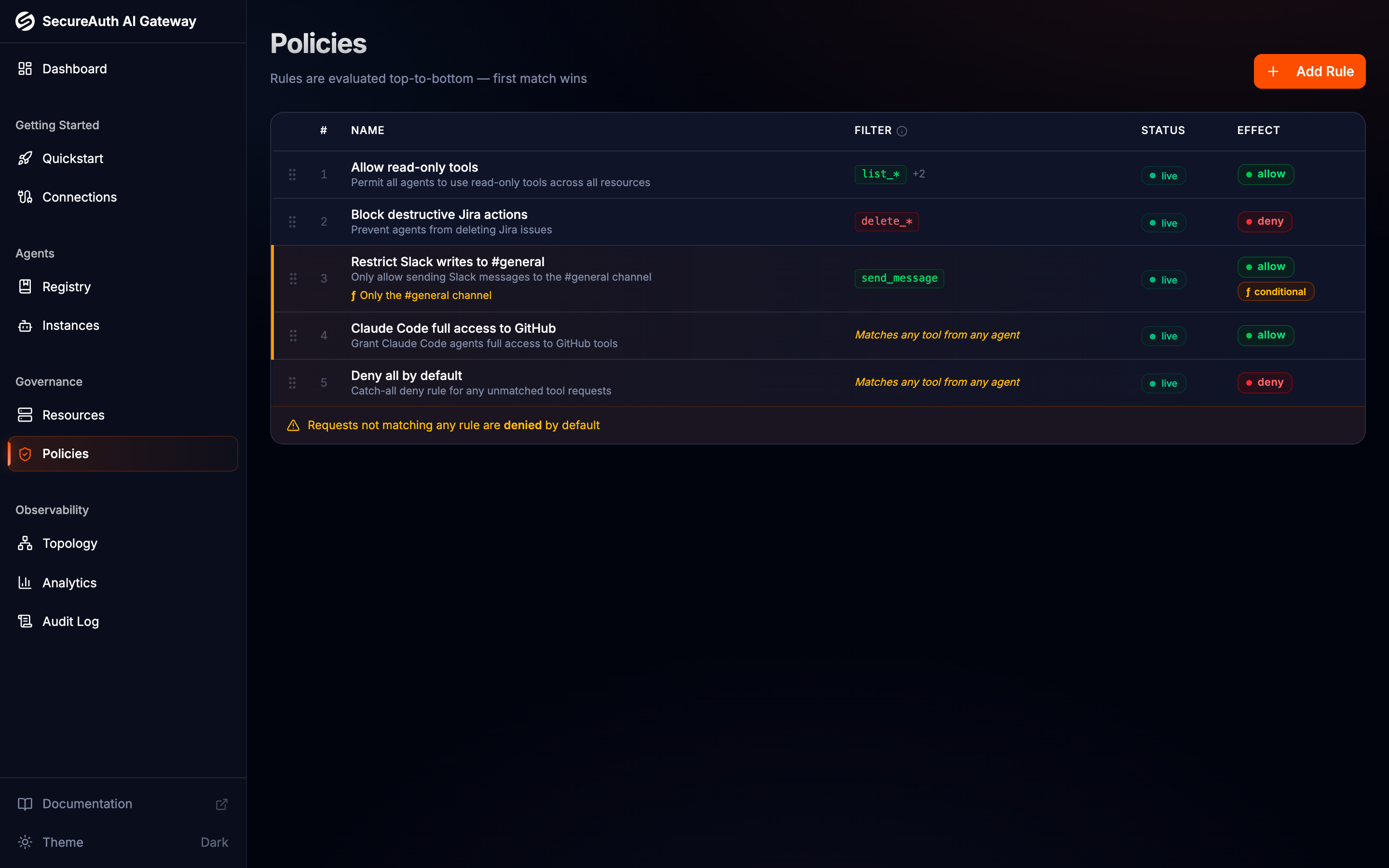
Evaluation model
When an agent makes a tool call, the gateway evaluates rules in priority order (top-to-bottom). The first matching rule wins — its effect is applied and no further rules are checked. If no rule matches, the request is denied.
- Only active rules are evaluated. Draft and disabled rules are skipped.
- Rules with invalid conditions are skipped (fail-closed) — the system never accidentally grants access due to a malformed expression.
Each rule has one of two effects:
- Allow — permit the tool call to proceed
- Deny — block the tool call
The effect is only applied when all of the rule's scope filters and tool patterns match the request, and any condition evaluates to true.
Rule lifecycle
Rules carry a status to support safe rollout:
- Draft — saved but not enforced; useful for testing before going live
- Active — the rule is enforced during evaluation
- Disabled — the rule is temporarily turned off without being deleted, useful for debugging or incident response
You can change a rule's status at any time by editing it.
Creating a rule
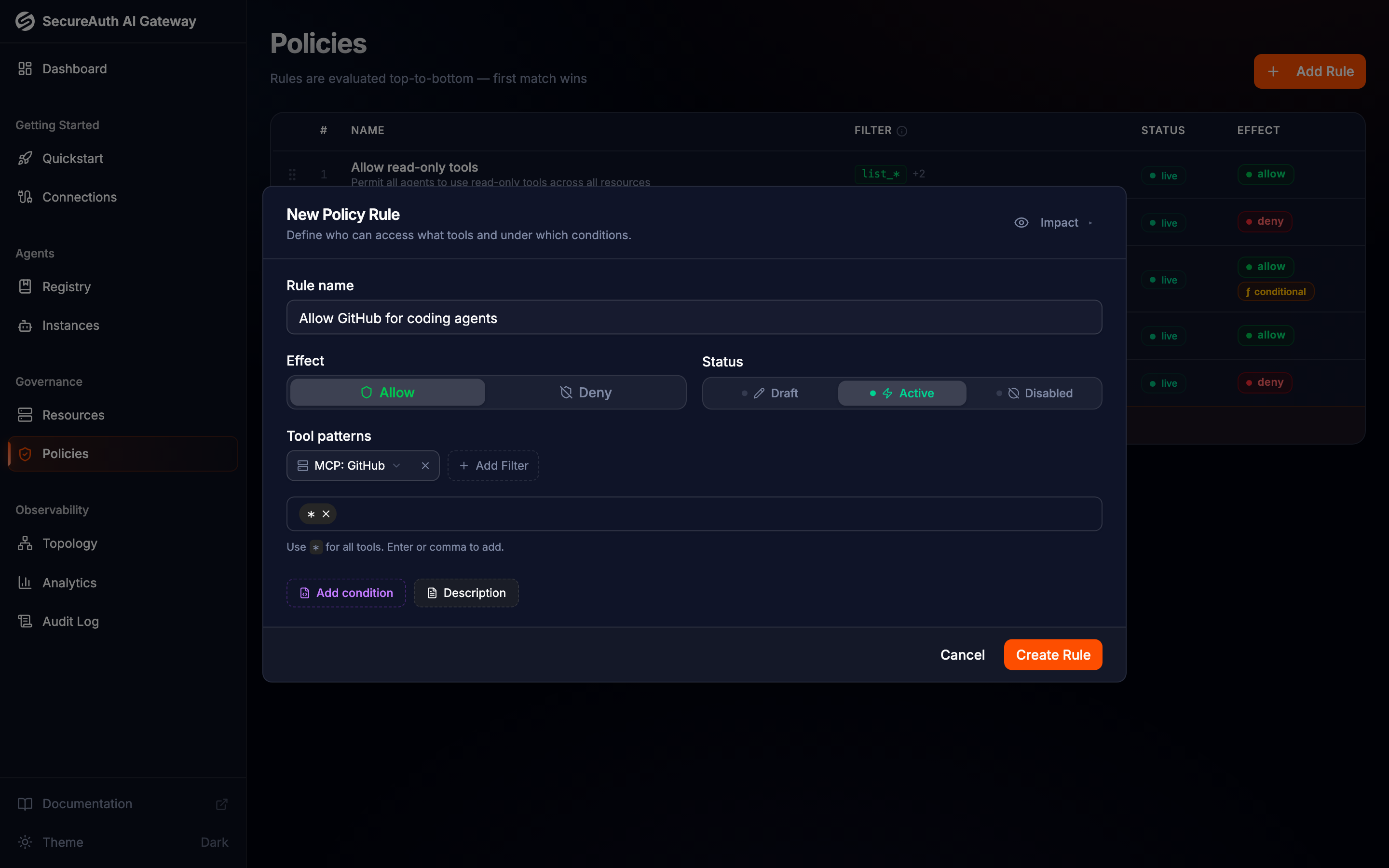
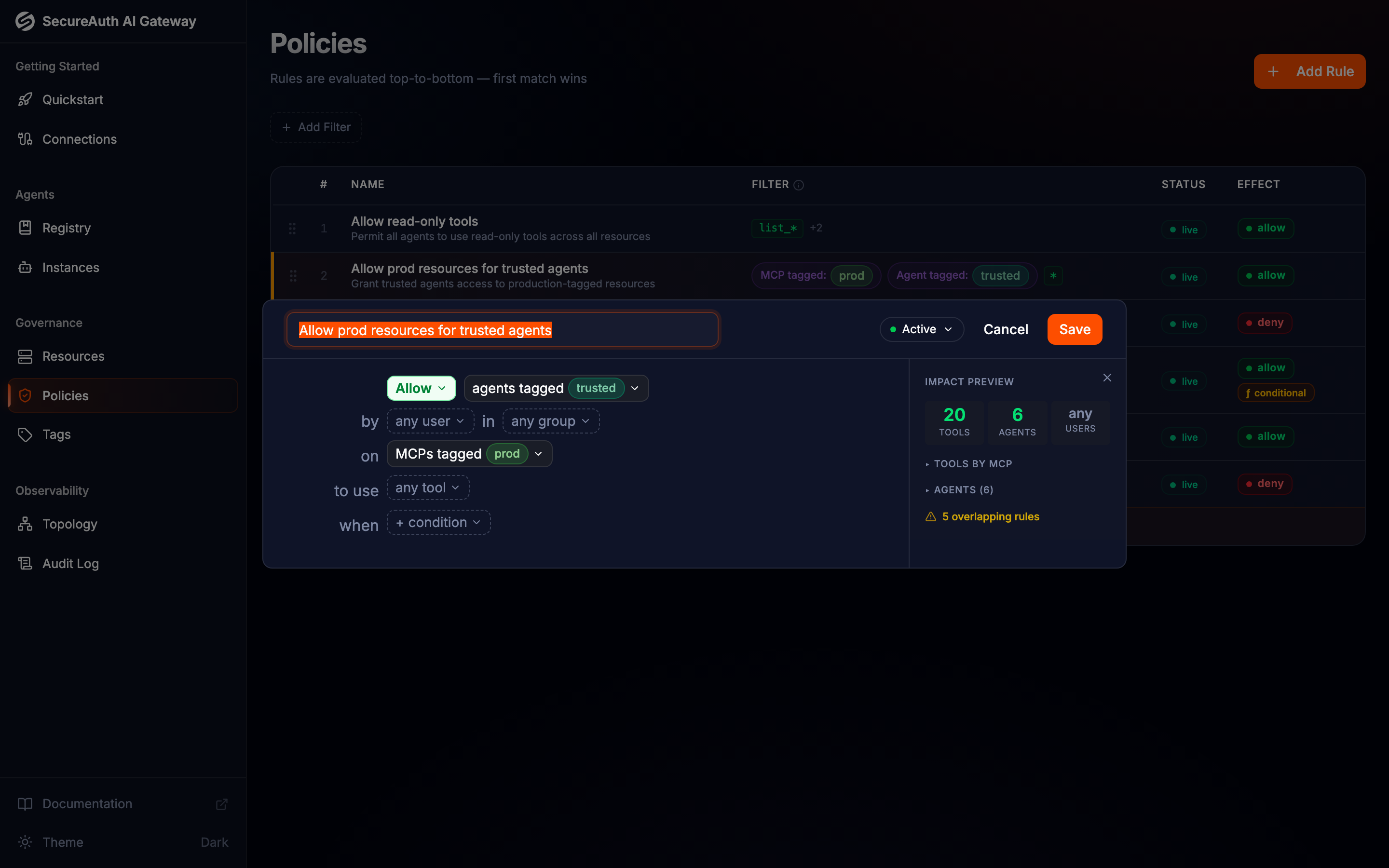
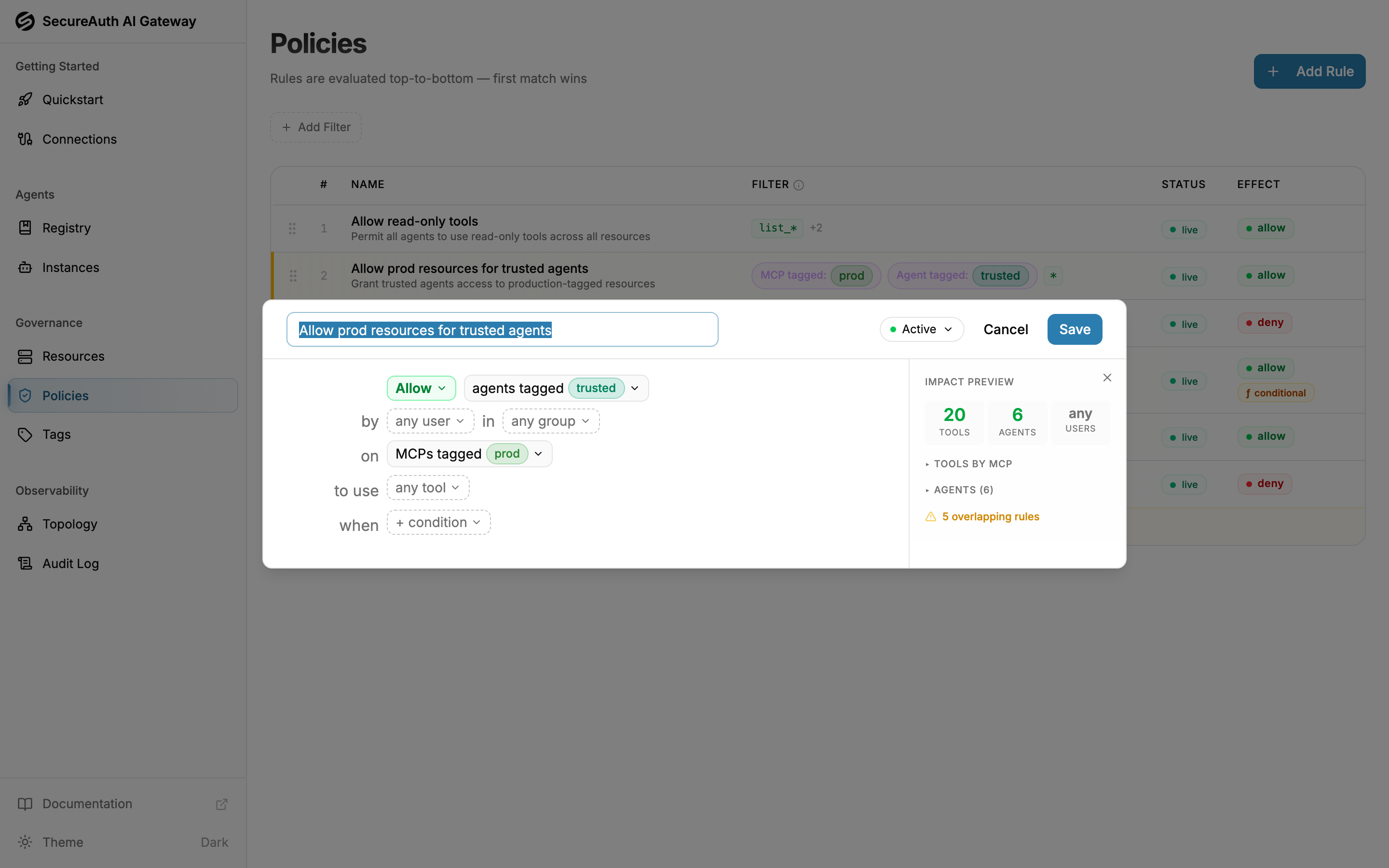
The editor reads as a sentence: an effect pill (Allow or Deny) followed by scope pills for the agent, user, group, MCP, and tools the rule applies to. Click a pill to choose what it matches; leave a pill on its placeholder (for example, "any agent") to keep that part a wildcard.
- Navigate to Policies and click Add Rule
- Name the rule (for example, "Allow read-only tools")
- Set the effect pill to Allow or Deny
- Build the scope with the agent, MCP, and tools pills (see Scope and Tool patterns)
- Set the status — start with Draft to test, switch to Active to enforce
- Click Create
New rules are added at the bottom of the list. Drag rows to reorder them.
Scope
Each scope pill narrows one dimension of the rule:
- Agent — restrict to specific agents (for example,
claude-codeorcursor) or to a single connected agent instance; an agent match applies to every instance of that agent, current and future - User and Group — restrict to specific users or OIDC groups
- MCP — restrict to tools from specific MCP servers
- Tools — the tool patterns the rule covers (see Tool patterns)
Within one pill, multiple selections are OR-ed — any one matches. Across pills, scopes are AND-ed — every pill you set must match for the rule to apply. A pill left on its placeholder acts as a wildcard.
Matching by tag
Instead of naming each entity, the Agent, MCP, and Tools pills can match by tag. Open a pill and pick a tag rather than — or alongside — a specific entity:
- Agent tag — matches every agent carrying the tag
- Resource tag — matches every MCP server carrying the tag
- Tool tag — matches tools carrying the tag
Prefer a tag when the rule is about a class of resources or agents (everything in production, every trusted agent) rather than one named entity. Tag matches stay current automatically: label a new server prod and every rule that matches the prod resource tag covers it immediately, with no policy edit. Within a pill you can combine concrete selections and tags — they're OR-ed together.
Tags are also available inside conditions as agent.tags, mcp.tags, and mcp.tool.tags — reach for those when a tag should gate the rule alongside other CEL logic rather than stand alone as a scope pill.
Tool patterns
Open the tools pill, type a pattern, and press Enter to add it. A rule matches a tool if any of its patterns match (OR logic).
| Pattern | Matches |
|---|---|
* | All tools |
send_* | Tools starting with send_ |
*_message | Tools ending with _message |
*_send_* | Tools containing _send_ |
read_file | Only the exact tool read_file |
When an MCP server scope is set, autocomplete filters to show only tools from that server.
Conditions
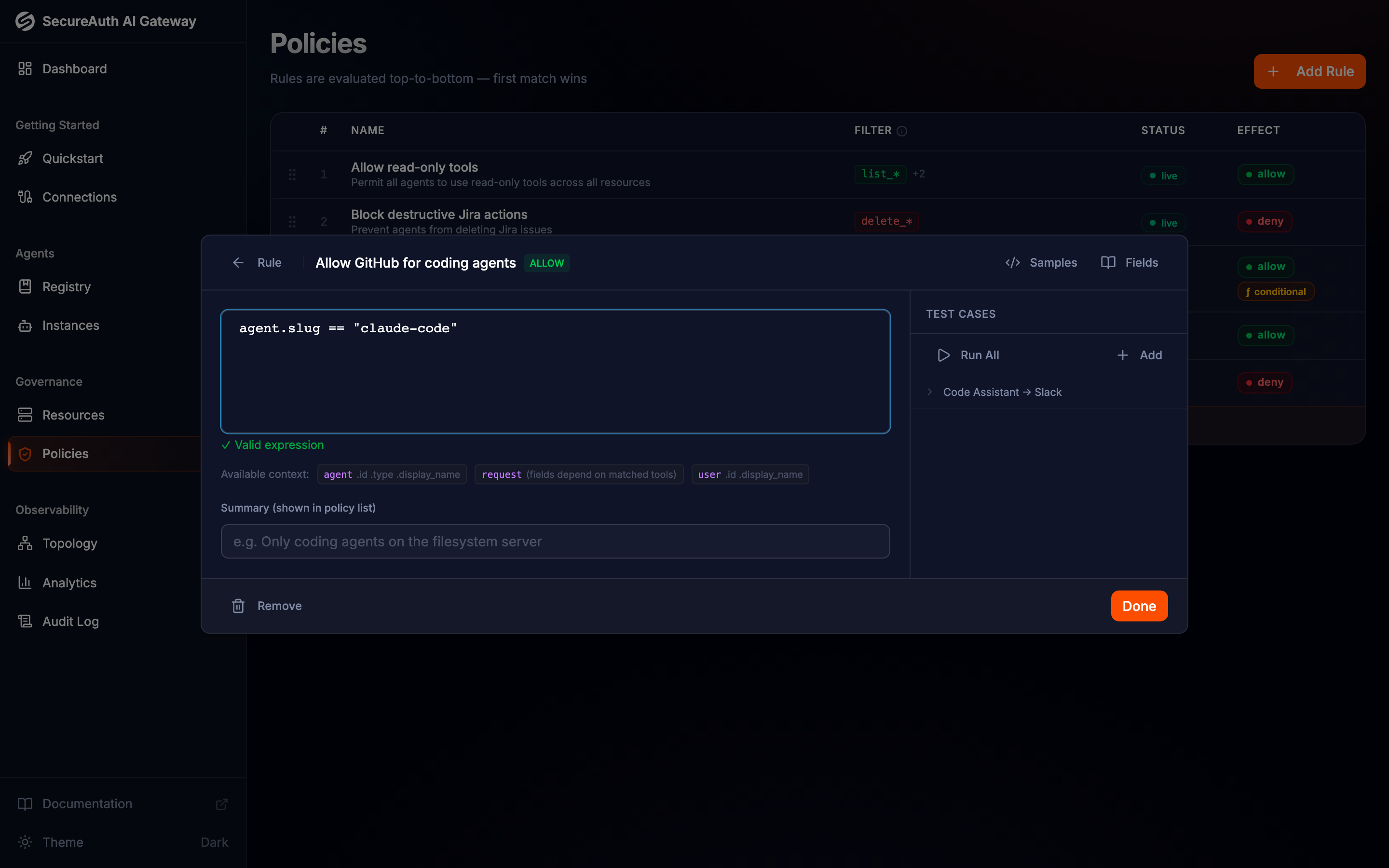
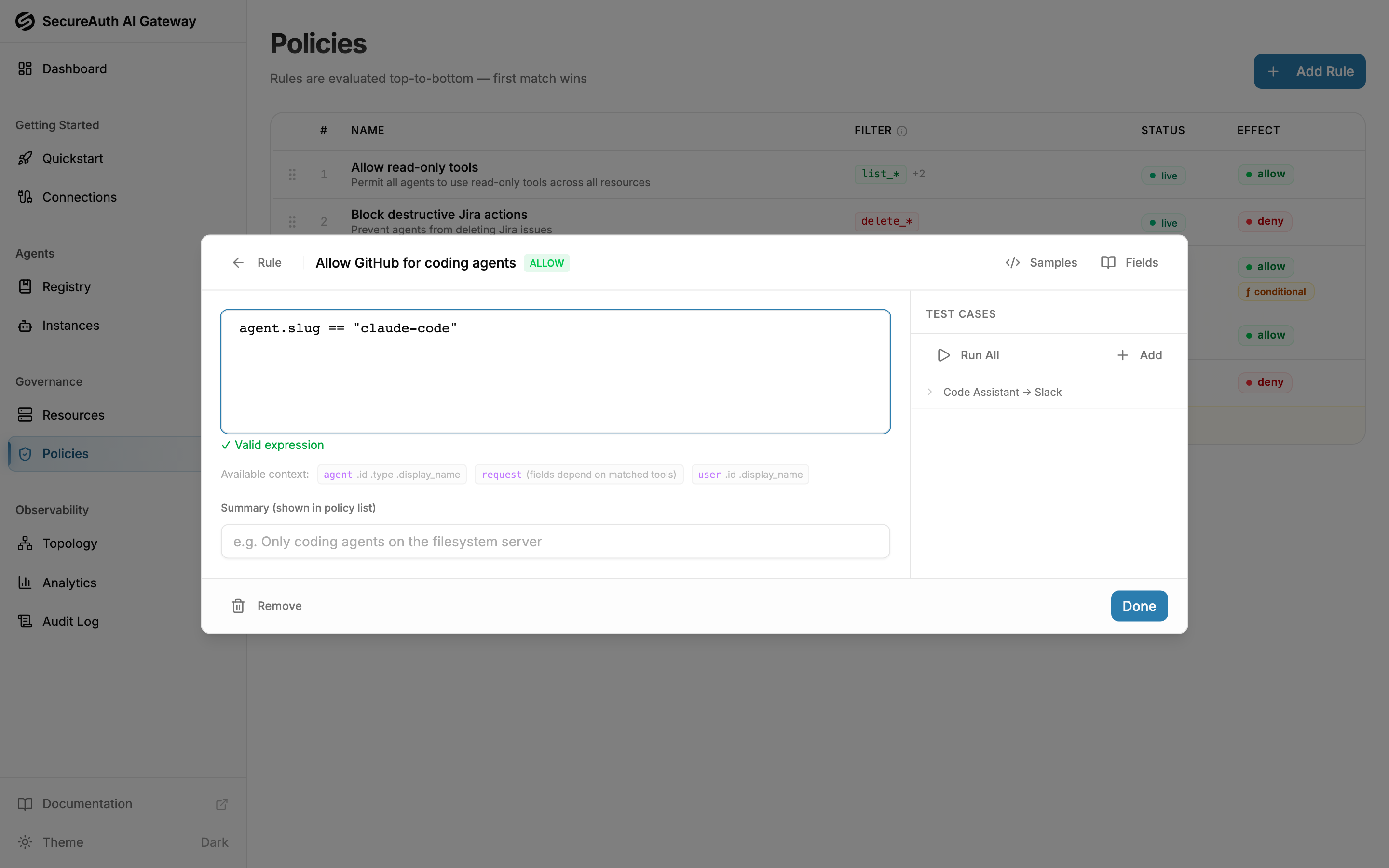
Click the + condition pill in the rule sentence to attach a CEL expression. The expression must return true for the rule to apply; if it errors at runtime, the rule is skipped.
The condition editor opens inline beneath the sentence, with syntax highlighting and autocompletion. Click Samples for pre-built expressions you can insert as a starting point, and expand the Tests panel to check the expression before activating the rule.
Available fields
| Field | Description |
|---|---|
agent.id, agent.name, agent.slug | Agent identity and type |
user.id, user.name, user.email | User identity |
user.groups (list<string>) | Groups the user is a member of |
agent.tags (list<string>) | Tag names assigned to the agent's slug — use with in |
mcp.id, mcp.name, mcp.slug | MCP server identity |
mcp.tags (list<string>) | Tag names assigned to the MCP server — use with in |
mcp.tool.name, mcp.tool.tags (list<string>) | Name of the tool being called, and tag names assigned to that tool |
request.args.<field> | A field from the live tool-call arguments — fields and types are inferred from each matched tool's schema. See Argument-level conditions. |
Operators
== != in && || .startsWith() .endsWith() .contains() .matches() has() .size()
List fields also support the CEL macros .exists(x, …), .all(x, …), .exists_one(x, …), .filter(x, …), and .map(x, …) — use these when membership alone (in) isn't enough, for example matching a prefix across every group.
Examples
| Expression | Description |
|---|---|
agent.slug == "claude-code" | Match Claude Code agents |
mcp.slug == "filesystem" | Match the filesystem MCP server |
agent.slug == "claude-code" && mcp.slug == "github" | Claude Code agents on GitHub only |
agent.slug in ["claude-code", "cursor"] | Match multiple agents |
agent.name.startsWith("prod-") | Agents with names starting with prod- |
user.name != "service-account" | Exclude a specific user |
"admin" in user.groups | Match users in the admin OIDC group |
user.groups.exists(g, g.startsWith("eng-")) | Match users in any eng-* group |
"pii" in mcp.tags | Match servers tagged pii |
"sensitive" in mcp.tool.tags | Match tools tagged sensitive |
has(agent.slug) | Only match when an agent slug is set |
Testing conditions
Expand the Tests panel below the condition editor:
- Test cases are seeded automatically from your connected agents and MCP servers
- Each case evaluates live as you edit — the panel header shows how many pass
- Add your own cases, and edit a case's context, to cover specific inputs
- Set the test user to any name, email, and set of groups — including ones that don't exist yet — so you can check group-gated rules like
"admin" in user.groupsbefore anyone is onboarded
Test conditions before activating a rule to verify they work as expected.
Argument-level conditions
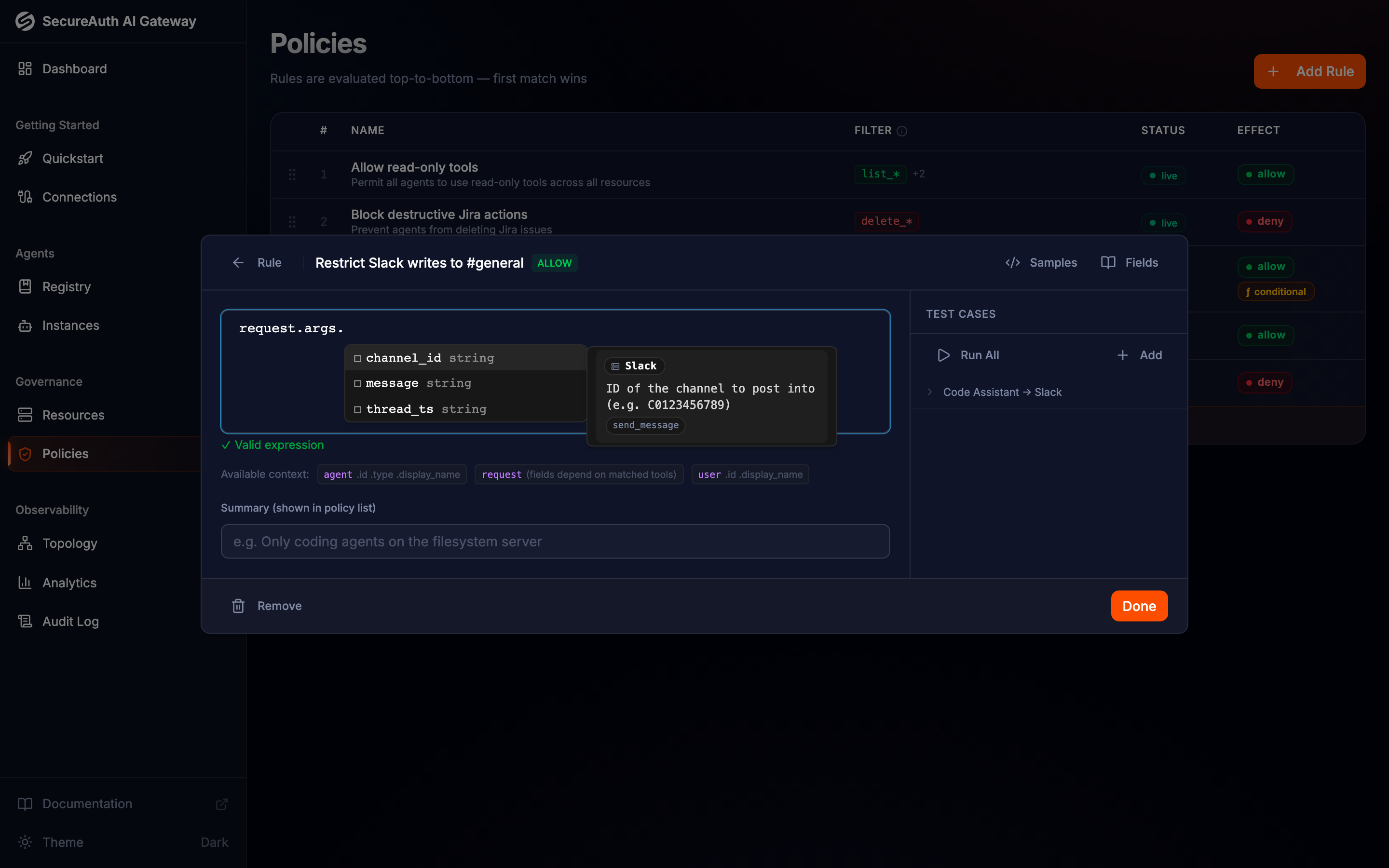
agent, user, and mcp decide who can call which tool. The request.args variable goes one step further — it decides what payload the agent is allowed to send. Every field on every matched tool's input schema becomes part of the policy language, evaluated on each live tool call.
This turns the gateway from a tool-level firewall into a per-call authorization layer. The decision isn't just which tool the agent is allowed to call — it's whether the agent can call this tool with this channel, in this thread, from this user. Without writing custom integration code, you can enforce things like:
- Slack channel allowlist —
mcp.slug == "slack" && request.args.channel_id in ["C_GENERAL", "C_DEVREL"] - Pin agents to your org —
request.args.owner == "acme-corp" - Protect main branch —
!has(request.args.ref) || request.args.ref != "refs/heads/main" - Sandbox filesystem access —
request.args.path.startsWith("/workspace/") - Block destructive SQL —
!request.args.query.matches("(?i)\\bdrop\\b") - Keep email internal —
request.args.to.endsWith("@acme.com") - Jira project allowlist —
request.args.project_key in ["ENG", "INFRA"] - Combine with agent identity —
agent.slug == "claude-code" && request.args.channel_id == "C_GENERAL"
A condition that references a missing field — for example, request.args.owner on a tool whose schema has no owner — evaluates to an error. Allow rules with an erroring condition fall through to the next rule (often default-deny); deny rules with an erroring condition still deny, fail-closed. Combine with has() (has(request.args.owner) && request.args.owner == "acme-corp") when the field is optional on some tools.
Authoring with autocomplete
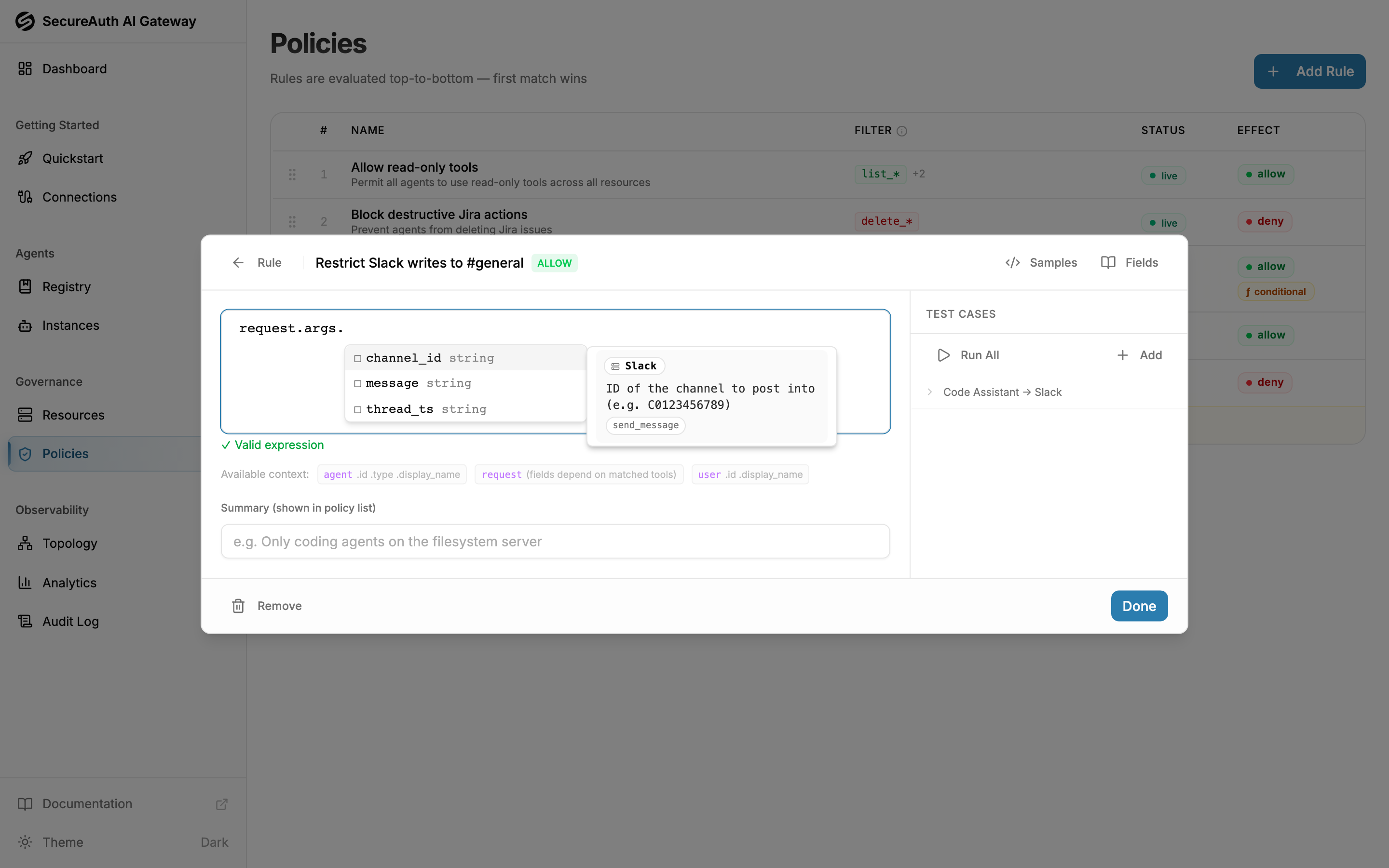
The CEL editor reads the input schemas of every tool matched by the rule's scope and surfaces those fields as you type request.args.. The dropdown is more than a list:
- Coverage chips on each field show how many of the matched tools define it. A green
in allchip means safe to reference unconditionally; an amber3 / 7chip means the field is partial and you should guard it withhas(). A red chip means the field is rare across the scoped tools. - Per-MCP info panel groups occurrences by MCP server, with the description from each tool's schema and the tools that define the field. When the same field name means different things on different MCPs, this is how you spot it.
- CEL string methods (
.startsWith(),.endsWith(),.contains(),.matches(),.size()) autocomplete on string-typed leaves, so common shapes like prefix and regex checks are one keystroke away. - List macros (
.exists(),.all(),.exists_one(),.filter(),.map()) and.size()autocomplete on list-typed fields —user.groups, tag lists, and array-typedrequest.argsfields — with the element variable pre-filled. And if you slip and write.field access on a list (user.groups.admin), the validator points you toinor a macro instead of a parser error.
Inside a macro body, the condition editor knows the type of the loop variable and autocompletes its methods — type g. after user.groups.filter(g, and it offers the string methods (startsWith, contains, …). For lists of objects (such as some request.args fields), it offers the object's fields.
Completion follows chains too — after user.groups.filter(g, g.size() > 0). the
editor offers the list macros again, and inside the next macro body the loop
variable is typed from the filtered list.
Narrow the rule's MCP and tool-pattern scope before writing the condition. The tighter the scope, the more focused the autocomplete and the more meaningful the coverage chips.
How it's evaluated
Argument-level conditions evaluate at tool-call time, not at discovery time. That means:
- At discovery time (when an agent connects and lists its tools), a tool that's conditionally allowed shows up to the agent — agents see the tool exists, but each call is still gated. The audit log records these as
conditionally_allowed_toolson theagent.connectedevent so you can see exactly which tools are gated for each connection. - At call time, the gateway evaluates the condition against the actual arguments the agent sent. If the condition is
false, the rule is skipped (next rule wins). If the condition errors (for example, references a field the tool doesn't have), behavior is fail-closed — allow rules are skipped, deny rules still deny. If no rule allows the call, it is denied.
Impact preview
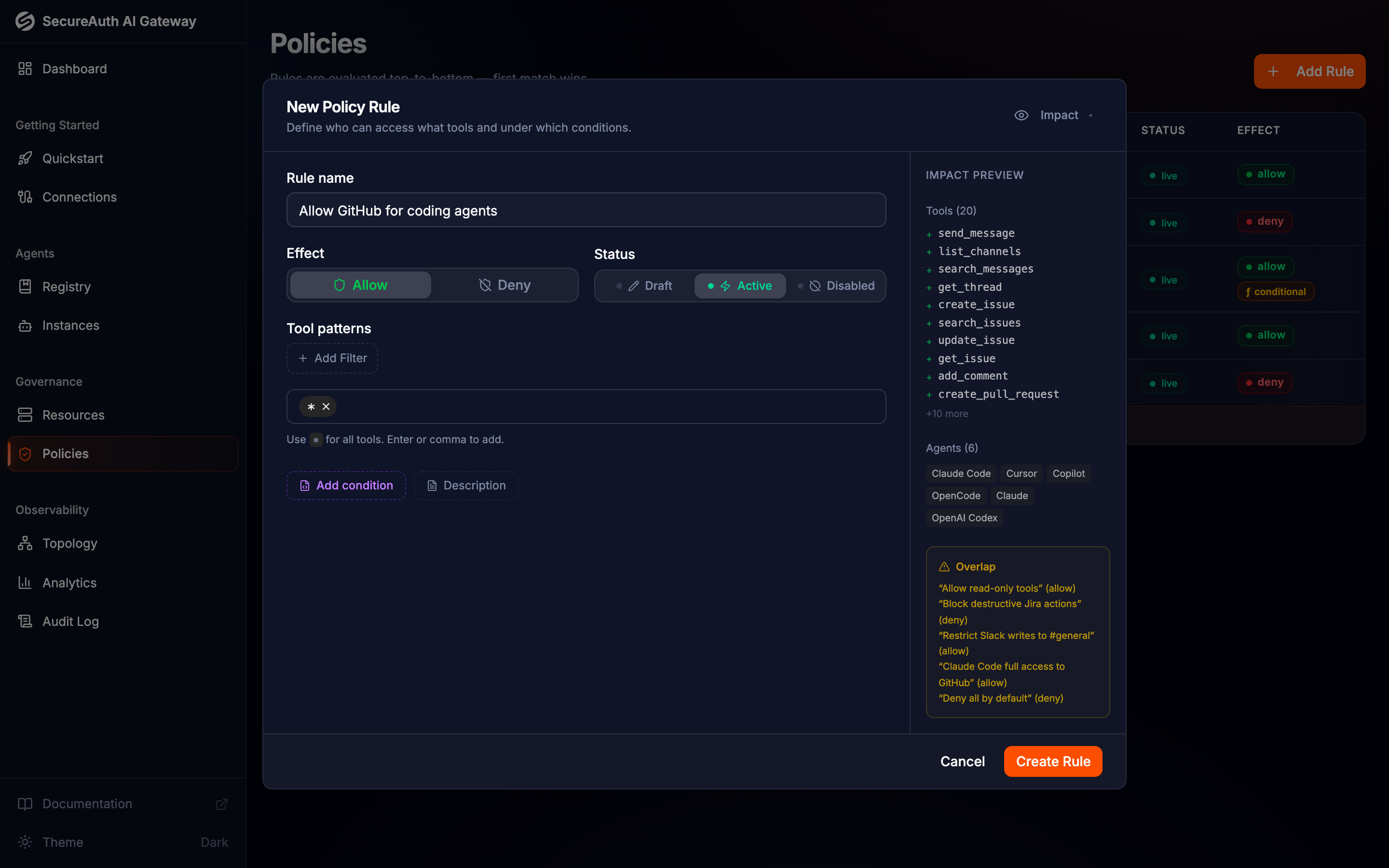
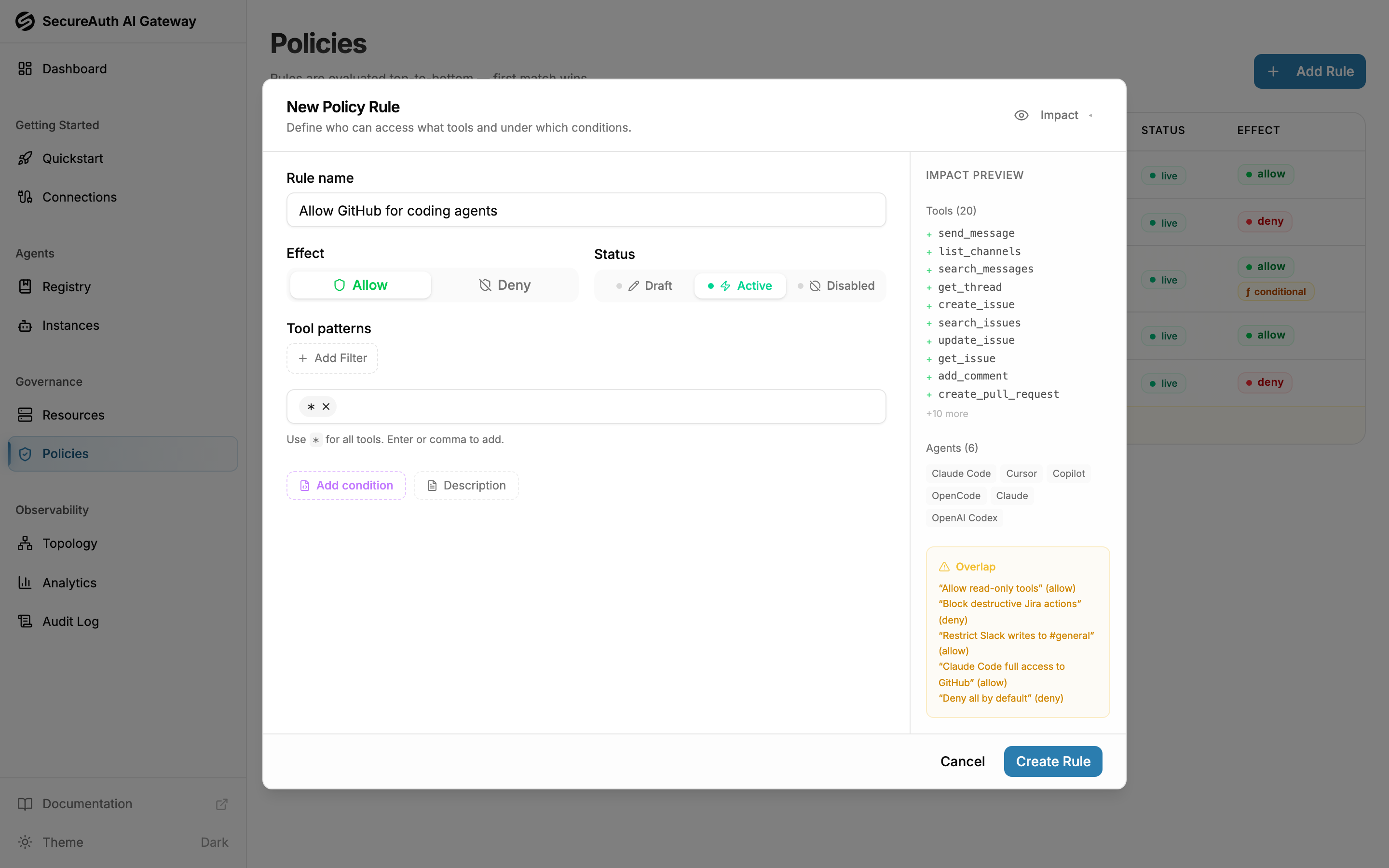
The Impact panel sits beside the rule sentence and updates live as you edit:
- Tools — how many tools match the rule, with a per-MCP breakdown
- Agents — how many agents are affected
- Overlap — warnings when existing rules already cover the same tools
It also flags when a rule is still in draft and won't be enforced yet. Use the toggle on its edge to collapse or reopen it.
Rule order
Rules are evaluated top-to-bottom, so order matters. Drag rows in the table to reorder.
- Put more specific rules above more general ones
- A rule at position 1 is checked first — if it matches, all later rules are ignored
- Example: a deny rule for
delete_*at position 1 blocks deletes even if an allow-all rule exists below
Common patterns
Allow-then-restrict
Start with an allow-all rule at the bottom, then add deny rules above it for specific tools or servers.
- Position 1: Deny —
delete_*,drop_*on postgres-prod - Position 2: Allow —
*
Deny-then-allow
Rely on the default deny (no catch-all rule). Add targeted allow rules for specific agents and tools.
- Position 1: Allow —
list_*,get_*,search_*for all agents - Position 2: Allow —
*scoped to agentclaude-codeon GitHub
Read-only access
- Tool patterns:
list_*,get_*,search_*,read_*,describe_* - Permits browsing and querying while blocking writes and deletes
Agent-specific access
Scope rules to grant different access levels by agent:
- Position 1: Allow
*scoped to agentclaude-codeon GitHub (full access for Claude Code) - Position 2: Allow
list_issues,list_pull_requestson GitHub (read-only for everyone else)
Argument-level guardrails
Allow a powerful tool, but only with arguments you trust. The rule above the open allow blocks the dangerous shapes; the rule below lets everything else through.
- Position 1: Deny —
create_pull_requeston GitHub whenrequest.args.base == "main"(no agent writes to main) - Position 2: Deny —
send_messageon Slack when!(request.args.channel_id in ["C_GENERAL", "C_DEVREL"])(channel allowlist) - Position 3: Allow —
*for the agents that need broad access
See Argument-level conditions for the full menu.