Credential modes
How an organization chooses which OAuth app the gateway uses for a catalog resource
When you install a catalog resource, the gateway needs an OAuth app to start each user's sign-in flow. Credential mode is how your organization tells the gateway which OAuth app to use. The choice happens once, at install time, and is fixed for the life of that resource.
This is distinct from Connections, which are how each end user links their personal account to the service. Modes determine which OAuth app the gateway uses; connections are which user signs in through that app.
The modes
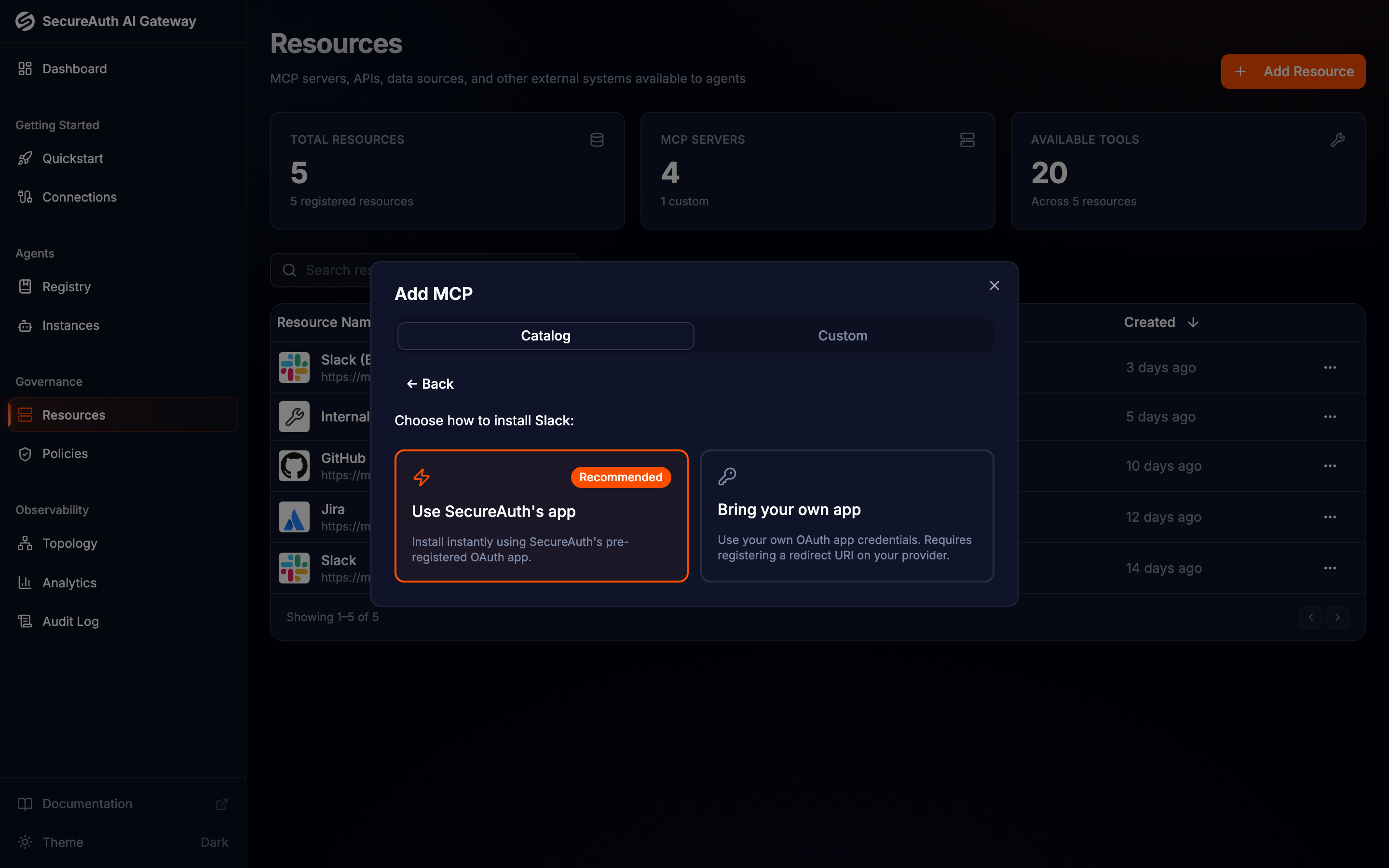
Use SecureAuth's app — embedded
The gateway uses a SecureAuth-managed OAuth app that is pre-registered with the provider. Install instantly — no setup on your side. Pick this when you want the fastest path to a working install and you are comfortable with users signing in to a SecureAuth-branded OAuth consent screen.
Per-org dynamic registration — DCR
The gateway registers a fresh OAuth client with the upstream provider on your organization's behalf, using Dynamic Client Registration (RFC 7591). No SecureAuth-shared app, no manual app registration on your side — the gateway handles it during install. Pick this when the provider supports DCR and you want per-org credential isolation without operating an OAuth app yourself.
Bring your own app — BYO
You register an OAuth app with the upstream provider yourself, then paste the resulting client ID and client secret into the gateway. Each user still signs in through that app, but it is owned and controlled by your organization.
Pick BYO when you need:
- Compliance / data residency — credentials and consent live entirely under your provider tenant
- Custom branding — users see your organization's name on the consent screen, not SecureAuth's
- Dedicated rate limits — your app has its own quota at the provider
- Audit isolation — provider-side audit logs attribute API calls to your app, not a shared one
When you'll be asked to choose
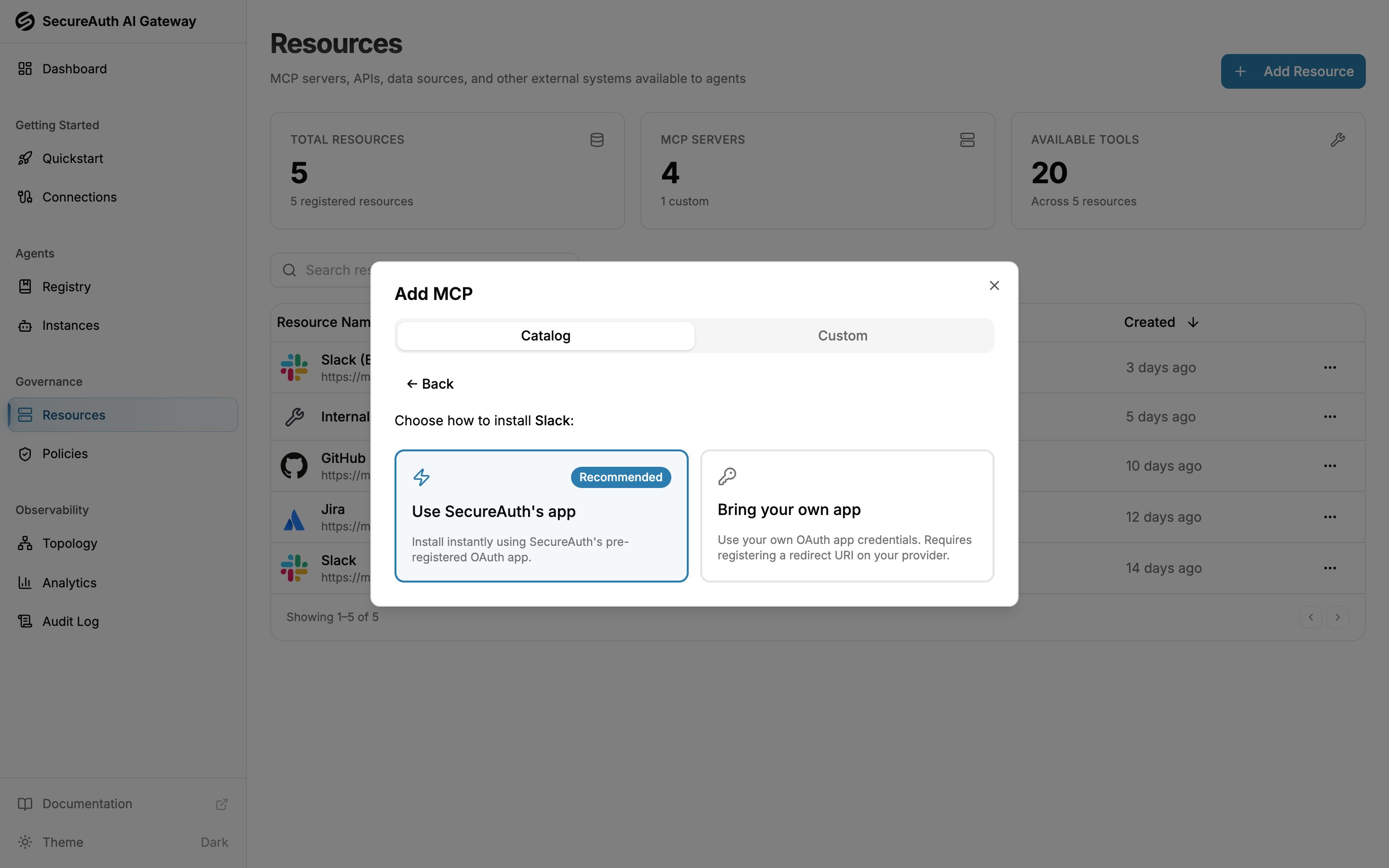
When a catalog resource supports more than one mode, the install dialog shows a picker. SecureAuth's app is the recommended default when available. Resources that support only one mode skip the picker and install directly in that mode.
BYO setup
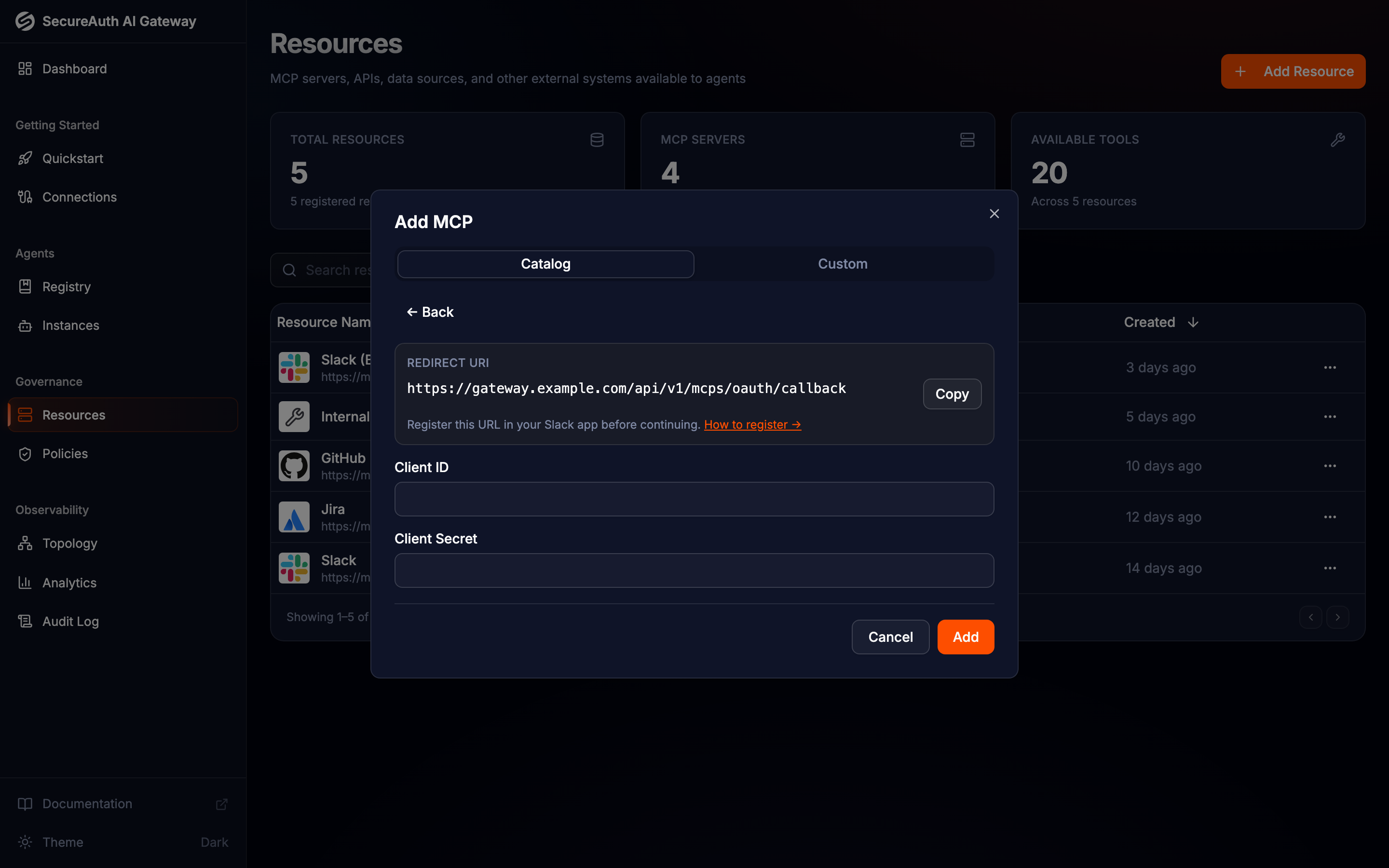
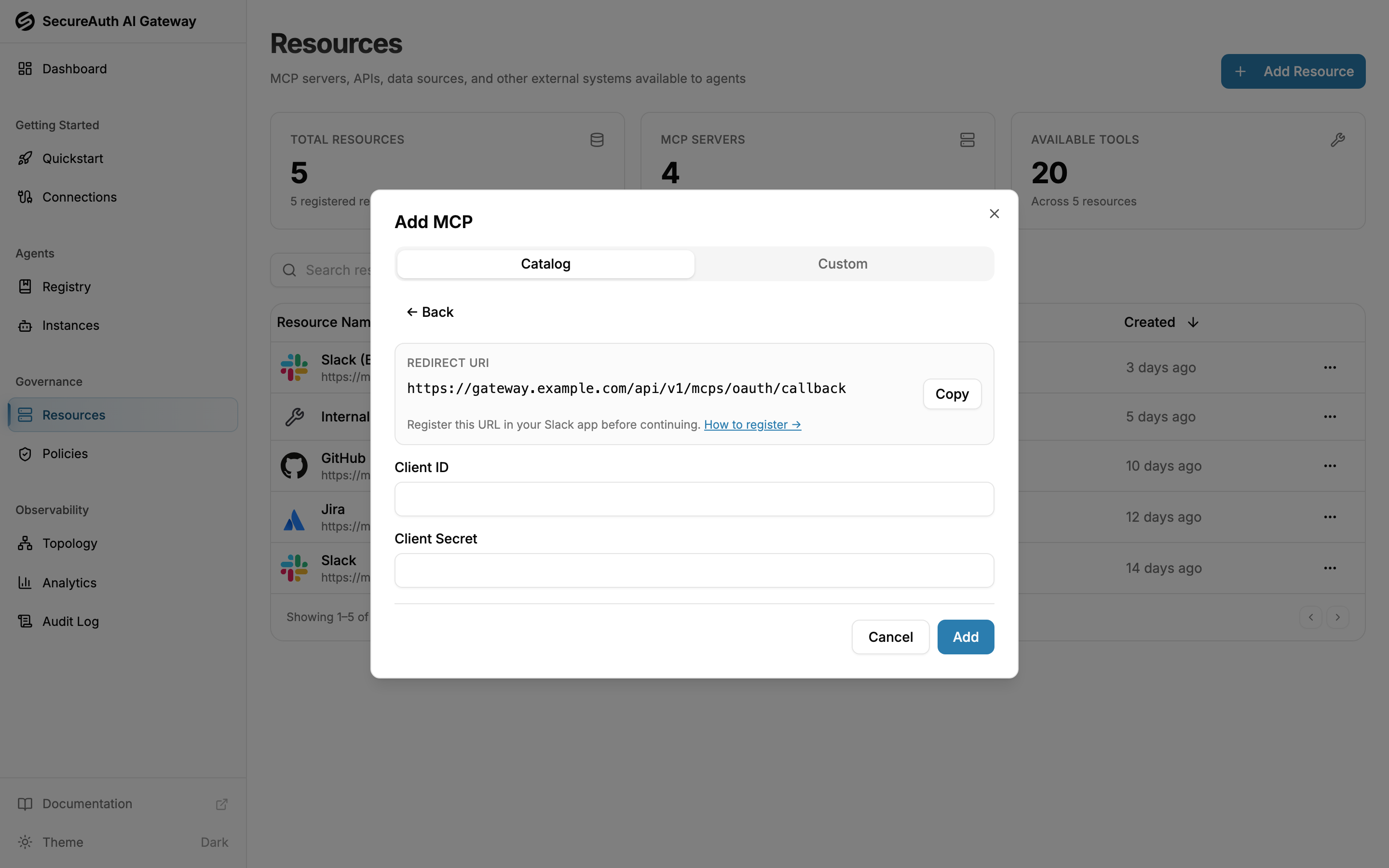
When you pick Bring your own app, the gateway shows a redirect URI and asks for your OAuth app's client ID and secret.
Steps:
- Open your provider's OAuth app registration page (the form links to it).
- Create a new OAuth app and add the redirect URI shown in the gateway as an allowed callback. Copy it exactly — most providers reject installs that don't match character-for-character.
- Copy the resulting client ID and client secret from the provider into the gateway form.
- Click Add to install.
Scopes are still managed by the gateway in BYO mode — you do not pick them by hand. The gateway uses the scope list defined in the catalog entry, and any updates to that list flow through to the next OAuth flow without re-installing.
Rotating BYO credentials
Resources installed in BYO mode show a Credentials card on the resource detail page. Use it to update the client ID or rotate the client secret without re-installing the resource. Existing user connections continue to work as long as the new credentials sign users in through the same provider app.
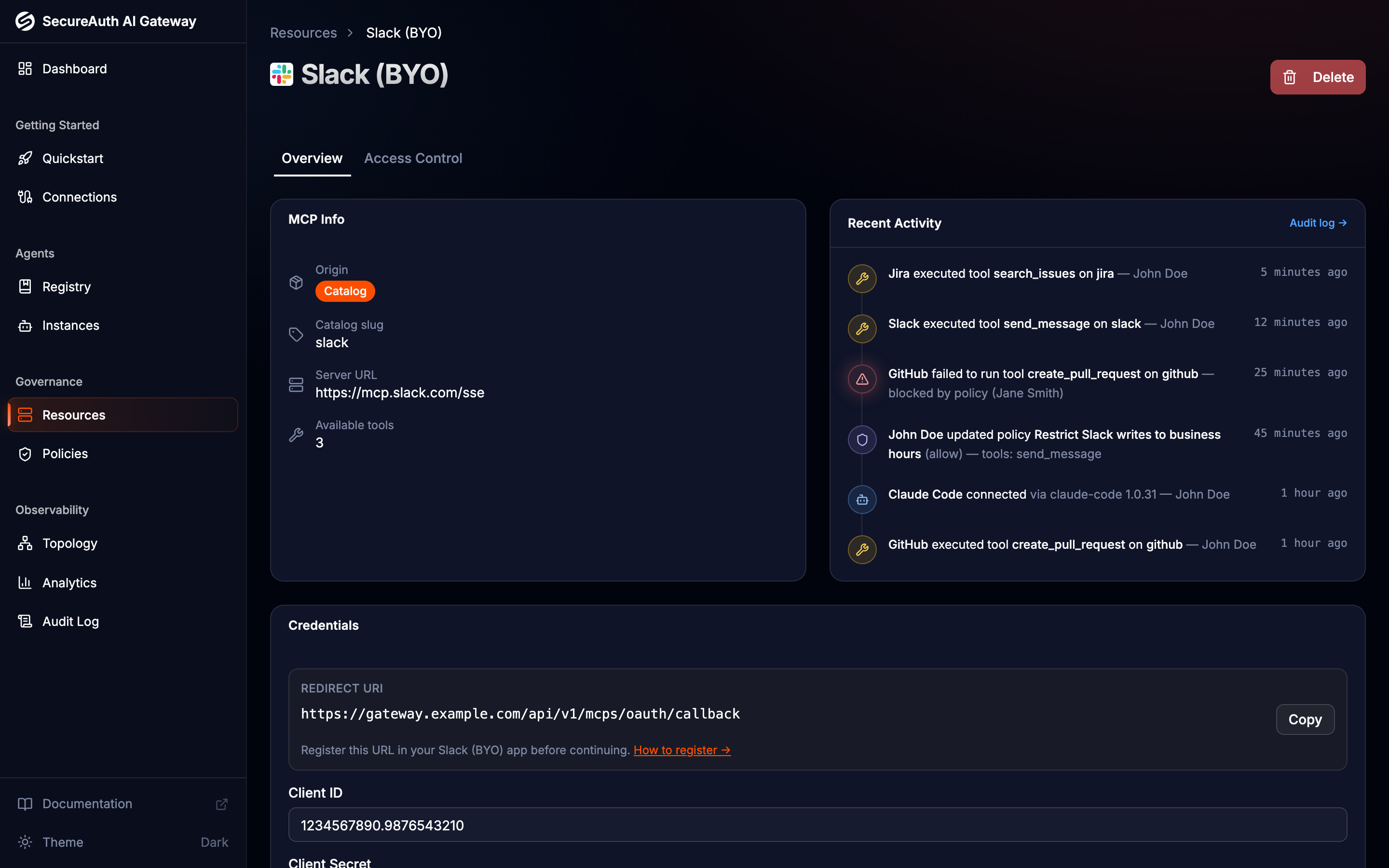
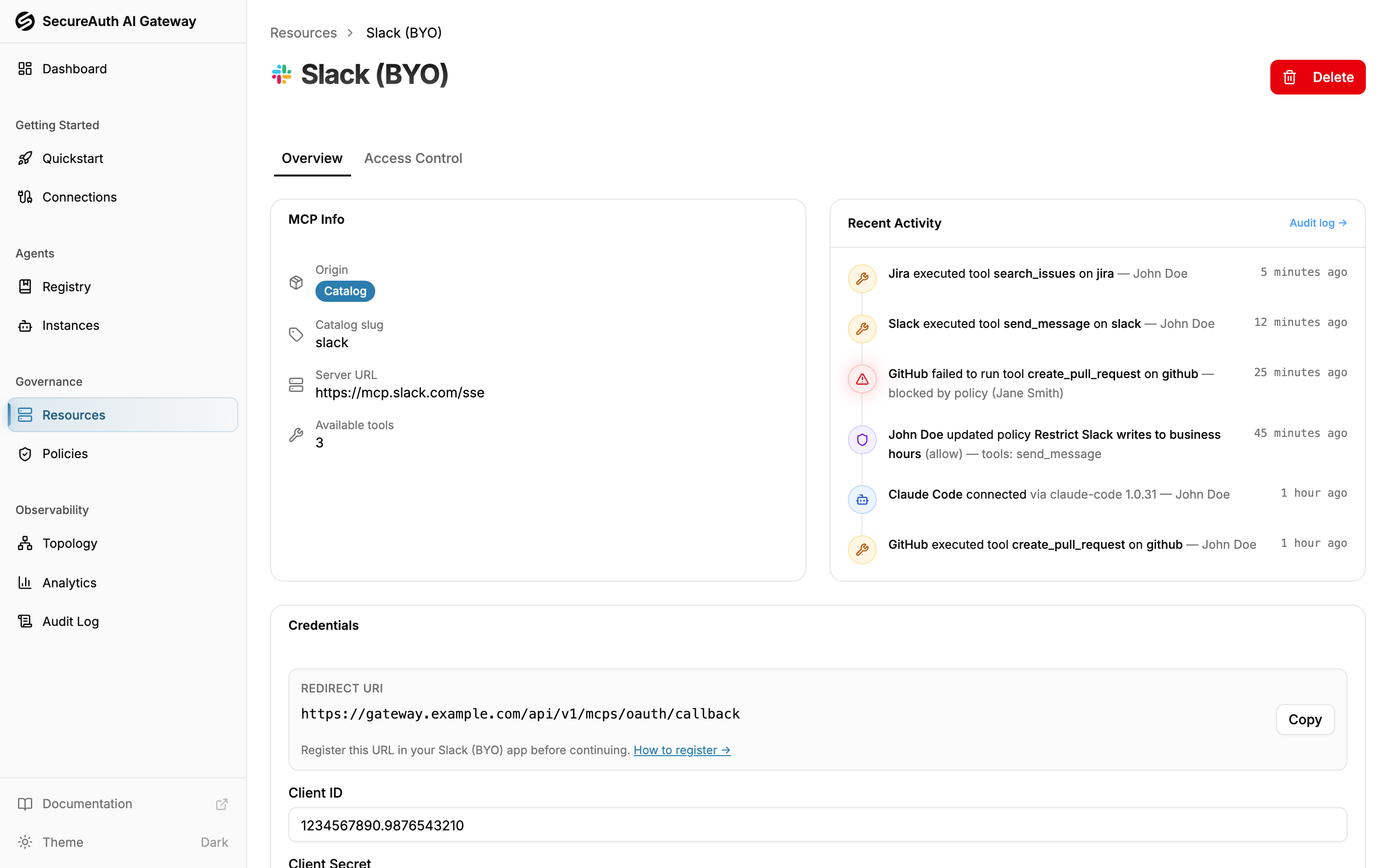
Leave the secret field blank when updating to keep the existing secret. The gateway never returns stored secrets in API responses.
Mode is fixed after install
How a resource is set up at install time is fixed for its life — for example, you cannot switch from SecureAuth's app to your own without re-installing. Switching modes would invalidate existing user connections.
To change modes, delete the resource and add it again. Users will need to reconnect their accounts.
Custom resources (those you add via the Custom tab rather than the catalog) do not use modes — you configure their authentication directly when adding them.