Connections
Connect your own accounts to the services your agents use, so each agent acts as you there.
In the console: Agent Authority › Connections
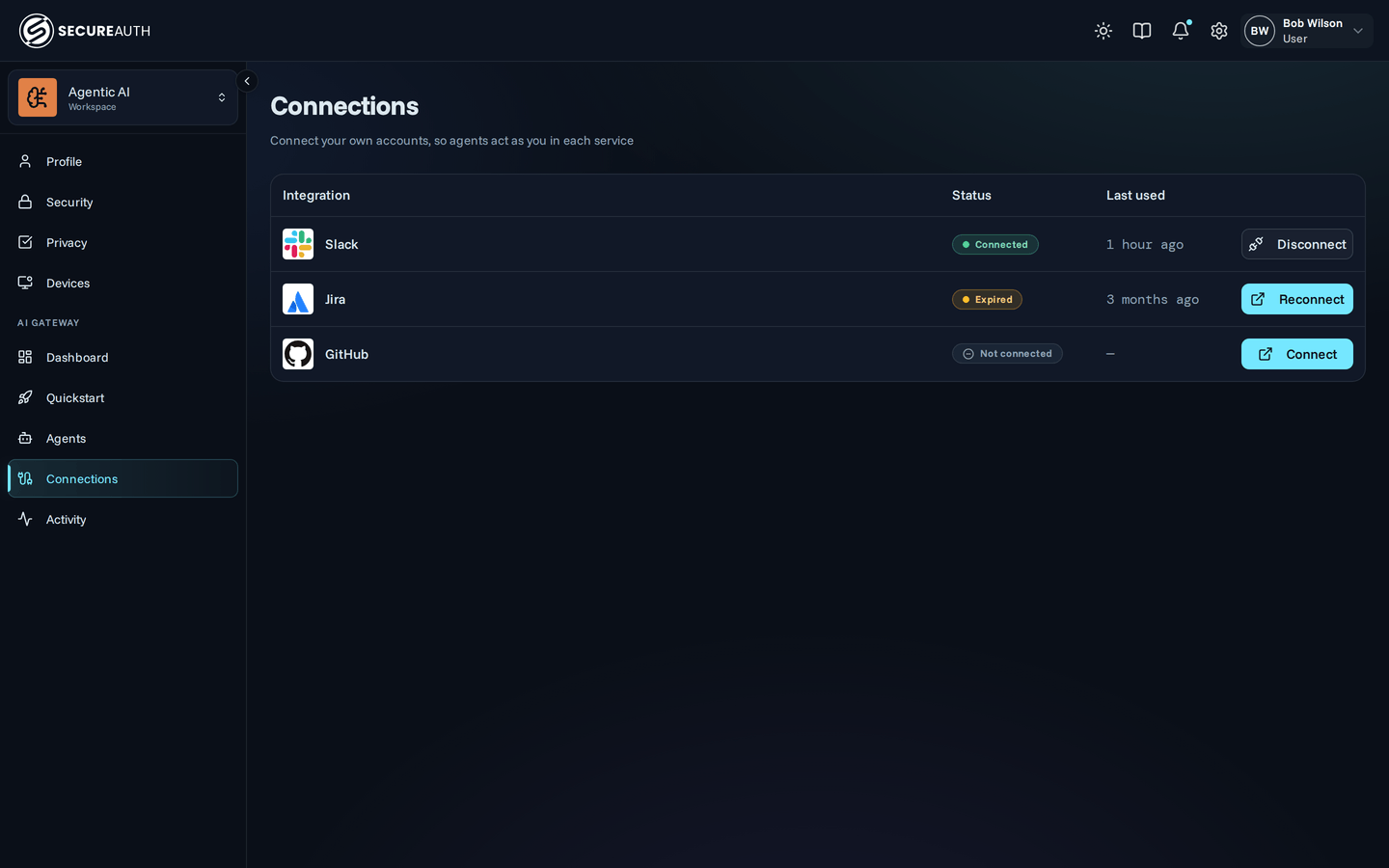
This screen is in the user portal, so it shows what you see when you sign in as a user, not as an admin. Some services need your own account before your agents can use their tools. Here you connect those accounts, or sign in through your organization, and see the state of each connection.
Your connections
The services that need a connection from you.
| Column | Shows |
|---|---|
| Integration | The service's name and description |
| Status | Connected, Expired, Revoked or Not connected. An enterprise-managed connection also shows Enterprise-managed. A service you sign in to through your organization, and haven't yet, shows Signs in through your organization. |
| Last used | When your agents last used the connection |
| (actions) | Connect, Disconnect, Reconnect or Reset, depending on the status |
With nothing to connect, the section shows an empty state. When the catalog is on, it points you to Browse below.
Browse
This section appears only when your organization has the mcp_requests feature flag.
It lists the catalog's services as cards, with a Search connectors… box and category chips, starting with All.
Each card shows a status badge when it has one:
- Connected – your account is connected.
- Enabled – your organization added the service and it needs no account from you.
- Requested – you asked for the service to be added.
Actions
- Connect – sends you to the service to sign in, then back to this screen.
- Reconnect – signs you in again to a connection that expired or was revoked.
- Disconnect – removes your connection, after you confirm. Your agents lose access to that service's tools until you reconnect.
- Reset – for an enterprise-managed connection, removes your current sign-in. A new one is issued the next time your agents use the service.
- Request – on a catalog card, asks for a service your organization hasn't added yet.
- Withdraw – takes back a request you made.
A link to this screen that ends in ?connect= and a service ID starts Connect for that service when the page opens.
Permissions
The Connections menu item needs manage_connections.
Every action on the screen needs it too.
Related
- Connections – how per-user connections work
- End-user guide – the end user's guide to the portal