Connections
Agents call each service with the requesting user's own access token, never a shared account
When an agent calls a service such as Slack for you, the service has to know whose account the call runs as. In SecureAuth Agent Authority, a connection links each user's own account to a service that needs one, so the gateway makes the agent's calls with that user's own access token, not a shared account. Usually each user signs in to the service once to create it; with enterprise-managed authorization, your organization creates it for them.
How connections work
- An agent tries to use a tool that requires authentication (for example, sending a Slack message)
- The gateway returns a link prompting the user to connect their account
- The user clicks the link and completes the OAuth flow with the service provider
- The gateway stores the credentials securely, encrypted at rest, and uses them for future requests
Once connected, all subsequent requests to that service use the user's credentials automatically (no re-authentication required). This exchange only happens for calls a policy already allows. A denied call never reaches the upstream service, so no connection is needed.
Per-user isolation
Connections are strictly per-user. An agent acting for one user cannot access another user's connections. This means:
- Each user only has access to the data their own account can see
- Actions are attributed to the correct user in the upstream service
- Revoking a connection only affects that user
Managing connections
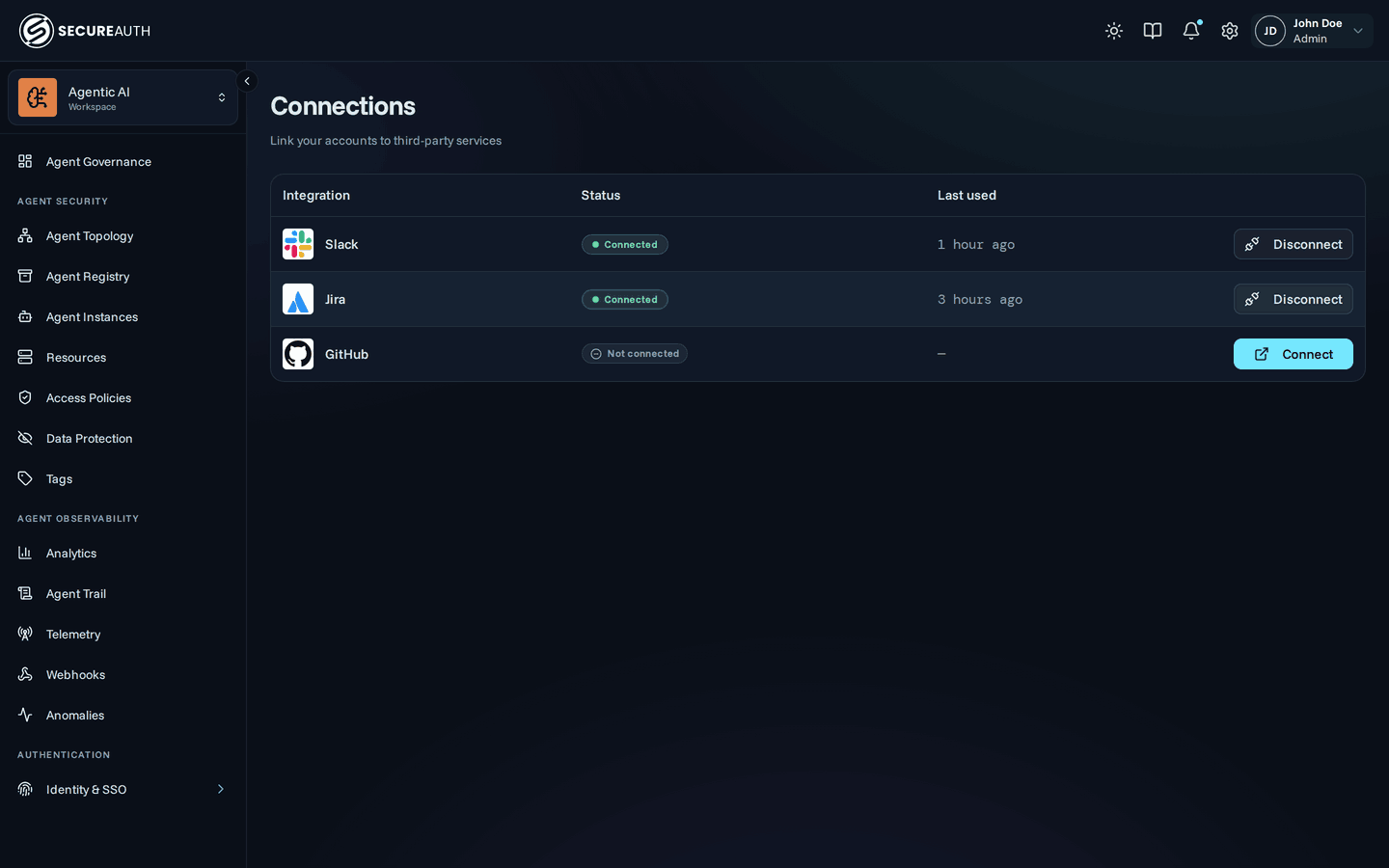
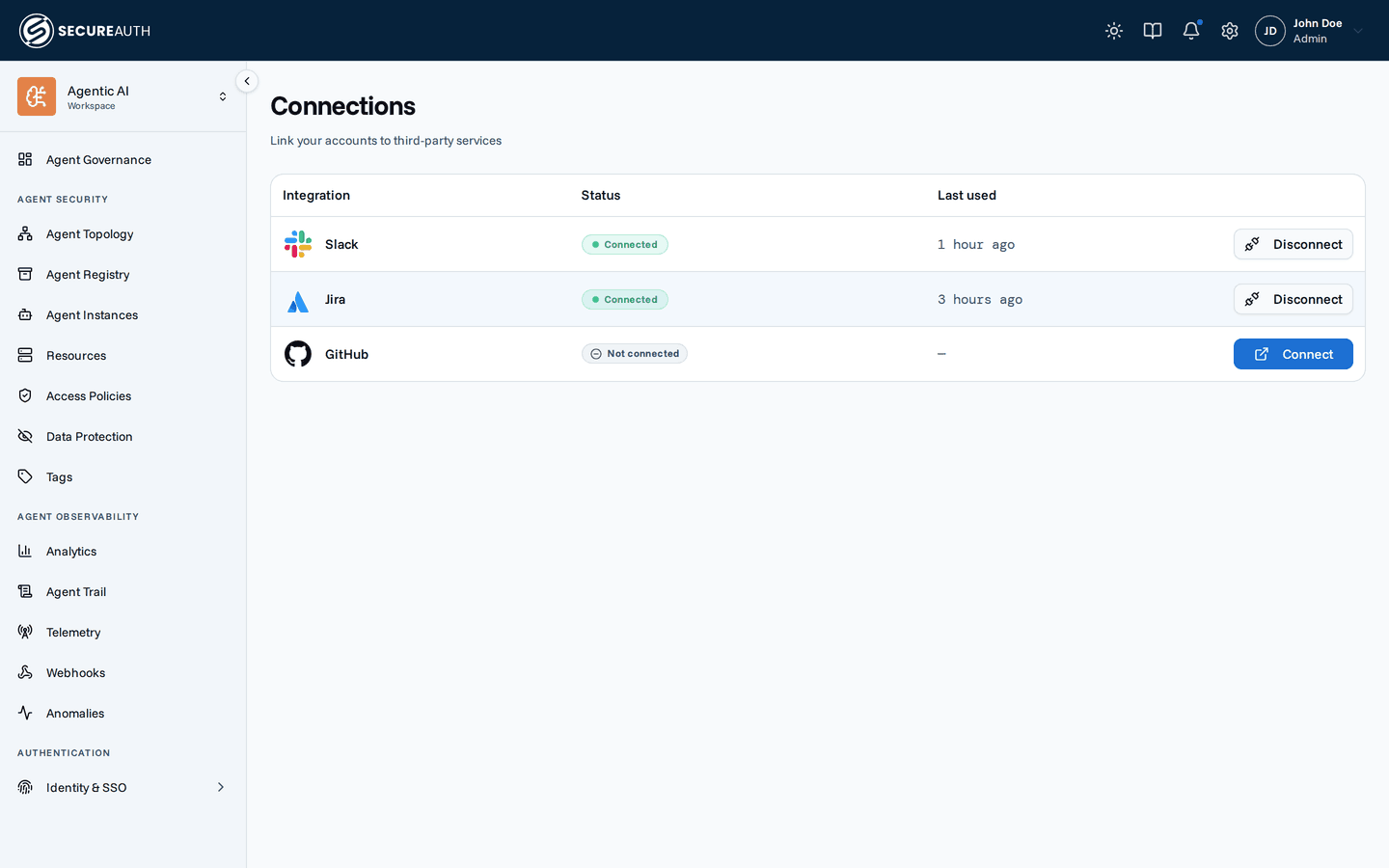
Navigate to Connections in the dashboard to see the services that require a connection, each with its status and when it was last used.
- Connect – click to start the OAuth flow and link your account
- Disconnect – removes the connection and its stored credentials outright
Both actions need the manage_connections permission.
Without it the page is read-only and neither button appears.
For admins: sharing and verifying
Connections are per-user, so each person links their own accounts. Two admin actions make that easier to hand off and to check:
- Copy portal link – in the Agents & NHIs header, copies the URL of the user portal so users know where to go to connect their agents. See Share the portal link.
- Connect – on a resource's detail page (Tools & Services → your MCP) opens that resource's connect flow in the user portal and starts it right away, so you can confirm authentication works and tools populate before handing the resource to users. It appears only for resources that need a per-user OAuth connection.
Connection statuses
Most of the time the page shows each service as Connected or Not connected. Two things keep it that simple:
- Tokens refresh on their own. The gateway renews expiring access tokens in the background and retries once if a provider rejects a token mid-call, so a working connection keeps working without you signing in again.
- Disconnecting removes the connection. It leaves no lapsed record behind. The credentials are deleted and the service goes back to Not connected.
Two more statuses need your attention: Revoked and Expired.
Revoked. Sometimes the service itself cancels the app's access. You might revoke it in the provider's own settings. An admin at the service provider might remove it. The refresh token might stop being accepted. In each case the gateway marks the connection Revoked. It also records a connection-revoked audit event.
Expired. An admin can limit how long a connection stays valid (see Connection lifetime). The gateway marks the connection Expired once it passes that limit. It records a connection-expired audit event.
In both cases, the next tool call that needs that service returns the connect link again. Click Reconnect to sign in again. A resource that uses enterprise-managed authorization is the exception. The next call gets a new token. Users do not sign in again.
Connection lifetime
By default a connection stays valid until the user disconnects it or the provider revokes it. On Tools & Services → your MCP → Settings you can set two limits:
- Maximum age expires the connection this long after the user connected it, no matter how often they use it.
- Idle timeout expires the connection this long after the user's last call to that resource.
Both limits are optional and work independently.
Leave a field empty to set no limit of that kind.
Set either one in seconds, minutes, hours, or days.
Editing them needs the manage_mcps permission.
Expiry deletes the stored credential, so the user must sign in again before an agent can use that resource on their behalf. With enterprise-managed authorization, users never sign in again (see Lifetime limits). Expiry is not immediate: a connection can stay usable for a few minutes after it passes a limit.
Reconnecting starts a new maximum-age window.
Enterprise-managed authorization
Enterprise-managed authorization is available on request. SecureAuth enables it for your organization. Until then, the Enterprise-managed choice does not appear on a resource's Settings tab or when you add a custom server.
Some resources let your users skip the per-user OAuth flow. Enterprise-managed authorization lets your organization grant that access instead. The gateway then uses each user's SecureAuth Connect sign-in to get access to the resource. Users never see a connect link.
The gateway asks SecureAuth Connect for proof that the user may use the resource. It exchanges that proof with the resource for an access token and stores the token as the user's connection. This happens the first time a user's agent connects to the gateway or calls one of the resource's tools. The exchange follows the MCP enterprise-managed authorization extension, which builds on the IETF ID-JAG draft.
Prerequisites
- The resource trusts your SecureAuth Connect workspace as an identity provider.
- Your SecureAuth Connect workspace is set up to grant access to the resource. SecureAuth sets this up with you.
- The resource uses OAuth with the authorization code grant.
- The resource supports enterprise-managed authorization. For a catalog resource that does not, the Settings tab says so and does not offer the choice.
Turn it on
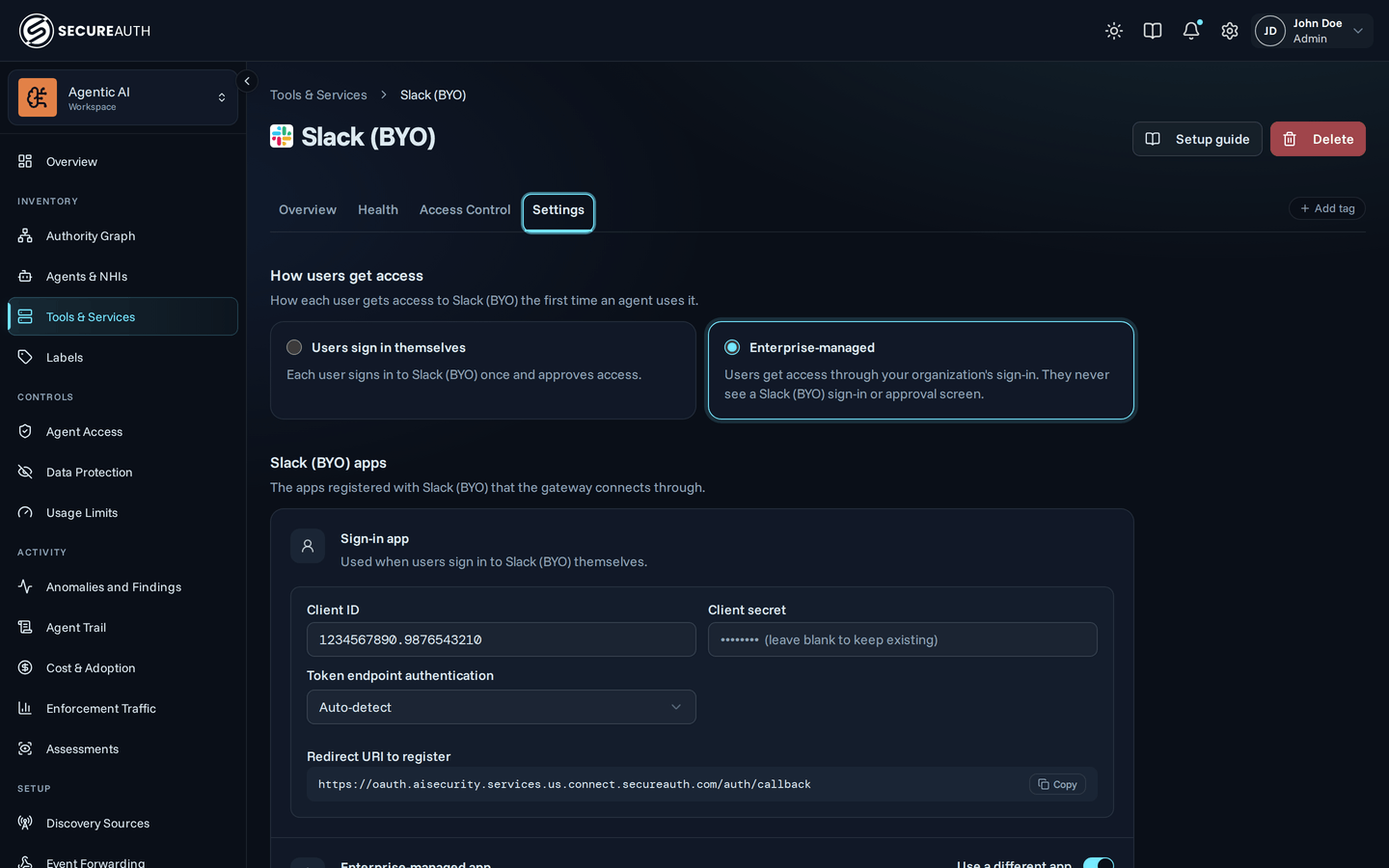
- Open Tools & Services → your MCP → Settings.
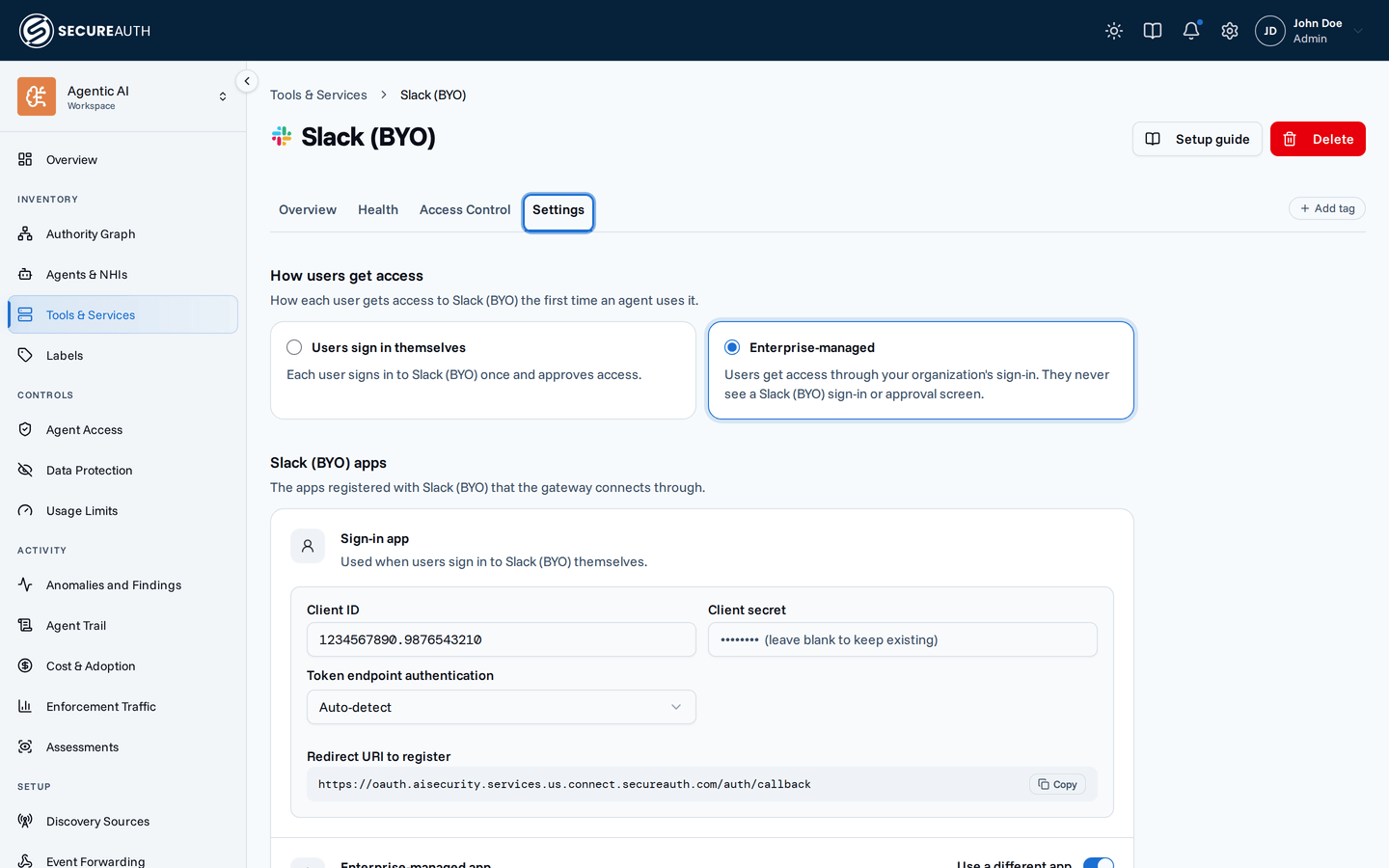
- Select Enterprise-managed. A catalog resource offers it under How users get access. A custom server offers it under Authentication.
- If the resource needs a separate app for organization access, turn on Use a different app under Enterprise-managed app. Enter its client ID, secret, and token endpoint authentication. Users who sign in themselves keep using the sign-in app.
- Click Save changes.
A custom server can start out enterprise-managed. Choose Enterprise-managed under Authentication when you add it.
Editing this setting needs the manage_mcps permission.
Select Users sign in themselves to go back to per-user OAuth.
What users see
On the Connections page, the resource shows an Enterprise-managed badge once the gateway has a token for that user. Until a user's agent first connects or calls a tool, it reads Signs in through your organization. The page shows no Connect button.
A connection a user made through the interactive OAuth flow before you switched keeps working. It shows Disconnect instead of the badge.
If the exchange fails, the tool call returns an error that names the failing step.
That tells you whether SecureAuth Connect or the resource rejected the request.
client_id_mismatch means your SecureAuth Connect workspace and the resource expect different apps.
Contact SecureAuth to fix it.
Reset a connection
Click Reset on the resource to delete its stored token.
The gateway gets a new one the next time a user's agent connects or calls a tool.
Resetting needs the manage_connections permission.
Lifetime limits
A maximum age or idle timeout under Connection lifetime deletes only the gateway's stored copy of the token. The next call gets a new token through enterprise-managed authorization, so users never sign in again.
Neither limit nor Reset revokes the token at the resource. It stays valid until its own expiry, even after a user's SecureAuth Connect session ends.
Next steps
- Credential modes – how your organization chooses the OAuth app behind these connections.
- Policies – decide which calls are allowed to use a connection at all.
- Tool search – let agents search for tools instead of reading every definition on each request.
- Audit log – see connection-created, expired, and revoked events.