Salesforce
Query Salesforce records through its MCP server, and choose which AI agents can update or delete them
An agent with Salesforce can query and search your records, but it can also update them and permanently delete them. Adding Salesforce here puts each tool behind a policy rule and records each call in the audit log, so you decide which agents can change records and which can only read them.
Server URL: https://api.salesforce.com/platform/mcp/v1/platform/sobject-all
Credential modes
Salesforce supports bring your own app only. It does not support dynamic client registration for this MCP server, so your organization registers its own External Client App in Salesforce and supplies the client ID and secret. See Credential modes for how the modes compare.
Before you begin
- A Salesforce account that can open Salesforce Setup, create External Client Apps, and activate MCP servers.
- Administrator access to your Agent Authority workspace, to add the resource.
Setup
Setup moves between two consoles. You copy a redirect URI in the Agent Authority console, register an app and activate the MCP server in Salesforce, then return to the console and paste the credentials. Keep both tabs open as you work.
1. Copy the redirect URI
- In the Agent Authority console, go to Resources → Add Resource.
- Click Salesforce.
- Click Copy next to Redirect URI.
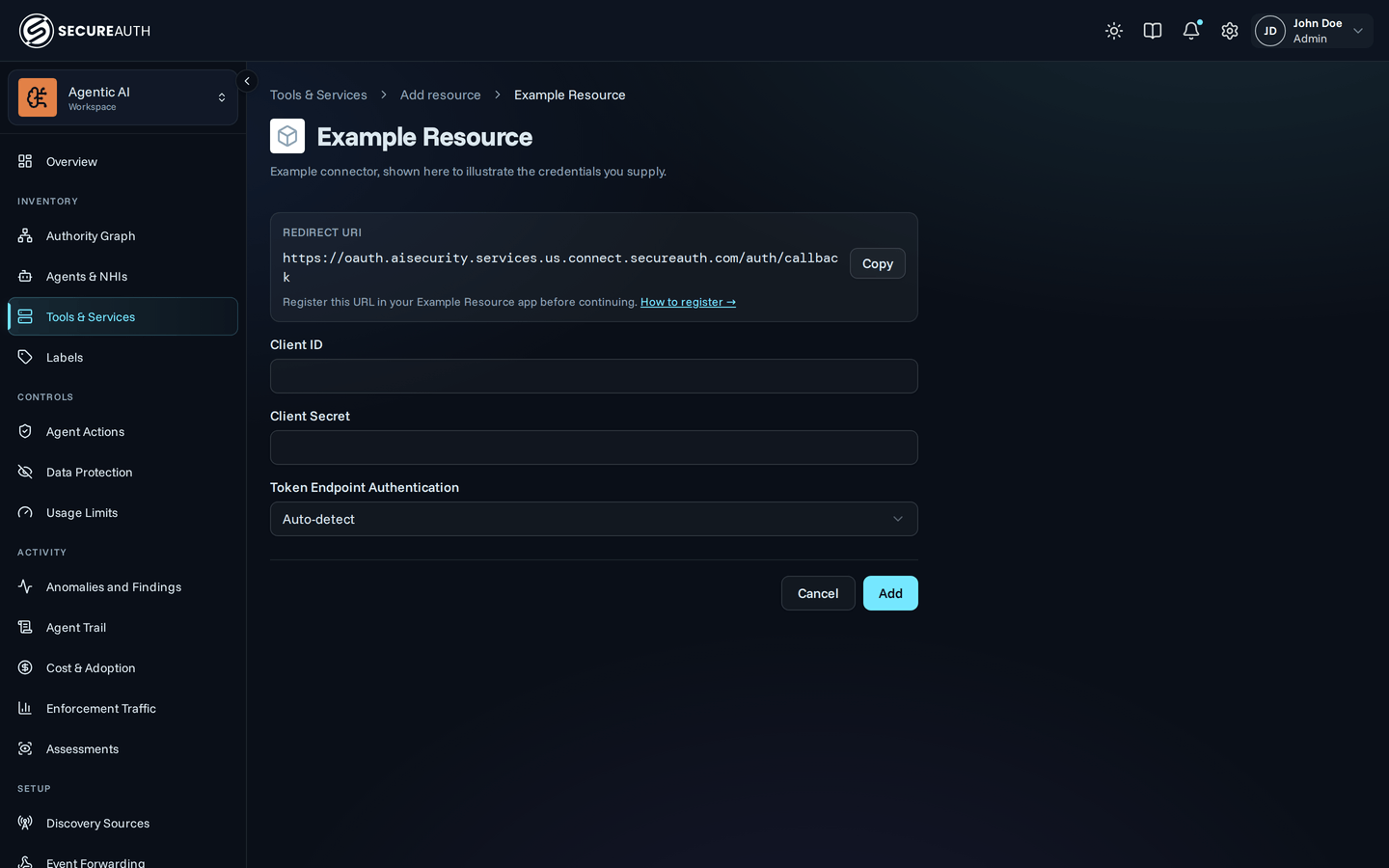
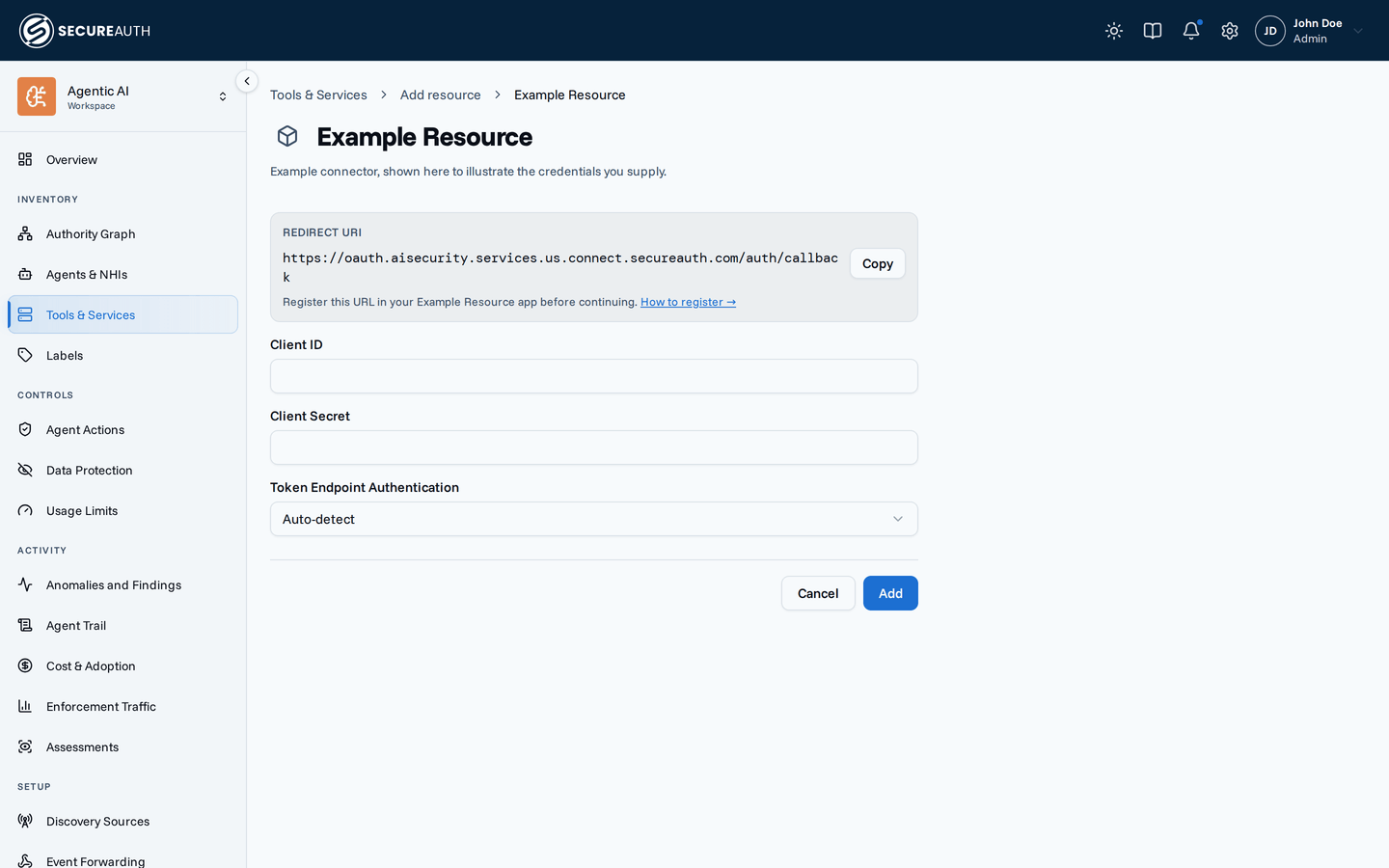
Salesforce is bring-your-own-app only, so clicking it opens the credentials form directly, with no credential mode to choose.
The URI includes your tenant's region, so copy it rather than typing it.
It takes the form https://oauth.aisecurity.services.<region>.connect.secureauth.com/auth/callback.
Leave this tab open. You return to it in step 4.
2. Register an External Client App in Salesforce
- Sign in at login.salesforce.com.
- Open Setup from the gear icon.
- Go to Platform Tools → Apps → External Client Apps → External Client App Manager.
- Click New External Client App.
- In the Basic Information section, complete the required fields.
- Expand API (Enable OAuth Settings) and select the Enable OAuth checkbox.
- In Callback URL, paste the redirect URI you copied in step 1.
- Add both of these OAuth scopes:
- Access Salesforce hosted MCP servers (
mcp_api) - Perform requests at any time (
refresh_token,offline_access)
- Access Salesforce hosted MCP servers (
- Under Security, select only these checkboxes:
- Require Proof Key for Code Exchange (PKCE) extension for Supported Authorization Flows
- Enable Refresh Token Rotation
- Issue JSON Web Token (JWT)-based access tokens for named users
- Limit Idle Refresh Token Time-to-Live (TTL) to 30 Days
- Save the app.
- Open the app.
- In OAuth Settings → App Settings, click Consumer Key and Secret.
- Copy the Consumer Key and the Consumer Secret.
Those Security settings match how the gateway behaves. It always uses Proof Key for Code Exchange (PKCE), an OAuth safeguard that stops anyone from reusing a stolen authorization code.
3. Activate the MCP server
- Still in Salesforce Setup, go to Platform Tools → Integrations → API Catalog → MCP Servers.
- Click
sobject-all. - Click Activate.
4. Finish in the console
- Go back to the Salesforce form in the Agent Authority console.
- In Client ID, paste the Consumer Key.
- In Client Secret, paste the Consumer Secret.
- Leave Token Endpoint Authentication on Auto-detect.
- Click Add.
- Sign in to Salesforce when the gateway redirects you, through your SSO if configured.
- Review the requested access and click Allow.
You return to the console with your Salesforce account connected.
Verify the connection
The gateway syncs the available Salesforce tools automatically. To confirm the connection works end to end, ask your agent to run a request, for example:
Get Salesforce user infoIf your Salesforce user, role, and profile details come back, the connection is working.
How users connect
Access is per user. Each additional user connects their own Salesforce account the first time their agent calls a Salesforce tool: the gateway returns a sign-in link, the user authorizes once, and the tools work from then on.
Salesforce's own role, profile, and field-level security settings control what each user can reach. The gateway does not widen access beyond what the authenticated user could already do in Salesforce. Go to Connections to manage linked accounts.
Authorization goes through Salesforce's generic login gateway (login.salesforce.com), which redirects to the authenticating user's own My Domain during sign-in.
This works the same way for every Salesforce org, with no per-org configuration.
Available tools
| Tool | Tags | Description |
|---|---|---|
soqlQuery | read-only | Execute a SOQL query to retrieve records: the primary way to read data |
find | read-only | Execute a SOSL text search across multiple objects at once |
getRelatedRecords | read-only | Get child records related to a parent record by traversing relationships |
listRecentSobjectRecords | read-only | Get records of a given type the user recently viewed or modified |
getObjectSchema | read-only | Get schema information for one or more objects, or an index of all objects |
getUserInfo | read-only | Get the current user's identity, role, and preferences |
createSobjectRecord | write | Create a new record |
updateSobjectRecord | write | Update an existing record by ID |
updateRelatedRecord | write | Update a child record by navigating from a parent record through a relationship |
deleteSobjectRecord | destructive | Permanently delete a record by ID |
deleteRelatedRecord | destructive | Delete a child record by navigating from a parent record through a relationship |
Required scopes
mcp_api: grants access to Salesforce's Platform MCP server. The Salesforce scope picker calls it Access Salesforce hosted MCP servers.refresh_token: lets the gateway refresh the user's access token without asking them to sign in again. The Salesforce scope picker calls it Perform requests at any time, and selecting it grantsrefresh_tokenandoffline_accesstogether.
Policy examples
- Read-only access:
deny
createSobjectRecord,updateSobjectRecord,updateRelatedRecord,deleteSobjectRecord, anddeleteRelatedRecord - Search and read without writes:
allow
soqlQuery,find,getRelatedRecords,listRecentSobjectRecords,getObjectSchema,getUserInfo - Block deletes only: deny
deleteSobjectRecordanddeleteRelatedRecord - Block destructive tools:
add a deny rule with the built-in
destructivetag (Tools pill) for this resource (MCP pill).
Next steps
- Create a policy – start from the read-only pattern in Policy examples above.
- Connections – manage the Salesforce accounts your users have linked.