Box
Search files and ask Box AI through the Box MCP server, and choose which AI agents can share links or add collaborators
An agent with Box can search files and ask Box AI about them, but it can also create shared links and invite collaborators. No tool deletes anything. Adding Box here puts each tool behind a policy rule and records each call in the audit log, so you decide which agents can change content and which can share it.
Server URL: https://mcp.box.com
Credential modes
Box supports bring your own app only. It does not support dynamic client registration, so your organization supplies a client ID and secret from Box. See Credential modes for how the modes compare.
Before you begin
- Box access for one of the two routes in step 2: Admin Console access for Option A, or Box Developer Console access plus a Box admin who can approve the app for Option B. You do not need both routes.
- Administrator access to your Agent Authority workspace, to add the resource.
Setup
Setup moves between two consoles. You copy a redirect URI in the Agent Authority console, create OAuth credentials in Box, then return to the console and paste them. Keep both tabs open as you work.
1. Copy the redirect URI
- In the Agent Authority console, go to Resources → Add Resource.
- Click Box.
- Click Copy next to Redirect URI.
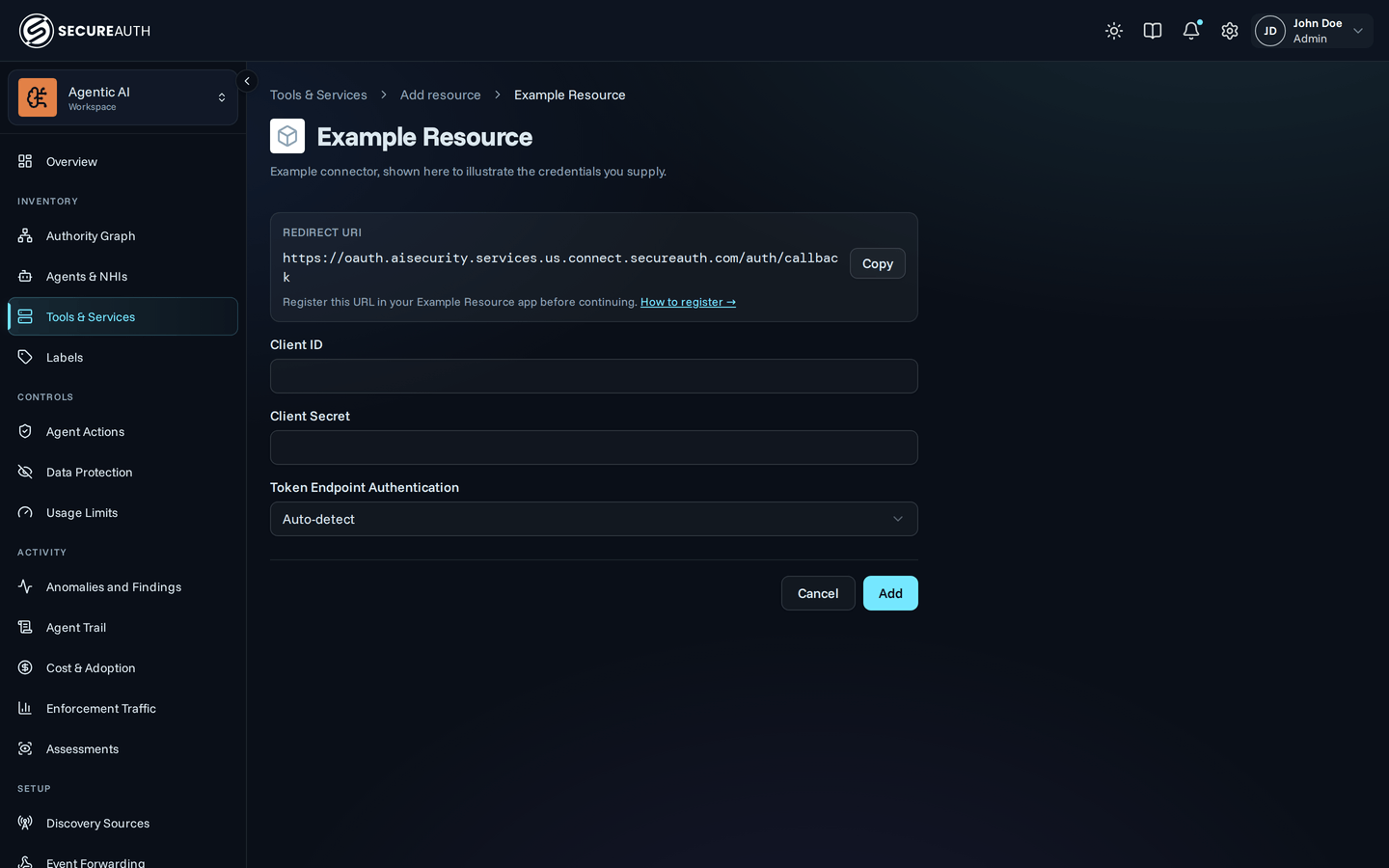
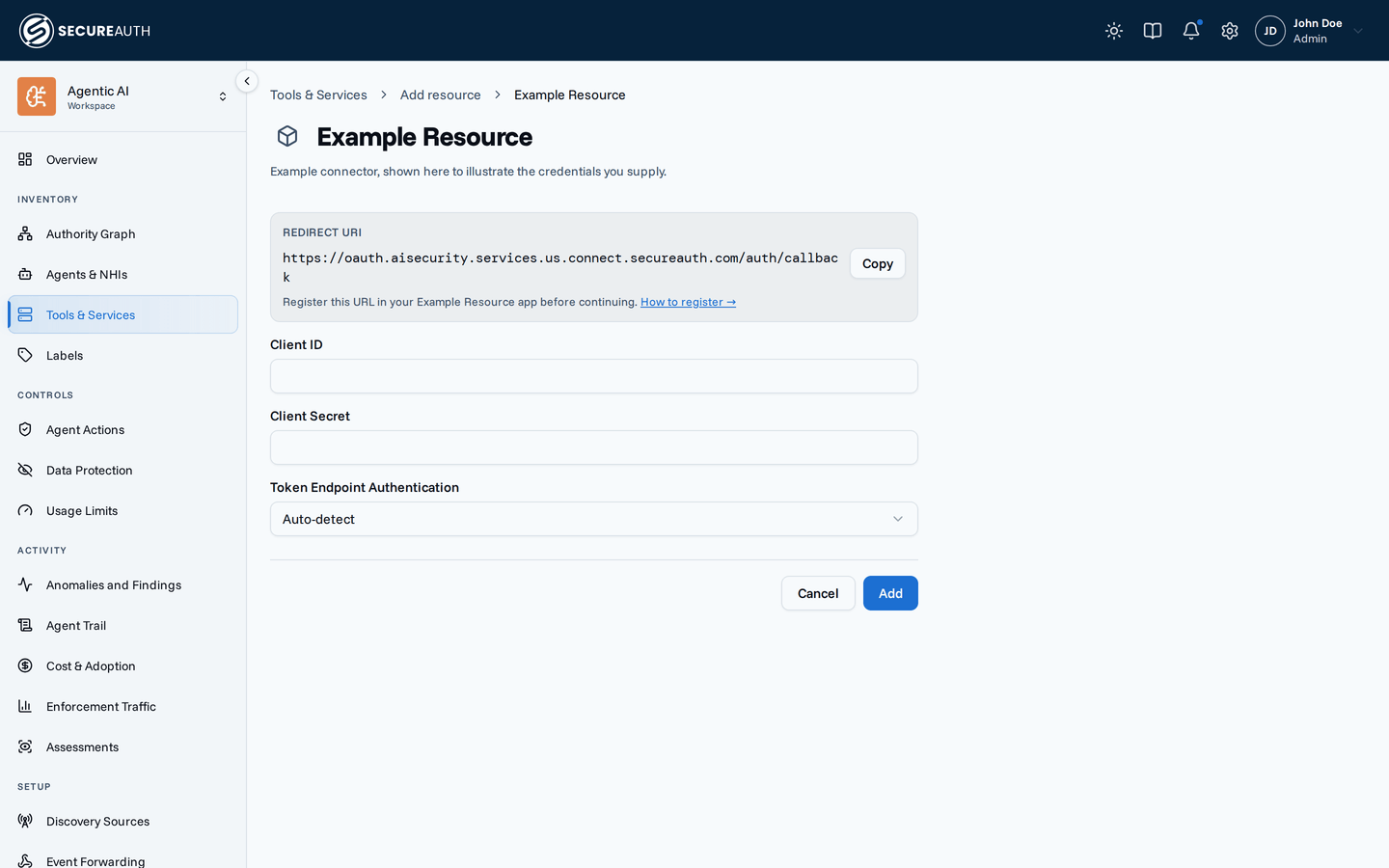
Box is bring-your-own-app only, so clicking it opens the credentials form directly, with no credential mode to choose.
The URI includes your tenant's region, so copy it rather than typing it.
It takes the form https://oauth.aisecurity.services.<region>.connect.secureauth.com/auth/callback.
Leave this tab open. You return to it in step 4.
2. Get a client ID and secret from Box
Box offers two routes to the same pair of credentials, and the gateway accepts either.
- Option A uses the Custom Box MCP Server integration that Box ships in the Admin Console. You build nothing, and Box approves the credentials automatically.
- Option B creates your own app in the Developer Console. It gives you an app your organization owns, and it needs a Box admin to approve the app before anyone can connect.
Option A: the Custom Box MCP Server integration
-
Sign in to Box and open the Admin Console.
-
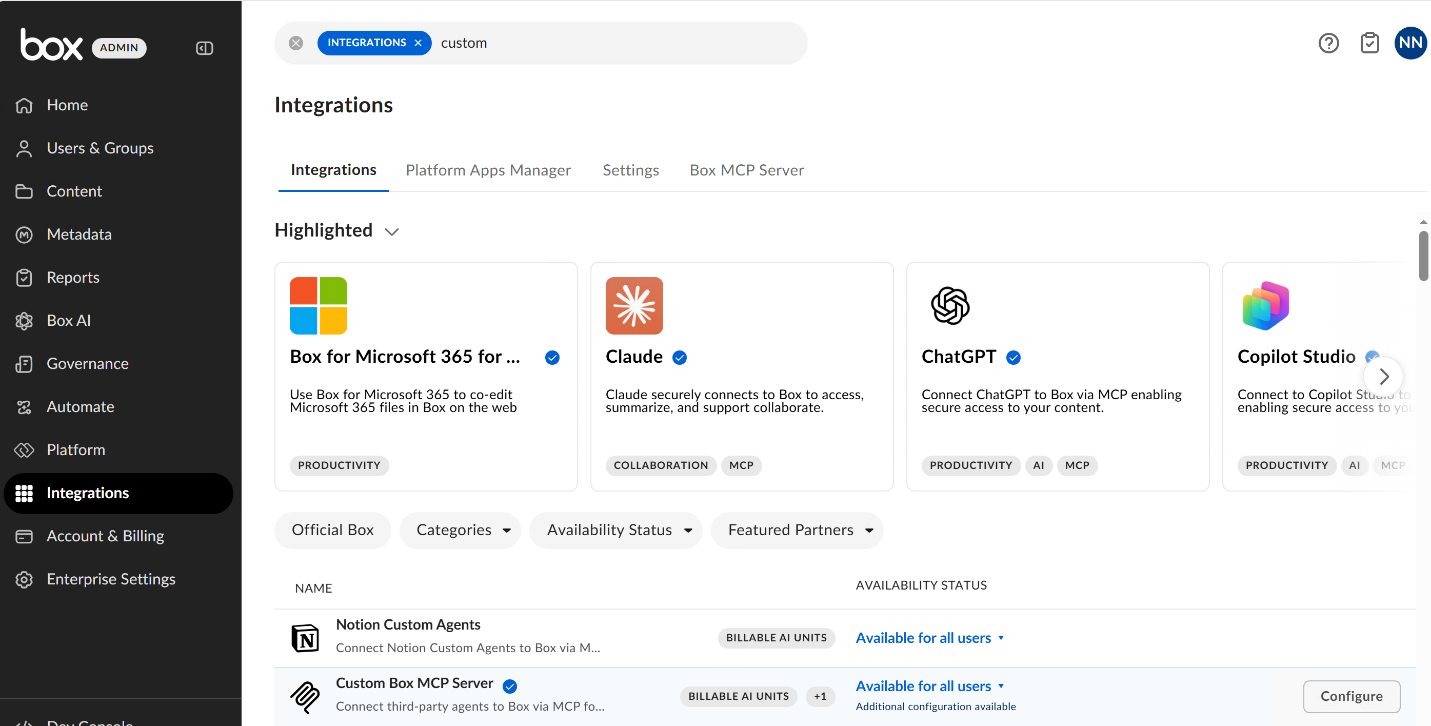
In the sidebar, click Integrations.
-
Scroll to Individual Integration Controls.
-
Set the Categories filter to MCP, or search for
Custom Box MCP Server. -
Hover over Custom Box MCP Server and click Configure.
-
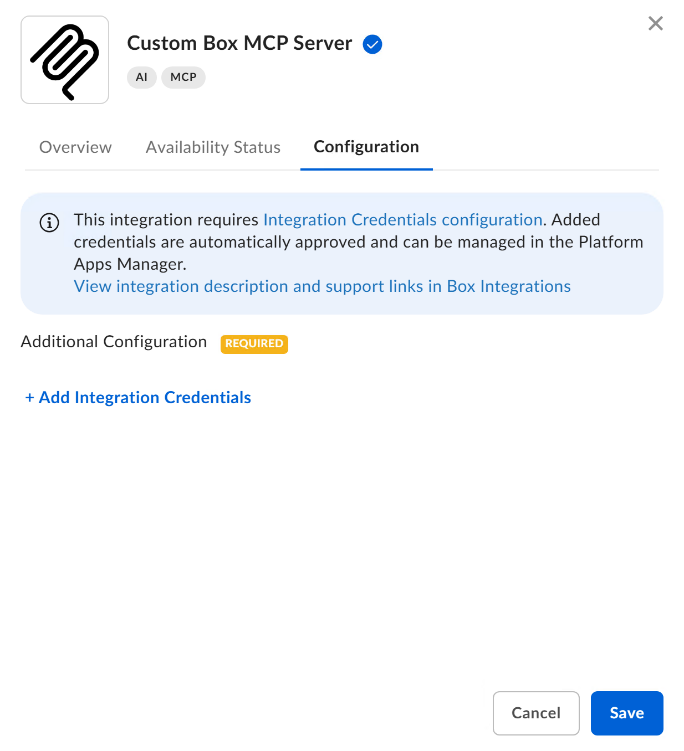
On the Configuration tab, under Additional Configuration, click + Add Integration Credentials.
-
Name the entry, for example
SA Agent Authority, and click Save. -
Expand the new entry and copy the Client ID and Client Secret.
-
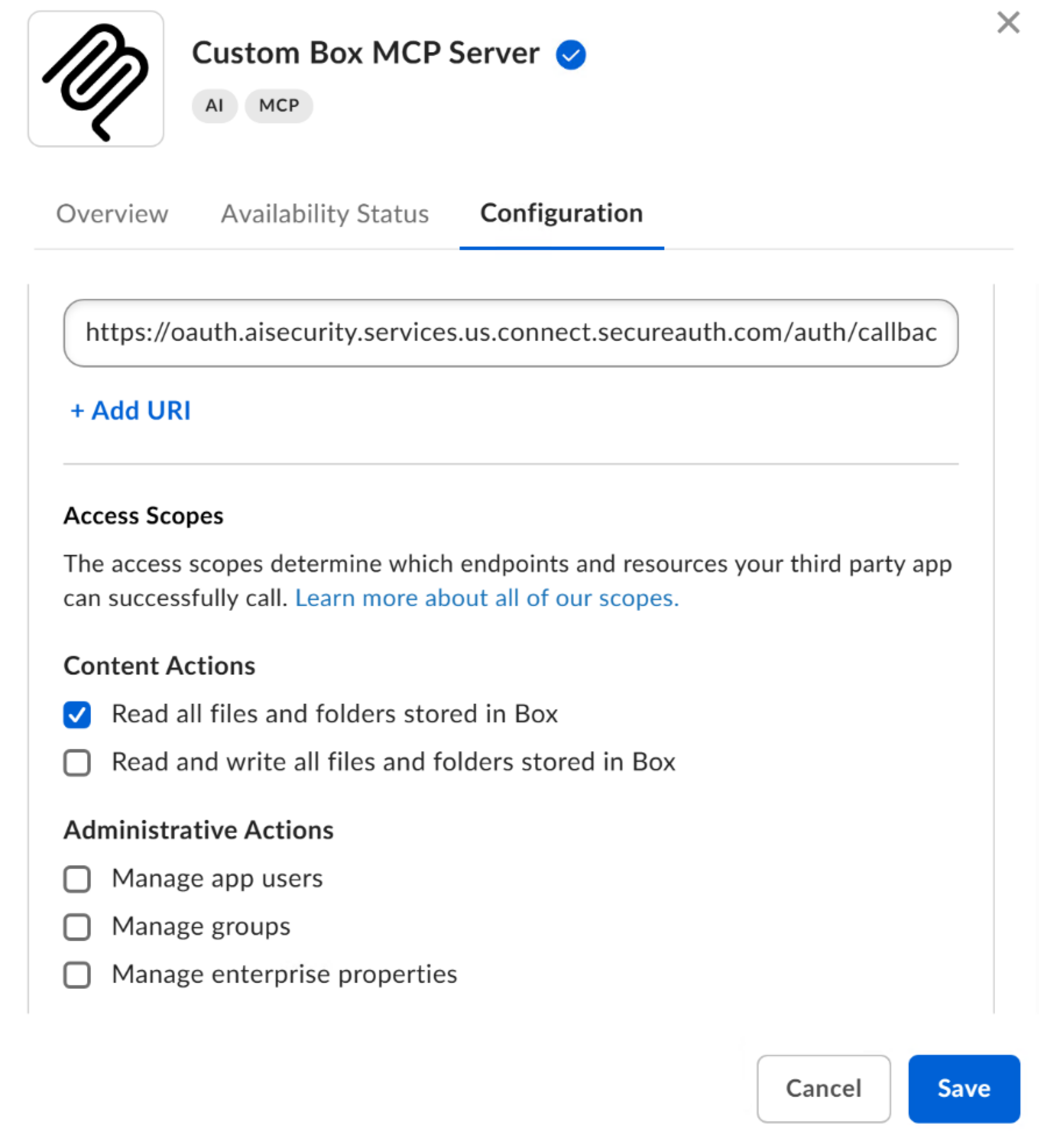
In the redirect URI field, paste the redirect URI you copied in step 1.
-
Under Access Scopes, enable the scopes listed under Required scopes.
-
Click Save.
Box splits the Access Scopes checkboxes into Content Actions and Administrative Actions, so scroll through both groups to find every scope on the list.
Option B: your own Developer Console app
- Go to the Box Developer Console.
- Click Create Platform App, then choose Custom App.
- Complete the form and click Next.
- Choose User Authentication (OAuth 2.0) and click Create App.
- On the Configuration tab, under OAuth 2.0 Redirect URIs, add the redirect URI you copied in step 1.
- Under Application Scopes, enable the scopes listed under Required scopes.
- Save the app.
- Copy the Client ID and Client Secret from OAuth 2.0 Credentials.
3. Have a Box admin approve the app
Option A needs nothing here: Box approves integration credentials automatically when you add them, and you can manage them later in the Admin Console. Skip to step 4.
For Option B, a Box admin approves the app before anyone can connect:
- In the Developer Console, open the Enablement tab. It appears only when your app needs approval.
- Click Review and Submit to send the app details to your Box admin.
- Ask a Box admin to approve the app in the Box Admin Console.
If sign-in succeeds but no Box tools work, check this approval first.
4. Finish in the console
- Go back to the Box form in the Agent Authority console.
- In Client ID, paste the client ID from step 2.
- In Client Secret, paste the client secret from step 2.
- Leave Token Endpoint Authentication on Auto-detect.
- Click Add.
- Sign in to Box when the gateway redirects you, through your SSO if configured.
- Review the requested access and click Allow.
You return to the console with your Box account connected.
Verify the connection
The gateway syncs the Box tools automatically. To check the connection end to end, ask your agent to run a request:
Who am I in BoxIf your Box user details come back, the connection is working.
How users connect
Access is per user. Each additional user connects their own Box account the first time their agent calls a Box tool: the gateway returns a sign-in link, the user authorizes once, and the tools work from then on. Go to Connections to manage linked accounts.
Box's own file, folder, and collaboration permissions control what each user can reach. The gateway does not widen access beyond what the authenticated user could already do in Box.
Available tools
| Tool | Tags | Description |
|---|---|---|
who_am_i | read-only | Returns detailed information about the currently authenticated Box user |
get_download_url | read-only | Issues a temporary, single-use URL for downloading binary files from Box |
get_file_content | read-only | Returns the content of a file stored in Box |
get_file_details | read-only | Returns detailed file information, including metadata, permissions, and versions |
get_file_preview | read-only | Displays an interactive preview widget for a Box file |
get_preview_page | read-only | Returns the current preview page as an image for analysis |
get_folder_details | read-only | Retrieves detailed folder information, including permissions and collaborations |
list_folder_content_by_folder_id | read-only | Lists files, folders, and web links in a folder (paginated) |
copy_file | write | Copies an existing file to a destination folder |
copy_folder | write | Copies an existing folder to a destination parent folder |
create_folder | write | Creates a folder in Box |
create_metadata_template | write | Creates an enterprise metadata template |
get_upload_url | write | Issues a temporary, single-use URL for uploading binary files to Box |
move_file | write | Moves an existing file to a destination folder |
move_folder | write | Moves a folder to a new parent |
set_file_metadata | write | Creates or updates (upserts) custom metadata on a file for a template |
set_folder_metadata | write | Creates or updates (upserts) custom metadata on a folder for a template |
update_file_properties | write | Updates file name, description, tags, and collections |
update_folder_properties | write | Updates folder name, description, tags, and collections |
update_metadata_template | write | Updates a metadata template by scope and template key |
upload_file | write | Uploads a new file to Box |
upload_file_version | write | Uploads a new file version by providing the entire file contents |
get_metadata_template_schema | read-only | Returns the schema and field keys for a metadata template |
list_metadata_templates | read-only | Lists available Box metadata templates (enterprise or global) |
search_files_keyword | read-only | Searches for files using keywords |
search_files_metadata | read-only | Searches for files using SQL-like metadata queries |
search_folders_by_name | read-only | Searches for folders in Box by name using keyword matching |
list_file_comments | read-only | Lists all comments on a file |
list_item_collaborations | read-only | Lists all existing collaborations on an item |
list_tasks | read-only | Lists all tasks for a file, including status, message, and due dates |
add_file_shared_link | write, external | Creates or updates a shared link for a Box file |
add_folder_shared_link | write, external | Creates or updates a shared link for a Box folder |
create_collaboration | write, external | Invites a user or group to a file, folder, or hub |
create_file_comment | write | Creates a comment on a file |
update_collaboration | write | Updates a file, folder, or hub collaboration |
ai_extract_freeform | read-only | Extracts metadata from files using Box AI with natural-language prompts |
ai_extract_structured | read-only | Extracts structured key-value metadata from files using Box AI |
ai_extract_structured_from_fields | read-only | Extracts structured metadata from files using custom field definitions |
ai_extract_structured_from_fields_enhanced | read-only | Extracts structured metadata using the Enhanced Extract Agent |
ai_extract_structured_from_metadata_template | read-only | Extracts structured metadata from files using an existing template |
ai_extract_structured_from_metadata_template_enhanced | read-only | Extracts metadata using template and Enhanced Extract Agent |
ai_qa_hub | read-only | Asks a question about a Box hub and returns an answer based on content |
ai_qa_multi_file | read-only | Asks a question about multiple files using Box AI |
ai_qa_single_file | read-only | Asks a question about a single file using Box AI |
get_hub_details | read-only | Retrieves detailed information about a specific hub |
get_hub_items | read-only | Gets items (files and folders) associated with a specific hub |
list_hubs | read-only | Lists all hubs that the authenticated user can access |
add_items_to_hub | write | Adds files, folders, or web links to a hub |
copy_hub | write | Creates a copy of an existing hub, including structure and settings |
create_hub | write | Creates a hub |
update_hub | write | Updates the title and description of a hub |
get_docgen_template_by_id | read-only | Retrieves details about a Doc Gen template |
list_docgen_templates | read-only | Lists all Box Doc Gen templates the authenticated user can access |
create_docgen_batch | write | Generates documents from a Doc Gen template |
create_docgen_template | write | Marks a Box file as a Doc Gen template |
Which of these actually appear depends on your Box enterprise's MCP tool-access settings and licensing. The gateway syncs the live list from Box after the first account connects, so the Box AI, Hubs, and Doc Gen tools show up only when your plan and admin settings enable them.
Required scopes
Enable all three wherever you created the credentials, using Box's own labels:
- Read and write all files and folders stored in Box (
root_readwrite) – read and write files and folders. - Manage AI (
ai.readwrite) – use Box AI for question answering and metadata extraction. - Manage DocGen (
docgen.readwrite) – manage and run Box Doc Gen. This needs an Enterprise Advanced license, so leave it off if your plan does not include Doc Gen.
Policy examples
Rules are evaluated top to bottom and the first match wins, so a restrictive recipe needs a catch-all deny scoped to Box below its allow rules. Allow rules alone restrict nothing: your org starts with a seeded Allow all rule, and anything your allows don't cover falls through to it. New rules are inserted at the top of the list, so create rules in reverse order (catch-all deny first) or drag them into place afterwards. See Policies for the full model.
- Read-only access.
Deny
get_upload_url, then allowwho_am_i,get_*,list_*, andsearch_*, then deny*. Theget_upload_urldeny must sit above theget_*allow: it matchesget_*but mints a temporary upload URL, and the upload that follows goes straight to Box without passing through the gateway. - Content without sharing.
Deny
add_file_shared_link,add_folder_shared_link,create_collaboration, andupdate_collaboration. Deny-only rules work against the seeded Allow all as long as they sit above it. - No AI processing.
Deny
ai_*. - Doc Gen workflows only.
Allow
list_docgen_templates,get_docgen_template_by_id, andcreate_docgen_batch, then deny*below them so nothing else on Box falls through to Allow all.
Next steps
- Create a policy – start from the read-only pattern in Policy examples above.
- Policies – how rule order, scoping, and the seeded Allow all rule interact.
- Connections – manage the Box accounts your users have linked.