Credential modes
Choose whose OAuth app the gateway uses when you install a catalog resource, and who controls it
When you install a catalog resource, the gateway needs an OAuth app to start each user's sign-in, and someone has to own that app. In SecureAuth Agent Authority, the credential mode decides whose app that is: SecureAuth's, one the gateway registers for your organization, or your own. You choose once, at install time, and the choice is fixed for the life of that resource. How each user then links their own account is a separate topic: see Connections.
The modes
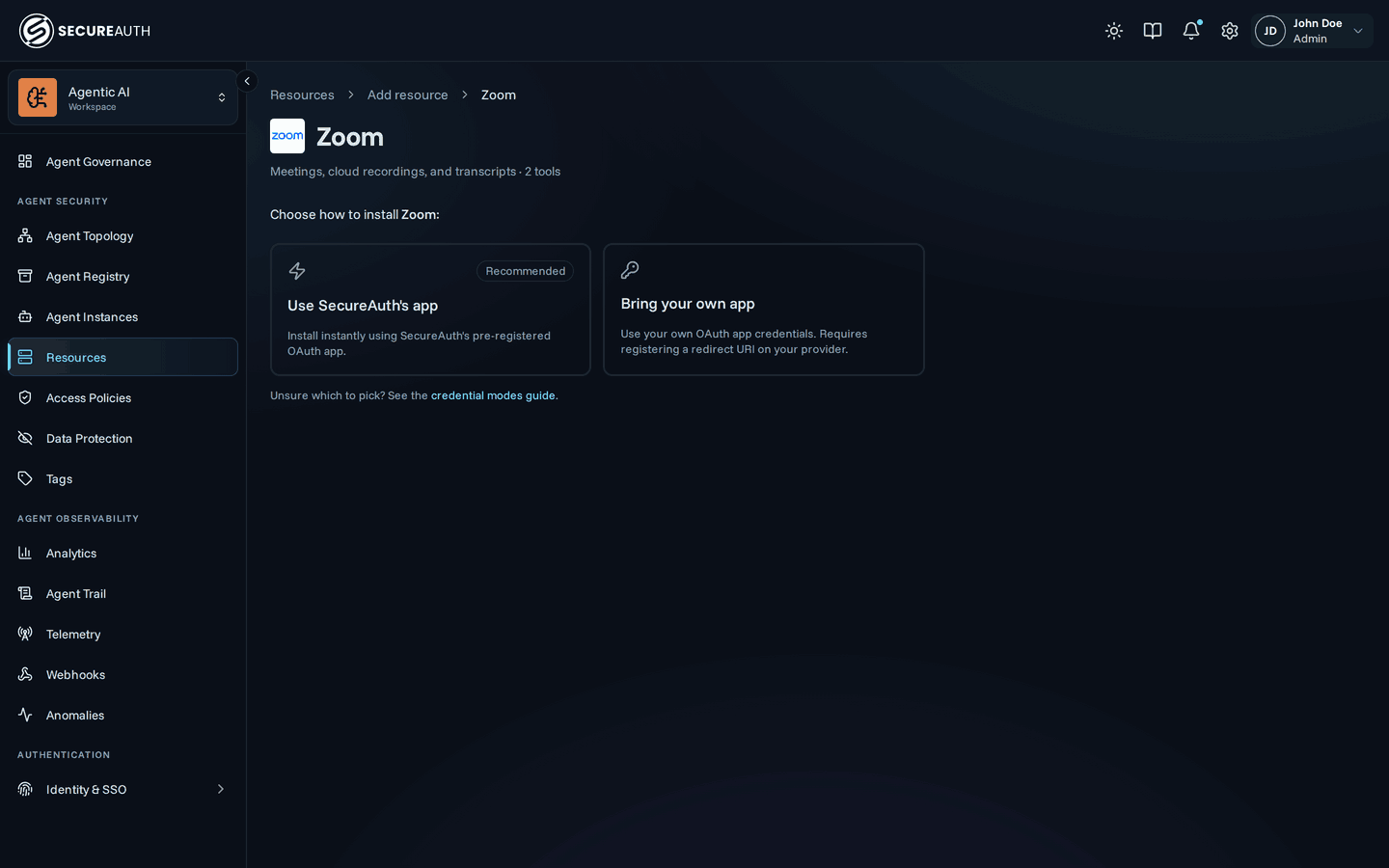
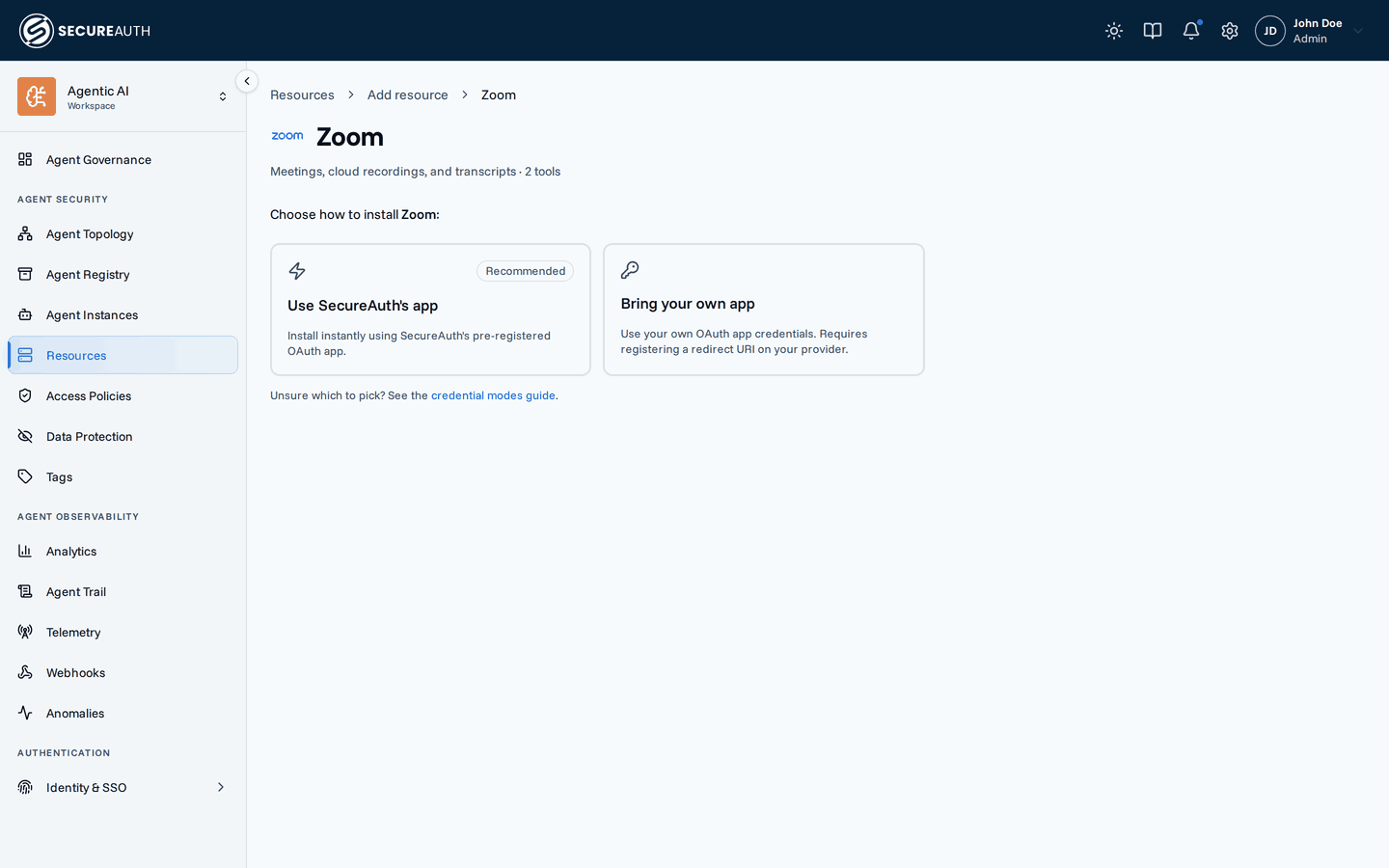
Use SecureAuth's app – embedded
The gateway uses a SecureAuth-managed OAuth app that is pre-registered with the provider. Installing takes one click and there is no OAuth app for you to register. Most providers still want a one-time admin approval before users can connect (Microsoft 365 requires tenant admin consent), so the gateway opens an Admin setup required dialog right after install, with a link to that resource's setup guide. Pick this when you want the fastest path to a working install and you are comfortable with users signing in to a SecureAuth-branded OAuth consent screen.
Per-org dynamic registration – DCR
The gateway registers a fresh OAuth client with the upstream provider on your organization's behalf, using Dynamic Client Registration (RFC 7591). No SecureAuth-shared app, no manual app registration on your side: the gateway handles it during install. Pick this when the provider supports DCR and you want per-org credential isolation without operating an OAuth app yourself.
Bring your own app – BYO
You register an OAuth app with the upstream provider yourself, then paste the resulting client ID and client secret into the gateway. Each user still signs in through that app, but it is owned and controlled by your organization.
Pick BYO when you need:
- Compliance / data residency – credentials and consent live entirely under your provider tenant
- Custom branding – users see your organization's name on the consent screen, not SecureAuth's
- Dedicated rate limits – your app has its own quota at the provider
- Audit isolation – provider-side audit logs attribute API calls to your app, not a shared one
When you'll be asked to choose
When a catalog resource supports more than one mode, its configure page shows a picker. SecureAuth's app is the recommended default when available. Resources that support only one mode skip the choice: a dynamic-registration-only resource shows that single card and installs the moment you select it, while a bring-your-own-only resource goes straight to the credentials form and installs when you submit it.
BYO setup
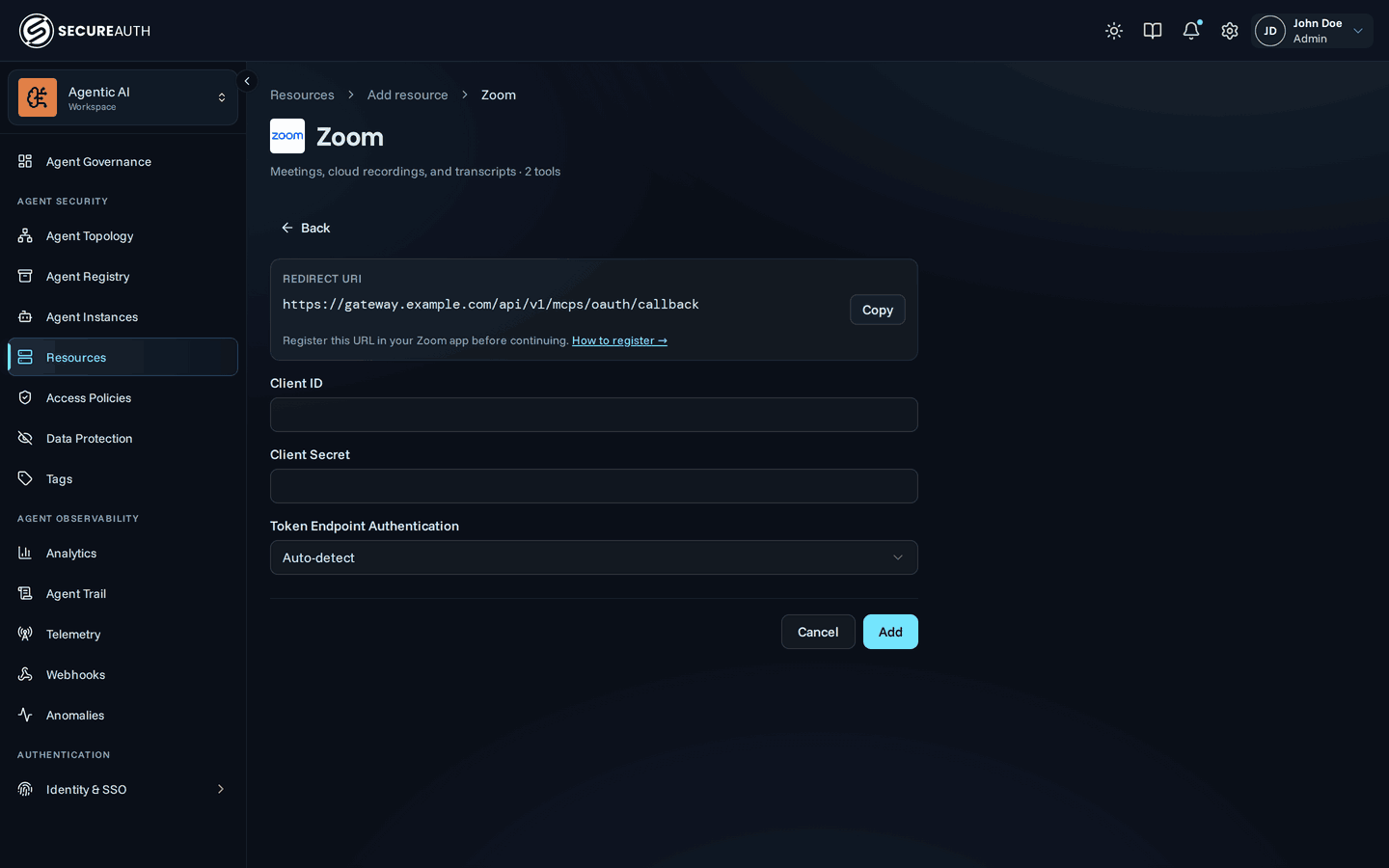
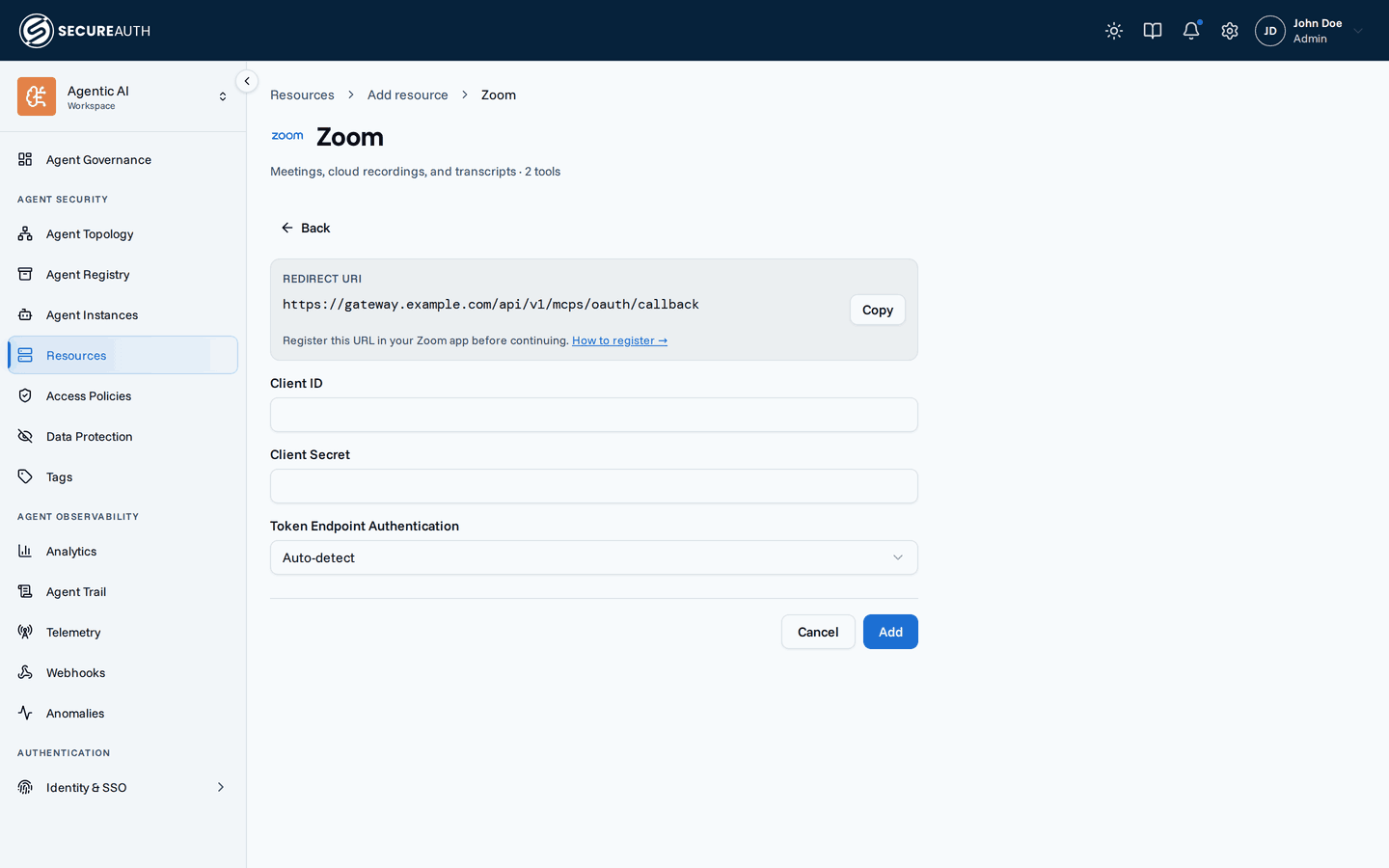
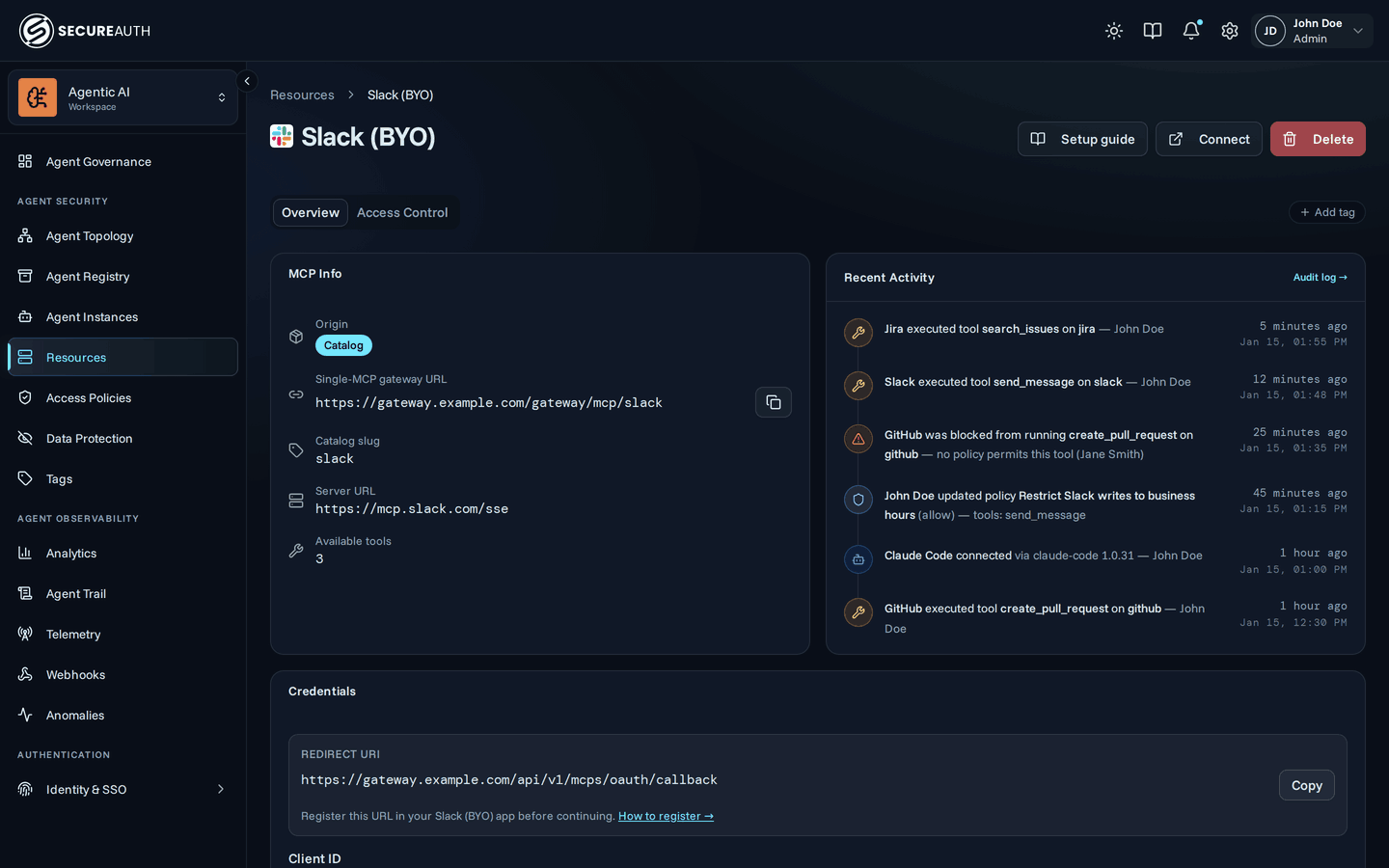
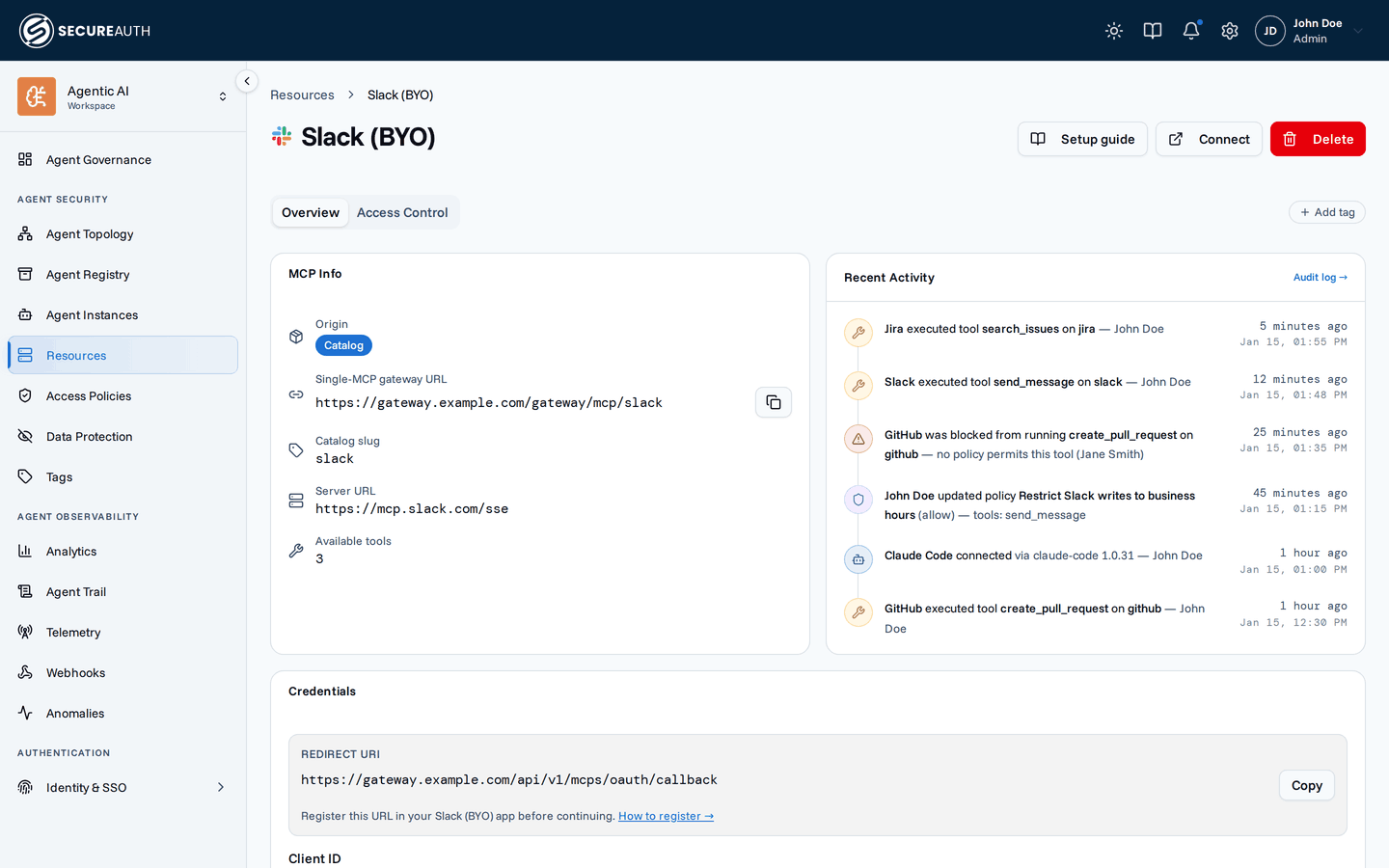
When you pick Bring your own app, the gateway shows a redirect URI and asks for your OAuth app's client ID and secret.
Steps:
- Open your provider's OAuth app registration page. The form's How to register → link opens that resource's setup guide, which points at the right console and walks through the exact steps.
- Create a new OAuth app and add the redirect URI shown in the gateway as an allowed callback. Copy it exactly: most providers reject installs that don't match character-for-character.
- Copy the resulting client ID and client secret from the provider into the gateway form.
- Leave Token Endpoint Authentication on Auto-detect unless the provider is strict about how the client secret is sent;
see Token endpoint authentication for when to set
client_secret_basicorclient_secret_postby hand. - Click Add to install.
Scopes are still managed by the gateway in BYO mode; you do not pick them by hand. The gateway uses the scope list defined in the catalog entry, and any updates to that list flow through to the next OAuth flow without re-installing.
Rotating BYO credentials
Resources installed in BYO mode show their Sign-in app on the resource's Settings tab. Use it to update the client ID, rotate the client secret, or change Token Endpoint Authentication without re-installing the resource. Existing user connections continue to work as long as the new credentials sign users in through the same provider app.
Leave the secret field blank when updating to keep the existing secret. The gateway never returns stored secrets in API responses.
Mode is fixed after install
How a resource is set up at install time is fixed for its life. For example, you cannot switch from SecureAuth's app to your own without re-installing. Switching modes would invalidate existing user connections.
To change modes, delete the resource and add it again. Users will need to reconnect their accounts.
Custom resources (those you add via + Custom server rather than the catalog) do not use modes; you configure their authentication directly when adding them.
Next steps
- Resources – install a catalog resource and choose its mode.
- Connections – how individual users sign in through the app you picked here.
- Add resources – the guided walkthrough, including the mode picker.