How resources work
Add catalog and custom MCP servers to your gateway
Resources are the MCP servers that give agents something to do: without one connected, there are no tools to call, allow, or deny. Add resources from the catalog for common services, or connect any custom MCP server your organization runs.
From the catalog
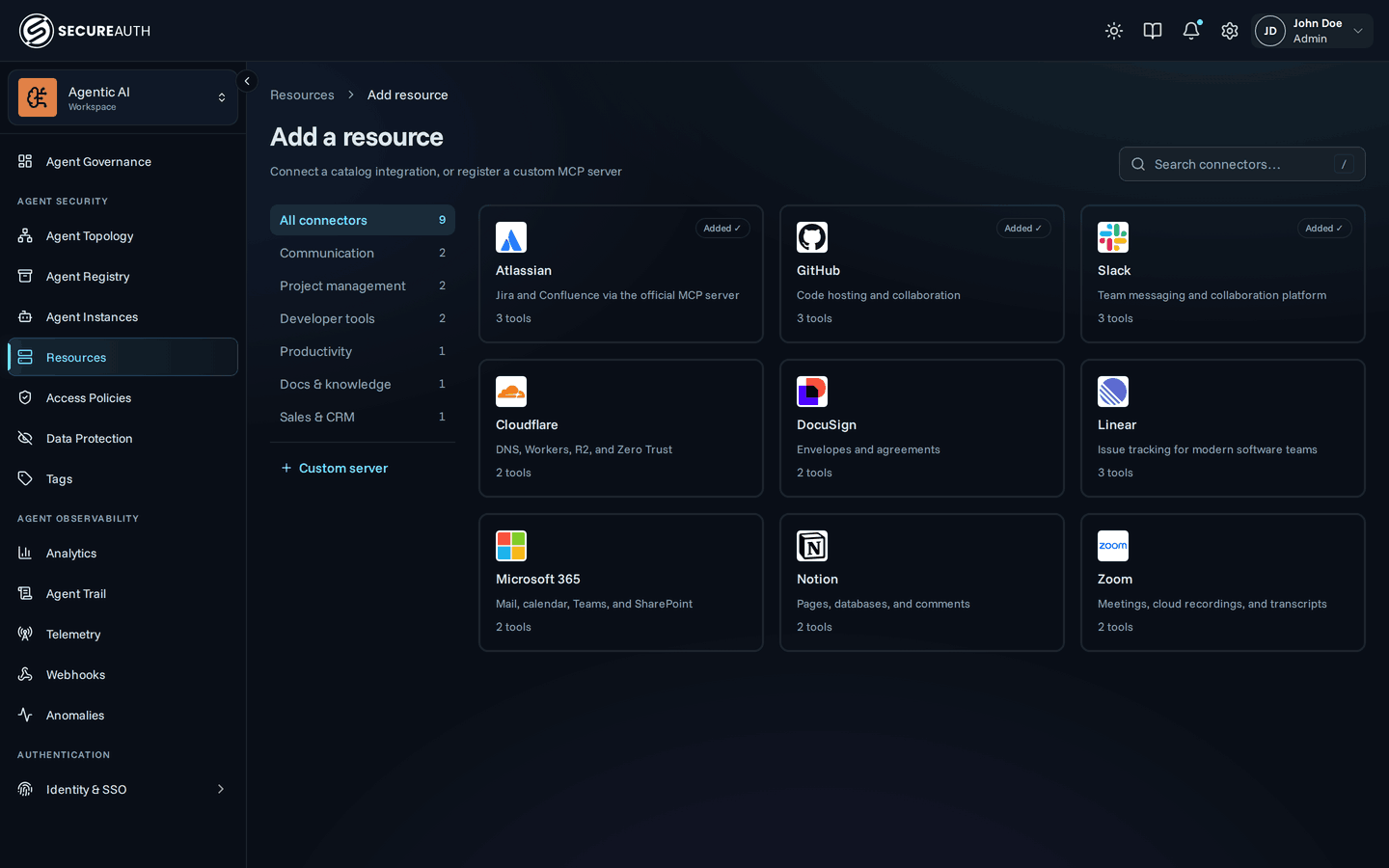
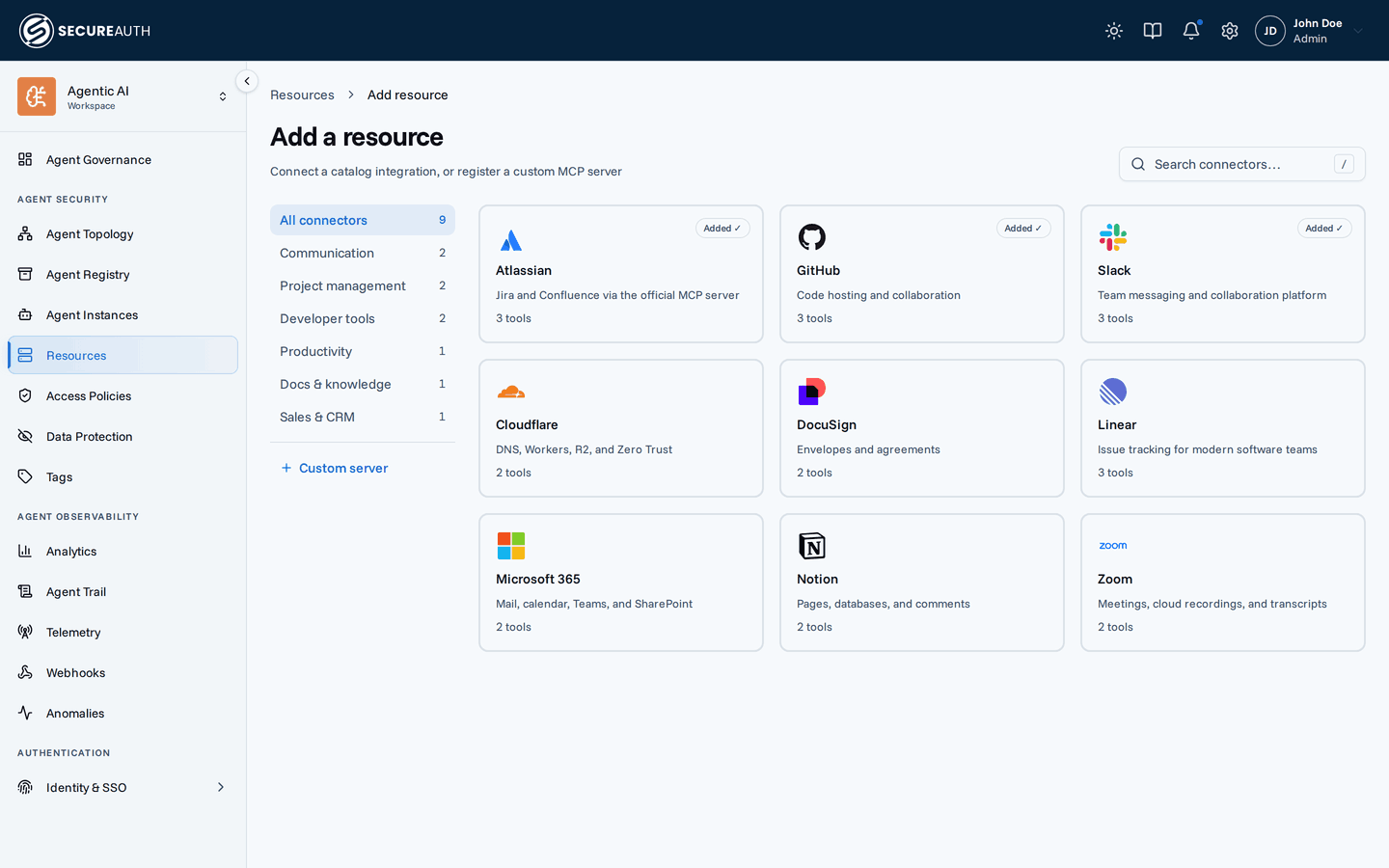
The catalog includes pre-configured resources that work out of the box:
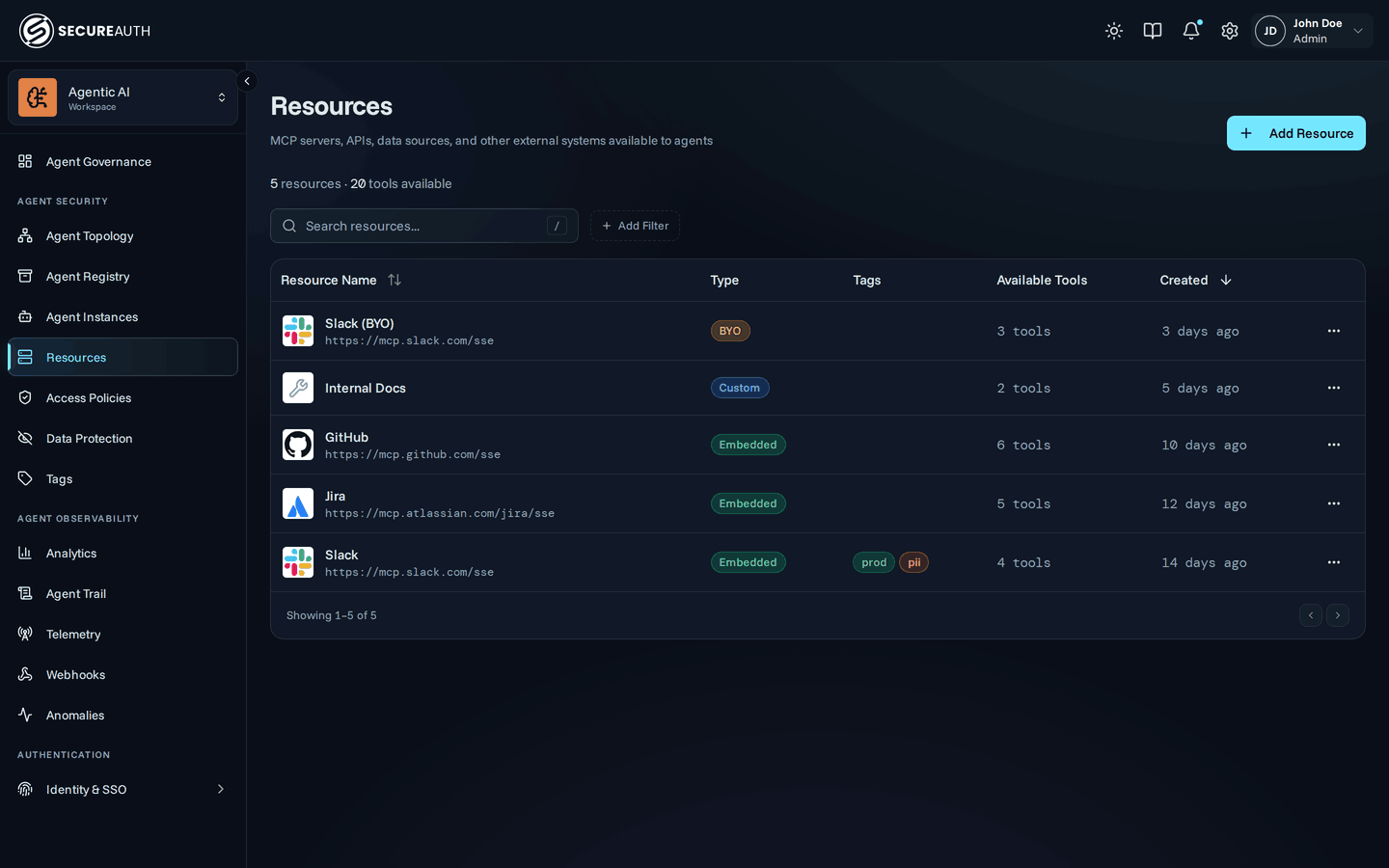
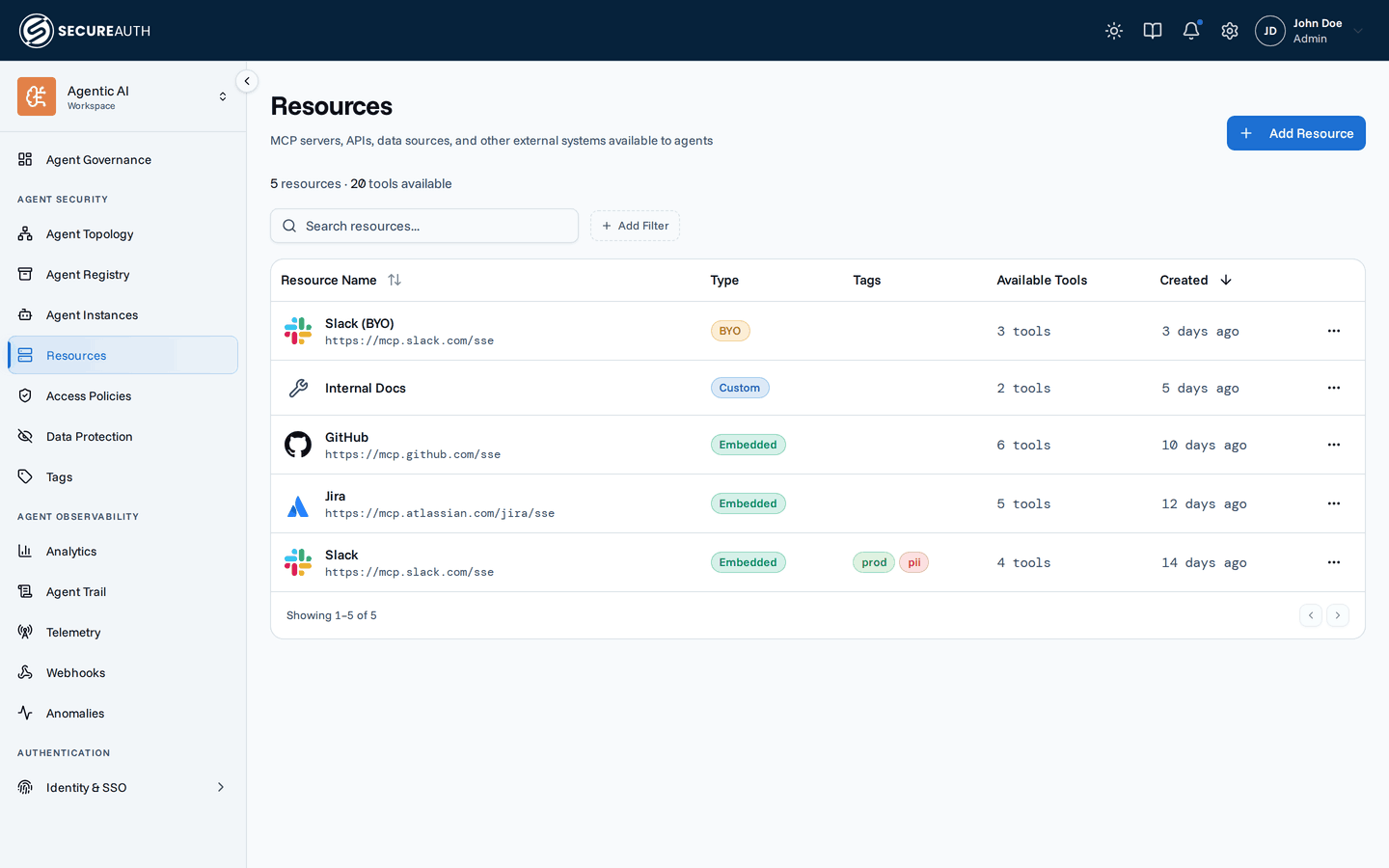
- Navigate to Tools & Services in the dashboard
- Click Add Resource to open the catalog
- Find a resource by search or by browsing a category, then click it to open its page
- If it supports more than one way to authenticate, pick Use SecureAuth's app (the quickest option) or Bring your own app (paste your own OAuth client ID and secret; the form shows a redirect URI to register with the provider, then click Add). See Credential modes for the differences.
- Resources that support only one option skip the choice: most show that single card and install when you click it, while bring-your-own-only resources take you straight to the credentials form
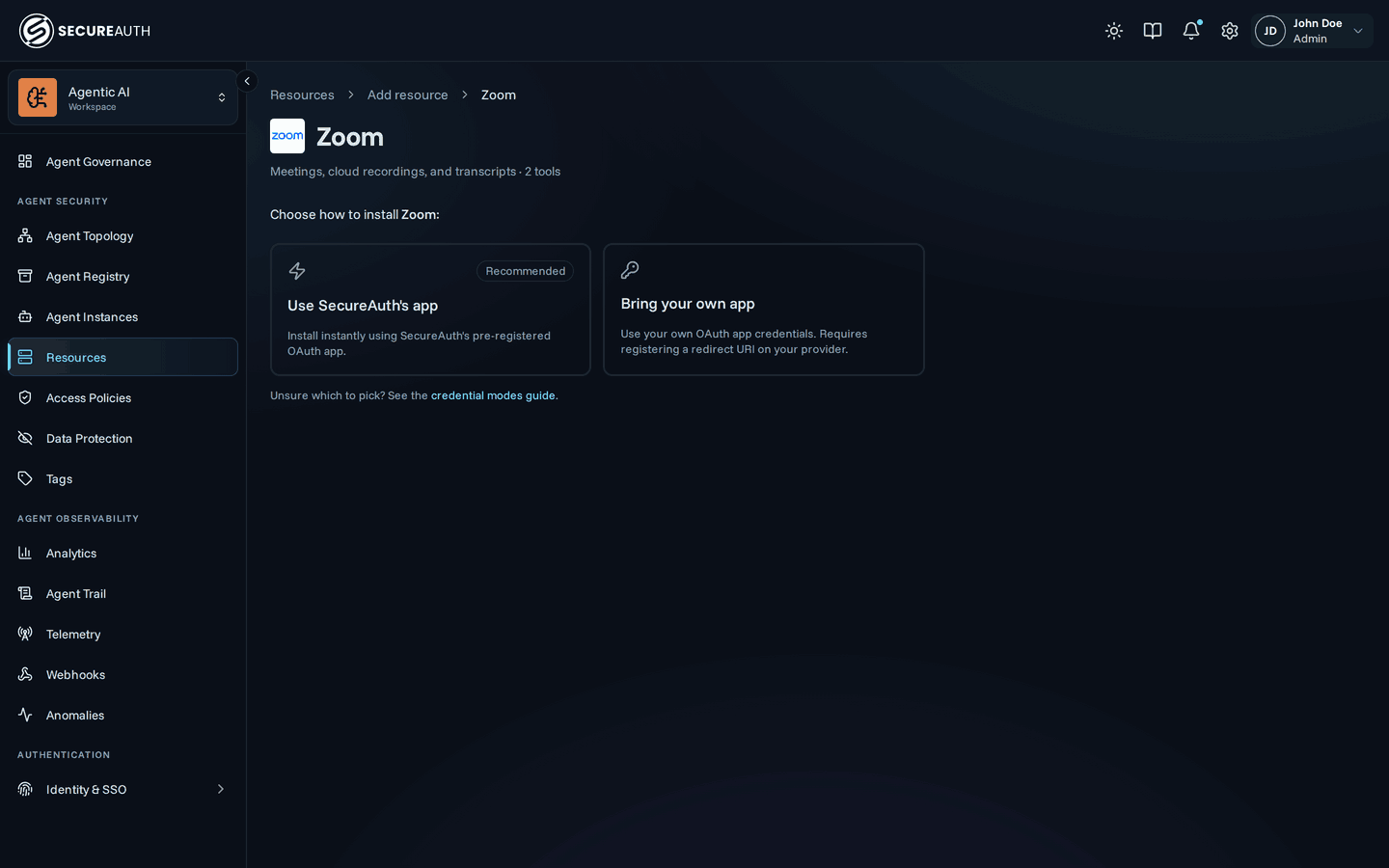
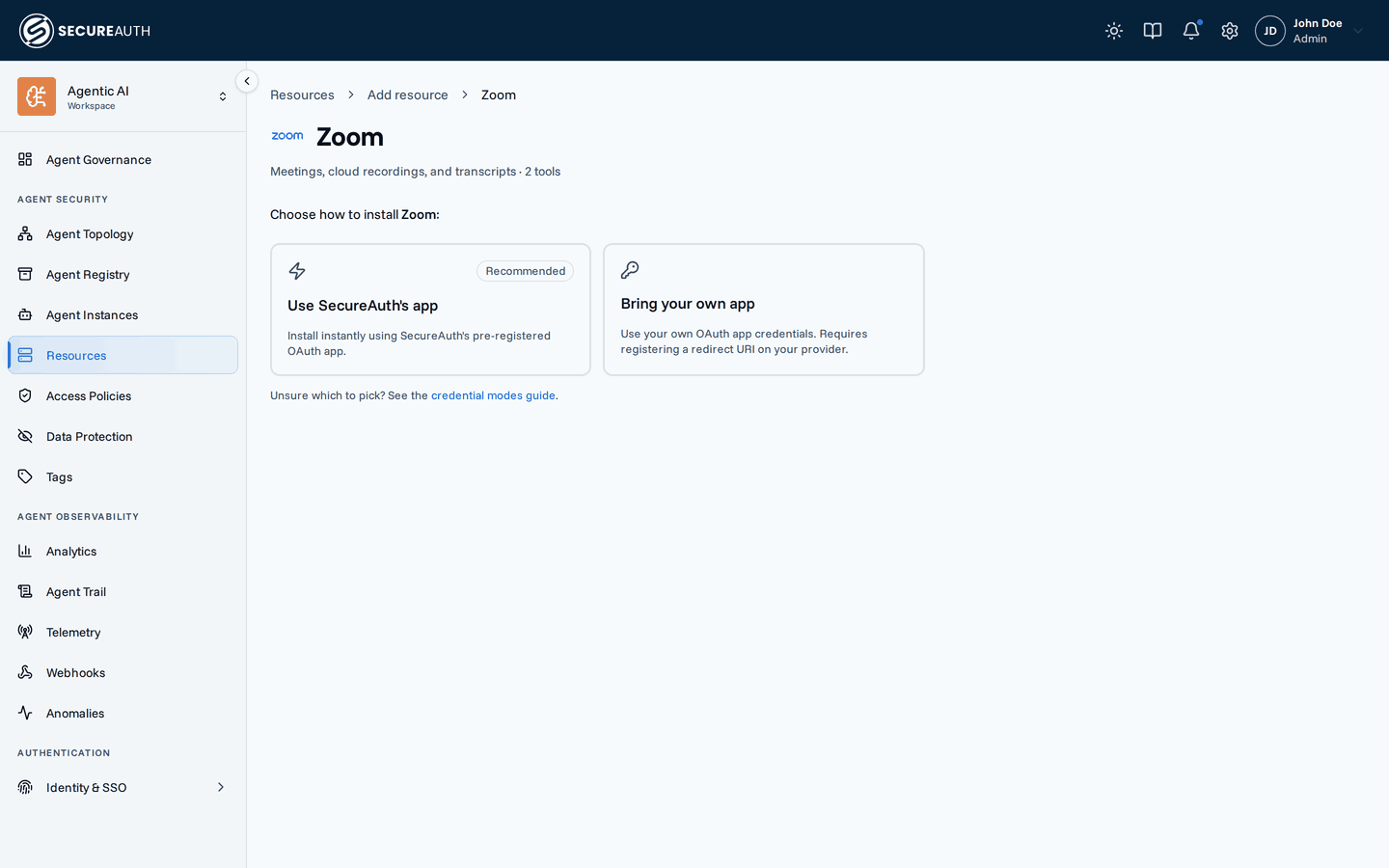
Available tools are discovered automatically. Users will be prompted to connect their accounts via OAuth when they first use the resource.
Custom resources
You can add any MCP server not in the catalog:
- Navigate to Tools & Services, click Add Resource, then + Custom server
- Enter a display name, a slug, and the server URL for the MCP server.
The slug is the short identifier used in policies (
mcp.slug == "…") and when scoping a connection to one MCP. - Under Authentication, choose whose access the agent's tool calls run with:
- Users sign in themselves – each user signs in to the server once with their own account. Register automatically registers an app with the provider for you (dynamic client registration, DCR) and needs no credentials. Use your own app takes your client ID, secret, and scopes, plus the endpoints: an issuer URL, or an authorize URL and a token URL
- Enterprise-managed – users get access through your organization's SecureAuth Connect sign-in, with no sign-in screen. Enter the app's client ID, secret, and scopes, plus the endpoints. See Enterprise-managed authorization for the prerequisites.
- OAuth app – the gateway signs in as its own app (client credentials), and every user shares that access. Enter the client ID, secret, scopes, and an issuer URL or token URL
- API key – headers sent with every request, shared by every user
- No authentication – the server needs no credentials
- Add any headers the server needs
- Click Add
The gateway connects to the server and discovers available tools automatically.
Headers
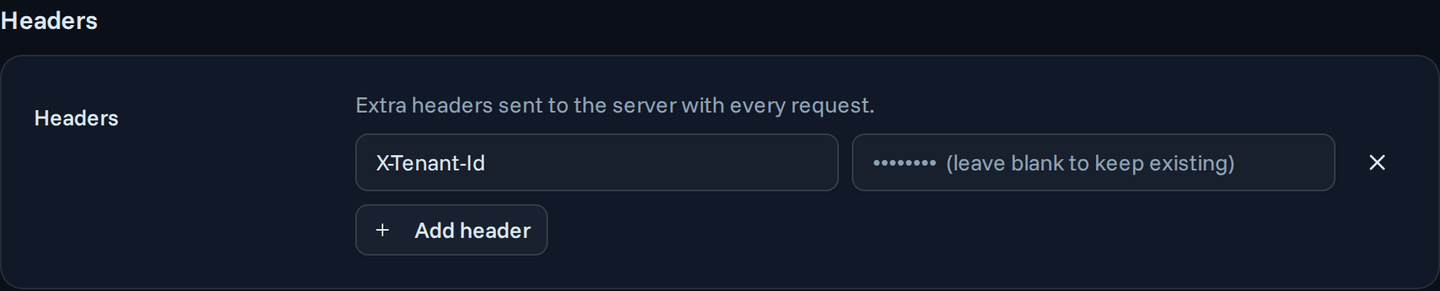
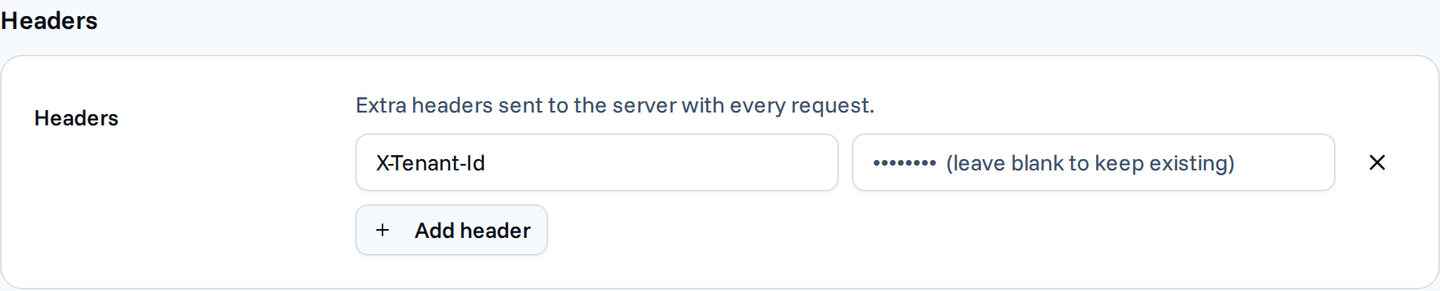
Some MCP servers expect request headers, such as a tenant ID or a routing key. You can add headers to any custom server, whatever its authentication option. Catalog resources have no headers setting.
With API key, the headers sit inside Authentication, because they carry the key. With every other option, add them in the Headers section below Authentication. Switching to or from API key removes the stored headers, so an API key never stays behind as an extra header.
Reserved names
The gateway or the MCP session sets some headers itself, so the gateway rejects these names in any letter case:
Host, Content-Length, Content-Type, Accept, Connection, Keep-Alive, Transfer-Encoding, TE, Trailer, Upgrade, Proxy-Authorization, and Last-Event-ID.
The MCP protocol owns every name that starts with Mcp-, such as Mcp-Session-Id and Mcp-Method, so the gateway rejects those too.
The gateway also rejects Authorization when you choose Users sign in themselves or OAuth app, because OAuth sends it.
With API key or No authentication, you can set it.
Limits
A custom server takes up to 32 headers. Each name is unique regardless of letter case. Each name is up to 256 characters long. Each value is up to 8192 bytes.
Where the gateway sends headers
The gateway sends headers with every request to the MCP server. It never sends them to the OAuth endpoints it uses to discover the provider, sign users in, register an app, or get and refresh tokens.
How values are stored
The gateway stores the values encrypted and never shows them after you save. On the Settings tab, each stored header keeps its name and shows an empty value field. Leave the value blank to keep the stored one, or type a new value to replace it. To delete a header, remove its row and save.
Change a custom server later
Custom servers stay editable. On the detail page, Edit changes the display name, slug, and server URL. If the gateway registered the app automatically, the server URL can't change: to target another server, delete the custom server and add it again. The Settings tab holds everything about authentication: the option you chose, the client credentials, the endpoints, the scopes, and the headers. Leave a secret or a header value blank there to keep the stored one.
Catalog installs have no Edit button. Apart from rotating BYO credentials, changing one means deleting it and adding it again.
Token endpoint authentication
By default the gateway auto-detects how to send the OAuth2 client credentials to the provider's token endpoint. Some providers only accept credentials in the POST body and reject HTTP Basic authentication. Combined with single-use authorization codes, auto-detection can make the connect flow fail.
For dynamically registered (DCR) servers this is fully automatic: the gateway uses the method the provider reports during registration, and the setting cannot be overridden.
When you bring your own client (a custom server with existing credentials, or a catalog integration in BYO mode), set Token Endpoint Authentication explicitly if the provider is strict:
client_secret_basic (client secret in the HTTP Basic header), client_secret_post (client secret in the POST body), or none (public client).
Resource details
Click any resource in the list to see its detail page:
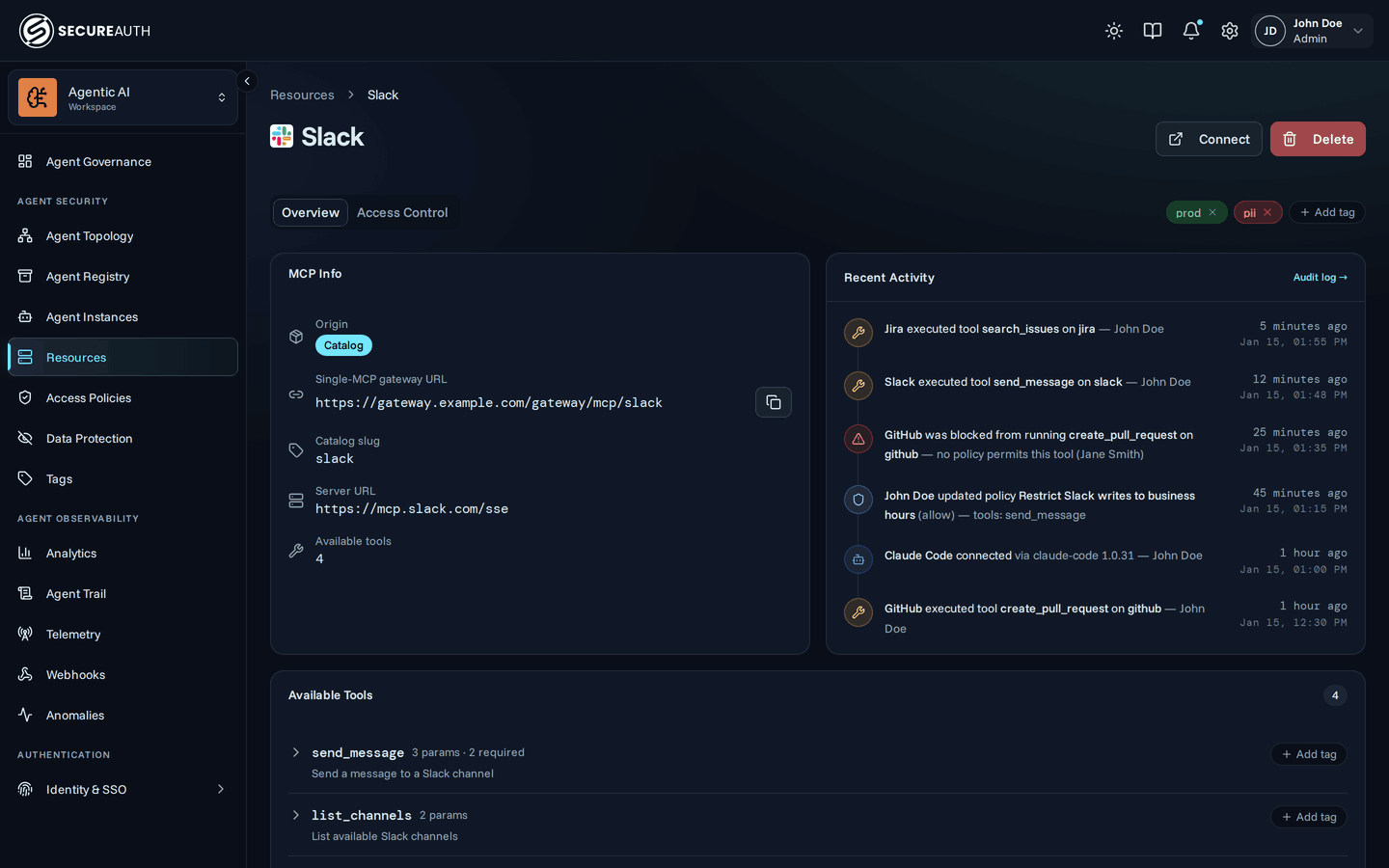
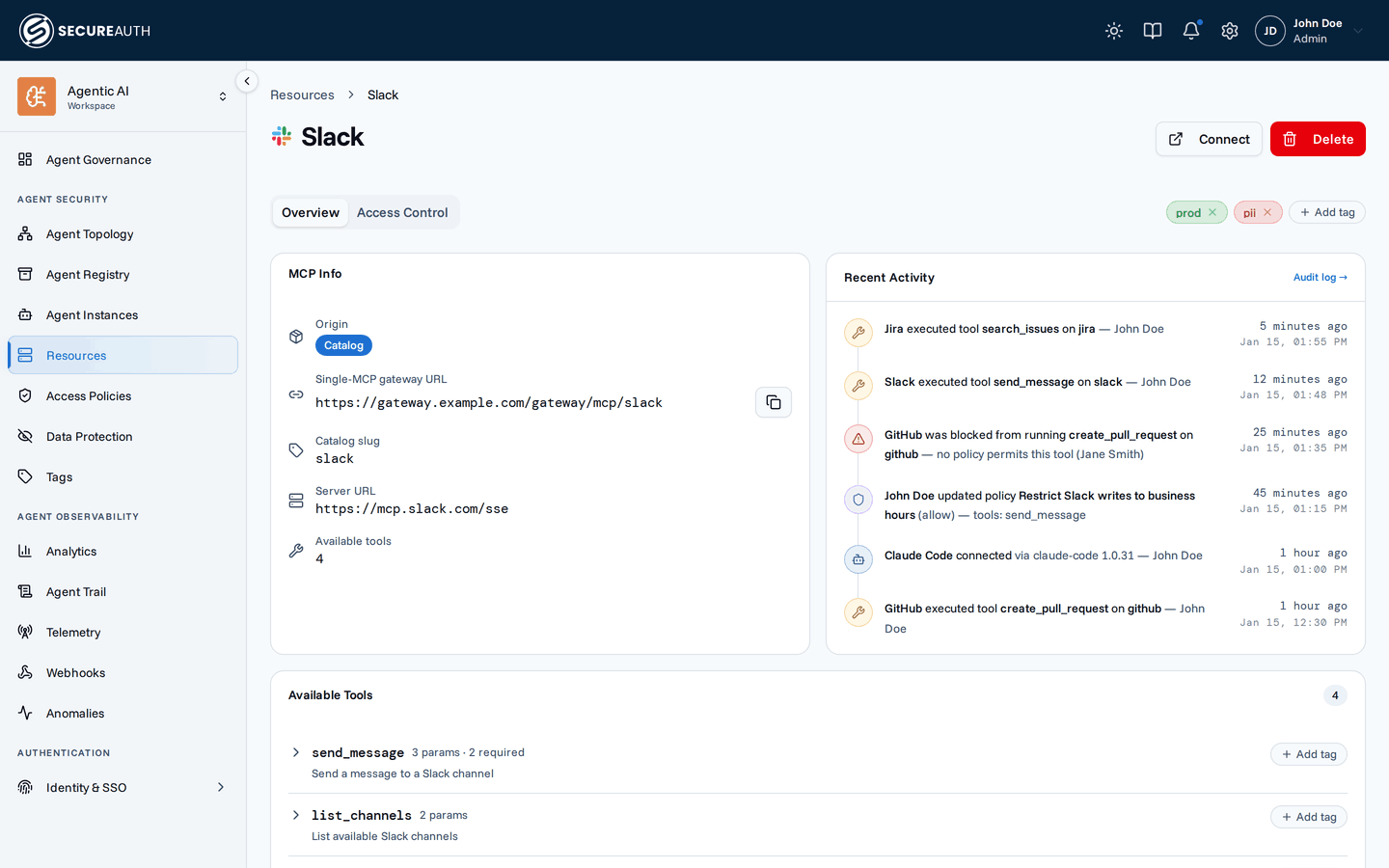
- Available tools – every tool the MCP server exposes, with descriptions. For a resource that fans out to several upstream servers (Microsoft 365's Mail, Calendar, Teams, and so on), tools are grouped by upstream, collapsed by default
- MCP Info – server URL, origin (catalog or custom), and, for custom servers, the authentication option
- Settings – for OAuth resources, how users authorize and which OAuth clients the gateway uses, including rotating a bring-your-own client ID and secret (details)
- Recent activity – audit events related to this resource
Next steps
- Policies – write rules that decide which agents can use these tools.
- Credential modes – how the gateway authenticates to catalog resources.
- Add resources – the guided walkthrough.