Guides
Resources
Add catalog and custom MCP servers to your gateway
Resources are MCP servers that expose tools to your agents through the gateway. Add the tools and services your agents will use.
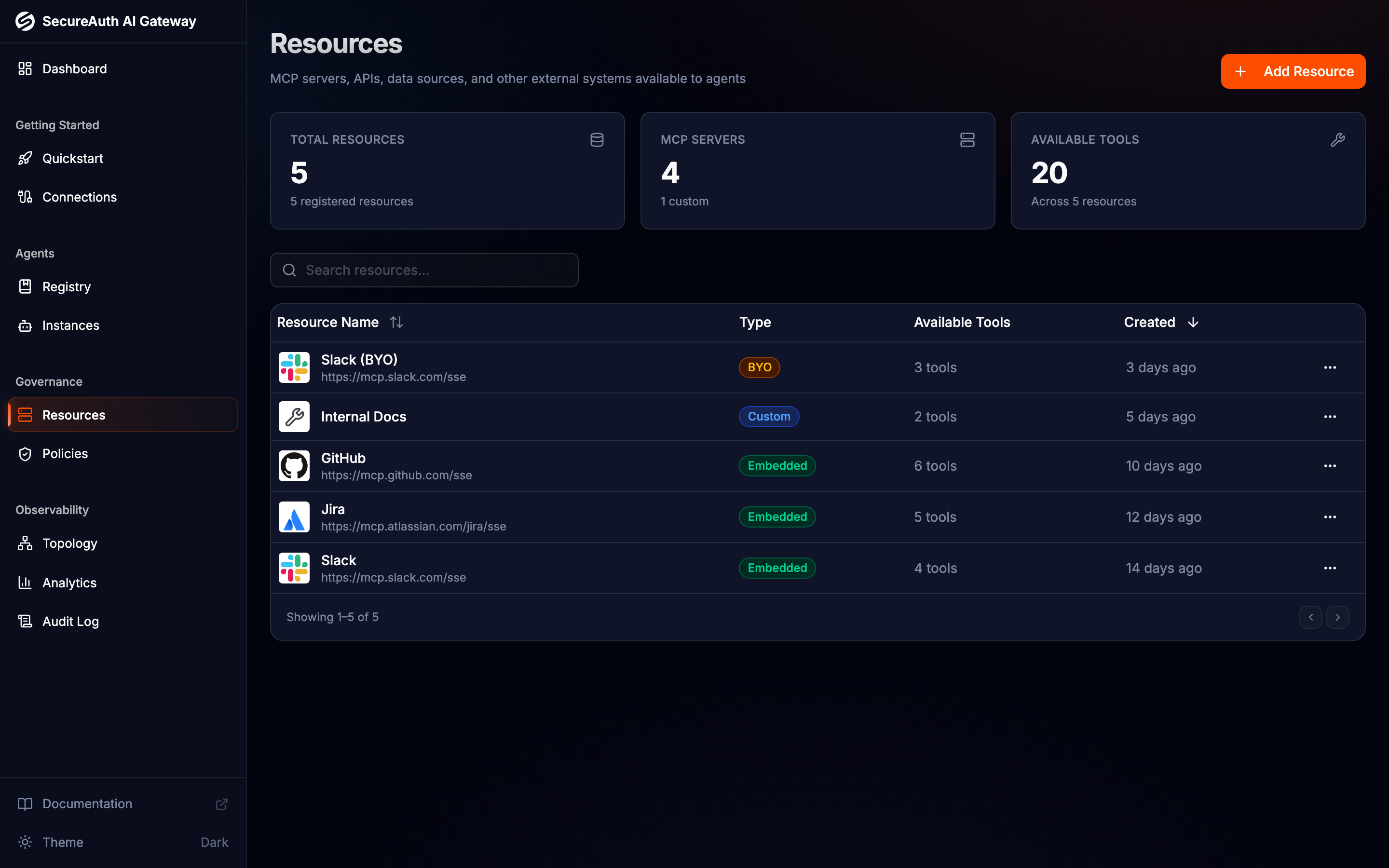
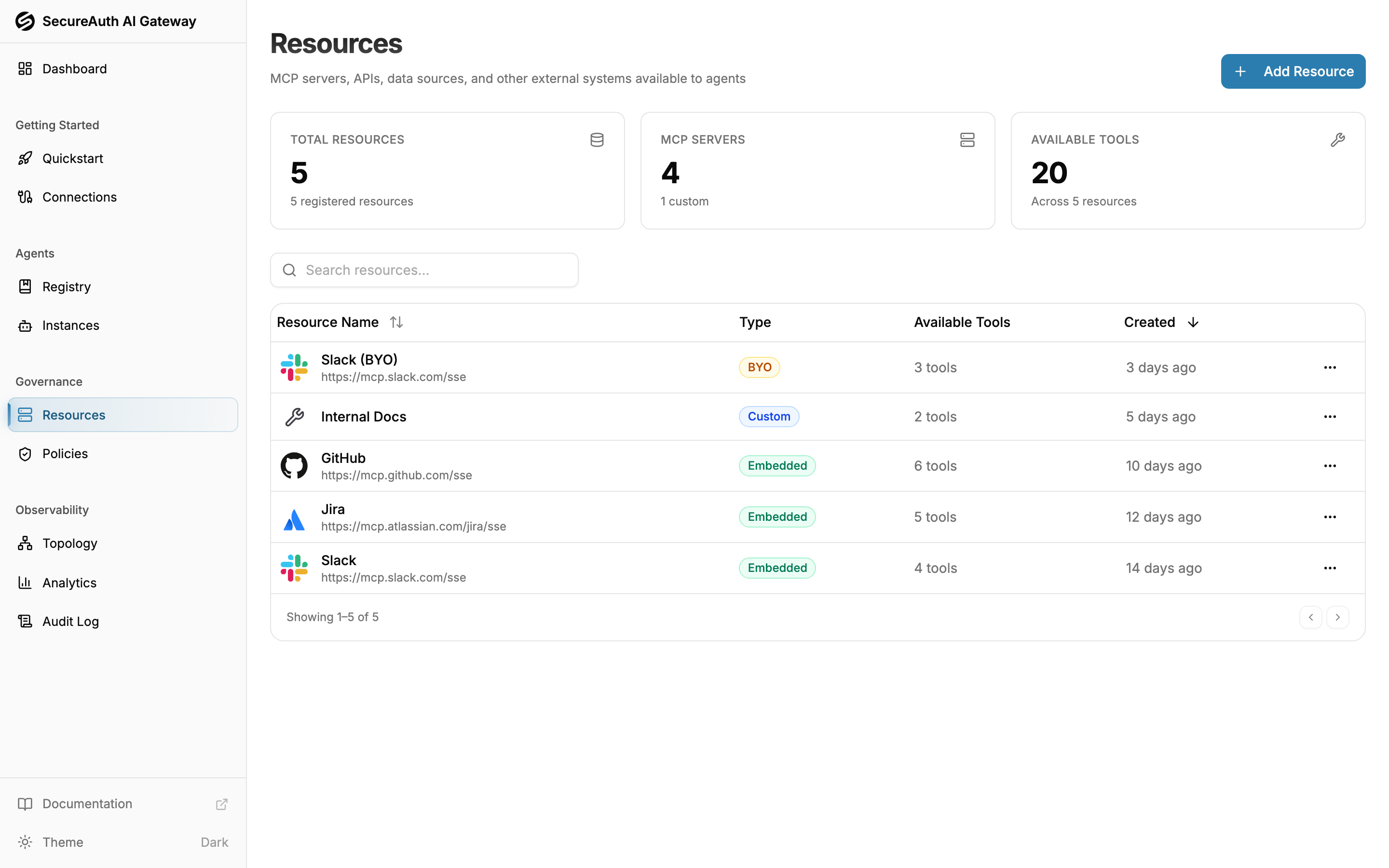
From the catalog
The catalog includes pre-configured resources that work out of the box:
- Navigate to Resources in the dashboard
- Click Add Resource
- Select the Catalog tab
- Pick a resource from the catalog
- If the dialog asks how the gateway should authenticate, pick Use SecureAuth's app (the quickest option) or Bring your own app (paste your own OAuth client ID and secret — the form shows a redirect URI to register with the provider). See Credential modes for the differences.
- Click Add to install
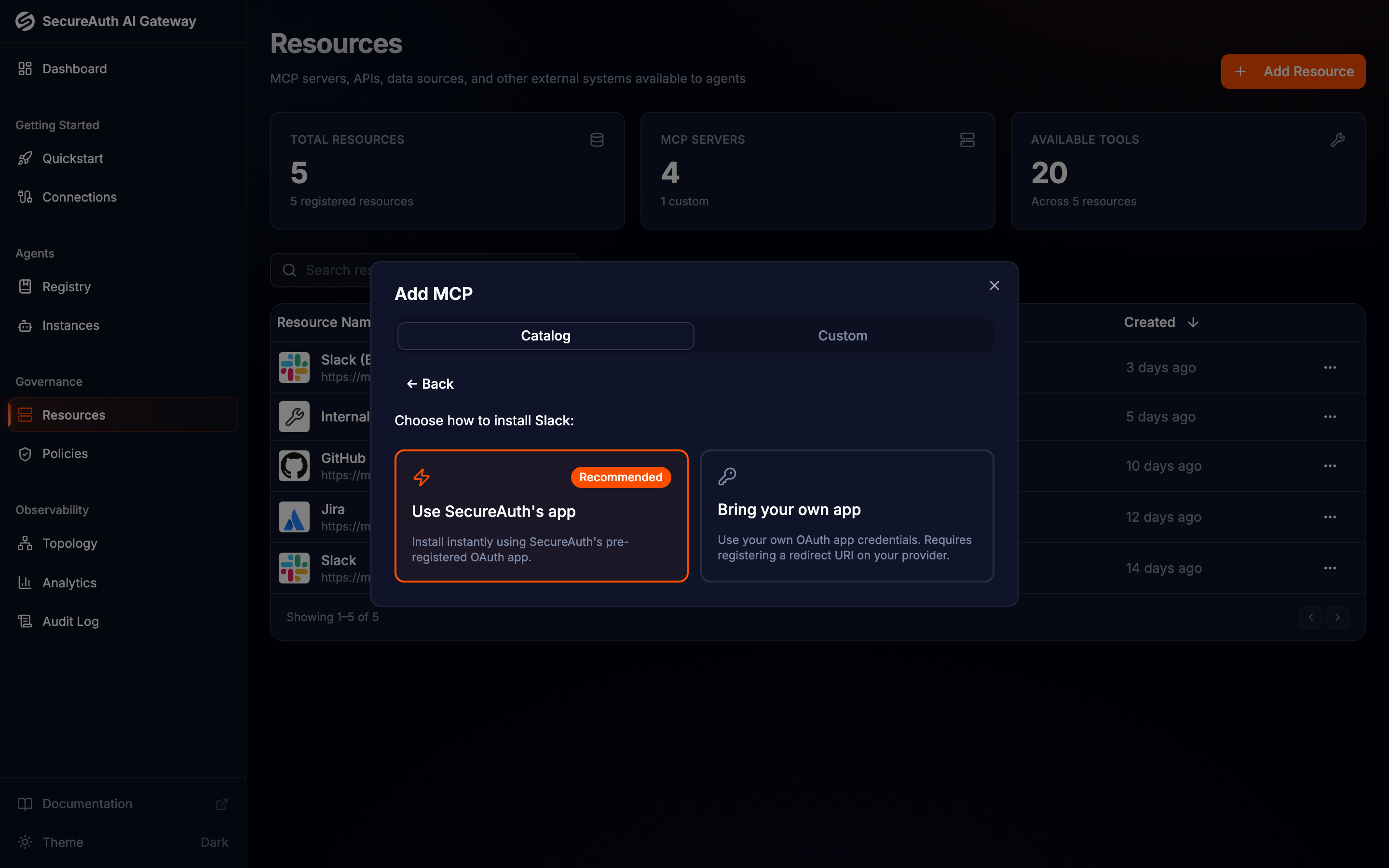
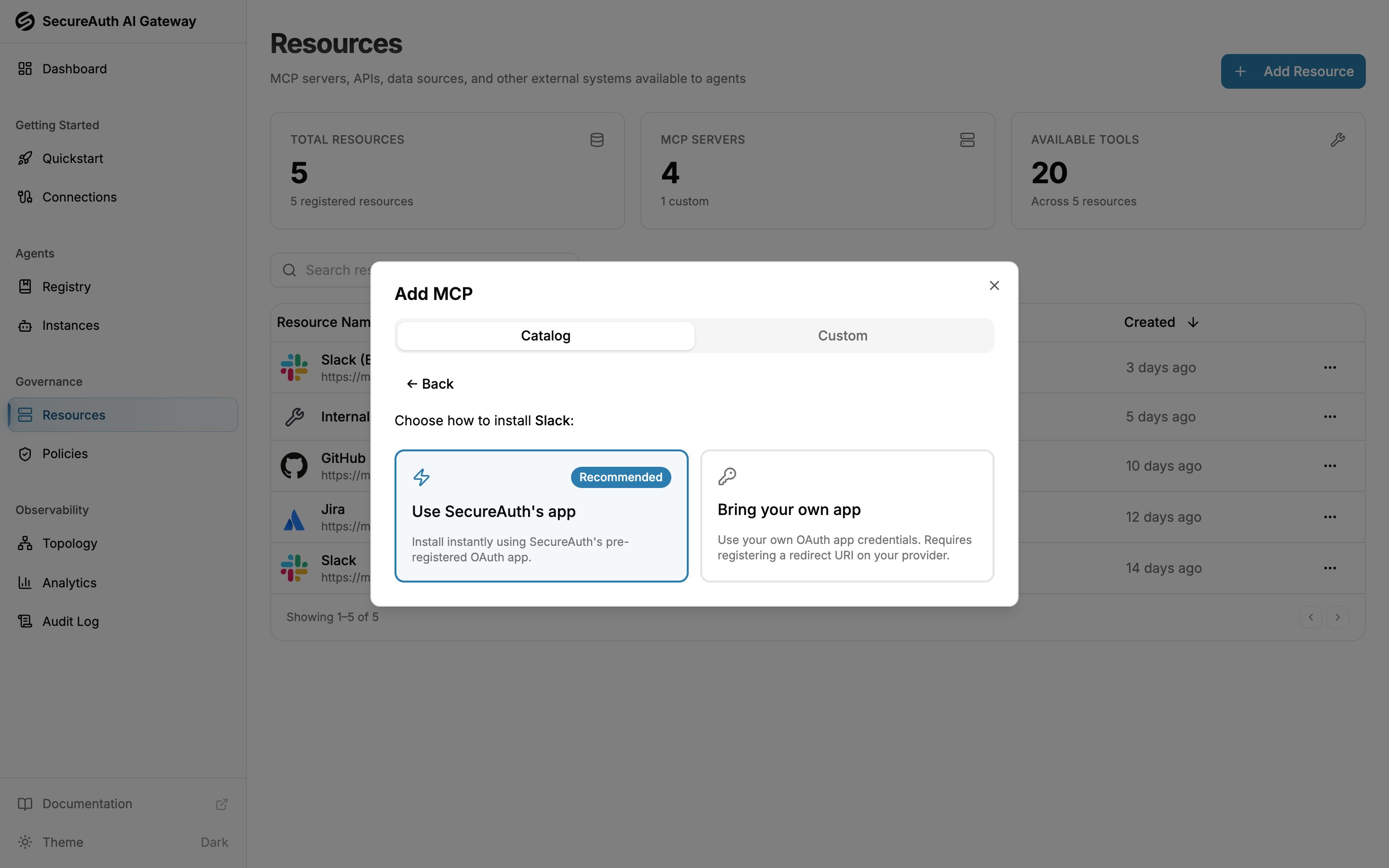
Available tools are discovered automatically. Users will be prompted to connect their accounts via OAuth when they first use the resource.
Custom resources
You can add any MCP server not in the catalog:
- Navigate to Resources and click Add Resource
- Select the Custom tab
- Enter a display name, a slug, and the server URL for the MCP server. The slug is the short identifier used in policies (
mcp.slug == "…") and in the single-MCP gateway URL. - Choose the authentication type:
- None — no authentication required
- OAuth2 — provide client ID, client secret, token URL, and scopes
- API Key — add custom headers sent with every request
- Click Add
The gateway connects to the server and discovers available tools automatically.
Resource details
Click any resource in the list to see its detail page:
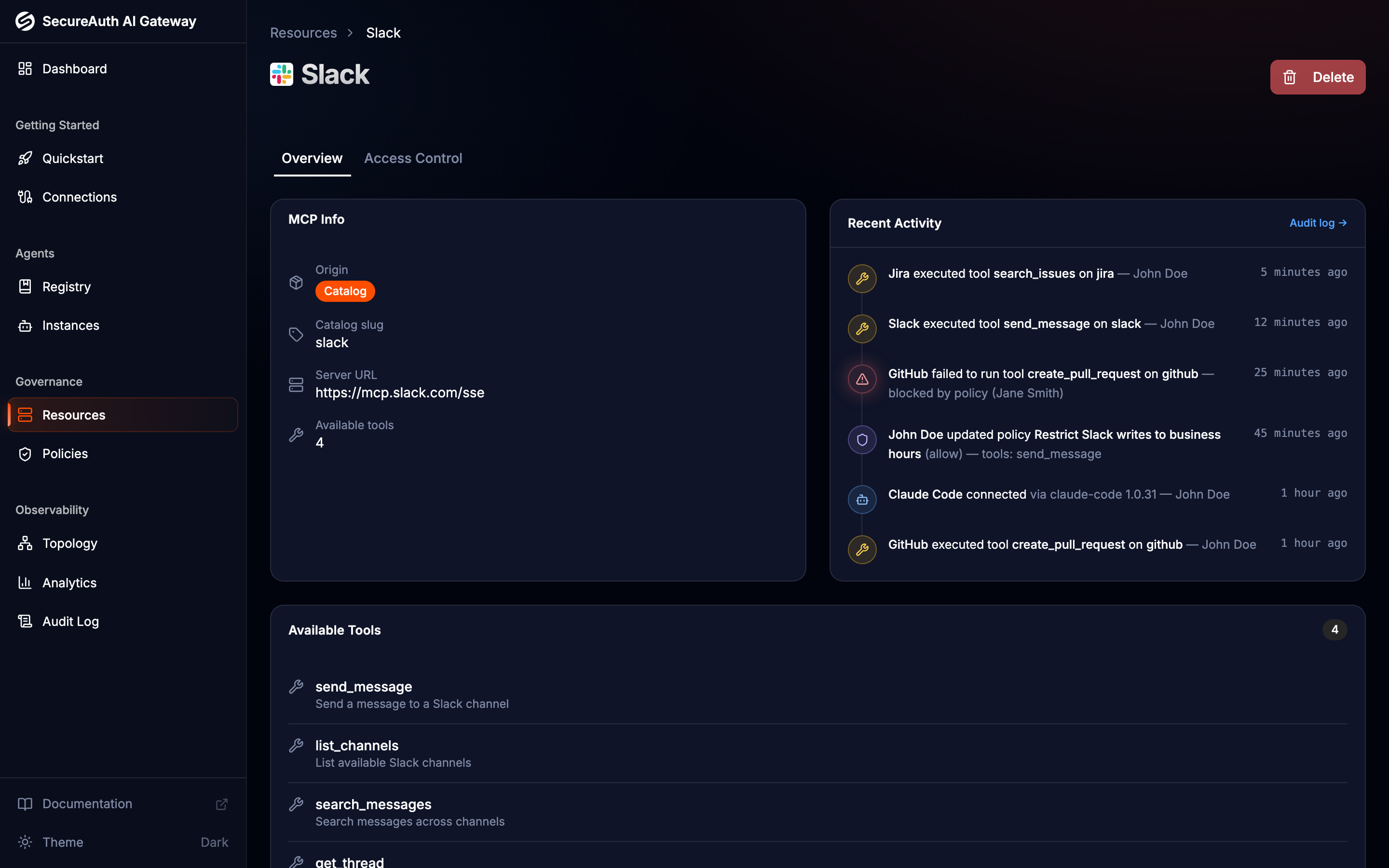
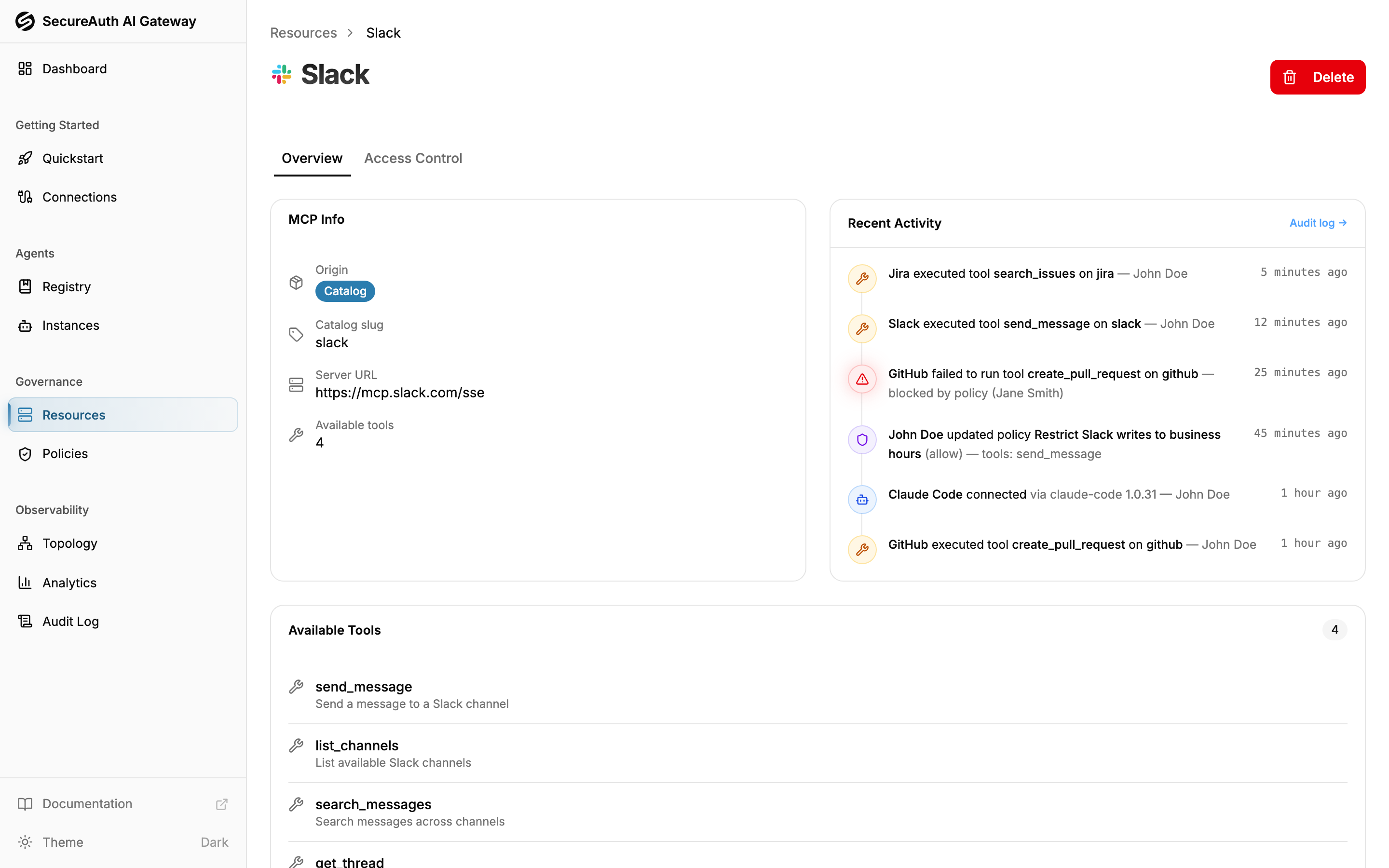
- Available tools — every tool the MCP server exposes, with descriptions
- Configuration — server URL, authentication type, and origin (catalog or custom)
- Single-MCP gateway URL — the
/gateway/mcp/{slug}endpoint that exposes only this resource's tools, with a copy button. Use it to scope an agent connection to one MCP - Credentials — for resources installed in bring-your-own mode, a card to rotate the OAuth client ID and secret in place (details)
- Recent activity — audit events related to this resource