Non-human identities (NHI)
Monitor non-human identities in Microsoft Entra for risky credentials, permissions, and ownership gaps
NHI monitoring shows which of your non-human identities carry risk, so you can fix a leaked-secret or over-permission path before someone uses it.
A non-human identity (NHI) is any identity that software signs in with instead of a person: application registrations, service principals, agent identities and their blueprints, and agent users. NHIs often hold long-lived secrets and broad permissions, and nobody reviews them the way they review human accounts.
How NHI monitoring works
- You connect a directory, such as a Microsoft Entra tenant, as an NHI source.
- SecureAuth reads the directory's non-human identities, their credentials, owners, and permission grants. It only reads the directory and never changes it.
- After each read, SecureAuth runs a set of rules against what it found. Each match is a finding: one identity that breaks one rule.
- SecureAuth reads the directory again every hour by default, so findings follow the directory as it changes.
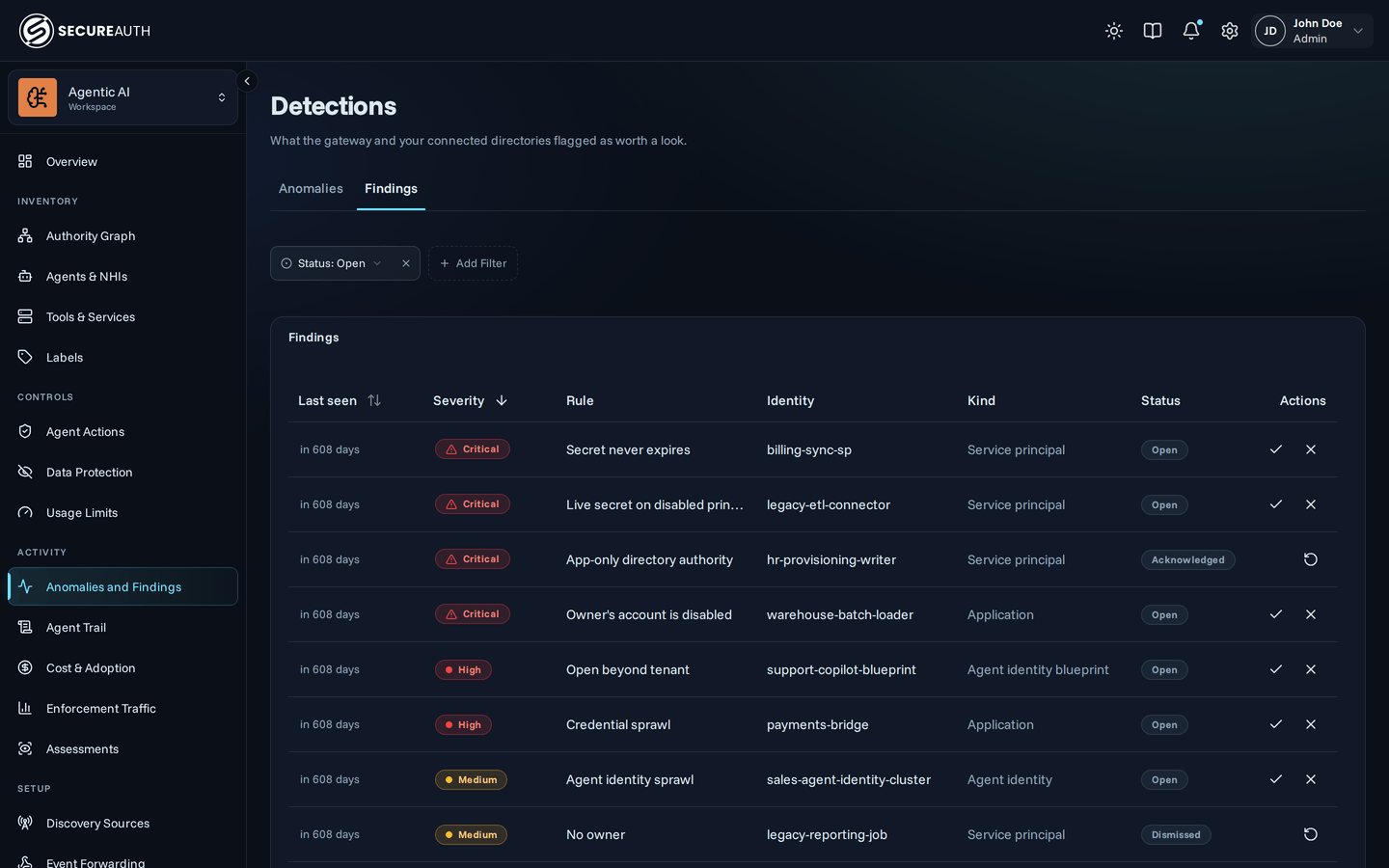
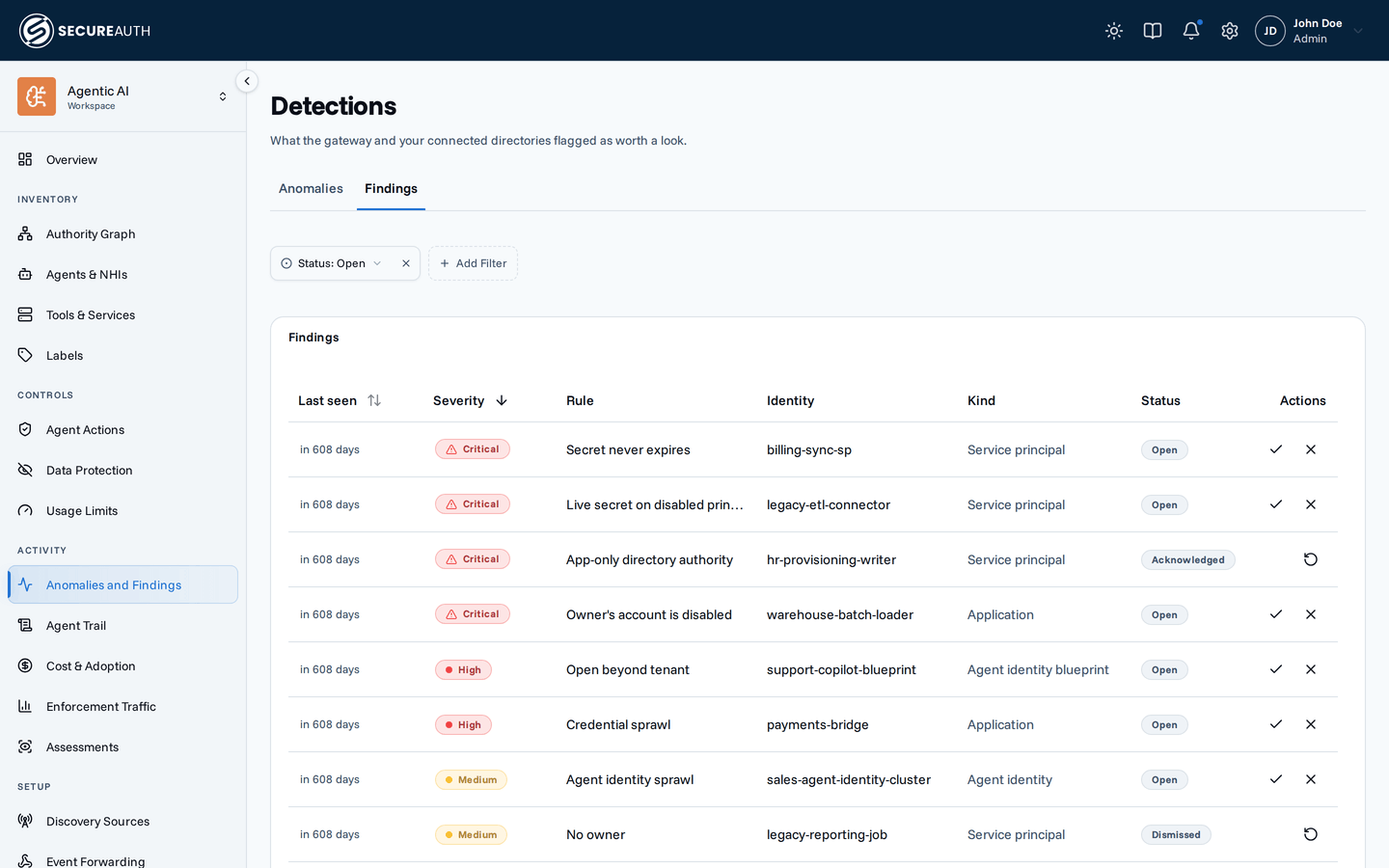
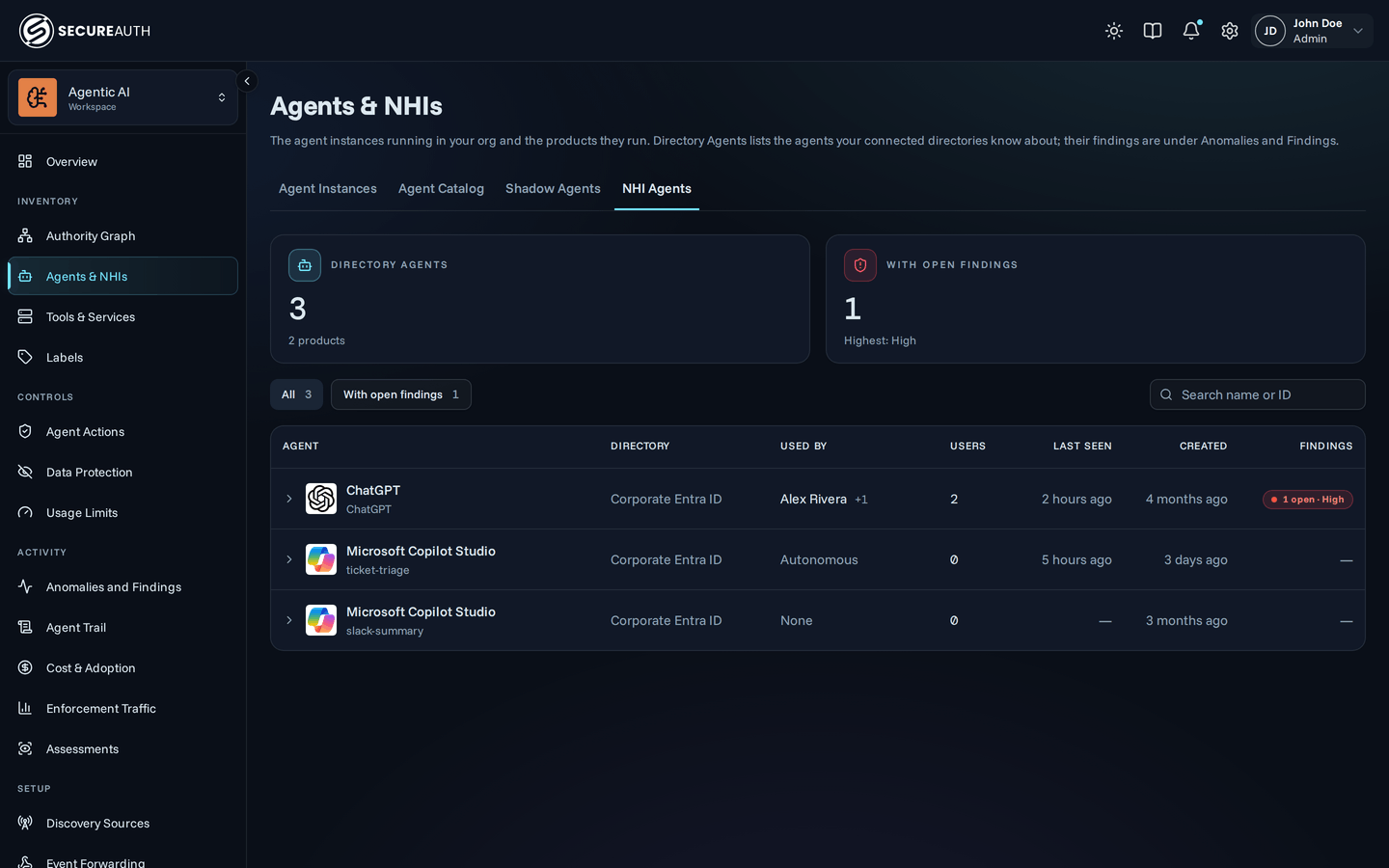
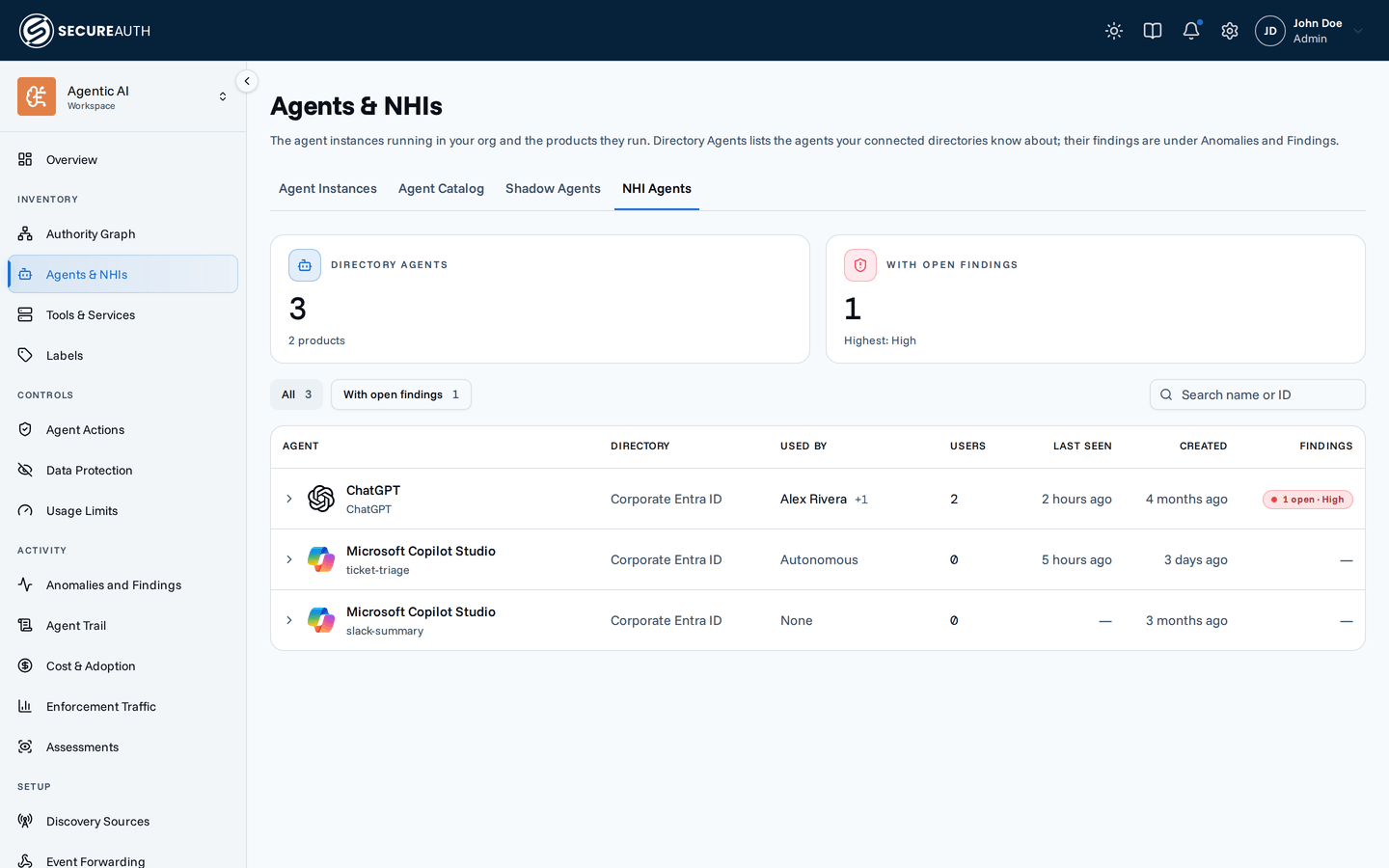
NHI monitoring spans three screens. Connect and manage directories under Setup > Discovery Sources, on the NHI Sources tab. Review what SecureAuth found under Activity > Anomalies and Findings, on the Findings tab. See the agents a directory holds under Agents & NHIs, on the NHI Agents tab.
The NHI feature is turned on per organization. Without it, no NHI tab appears and SecureAuth doesn't read connected directories. Contact SecureAuth to turn it on.
To see any NHI tab, you need the view_nhi permission.
The Agents & NHIs page also needs the view_agent_instances permission.
To connect or edit a source, you need the manage_nhi permission.
Connect a directory
On the NHI Sources tab, select Add NHI source and pick a provider.
For Microsoft Entra, first register an application in your tenant. Then supply:
- Directory (tenant) ID and Application (client) ID, both copied from the app registration.
- Client secret, created under Certificates & secrets. Entra shows this value only once.
Grant the application these Microsoft Graph application permissions, with admin consent:
| Permission | SecureAuth reads |
|---|---|
Application.Read.All | Applications, service principals, owners and app roles |
AgentIdentityBlueprint.Read.All | Agent identity blueprints |
AgentIdentity.Read.All | Agent identities |
User.Read.All | Users and agent users |
Directory.Read.All | Delegated permission grants |
AuditLog.Read.All (optional) | Sign-in logs, which show who each agent signed in as and in which mode. Needs Microsoft Entra ID P1 or P2. |
SecureAuth doesn't check these permissions when you connect. If it can't read one type of object, such as permission grants, the sync stops there. The source then shows Error and the Findings tab stays empty.
AuditLog.Read.All is the exception.
Without it, or without Microsoft Entra ID P1 or P2, the sync still succeeds.
Agents then show no usage.
See How each agent is used.
SecureAuth added Directory.Read.All to the required permissions after the first release.
If you connected a directory before then, add the permission to the app registration and grant admin consent again.
Until you do, each sync of that directory stops and the source shows Error.
After you connect, a source shows as Authenticated or Error. To re-validate a source's credentials, select Check now from its menu.
What the rules detect
Each rule has a fixed severity. Within each group below, rules run from most to least severe.
Credentials
A secret that never expires, or that outlives the identity using it, gives an attacker who finds it lasting access.
| Rule | Severity | What it flags |
|---|---|---|
| Secret never expires | Critical | A secret or certificate with no expiration, or one set to expire more than five years out |
| Live secret on disabled principal | Critical | An application or blueprint whose principal is disabled, but that still holds a credential that hasn't expired |
| Secret past its maximum age | High | A credential Entra still accepts that started more than two years ago |
| Credential sprawl | High | One identity carrying 10 or more secrets and certificates between them |
| Legacy principal holding credentials | High | A legacy service principal that can still authenticate, with no registration governing it |
| Expired credentials still present | Medium | A credential that has already expired and was never removed |
Permissions
These identities can read or change sensitive data with no person signed in to approve each action.
| Rule | Severity | What it flags |
|---|---|---|
| App-only directory authority | Critical | A principal holding a Graph app role that rewrites the directory |
| Tenant-wide admin consent | High | An application an admin consented to on behalf of everyone in the tenant |
| Broad sensitive scopes | High | A delegated grant that reads mail, files or calendars and holds a refresh token |
Exposure outside your tenant
These identities trust someone outside your organization: their users, their tokens, or their code.
| Rule | Severity | What it flags |
|---|---|---|
| Open beyond tenant | High | An application or blueprint that accepts sign-ins from outside your own tenant |
| External IdP trust | High | An application that accepts tokens from an external issuer, such as a CI provider |
| Unverified publisher | Medium | An application from another tenant whose publisher Microsoft never verified |
Ownership and lifecycle
An identity nobody owns or uses still works. Nobody rotates its credentials or notices when it misbehaves.
| Rule | Severity | What it flags |
|---|---|---|
| Disabled by Microsoft | Critical | An application Microsoft disabled, usually for abuse |
| Owner's account is disabled | Critical | An identity whose only owners can no longer sign in, so nobody can rotate its credentials |
| Disabled principal still present | Medium | A service principal that is disabled but still in the directory |
| No owner | Medium | An identity nobody owns, so nobody is accountable for it |
| Agent identity sprawl | Medium | An application that created 10 or more agent identities within 180 days |
| Blueprint without agent identities | Medium | A blueprint older than 7 days that no agent identity references |
| Duplicate registration | Low | Two identities of the same kind sharing a display name |
| Application with no service principal | Low | An application registration nothing in the tenant can sign in as |
How each agent is used
On the NHI Agents tab of Agents & NHIs, the Used by column shows who uses each agent. Its first line names the user who most recently used the agent and how many other users did. When the agent acted as itself, an Autonomous line appears below any users, or on its own. Users counts those users, and Last seen is the agent's most recent use. The most recently seen agents come first. Select a row to see each user and the agent's autonomous use, with when SecureAuth first and last saw each one. Any user, owner, sponsor or consenting person with an account in your organization links to their profile under Human Identities.
| Mode | The agent acted | Shown as |
|---|---|---|
| User | For a user, with that user's delegated access | The user |
| Autonomous | As itself, through its own identity or its own agent user account, with no user | Autonomous |
Only users with an account in your organization are listed. A guest, or a user outside your verified domains, doesn't appear.
SecureAuth reads the last 30 days of activity on every sync and keeps what it found. A user stays listed after they stop using the agent, and Last seen shows how long ago that was. First seen is the earliest use SecureAuth has read, so it goes back at most 30 days before SecureAuth first read the logs. Service principals and agent users come from the Entra sign-in log. Other agent identities rarely sign in through Entra, so their users come from the Microsoft Purview audit log. Each Purview interaction counts as User. If a log can't be read, the sync still succeeds, and the table keeps what earlier reads found.
Triage findings
The Findings tab lists what the last complete sync found, one row per identity per rule. Each row shows the severity, the rule, the identity's name and kind, and when SecureAuth last saw the finding.
A finding has one of four statuses:
| Status | Meaning |
|---|---|
| Open | The default status. Nobody has triaged this finding yet. |
| Acknowledged | Someone has seen the finding and is tracking it. |
| Dismissed | Someone reviewed the finding and decided it needs no action. |
| Resolved | SecureAuth set this. A sync no longer sees the problem in the directory. |
Select a row to open its details, where Acknowledge, Dismiss, and Reopen change the status.
Reopen moves an acknowledged or dismissed finding back to open.
Triage requires the manage_nhi permission; without it, the actions don't appear.
Every status change is recorded in the audit log as nhi_finding.status_changed.
You can't set a finding to resolved yourself. A finding resolves when a later sync no longer asserts it, for example after you rotate a flagged secret or remove an unused blueprint. A resolved finding stays visible and filterable for 120 days, then SecureAuth removes it. If the same problem reappears in a later sync, SecureAuth opens a new finding rather than reusing the old one.
Filter the table by status, severity, rule, kind, or provider. After you connect a directory, you can also filter by source. Sort by severity or by how recently a finding was last seen.
Select a finding to see:
- Why flagged: what the rule checks and why this identity matched it.
- Evidence: the specific credentials, permissions, or directory attributes the rule found, such as a credential's expiration or an owner's account status.
- Identity: the identity's kind, its external ID in the directory, and which source it came from.
- History: when SecureAuth first and most recently saw the finding, and when its status last changed.
Next steps
- Anomalies: detect unusual agent activity, scored against each user's own history.