Organization templates
Organization templates let you define a standardized configuration for new organizations. Instead of configuring each customer organization individually, you create a template once with all desired settings. When you create a new organization and reference the template ID, all template configurations are automatically inherited.
Templates include:
- Identity Pool configuration – user storage and authentication capabilities
- Authentication methods – available authentication mechanisms (password, passkey, etc.)
- Business attributes – custom fields for organization-specific data (Salesforce ID, entitlements, etc.)
Template organizations are for configuration only. Do not use them for onboarding actual customers or storing customer data.
Create a template
-
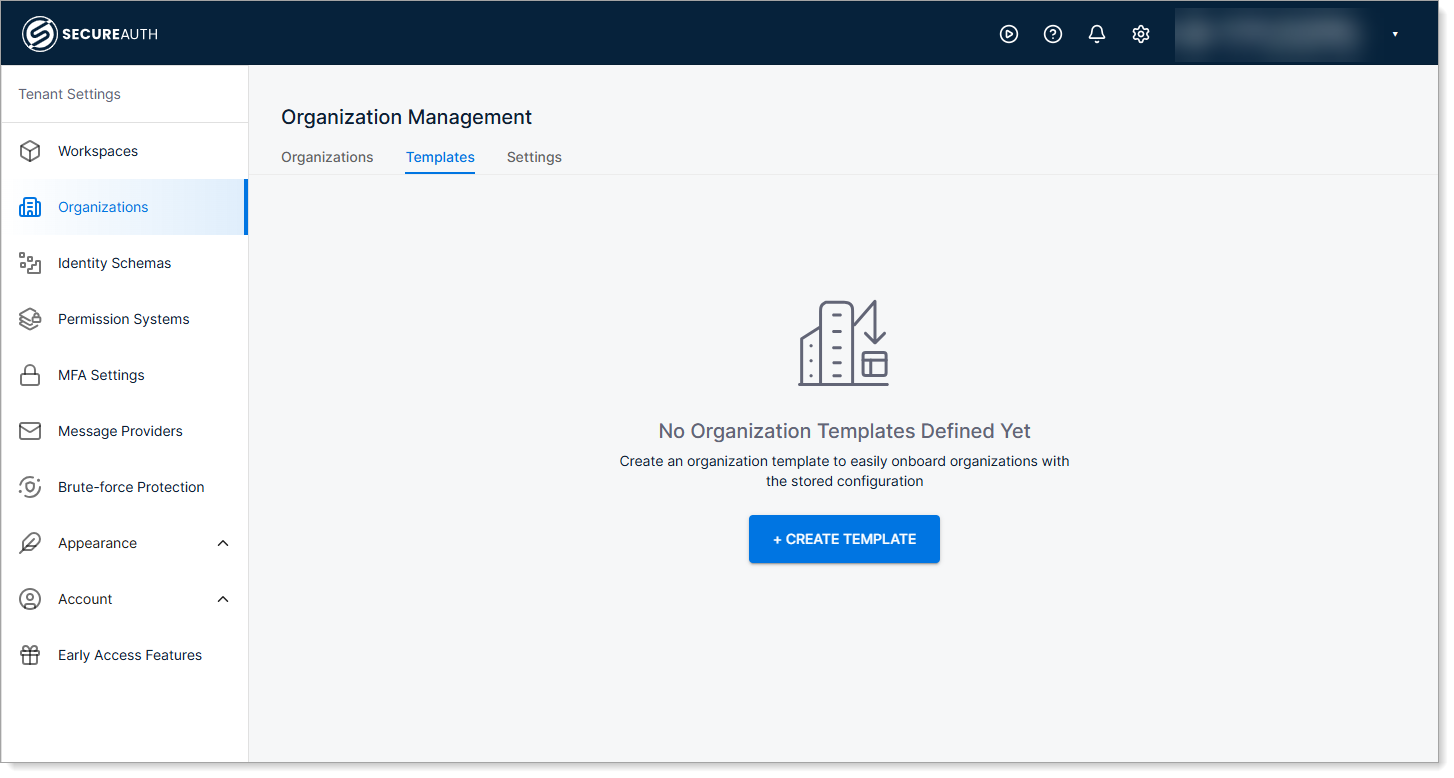
Go to Tenant Settings > Organizations > Templates.
-
Click CREATE TEMPLATE.
-
Provide a name and click Create.
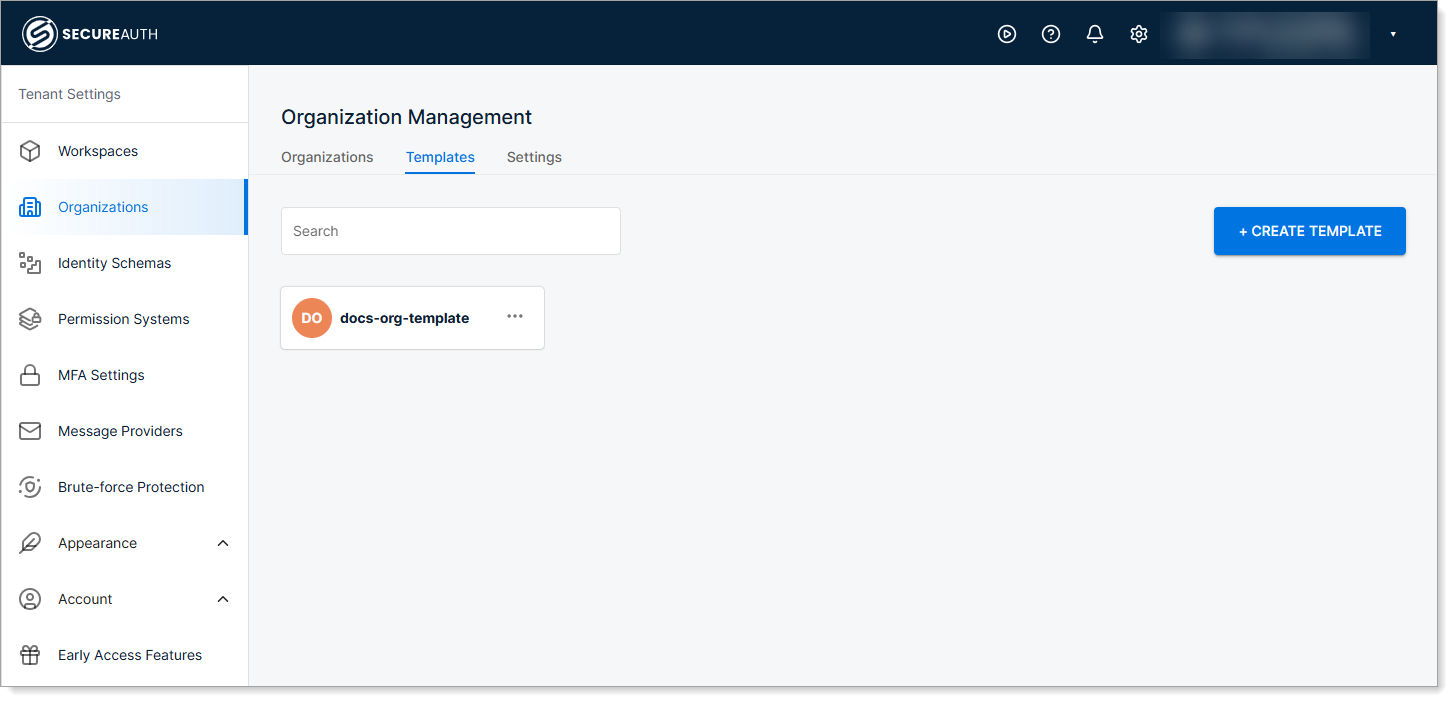
Your template is now created. The following sections walk you through configuring the identity pool, authentication methods, business attributes, and retrieving the template ID.
Configure the identity pool
Identity pools provide user storage and authentication capabilities for your organizations. Create an identity pool in your template so every customer organization automatically gets user management.
-
Go to Tenant Settings > Organizations > Templates and select your template.
-
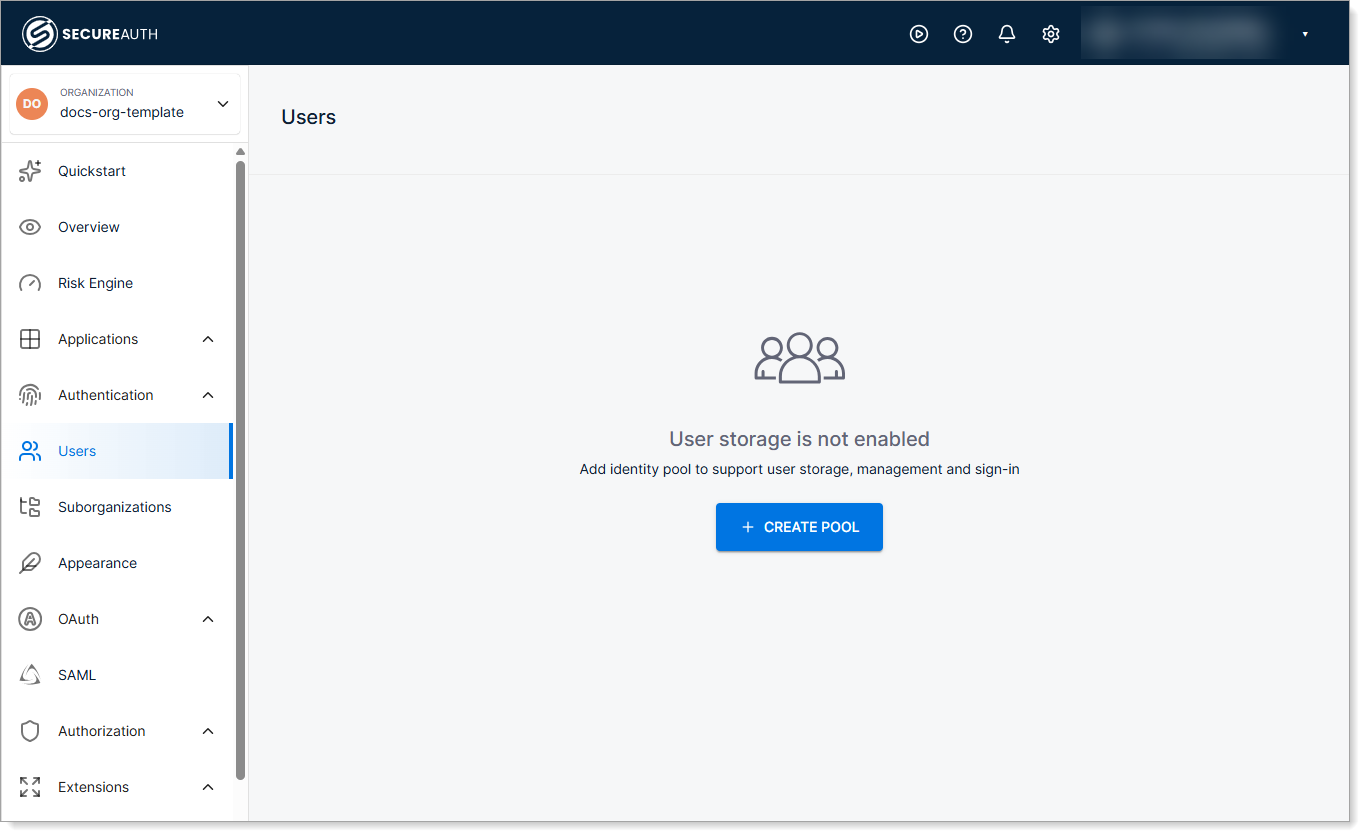
In the left navigation, select Users.
-
Click CREATE POOL.
-
Define the Pool name and Description.
-
Click Create.
Configure authentication methods
Select which authentication methods are available for organizations created from this template.
-
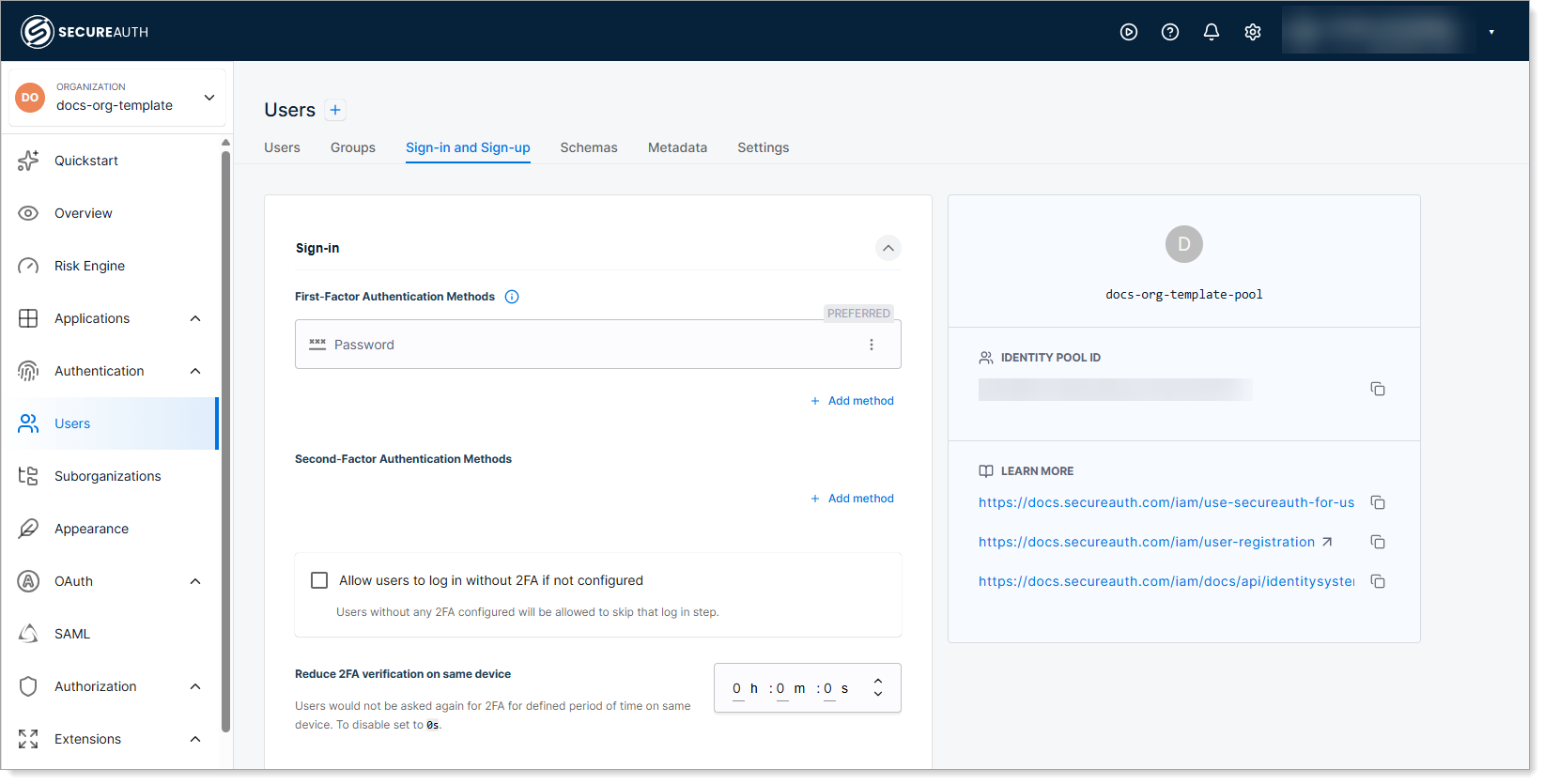
Within your identity pool, click the Sign-in and Sign-up tab.
-
Under First-Factor Authentication Methods, you'll see Password is already configured by default.
-
Click Add method to add additional methods (for example, Passkey).
-
Save your changes.
Configure business attributes
Business attributes allow you to store custom organization-specific data. Use them to link organizations to external systems, store entitlements, and track business metadata.
-
In the template, go to Settings.
-
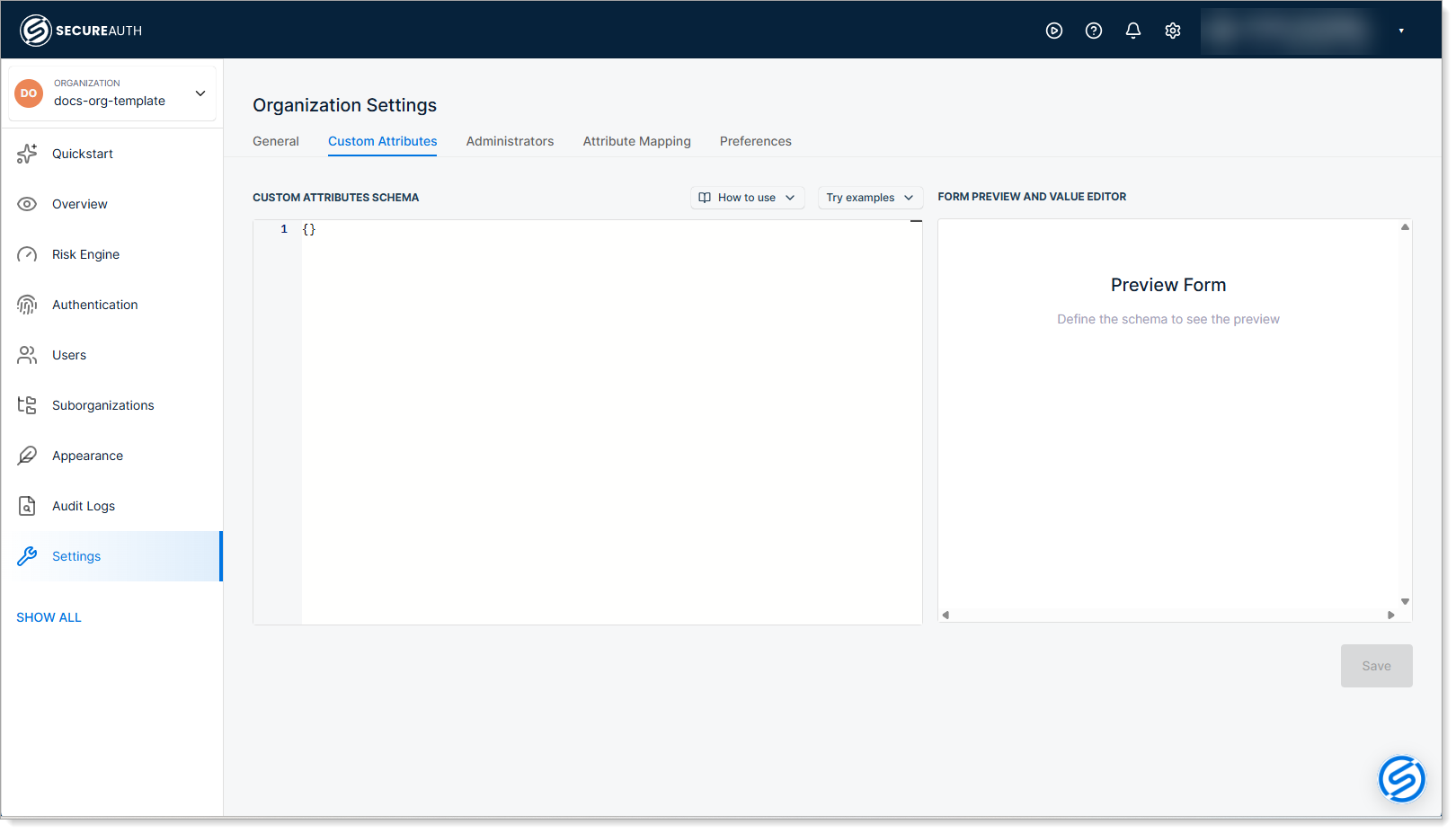
Click the Custom Attributes tab.
-
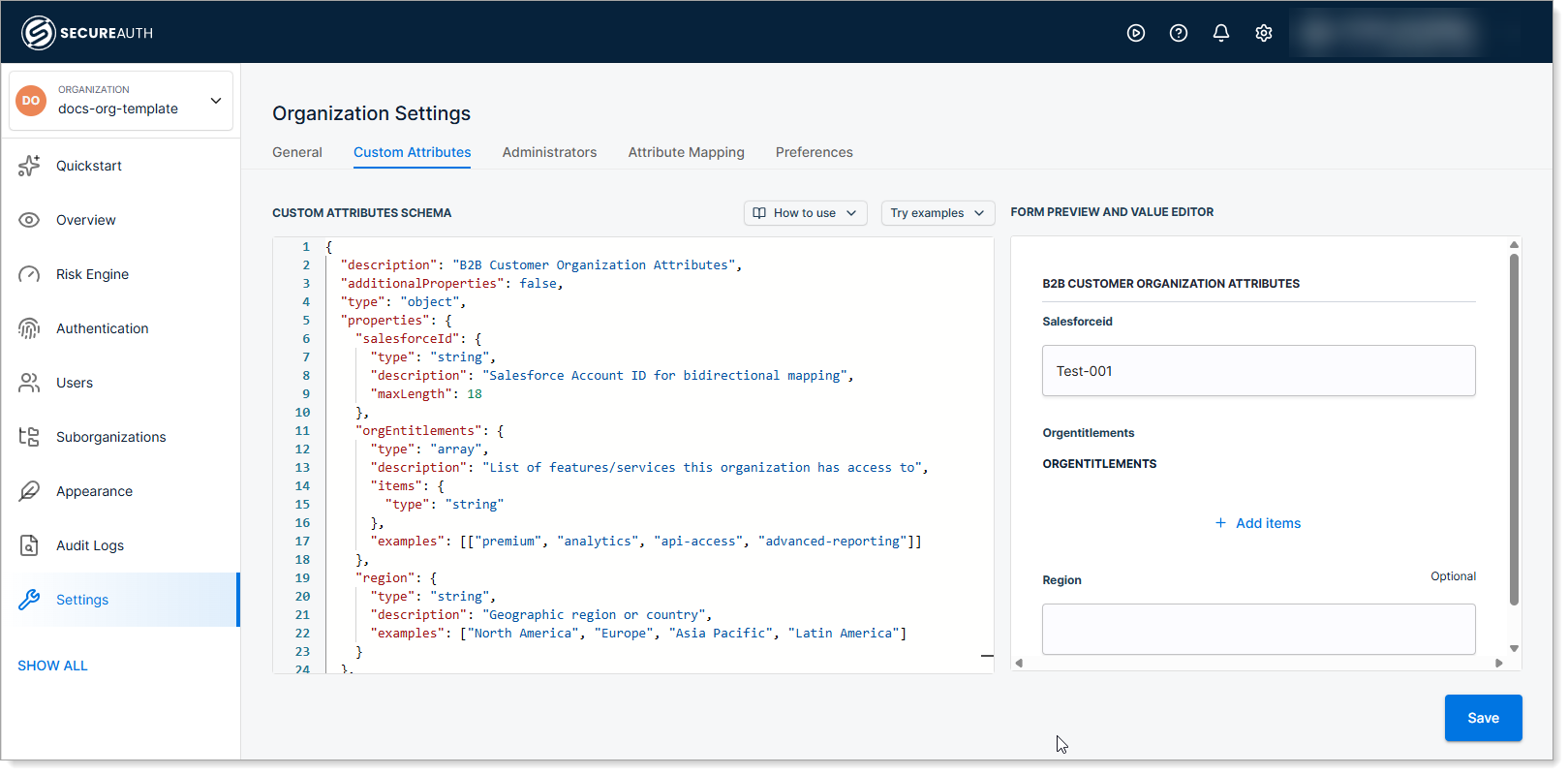
Define your schema in the JSON editor. For example:
{"properties": {"orgEntitlements": {"description": "List of features/services this organization has access to","type": "array","items": {"type": "string"}},"region": {"description": "Geographic region or country","type": "string"},"salesforceId": {"description": "Salesforce Account ID for bidirectional mapping","type": "string","maxLength": 18}},"description": "B2B Customer Organization Attributes","additionalProperties": false,"type": "object"} -
On the right side of the editor, form fields appear for each schema property. Enter test values to validate your schema before saving.
Retrieve the template ID
You need the template ID to reference this template when creating organizations via the API.
-
In the left sidebar, select Settings.
-
Click the General tab.
-
Locate the
idfield and copy this value.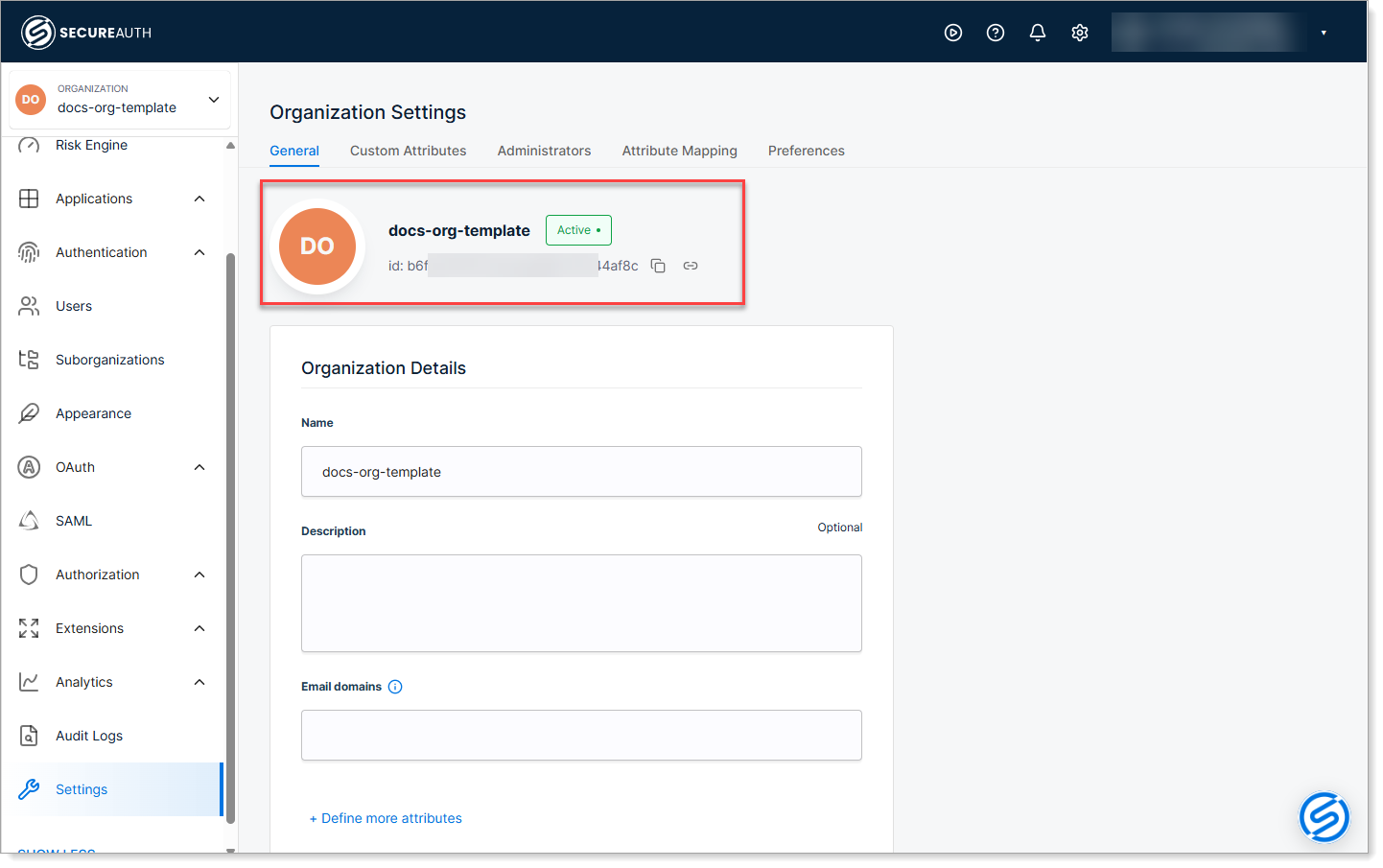
What the template applies
Every new organization created with this template automatically inherits:
- Identity pool with user storage enabled
- Authentication methods configured in the template
- Business attributes schema with your custom fields