Pair your mobile device
Pair your mobile device with SecureAuth Authenticate to enable push notification, Symbol, and QR code authentication methods. Pairing is a one-time setup. After you pair your device, it is available for all mobile authentication methods that your administrator has enabled.
Prerequisites
Download and install SecureAuth Authenticate before pairing your device.
- Apple App Store: SecureAuth Authenticate
- Android Google Play: SecureAuth Authenticate
Pair your device
-
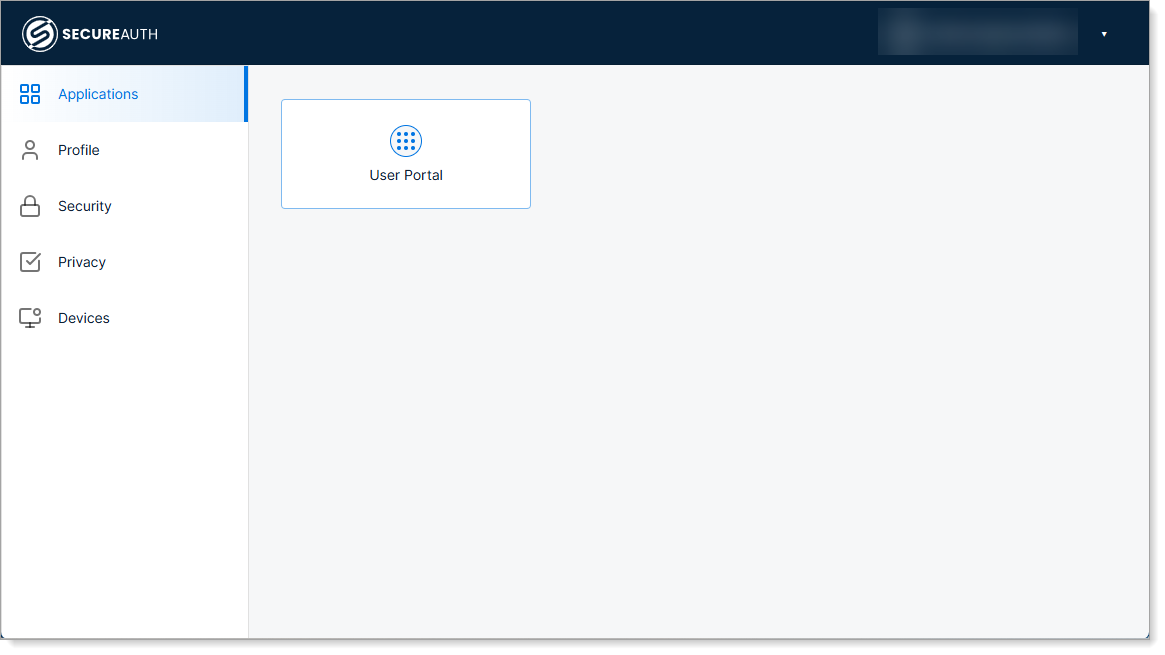
Launch the User Portal and sign in.
-
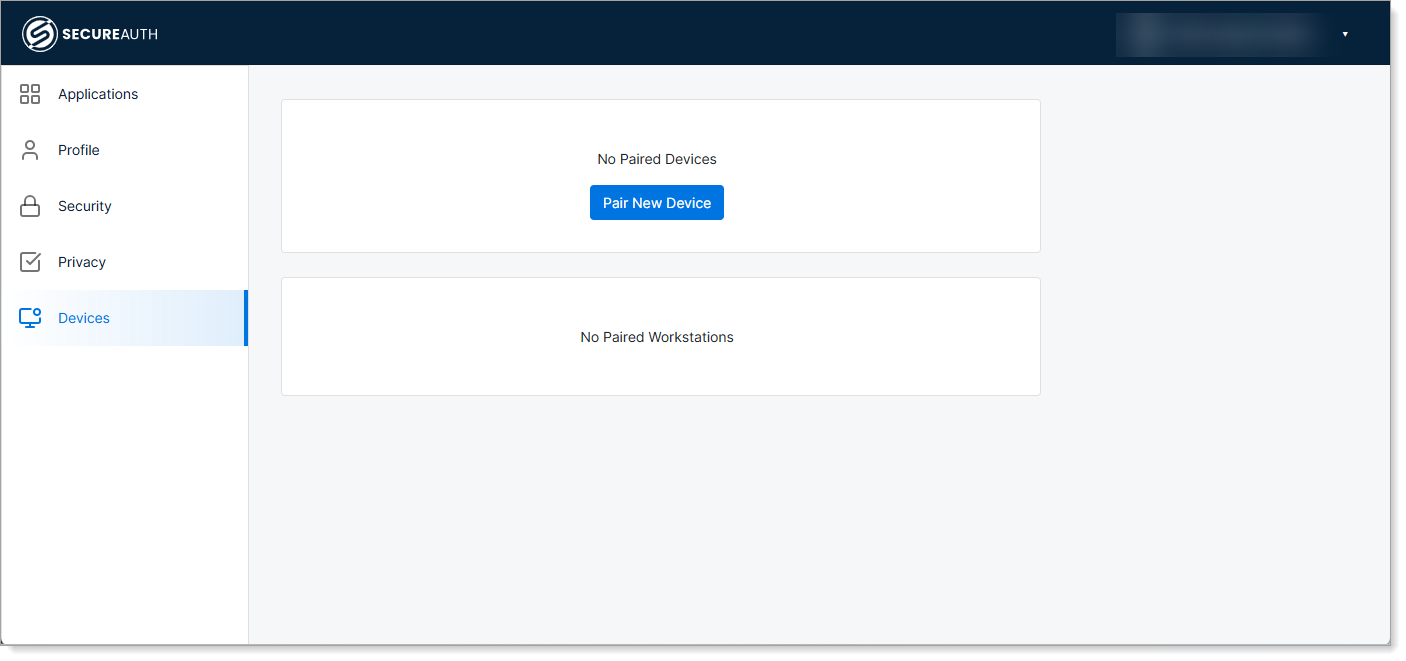
In the left navigation, click Devices.
-
Click Pair New Device.
-
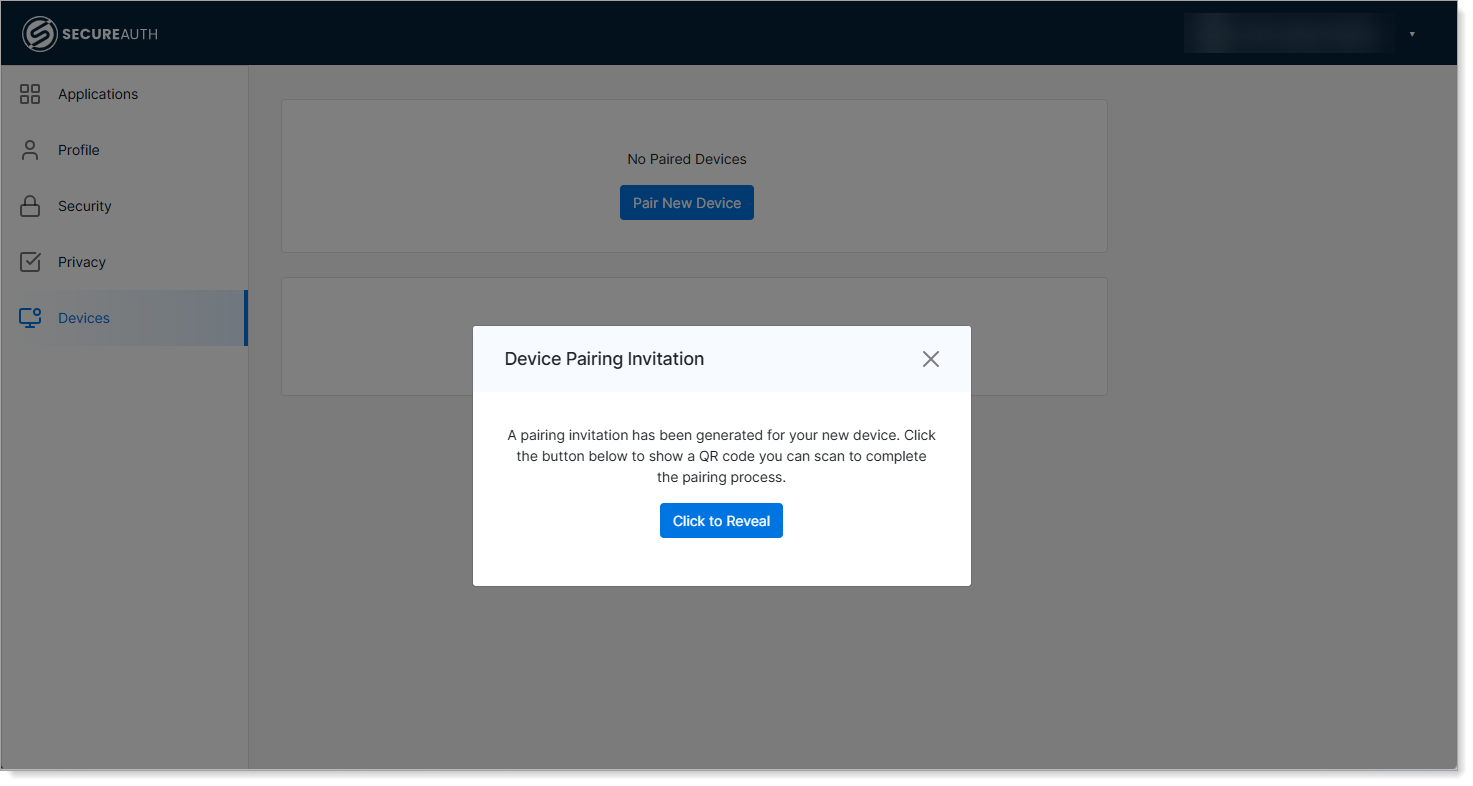
Click Click to Reveal to display your device pairing invitation.
-
Open SecureAuth Authenticate on your mobile device and select QR Scan.
-
Scan the QR code with your mobile device.
-
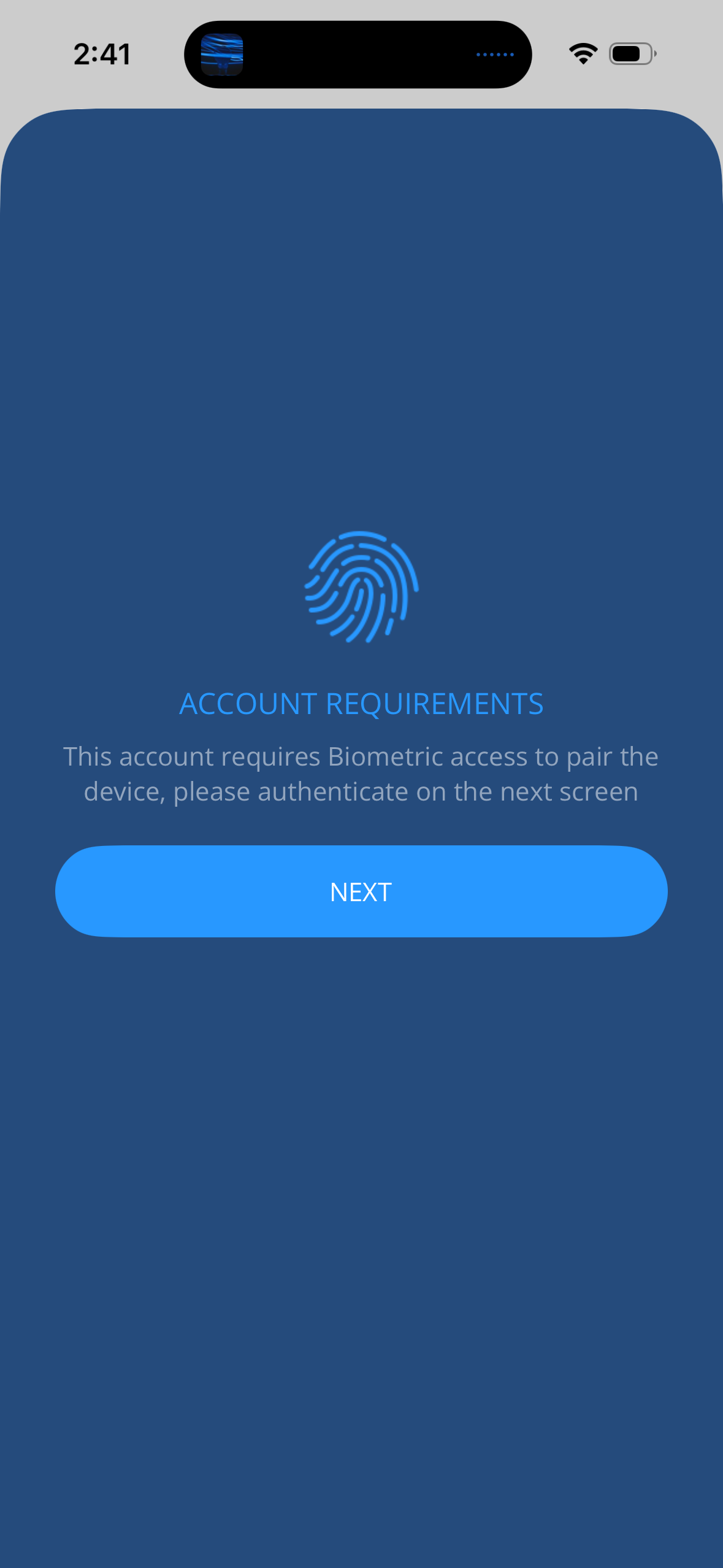
Review the account requirements on your mobile device and tap Next.
-
Complete biometric authentication and tap Next.
-
When prompted to choose a confirmation method, select an option to receive a confirmation code.
-
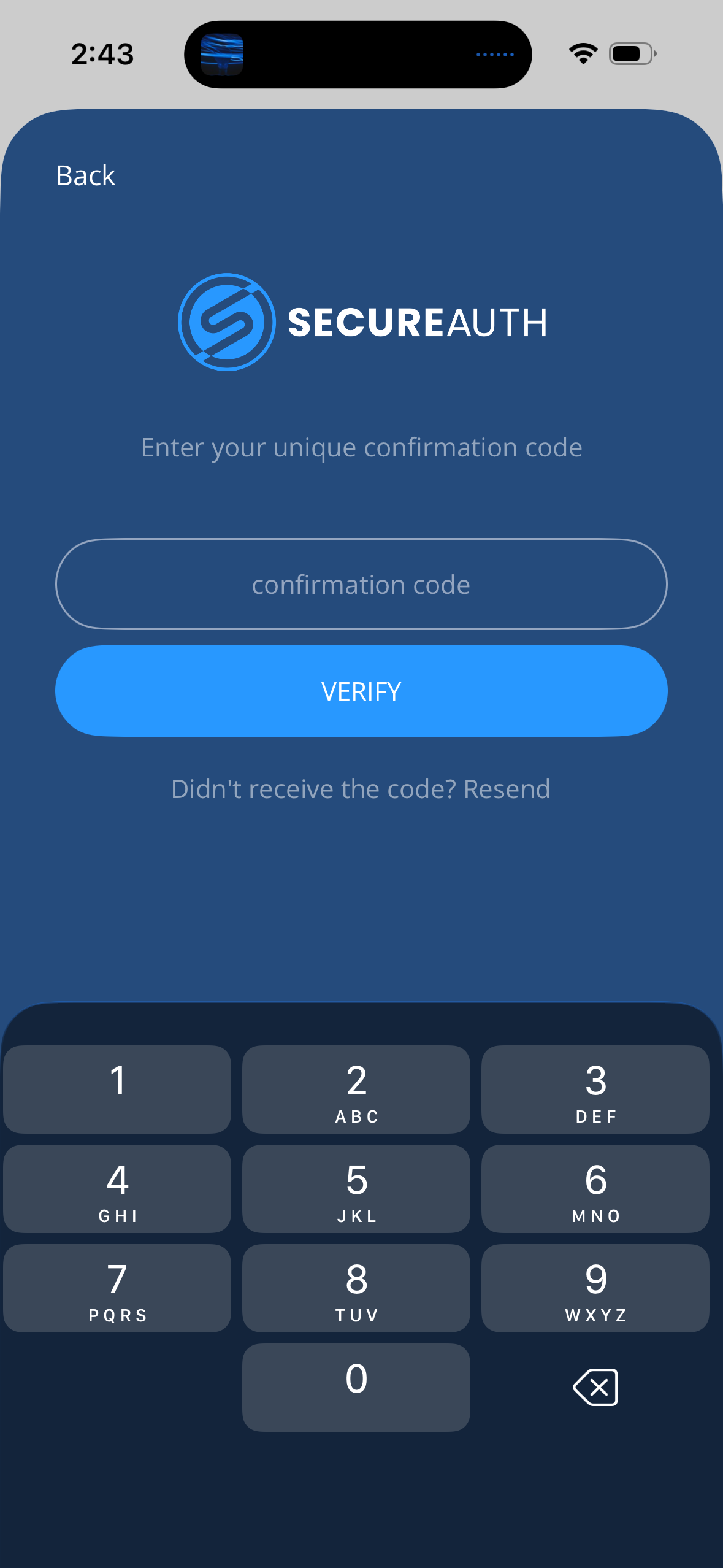
Enter the confirmation code on your mobile device.
-
Confirm that you want to pair your device with your account.
-
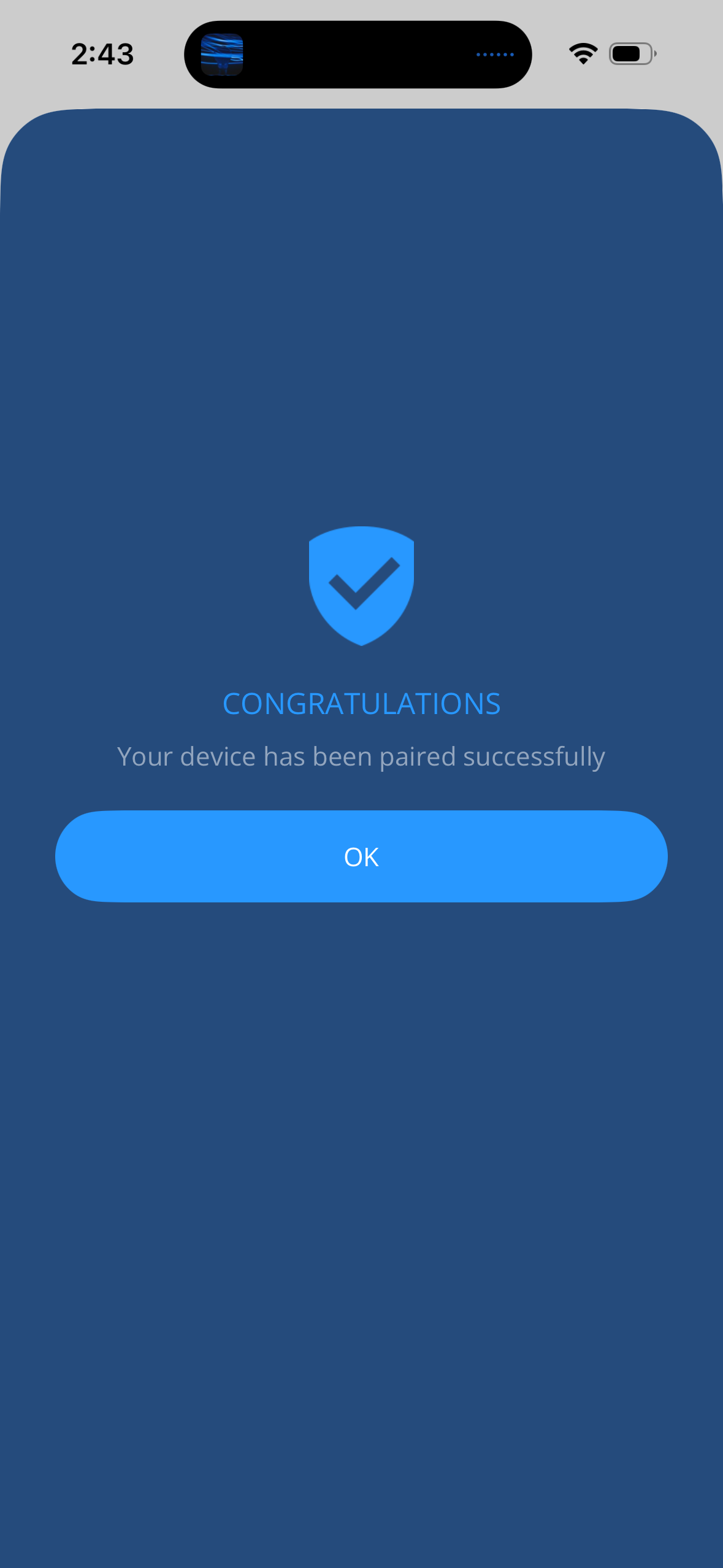
When you see the congratulations message, tap OK.
-
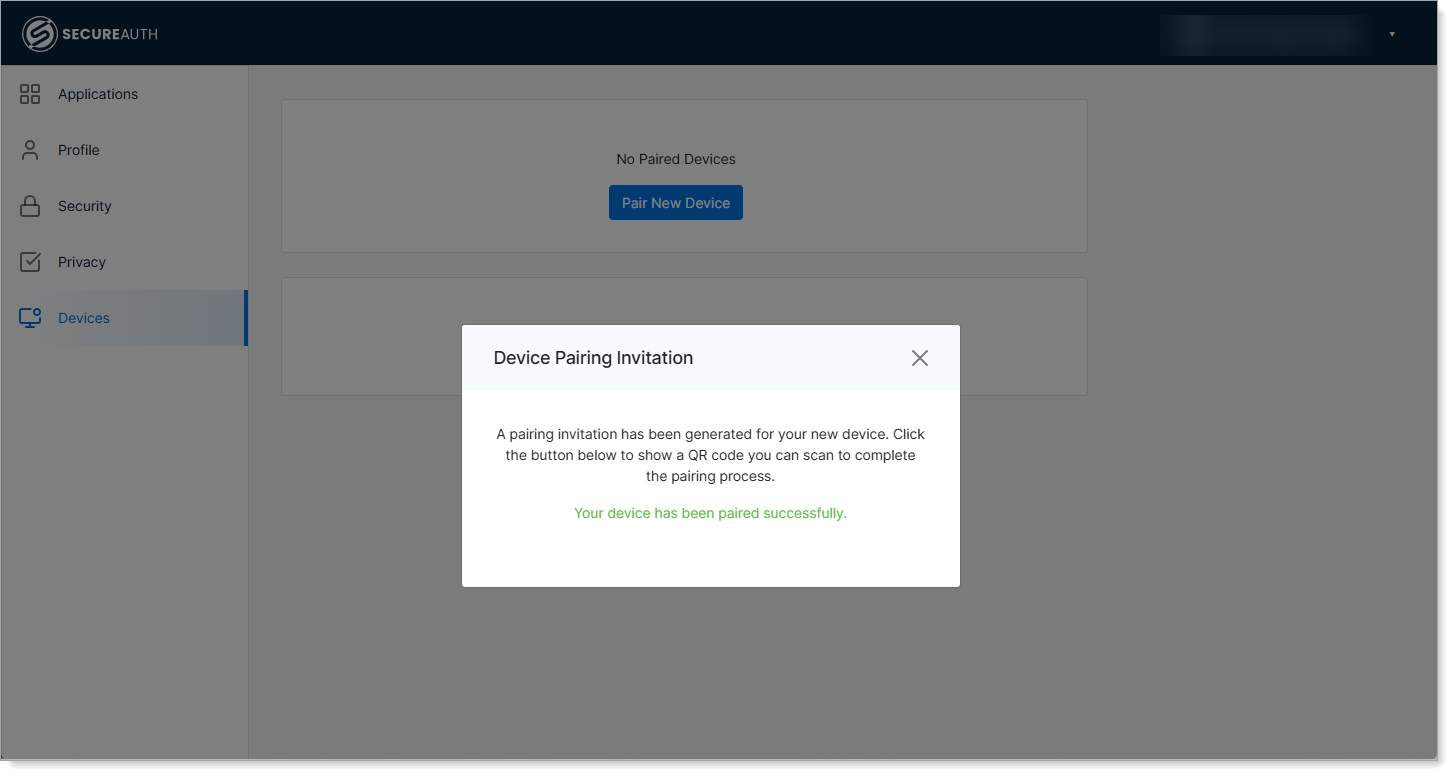
Return to the User Portal and verify your paired device appears.
Test your setup
After pairing, sign out and sign back in. The mobile authentication methods your administrator enabled (Push, Symbol, or QR Code) should now be available on the sign-in page.