Voice OTP
SecureAuth Connect Voice OTP delivers one-time password (OTP) verification codes to users by automated phone call. You can deliver voice calls through Twilio, Vonage, or TeleSign. When a user selects Voice OTP during authentication, SecureAuth Connect calls their phone number and reads the verification code aloud using text-to-speech.
Use cases
Voice OTP fits when you need a phone-based second factor and SMS is not available or not preferred.
- Accessibility: Users with visual impairments or difficulty reading text messages can hear the code spoken.
- Fallback for SMS failure: Some mobile carriers block OTP text messages or deliver them with long delays. A voice call bypasses that delivery path.
- Regions with unreliable SMS: In some countries, voice delivery is more reliable than SMS.
- Landlines: Users who only have a landline can still receive a voice OTP.
Voice OTP is not the best fit when users are in an environment where they cannot answer a call (loud, quiet, shared spaces), or when call delivery costs are a concern for very high-volume applications.
How voice OTP delivery works
When a user selects voice call as their OTP delivery method, SecureAuth Connect places an automated phone call to the user's registered phone number. During the call, SecureAuth Connect reads the OTP code aloud one digit at a time with pauses for clarity. The user then enters the code on the verification screen in their browser.
Voice OTP uses the same phone number as SMS OTP. Users do not need to register a separate number for voice delivery.
You can configure more than one phone provider. If the first provider fails to place a call, the next configured provider that supports voice is used, which improves delivery reliability.
Use a phone number that is verified and enabled for outbound voice calls in your target regions. Check your provider's geographic permissions to confirm it can place calls to the countries where your users are located.
Prerequisites
- Tenant administrator access
- An account with a supported provider:
- A phone number capable of making outbound voice calls in your target regions
Set up a phone provider
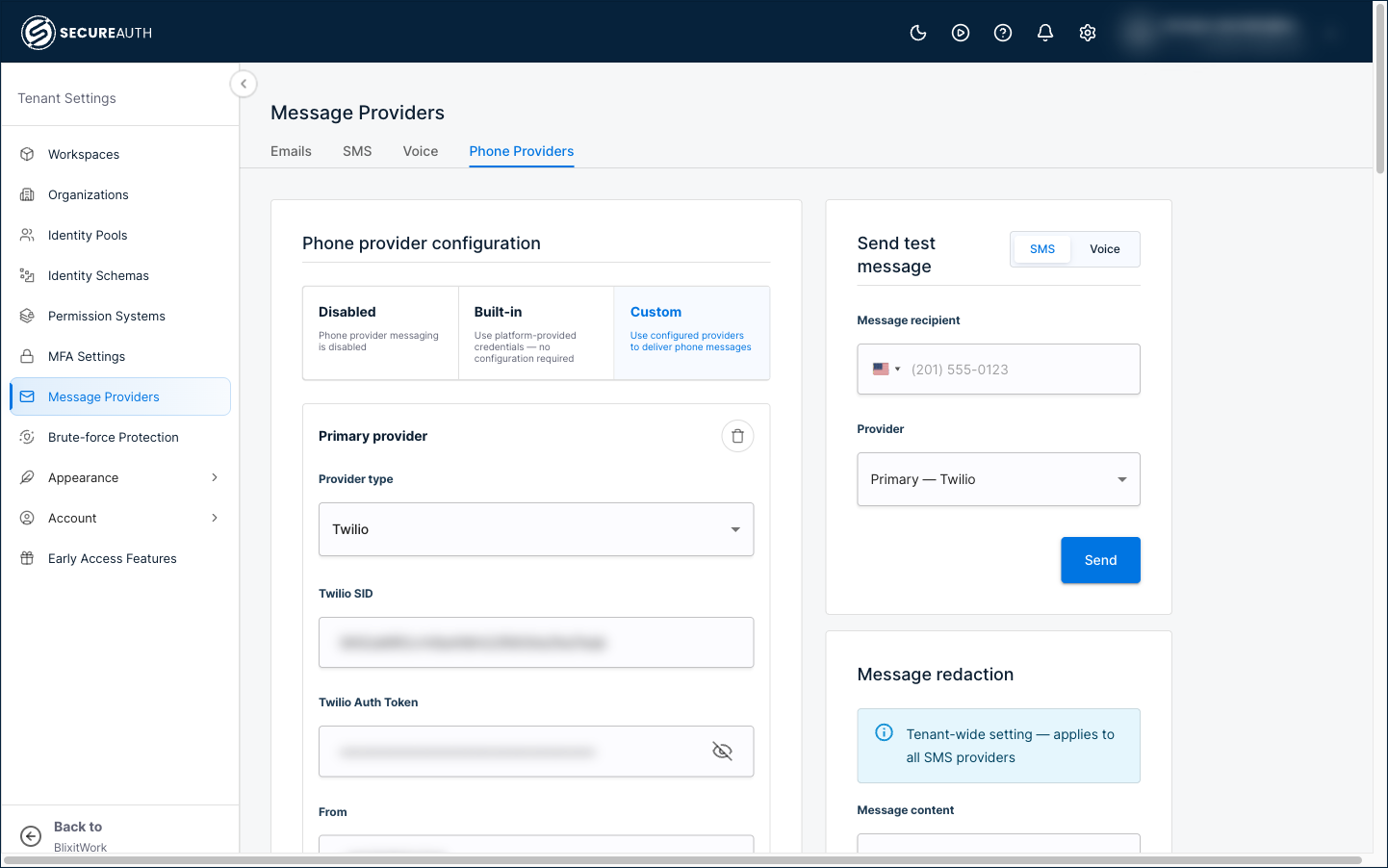
Voice OTP and SMS OTP share the same phone providers, so the provider you set up here delivers both. Configure providers in Tenant Settings > Message Providers > Phone Providers.
Set the configuration mode to Custom to use your own provider accounts. (Built-in uses platform-provided credentials with no setup, and Disabled turns off phone messaging.)
Add a Primary provider, and optionally one or more fallback providers. For each entry, select a Provider type (Twilio, Vonage, or TeleSign) and enter that provider's credentials. A single entry handles both SMS and voice for that provider.
Providers are tried in order: the primary provider first, then each fallback in turn. For voice, SecureAuth Connect skips any provider that is not configured for voice. List your most reliable voice provider first.
Twilio
Enter your Twilio SID, Auth Token, and a voice-enabled From number in E.164 format (for example, +16175551212). Twilio uses the same credentials for SMS and voice.
Vonage
Vonage voice calls use a different sign-in method than Vonage SMS: each call is authenticated with a JSON Web Token (JWT) built from a Vonage application ID and an RSA private key. Because of this, voice needs extra fields beyond the SMS credentials.
Enter the API Key, API Secret, and From (SMS) values, then complete the Voice Configuration fields:
| Field | What to enter |
|---|---|
| Voice From | The caller ID for voice calls, in E.164 format (for example, +14155551234). |
| Application ID | The application ID from your Vonage voice application. |
| Private Key | The PEM-encoded RSA private key for that application. |
| Signature Secret | The account signature secret from the Vonage dashboard, under Settings. |
The Voice Configuration fields are marked optional in the interface, but Vonage places voice calls only when you provide all four. If any field is empty, Vonage delivers SMS only, and voice calls fall back to another configured provider.
TeleSign
Enter your TeleSign Customer ID and API Key. TeleSign uses the same credentials for SMS and voice, so it needs no extra voice fields. From is optional.
Each provider entry has a Disable delivery callback URL toggle. Leave it off unless you manage your own delivery-status webhook in your provider account. SecureAuth Connect uses this callback URL to receive delivery status (such as delivered or failed) from the provider; when you turn the toggle on, it stops sending that URL. The setting applies to both SMS and voice.
Test your configuration
After you save a provider, use the test panel on the Phone Providers page to confirm voice delivery:
-
In Send test message, select Voice.
-
Enter a recipient phone number in E.164 format and select the provider to test.
-
Click Send.
The recipient should receive an automated call that reads a test code aloud. Confirm that the call connects and the code is clear.
Set code length and lifetime
These are tenant settings and apply to all workspaces.
-
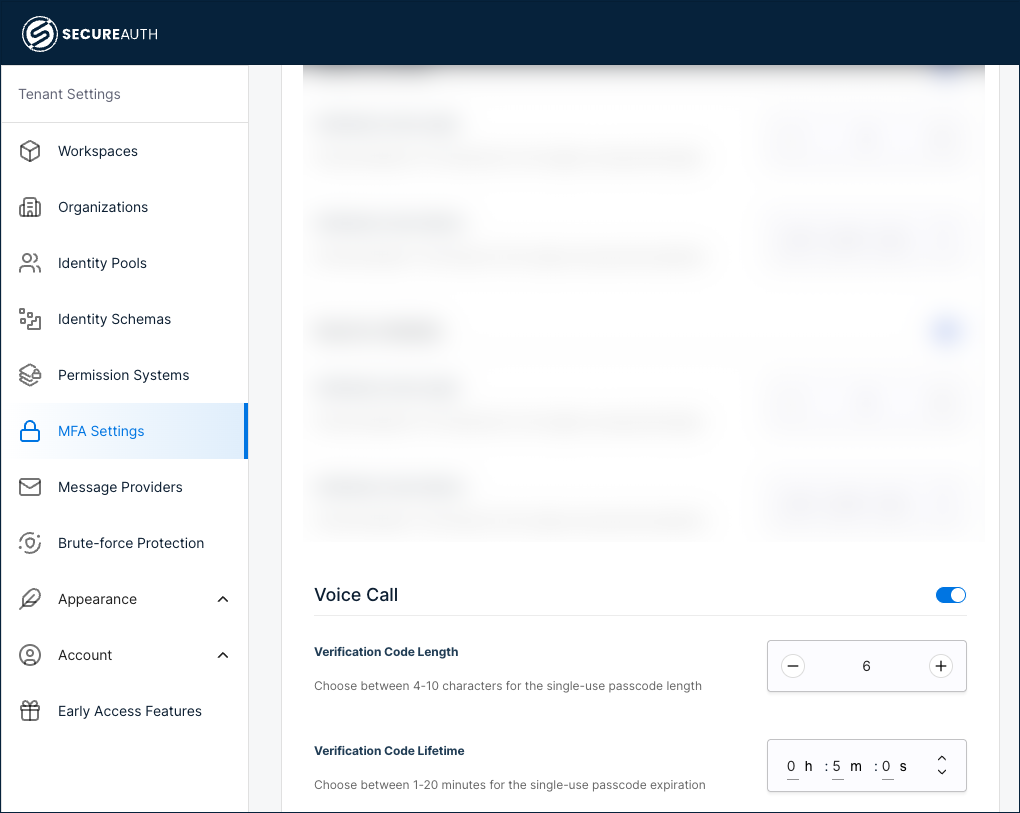
Go to Tenant Settings > MFA Settings.
-
Enable Voice Call.
-
Configure the verification code settings:
Setting Description Verification Code Length The number of digits in the code (for example, 6).Verification Code Lifetime How long the code remains valid (for example, 5minutes). -
Click Save.
Set code expiration based on your security policy. A common range is 2 to 5 minutes. Shorter lifetimes are more secure but may cause issues if voice calls take longer to connect.
Enable voice OTP as an authentication method
After configuring the voice provider, you need to enable Voice OTP as an authentication method:
-
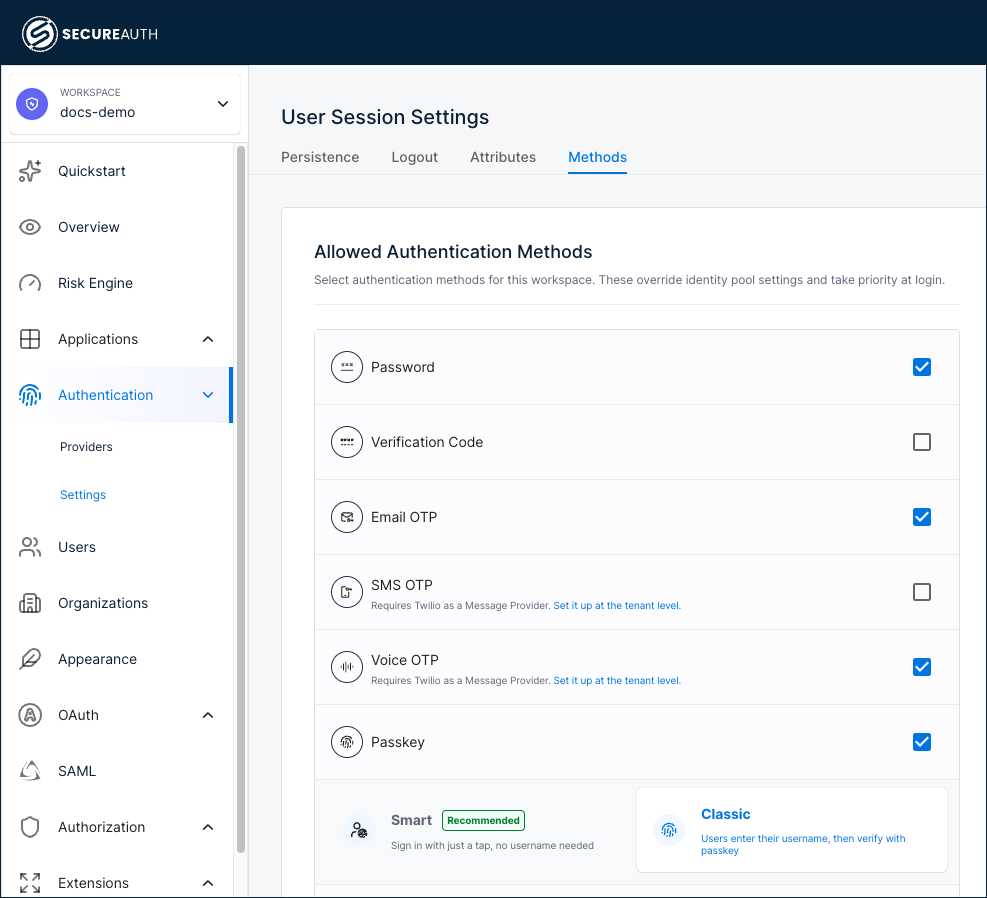
In your workspace, go to Authentication > Settings.
-
Select the Methods tab.
-
Select the Voice OTP check box.
-
Click Save.
If you have not set up the voice provider yet, the Allowed Authentication Methods page shows a link under Voice OTP that takes you to the configuration page.
Add Voice OTP as a sign-in method
Add Voice OTP as a first-factor or second-factor authentication method for your users.
-
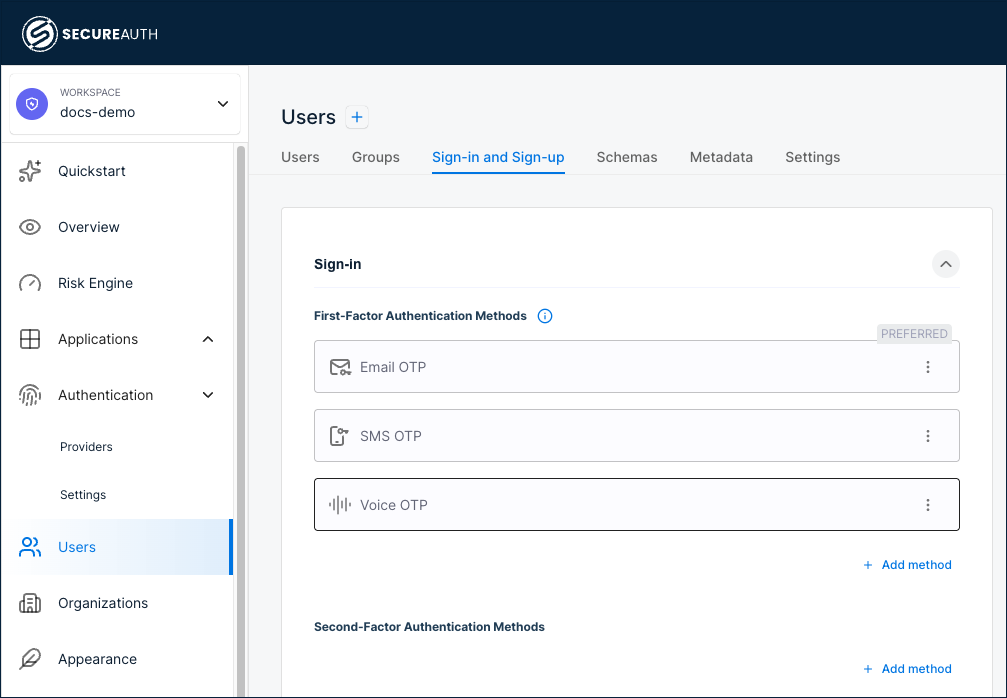
Go to Users > Sign-in and Sign-up.
-
Under First-Factor Authentication Methods or Second-Factor Authentication Methods, click + Add method and select Voice OTP.
-
(Optional) To make Voice OTP the preferred method shown at sign-in, click the three-dot menu and select Make Preferred. Only one method can be preferred per identity pool.
-
Click Save.
OTP rate limiting
Two different limits apply to OTP, and they guard against different attacks. Check which one a blocked request has hit before you change any settings.
How many codes can be sent
OTP send requests are capped at 2 per minute, counted separately for each user and each address (phone number or email). Separate counters mean that a flood aimed at one address does not use up another user's allowance.
The cap is on by default and applies to every OTP flow: sign-in, activation, self-registration, credential reset, resend requests, and the OTP endpoints in the Admin and System APIs. Requests over the limit return HTTP 429 with the message Rate limit exceeded.
The cap protects against attackers triggering large volumes of messages to inflate carrier charges (known as SMS pumping or toll fraud on phone channels), and against repeated resend requests aimed at a single user.
You cannot change this limit from the admin portal. In self-managed deployments, adjust limits.send_otp_limit in the platform configuration. See SecureAuth Platform Configuration Reference.
How many times a code can be guessed
Limits on incorrect code submissions are configured separately, under Tenant Settings > Brute-force Protection. Use the Identity code verify protection type for SMS and email codes, and MFA for codes used as a second factor. See Configure brute force protection.