Connect Kilo Code to Agent Authority
Connect Kilo Code to SecureAuth Agent Authority with OAuth sign-in so every MCP tool call is checked and audited
When you finish, every MCP tool call Kilo Code makes is checked against your policies and recorded in the audit log. Kilo Code, the open-source coding agent for the terminal and VS Code, reaches your approved tools through one SecureAuth Agent Authority gateway URL, and each developer signs in as themselves.
Setup
-
Add the MCP server. Add the following to
~/.config/kilo/kilo.json(orkilo.jsonin your project). The Kilo Code CLI and the VS Code extension both read this file.{ "mcp": { "secureauth": { "type": "remote", "url": "https://your-gateway-url/gateway/mcp" } } } -
Authenticate.
kilo mcp auth secureauthA browser window opens for sign-in, and Kilo Code saves the token, so you sign in once. In VS Code, click the sign-in notification Kilo Code shows instead.
-
Start Kilo Code.
kiloThe agent is auto-registered on first connect.
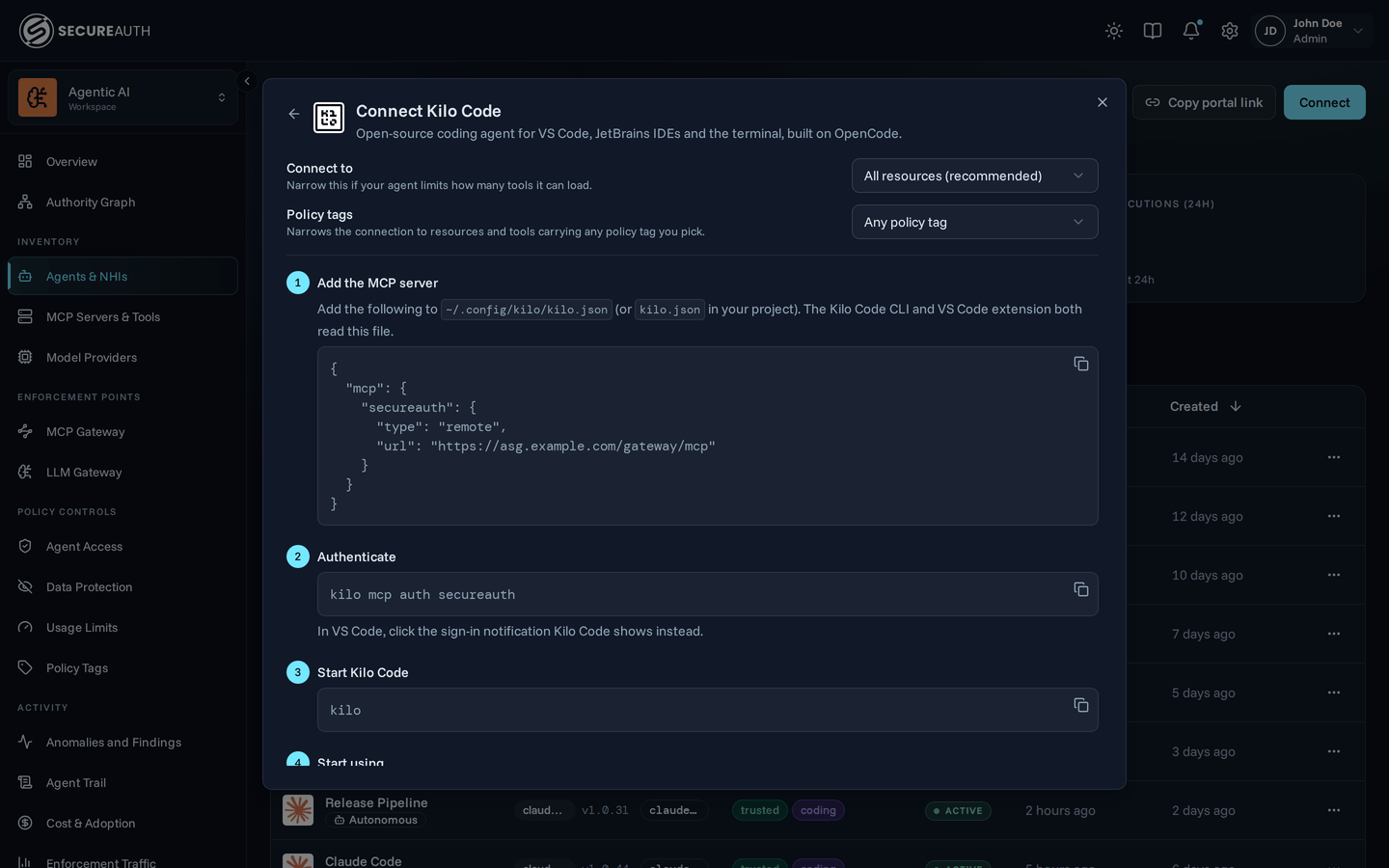
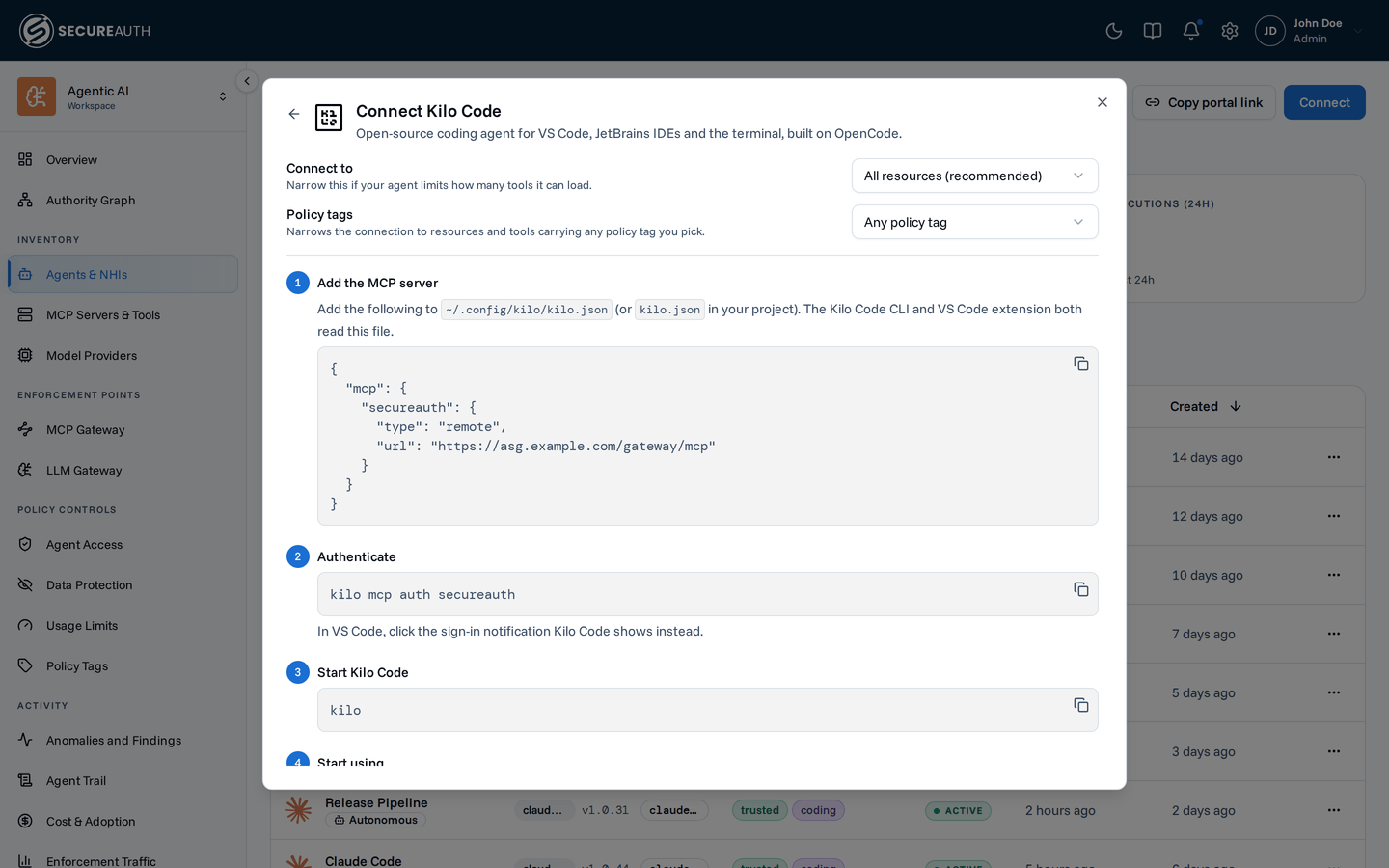
Connecting to just one MCP? To stay under an agent's tool limit, point the URL at a single MCP —
/gateway/mcp/{slug}instead of/gateway/mcp. Grab the exact URL from the resource's detail page; see Scope a connection.
Next steps
Kilo Code now reaches your tools through the secureauth server in kilo.json.
Next, write the policy that decides which tools it can call.
- Create a policy – control which tools Kilo Code can call.
- Monitor activity – watch its tool calls appear in the dashboard and audit log.
- Audit log – filter and search every tool call Kilo Code makes.