Multi-factor authentication (MFA)
SecureAuth Connect multi-factor authentication (MFA) adds one or more verification steps after the user enters their credentials. You can enforce MFA at three points in the authentication flow: application login, scope consent, and platform login.
Authentication factors
MFA combines credentials from two or more independent categories. The three categories are:
-
Knowledge - something the user knows, such as a password or a PIN.
-
Possession - something the user has, such as a mobile phone, a security token, or a mailbox.
-
Inherence - something the user is, such as a fingerprint or a voice pattern.
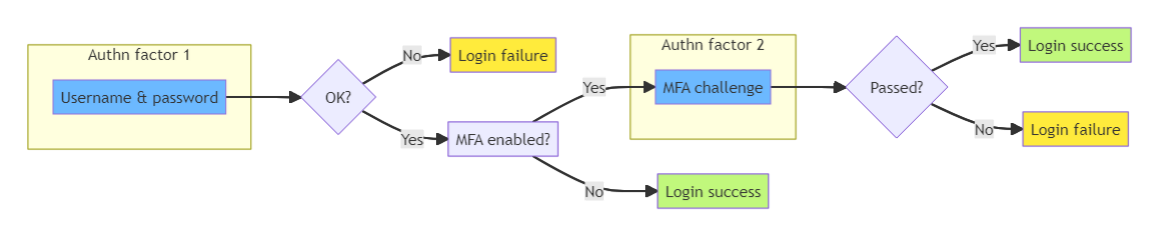
Methods in common use include:
-
SMS OTP - a one-time password (OTP) sent as a text message.
-
Email OTP - a one-time password sent to the user's mailbox.
-
Voice OTP - a one-time password read out in a phone call.
-
TOTP - a time-based one-time password generated by an authenticator app.
-
Push notification - an approval prompt sent to a registered device.
-
Hardware and software tokens - a USB security key, or a soft token on the user's device.
-
Biometrics - a fingerprint or face scan.
-
Risk-based authentication (RBA) - a second factor prompted only when the risk warrants it.
MFA enforcement points
Organizations may require multi-factor authentication at the following points:
- Upon user sign in to an application
- Upon scope grant (consent)
- Upon user sign in to SecureAuth
Application login MFA
After a user signs in with their username and password, MFA prompts them to verify their identity. Verification uses an additional method such as email, SMS, or voice call. The user receives a one-time password (OTP) and enters it to complete authentication. If verification succeeds, the application proceeds to consent and token exchange.
View MFA authentication flow
Scope consent MFA
After the user authenticates (and completes any login MFA), the consent page displays the scopes requested by the client application. When you enable MFA protection on specific scopes, the user must select a verification method (email, SMS, or voice call) and enter the OTP code. After successful verification, the protected scopes become available for granting.
Platform login MFA
You can require administrators to complete MFA when signing in to the SecureAuth admin console.
One-time passwords (OTPs) and verification codes for MFA
MFA combines two factors. The first is the knowledge factor, a username and password, or a passkey. The second is the possession factor, a one-time password, also called a verification code.
OTP codes can be delivered through three channels:
| Delivery channel | Description |
|---|---|
| SMS | OTP sent via text message. Requires a phone provider configured in Tenant Settings > Message Providers > Phone Providers. See SMS OTP. |
| OTP sent via email, supported by any SMTP gateway. Requires an email provider configured in Tenant Settings > Message Providers > Email tab. | |
| Voice call | OTP read aloud during an automated voice call, supported by Twilio, Vonage, or TeleSign. Requires a phone provider configured in Tenant Settings > Message Providers > Phone Providers. See Voice OTP. |
The verification code length and lifetime are configurable per channel.
OTP configuration overview
OTP-based MFA requires configuration at two levels: tenant and workspace.
| Configuration | Level | Location | Description |
|---|---|---|---|
| Message provider | Tenant | Tenant Settings > Message Providers | Set up the service that delivers OTP codes (Email OTP, SMS OTP, or Voice OTP). |
| Verification code settings | Tenant | Tenant Settings > MFA Settings | Set code length and lifetime for each delivery channel. |
| Authentication method | Workspace | Authentication > Settings > Methods | Enable the OTP methods (email, SMS, voice) available to users. |
SMS and voice OTP use the same phone number on the user's profile. Users do not need to register a separate phone number for each channel.
User experience
After you enable MFA, users encounter OTP verification in the following flows:
- Login. During sign-in, users select their preferred verification method (email, SMS, or voice call), receive an OTP, and enter it on the verification page.
- Registration. New users can choose their preferred MFA method during account registration.
- Activation. Users activating their accounts verify their identity by completing an OTP challenge.
- User portal. Users can view and manage their configured MFA methods in the self-service portal.
Some users may not have a second factor configured, for example during activation or self-registration. To let them sign in anyway, enable Allow users to log in without 2FA if not configured. See Set up sign in and sign up methods.