Account Management (Help Desk) page configuration
The Account Management (Help Desk) page lets help desk agents manage user accounts, including:
Search for user accounts by username
Add or update user contact information (for example, phone number or email address)
Update user profile details (for example, address or last name)
Reset passwords
Change account status (lock, unlock, enable, or disable)
Verify end user identity using MFA methods or SecureAuth Authenticate app codes
Clear password throttling or MFA throttling for locked-out users
Update multi-factor authentication (MFA) settings
Set PIN
Reset device recognition data
Revoke devices and browsers registered for passcode generation, push notifications, or push-to-accept login
Prerequisites
SecureAuth® Identity Platform release 22.02 or later
Data store added to the Identity Platform
For Active Directory (AD) data stores, you must use the following settings:
Username attribute: samAccountName
Search Filter: samAccountName
Data store with service account write privileges to add and change user information
Configured user authentication policy
Data store limitations
Note the following issues for certain data stores on the Account Management (Help Desk) page.
Microsoft Entra ID (formerly Azure AD) cloud: Create user with group is not supported (you can still create a user without groups)
Microsoft Entra ID (formerly Azure AD) cloud: Disable account is not supported
Oracle DB: Enable, disable, or delete accounts not supported
Active Directory cloud, LDAP, and NetIQ eDirectory: Lock and disable accounts are not supported
NetIQ eDirectory: System error appears when updating last name, even though it works correctly
Active Directory, Microsoft Entra ID (formerly Azure AD) cloud, Oracle DB, LDAP and NetIQ eDirectory: Using Reset All Registrations does not reset YubiKey.
Workaround: Manually reset YubiKey
Step A: Add and configure Account Management (Help Desk) page
Use the Internal Application Manager to add and configure the Account Management (Help Desk) page.
On the left side of the Identity Platform, click Internal Application Manager.
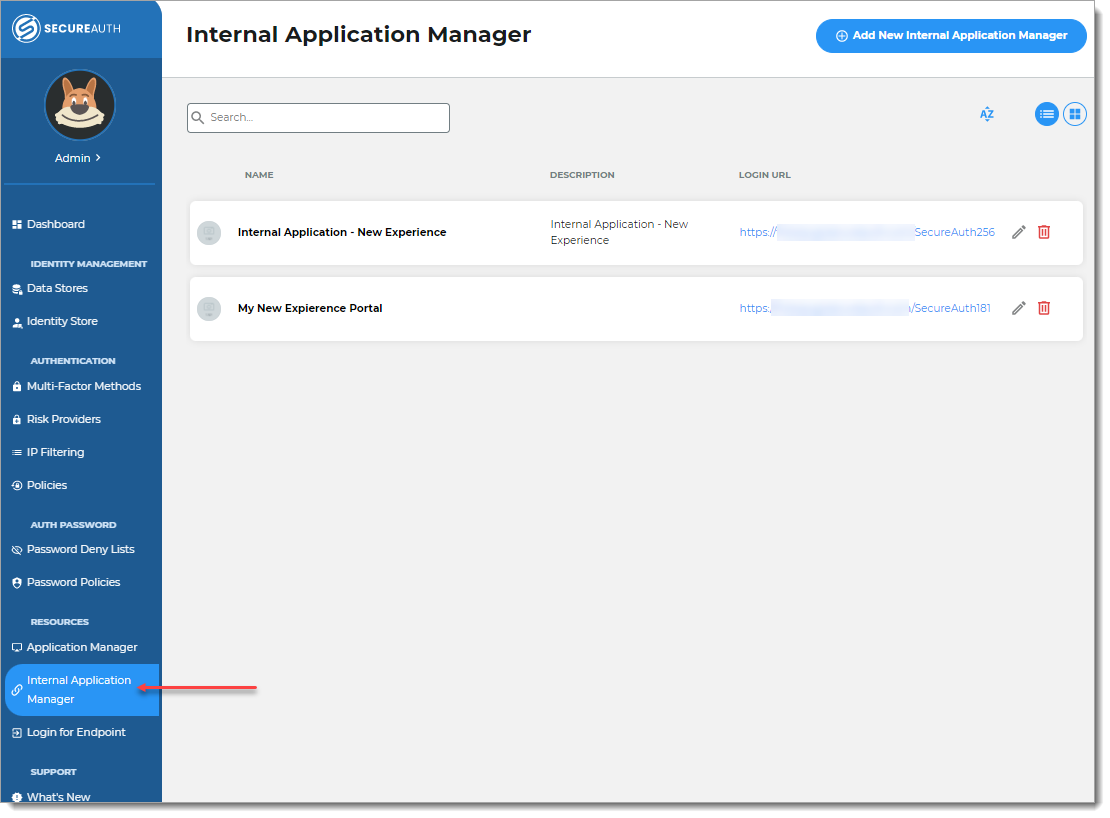
Click Add New Internal Application.
The New Internal Application page displays.
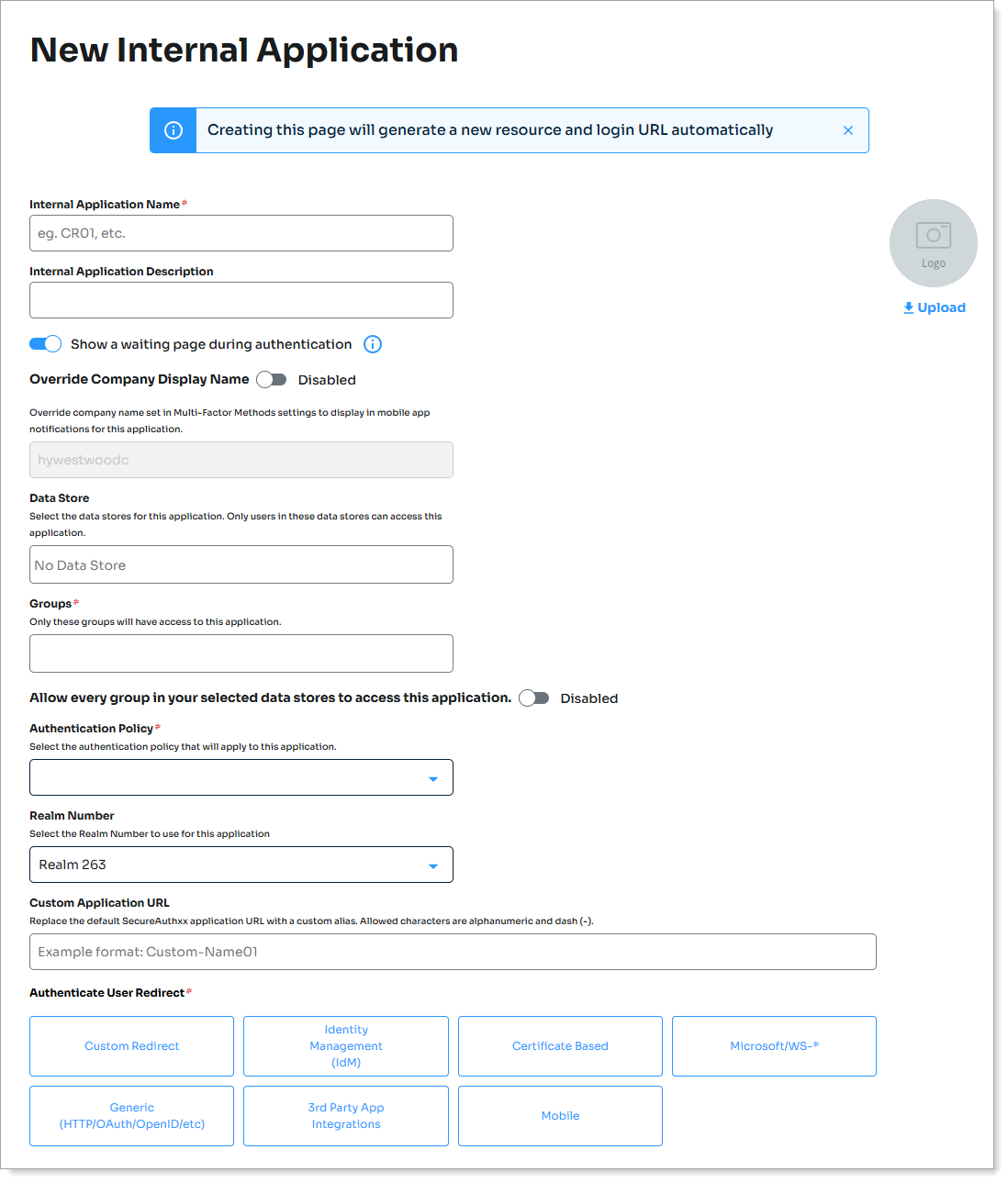
Set the following configurations:
Internal Application Name
Set the page name. This appears in the page header and browser title for end users.
Note
If you change this name, it will overwrite any value that is set on the Overview tab in the Advanced Settings.
Internal Application Description
Enter an internal description. Not visible to end users.
Identity Source
Select the data store that authenticates users who access this page.
Groups (On)
Allow all users from the selected data stores to access this page.
Groups (Off)
Enter the specific groups allowed to access this page.
Authentication Policy
Select the authentication policy for this page.
Realm Number
Select the Realm Number to use for this application.
Authenticate User Redirect
Select the Identity Management (IdM) category.
Identity Management (IdM)
Select Account Management.
Redirect To
This field is automatically populated by the selection of Account Management as an internal application.
This is the page the end user lands on after login.
Click Create Connection.
This creates a new internal application with an attached user authentication policy from the New Experience.
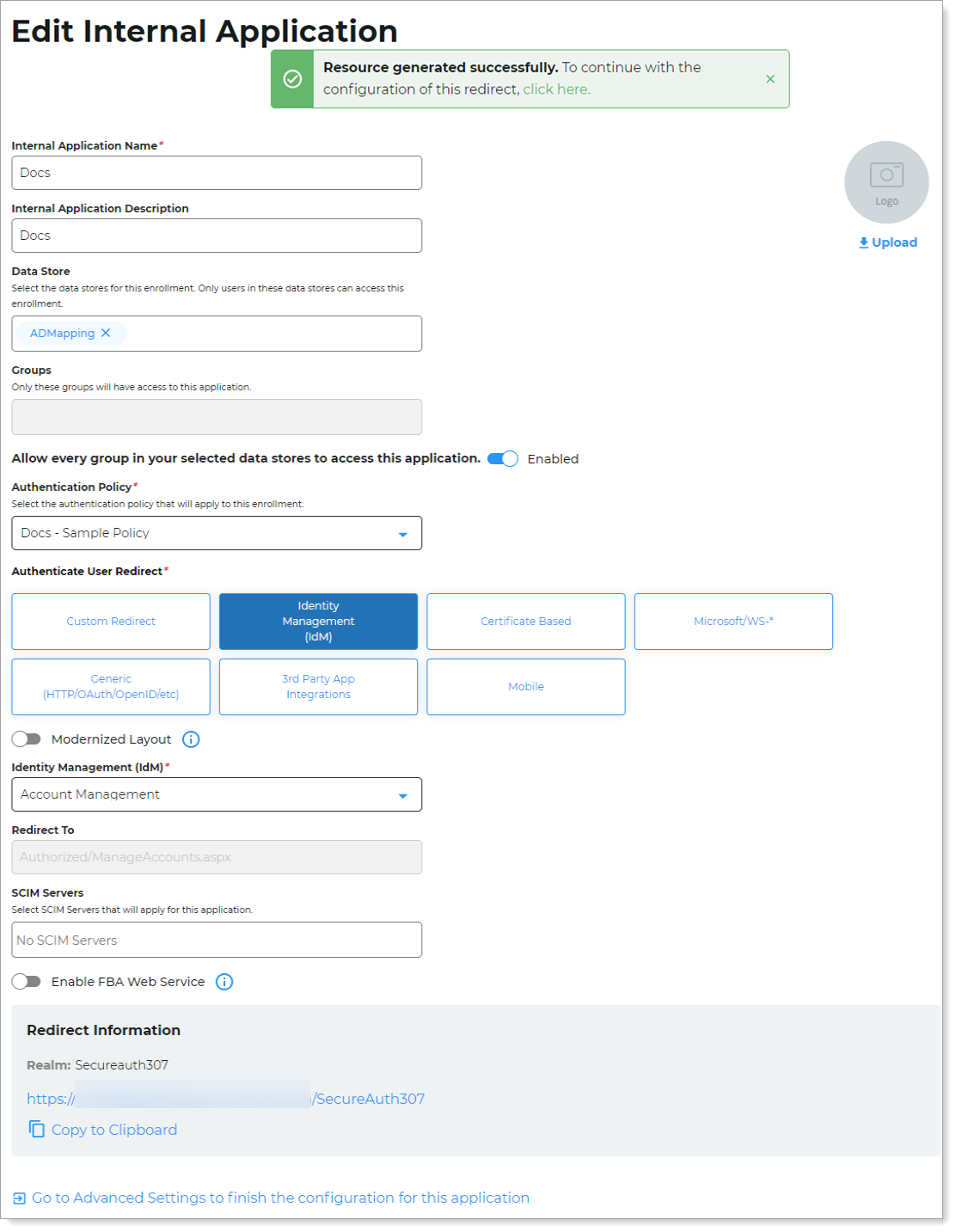
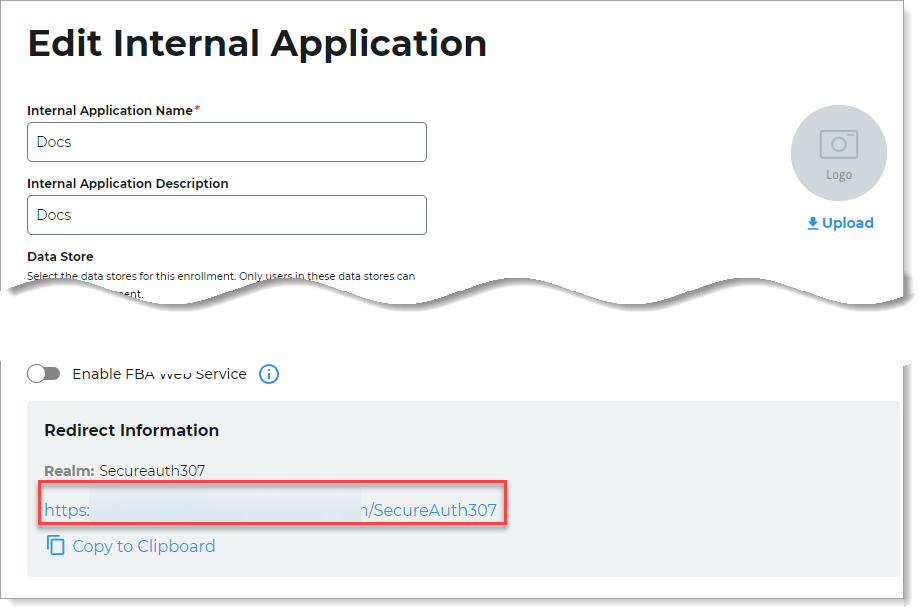
Copy the login URL for your end users to access the Account Management (Help Desk) page.
You'll need this information to share with your end users.
You can find this on the main Internal Application Manager page or when you edit the Account Management configuration in the Redirect Information section.
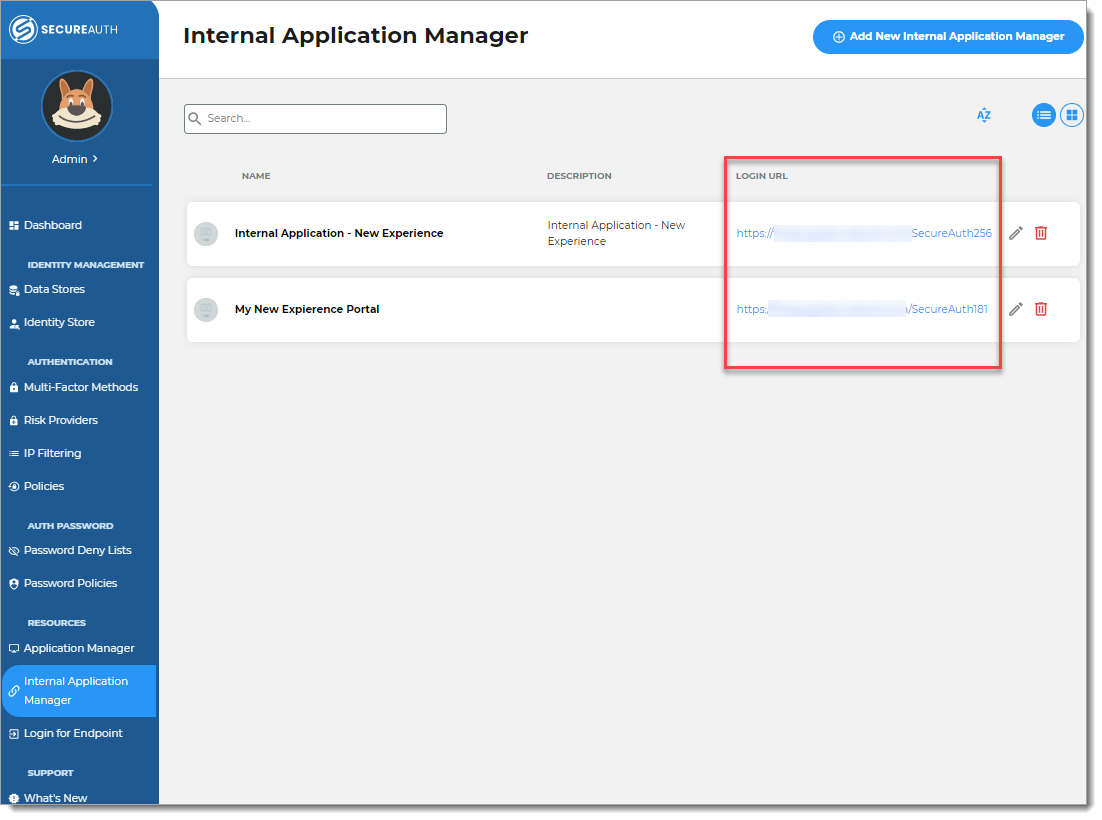
Step B: Finish configuration in Advanced Settings
Continue to Advanced Settings (formerly Classic Experience) to finish the Account Management page configurations.
To complete the Account Management (Help Desk) page configuration in Advanced Settings, do one of the following:
At the top of the page, click the link in the green confirmation message.
At the bottom of the page, click Go to the Advanced Settings... link.
The link takes you to the Post Authentication tab in Advanced Settings.
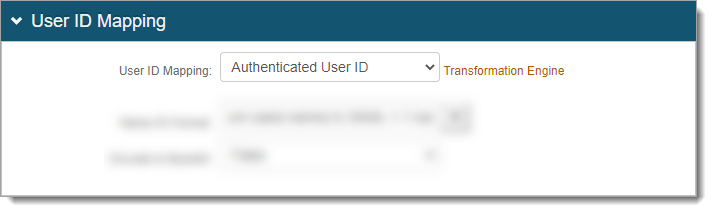
In the User ID Mapping section, set the type of User ID to assert on the Account Management (Help Desk) page. This is usually the Authenticated User ID.
In the Identity Management section, click the Configure help desk page link.

For the Help Desk page, set the configuration settings as needed.
<SecureAuth Field>
For each field, choose how it appears on the Help Desk page:
Hide – Do not show the field.
Show Enabled – Show the field and allow the help desk agent to edit it.
Show Disabled – Show the field as read-only.
Password Reset
Optional. Set to Show to let help desk agents reset user passwords.
Unlock User
Optional. Set to Show to let help desk agents unlock user accounts.
Requires Lock user account after exceeding attempts to be enabled in Multi-Factor Methods tab > Multi-Factor Throttling.
Enable / Disable User
Optional. Set to Show to let help desk agents enable or disable user accounts.
Delete User
Optional. Set to Show to let help desk agents delete user accounts.
User Verification
Set to Show to require help desk agents to verify end user identity before making account changes.
You must select at least one MFA Verification method (for example, phone, email, mobile device). The agent sends a notification to the end user, who confirms or repeats the code back to the agent. See Help Desk user verification configuration and Help Desk user verification process.
Password Throttling
Set to Show Enabled to allow help desk agents to clear password throttling for locked-out users. Requires Password throttling to be configured.
MFA Throttling
Set to Show Enabled to allow help desk agents to clear MFA throttling for locked-out users. Requires MFA throttling to be configured. (Available in SecureAuth IdP 26.0.0)
OTP Validation
Set to Show Enabled to allow help desk agents to verify end user identity using codes from the SecureAuth Authenticate app. (Available in SecureAuth IdP 26.0.0)
Available only in Help Desk pages using the SA IdP theme. See Help Desk user verification process.
The following images show the Help Desk configuration page divided into three sections.
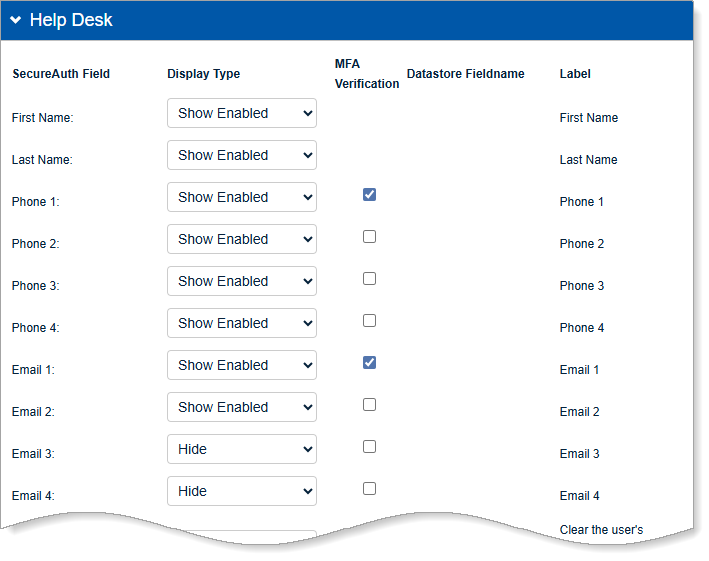
Profile fields
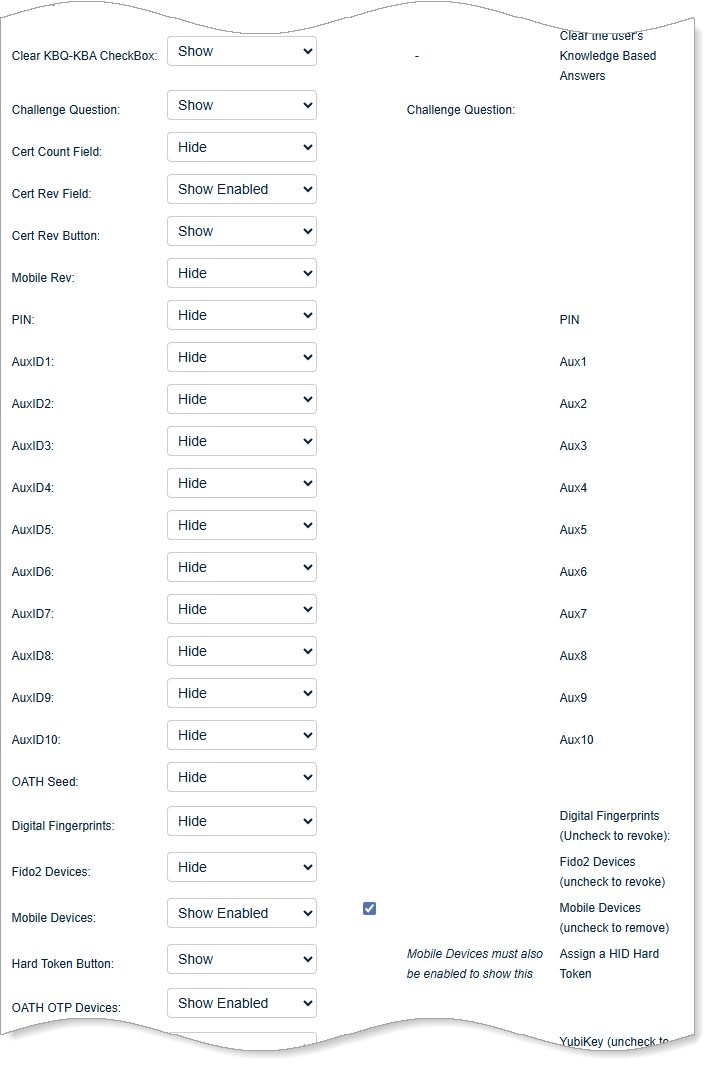
Security and device fields
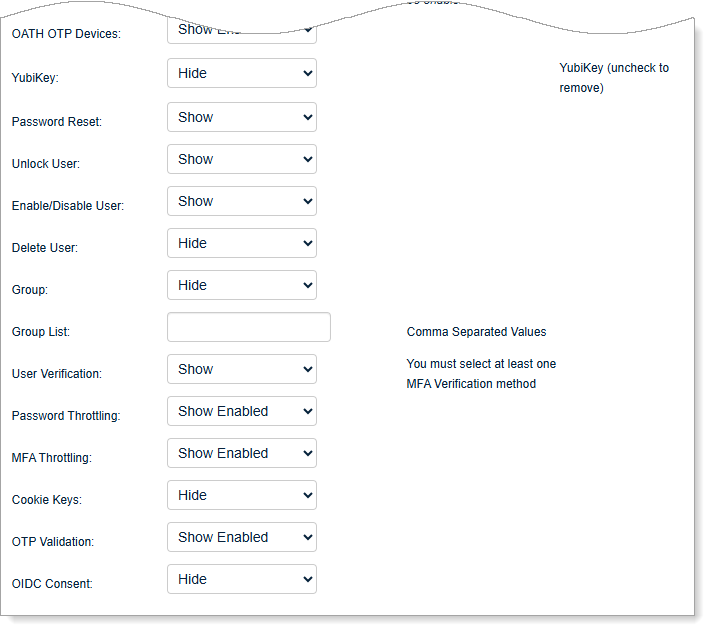
Administration fields
Save your changes.