Policy configuration - Authentication rules
On the Authentication Rules tab in a policy, you configure how to handle login for users. You can require multi-factor authentication (MFA), skip MFA, validate existing sessions, use Windows SSO, block users, or redirect them. The Identity Platform evaluates rules from top to bottom. The first matching rule determines the action.
Use case scenario
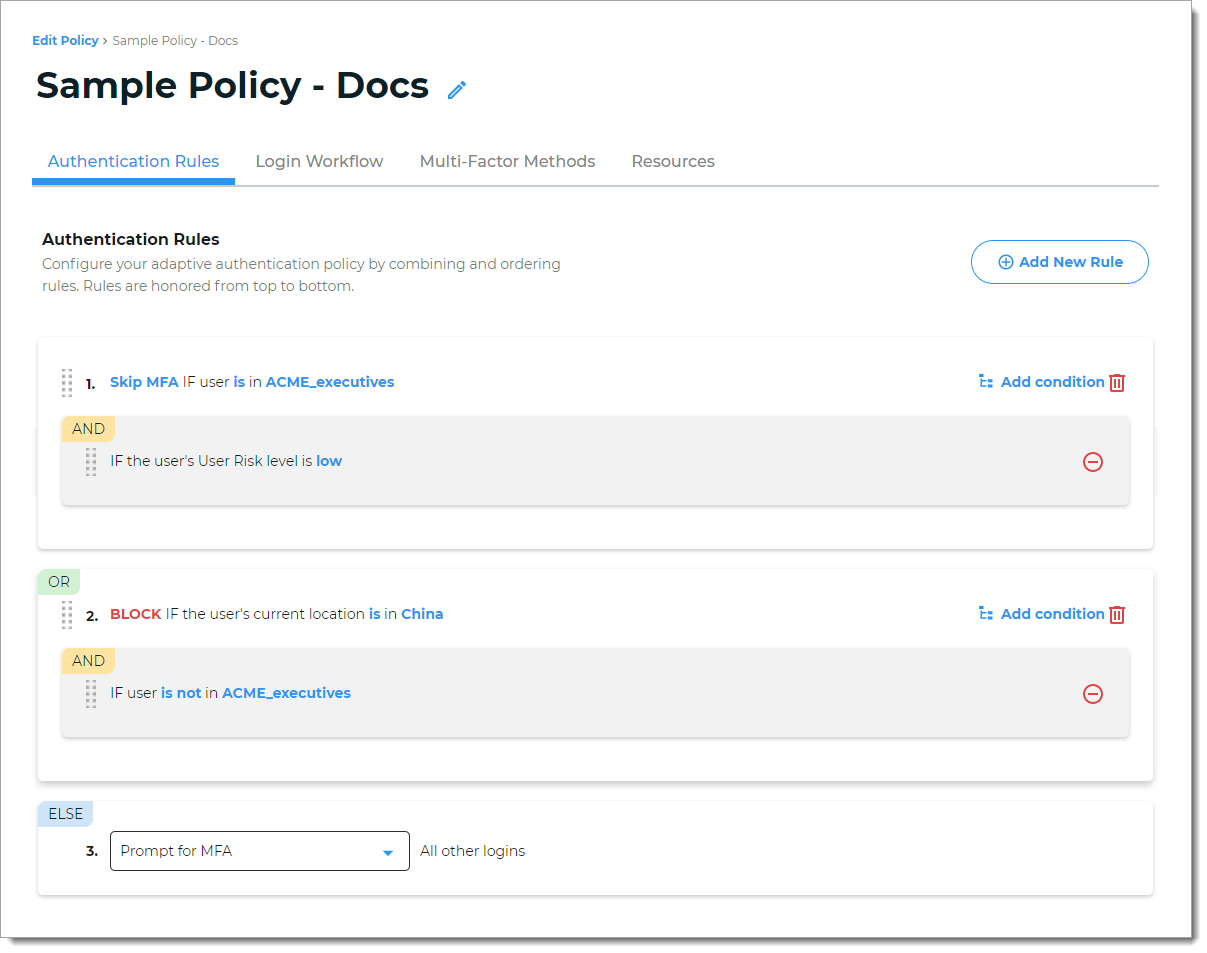
You have executives who work for ACME Corporation. ACME has offices all over the world and a small group of executives who travel extensively. You need an authentication policy to:
Bypass MFA for executives who are members of the ACME_executives group, and are a low risk based on behavior and IP reputation.
Block user login attempts from China, except for the group of executives working out of the Beijing office.
The following is an overview of how to set this up:
Rule 1: Skip MFA if the user is in ACME_executives group AND is a low user risk.
Rule 2: Block if the user is located in China AND is not in the ACME_executives group.
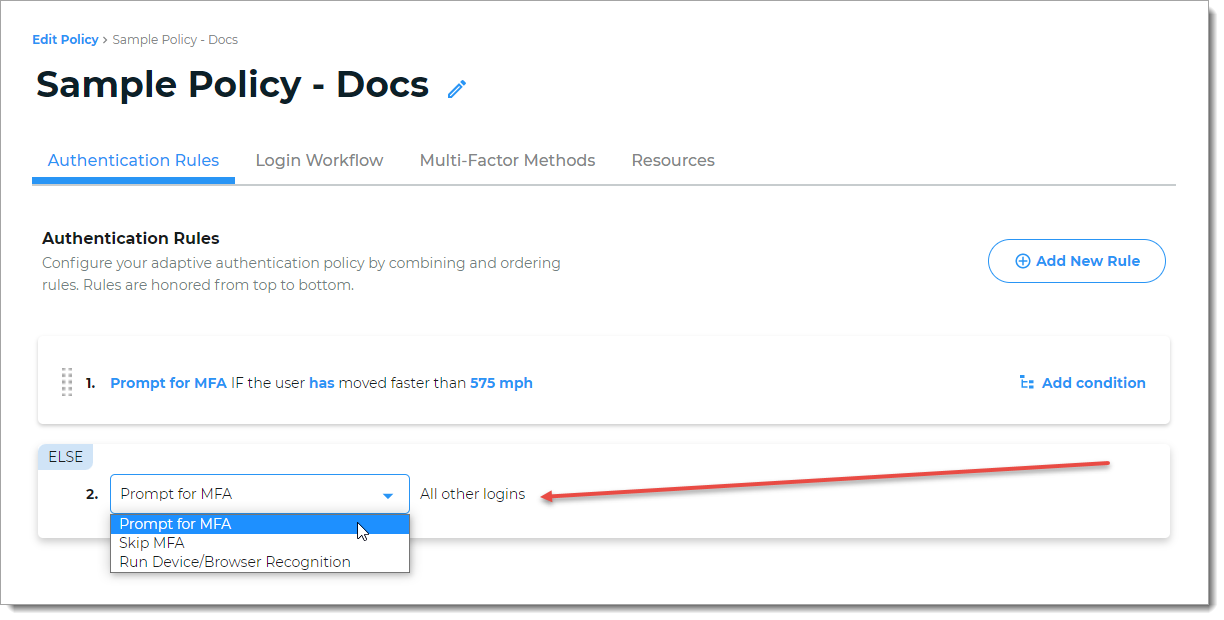
Else Rule: The last catch-all rule. This rule cannot be deleted. You can set it to Prompt for MFA, Skip MFA, or Run Device/Browser recognition.
Condition actions
When you add or edit a rule, you select one of the following actions. Most rule types support all of these actions, except Dynamic IP Blocking which has its own configuration.
Prompt for MFA | Requires the user to provide additional authentication. |
Skip MFA | Allows access without additional authentication. |
Block | Blocks the login attempt. |
Run Windows SSO | Verifies user credentials through Windows SSO. Available for Country, IP Range, and Threat Service rules. NoteTo use this action, enable Allow Windows SSO integration in the Active Directory or Microsoft Entra ID (formerly Azure AD) data store configuration. For more information about Windows SSO integration, see: You can only have one Run Windows SSO action in a policy. |
Redirect To | Redirects the user to another URL. |
Continue to next rule | Moves to the next rule without applying any action. Use this when the Risk Engine is in its learning phase and needs to gather data. |
Setting up authentication rules
With a policy open in edit mode, select the Authentication Rules tab.
Click Add New Rule and select a rule type. See Rule types for a description of each rule type.
Configure the rule by selecting a condition action and setting the rule-specific parameters.
Organize your rules. The Identity Platform evaluates rules from top to bottom.
To move a rule, click and hold the 10-dot vertical icon on the left to drag and drop a rule and change its position in the list.
To remove a rule or condition, click the minus icon or the trash can icon.
To change the properties of a rule, click the blue rule link.
Save your changes.
Rule types
When you click Add New Rule, select one of the following rule types.
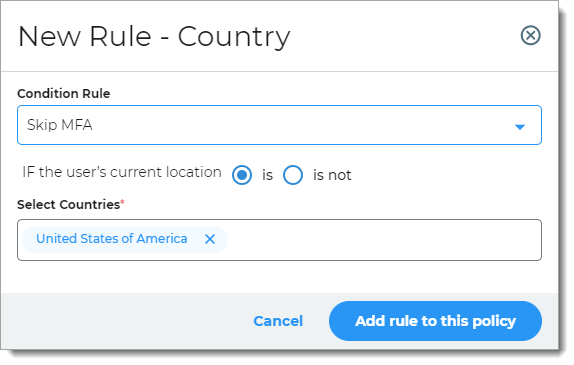
Country | Determines access based on the user's login country. For example, if the user logs in from the United States, they can skip MFA.
| |
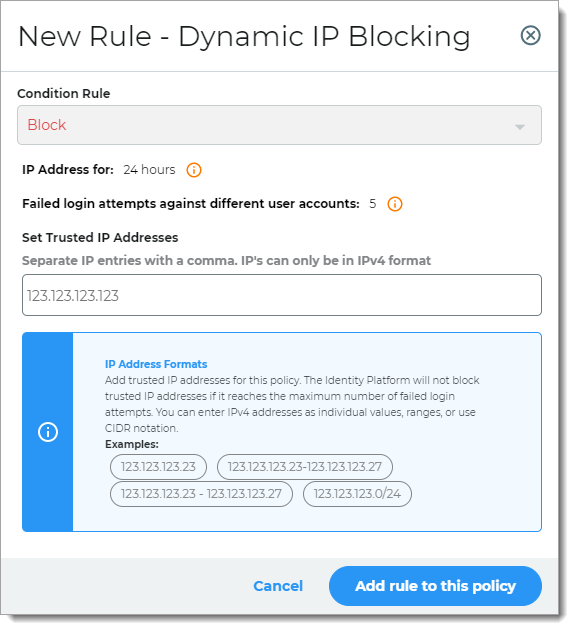
Dynamic IP Blocking | Blocks source IP addresses involved in password spraying and other online password attacks. Instead of locking user accounts, the Identity Platform blocks login attempts from the source IP address. In the Set IP Addresses field, add trusted IP addresses for this policy. The Identity Platform does not block trusted IP addresses even if they reach the maximum number of failed login attempts. NoteTo change how long the Identity Platform blocks a source IP address after a specified number of failed logins, go to IP Filtering in the left navigation of the Identity Platform. This change applies to all policies that use the Dynamic IP Blocking rule.
| |
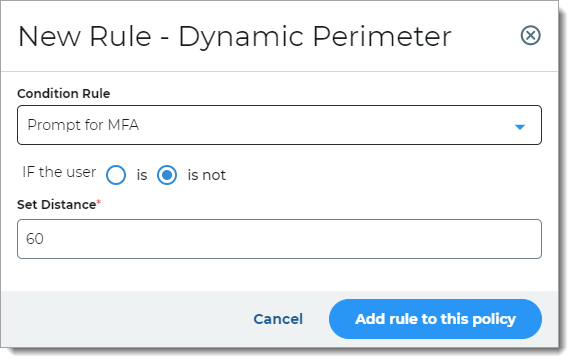
Dynamic Perimeter | Determines access based on the user's login distance from their previous location. For example, if the user logs in more than 60 miles away from their last login, they are prompted for MFA.
| |
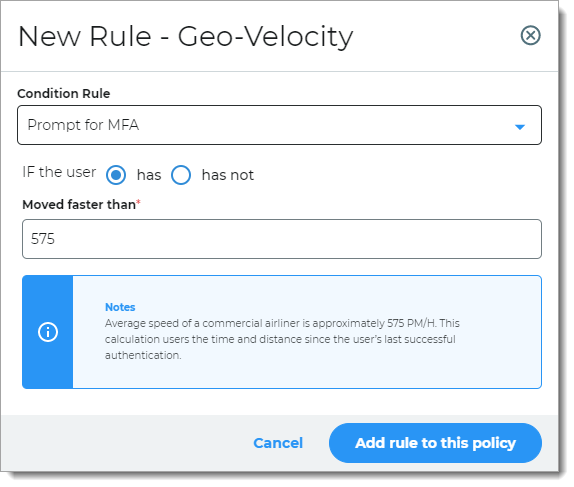
Geo-velocity | Determines access based on how fast the user traveled between their previous and current login locations. For example, if a user logged in from Los Angeles at 11:15 a.m. and then from New York at 11:45 a.m. on the same day, they are prompted for MFA.
| |
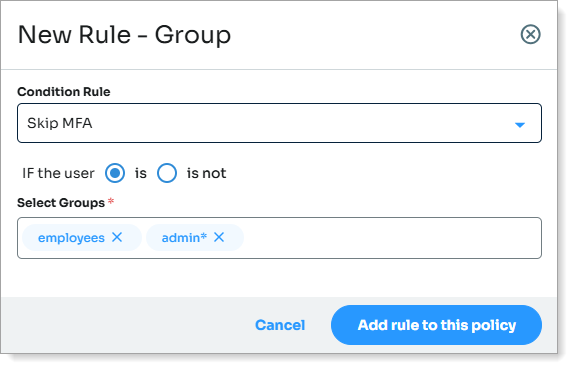
Group | Determines access based on group membership. You can use wildcards to match multiple group names:
NoteGroups must be defined in the data store for your organization before you can use this rule.
| |
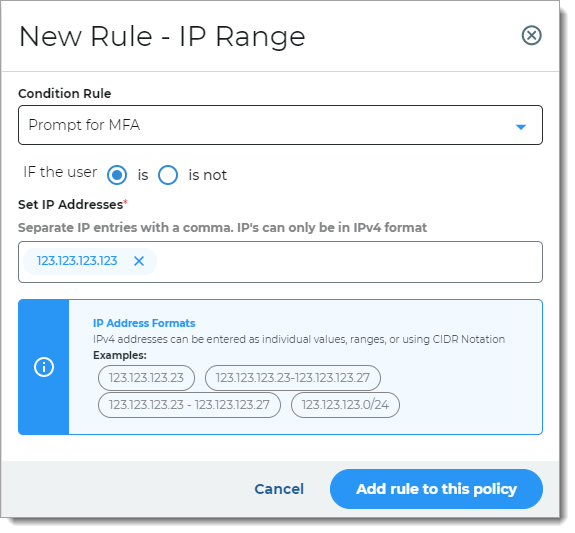
IP Range | Determines access based on IP ranges. You can enter IPv4 addresses as individual values, ranges, or using CIDR notation.
| |
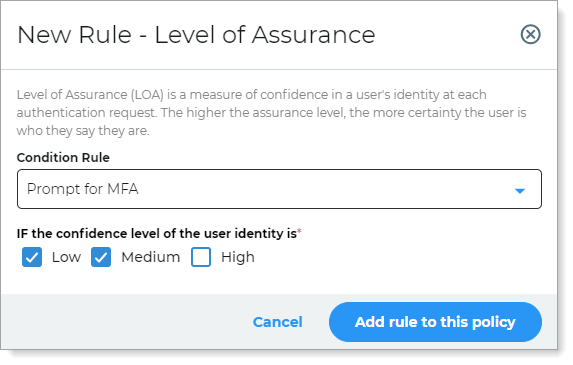
Level of Assurance (LOA) | Determines access based on the LOA confidence score during login. The LOA score measures how confident the system is that the user is who they claim to be. NoteYou must have a license to use this feature. Contact your SecureAuth Account Manager for more information.
To learn more about configuring LOA scores, see SecureAuth Level of Assurance (LOA) Provider settings. | |
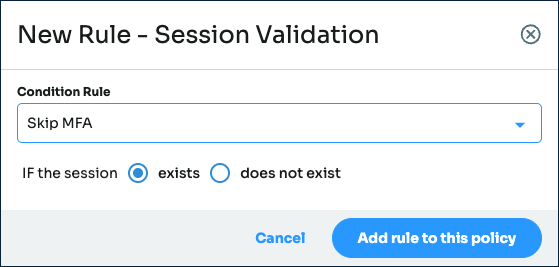
Session Validation | Checks whether the user has a valid session from another realm. Use this to control whether users are re-authenticated when they already have an active session. Select a condition action, then choose whether the rule applies when the session exists or does not exist. For example, to skip re-authentication for users who already have a valid session, set the condition to Skip MFA and select exists. TipUse this rule to disable Zero Trust continuous authentication in environments where repeated MFA prompts create unnecessary friction. Added in SecureAuth IdP release 26.1.0
| |
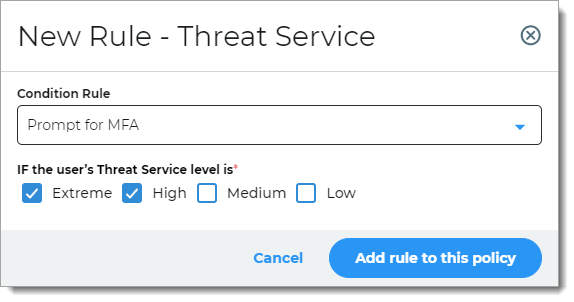
Threat Service | Determines access based on known risks associated with the login attempt. The SecureAuth Threat Service analyzes IP traffic for threats. NoteYou must have a license to use this feature. Contact your SecureAuth Account Manager for more information.
| |
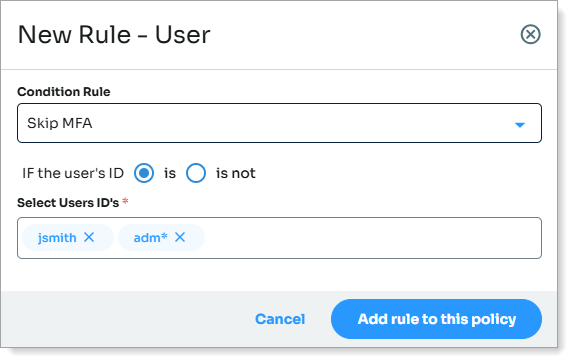
User | Determines access based on whether the login matches a specified user ID. You can use wildcards to match multiple IDs:
| |
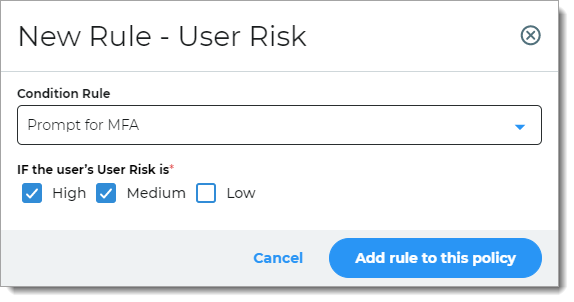
User Risk | Determines access based on user reputation and behavior during login. User risk is a learning algorithm that evaluates user behavior over time. NoteYou must have a license to use this feature. Contact your SecureAuth Account Manager for more information.
To learn more about configuring user risk scores, see SecureAuth User Risk settings. | |
All other logins | Catch-all rule evaluated last. Determines the action (Prompt MFA or Skip MFA) when no other rules match. You cannot delete or reorder this rule. The Run Device/Browser Recognition option runs device/browser recognition and applies one of the following:
|
Service Disruption Handling
At the bottom of the Authentication Rules tab, the Service Disruption Handling section controls how the system responds to IPv6 connectivity issues and service unavailability.
Added in SecureAuth IdP release 26.1.0
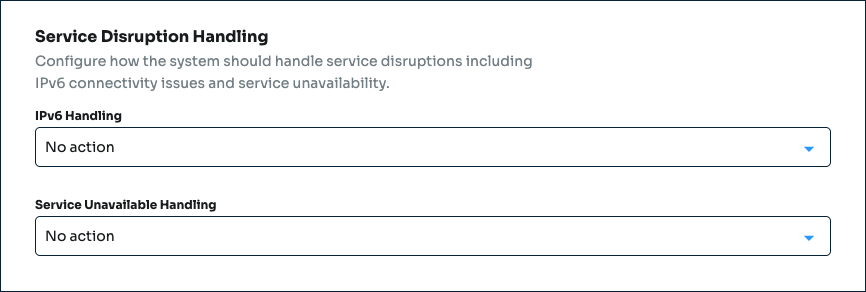 |
IPv6 Handling. Select the action to take when SecureAuth IdP detects an IPv6 address.
Service Unavailable Handling. Select the action to take when SecureAuth Cloud Services are unavailable and SecureAuth IdP cannot complete Adaptive Authentication.
Action | Result |
|---|---|
No action | Takes no additional action. The rule evaluates normally. |
Continue adaptive authentication | Proceeds to the next risk check in the sequence. |
Refuse authentication request | Immediately denies the login attempt. |
Skip to post-authentication | Bypasses remaining risk checks and workflow steps, directing the user to the post-authentication target. |
Require two-factor authentication | Mandates multi-factor authentication, bypassing device recognition, fingerprint, cookie, or certificate checks. |