Configure password policy in Identity Pool
Manage password settings to improve security and authentication. Configure password strength, set expiration rules, view user password details, and enforce password resets when needed.
Configure password policy
Define password requirements to enforce security policies for users in a specific Identity Pool.
On the left side of the Identity Platform page, click Identity Sources.
On the Identity Pools tab, click the pencil icon for the identity pool you want to manage. The pool page opens on the Manage Users tab.
Select the Password Settings tab.
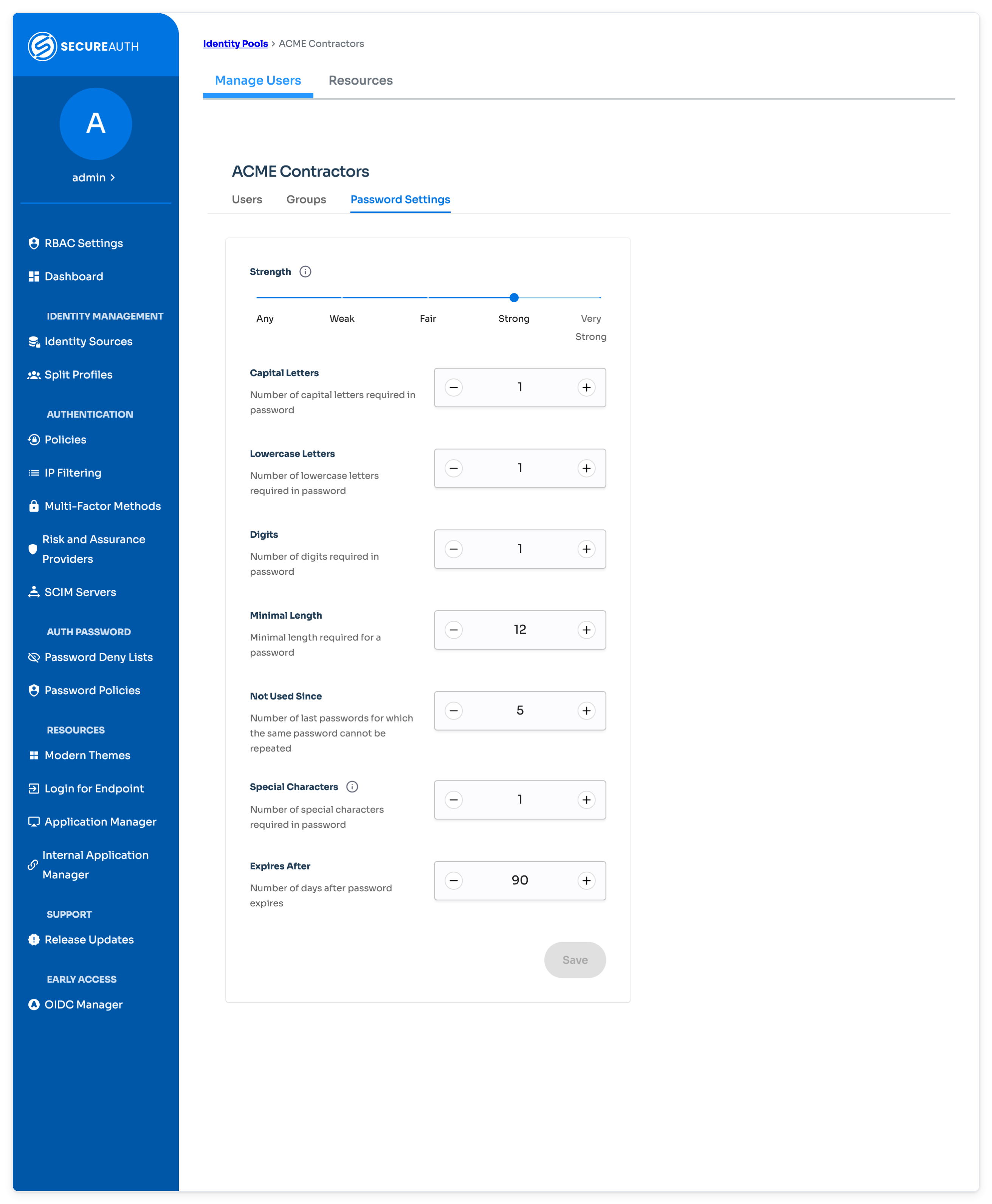
Set the Strength level.
Users must create a password that matches the strength level you set. When they enter their password, a strength meter appears on their screen. The meter turns green when the password meets the required criteria.
Set password requirements including:
Capital Letters – Number of capital letters required in the password.
Lowercase Letters – Number of lowercase letters required in the password.
Digits – Number of digits required in the password.
Minimal Length – Minimum number of characters in the password.
Not Used Since – Number of previous passwords the user can't reuse.
Special Characters – Number of special characters required in the password.
Expires After – Number of days before the password expires.
Save your changes.
View user password details
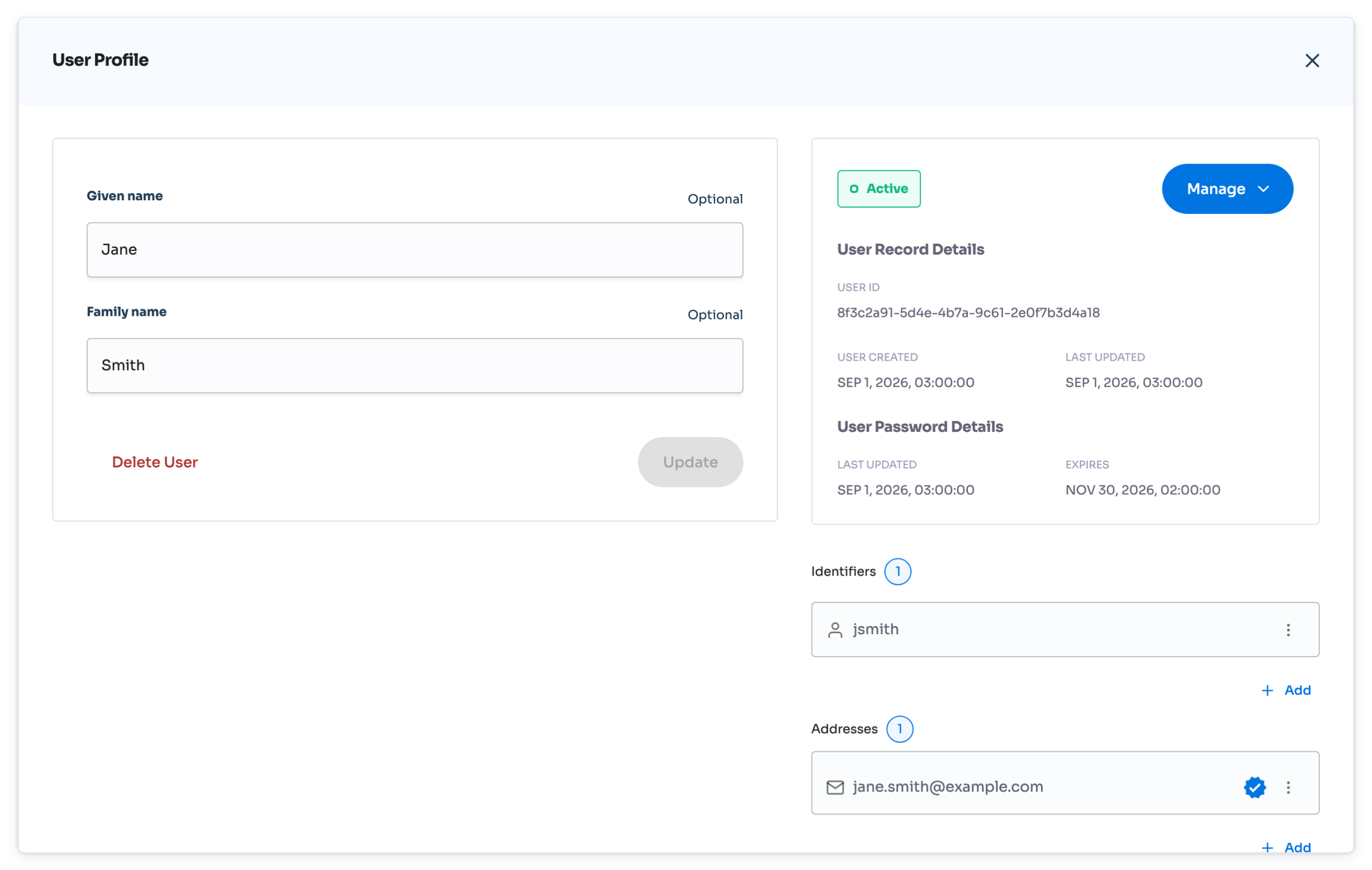
Check when a user's password was last updated and when it will expire.
On the left side of the Identity Platform page, click Identity Sources.
On the Identity Pools tab, click the pencil icon for the identity pool you want to manage. The pool page opens on the Manage Users tab.
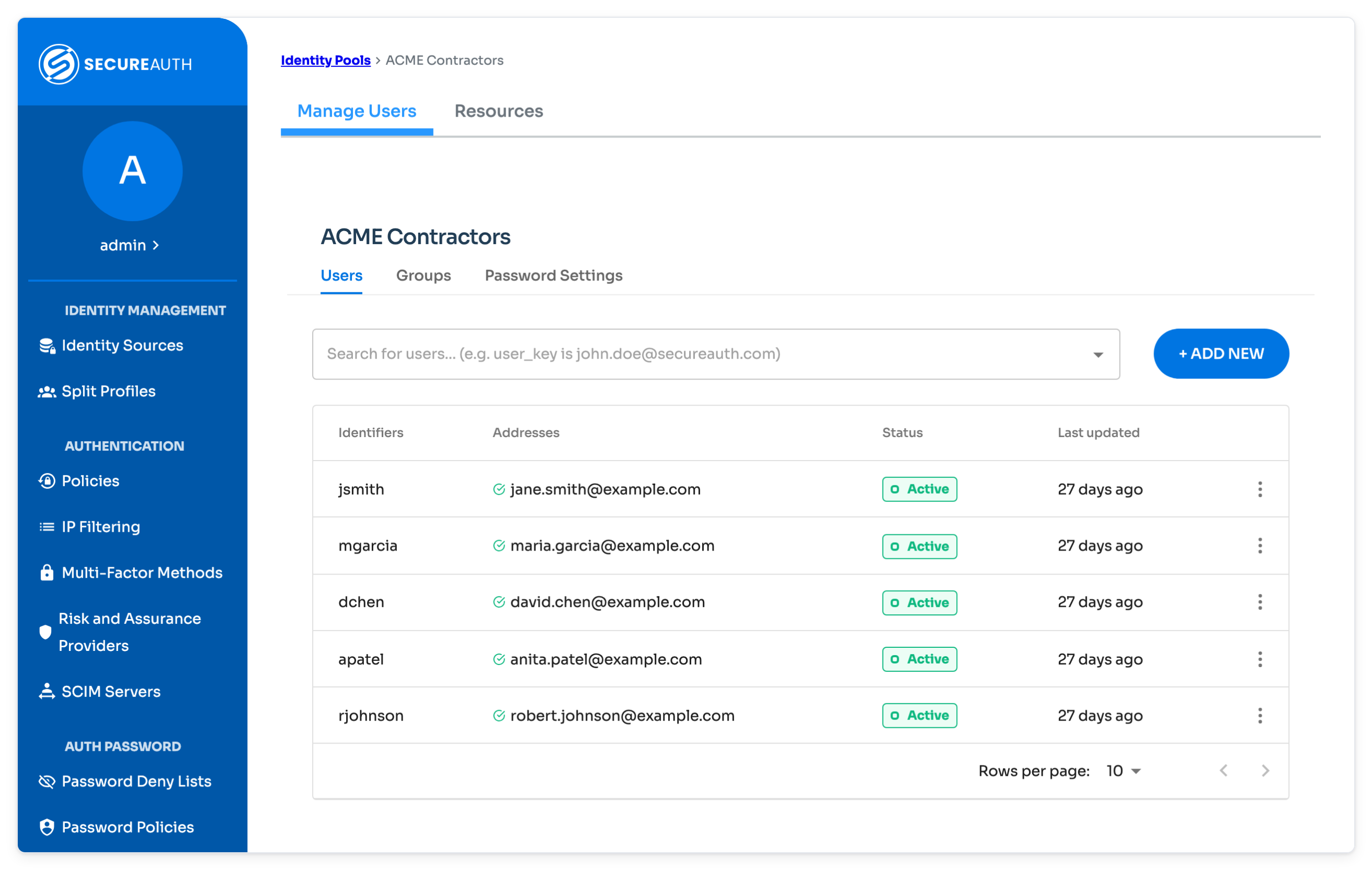
Select the Users tab.
Select the user whose password deetails you want to view. In User Password Details, review Last updated and Expires.
Force password reset or require a change at next login
Force a user to reset or change their password.
On the left side of the Identity Platform page, click Identity Sources.
On the Identity Pools tab, click the pencil icon for the identity pool you want to manage. The pool page opens on the Manage Users tab.
Select the Users tab.
Select the user whose password needs to be changed.
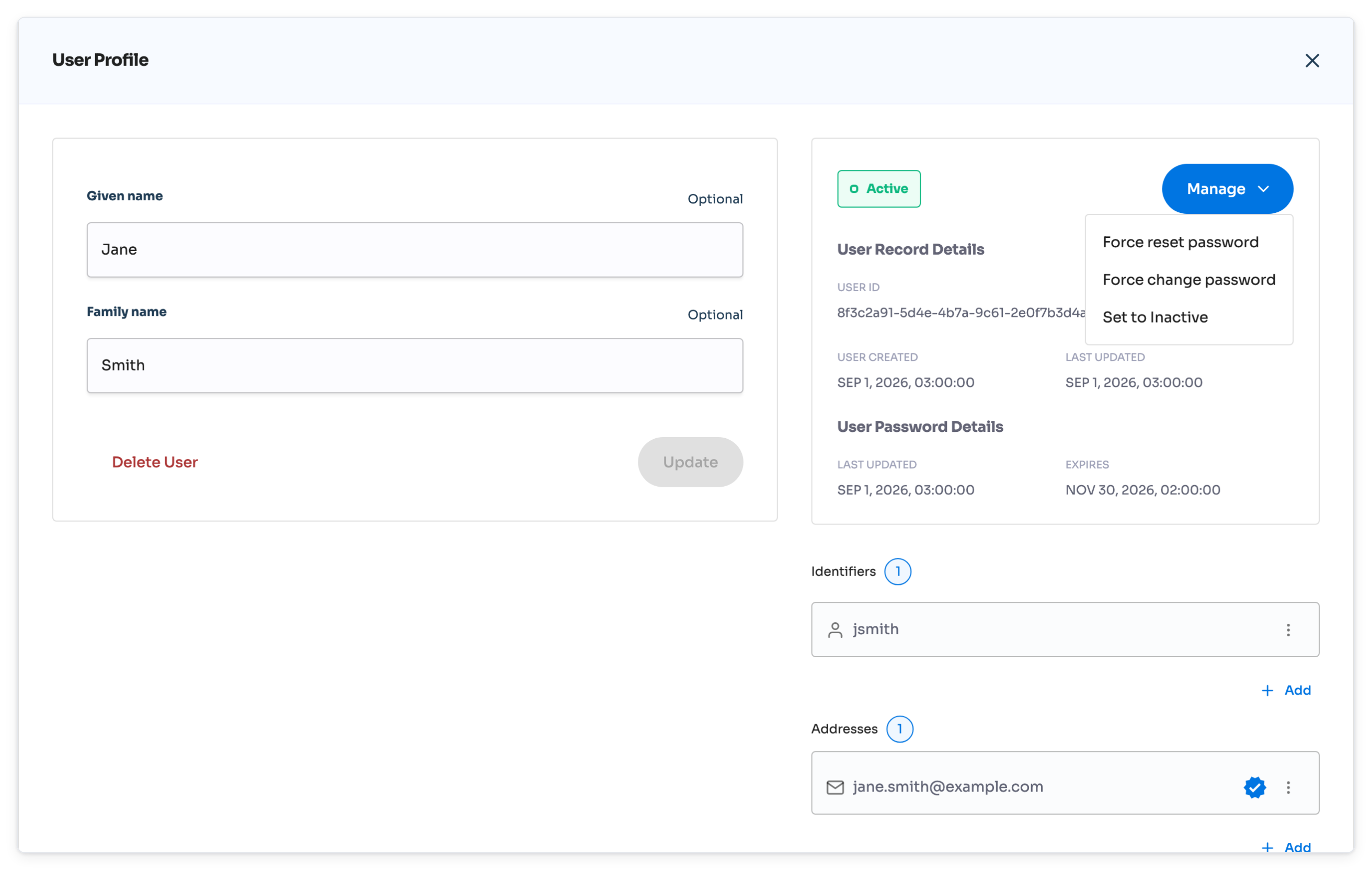
Click Manage, then choose one of the following options:
Force reset password – The user must reset their password using the Forgot Password flow before signing in.
After entering their user identifier, the user receives a verification code.
They must create a new password before accessing the application.
Force change password – The user signs in with their current password but is required to set a new one before continuing.
Typically used when users are assigned a temporary password.
Once changed, the user can access the application.