Using a password policy in the Identity Platform
Applies to Identity Platform release 26.0.0 or later
Set up a password policy in SecureAuth Identity Platform. You can define password complexity rules, include deny lists, and check new passwords against known data breaches.
After you define a password policy, you attach it in an authentication policy on the Login Workflow tab.
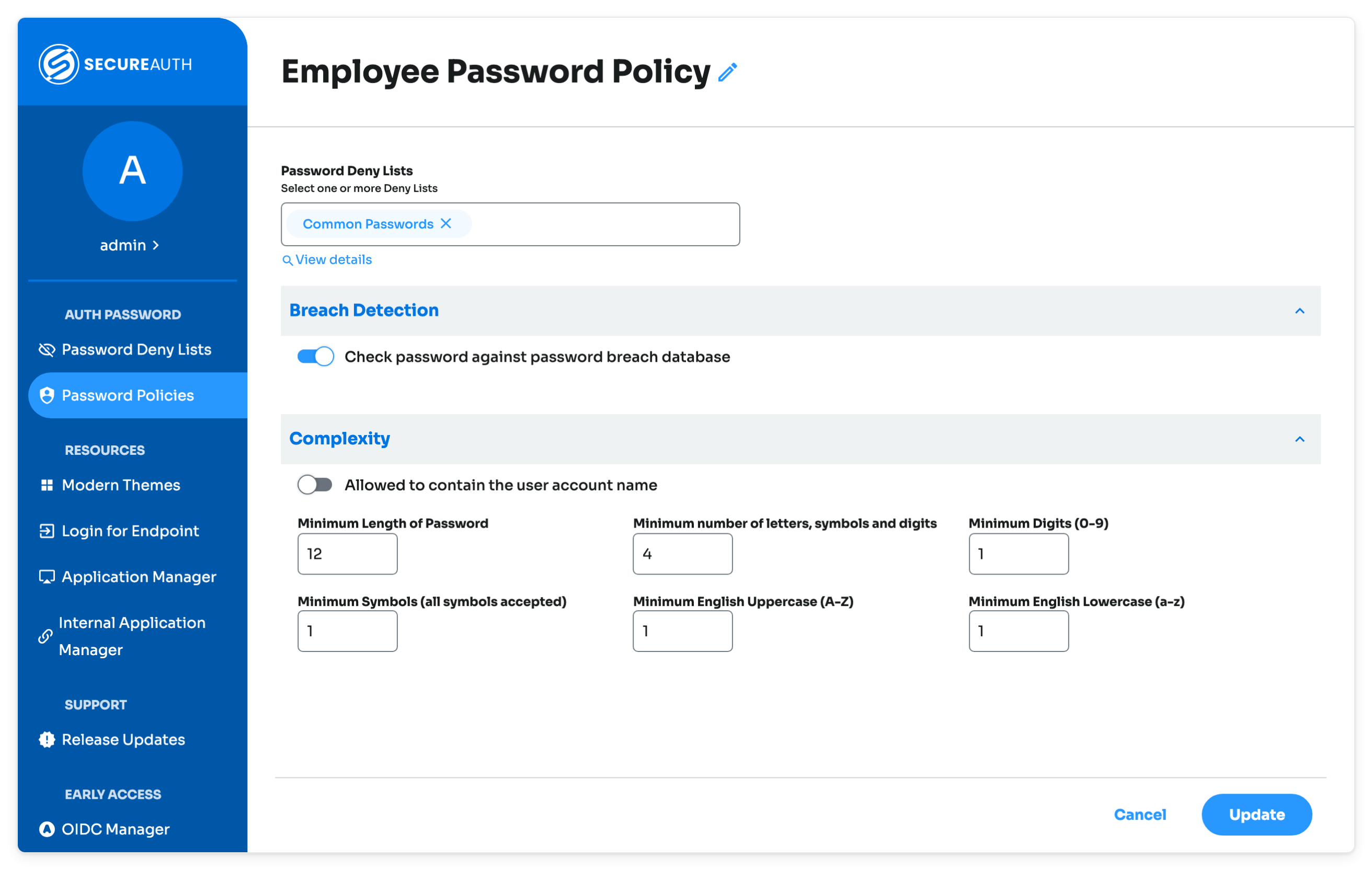 |
Add or edit an Identity Platform password policy
Note
You can define multiple password policies, but you only associate one password policy to each internal application.
In the Identity Platform, on the left side of the page, click Password Policies.
Do one of the following:
To add a new password policy, click Add Password policies and give it a name.
To edit a password policy, click the pencil icon next to the name of the password policy to edit.
Set any of the following password policy rules:
Password Deny List
Include one or more deny lists.
For more information on how to set up and use a password deny list, see Using deny lists in the Identity Platform.
Breach Detection section
Check password against password breach database
Move the slider to check new passwords against a database of passwords exposed in known data breaches. The check applies when users reset or change their password.
The check runs after the password meets the other policy rules. If the password appears in a known breach, the user must choose a different password.
SecureAuth hosts the breach database, so passwords never leave the platform. If the breach check service is unavailable, SecureAuth IdP accepts the password.
The slider is off by default and requires the Prevent package. Without the Prevent package, the slider is unavailable and an upgrade message appears.
Added in SecureAuth IdP release 26.4.0
Password Complexity section
Allowed to contain the user's account name
Move the slider to allow the username in the password.
For example, John Smith uses
jsmithas his username to login. If the slider is set to ON, then it allowsjsmithas part of his password.Minimum length of password
Set the minimum password length.
For example, a setting of 20 requires that a password must contain at least 20 characters.
Minimum number of letters, symbols, and number
Set the minimum number of character types to include in the password requirements. The available character types are: numbers, symbols, uppercase letters, and lowercase letters.
For example, if the value is set to 2, the password must contain at least two different types of characters. In this use case, p@ssword is a valid option because it contains two different character types: lowercase letter and symbol. 1234 would be invalid because it only contains only one type of character.
The only possible values are 0-4.
Numbers (0-9)
Set the minimum number of numeric characters in a password.
For example, a value of 1 requires that at least one number must be included in a password, like passw0rd.
Symbols (all symbols accepted)
Set the minimum number of symbol characters in a password.
For example, a value of 1 requires that at least one symbol must be included in a password, like p@ssword.
English uppercase (A-Z)
Set the minimum number of uppercase letters in a password.
For example, a value of 1 requires that at least one uppercase letter must be included in a password, like passWord.
English lowercase (a-z)
Set the minimum number of lowercase letters in a password.
For example, a value of 1 requires that at least one lowercase letter must be included in a password, like pASSWORD.
Save your changes.
Next steps
Go to Policies, select an authentication policy, and attach the password policy on the Login Workflow tab.