Help Desk user verification process
Verify user identity before providing account assistance to prevent unauthorized access and protect user accounts.
Why this matters
Verification stops unauthorized users from gaining access through social engineering or help desk impersonation.
This topic describes the end-to-end process as a Help Desk user when you need to verify a user before you can provide assistance.
Prerequisites: Help Desk page configured with user verification enabled. See Help Desk user verification configuration.
An end user (for example, an employee) contacts the Help Desk for assistance, like a password reset.
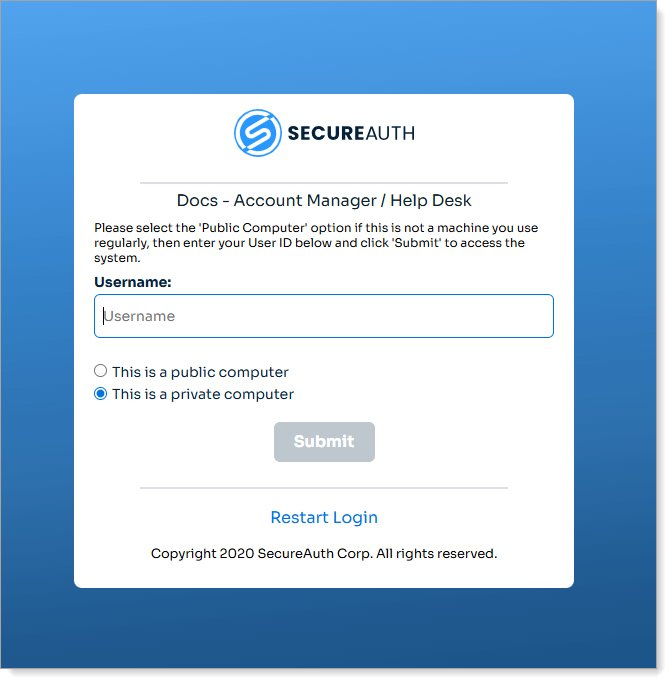
As a Help Desk user, log in to the Help Desk page configured in the Identity Platform for your organization.
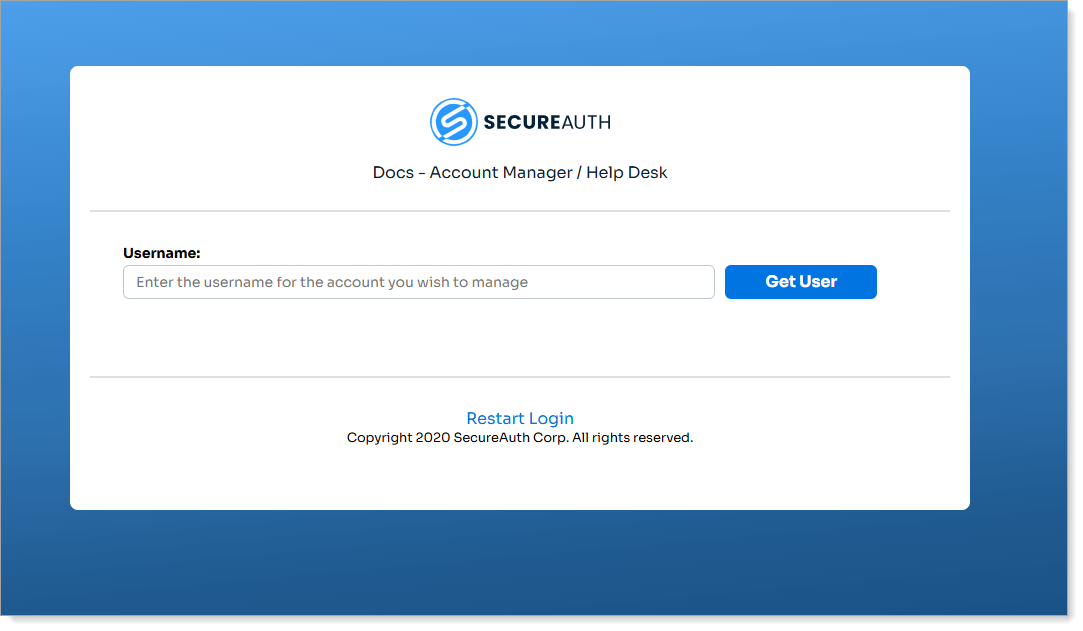
On the Help Desk page, enter the username of the person requesting assistance and click Get User. You should see a "User not verified" message in red text.
The Help Desk page displays the user profile with a "User not verified" message in red text.
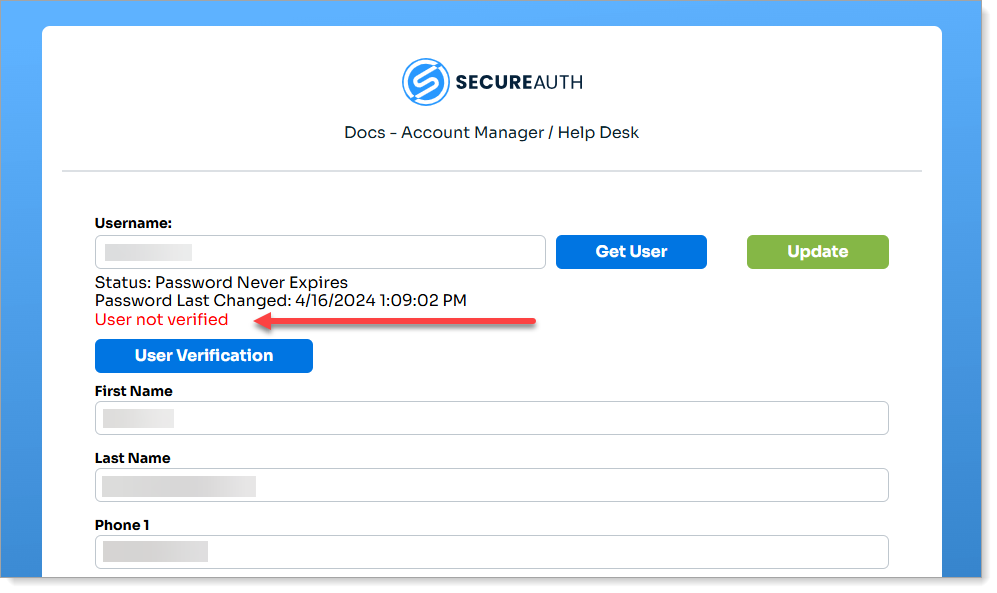
Click User Verification.
The User Verification dialog appears.
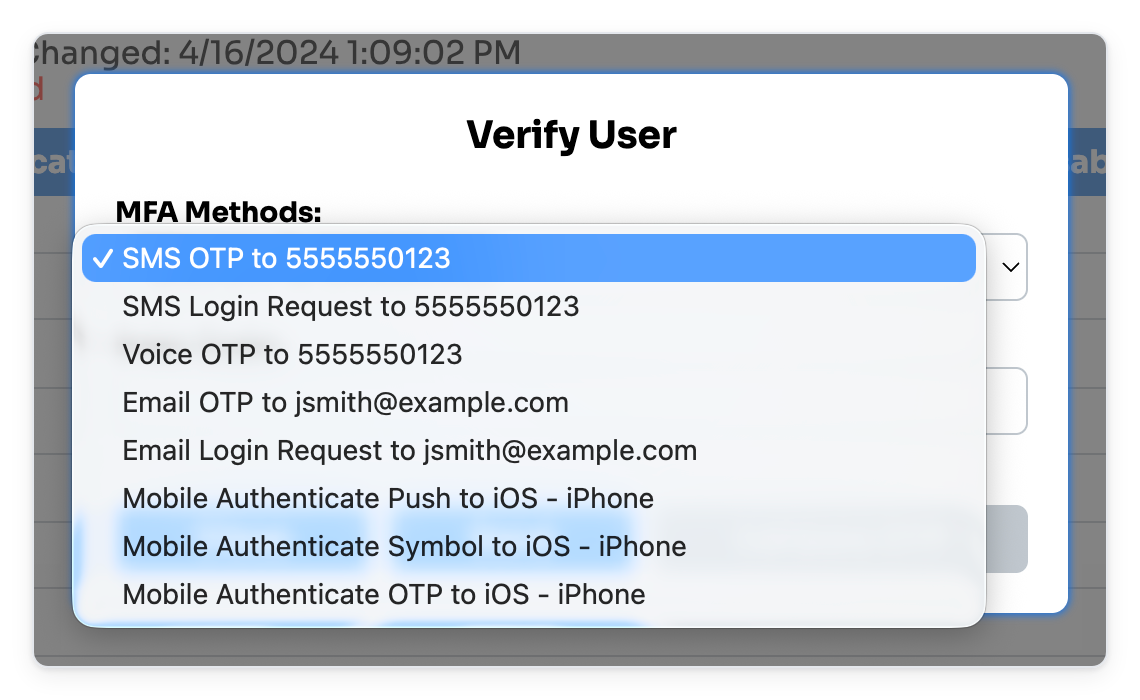
From the MFA Methods list, select a verification method to send to the user. The list shows only the methods your administrator enabled and the user has configured or enrolled:
SMS – Appears as SMS OTP and SMS Login Request when the user has a phone number configured.
Voice – Appears as Voice OTP when the user has a phone number configured. Added in SecureAuth IdP release 26.4.0
Email – Appears as Email OTP and Email Login Request when the user has an email address configured.
Mobile Authenticate – Appears as Mobile Authenticate Push, Mobile Authenticate Symbol, and Mobile Authenticate OTP when the user has enrolled the Authenticate app.
Click Send to deliver the verification. If you selected Mobile Authenticate OTP, the user reads the current code from their app, so skip Send and go to the next step.
If you selected Voice OTP, the user receives a phone call that reads the code.
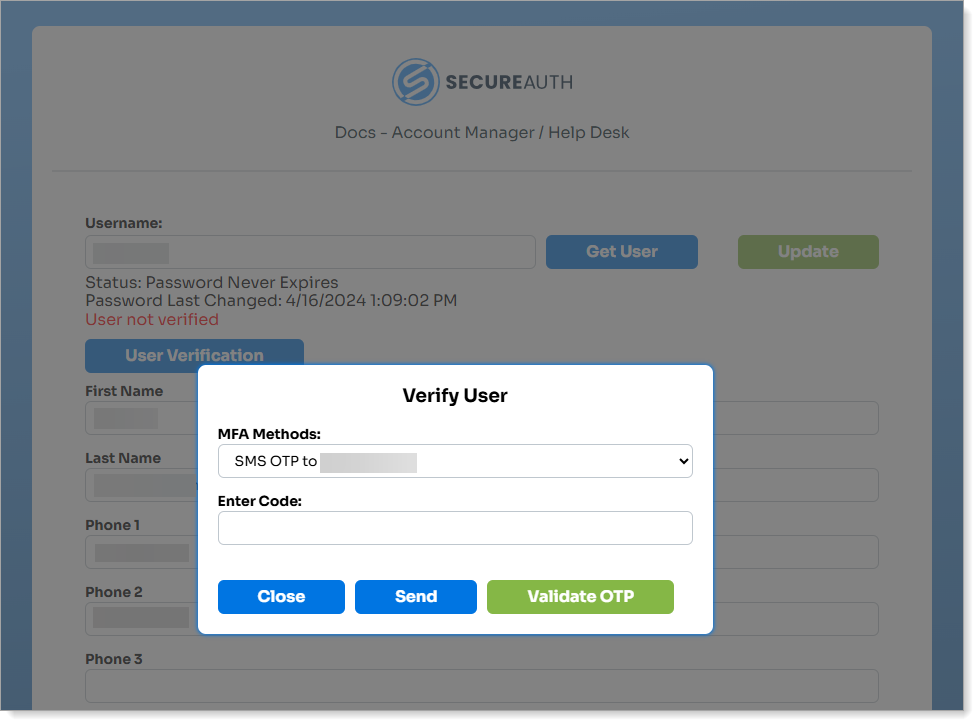
Send SMS OTP to end user
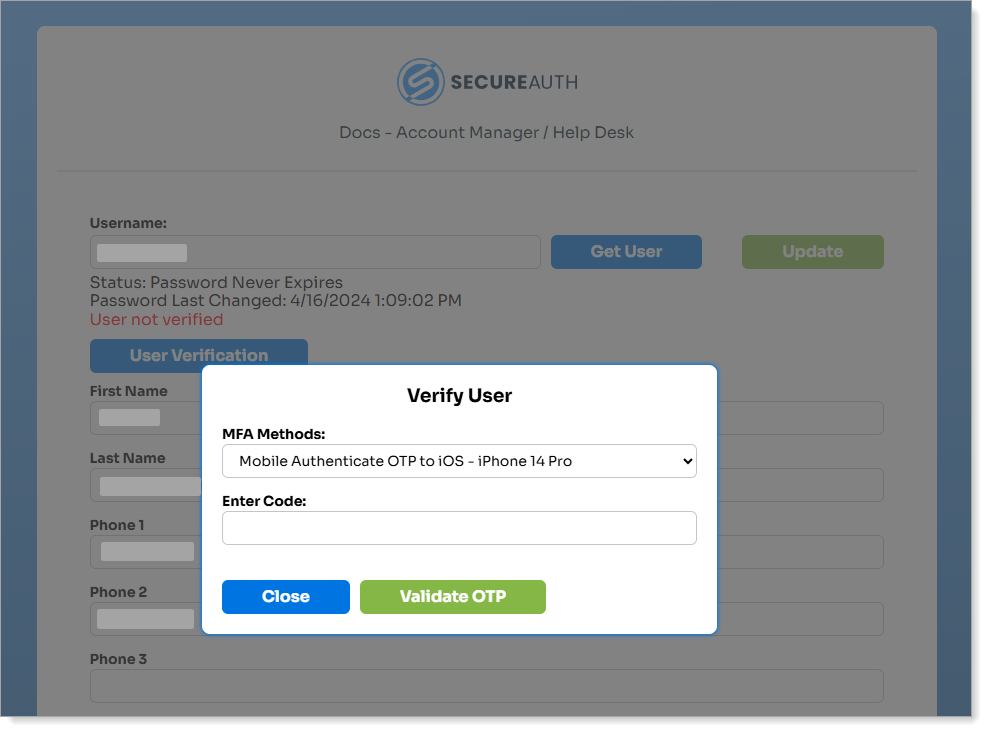
Send a code to the end user's Authenticate app
If you selected Mobile Authenticate Symbol, the dialog displays a symbol after you click Send. Tell the user the symbol, then ask them to tap the matching symbol in their SecureAuth Authenticate app before the request times out. Added in SecureAuth IdP release 26.2.0
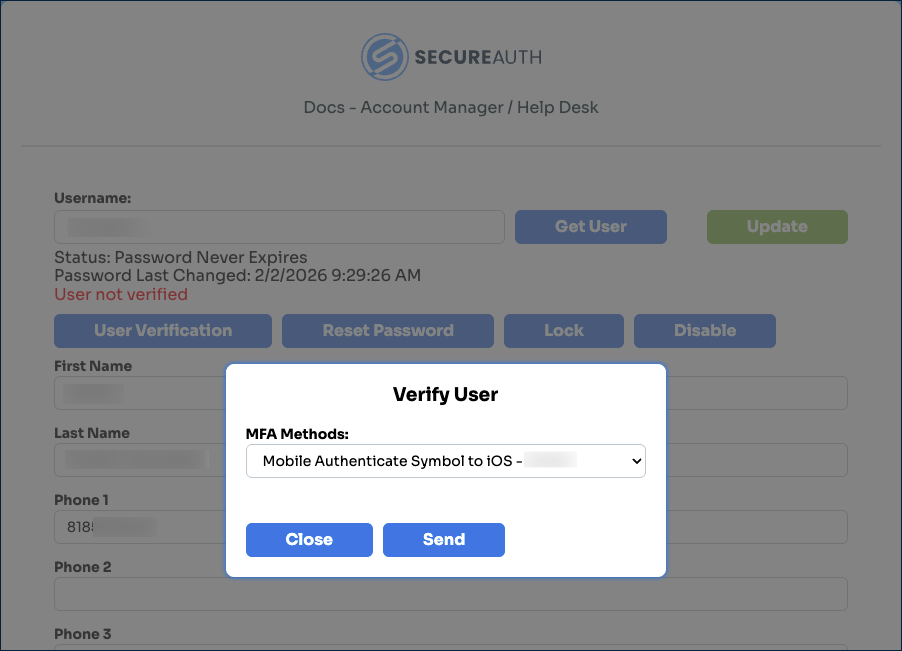
Select Mobile Authenticate Symbol
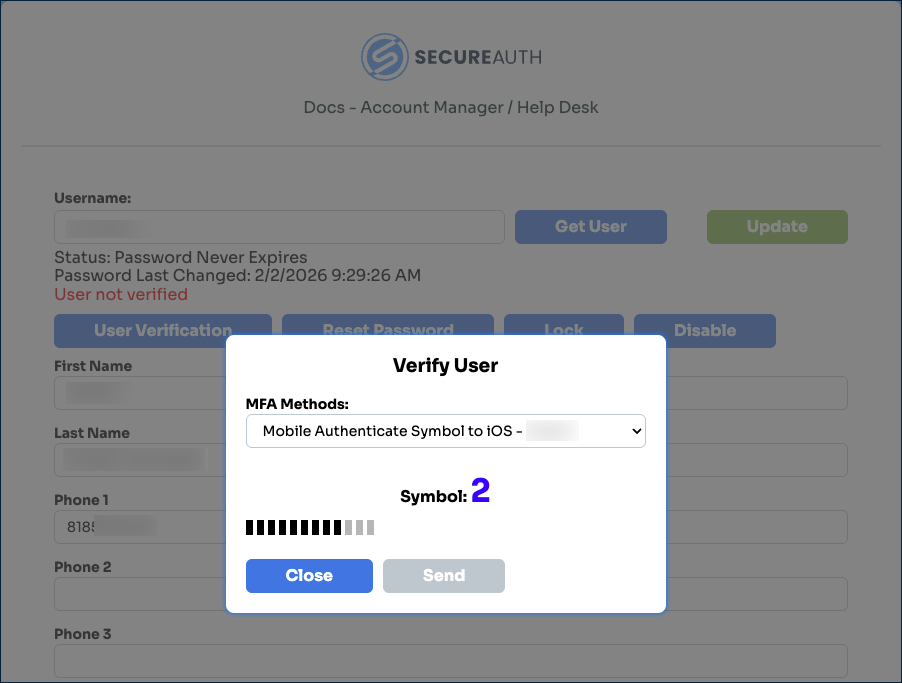
The symbol displayed to the help desk agent
The user completes verification on their device. Depending on the method, they read a code back to you, approve an SMS login request or push notification, or tap the matching symbol. Confirm with them as needed.
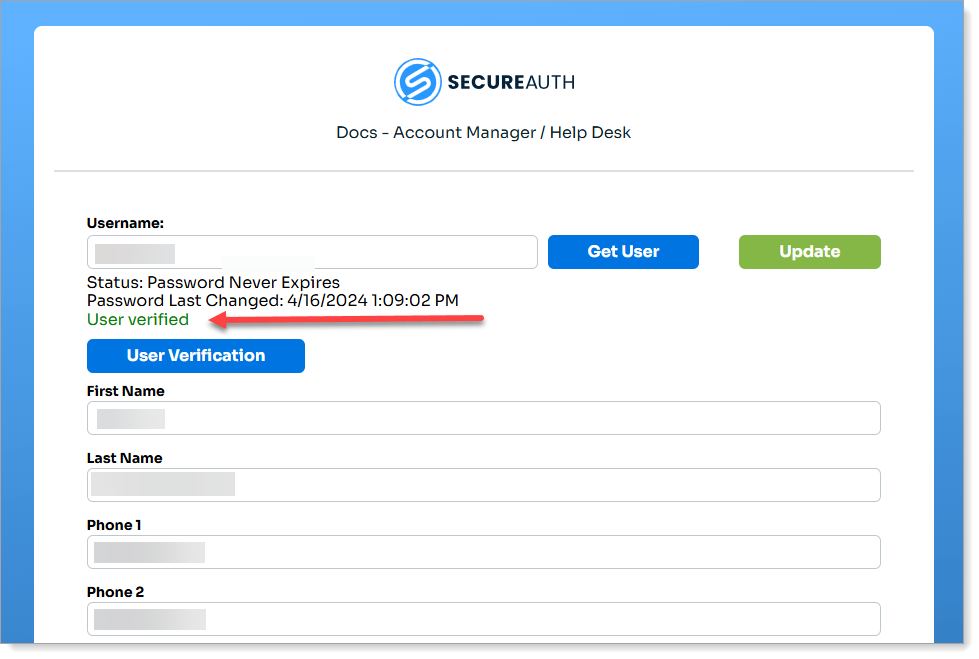
When the verification succeeds, the Help Desk page updates with "User verified" in green text.
Next, you can then assist the user with their request, such as password reset or account unlock.