Manage data stores
For any data store set up in the SecureAuth® Identity Platform, you can view and edit its settings and mapped properties, and see which applications use it. You can also copy or delete any data store.
Note
If you have login performance issues, see this knowledge base article: How to improve performance by disabling lookups in nested groups
Data Stores tab
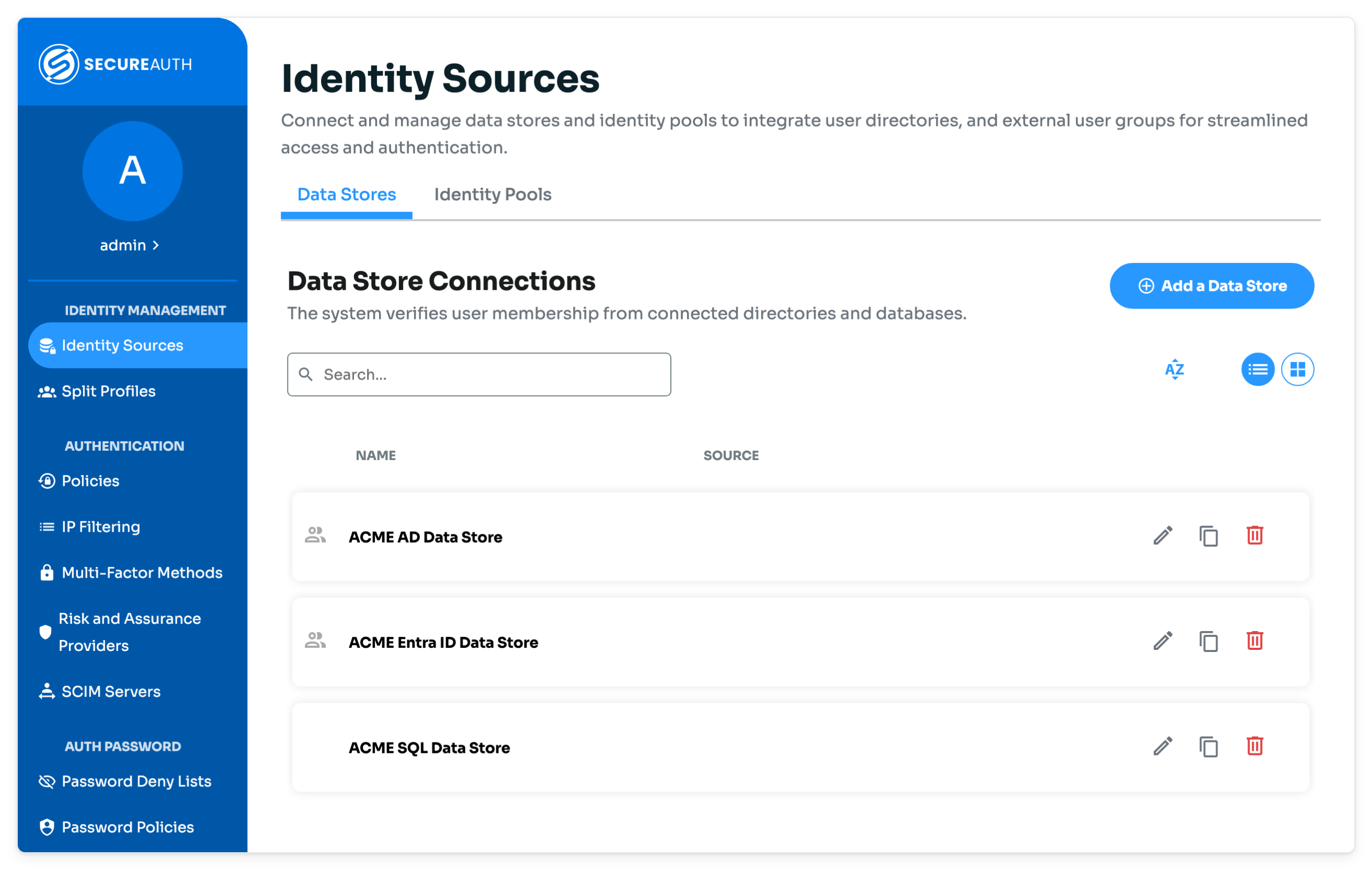
For all data store management options, start by navigating to the Data Stores tab.
On the left side of the Identity Platform page, click Identity Sources.
Select the Data Stores tab.
View and edit data store settings
On the Data Stores tab, click the pencil icon for the data store you want to view and edit.
The data store page opens on the Summary tab.
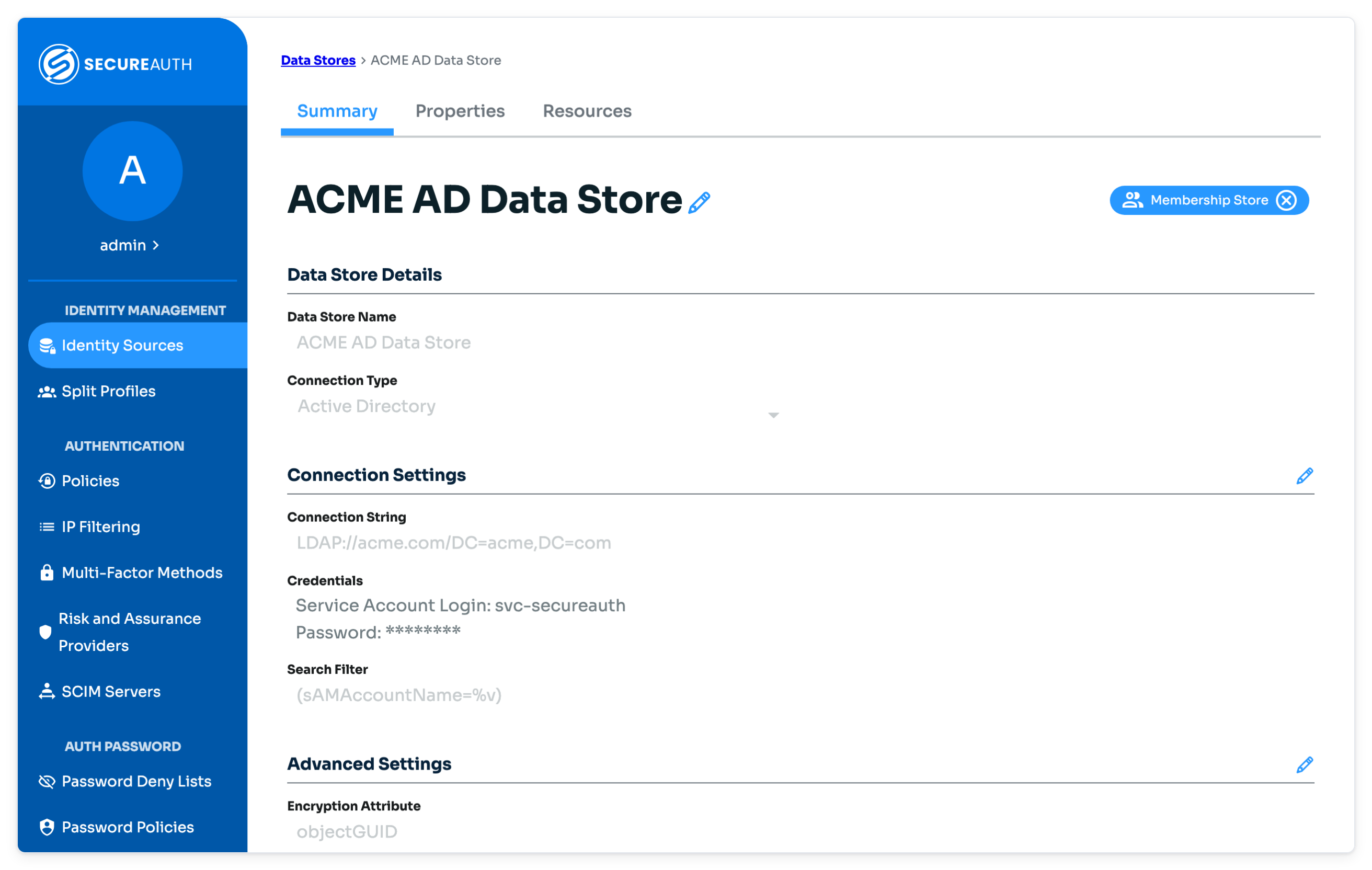
To edit the data store configuration settings, click the pencil icon and make your edits.
Click Save.
View and edit mapped data store properties
On the Data Stores tab, click the pencil icon for the data store you want to view or edit.
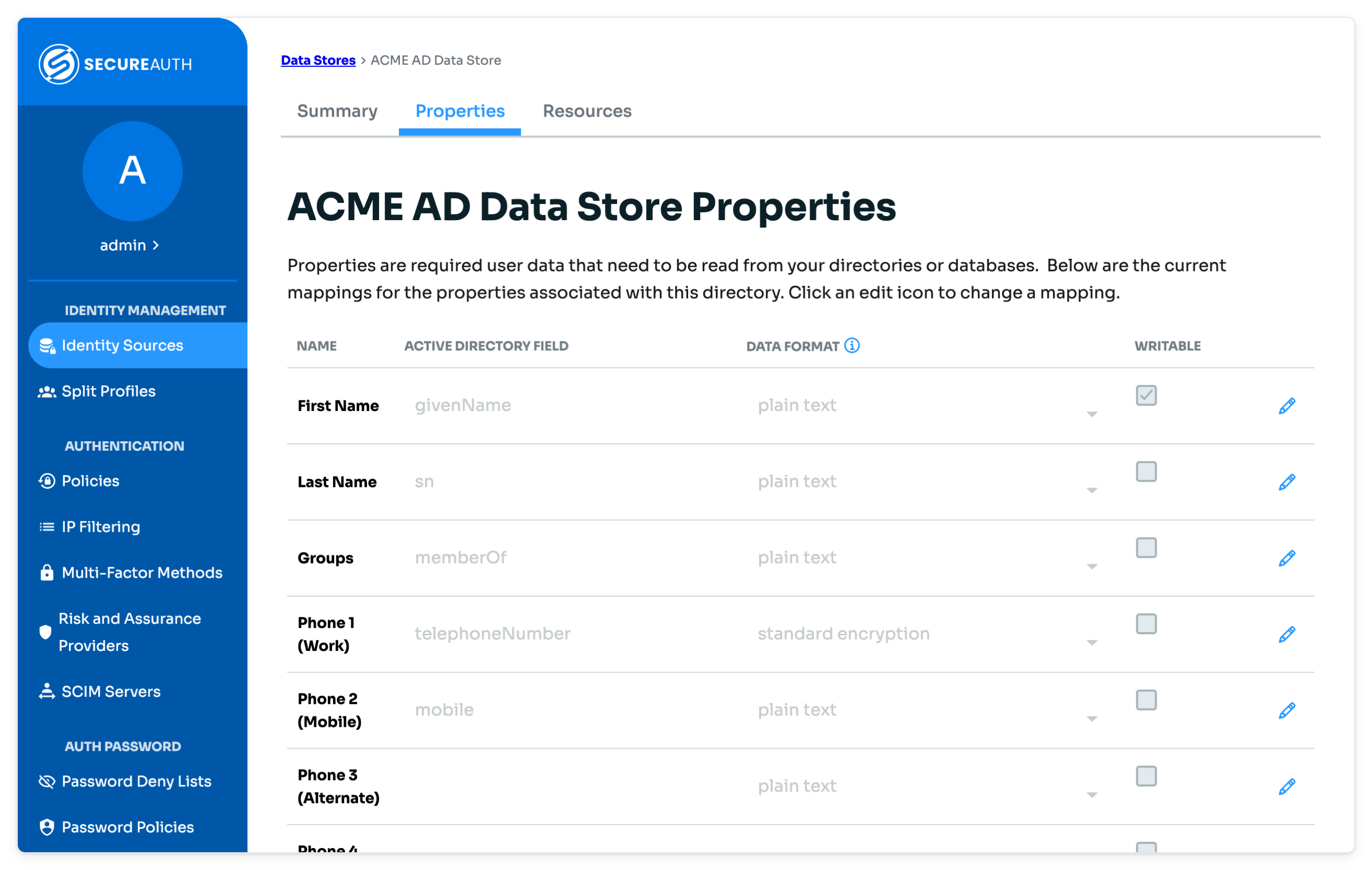
Select the Properties tab.
Note
DMZ data stores don't have a Properties tab.
To edit the mapped data store properties, click the pencil icon and make your edits.
Click Save.
View applications that use a data store
Added in SecureAuth IdP release 26.4.0
The Resources tab lists the applications that use the data store, so you can check what depends on it before you change or delete it.
On the Data Stores tab, click the pencil icon for the data store.
Select the Resources tab.
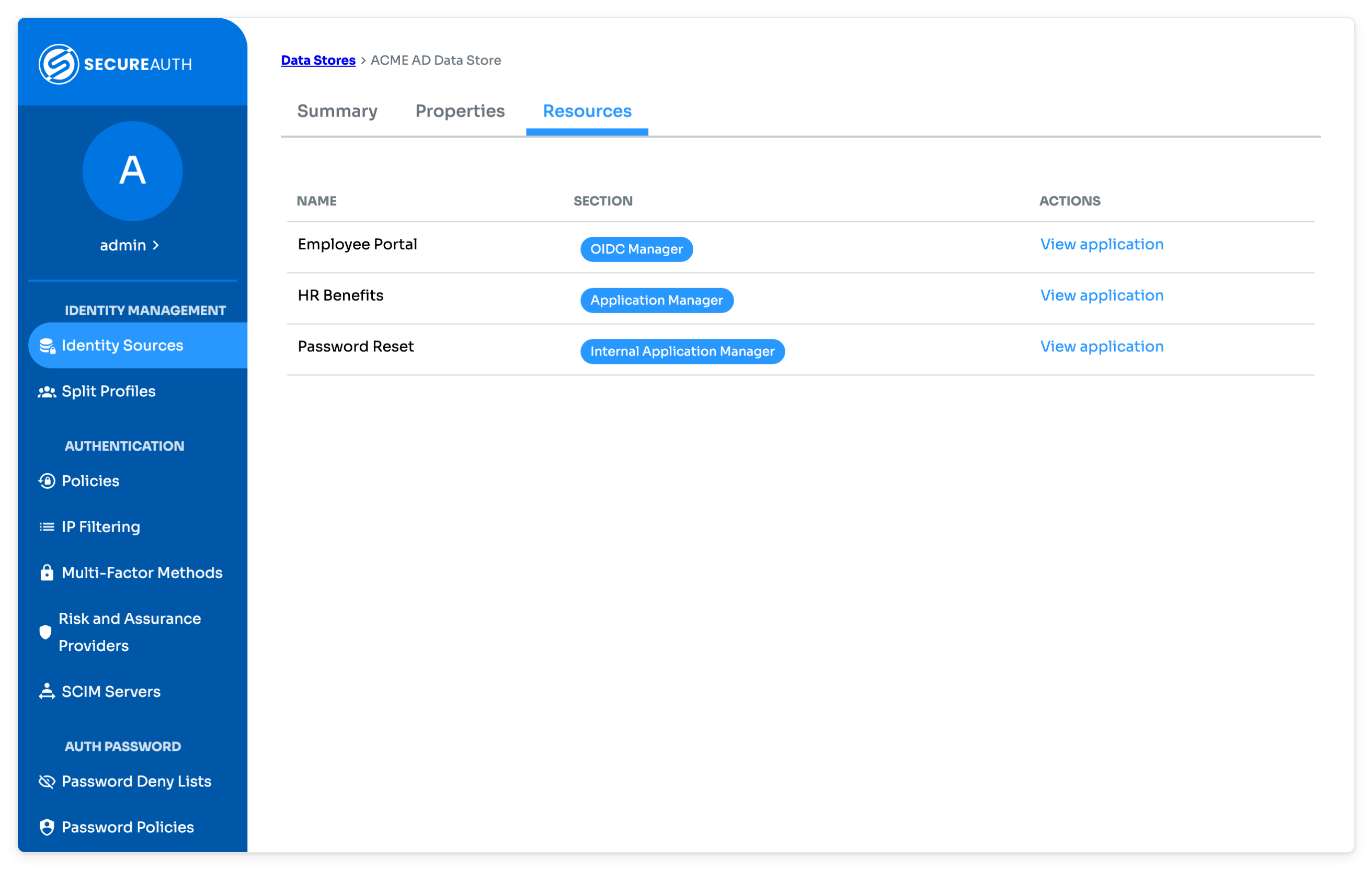
Each row shows the application name and its section, for example Internal Application Manager. To open an application's settings, click View application.
Copy data store
On the Data Stores tab, click the copy icon for the data store you want to copy.
The Add a Data Store page opens with preset configurations from the data store you copied.
Edit any settings and click Continue.
Note
By default, copied data stores are named "Copy of [data store]". Change the Data Store Name before continuing.
Edit any data store property mappings and click Save Data Store.
Delete data store
Note
Before you can delete a data store, you must remove it from all applications and legacy Advanced Settings realms. To see which applications use the data store, check its Resources tab.
On the Data Stores tab, click the delete (trash) icon for the data store you want to delete.
In the confirmation window, click Delete Data Store.