Multi-factor throttling configuration
Configure Multi-Factor Throttling on SecureAuth Identity Platform® to block repeated MFA attempts by unauthorized users while keeping legitimate authentication fast.
Why this matters
Stops attackers from repeatedly trying to bypass multi-factor authentication in the Identity Platform through brute force attempts.
Multi-Factor Throttling tracks failed MFA attempts using a rolling time window. When attempts exceed your configured limit within the timeframe, you can either temporarily block further attempts or lock the account until an administrator unlocks it
Example: With 2 attempts allowed in 1 minute, a user making 2 failed MFA attempts at 1:00pm is blocked until 1:01pm when the first attempt expires. Successful authentication resets the count to zero.
Prerequisites
Identity Platform 24.04 or later
Data store added to the Identity Platform
Configured user authentication policy
Configured application integration
Data store mapping
To store the number of MFA attempts in a dedicated mapping specific to MFA throttling, follow these steps.
Note
This section applies only to data stores in hybrid deployments of the Identity Platform. You do not need to set up a data store mapping in cloud deployments.
In the Identity Platform, go to the data store settings.
Depending on where you initially added the data store, it might be in the New Experience or Advanced Settings.
In the profile properties, map the data store Field attribute to the Multi Factor Throttle profile property and select the Writable check box.
For example, map the
homePostalAddressfield attribute to Multi Factor Throttle profile property.Note
Directory attribute must be in Plain Text data format.
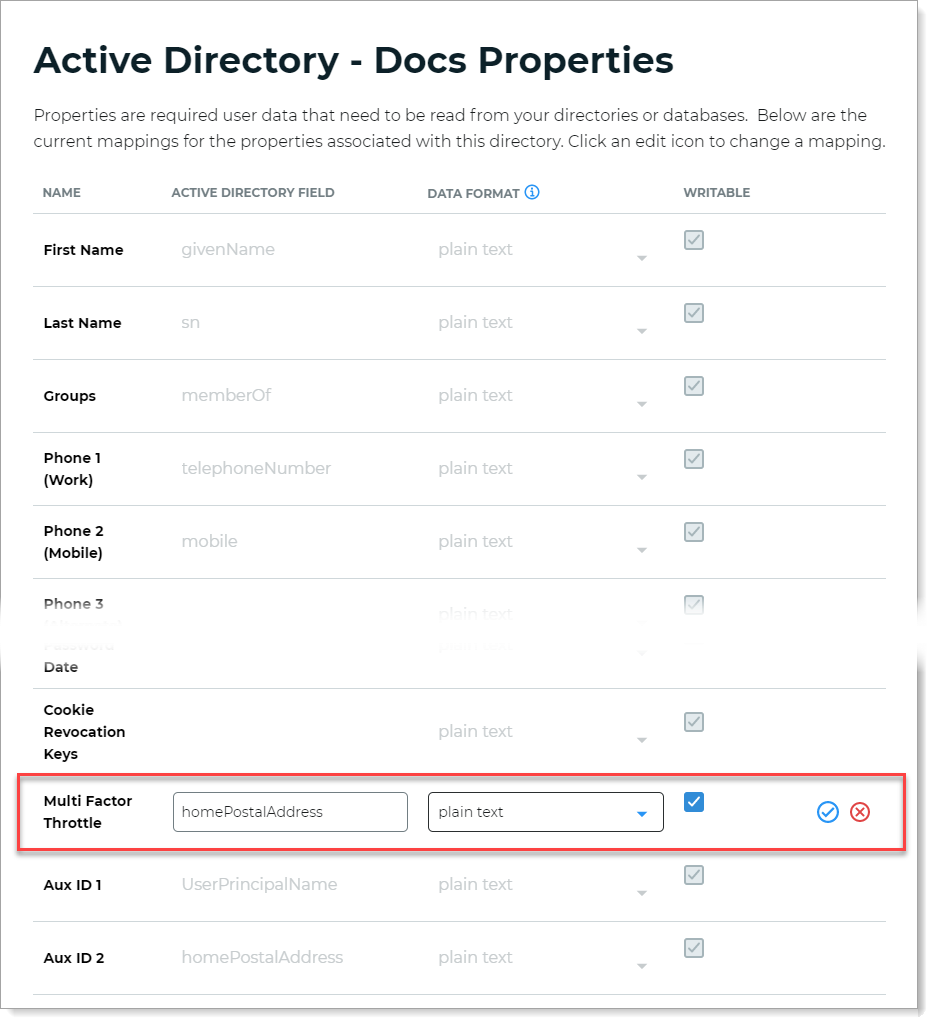
Data store in the New Experience
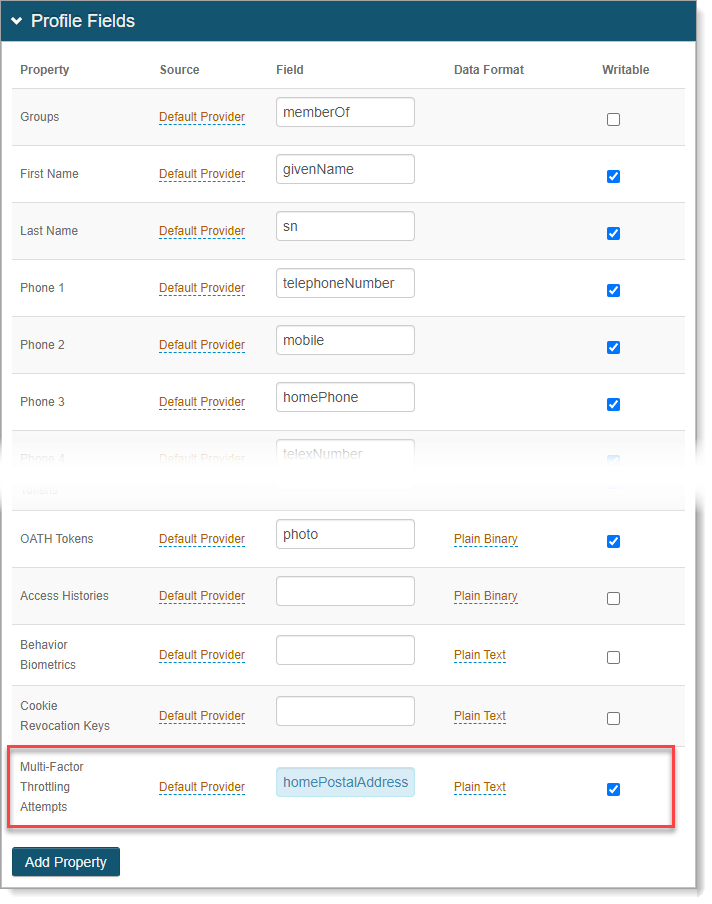
Data store in Advanced Settings (Data tab)
Save your changes.
Configure Multi-Factor Methods tab
For an application in the Identity Platform, go to Advanced Settings and select the Multi-Factor Methods tab.
Scroll down to the bottom of the Multi-Factor Configuration section to Multi-Factor Throttling.
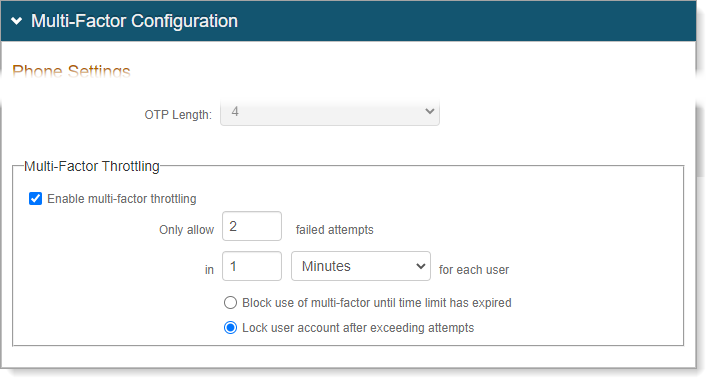
Set the following configurations:
Enable multi-factor throttling
Select this check box.
Only allow #number failed attempts in #time
Set maximum failed MFA attempts within the timeframe before blocking to prevent unauthorized access while allowing for user errors.
Action
Select blocking to prevent attempts until time expires (no admin needed) or locking to require administrator unlock (stronger security).
To unlock locked accounts, see Unlock Account page configuration - Help desk and Unlock Account page configuration - End users.
Save your changes.
User workflow when throttling activates
Invalid MFA attempt → Error message appears.
Maximum attempts exceeded → Throttling message blocks further attempts.
If blocking enabled → User can retry after time limit expires.
If account lock enabled → "Exceeded maximum attempts" message appears, administrator must unlock.
To customize error messages, go to the Overview tab > Content and Localization and edit the registrationmethod_throttlelimit field.
Unlock a user account
Available in SecureAuth IdP 26.0.0
Log in the Account Management / Help Desk application and retrieve the locked account.
Confirm the account status shows Status: Account Locked.
You can unlock the user account using either:
Click Unlock.
At the bottom of the page, select the MFA throttle check box to clear password attempts.
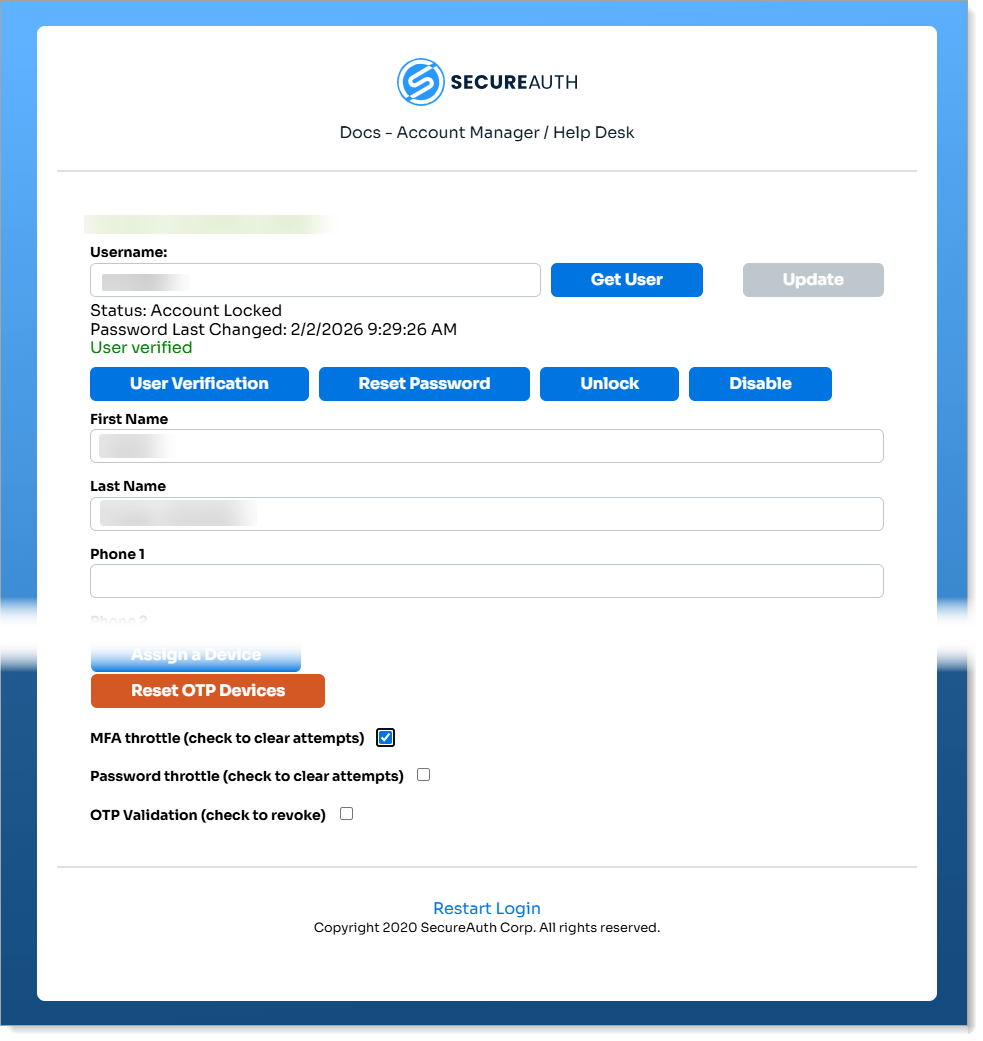
Click Update.