SecureAuth Connector installation
To connect your data stores and directories to SecureAuth Identity Platform in a cloud deployment, you need to install a connector on your local data store server. You can use the SecureAuth Connector installer and configuration files more than once. Copy the files to different data store servers and install them on those machines for redundancy.
To remove a connector, uninstall it from your local data store server. Then, remove it from the Connectors list in the Data Stores section.
For more information about the latest SecureAuth Connector version, see the SecureAuth compatibility guide and SecureAuth Connector release notes.
Note
For important information about SecureAuth cloud infrastructure updates, see Critical SecureAuth Connector update for SaaS IdP customers.
Prerequisites and dependencies
Identity Platform release 19.07 or later, cloud deployment
At this time, the Connector is not certified for use on the Identity Platform on-premises appliance or a domain controller
Recommended installation on a standalone box
You must have access to the email address used to provision your Identity Platform account
Install or update Microsoft .NET to 4.8.1 or later
Access to a local data store server containing your data stores
At minimum, the local data store server must have the following system requirements (the same configuration also applies to virtual machines):
Supported operating systems
Windows Server 2022 / 2019
Windows 11 / 10
Minimum required specifications
For supported browser and platform requirements, see the SecureAuth compatibility guide
Microsoft .NET Framework 4.8.1 or later
Disk: 200MB
RAM: 4GB
Ports to open
Source | Destination / Hostname | Ports | Notes |
|---|---|---|---|
Connector | Data store | (data store specific) | Common ports: AD
SQL
|
Connector | pkc-4nym6.us-east-1.aws.confluent.cloud | 9092 | Add this to your firewall allow list |
Connector | rabbitmq.secureauth.com | 5671 | Effective June 5, 2023 Support for AMQP (Advanced Message Queuing Protocol) traffic from the connector to SecureAuth Cloud. |
Note
If you have any questions about which ports to open, contact SecureAuth Support.
Installing the SecureAuth Connector
Open the Identity Platform application.
On the left side of the Identity Platform page, click Data Stores.
The User Data Stores page opens.
To add a Connector, do one of two options:
When there are no connectors installed, click Add Connector.
When there is at least one connector installed, and to add another connector, click the Open Installer instructions link.
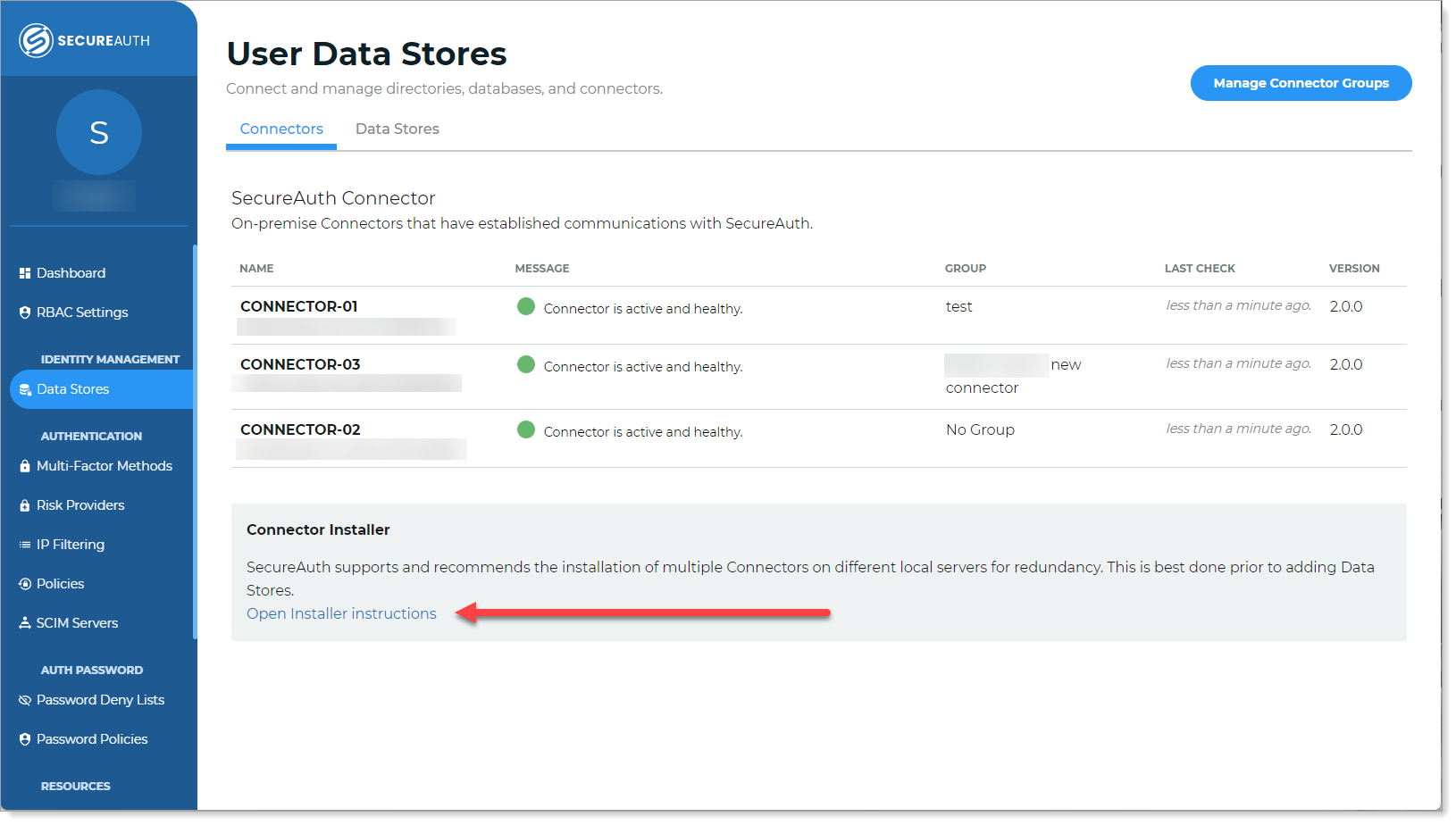
The Connector Installer page opens.
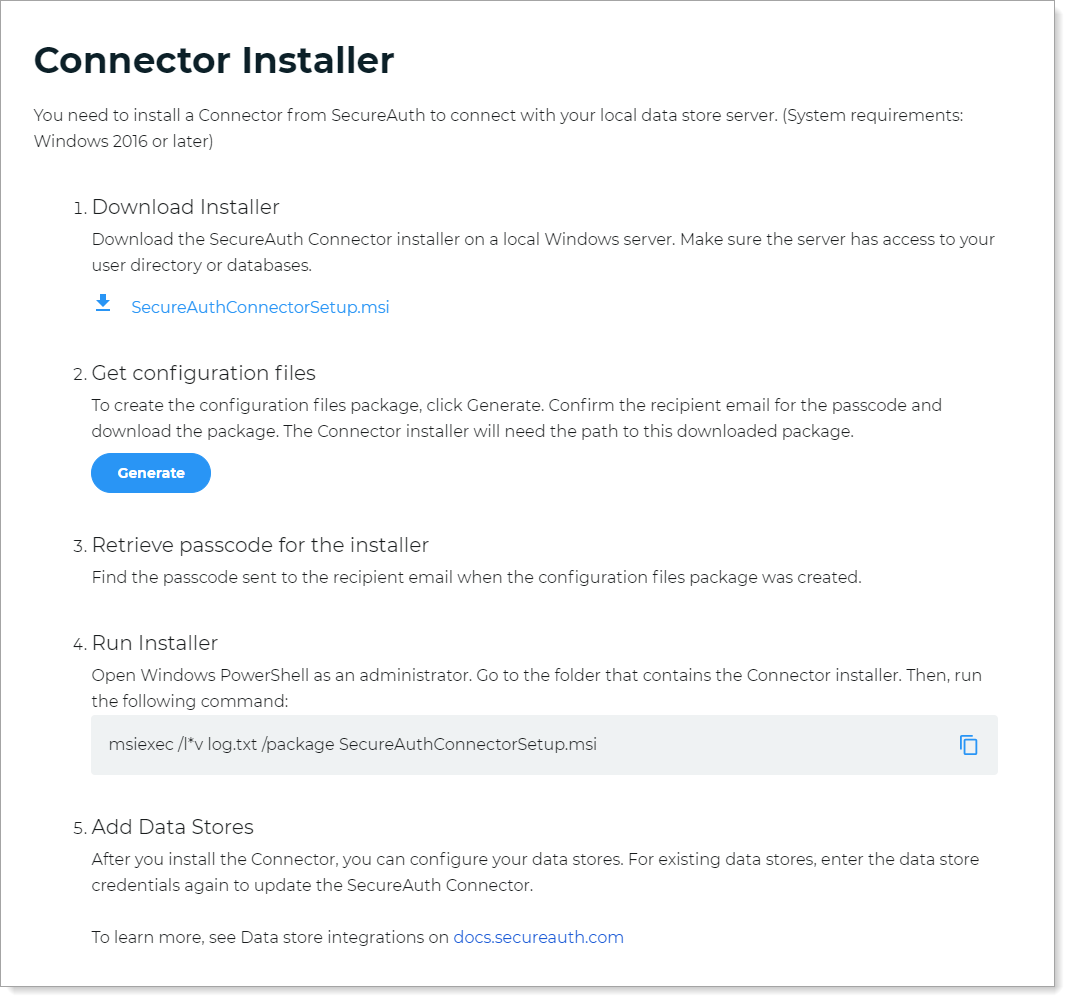
Click the SecureAuth Connector .msi installer link.
The installer file is downloaded and saved to your machine.
To get the configuration files package, click Generate.
This generates the configuration files package. It sends an email with the configuration passcode to the system administrator tasked with setting up the Identity Platform.
A Ready to Download confirmation window appears.
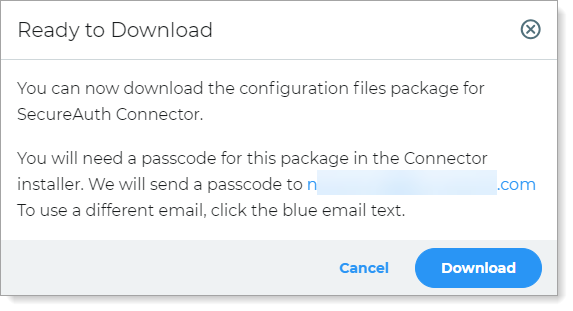
Note
To send the configuration code to a different email, click the blue email text and confirm.
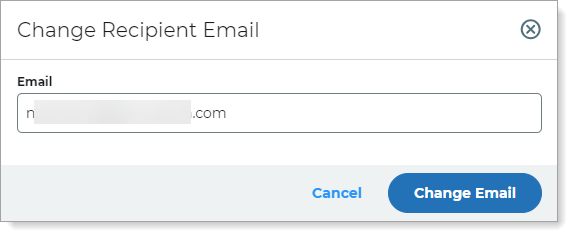
Retrieve the configuration passcode from the email.
Open Windows PowerShell with administrative privileges, go to the directory that contains the SecureAuth Connector installer. Then, run the following command:
msiexec /l*v log.txt /package SecureAuthConnectorSetup.msi
The installation process for the SecureAuth Connector opens.
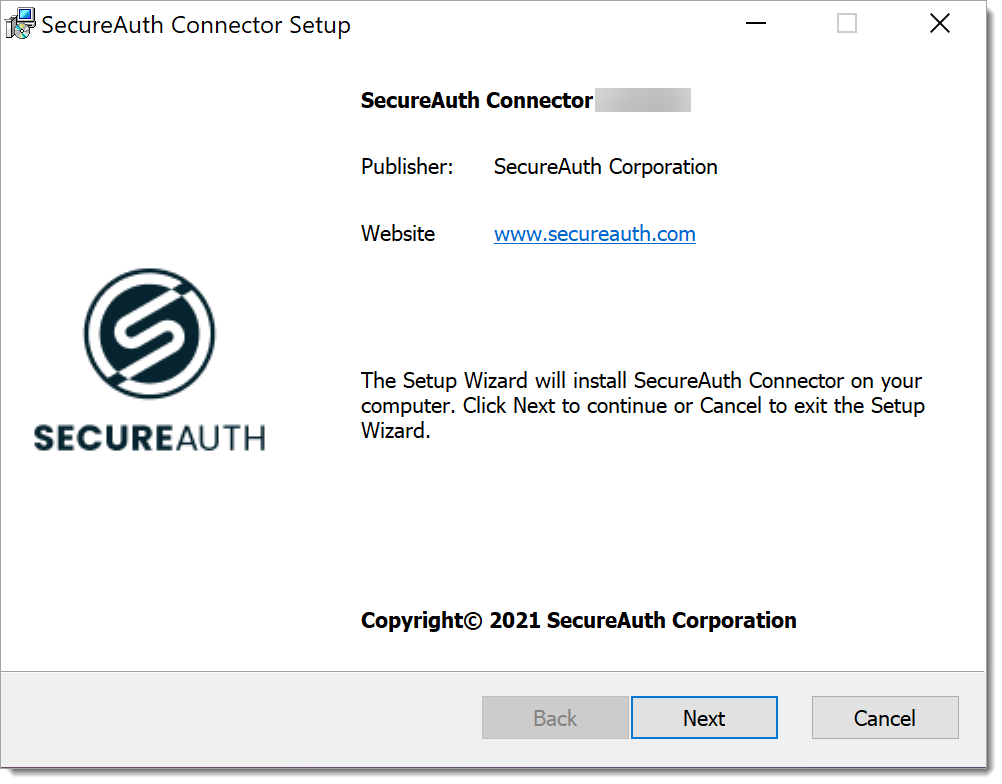
Follow the installation prompts to accept the license agreement, choose a destination folder, select the configuration files package, and enter the passcode from the email.
On the Cache Configuration screen, select a caching mode for the connector service.
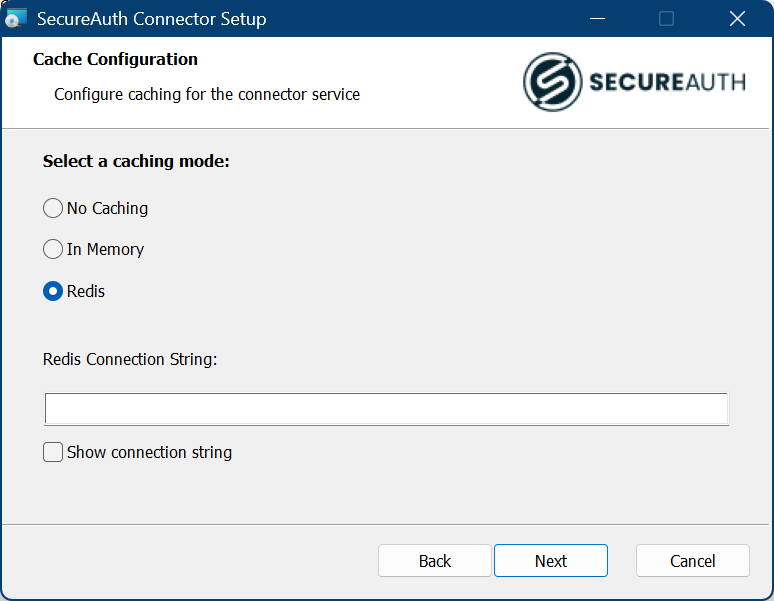
No Caching. The connector retrieves user data directly from the data store on every authentication request.
In Memory. The connector stores user data in memory for 30 minutes. The timeout resets each time the same user logs in. The connector only retrieves data from the data store for save operations like lock, unlock, or property updates. This is the default.
Redis. Works the same as In Memory, but stores the cache in a Redis instance. When you select this option, enter a value in the Redis Connection String field. Select the Show connection string checkbox to verify the value. The installer validates the connection before continuing.
Complete the remaining prompts. The installer tests the connection to SecureAuth servers. If there are any issues, see SecureAuth Connector troubleshooting.
On the Connectors tab, check the message area for the connector you installed. The connection runs a health check to show whether it is active (green status) or not active (red status).
Optionally, to install another connector on another data store server for redundancy, do the following:
Copy the SecureAuth Connector installer file and generated configuration files package (.zip) to another local data store server.
Open Windows PowerShell with administrative privileges, go to the directory that contains the SecureAuth Connector installer. Then, run the following command:
msiexec /l*v log.txt /package SecureAuthConnectorSetup.msi
Use the same passcode copied from the email.
Tip
You can copy the same bundle to as many data store servers as needed and reuse the same passcode. Each time you click Generate from the Connector Installer page, the bundle is the same but the passcode changes.
Next steps
Add a data store.