Connect Gemini Enterprise Business to Agent Authority
Add SecureAuth Agent Authority to your Gemini Enterprise Business team so every tool call is checked and audited
When you finish, every MCP tool call your Gemini Enterprise Business team makes is checked against your policies and recorded in the audit log. Gemini Enterprise Business reaches your approved tools through SecureAuth Agent Authority, added as a custom MCP server in your team settings, and each team member signs in as themselves.
For Standard or Plus, which you set up in the Google Cloud console, see Gemini Enterprise Standard/Plus.
Before you begin
- Gemini Enterprise Business – with an administrator account on your team.
- Administrator access to Agent Authority – in your Agentic AI workspace, to check Agent Access, and to change a rule if one blocks Gemini Enterprise.
- Policy that allows Gemini Enterprise's tool calls – see Confirm a policy allows the agent.
Administrator and team member steps
Setup has two parts:
- Team administrator – adds the server once under Connected apps, for the whole team.
- Each team member – clicks Connect and signs in once in Gemini Enterprise chat before their own tool calls run.
Create the OAuth client in Agent Authority
An OAuth client is the credential that lets Gemini Enterprise sign your team members in to Agent Authority. You create it here and paste its values into your team settings, so keep Agent Authority and your team settings open in separate tabs.
-
Open the connect flow.
In Agent Authority, go to Agents & NHIs, click Connect, then choose Gemini Enterprise.The same tile serves every Gemini Enterprise edition. Its on-screen notes describe the Google Cloud console setup for Standard and Plus, so follow this page instead.
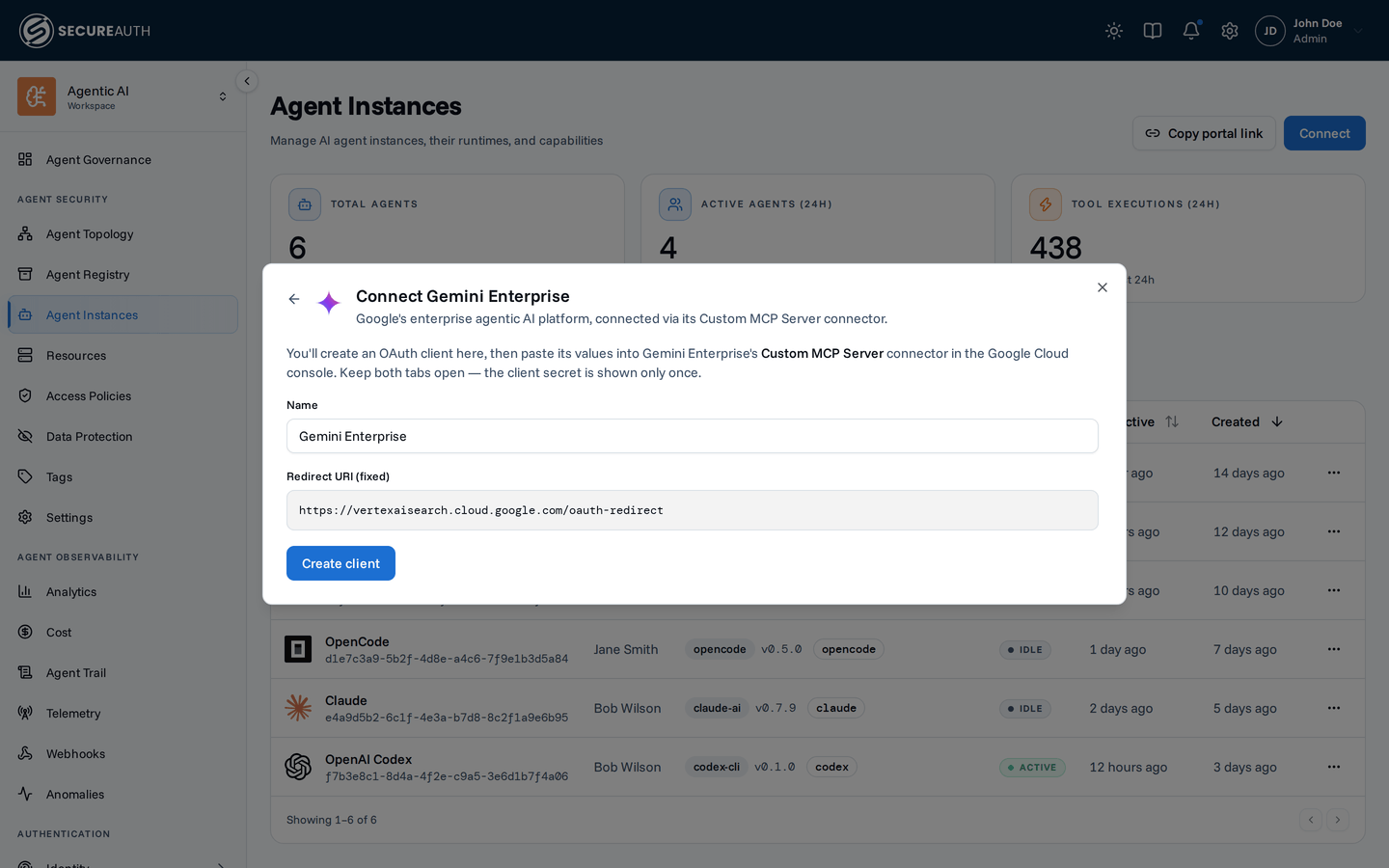
Connect your agent → Gemini Enterprise creates the OAuth client. -
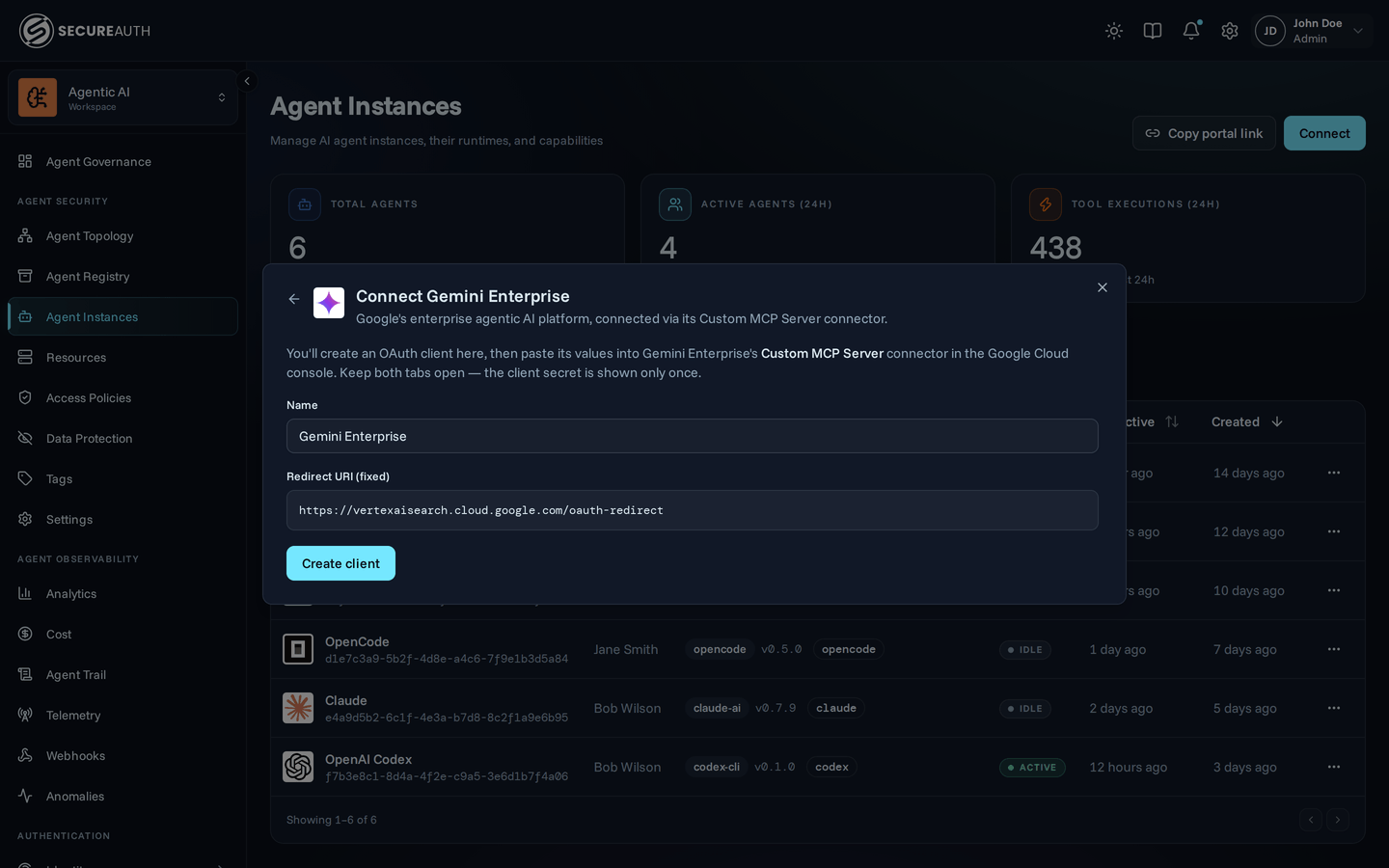
Name it and create.
The Name starts asGemini Enterprise. Change it, for example toGemini Enterprise Business, and click Create client. The name identifies this agent in Agents & NHIs later. Leave Redirect URI (fixed) as shown: Google fixes it athttps://vertexaisearch.cloud.google.com/oauth-redirect. -
Copy the values now.
The client secret is shown only once
If you lose it, delete the agent and reconnect to issue a new client.
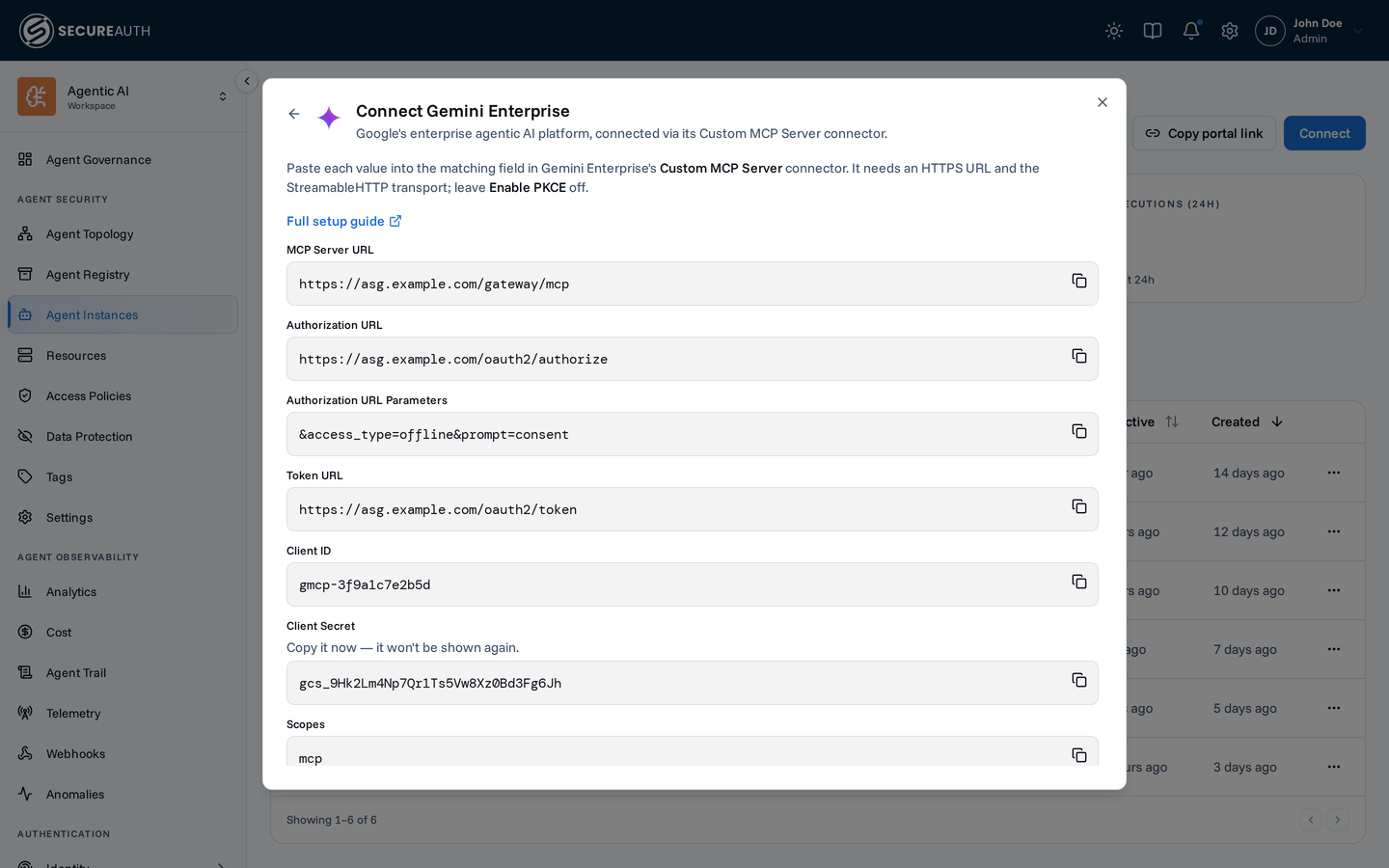
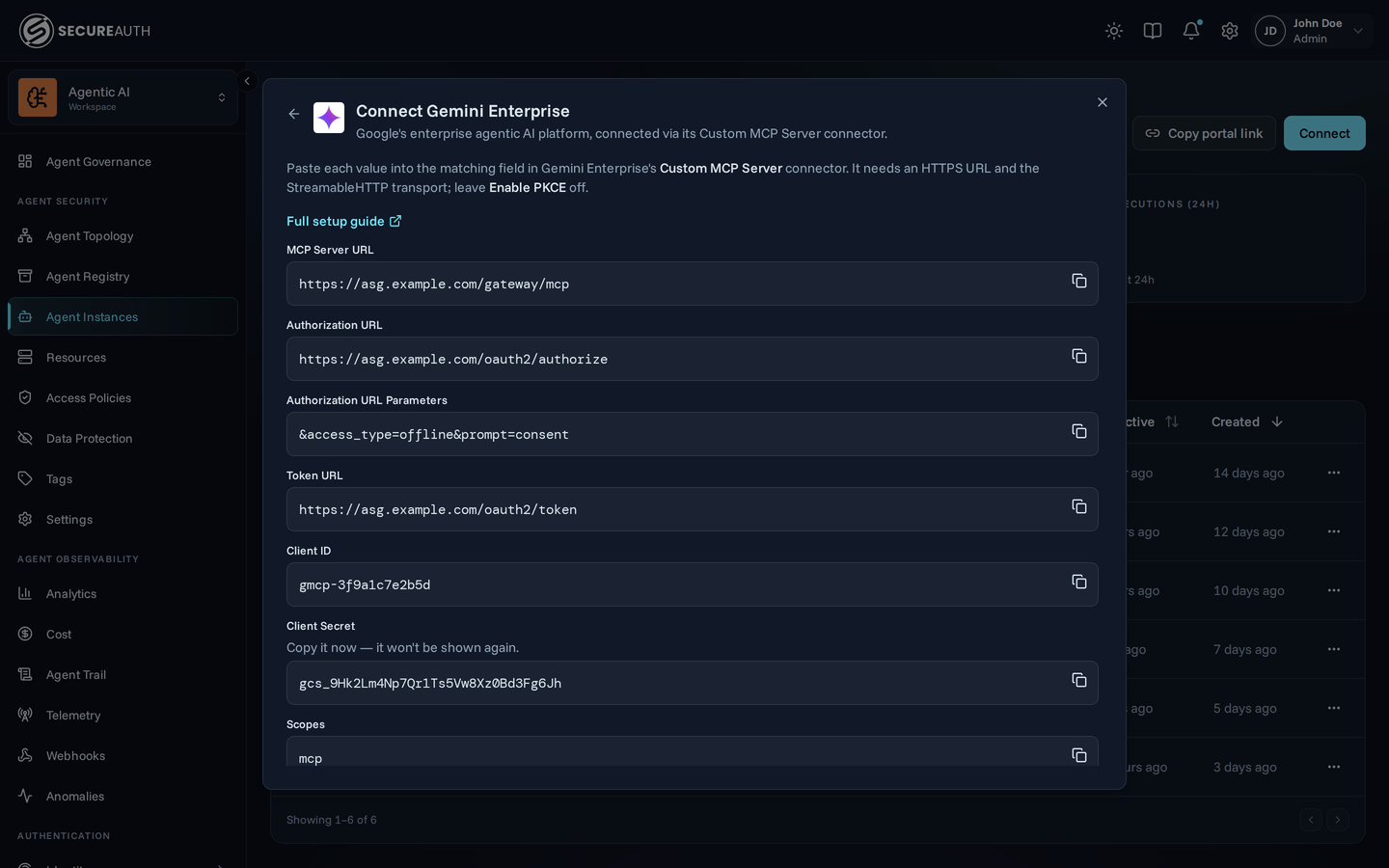
After Create client, Agent Authority shows the values to paste into your team settings. If you've added resources, a Connect to picker appears above the values. Leave it at All resources (recommended) unless you want this connection to reach only one resource. The MCP Server URL changes to match your choice.
You paste them in Where each value goes.
Connecting to just one MCP? To stay under an agent's tool limit, point the URL at a single MCP —
/gateway/mcp/{slug}instead of/gateway/mcp. Grab the exact URL from the resource's detail page; see Scope a connection.
Open your team settings
You add Agent Authority for the whole team from Connected apps in your Gemini Enterprise team settings.
-
Sign in at business.gemini.google as a team administrator.
-
Click the Settings icon (gear) at the bottom left.
-
Select your team, then click Manage team.
-
Open Connected apps.
It lists every connector available to your team.
-
Click Add MCP Server.
Add the MCP server
Paste the values from Agent Authority into the form rather than retyping them: the URLs include an identifier unique to your organization. The form has two screens, MCP info and Auth. Where each value goes lists every field.
MCP info
- In Server URL, paste the MCP Server URL.
- In Name, enter the name your team sees in their connectors list, for example
SecureAuth Agent Authority. - Click Next.
Auth
- Select OAuth 2.0 as the authentication method.
- Paste the values into Authorization URL, Auth URL Parameter, Token URL, Client ID, Client Secret and Scopes.
- Review the acknowledgment, then click Add.
Where each value goes
| Screen | Gemini Enterprise field | Paste from Agent Authority |
|---|---|---|
| MCP info | Server URL | MCP Server URL |
| Auth | Authorization URL | Authorization URL |
| Auth | Auth URL Parameter | Authorization URL Parameters (&access_type=offline&prompt=consent) |
| Auth | Token URL | Token URL |
| Auth | Client ID | Client ID |
| Auth | Client Secret | Client Secret |
| Auth | Scopes | Scopes, unchanged |
Choose which connectors your team uses
Turn on Agent Authority for your team, and turn off any built-in connector you'd rather your team reach through Agent Authority. In Connected apps, each connector's Enabled for team switch applies to the whole team.
-
Check that the server you added, for example SecureAuth Agent Authority, is switched on.
-
Switch off any built-in connector you want your team to reach through Agent Authority instead.
First, make sure Agent Authority has that service among its connected tools. For Gmail, that's the Google Workspace resource. Then switch off Gmail and click Disable. In Gemini Enterprise chat, your team then reaches Gmail through Agent Authority, under your policies. You can switch the built-in connector back on at any time.
Confirm a policy allows the agent
Gemini Enterprise's tool calls run only if a rule allows them.
-
In Agent Authority, go to Agent Access.
-
Check that an Active rule allows Gemini Enterprise, and that no active rule above it denies Gemini Enterprise. The Allow all rule that new organizations start with does. Draft and disabled rules aren't enforced.
Rules are evaluated top to bottom, and the first match wins. A tool call that no rule matches is denied.
If no rule allows Gemini Enterprise, create a policy.
Connect from the chat
Each team member does this once.
-
Sign in at business.gemini.google and open a new chat.
Any team member sees every connector the administrator has enabled, so no special link is needed.
-
Click the connectors icon and search for the server's name.
-
Next to SecureAuth Agent Authority, or the name you gave the server, click Connect.
-
Click Continue to SecureAuth Agent Authority, and sign in.
-
Review the scopes, then click Allow access.
-
Ask something that uses one of your connected tools, for example
list my Jira tickets.Gemini calls the tool through Agent Authority and answers.
Name the connection in your request
Gemini may not use the server on its own: it can answer from a web search or say the integration isn't connected. Name it in your request, such as
use SecureAuth Agent Authority to list my Jira tickets. -
In Agent Authority, go to Agent Trail and check that the tool call appears.
Troubleshooting
| Symptom | Cause | Fix |
|---|---|---|
| Gemini says the integration isn't connected, or answers from a web search | Gemini didn't choose the server | Name the connection in your request, such as use SecureAuth Agent Authority to list my Jira tickets. |
| Sign-in works, but tool calls are denied | No Agent Authority policy allows Gemini Enterprise's tool calls | Confirm a policy allows the agent |
| The server isn't in the chat's connectors list | The server is switched off for the team | Switch it on under Enabled for team, in Choose which connectors your team uses. |
| The server isn't in the Gemini desktop app | Custom MCP servers appear only in the web app | Use the Gemini Enterprise web app at business.gemini.google. |
| The connection works at first, then stops | No refresh token, so the expired access token can't be renewed | Check that the server's Auth URL Parameter is exactly &access_type=offline&prompt=consent and that Scopes matches the wizard's Scopes value. Then ask each team member to connect from the chat again. |
| A team member's tool calls don't appear in Agent Trail | That member hasn't connected to the server | Ask them to follow Connect from the chat. |
Getting help
If you contact SecureAuth Support, include these details so Support can trace the request:
- The approximate time of the failure, with time zone
- The Client ID, never the client secret
- The name of the MCP server in your team settings
- The exact error text, or a screenshot with credentials removed
- The step in this guide where the failure happened
Next steps
Gemini Enterprise's tool calls now run through Agent Authority from the MCP server you added, under each team member's own sign-in. Allow all is fine for testing, but before your team relies on the connection, allow only the tools Gemini Enterprise needs.
- Create a policy – control which tools Gemini Enterprise can call.
- Monitor activity – watch its tool calls appear in the dashboard and audit log.