Roles
The three built-in roles, custom roles, and how assigning one widens what a person can do
A role is a named bundle of permissions. Assign it to a person and they gain every permission the role carries, on top of what they already hold. Roles under Settings lists every role in the organization and lets you create your own.
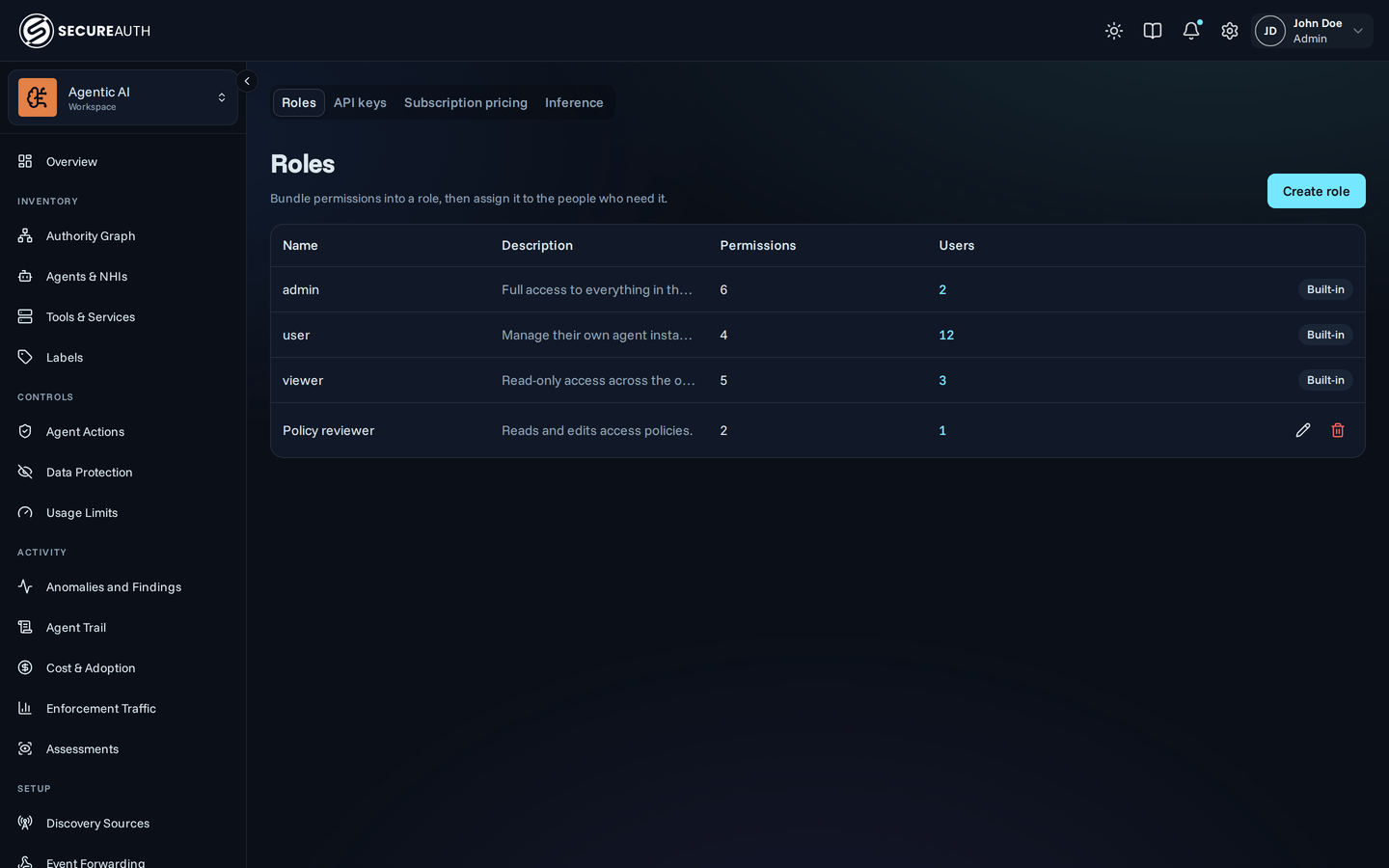
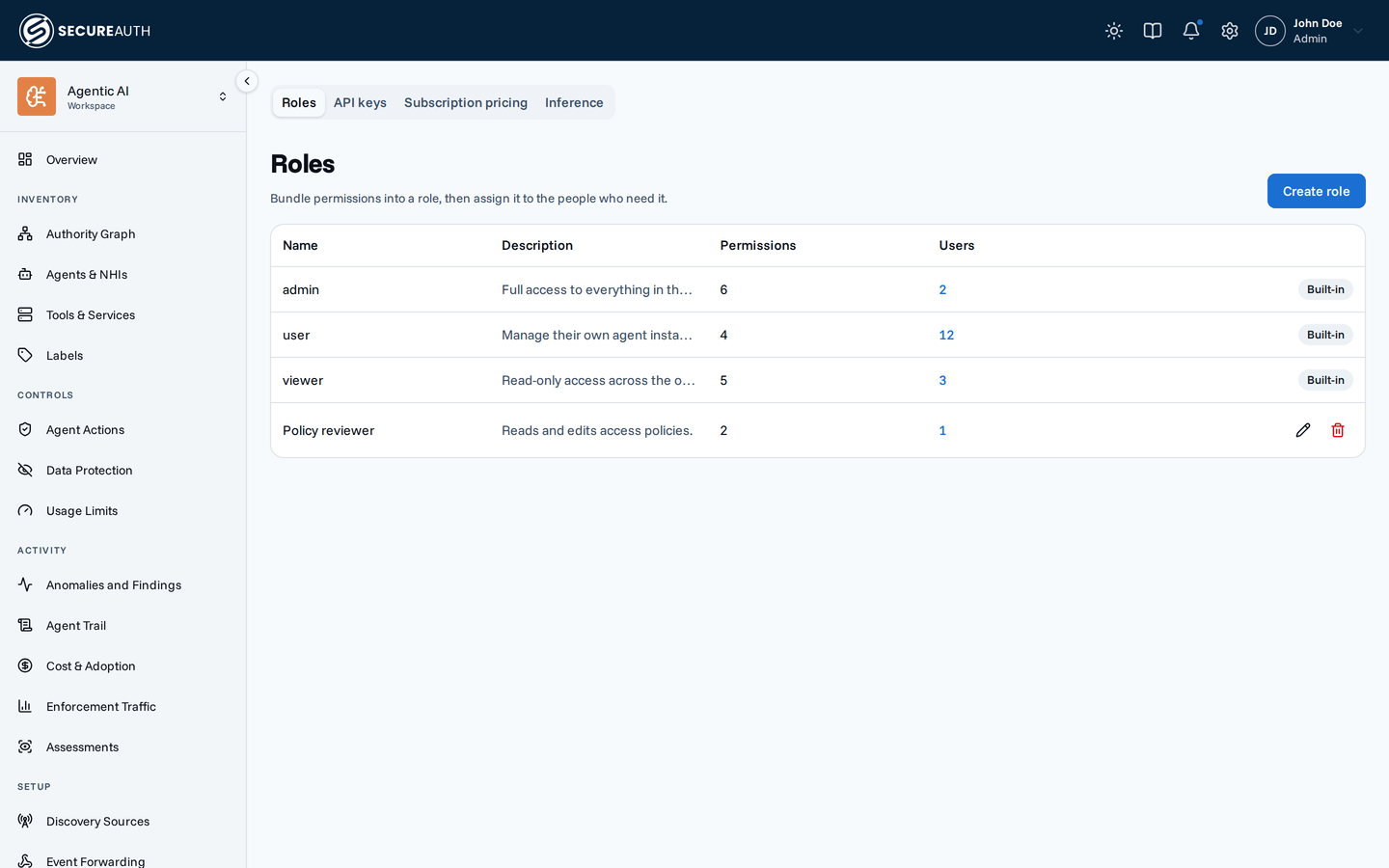
The three built-in roles
Every organization starts with three roles, and everyone in the organization holds at least one:
- user. The baseline every person gets. It covers their own agent instances, connections, analytics, and audit history. It also lists the organization's resources, without their connection details.
- viewer.
Read-only access across the organization, plus the same own-instance management as
user. - admin. Full access to everything in the organization.
You cannot edit a built-in role, and you cannot delete it.
Creating a custom role
To grant a narrower or different set of permissions, create a custom role.
A role can never carry a permission you do not hold yourself, and never wider than the scope you hold it at. If you only manage connections for your own account, a role you create can only pass on that same own-scoped grant, never the organization-wide form.
Own scope
Some permissions apply everywhere in the organization by default.
A few can also be narrowed to own, limiting the holder to their own activity.
The own scope narrows two different things.
For agent instances, connections, analytics, and audit history it means fewer records:
only the ones that are the holder's.
For the resource list it means fewer details:
the holder still sees every resource, but not its URLs, its configuration, or the tools it exposes.
The permission picker offers own only where it changes what the role allows.
Most permissions have no own-scoped form at all.
A choice that does nothing invites mistakes.
Assigning a role
Assign a role from a person's page. The Roles column on Users shows who holds what, so you can scan and filter without opening anyone, but it only reads.
Open someone from that list and select Add role in their header. The picker lists every role with its description and how many permissions it carries, and marks the built-ins. Choosing a role assigns it at once, and the × on a badge takes it away. Neither needs a separate save step.
To see everyone holding one role, select that role's user count on the Roles page. It opens Users filtered to its holders.
The same ceiling applies here as when creating a role:
you can hand out a role only if you hold everything it grants, so assigning admin requires holding admin yourself.
The picker locks a role above your ceiling rather than letting the write fail.
Removing a role is not held to that ceiling.
You can always take a role away, including one you could never have granted.
Every person also holds a baseline that no role carries, so you cannot clear it.
Next steps
- Human identities – the per-person page where you assign roles.
- Identity and sign-in – where a person's role from the identity provider comes from.
- Policies – the separate mechanism that scopes what an agent's tools can do, independent of a person's role.