Tags
Organize agents, MCPs, and tools with labels you can match in policies
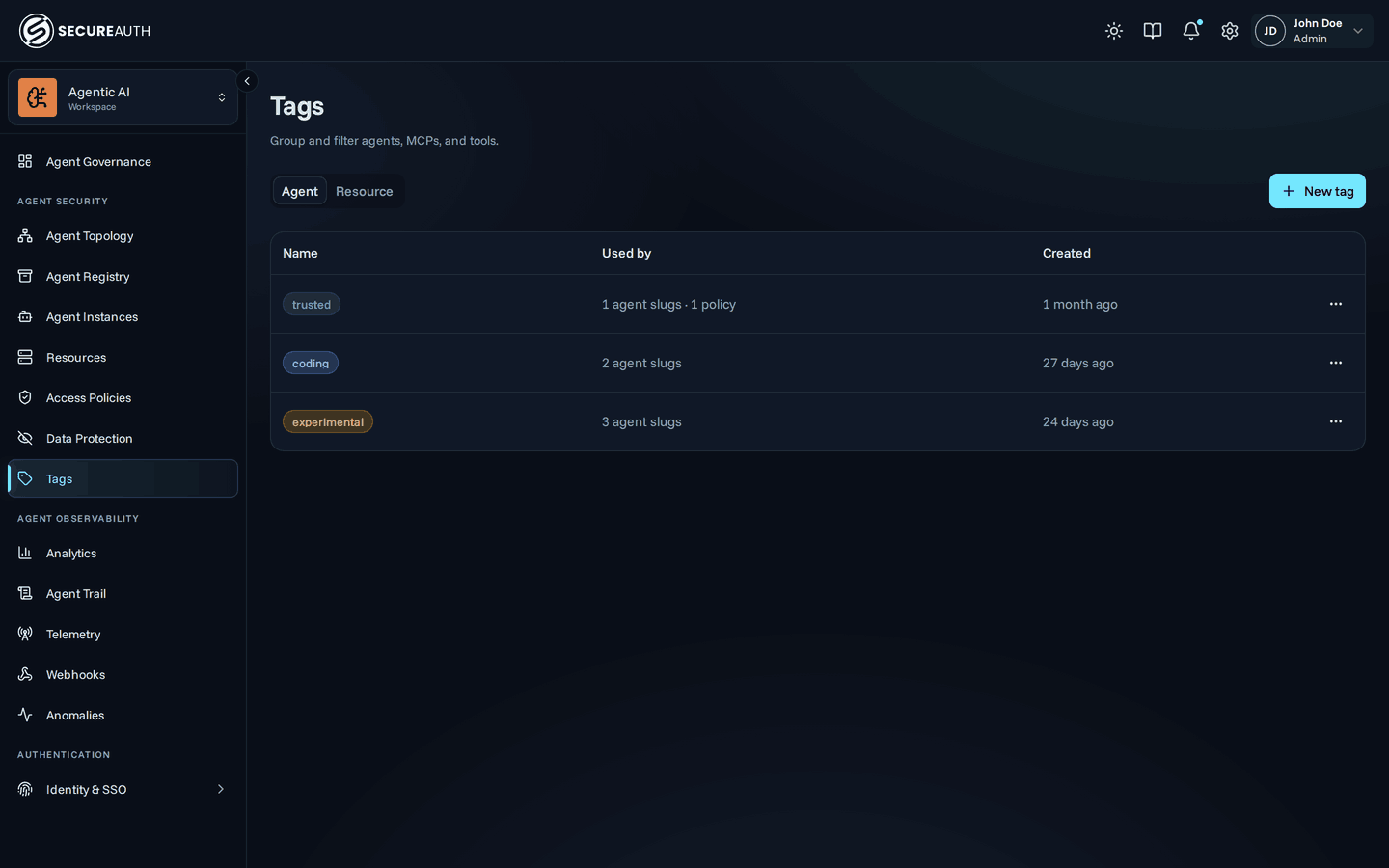
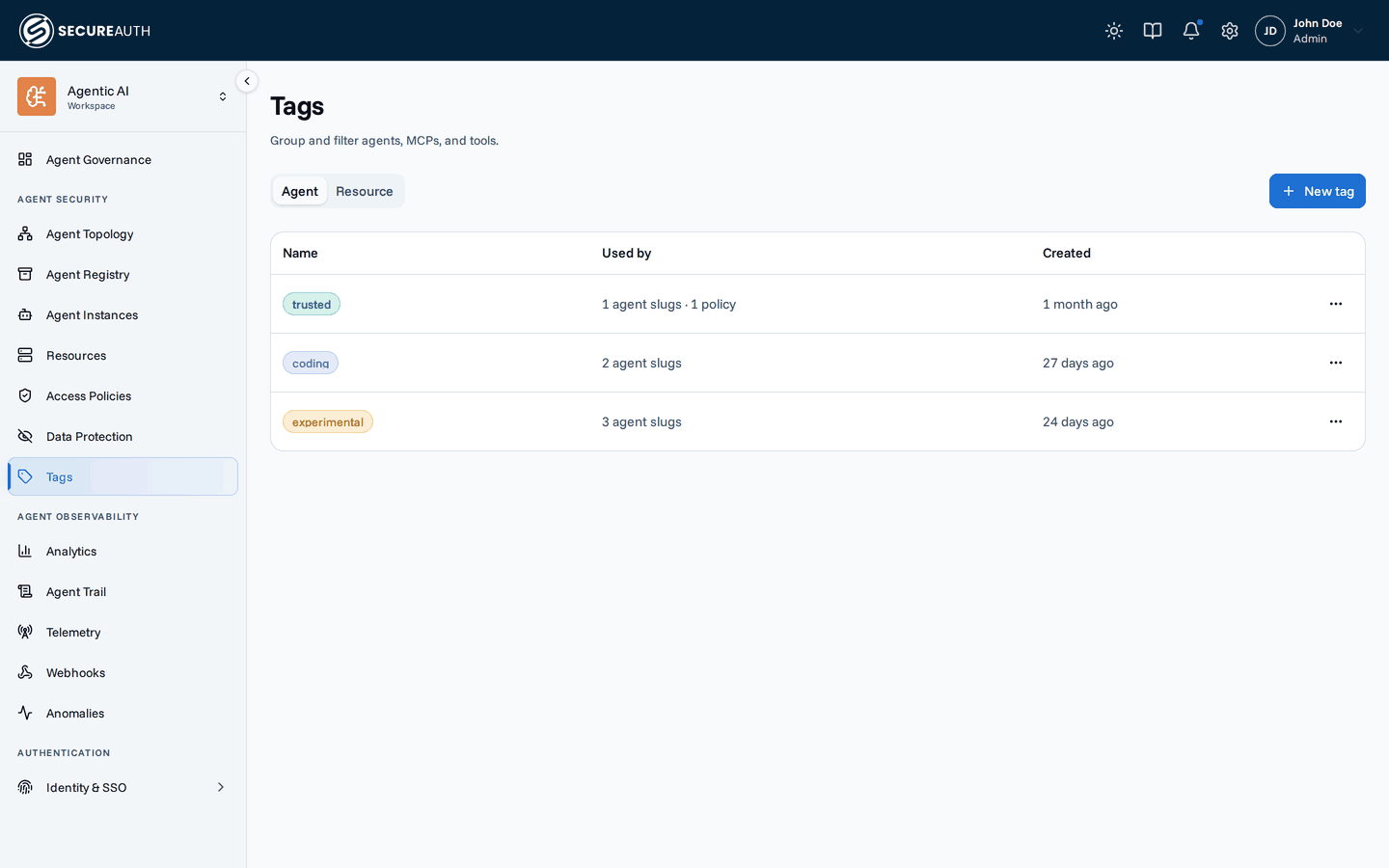
Tags are named, colored labels you attach to the entities the gateway manages. Use them to organize your agents and resources, and to write policies that match by tag instead of naming every agent or server one by one.
Namespaces
Every tag belongs to one namespace, which decides what it can be attached to:
- Agent – attach to agents in the registry (for example,
trustedorcoding) - Resource – attach to MCP servers and their tools (for example,
prodorpii)
Namespaces are isolated. An Agent tag and a Resource tag that share a name are still different tags. Each namespace has its own tab on the Labels page.
Built-in tags
SecureAuth applies built-in tags to catalog tools. It also assigns them from a tool's annotations when it first discovers a tool that isn't a catalog tool. You can't edit or delete built-in tags. You can't remove the ones SecureAuth applies to catalog tools. You can assign built-in tags to any tool yourself, including tools on a custom server. You can remove the ones you assigned. You can't give a Resource tag a built-in tag's name, when you create it or rename it. Built-in tags appear on the Resource tab, in a Built-in section below your own tags.
Built-in tags describe what a tool does. You can match them in the Tools pill of a policy rule.
| Tag | Meaning |
|---|---|
read-only | Reads data without changing anything. |
write | Creates or changes data. The change is reversible or additive. |
destructive | Deletes, overwrites, or makes an irreversible change. |
external | Reaches outside the organization: sends messages or email, posts publicly, or fetches arbitrary URLs. |
Every catalog tool has exactly one of read-only, write, or destructive.
SecureAuth also applies external to catalog tools that reach outside the organization.
A tool carries both the built-in tags SecureAuth applies and the ones you assign.
Tags from tool annotations
An MCP server can describe each tool with annotations, which the MCP specification defines. SecureAuth reads them when it first discovers a tool on a custom server. It also reads them for a tool that a provider adds to a catalog resource. It then assigns built-in tags:
| Annotation | Built-in tag |
|---|---|
readOnlyHint: true | read-only |
destructiveHint: true | destructive |
destructiveHint: false | write |
openWorldHint: true | external |
SecureAuth ignores destructiveHint when readOnlyHint is true, as the specification does.
A tool without these annotations gets no built-in tags.
Catalog tools keep the catalog's tags.
SecureAuth assigns these tags once, when it first discovers the tool. Later changes to the server's annotations don't change them. They work like tags you assign: you can remove or replace them. The audit log records each assignment, attributed to System.
Examples
Let agents only read.
Create an allow rule and open the Tools pill.
Pick the built-in tag read-only.
The rule reads:
Allow any agent by any user in any group on any MCP to use tools tagged
read-only
The rule covers every tool tagged read-only, including tools in resources you add later.
It misses tools without built-in tags, so check the limits.
To deny everything else, turn off the Allow all rule that SecureAuth creates by default.
Limits
Same-name tags.
You may already have a Resource tag with a built-in tag's name.
A Common Expression Language (CEL) condition can check that name, such as 'write' in mcp.tool.tags.
That condition also matches tools with the built-in tag.
Rename your tag to keep its old meaning.
Annotations are unverified.
The MCP server sets its own annotations.
SecureAuth can't verify them.
A server can set readOnlyHint: true on a tool that changes data.
A rule that allows read-only tools then allows that tool.
Add only resources you trust.
Check the tags on their new tools.
Tools without built-in tags.
A tool that isn't a catalog tool gets built-in tags from SecureAuth only through its annotations.
Such a tool has none when its server sends none of the annotations in the preceding table.
It also has none when SecureAuth discovered it before it started reading tool annotations.
A deny rule that matches a tag does not cover these tools.
Assign built-in tags to them yourself.
For strict setups, allow only read-only tools and rely on the default deny.
Managing tags
Open Labels from the sidebar, pick a namespace tab, then:
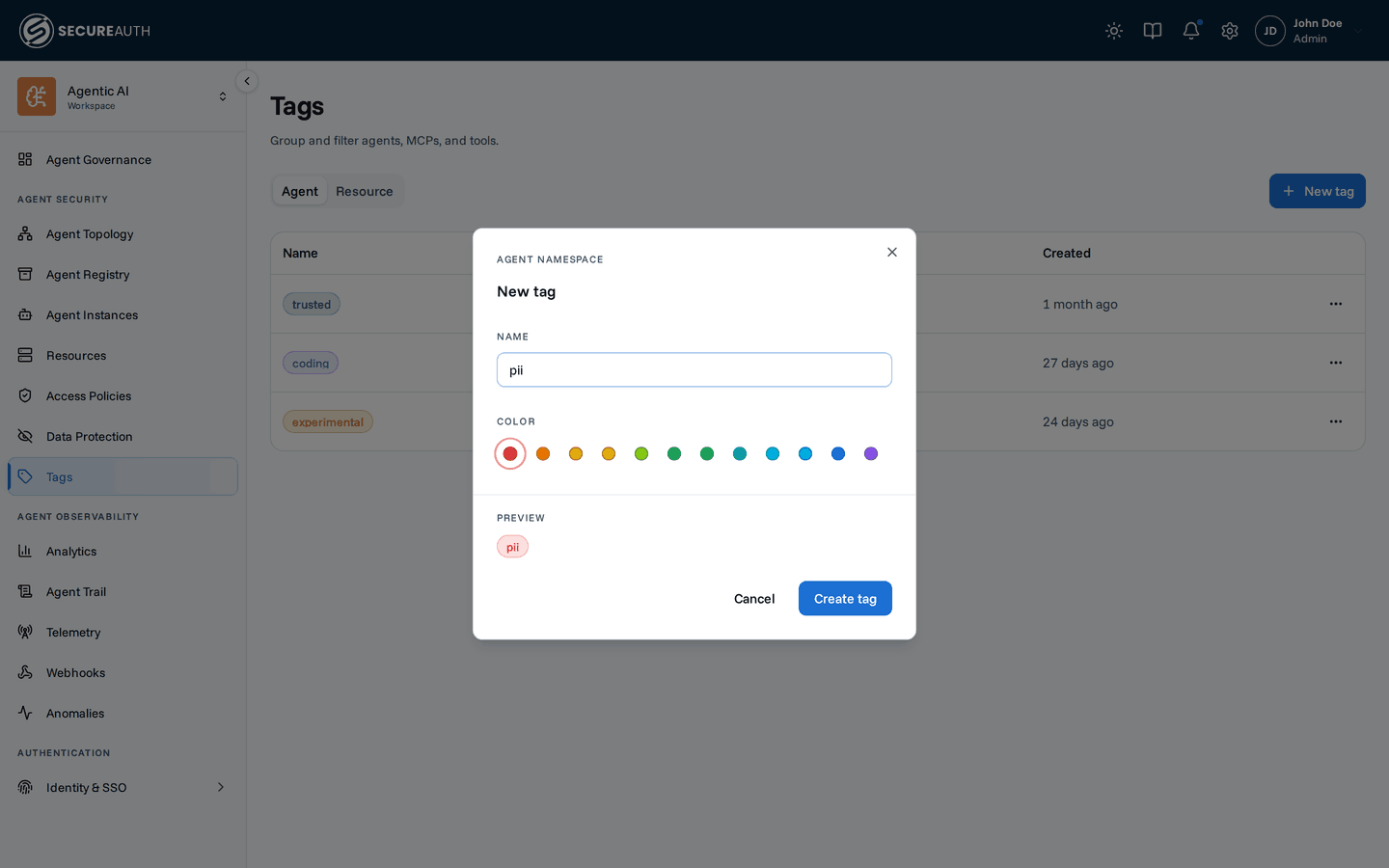
- Create. Click New tag. Enter a name of up to 50 characters, unique in its namespace regardless of case. Pick one of the twelve preset colors, then click Create tag.
- Edit. Click a row to rename a tag or change its color.
- Delete. Open the row's menu and choose Delete. If the tag is applied anywhere, the confirmation tells you how many targets lose the tag. It also lists any policies that match by the tag, since their rules stop matching by it.
Managing tags requires the manage_tags permission.
Without it, the Labels page and the tag controls on detail pages are read-only.
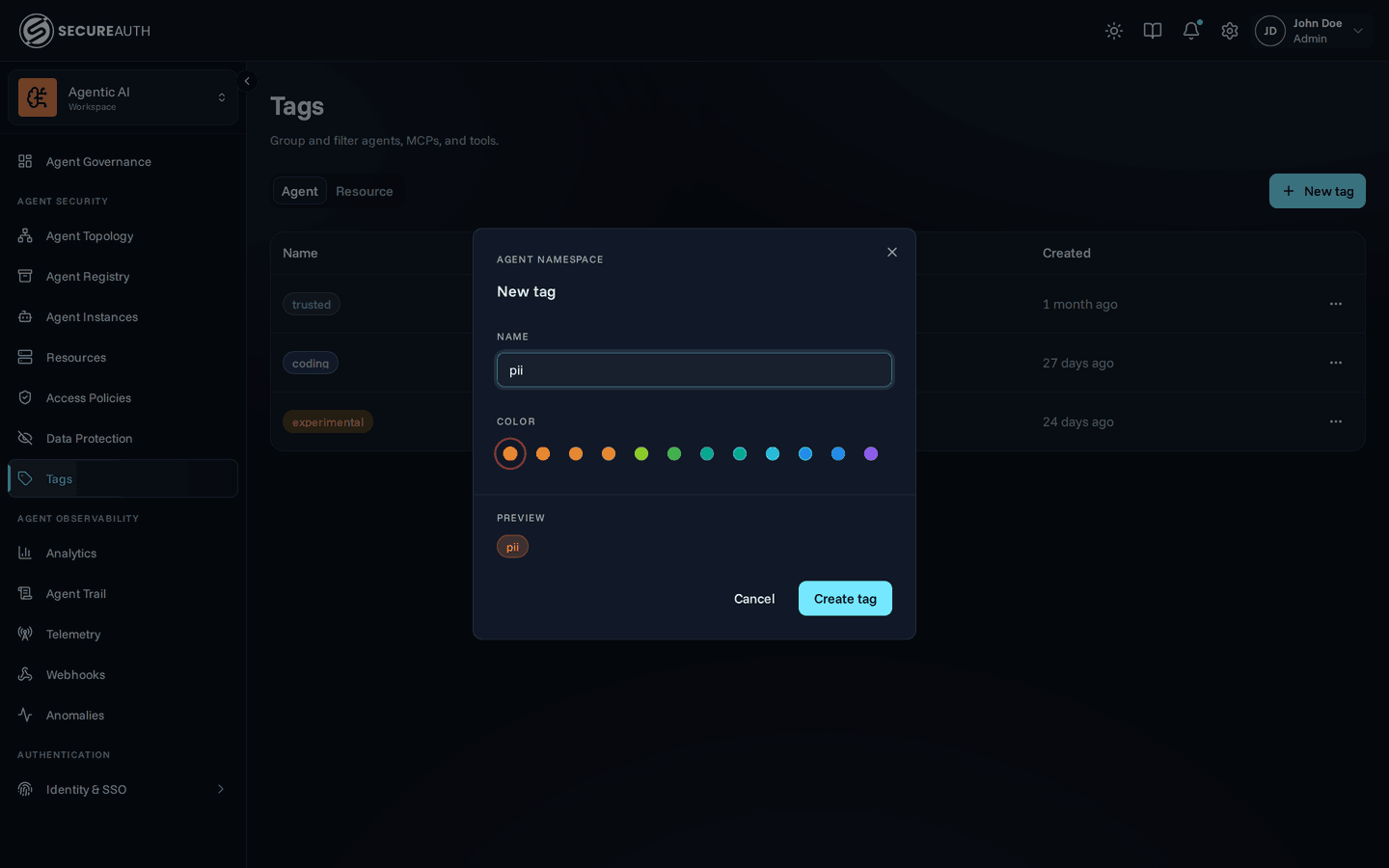
The Used by column shows how many agent slugs, MCPs, and tools currently carry each tag, and how many policies match by it.
Assigning tags
Assign tags from the entity you want to label:
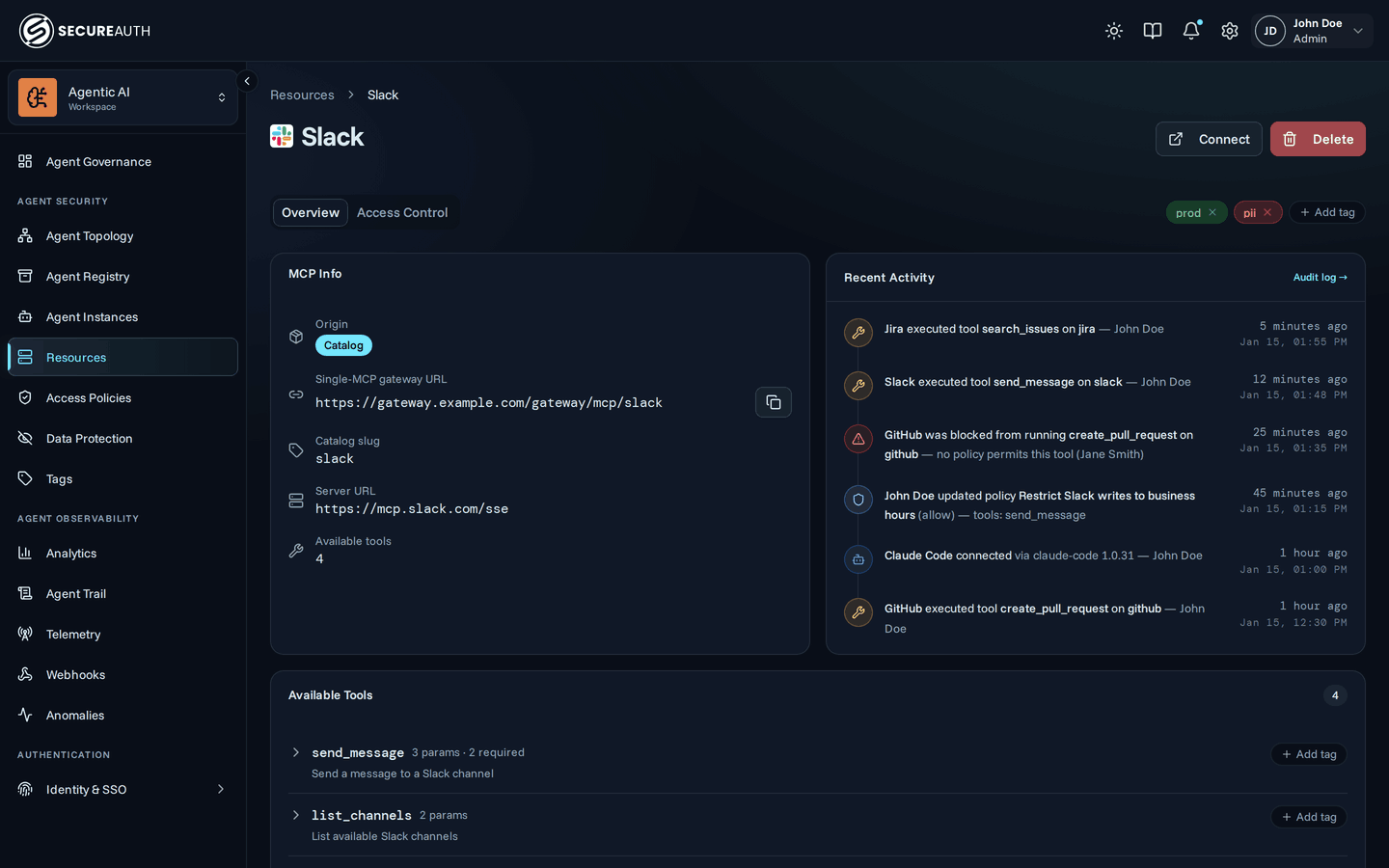
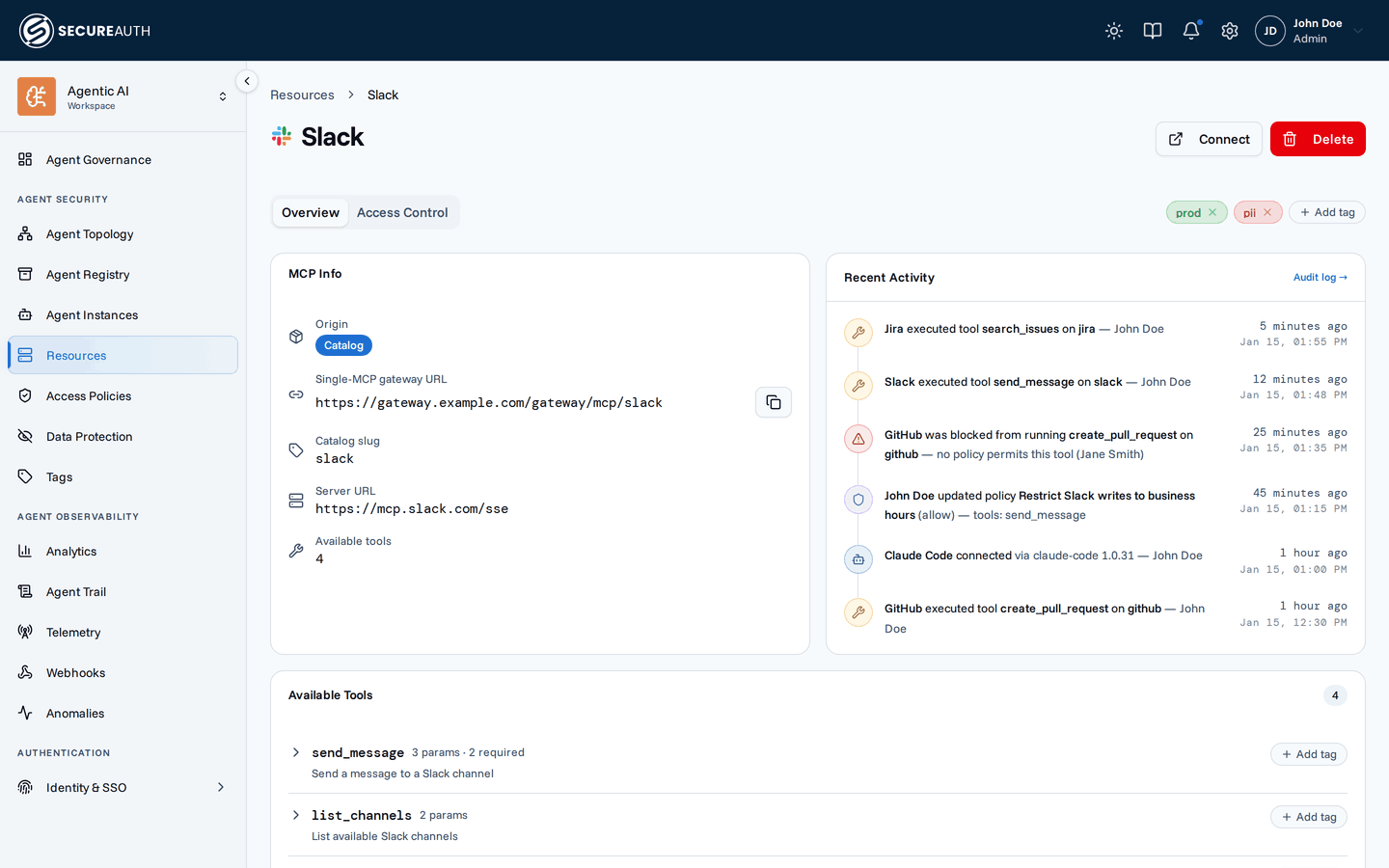
- MCP servers and tools – open a server from Tools & Services, then use the Tags section on the server (or the per-tool Tags control) to add Resource tags. The per-tool control also offers built-in tags
- Agents – open an agent from the Agent Catalog tab and use its Tags section to add Agent tags
Click Add tag to pick from existing tags in the matching namespace, or type a new name to create one inline. Remove a tag with the control on its chip.
Filtering by tag
Once entities are tagged, the Tag filter on the Tools & Services and Agent Instances lists narrows the table to entities carrying a selected tag, so you can answer questions like "which MCP servers are tagged prod?" at a glance.
The audit log and Enforcement traffic also filter by tag: an Agent tag chip scopes events and metrics to agents carrying it, and a Resource tag chip scopes to the MCP servers and tools carrying it.
Using tags in policies
Tags become powerful in policies. A policy rule can match:
- resources by Resource tag – every MCP server carrying the tag
- tools by Resource tag – tools labeled with the tag
- agents by Agent tag – every agent carrying the tag
Because matching is by tag, a rule automatically covers every current and future entity that carries it:
label a new server prod and your prod rules apply immediately, with no policy edit.
See the policies guide for details.
The flip side: deleting a tag makes every rule that matches by it stop matching.
For an allow rule that fails safe: access is simply no longer granted.
For a deny rule it fails open: the guardrail silently stops applying.
The same goes for conditions that test the tag by name (like "pii" in mcp.tags).
The delete confirmation lists every policy that matches by the tag (including likely condition references, marked "may reference via condition") and highlights active deny rules, so this never happens unnoticed.
Tags are also available inside policy conditions:
reference agent.tags, mcp.tags, or mcp.tool.tags in a CEL expression (for example, "pii" in mcp.tags).
See Conditions.
Connecting by tag
You can connect an agent to only the resources and tools that carry the Resource tags you choose.
Add ?tags= to the gateway URL, or pick Tags in the connect dialog.
See Scope a connection.
Next steps
- Policies – use tags as scope pills or inside CEL conditions.
- Audit log – filter the event feed by agent or resource tag.
- Enforcement traffic – narrow every chart to a tagged slice of your org.