Configure OAuth settings
An application's OAuth tab controls how it authenticates to SecureAuth Connect and what it receives in return: which OAuth 2.0 flows it can use, how it proves its identity, and which security features apply to its tokens. You usually set these when you register the application, and revisit them only when its requirements change or you need to meet a specific security standard.
To open these settings, go to Applications > Clients, select your application, and open the OAuth tab.
The settings available depend on your application type and workspace. An application that signs users in shows more options than a service (machine-to-machine) application, and some settings appear only when the workspace supports the matching OAuth grant or response type. If a setting described here isn't visible, it doesn't apply to your application.
Skip user consent
By default, SecureAuth asks users to consent before an application can access their data. For your own first-party applications that prompt adds friction without adding protection, because the user already trusts the app.
To skip the consent screen, select the Trusted check box in the application's properties.
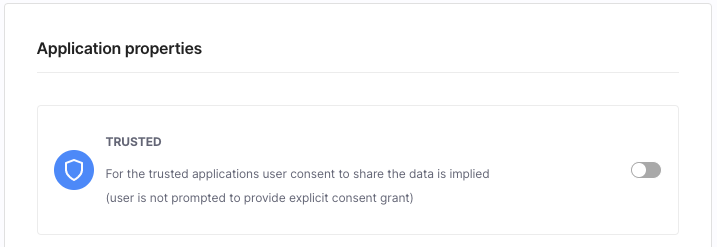
Set the grant and response types
Grant types and response types define the OAuth flow your application uses to obtain tokens. Set them to match the flow your application uses, such as Authorization Code for apps that sign users in, or Client Credentials for service-to-service calls.
- Grant types – The OAuth 2.0 flows the application can use to obtain an access token, such as Authorization Code for user sign-in or Client Credentials for service-to-service calls.
- Response types – What SecureAuth returns in response to the application's authorization requests. Different grant types require different responses, so set these to match your grant types.
Select the values from the lists, then save your changes.
Configure client authentication
Client authentication is how your application proves its identity when it requests tokens. Set it to the method your application supports.
- Request object signing algorithm – Requires the application to send signed authorization requests (a signed request object). Use this to meet stricter security standards such as Financial-grade API (FAPI). When set to anything other than None, SecureAuth rejects unsigned authorization requests.
- Token endpoint authentication method – How the application authenticates to the token endpoint, such as a client secret, mutual TLS, or a signed JWT. See Client authentication methods for the available options and when to use each. The methods offered here depend on what the workspace allows; set that under OAuth > Authorization Server > Client Authentication.
If the application uses mutual TLS (mTLS) authentication, provide its public keys: either enable JSON Web Key Set and paste the application's JWKS, or enable JWKS URI and link to it.
Set UserInfo signed response algorithm only if your application expects the UserInfo endpoint to return a signed JWT rather than plain JSON. Otherwise leave it as None.
Save your changes.
Harden token and request security
These settings add extra protection to your application's tokens and requests. They're optional: enable one when you have the requirement it addresses. Some apply only to applications that sign users in.
- Sender-constrained tokens – Bind an access token to the client that requested it, so a stolen token can't be replayed by anyone else. Enable either mutual TLS (mTLS), which uses certificate-bound access tokens, or DPoP, where the client signs a proof-of-possession header on each request.
- ID token encryption – Encrypt the ID token so its contents stay confidential in transit. Set the signing and encryption algorithms, then provide the encryption public key in the JSON Web Key Set or JWKS URI.
- Pairwise subject identifiers – Give each application a different identifier for the same user, so applications can't correlate a user across services. Applies to applications that sign users in. If your redirect URIs span more than one domain, add a Sector Identifier URI (an HTTPS URL to a JSON file listing your redirect URIs) so those applications share one identifier.
- Authorization response (JARM) – Return the authorization response as a signed, optionally encrypted JWT instead of plain URL parameters, which protects it from tampering. Applies to applications that sign users in, and is used mainly to meet FAPI requirements.
- Pushed authorization requests (PAR) – Require the application to send authorization request parameters over a secure back channel instead of the browser URL, so they can't be read or altered in transit. Applies to applications that use the Authorization Code flow. See Pushed authorization requests (PAR).
Related token and session settings
The OAuth tab includes more settings that are documented separately:
- Token time-to-live – Set custom access and ID token lifetimes for this application. See Configure custom token time-to-live.
- Custom claims and token enrichment – Add or change token claims with a pre-token minting extension. See Enrich token claims using extensions.
- Logout – Configure a backchannel logout URL so the application signs users out when their session ends. See OpenID Connect single logout.