Configure verification codes for MFA
Configure the length and lifetime of one-time password (OTP) verification codes used for multi-factor authentication (MFA).
Verification code settings for MFA are configured at the tenant level and apply to all workspaces.
Prerequisites
Configure verification codes
-
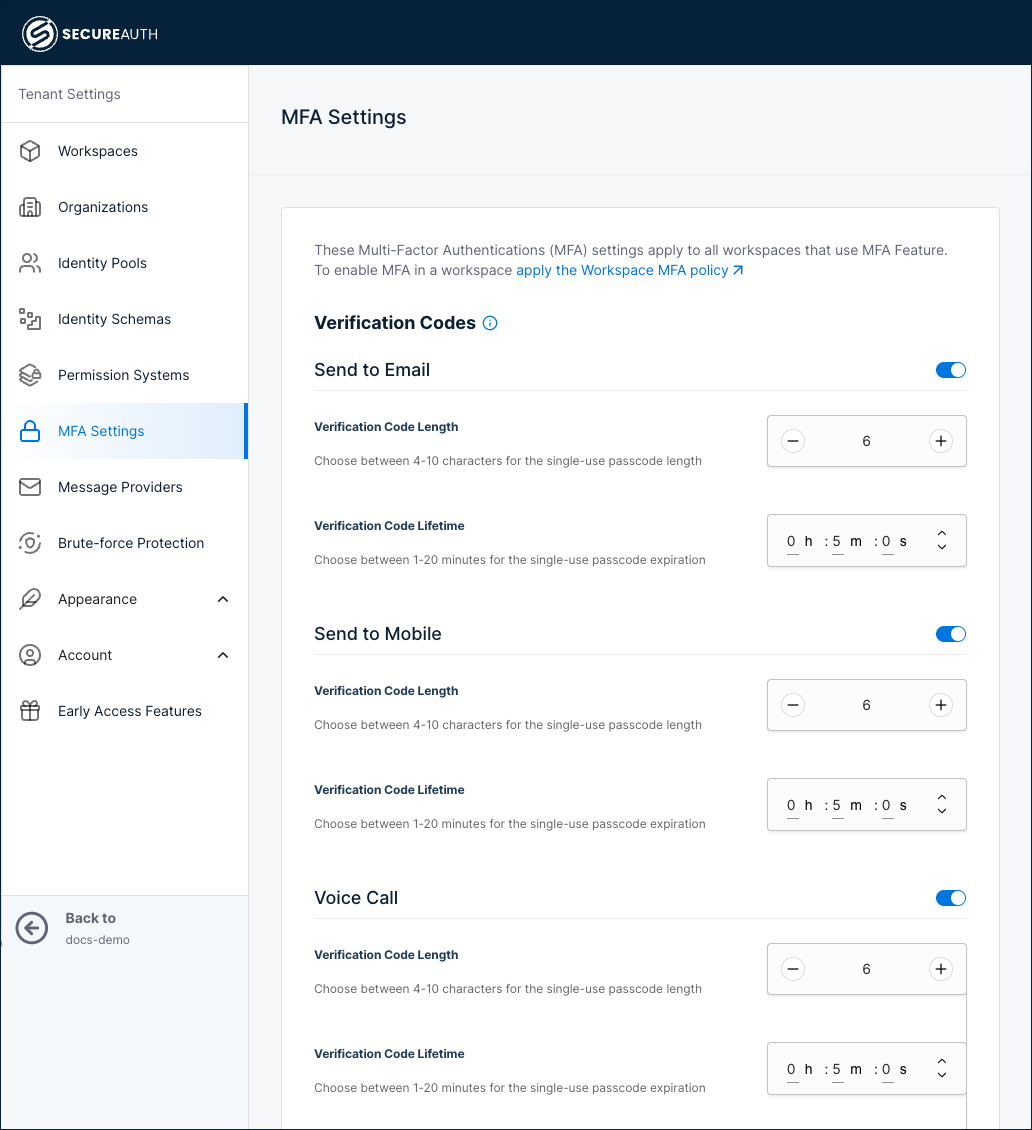
Go to Tenant Settings > MFA Settings.
-
Configure the OTP settings for each delivery method:
Delivery channel Description Send to Email Sends the OTP via email. Requires an email provider configured in Tenant Settings > Message Providers > Email tab. Send to Mobile (SMS) Sends the OTP via SMS text message. Requires an SMS provider configured in Tenant Settings > Message Providers > SMS tab. Voice Call Reads the OTP aloud during an automated voice call. Requires a voice provider configured in Tenant Settings > Message Providers > Voice tab. -
Configure the verification code settings for each enabled channel:
Setting Description Verification Code Length The number of digits in the verification code (for example, 6).Verification Code Lifetime How long the verification code remains valid (for example, 5minutes). -
Click Save.
Rate limiting
SecureAuth Connect enforces rate limits on OTP send requests to prevent abuse. Rate limits apply to all delivery channels, including SMS, email, and voice call. If a user or API client exceeds the allowed number of OTP requests within a time window, subsequent requests are temporarily blocked.
Set OTP expiration based on your security policy. A common range is 2 to 5 minutes. Shorter lifetimes are more secure but may cause issues if voice calls take longer to connect.