Create a RADIUS client in SecureAuth Connect
Create a RADIUS extension app in SecureAuth Connect to get the OAuth 2.0 client credentials that SecureAuth RADIUS Server uses to authenticate users against your workspace. The Radius extension-app type pre-configures the client for the OAuth 2.0 client credentials flow with the radius scope, so you don't enter additional grant settings. This applies to customer workspaces.
Prerequisites
- An administrator account for the SecureAuth Connect workspace where you want users to authenticate.
- The Radius extension-app type enabled for your environment. If Radius is missing from the Type list in the next section, ask SecureAuth to enable the
radiusfeature for your environment.
Create the RADIUS extension app
The extension app holds the OAuth 2.0 credentials that RADIUS Server presents when it requests access tokens.
-
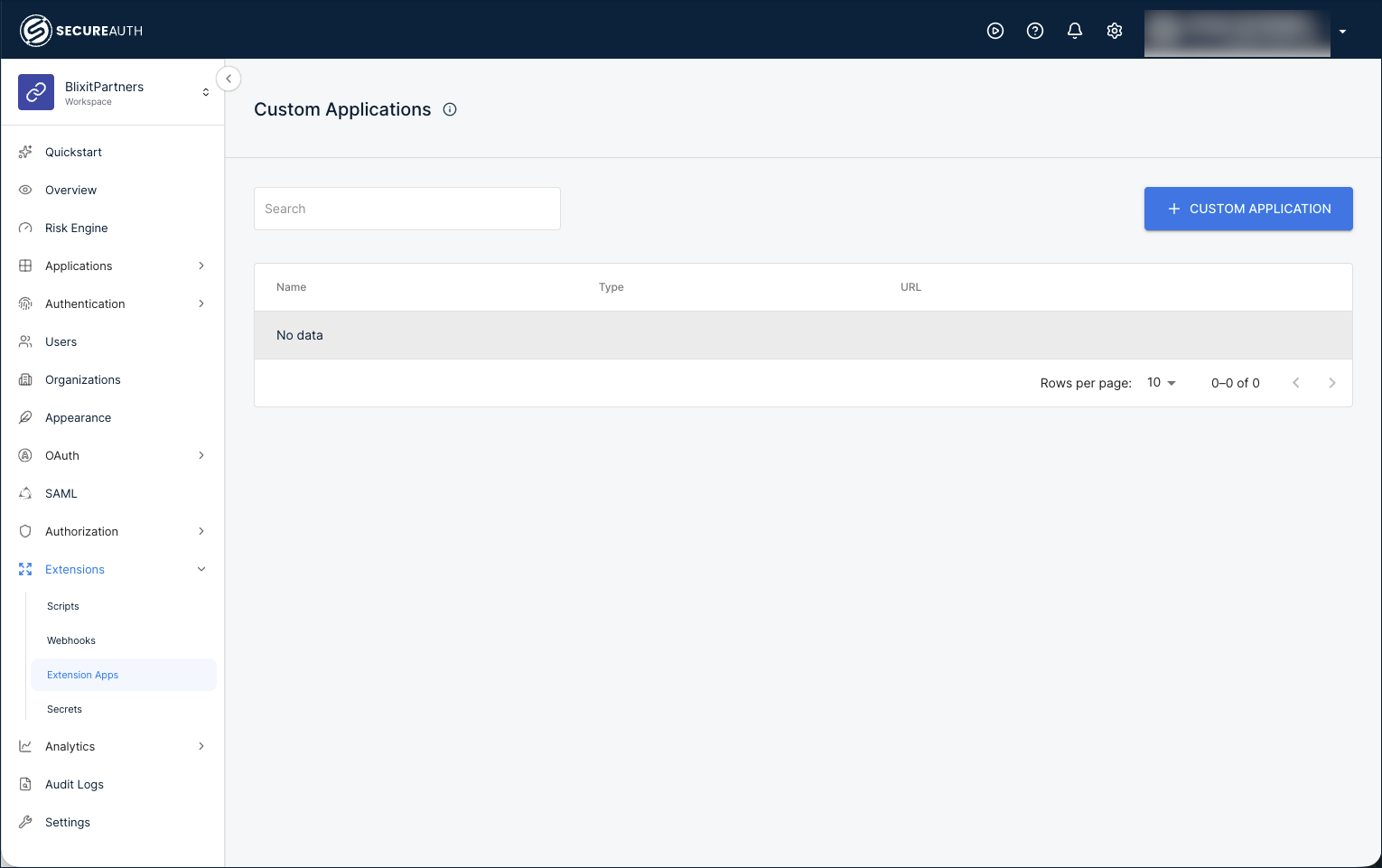
In your workspace, go to Extensions > Extension Apps, then click + Custom Application.
-
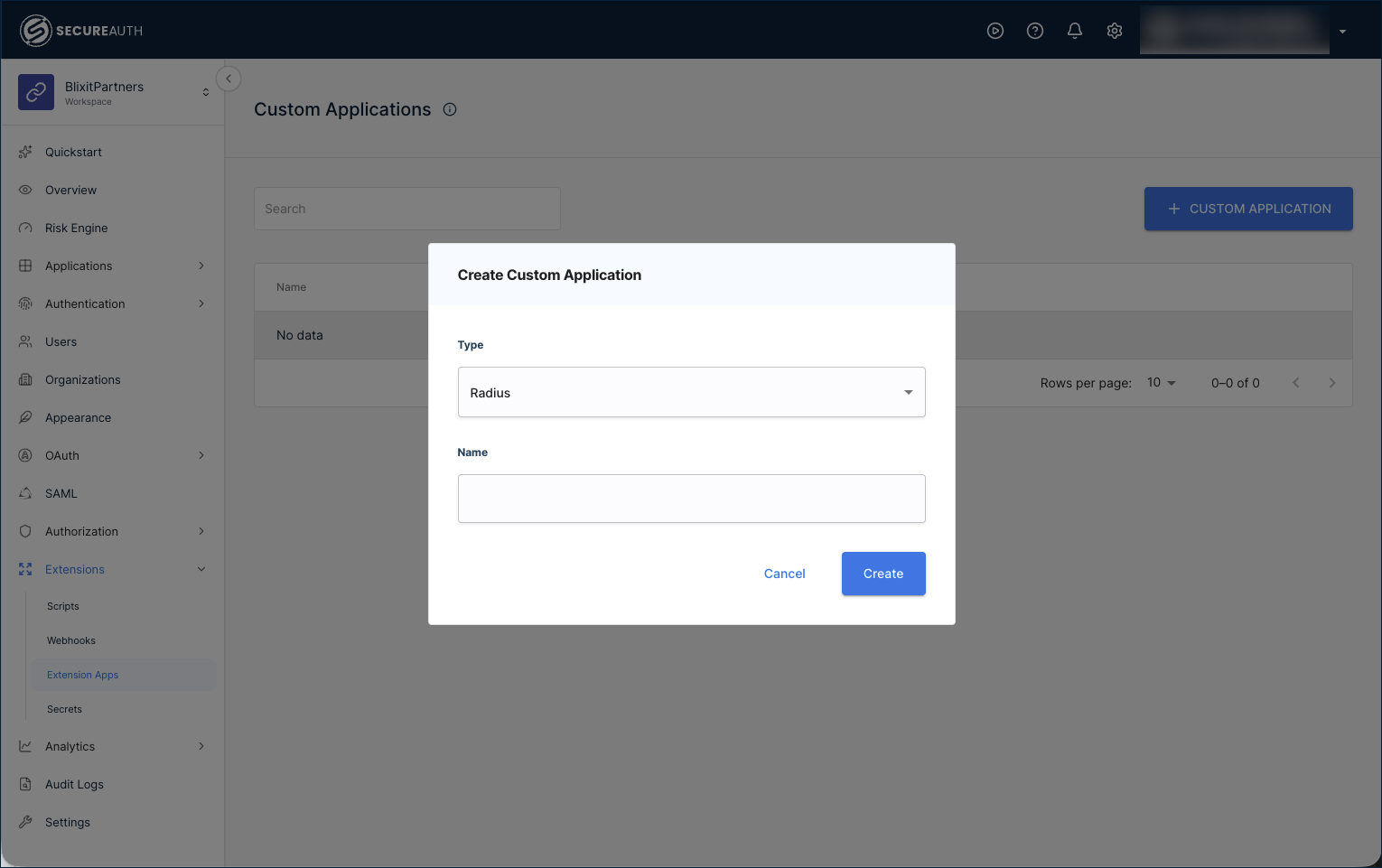
Enter the application details:
- Type – Select Radius from the list.
- Name – Enter a name that identifies this RADIUS client.
-
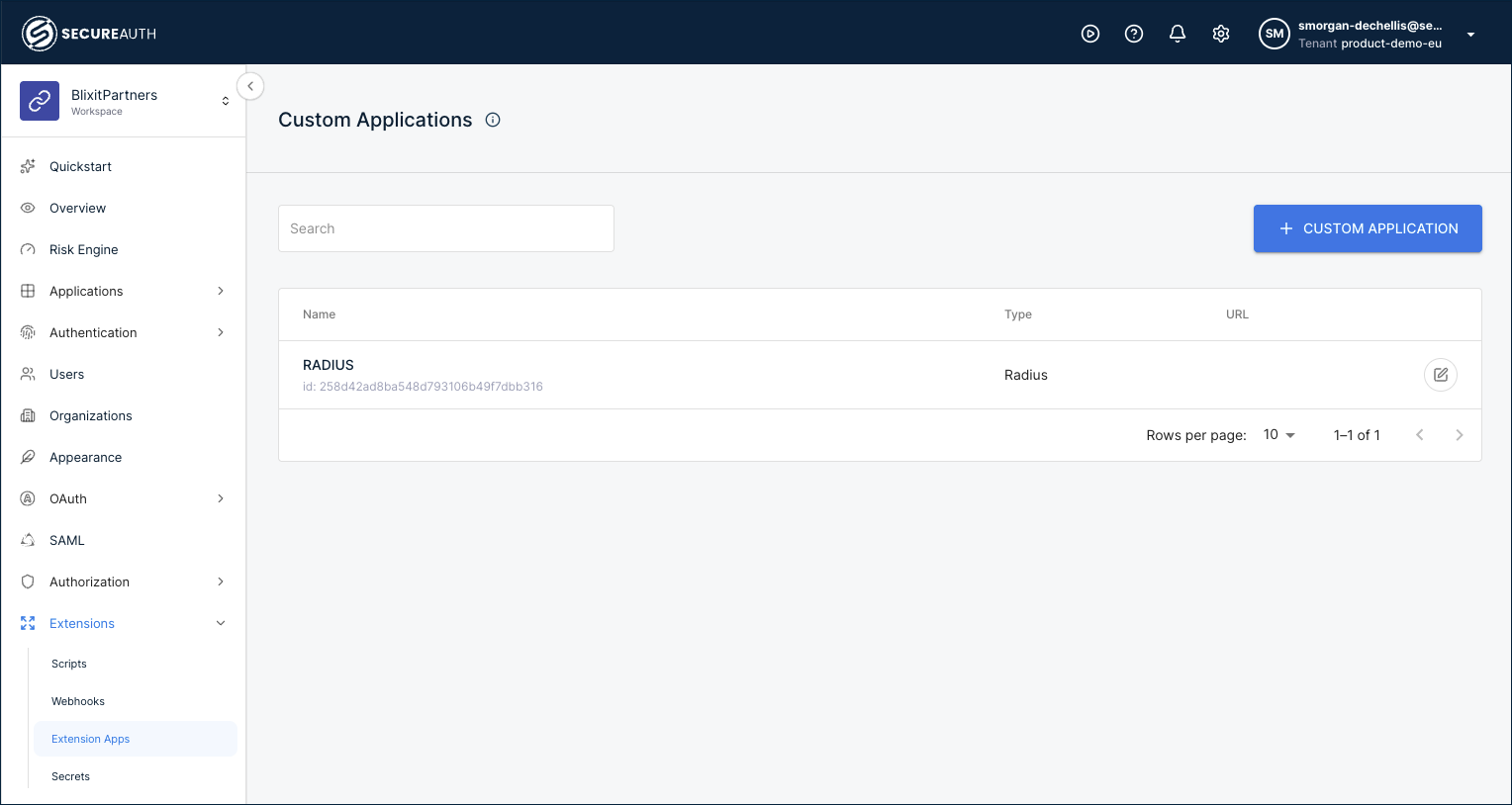
Click Create. The new extension app appears in the Custom Applications list.
Copy the OAuth 2.0 credentials
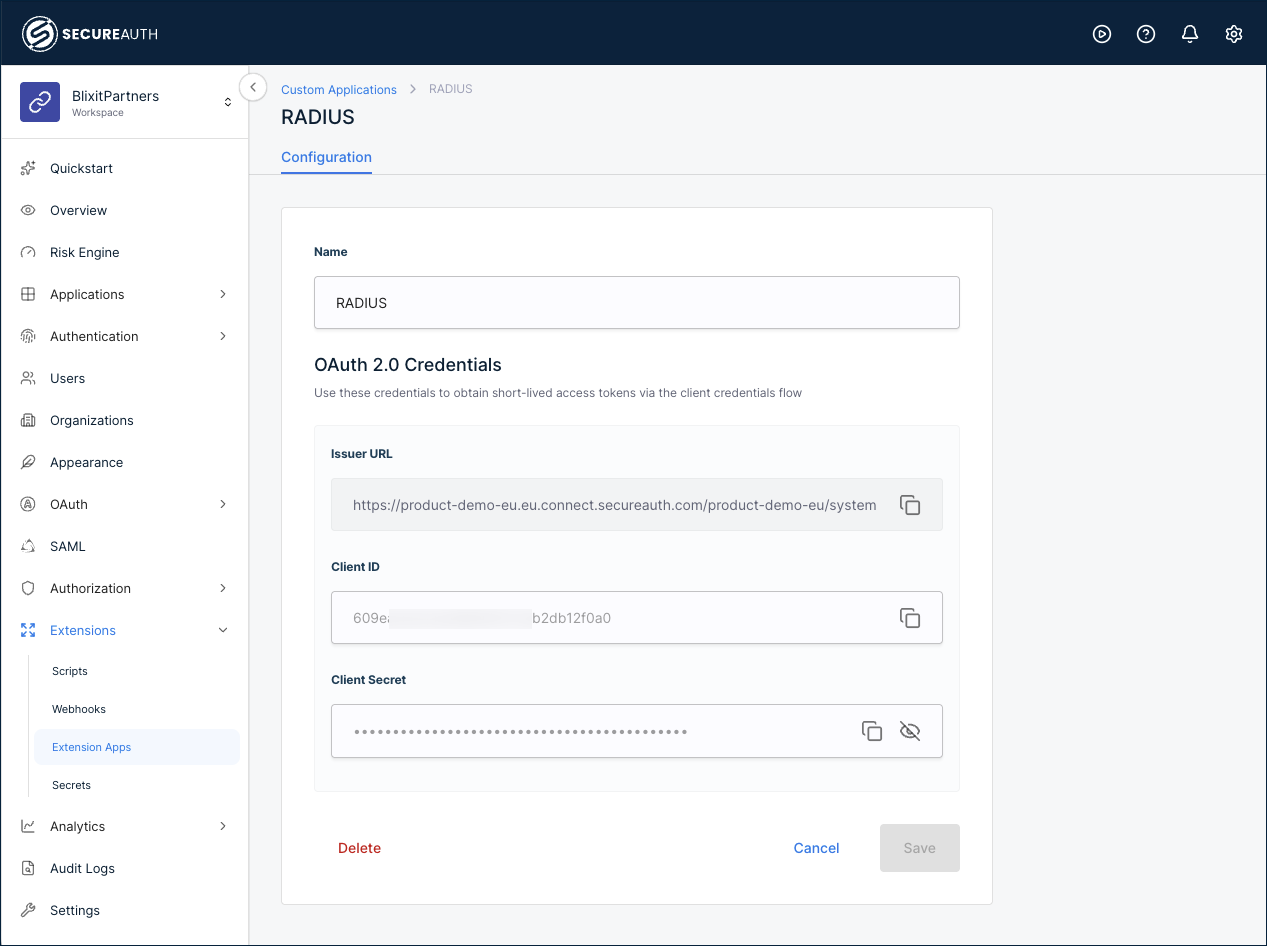
The Configuration tab exposes the credentials RADIUS Server uses to obtain short-lived access tokens through the client credentials flow.
-
In the Custom Applications list, click the pencil icon for your RADIUS app to open the Configuration tab.
-
Under OAuth 2.0 Credentials, record these values:
- Issuer URL – The base URL for the SecureAuth Connect workspace that issues tokens. The URL embeds the tenant and workspace identifiers that SecureAuth RADIUS Server needs.
- Client ID – The client identifier for the RADIUS extension app.
- Client Secret – The client secret. Click the visibility icon to reveal it, then copy it. Store the secret in a password manager or secrets vault before you leave the page.
Next steps
Enter the Client ID and Client Secret in SecureAuth RADIUS Server when you configure SecureAuth Connect on RADIUS.