Manage token claims
Claims are the data your authorization server packs into the access tokens, ID tokens, and SAML assertions it issues. Use claims to put the user identity, scope, application, organization, or session context your application needs into the token, so the application can authorize requests without a second round-trip to SecureAuth Connect.
Configure claims on either a workspace or an organization, depending on where your application is registered. Both are authorization servers in their own right, and the Add Claim dialog is identical in both contexts.
About claims
A claim is a name/value pair inside a token or a SAML assertion. The token issuer mints the claim's value from a source you pick, such as the user's authentication context, the organization the user signed in through, or the client application's metadata. Your application reads the claim out of the token to make access decisions.
Scopes group claims so they only appear in tokens when a specific scope is granted. By default a claim is global, included in every token; use Restrict Claim Release to scope it to specific scopes.
For outgoing SAML assertions, see SAML assertion attributes sent to service providers.
Prerequisites
- An authorization server you can configure (a workspace or organization)
- Configured and connected identity providers
- Authentication context configured, if your claim's source is AuthN Context
- A registered client application, if your claim's source is Client
Add a claim
-
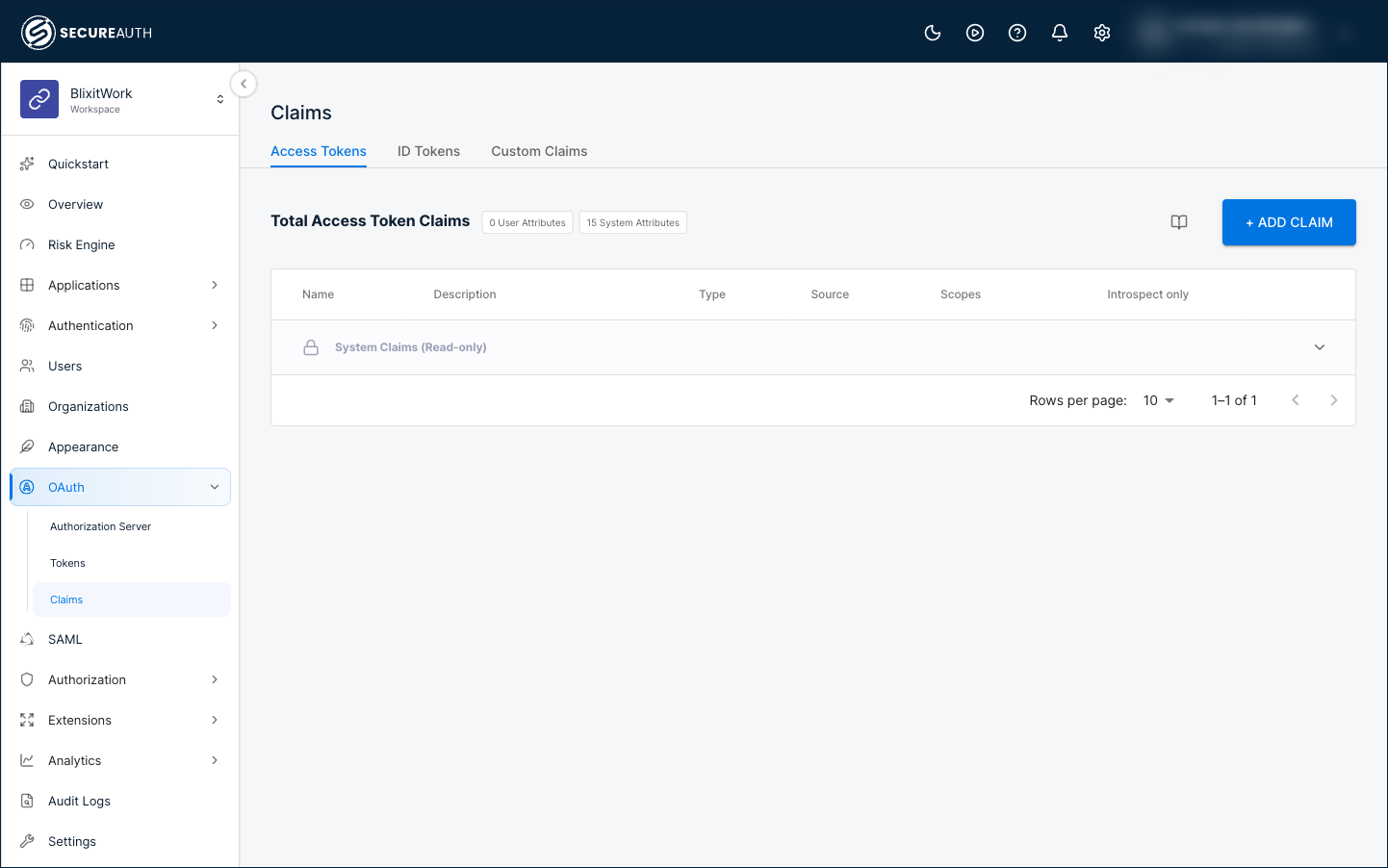
Go to the workspace or organization where you want the claim to apply, then in the left navigation select OAuth > Claims.
-
Select the tab for the token type you're configuring:
- Access Tokens – tokens your application uses to call APIs.
- ID Tokens – OIDC tokens that carry user identity.
- Custom Claims – claims that aren't tied to a built-in token type.
- SAML Assertion Attributes – available only when SAML is enabled in your tenant.
-
Click + Add Claim.
-
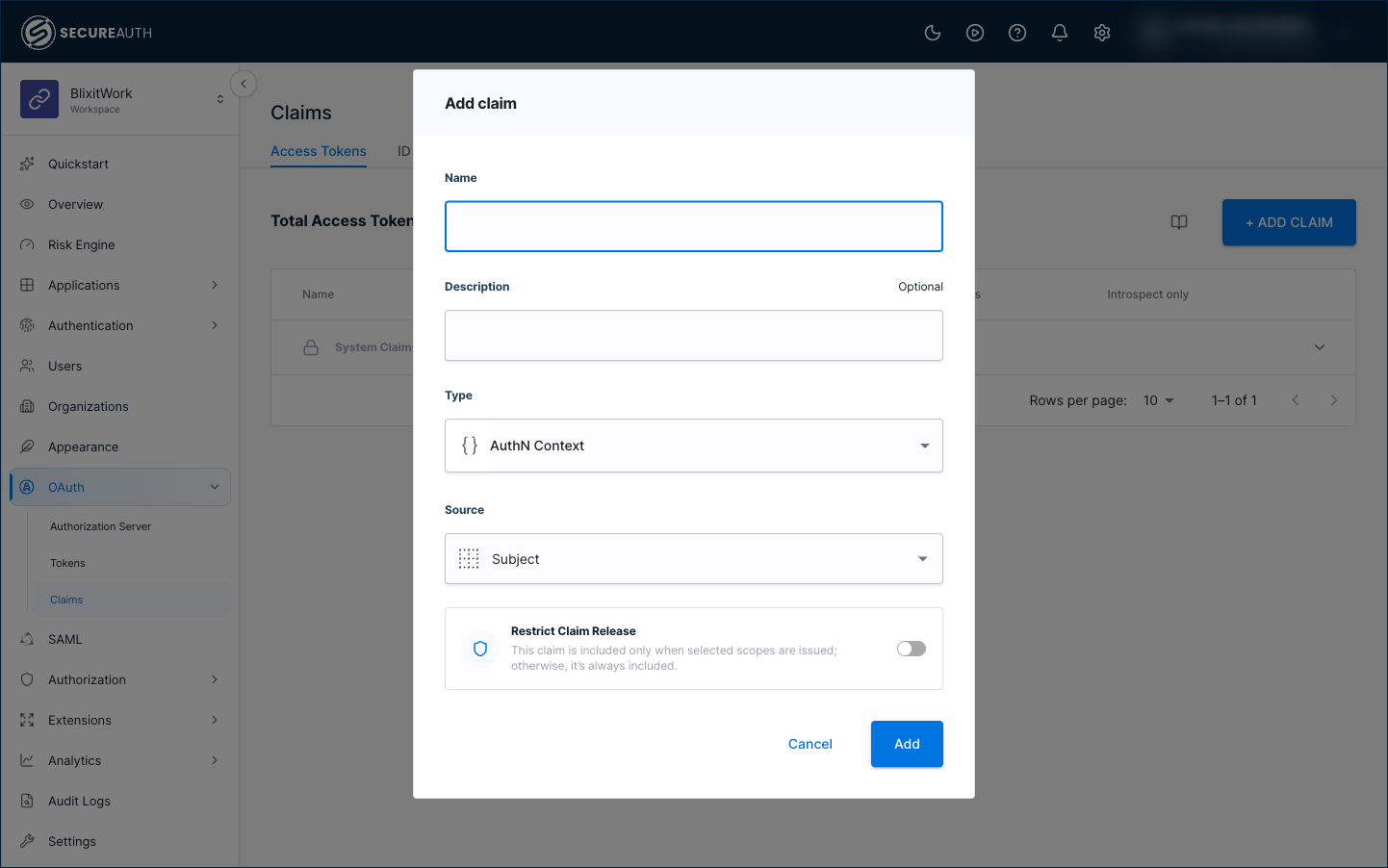
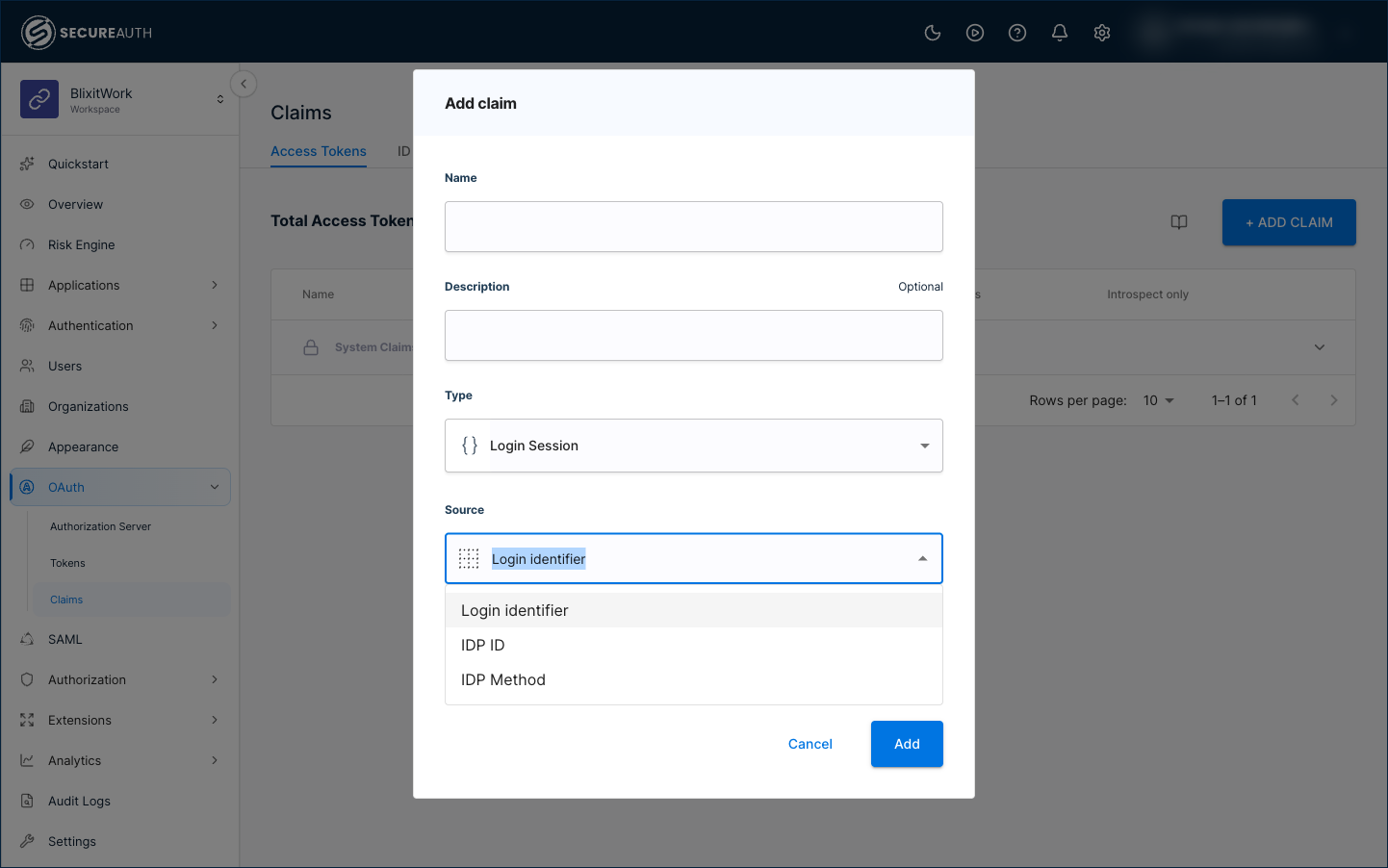
Fill in the dialog. The fields are described in the table below; the Source options vary by Type, listed in Type options.
-
Click Add.
Fields
| Field | Description |
|---|---|
| Name | The claim's name in the issued token. Required. |
| Description | A short note about what the claim is for. Optional. |
| Type | The category of data the claim pulls from. See Type options for what each Type exposes. Required. |
| Source | The specific attribute within the chosen Type that supplies the claim's value. The Source list's options change based on the selected Type. Required. |
| Restrict Claim Release | A toggle. When off (default), the claim is included in every token. When on, a Scopes field appears so you can limit the claim to tokens issued for specific scopes. |
| Scopes | Only visible when Restrict Claim Release is on. The scopes that must be granted for this claim to be included in the token. |
| SAML Name | Available on the SAML Assertion Attributes tab only. The SAML attribute name issued by your Service Provider's assertion (for example, urn:oid:2.5.4.10). |
| SAML Attribute Format | Available on the SAML Assertion Attributes tab only. The format of the SAML attribute (for example, urn:oasis:names:tc:SAML:2.0:attrname-format:uri). |
Type options
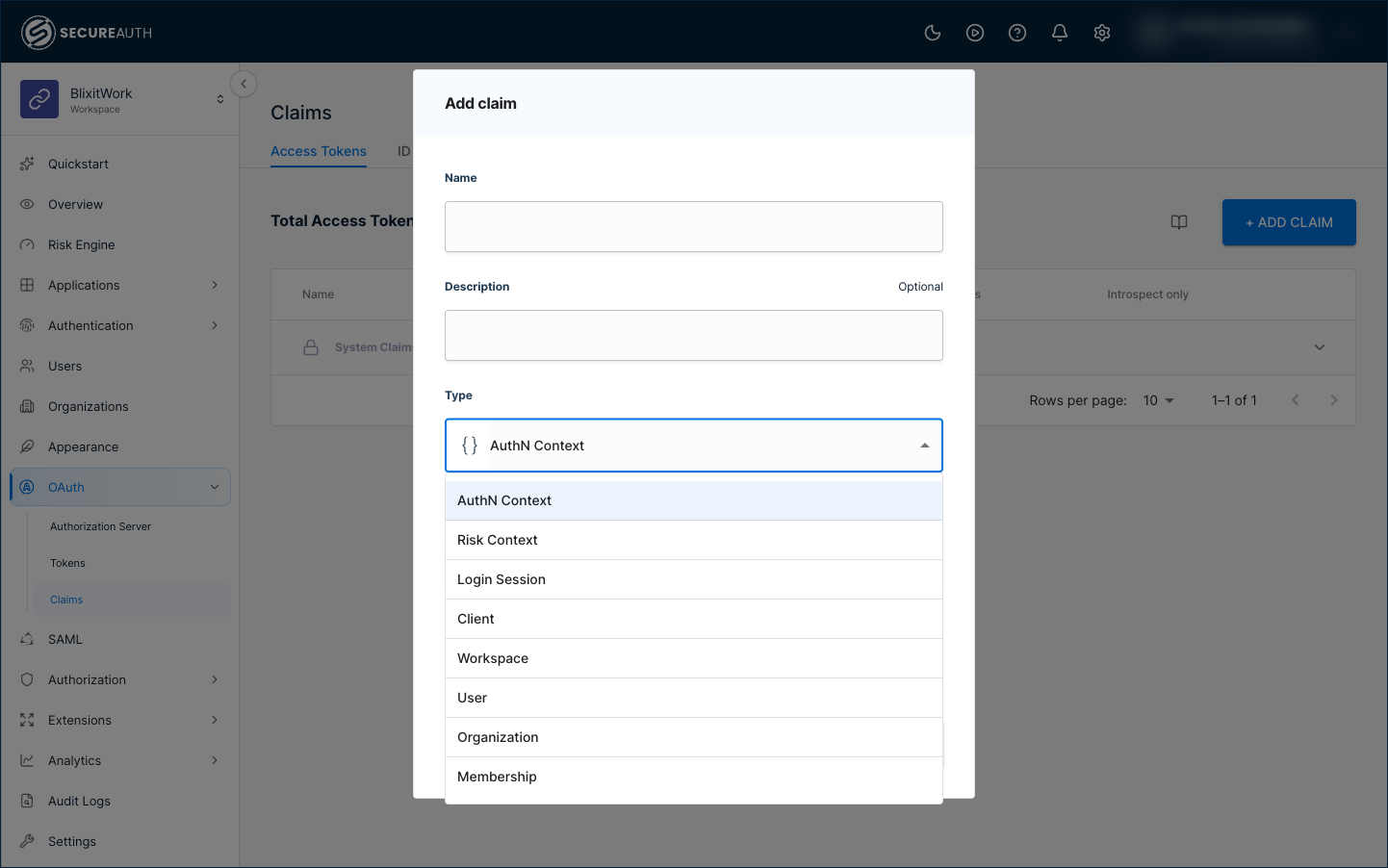
Each Type exposes a different Source list. Pick the Type that matches where the data lives, then the Source for the specific attribute you want.
| Type | What it represents | Source options |
|---|---|---|
| AuthN Context | Attributes mapped from the identity provider through the authentication context schema. The most common choice for user identity claims. | Subject, List of scopes, List of groups that user belongs to, Email, Email verified, Phone, Phone verified, Full mailing address, Full street address, City or locality, and others (scrollable list). |
| Risk Context | Risk-assessment data calculated at authentication time. | Level of assurance, Fingerprint, Transaction ID. |
| Login Session | Data about the user's current login session. | Login identifier, IDP ID, IDP Method. |
| Client | Attributes of the OAuth client application that requested the token. | Tenant ID, Server ID, ID, Name, Description, Application type, Redirect URIs, Grant types, Scopes, Audience, and others (scrollable list). |
| Workspace | Metadata configured on the workspace. | Metadata (with a secondary selector for the specific metadata field). |
| User | Attributes from the user directory. | Payload, Metadata, Business Metadata, Groups. |
| Organization | The organization the user signed in through. Use this in B2B SaaS to attach customer context to every token. | ID, Name, Description, Parent ID, Metadata. |
Example: add organization_id to access tokens
A common B2B SaaS need is to include the customer's organization ID in every access token so the application knows which customer each request belongs to.
- In the workspace where your shared application is registered, go to OAuth > Claims.
- On the Access Tokens tab, click + Add Claim.
- Fill in:
- Name:
organization_id - Type: Organization
- Source: ID
- Name:
- Click Add.
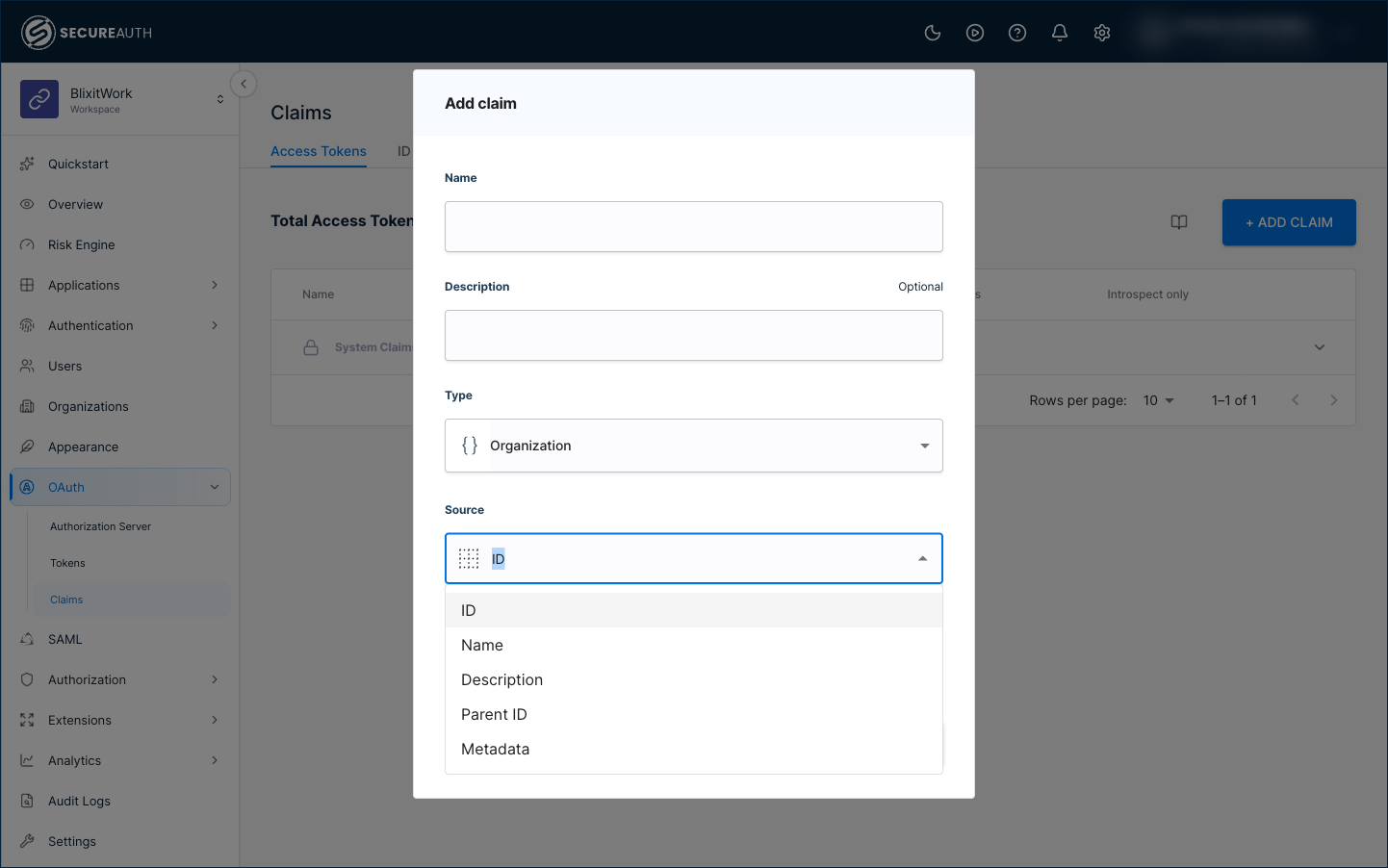
Every access token your authorization server issues now carries an organization_id claim whose value is the ID of the organization the user signed in through.
You configure this claim once on the workspace. Because the Type is Organization, SecureAuth Connect resolves the value at token-issue time from whichever organization the user signed in through. Add a new customer organization later and its tokens get the same organization_id claim automatically, with no extra setup.
Example: add the identity provider as a claim
To let a downstream application or SAML service provider see which identity provider a user signed in through, map the login session's identity provider into the token. This is useful when application behavior depends on the sign-in method, or when a service provider needs the originating provider in the SAML assertion.
- On the tab for the token type you want (for example, Access Tokens or SAML Assertion Attributes), click + Add Claim.
- Fill in:
- Name: a name for the claim, for example
idp_method. - Type: Login Session.
- Source: IDP Method for the provider used to sign in (values such as
googleorapple), or IDP ID for the configured identity provider's ID.
- Name: a name for the claim, for example
- Click Add.
Video tutorial
In the video below, we add a custom claim based on authentication context data. The claim shows the user's phone number, provided by the identity provider, which is why the Type is AuthN Context. The Source is Phone, originally a claim sent by the IdP and mapped to SecureAuth Connect's authentication context.
Edit a claim
- In the Claims section, select an existing claim. The Edit claim page appears.
- Modify the claim data and click Update.
Remove a claim
- In the Claims section, click the trash can icon next to the claim you want to delete.
- Confirm.
This action is permanent and cannot be undone.