Add OpenLDAP data store
In the SecureAuth® Identity Platform, you can add an OpenLDAP data store to assert or manage user identity information.
Prerequisites
Identity Platform release 26.1.0 or later, hybrid deployment
OpenLDAP data store
Service account for an OpenLDAP data store with read access (and optional write access) for the Identity Platform
Process
There are two parts to adding a data store in the Identity Platform — (1) adding the data store and (2) mapping the data store properties.
Step 1 of 2: Add an OpenLDAP data store
On the left side of the Identity Platform page, click Data Stores.
Select the Data Stores tab.
Click Add a Data Store.
On the Add a Data Store page, use the following configurations.
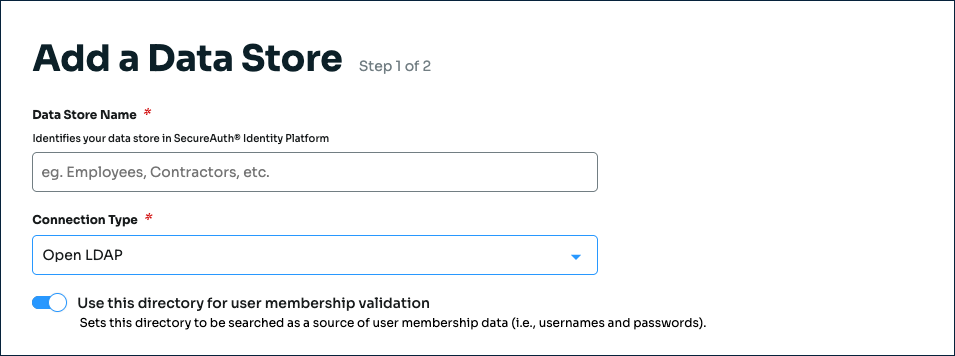
Add an OpenLDAP data store
Data Store Name
Set the name of the data store.
Connection Type
Set to Open LDAP.
Use this directory for user membership validation
Use one of the following options:
On – Enable membership validation; use the directory to search for the user's membership in a user group.
This means the directory is a Membership Store, containing the password to validate with the username.
After the data store is saved, this field is the Membership Store label shown on the View Summary.
A common use case for a Membership Store would be to have a directory with username and password information (and maybe some profile information), and then have a second directory or database used to store and access data that the Identity Platform writes to the directory (such as device recognition, device enrollment, push notification tokens, and so on).
Off – Disable membership validation; use the directory to search only for the user profile information.
This means the directory is only used to find the username and profile information (such as phone number, email address, device recognition profiles, OATH tokens, and so on).
In the Connection String section, set the connection string for the domain to the OpenLDAP directory.
Source Domain
The domain for your directory to build the connection string in the next field.
For example:
initech.localFor an IP address in the connection string, use the advanced mode link.
Connection String
The value in this field is the connection string auto-populated by the Source Domain field and contains domain and generic values for DC=directory, DC=domain (unless you manually enter a custom connection string).
For example, the result would be:
LDAP://initech.local/DC=initech,DC=localNote
This field does not auto-populate correctly for IP addresses. Use the advanced mode link.
advanced mode
To manually enter the connection string, click the advanced mode link.
For example, for an IP address the result would be:
LDAP://198.51.100.02/dc=initech,dc=local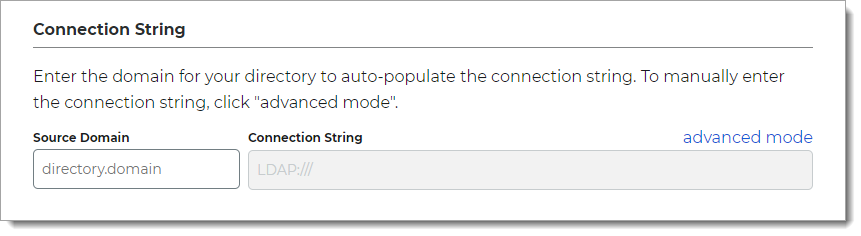
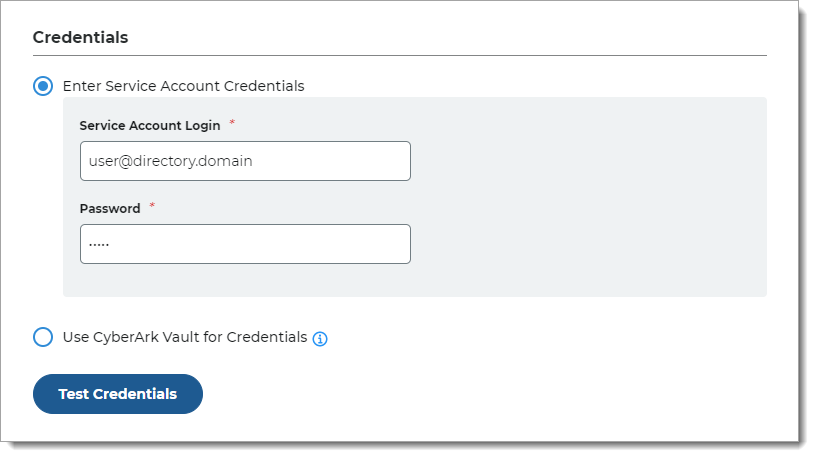
In the Credentials section, provide the log in credentials to access the OpenLDAP data store.
Enter Service Account Credentials
With this option, enter the following fields:
Service Account Login – Login for the service account
Password – Password for the service account login
Test the data store connection by clicking Test Credentials.
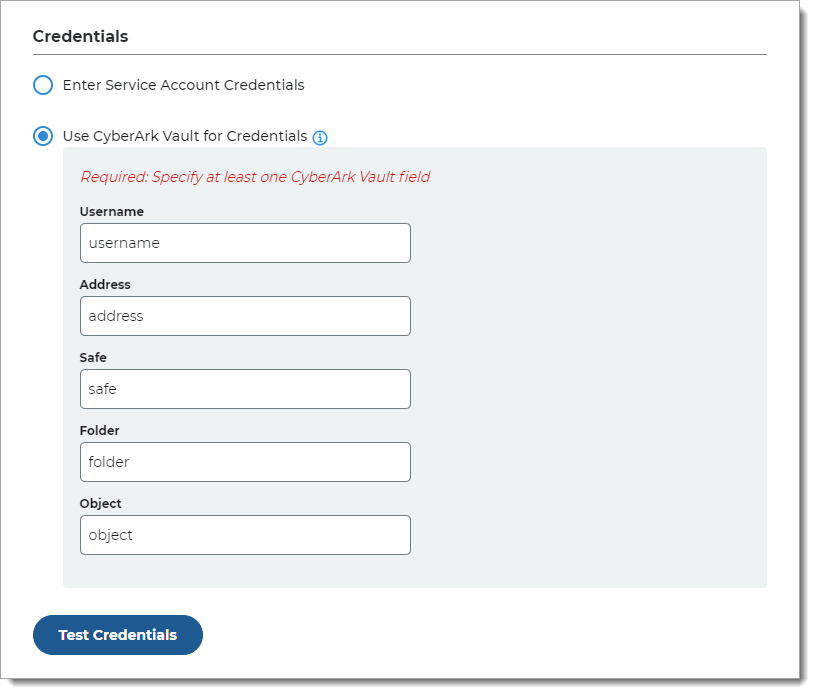
Use CyberArk Vault for Credentials
With this option, enter at least one field for the service account login:
Username – User name of machine to be scanned by CyberArk Application Identity Manger (AIM). This information appears on the Account Details page of the CyberArk Password Vault Web Access (PVWA) Admin Console
Address – Address of machine to be scanned by AIM
Safe – Name of Access Control Safe where credentials are stored
Folder – Name of folder where account resides (by default, it its the root folder)
Object – Unique identifier Object name for the account
Test the data store connection by clicking Test Credentials.
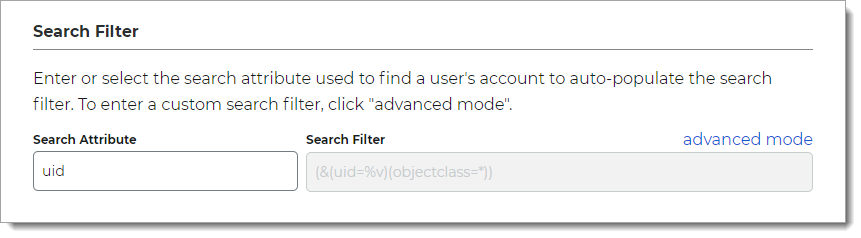
In the Search Filter section, define the search attribute to find a user account.
Username Attribute
Set the username attribute.
Available options are: uid, samAccountName, or userPrincipalName (UPN).
Search Filter
Value is auto-populated in this field.
Example search filter for uid:
(&(uid=%v)(objectclass=inetOrgPerson))advanced mode
To enter a custom search filter, click the advanced mode link.
In the Advanced Settings section, define the attribute to encrypt user profile data.
Encryption Attribute
The unique directory value inherits the default value from the Username attribute field to encrypt user profile data.
For example: uid
Validate User Type
Choose how to validate usernames and passwords in the LDAP directory:
Bind – Make a direct call to the directory to validate the username and password (faster search)
Search – Use the search function to find and validate a username and password (slower search)
Connection Mode
Select how the Identity Platform and the directory connect:
Secure – Use a secure LDAP connection on Port 389, using NTLMv2
SSL – Use a secure connection on Port 636, using Secure Socket Layer technology, which relies on certificates
Standard – Use a standard LDAP connection on Port 389 that uses basic authentication (plain text)
Allow Anonymous Queries
Move the slider to indicate whether non-authenticated users should also be granted access to browse the protected resource.
In most cases, this setting should be off.
Allow Advanced User Checks
Move the slider to indicate whether to allow the Identity Platform to search this directory for more user information. This is useful in a scenario in which a user account is locked.
Disable Nested Groups
Move this slider ON to indicate that the Identity Platform will only search main group memberships and ignore nested groups.
This will improve performance.
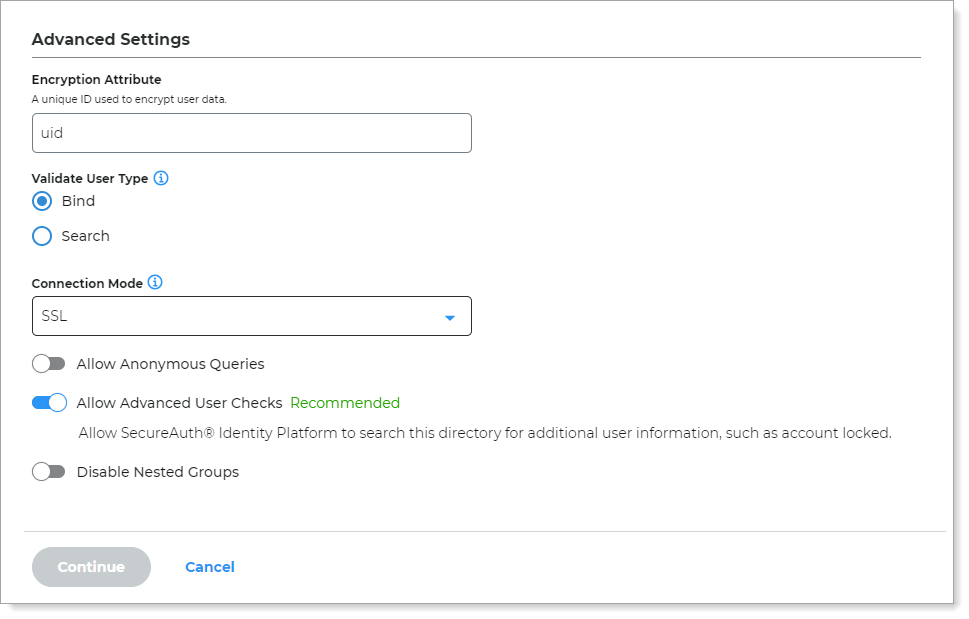
Click Continue.
The Map Data Store Properties page opens.
Step 2 of 2: Map OpenLDAP attributes to profile properties
The second part of adding an OpenLDAP data store is mapping the directory properties.
Each user is uniquely identified by profile data that is read from or stored in your directories and databases.
The Identity Platform does not store user profiles, so your OpenLDAP directory attributes must be mapped to the Identity Platform profile properties to be read and updated in the directory by the Identity Platform. The OpenLDAP directory attribute mapped to the profile property is retrieved only when required for authentication or assertion purposes.
For more information about how data store profile properties are stored for on-premises, hybrid, or cloud Identity Platform deployments, see List of stored profile field properties.
Note
Each mapped profile property must have its own directory attribute. You cannot map the same directory attribute to more than one property.
For example, the mobile attribute is mapped to Phone 2, so you would use a different attribute for Phone 3.
Refer to the following table about attribute mapping and other information.
Column | Description |
|---|---|
Name and LDAP Field | Map the following required LDAP field attributes:
Map the following recommended LDAP field attributes:
|
Data Format | For mapped profile properties (for example, Push Notification Tokens, Behavioral Biometrics, and Device Profiles), specify the Data Format to define how data is encrypted and stored in the directory. Selection options:
|
Writable | Define whether a profile property can be writable (select check box) or not writable (cleared check box) according to your OpenLDAP directory configuration. For example, if you want to allow users to update their personal email address on the self-services page, select the Writable check box. Some profile properties are disabled by default in the system; for example, biometric profile properties used by SecureAuth cloud services. |
See also
Unique User ID mapping – Added in SecureAuth IdP release 26.2.0