Dashboard application
Set up a standalone dashboard application that launches the Dashboard. Users such as auditors, IT staff, and help desk agents can authenticate through the Identity Platform and access the dashboard without full access to the SecureAuth IdP admin console.
Prerequisites
SecureAuth® Identity Platform release 26.1.0 or later
Identity source added to the Identity Platform
Configured user authentication policy
Procedure
On the left side of the Identity Platform, click Internal Application Manager.
Click Add New Internal Application.
The New Internal Application page displays.
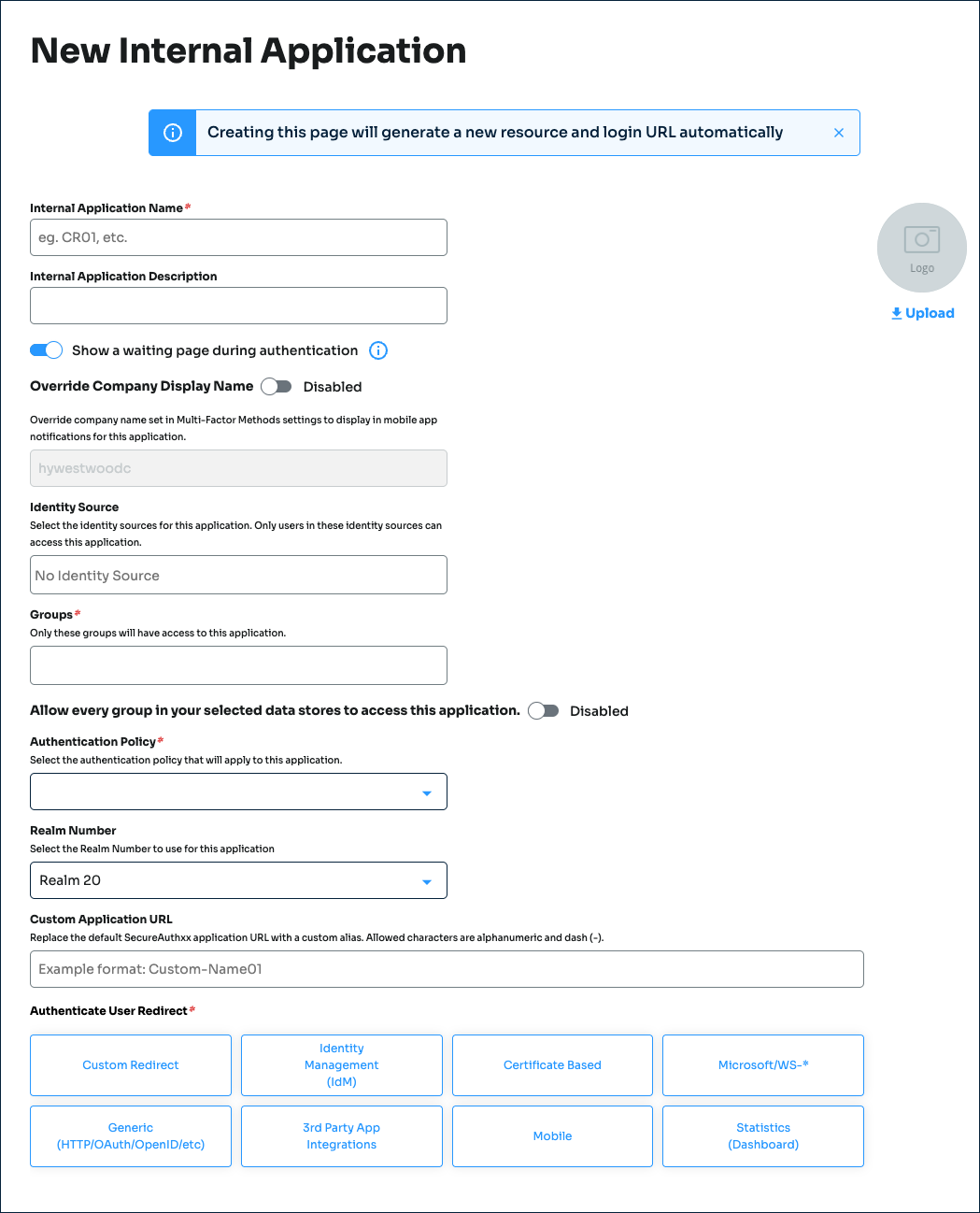
Set the following configurations:
Internal Application Name
Set the name of the internal application page.
This name is shown on the page header and document title of the end user login pages.
Note
If you change this name, it will overwrite any value that is set on the Overview tab in Advanced Settings.
Internal Application Description
This is an internal description not shown to end users.
Show a waiting page during authentication
Toggle this ON to show a message while users are being authenticated. Toggle OFF to skip the waiting page and streamline the login flow.
Tip
To customize the waiting page message, go to Advanced Settings > Content and Localization. To learn more, see Customize the authentication waiting page message.
Override Company Display Name
Enable / ON – Change the default company name that is set in the Multi-Factor Methods > Authentication Apps settings.
The company name entered in this field will display in mobile app notifications only for this application.
OFF – Do not override. Display the company name set globally in the Multi-Factor Methods > Authentication Apps settings.
Identity Source
Select the identity source to authenticate and allow user access to the application.
Groups
Use one of the following options:
Enable the slider (On) to allow access for all groups in the selected data store.
Disable the slider (Off) and enter specific groups allowed to access.
Authentication Policy
Select the login authentication policy for the internal application.
Realm Number
Select the Realm Number to use for this application.
Custom Application URL
Enter a unique URL alias to simplify access and provide a user-friendly path for logins.
The allowed characters are letters, numbers and a dash (-).
Authenticate User Redirect
Select the target internal application category and then from the list, select the application page you want to set up.
Select the Statistics (Dashboard) category. Then, in the Statistics (Dashboard) list, select Dashboard.
Redirect To
This field is automatically populated by the selection of the redirect page. If this is a Custom Redirect, then enter the redirect URL.
This is the page the end user lands on after login.
In the Dashboard Page Configuration section, configure the following settings:
Modern Themes
Select a theme for this page.
Dashboard Page Sections
Enable and configure what to display on the Dashboard page for end users.
Logins – Toggle Show Login Report to display the login report on the Dashboard page.
User Profiles – Toggle Show User Profile Report to display the user profile report on the Dashboard page.
Authentications – Toggle Show Authentication Report to display the authentication report on the Dashboard page. Click Configuration Options to configure the report settings for:
Show Mobile App Authentications
Show FIDO Device Authentications
Show Blocked Sources by Push Notifications
Deployments – Toggle Show Deployments Report to display the deployments report on the Dashboard page.
Click Create Connection.
This creates a new internal application with an attached user authentication policy from the New Experience.
Use the login URL for your end users to access the Dashboard application.
You can find this on the main Internal Application Manager page or when you edit the internal application in the Redirect Information section.
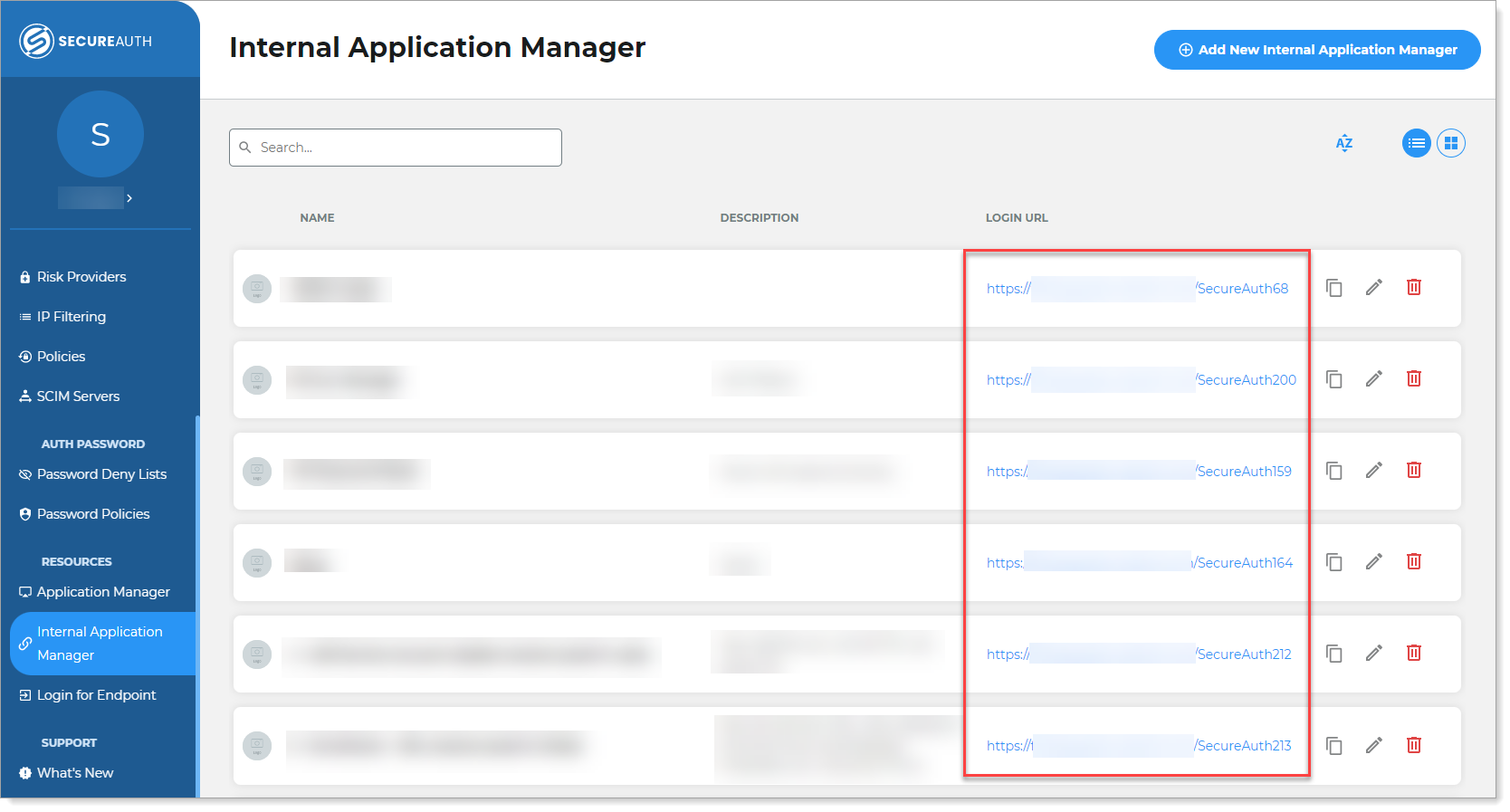
Login URLs on Internal Application Manager list
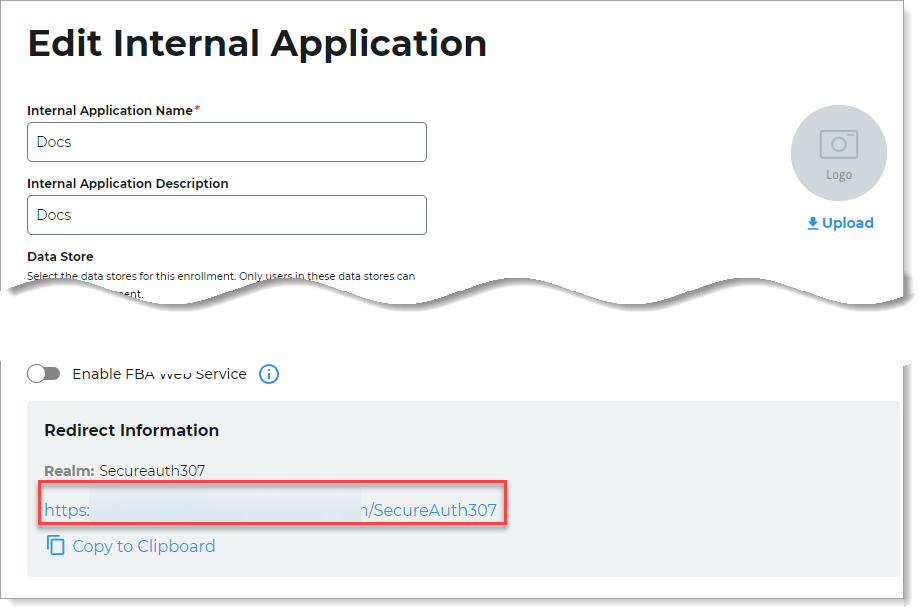
Result
End users can access the Dashboard when they log in to the URL of the Dashboard application. For more information about the Dashboards, see Dashboard quick reference.
From the Dashboard, users with the appropriate permissions can unenroll one or more devices from the Enrolled Mobile Devices and Enrolled Authenticator Devices detail views. Access depends on the authentication policy and group permissions you assign to the application. See Dashboard: Authentication Types overview. Added in SecureAuth IdP release 26.2.0