Connect Devin Desktop to Agent Authority
Connect Devin Desktop to SecureAuth Agent Authority with OAuth sign-in so every MCP tool call is checked and audited
When you finish, every MCP tool call Devin Desktop makes is checked against your policies and recorded in the audit log. Devin Desktop, Cognition's AI code editor (formerly Windsurf), reaches your approved tools through one SecureAuth Agent Authority gateway URL, and each developer signs in as themselves.
Setup
-
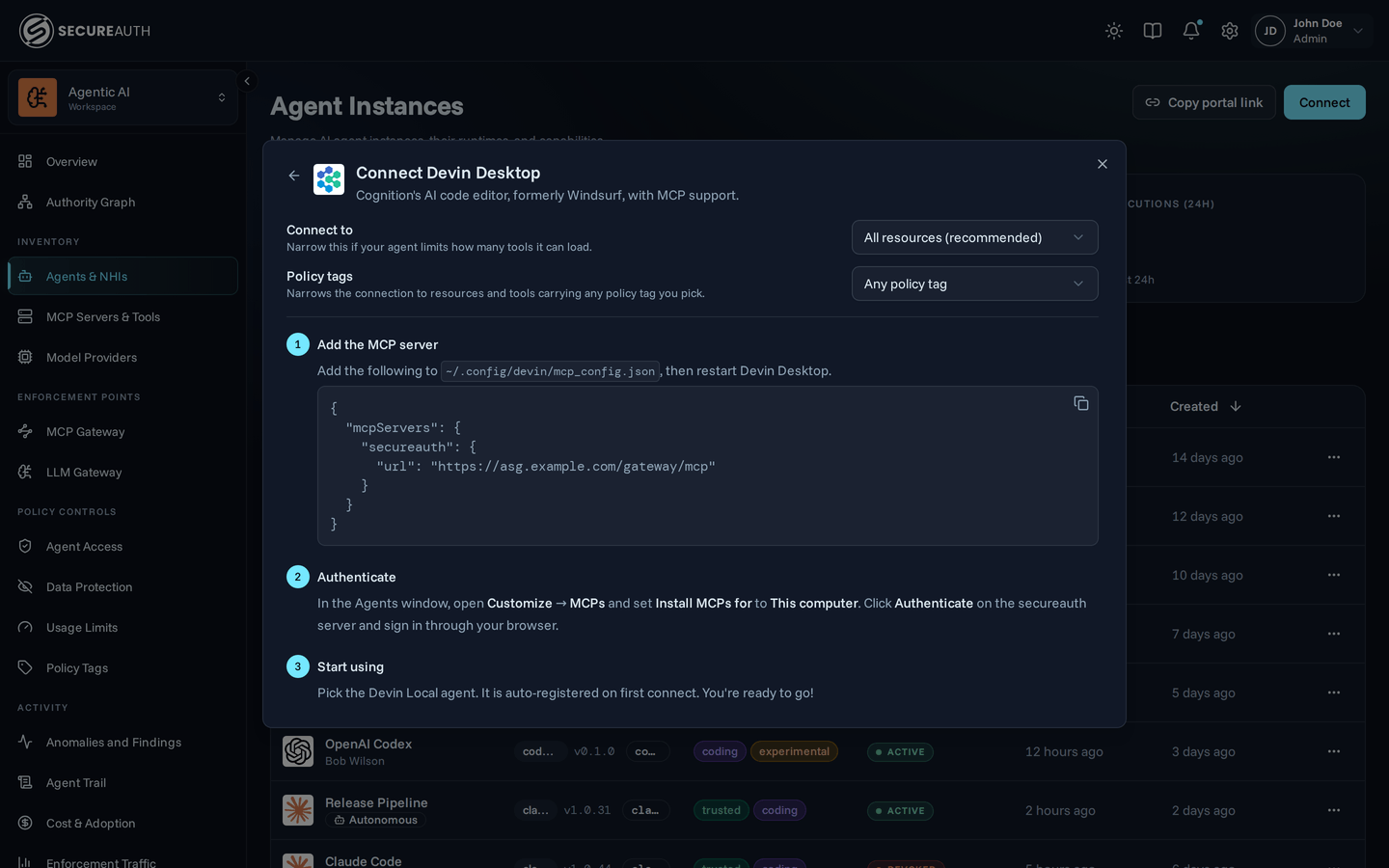
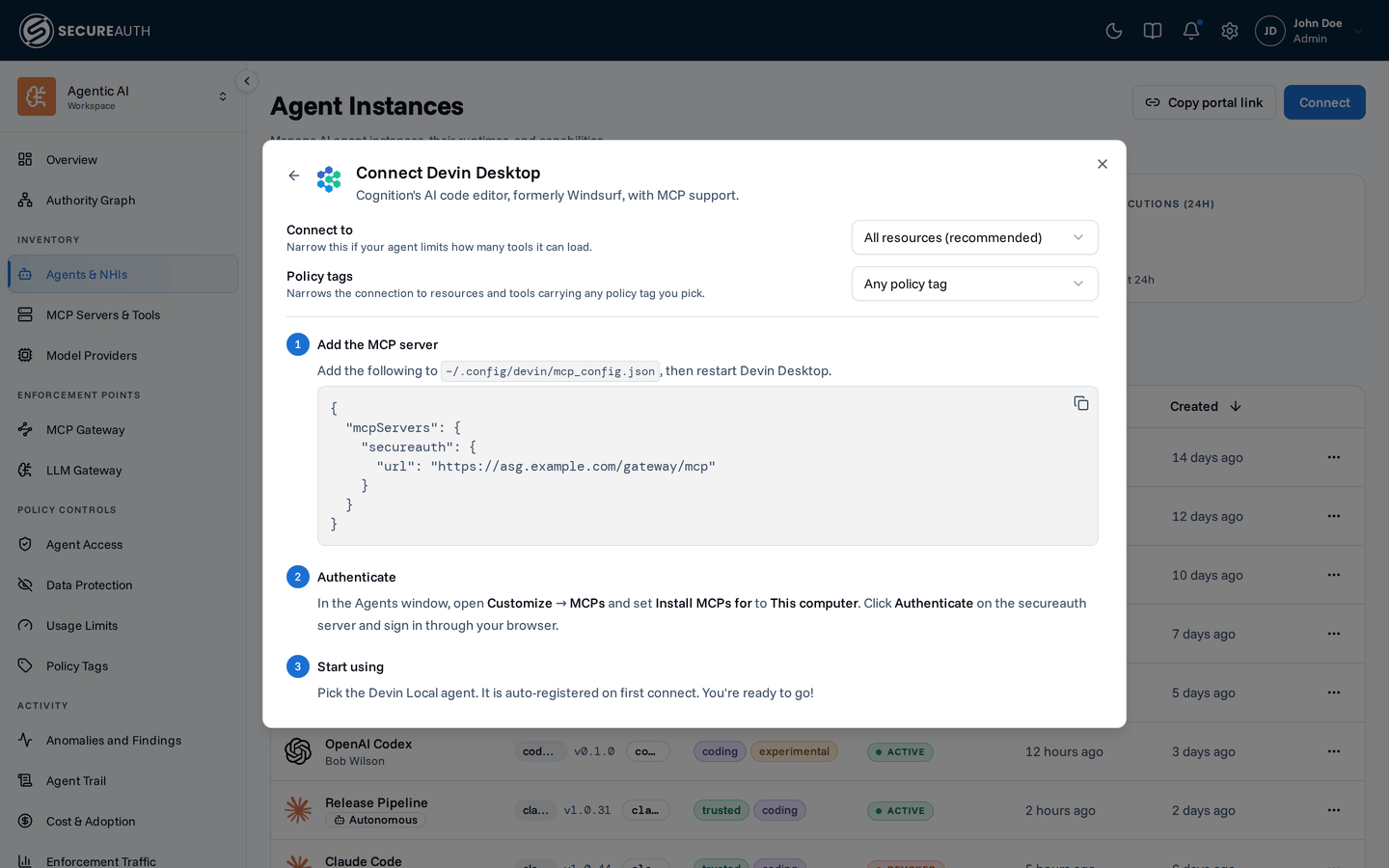
Add the MCP server. Add the following to
~/.config/devin/mcp_config.json, then restart Devin Desktop.{ "mcpServers": { "secureauth": { "url": "https://your-gateway-url/gateway/mcp" } } } -
Authenticate. In the Agents window, open Customize → MCPs and set Install MCPs for to This computer. The
secureauthserver shows Needs authentication. Click Authenticate and sign in through your browser. Devin Desktop saves the token, so you sign in once. -
Start using. Pick the Devin Local agent. The agent is auto-registered on first connect.
Connecting to just one MCP? To stay under an agent's tool limit, point the URL at a single MCP —
/gateway/mcp/{slug}instead of/gateway/mcp. Grab the exact URL from the resource's detail page; see Scope a connection.
Next steps
Devin Desktop now reaches your tools through the secureauth server in mcp_config.json.
Next, write the policy that decides which tools it can call.
- Create a policy – control which tools Devin Desktop can call.
- Monitor activity – watch its tool calls appear in the dashboard and audit log.
- Audit log – filter and search every tool call Devin Desktop makes.