Set up Microsoft Entra ID for authentication with OIDC
Users in your Microsoft Entra ID (formerly Azure Active Directory) tenant can access applications registered in SecureAuth. In this setup, Microsoft Entra ID acts as an external identity provider (IdP): your users sign in with the Microsoft Entra ID accounts they already have. This guide is for administrators connecting a Microsoft Entra ID tenant to a SecureAuth Connect workspace.
How the integration works
SecureAuth Connect natively supports Microsoft Entra ID as an OpenID Connect (OIDC) identity provider, so it provides a dedicated connection template. Microsoft Entra ID issues an ID token and an access token that identify the user to SecureAuth.
When a user signs in, SecureAuth brokers the exchange between the application and Microsoft Entra ID. It redirects the user to Microsoft Entra ID, collects the tokens that come back, and issues its own tokens to the application. The diagram below shows the full flow.
Two parts of the flow are optional:
- SecureAuth pulls user attributes and group membership only when you enable those options on the connector.
- SecureAuth asks the user for consent only when an untrusted application requests scopes the user has not already approved.
Microsoft Entra ID and SAML
This template uses OIDC. Microsoft Entra ID applications can also use SAML, but SecureAuth has no dedicated SAML template for Microsoft Entra ID. To connect over SAML, use the generic SAML connector.
Before you begin
Register an application in your Microsoft Entra ID tenant for SecureAuth to connect to. Follow the Microsoft Entra app registration guide. You need the directory (tenant) ID, the application (client) ID, and a client secret.
Leave the redirect URI empty for now. SecureAuth generates a redirect URL during connection setup that you add to the app registration afterward.
To let SecureAuth fetch user attributes or group membership, grant your application the matching Microsoft Graph permissions. For details, see the Microsoft Graph documentation for Get a user and List group memberships.
Connect Microsoft Entra ID to SecureAuth
Create the connection
-
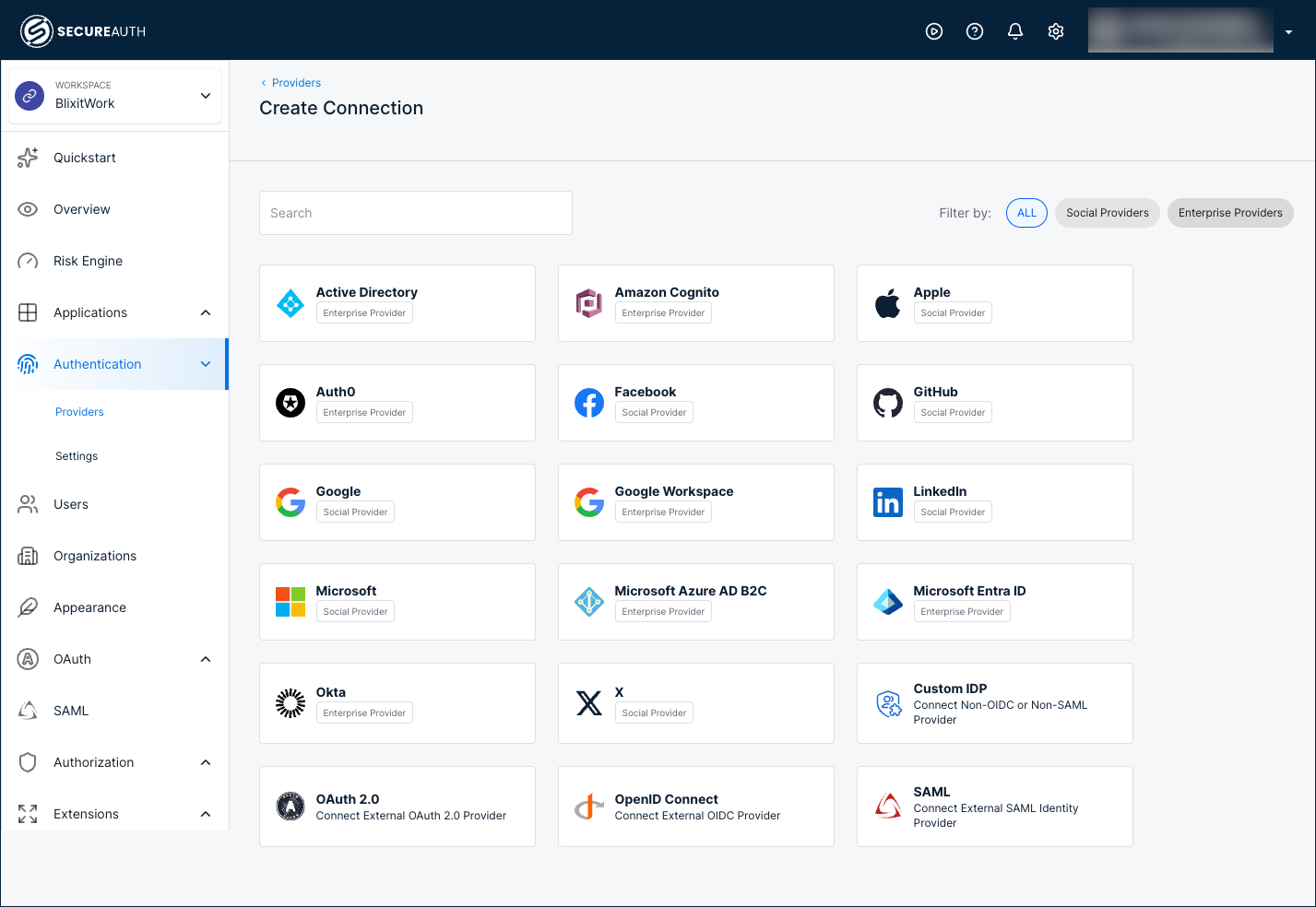
In your workspace, go to Authentication > Providers, then click Create Connection.
-
On the Create Connection page, select the Microsoft Entra ID template, then click Next.
-
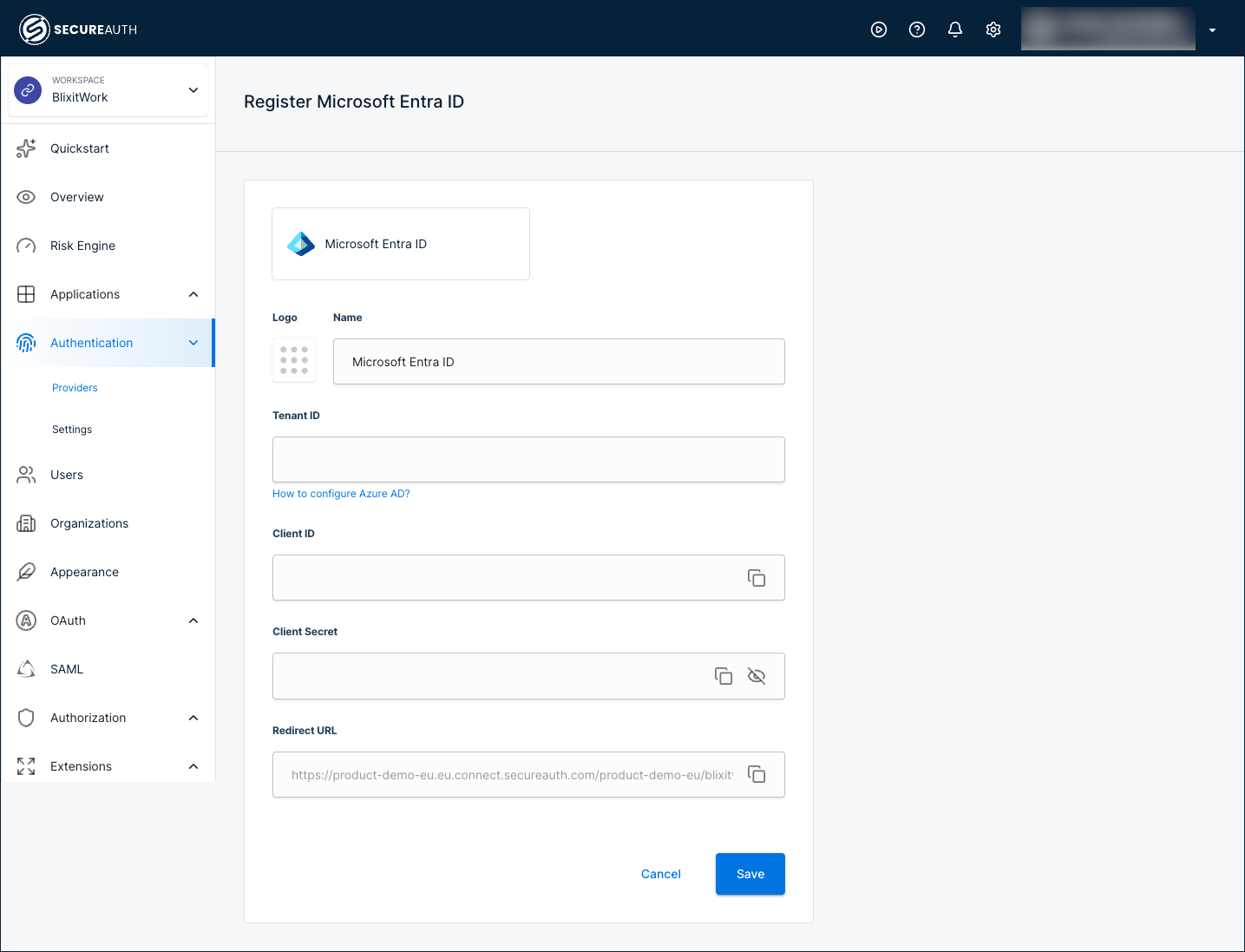
Copy the Redirect URL from the form and add it as a redirect URI on your Microsoft Entra ID app registration. This lets Microsoft Entra ID return the user to SecureAuth after authentication.
-
Complete the remaining fields:
- Name – Enter a name that helps users recognize this provider on the sign-in page.
- Tenant ID – Enter the directory (tenant) ID of your Microsoft Entra ID tenant.
- Client ID – Enter the application (client) ID of your registered application.
- Client Secret – Enter the client secret value for the application. Copy this value from Microsoft Entra ID as soon as you create it, because it cannot be retrieved later.
-
Save your changes.
The connection appears on the Providers list. Open it to reach the configuration tabs described in the following sections.
Configure advanced settings
Advanced settings are optional and apply to specific scenarios. On the connection's Configuration tab, expand Advanced settings.
| Setting | Description |
|---|---|
| Scopes | Add scopes to request when authenticating to Microsoft Entra ID. SecureAuth requests openid, email, and profile by default. |
| Authentication Method Reference | Select an authentication method to write into the amr claim returned by the provider. The selected value replaces any existing amr value. |
| Fetch user attributes from Azure Graph | Retrieve additional user attributes through the Microsoft Graph API. Select the Graph User Attributes to return. |
| Fetch groups | Retrieve the groups a user belongs to. Select Only security groups to limit results to security groups, and set Group name format to return groups by ID or name. |
Send login_hint | Pass the identifier the user entered to Microsoft Entra ID as a login_hint, so the user does not have to enter it again. |
The Configuration tab also has a Token Exchange section, which issues SecureAuth tokens in exchange for tokens from this provider. For more information, see Token exchange.
Attributes
The Attributes tab lists the claims Microsoft Entra ID returns after authentication. SecureAuth recognizes a standard set of claims by default, sourced from the access token, including token claims such as aud, iss, iat, exp, and appid.
To add a custom claim that your tenant returns, click + Add attribute and set its Variable Name, Display name, Data Type, and Source. The source can be the access token, the ID token, or Azure Graph (available only when Fetch user attributes from Azure Graph is enabled in advanced settings).
Mappings
Mapping connects the claims from Microsoft Entra ID to the SecureAuth authentication context, so every provider feeds a consistent set of user data to your applications. These default mappings apply out of the box:
| Source | Microsoft Entra ID source name | SecureAuth target name |
|---|---|---|
| Access token | Scopes | List of scopes |
| Access token | Given name | Given name |
| Access token | Family name | Family name |
| ID token | Name | Name |
| ID token | ||
| ID token | Preferred username | The primary username that represents the user |
| Custom | Groups | List of groups that user belongs to |
To customize, click + Add mapping or + Add static mapping, then click Save mappings.
Provisioning
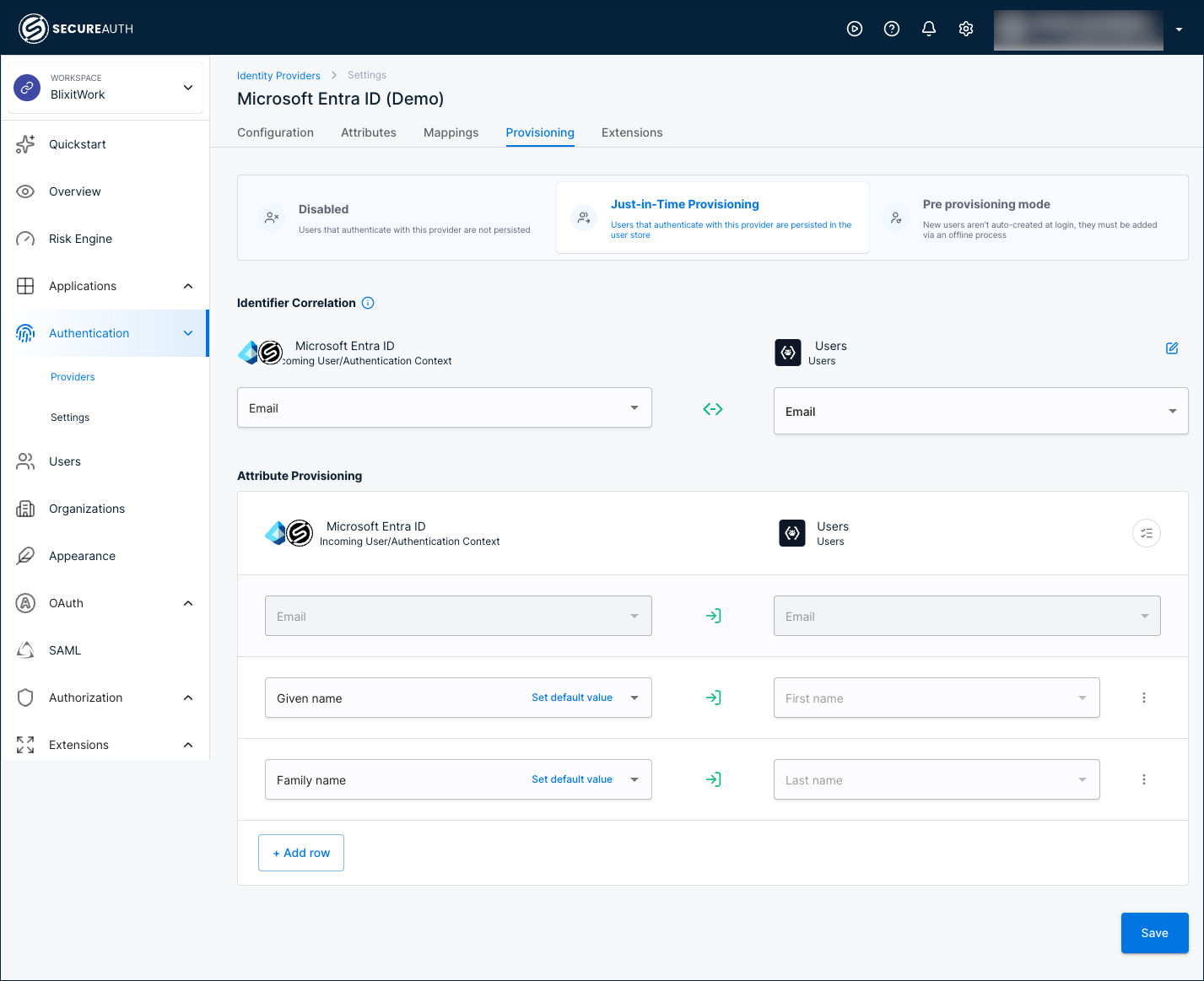
Provisioning controls what happens to a user account when someone authenticates through Microsoft Entra ID. Select a mode on the Provisioning tab.
Disabled
Users are not saved to the user store. Authentication succeeds, but SecureAuth creates no user record.
Just-in-Time Provisioning
Users are saved to the user store the first time they sign in.
Identifier Correlation
Matches the incoming Microsoft Entra ID identity to an existing user. Default: Microsoft Entra ID Email ↔ Users Email.
Attribute Provisioning
Maps Microsoft Entra ID attributes to user profile fields. Defaults:
Email→EmailGiven name→First nameFamily name→Last name
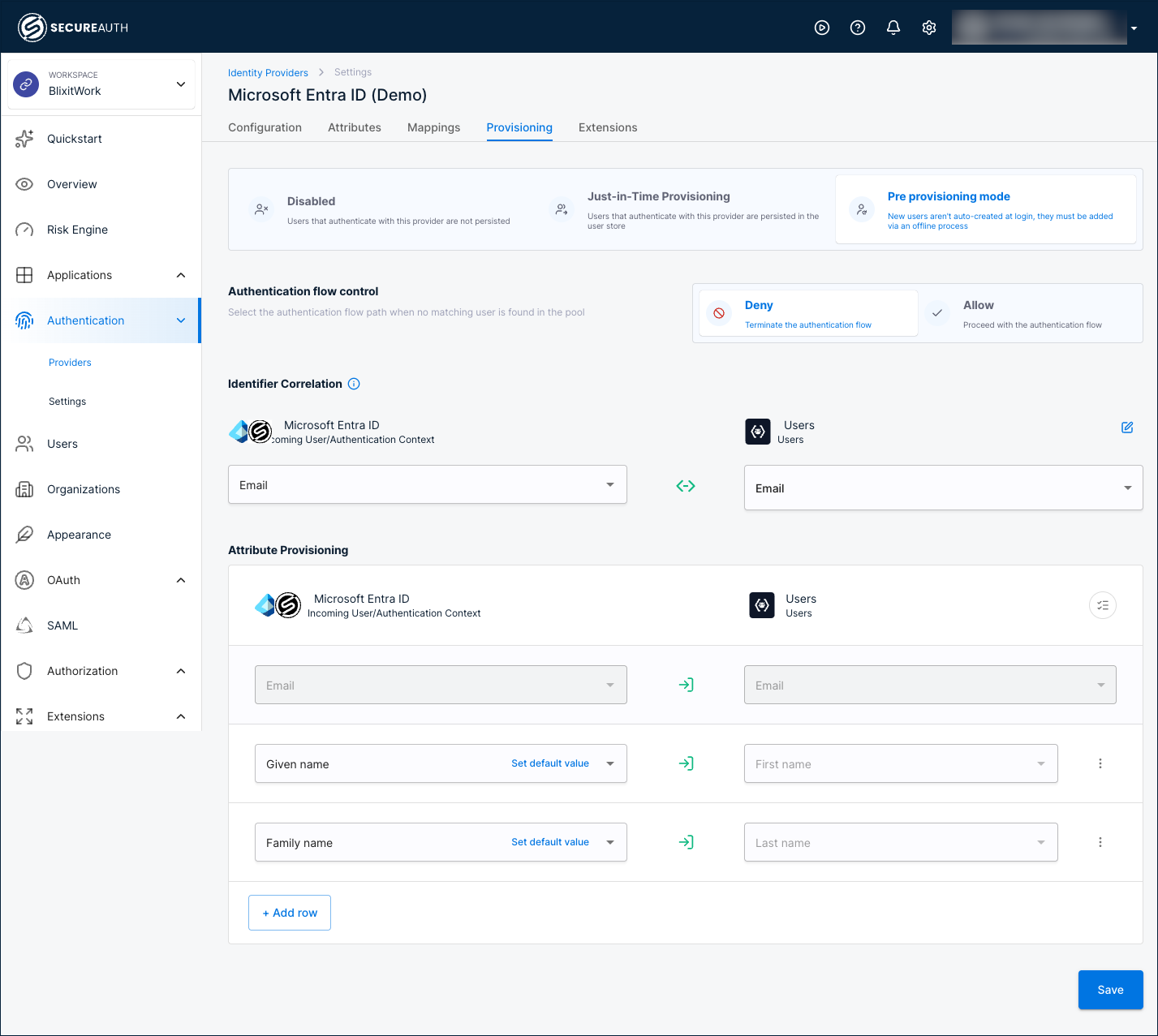
Pre provisioning mode
Users are not created automatically at sign-in. You add them ahead of time through an offline process.
Authentication flow control
Sets what happens when no matching user is found:
- Deny – Terminate the authentication flow.
- Allow – Proceed with the authentication flow.
Identifier Correlation
Matches the incoming Microsoft Entra ID identity to an existing user. Default: Microsoft Entra ID Email ↔ Users Email.
Attribute Provisioning
Maps Microsoft Entra ID attributes to user profile fields. Defaults:
Email→EmailGiven name→First nameFamily name→Last name
Extensions
Extensions run custom logic after a user authenticates with Microsoft Entra ID, such as enriching the authentication context or routing the user through an extra step. Configure them on the Extensions tab.
| Extension | Description |
|---|---|
| Post Authentication script | A server-side script that runs after Microsoft Entra ID authentication completes. Click Manage Scripts to configure. |
| Post Authentication application | A custom application that receives the user after Microsoft Entra ID authentication completes. Click Manage Custom Apps to configure. |
Test the connection
-
Confirm the provider is enabled on the Providers list.
-
Open an application that uses SecureAuth Connect for sign-in, or the built-in User Portal.
-
Start a sign-in and select the Microsoft Entra ID provider by the name you gave it.
-
Authenticate with a Microsoft Entra ID account. SecureAuth shows a consent page listing the data shared with the application. After you allow access, SecureAuth issues its tokens with the user data mapped from Microsoft Entra ID.