Configure elements in the admin console
What an embedded component shows is decided in the admin console, not in your markup. That split is deliberate: an administrator can change which sections a pane renders, or its colors, without anyone redeploying your application.
Two places matter.
- Extensions > Embedded components is where you build variants: the look, and the sections.
- An application's Embed tab is where you say which variant that application uses, which elements it places, and what its token has to carry.
Build a variant
A variant is a named set of choices, saved in your workspace rather than in the browser you built it in, so it applies the same in every browser and survives a cleared profile. Several applications can use the same one, so treat a variant as a shared asset rather than one application's settings.
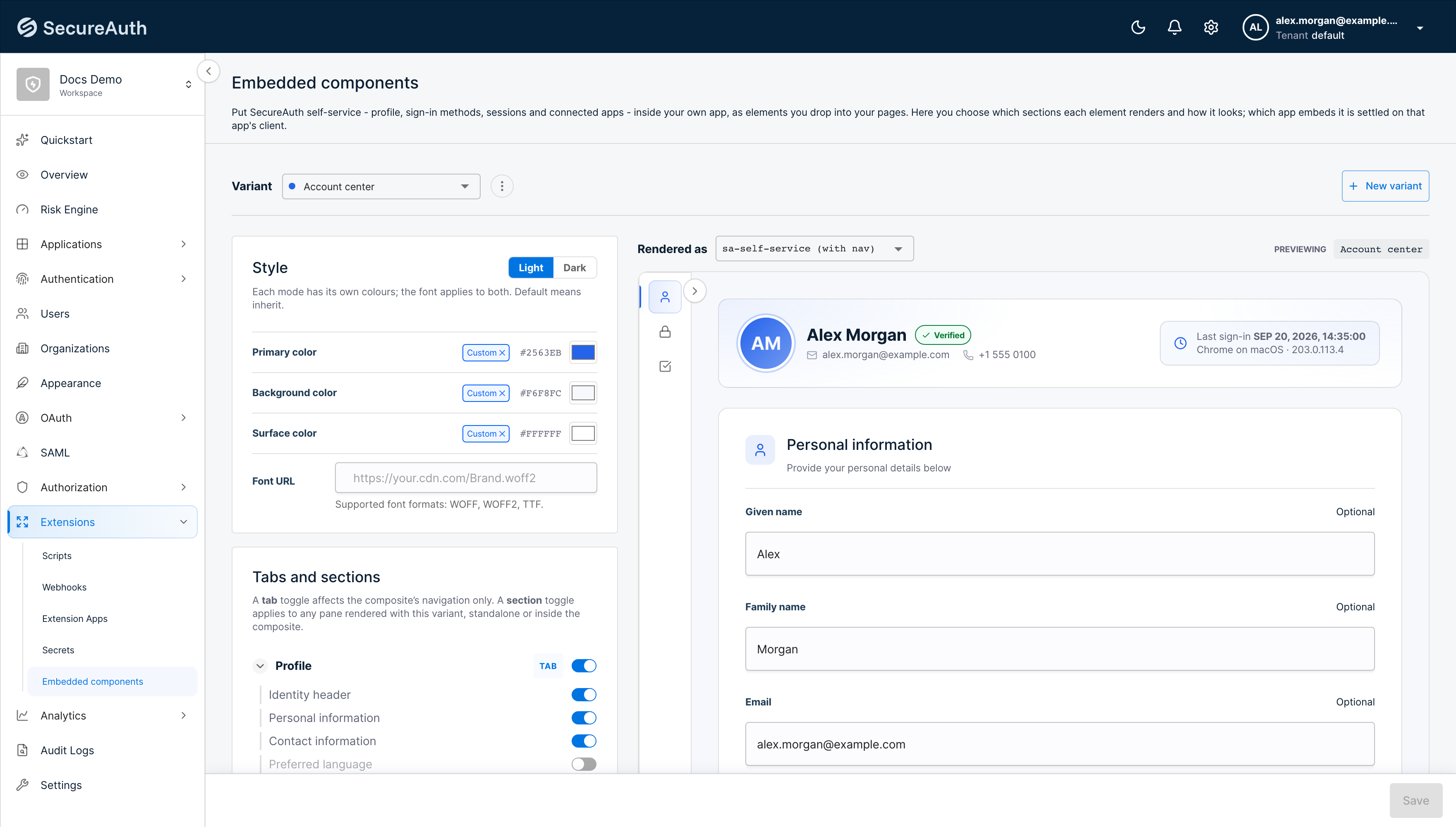
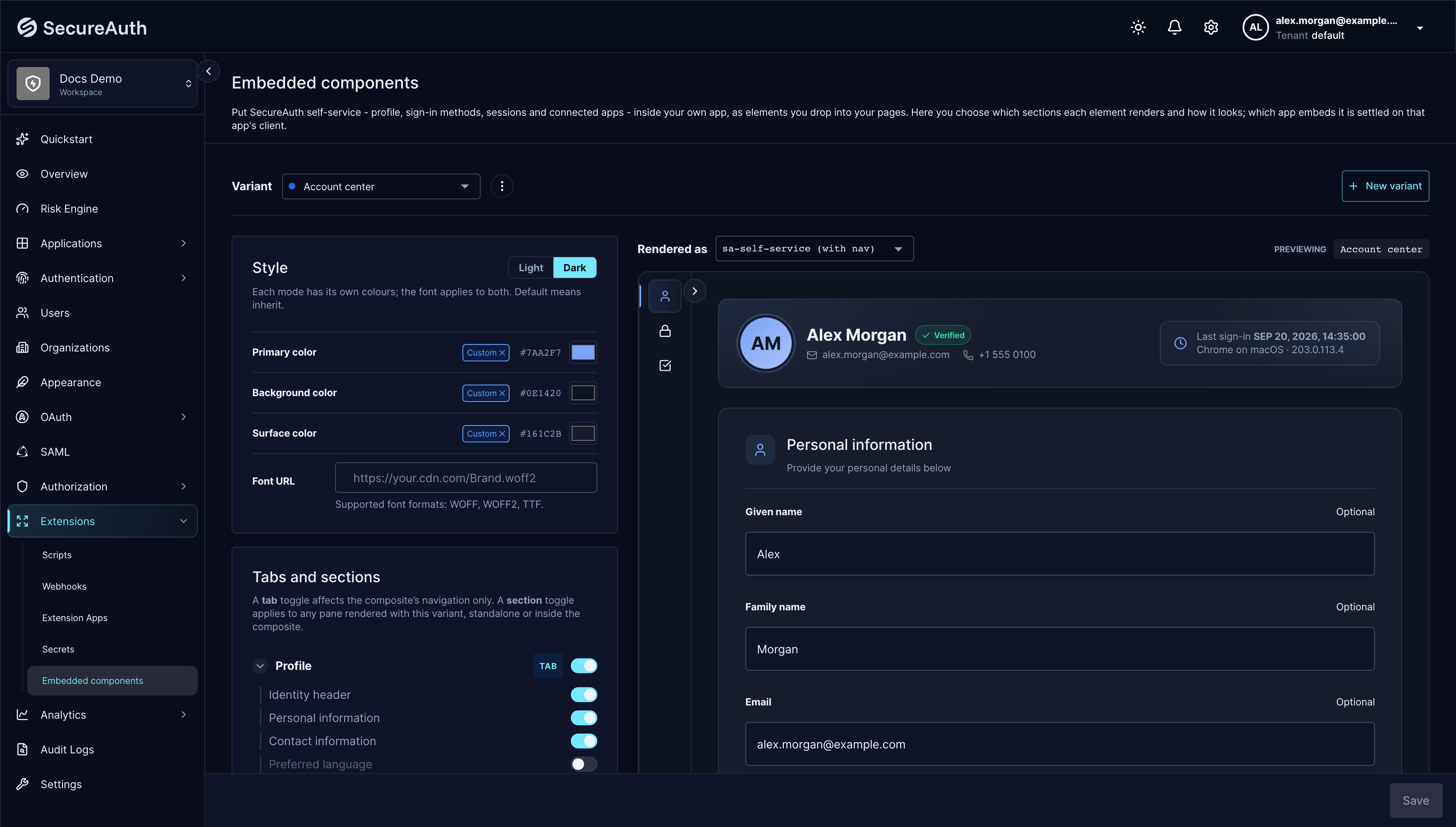
The preview on the right runs the real component bundle against sample data, and answers to your edits before you save them.
Nothing reaches your workspace until you select Save, at the bottom of the page. Discard puts the variant back the way it was, and the console asks before you leave a variant with unsaved edits or switch to another one.
Style
Each color mode has its own values, and the font applies to both.
| Setting | Description |
|---|---|
| Primary color | The accent the element uses for buttons, links, and selected states. |
| Background color | The surface behind the element's own cards. |
| Surface color | The cards themselves. |
| Font URL | An HTTPS URL of a font file (WOFF, WOFF2, or TTF) the element loads and uses in both modes. |
Leave a value as Default and the element inherits it: colors fall back to the base theme,
and the font falls back to whatever your page already uses. Colors must be hex (#RGB,
#RGBA, #RRGGBB, or #RRGGBBAA). Names such as blue and functions such as rgb() are
ignored.
Tabs and sections
A section toggle hides part of a pane. It applies wherever that pane renders, on its own or inside the composite.
A tab toggle belongs to the composite. Turning one off removes that pane from the composite's navigation and makes its route unreachable, so the composite falls back to the first tab still showing. It does not stop the same pane rendering when an application mounts it directly.
Hiding a section is presentation, not authorization. It removes the UI and stops the requests behind it, but it does not make the underlying API unreachable to that person. If data must not be readable, do not grant the scope.
Hidden sections do not change what a client needs to be granted. The scope list on the Embed tab stays the same as you turn sections off. See Scopes this client needs for why.
Bind a variant to an application
Open the client your application signs people in with, and select the Embed tab. A SAML registration and a machine-to-machine client have no tab: neither has a signed-in person whose data an element could render.
The binding records which variant and elements the application uses, and the tab generates the
code and the scope list from it. It is not an access control: nothing checks it when an element
loads, so a page can pass any variant in the workspace to init(). What a page can read and
change is decided by the scopes on the token it passes in.
Look and content
Choose the variant this application embeds. Edit in Embedded components opens the builder, where a change affects every application bound to that variant, not only this one.
Where it goes
The whole section emits one sa-self-service element with its own tab navigation.
Single panes emits one element per pane you choose, each rendering on its own with no navigation around it. Use this when your product already has places for each pane to live.
The two are a choice, not a mix: the composite already renders every pane it shows.
If a variant switches off every section in a pane you have chosen here, the console says so. The element would mount and render nothing, which reads as a bug in your page rather than a configuration.
Scopes this client needs
Derived from the elements above. The token your application passes in has to carry them, so the client has to be granted them.
The list covers every section of those elements, including the ones the variant hides. An element reads its variant when the page loads, and if that read fails or is slow it shows every section rather than none. Granting only what the variant leaves visible would break the element then, and again whenever someone turns a hidden section back on.
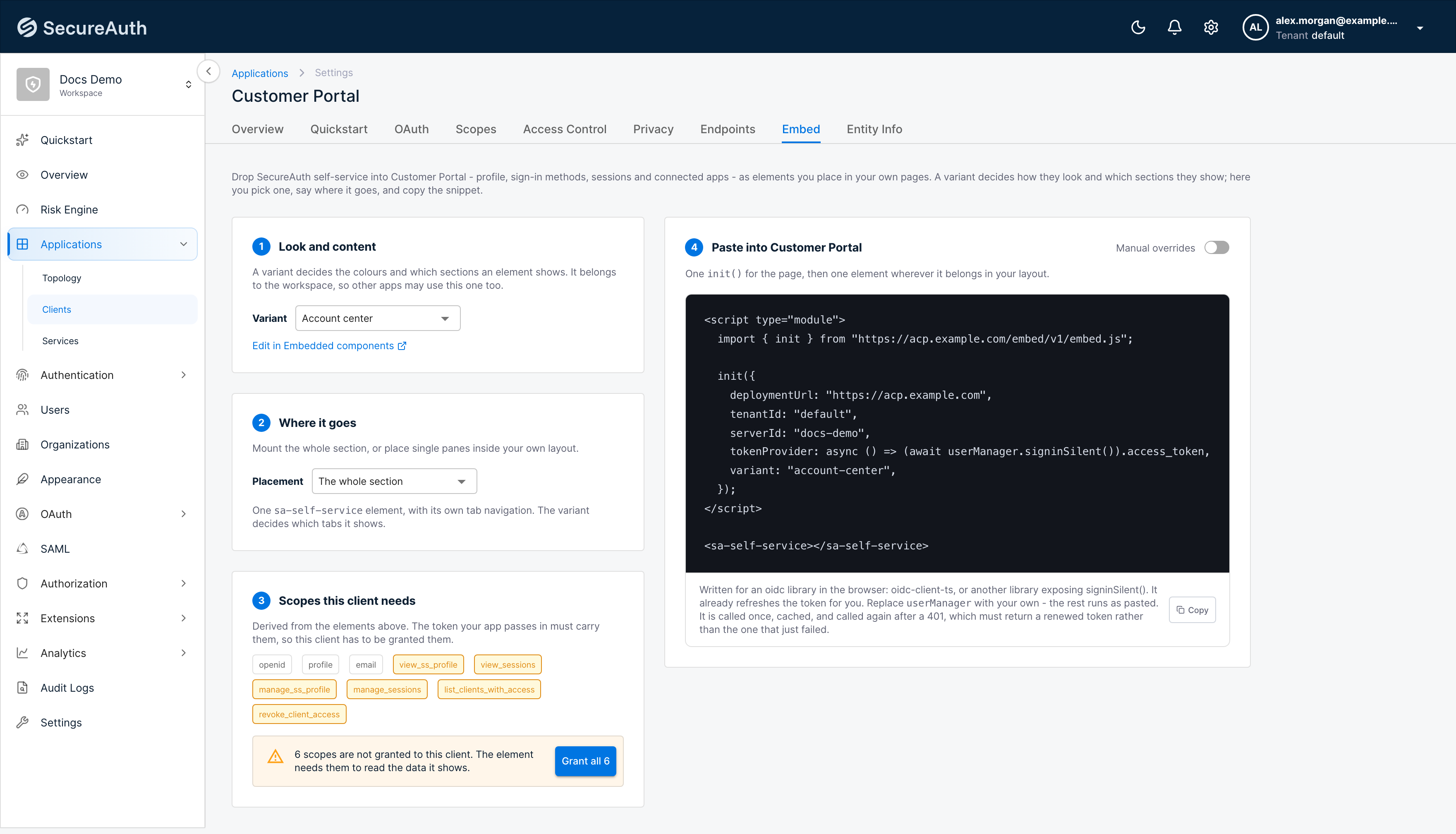
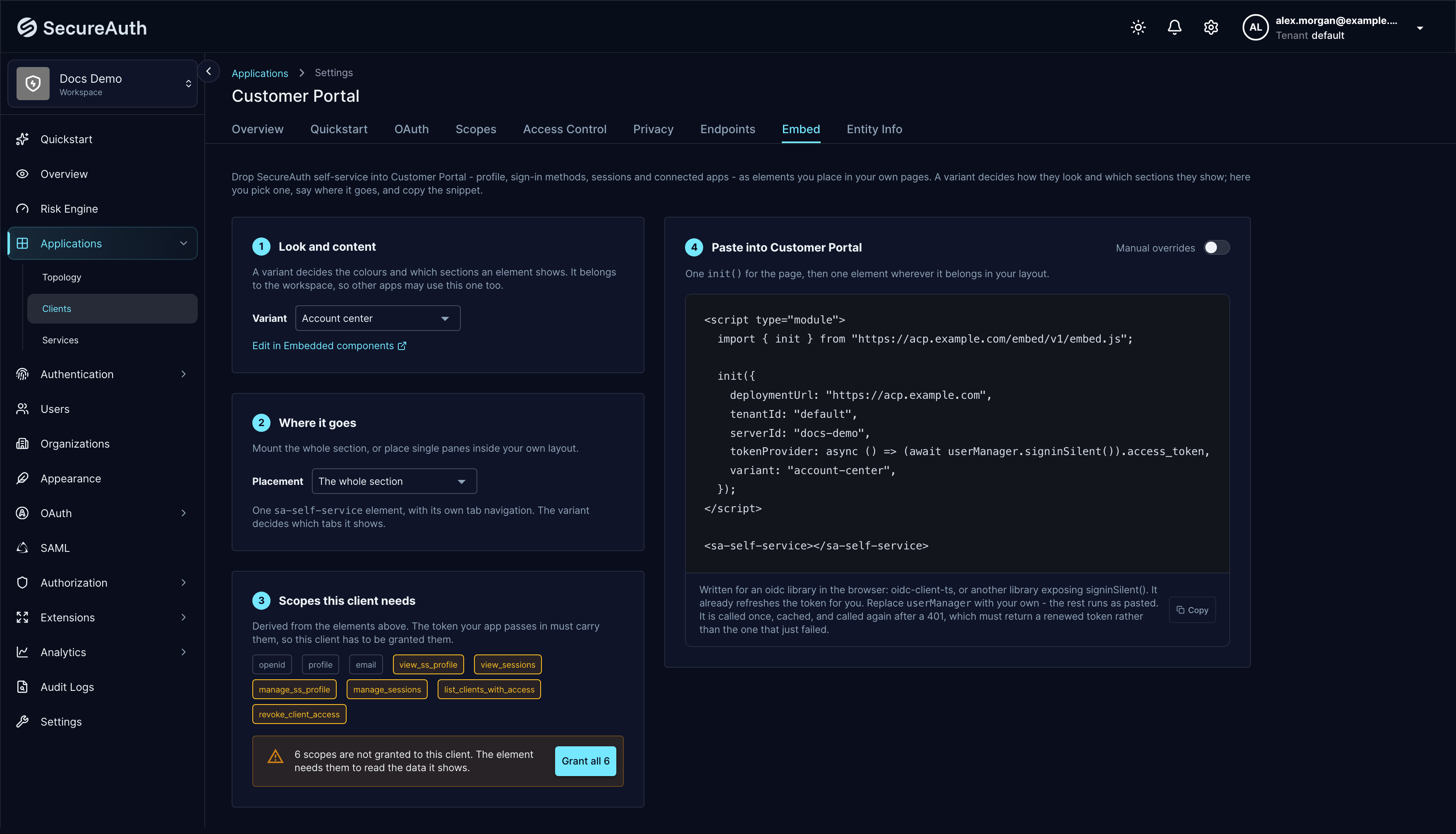
Anything the client is missing is marked, and one click grants the whole set. If a scope is not defined in the workspace at all, the console says that instead: define it first, then grant it.
Paste into your application
The code is generated from everything above, with your deployment URL, tenant, workspace, and
variant already filled in. The only part left to you is tokenProvider.
Which address to use
deploymentUrl is filled in with the address the admin console is open on. The elements build
every API path from it as <deploymentUrl>/<tenant>/<workspace>/..., which only the
deployment's default address routes. A custom domain for a tenant or workspace already implies
them, so the same path does not resolve there. If you opened the console on a custom domain,
the tab warns you: change deploymentUrl to your deployment's default address, for example
https://acp.example.com.
Manual overrides adds the variant's sections and style to the snippet as literal values. Passing them in code wins over the variant, which is occasionally what you want (a host that themes itself per customer, say) and usually not: it freezes in your repository the choices an administrator came here to control.