Manage tenant administrators
This topic covers how to manage administrators in your SecureAuth CIAM platform tenant.
Overview of administrator roles
An administrator is a user with privileges to perform one or more of the following actions:
- Administer the entire tenant
- Audit rights to the entire tenant
- Administer specific workspaces only
- Audit rights to specific workspaces only
You can allow administrators with tenant-level privileges to invite new administrators and manage existing administrators. You can assign administrator roles only to users stored in Identity Pools.
The admin management feature is behind a feature flag. To activate this feature, contact Support.
Invite a new administrator
You must be a Super Admin (admin) to invite another tenant administrator. This process applies to newly created tenants.
-
At the top right, click the gear icon for Tenant Settings > Account.
Result: The Administrators page displays a list of administrators for the tenant. If a message redirects you to the admin workspace, see Advanced administrator management.
-
Click Invite Admin. Enter the following information:
Administrator details
Email
Email address for the administrator.
First / Last name
First and Last name of the administrator.
Tenant role
Set the administrator's role using the options below:
Member
Determines whether the admin can administer specific workspaces or organizations.
Result: Selecting Member (member) lets you assign the workspace or organization they can manage.
Assigned workspace or organization
Choose the specific workspace or organization the admin is allowed to manage.
Role
Select one of the following roles:
- Admin (
admin): Grants full access to workspace resources - Auditor (
auditor): Grants read-only access to workspace resources
When you assign an organization, you can also select Organization Admin (manager) or User Manager (user_manager). See Organization administrator roles and permissions.
Other tenant roles
Auditor (auditor)
Grants read-only access to tenant resources.
Super Admin (admin)
Grants full access to tenant resources.
Business Admin (business_admin)
Allows the admin to onboard and manage all organizations via the delegated admin portal.
-
Click Invite.
Result: The system sends an email to the administrator with a link to activate their account.
Assign a role
Assign a role to a tenant administrator.
-
At the top right, click the gear icon for Tenant Settings > Account.
-
From the list, select an administrator.
Result: The User Profile page displays.
-
In the Tenant role field, assign a role.
To learn more about roles, see Assigning Roles to SecureAuth Administrators.
Manage workspace access
Grant a tenant administrator access to a workspace or organization, or change or remove that access. This is how you give a Member (member) administrator, or an administrator without a tenant role, workspaces to manage after they are invited.
-
At the top right, click the gear icon for Tenant Settings > Account.
-
From the list, select an administrator.
Result: The User Profile page displays. The Workspaces section lists the workspaces and organizations the administrator can access, and their role in each. For a Member administrator, or one without a tenant role, the section is shown even when no workspace is assigned.
-
For a Member administrator, or one without a tenant role, click Assign workspace, select the workspace or organization from the list, and click Next. Select a Role, and click Assign.
Workspaces the administrator already has a role in are shown as Already assigned and can't be selected. To change that role, use Change role (step 4). Administrators with the other tenant roles get workspace access from that role, so the button isn't shown for them.
-
To change or remove access to a workspace, click the three dots next to it and select Change role or Revoke workspace role.
You cannot change your own workspace access.
You can also grant access from the workspace itself. See Assign workspace administrators.
Set login methods
Set login methods for tenant administrators.
-
At the top right, click the gear icon for Tenant Settings > Account.
-
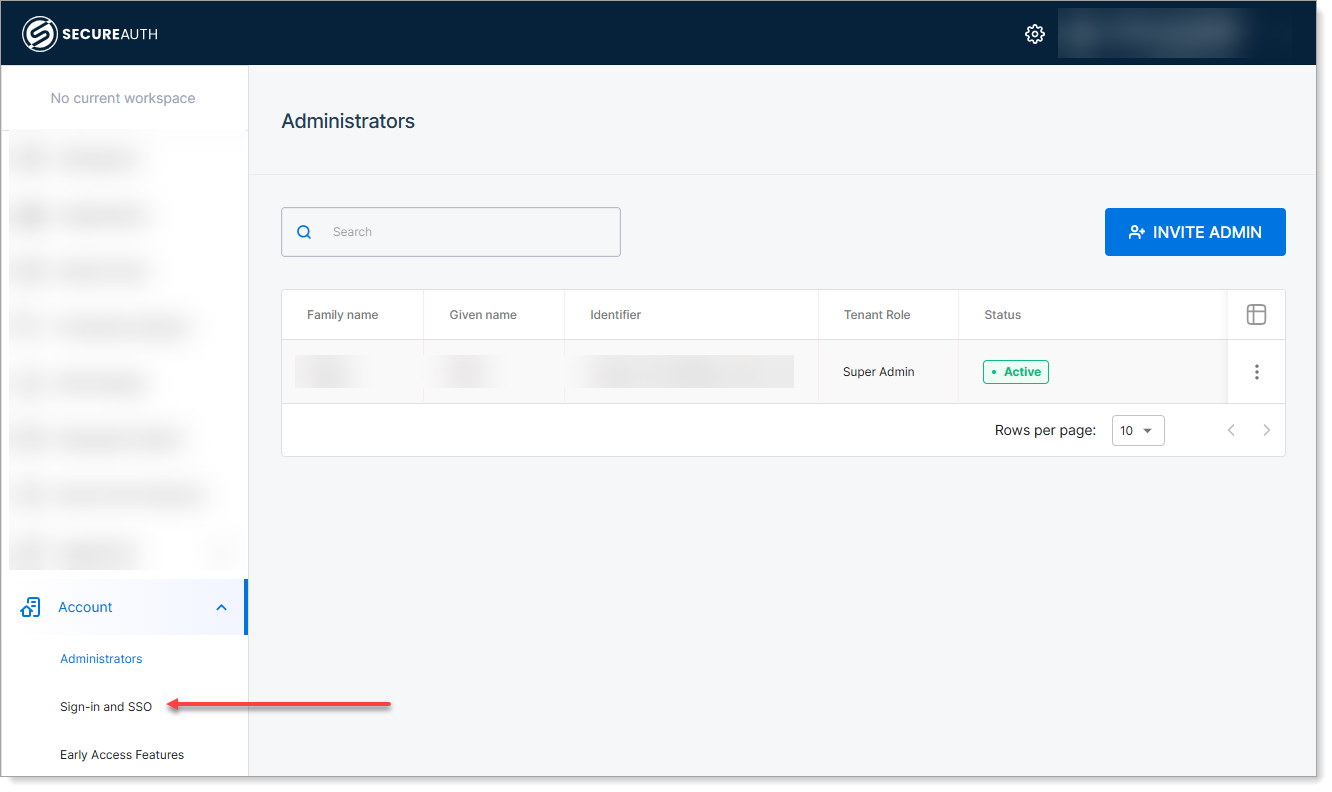
In the left sidebar, click Account > Sign-in and SSO.
-
Under SecureAuth, set the available login methods. Or, click the three dots next to SecureAuth to configure more login methods.
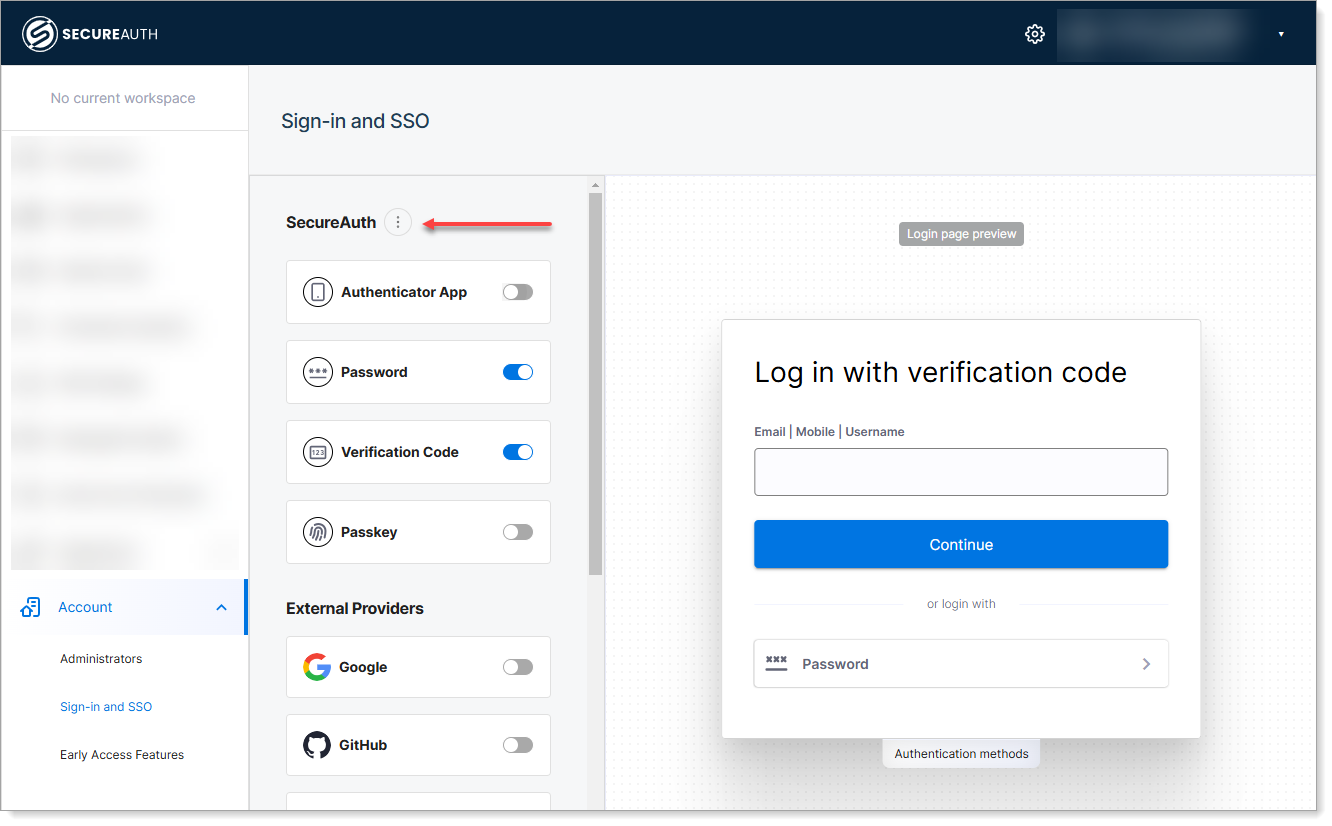
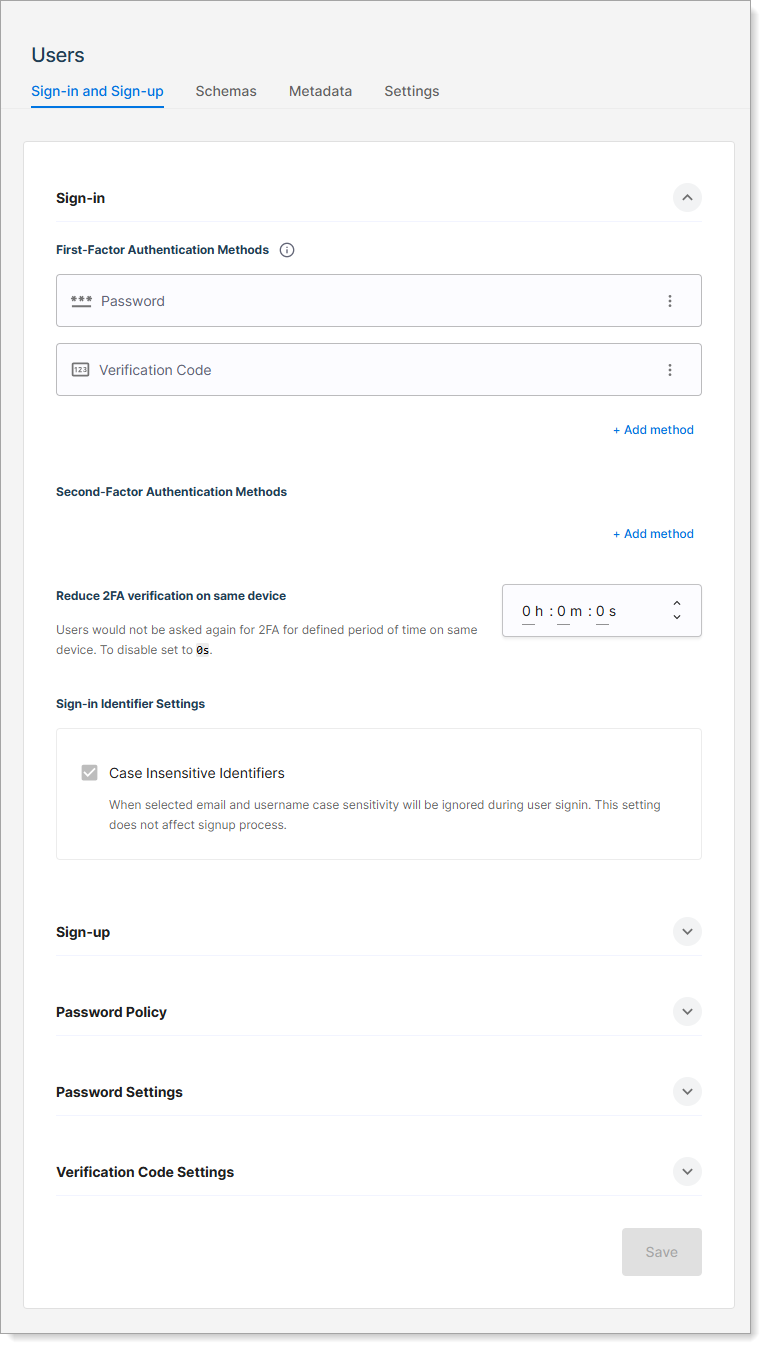
Result: Selecting the three dots > Configure displays the Users page with the Sign-in and Sign-up tab.
-
Configure and set up the preferred authentication methods for administrators in this tenant.
Set password policy
Set password policy for tenant administrators.
-
At the top right, click the gear icon for Tenant Settings > Account.
-
In the left sidebar, click Account > Sign-in and SSO.
-
Under SecureAuth, click the three dots next to SecureAuth and select Configure.
Result: This displays the Users page with the Sign-in and Sign-up tab.
-
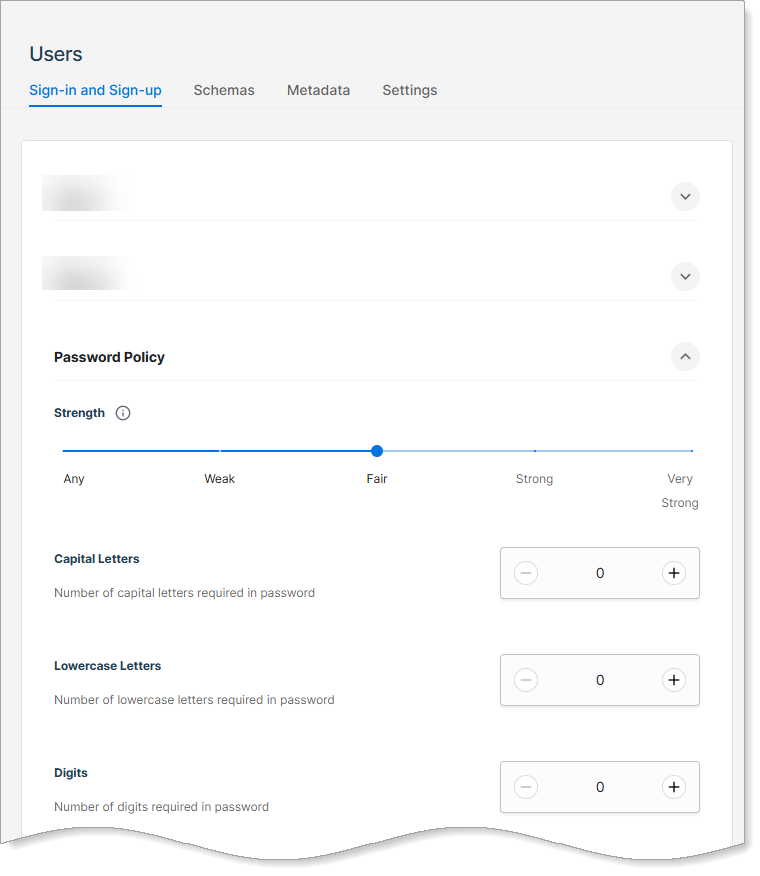
Scroll down and expand the Password Policy section. Set the required password strength and other parameters.
Set admin status
Set the status of a tenant administrator.
-
At the top right, click the gear icon for Tenant Settings > Account.
-
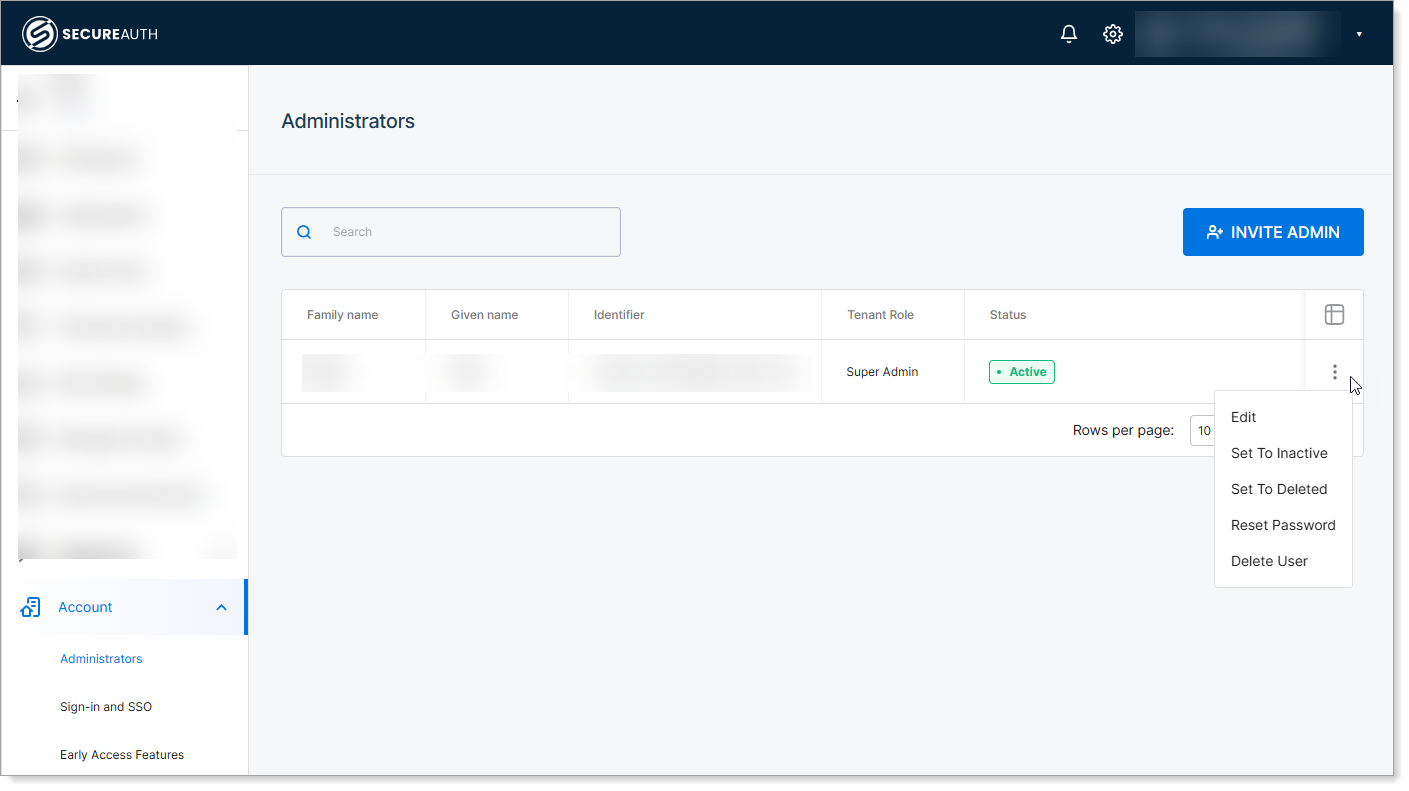
In the list, locate the administrator and click the three dots on the far right.
Result: A flyout menu displays.
-
Set the administrator's status using one of these options:
Set to Inactive
When set to this, the tenant admin can no longer sign in to SecureAuth, and their existing sessions and refresh tokens are revoked immediately.Set to Deleted
Marks the record as deleted without permanently removing it, allowing for potential recovery. Useful for audit trails or when data might need to be restored.Reset Password
Reset the password for the tenant admin user account.Delete User
Permanently delete tenant admin user account from the SecureAuth CIAM platform. Use if retention is not required or data privacy rules demand permanent deletion.
Assign workspace administrators
Only tenant or workspace administrators can perform this action. You can assign a workspace role to tenant administrators, auditors, and members.
-
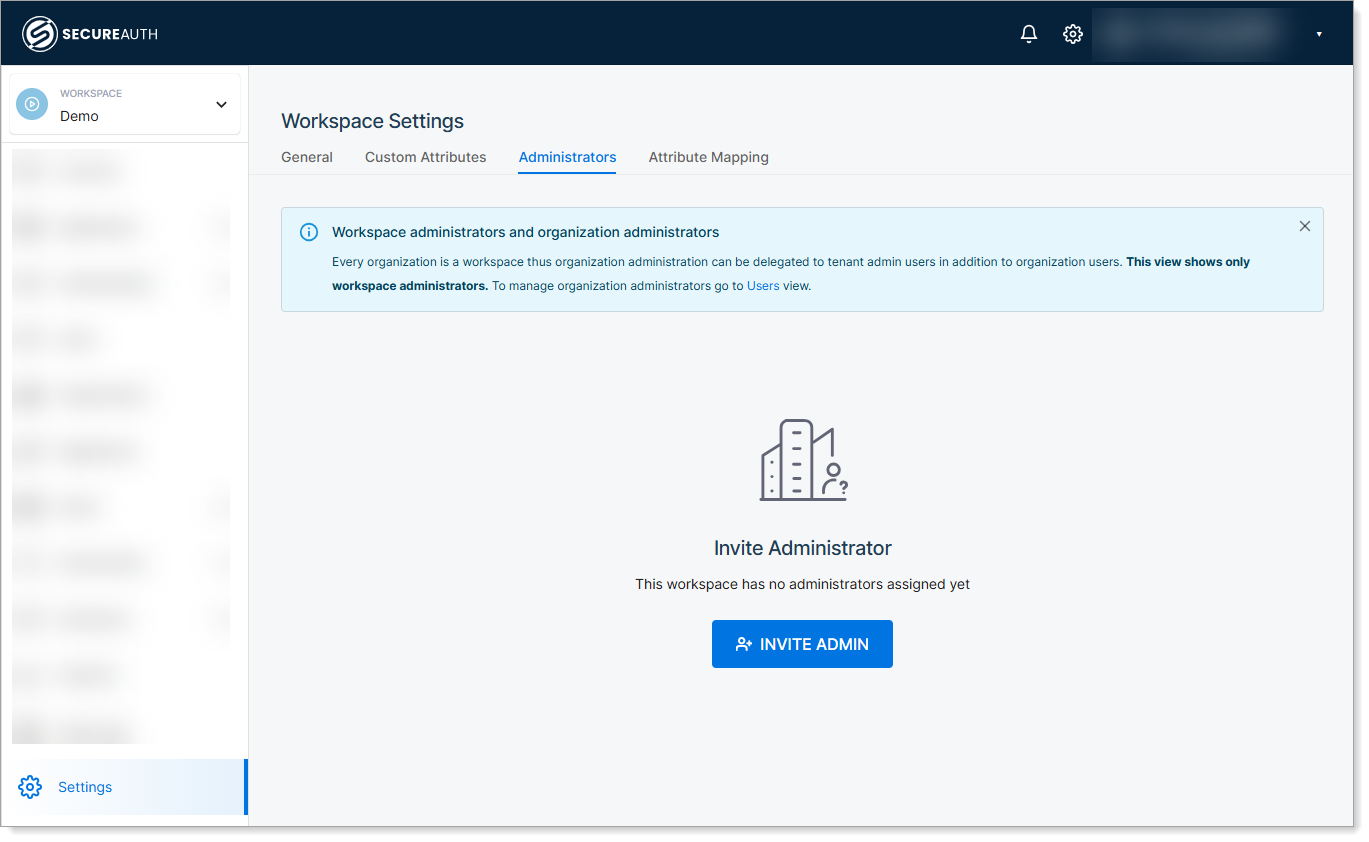
Open the target workspace and go to Settings. This page shows a list of users with Admin/Auditor rights in scope of this workspace.
-
On the Workspace Settings page, select the Administrators tab.
-
Click Invite Admin. Enter the admin email and set the user role to one of following options:
Admin (
admin)
Grants full access to workspace resources.Auditor (
auditor)
Grants read-only access to workspace resources.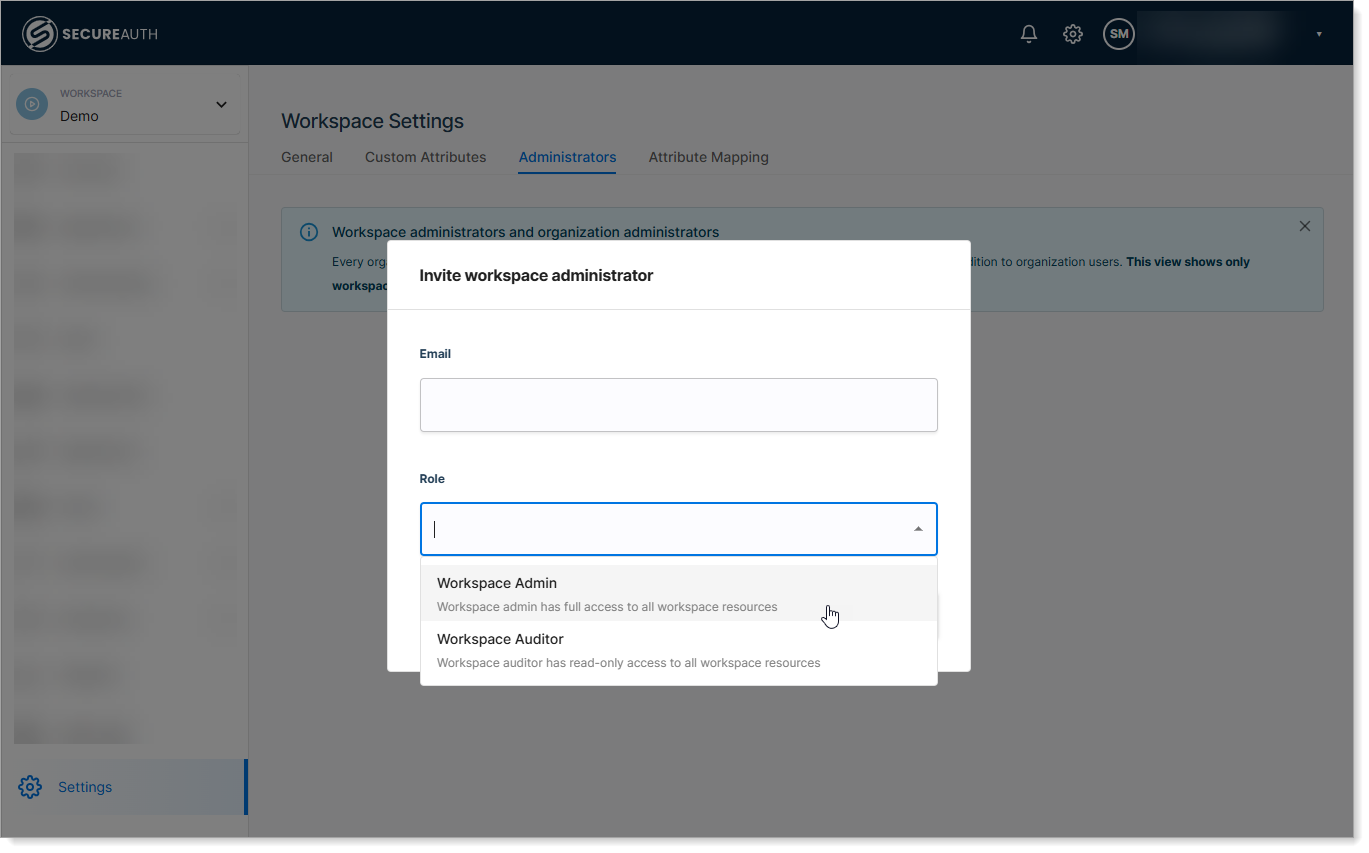
Advanced administrator management
If your tenant has advanced administrator management enabled, you must use the built-in administrative Identity Pool for management tasks. The system notifies you on the Administrators page if this feature is enabled.
-
Go to Tenant Settings > Account.
When prompted, click Open Admin Workspace. The system redirects you to the Identity Providers page in the Admin workspace.
-
Select the Built in Admin IDP.
-
On the IDP configuration page, click Manage Pool.
The system redirects you to the Identity Pools page, where you can access the Administrators Identity Pool.
-
Open the Identity Pools and go to the Users page.
-
You can now manage administrators with expanded options, including:
- Assigning new Identifiers for authentication
- Adding new email addresses for OTP or email delivery
- Modifying the admin user schema under User Attributes
- Editing admin metadata under Metadata Attributes
- Managing user status, resetting passwords, or initiating OTP verification using the Manage button