Configure YubiKey Enterprise Attestation
YubiKey Enterprise Attestation lets you require FIDO2 enrollment from a specific batch of YubiKeys that your organization owns, rather than any YubiKey of the same model. Under standard FIDO2 attestation, every YubiKey of a given model identifies itself the same way. Without Enterprise Attestation, an administrator who wants to limit FIDO2 logins to "the YubiKeys we issued our employees" has no native way to do it.
Enterprise Attestation closes that gap. Your organization procures YubiKeys directly from Yubico, Yubico delivers the batch as a ZIP archive of attestation certificates, and you upload the archive to SecureAuth. SecureAuth then verifies every enrollment and login against that inventory.
Key benefits
Device-level access control. Restrict FIDO2 enrollment to the specific physical YubiKeys your organization owns, beyond the model-level controls that standard FIDO2 attestation supports.
Per-environment segregation. Each isolated environment can require its own pre-provisioned batch of YubiKeys, so devices issued for one environment cannot be used to enroll in another.
Active revocation. Remove a YubiKey's serial number from the inventory, and any credentials enrolled with that device are disabled at the next login. Re-adding the serial restores access without forcing the user to re-enroll.
Visibility into device assignment. See which user holds credentials on each physical YubiKey directly from the inventory table.
Prerequisites
Identity Platform release 26.2.0 or later.
A batch of YubiKeys procured from Yubico under Enterprise Attestation. Contact Yubico to start the order. Yubico delivers the batch as a ZIP archive of attestation certificates that you upload to SecureAuth.
Administrator access to the FIDO2 (WebAuthn) global MFA settings page.
Set up YubiKey Enterprise Attestation
On the left side of the Identity Platform page, click Multi-Factor Methods.
Click the pencil icon for FIDO2 (WebAuthn).
In the Advanced Settings section, select the Show Advanced Settings during enrollment check box if it isn't already selected.
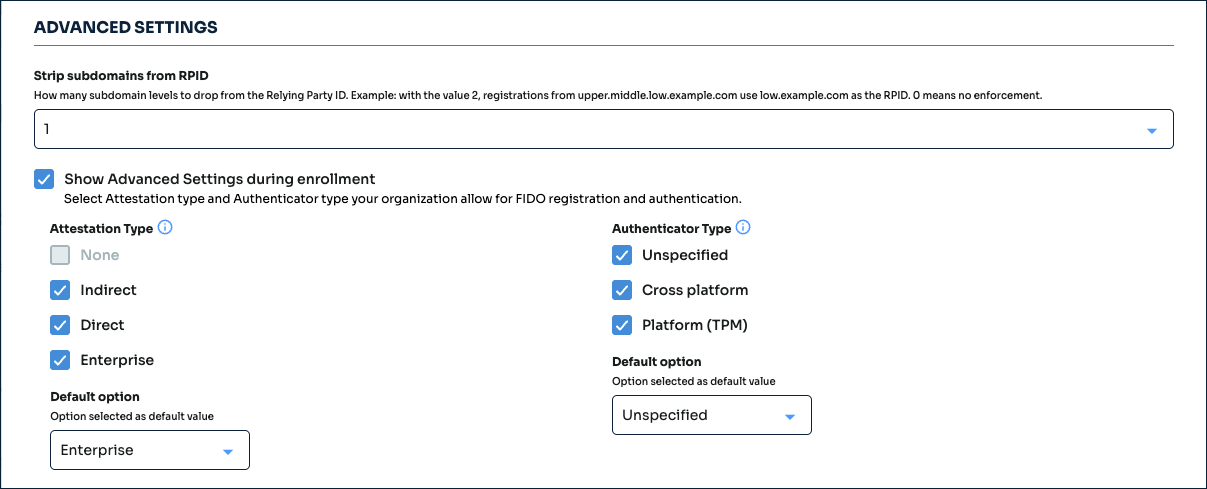
Under Attestation Type, select the Enterprise check box.
Note
Selecting Enterprise forces user verification on and disables the None attestation type. The Identity Platform displays a warning that describes how the change affects new registrations and existing devices. Review the warning before you save.
Optional. Under Default option, set Enterprise as the default attestation type. New enrollments use this value unless the user changes it during enrollment.
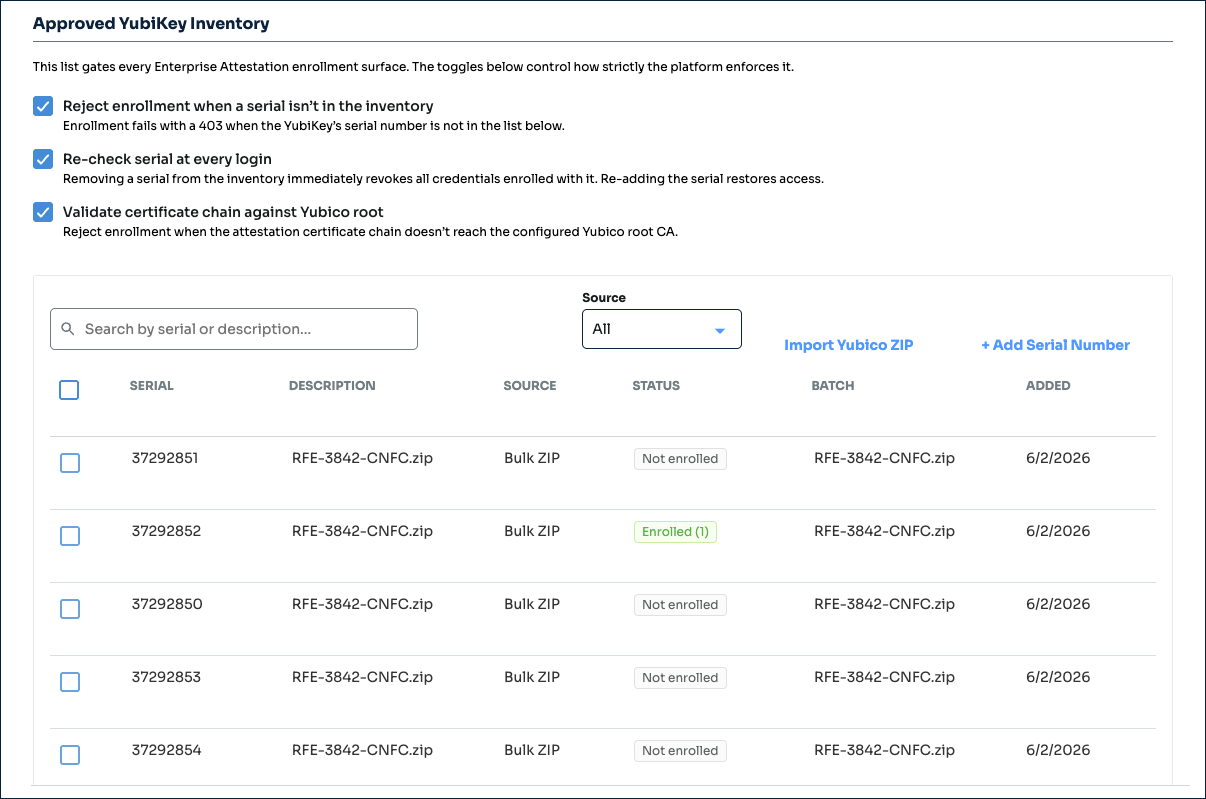
In the Approved YubiKey Inventory panel, add the YubiKeys your organization procured. You can do either or both of the following:
Click Import Yubico ZIP to upload the Yubico-supplied archive in bulk.
Click + Add Serial Number to add individual YubiKeys.
For full details on both options, see Approved YubiKey Inventory.
Review the three enforcement controls in the Approved YubiKey Inventory panel. All three are on by default. See Decide which enforcement controls to enable, in this topic.
Click Save.
Decide which enforcement controls to enable
The Approved YubiKey Inventory panel has three independent enforcement controls. The defaults work for most production deployments. Use the matrix below to decide if your environment needs anything different during a phased rollout or audit-only period.
Goal | Configuration | When to use it |
Full enforcement (recommended) | All three controls on. | Production deployments where only approved YubiKeys may enroll and existing access must be revoked when a serial is removed. |
Audit only | Reject enrollment when a serial isn't in the inventory: off. Re-check serial at every login: off. Validate certificate chain against Yubico root: on. | A short observation period before you enforce. Users can still enroll any YubiKey, but you can verify which devices would be blocked under full enforcement by reviewing the inventory and Enrolled Users data. |
Enrollment-only enforcement | Reject enrollment when a serial isn't in the inventory: on. Re-check serial at every login: off. Validate certificate chain against Yubico root: on. | You want to control which devices can enroll but you do not need to revoke active credentials when a serial is removed. |
Active revocation only | Reject enrollment when a serial isn't in the inventory: off. Re-check serial at every login: on. Validate certificate chain against Yubico root: on. | Existing enrollments need to be revocable by serial, but you accept new enrollments from any YubiKey. Rare; usually a transitional state. |
For a detailed description of each control, see Approved YubiKey Inventory.
Migrate existing users to Enterprise Attestation
If your tenant has FIDO2 users enrolled with non-Enterprise attestation, plan the cutover before you enable Enterprise.
Procure replacement YubiKeys from Yubico under Enterprise Attestation. Receive the Yubico ZIP.
On the FIDO2 (WebAuthn) global MFA settings page, upload the Yubico ZIP to the Approved YubiKey Inventory. Do not select Enterprise under Attestation Type yet.
Communicate the cutover date and the procedure for collecting the new YubiKeys to your users.
On or after the cutover date, select Enterprise under Attestation Type and save. From this point, new enrollments must use a YubiKey in the Approved YubiKey Inventory.
Have users re-enroll with their newly issued YubiKeys.
Note
Devices enrolled with Direct or Indirect attestation continue to work as long as those attestation types remain selected under Attestation Type. To require Enterprise Attestation for every YubiKey login, clear the Direct and Indirect check boxes after all users have re-enrolled.
Troubleshooting
If a user cannot enroll a YubiKey after you turn on Enterprise Attestation, the cause is usually the YubiKey's serial number or attestation certificate. Match the error the user sees to the cause below.
"Your security key couldn't be verified"
Full message: "Your security key couldn't be verified. Please make sure you're using a YubiKey provided by your organization, or contact your IT administrator."
Cause. Either the YubiKey did not present an attestation serial at enrollment, or the attestation certificate did not chain to the Yubico root.
What to check.
Confirm that the user is enrolling a YubiKey procured under Enterprise Attestation. Consumer-grade YubiKeys do not present an Enterprise Attestation certificate.
If you added the serial manually, confirm you uploaded the matching attestation certificate file.
If Validate certificate chain against Yubico root is on, the Yubico root CA is set automatically for your Identity Platform tenant. Contact SecureAuth Support if you suspect the root is missing.
"Your security key isn't approved for use in this environment"
Full message: "Your security key isn't approved for use in this environment. Please contact your IT administrator."
Cause. The YubiKey's serial number is not on the Approved YubiKey Inventory.
What to check.
Confirm the YubiKey's serial number against the inventory. Use the search box in the Approved YubiKey Inventory panel.
If the serial is missing, decide whether to add it (a valid YubiKey your organization owns) or to direct the user to a different device (a personal or unauthorized YubiKey).
If the user previously authenticated with this YubiKey, the serial may have been removed from the inventory. See Recover from a removed serial.
Recover from a removed serial
If a YubiKey serial is removed from the Approved YubiKey Inventory by mistake, you can restore access without forcing the affected users to re-enroll.
In the Approved YubiKey Inventory panel, click + Add Serial Number.
Enter the YubiKey's serial number, a description, and (if required) the attestation certificate file.
Click Add Serial.
Existing credentials enrolled with the restored YubiKey work again at the next login.
Note
If you imported the original serial from a Yubico ZIP and the certificate file is no longer at hand, re-import the original ZIP. SecureAuth skips duplicates already in the inventory and adds the missing ones.