Devices
See every machine running the device sensor, check its release, and enroll or revoke devices.
In the console: Setup › Devices
device_sensor feature flag.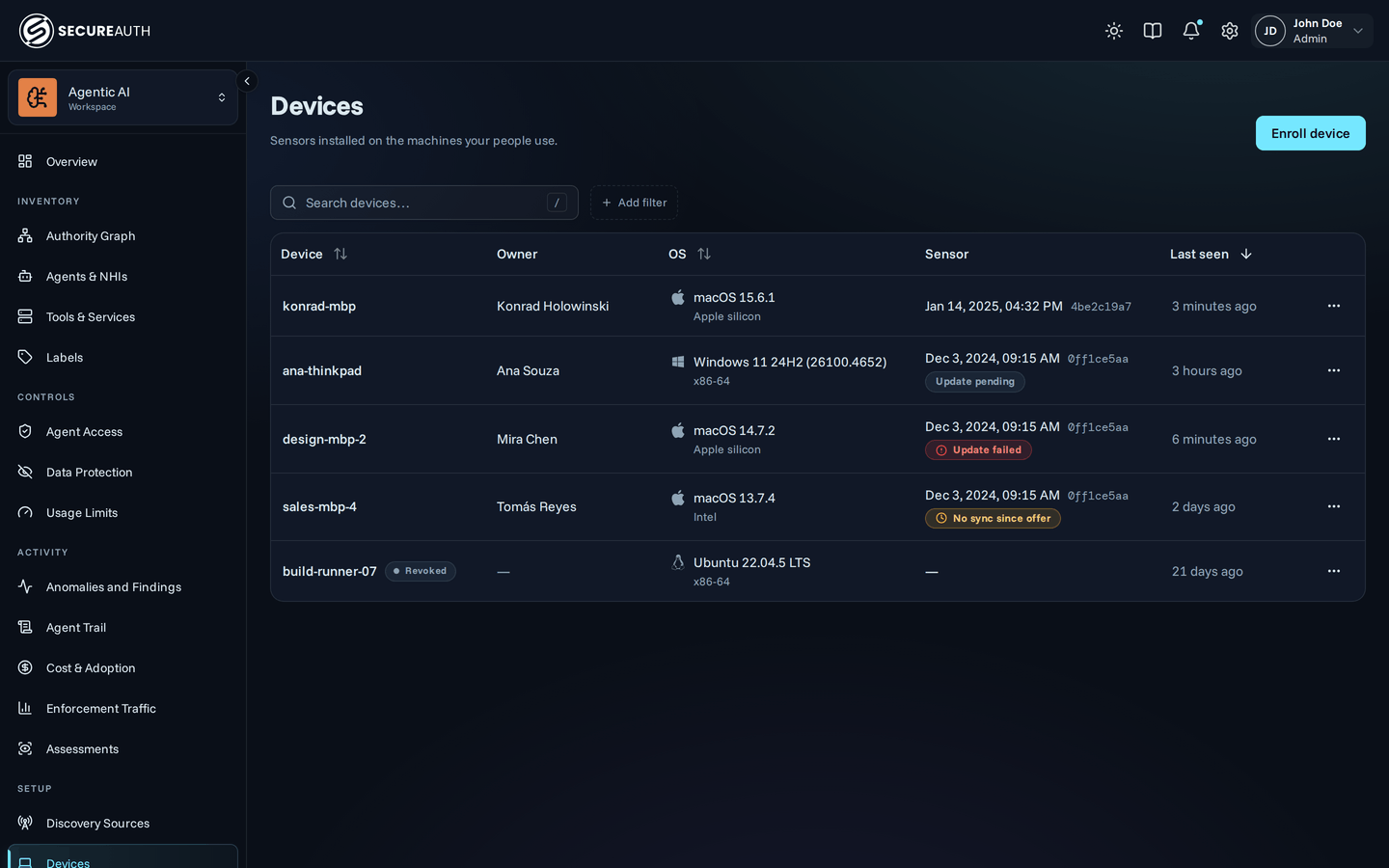
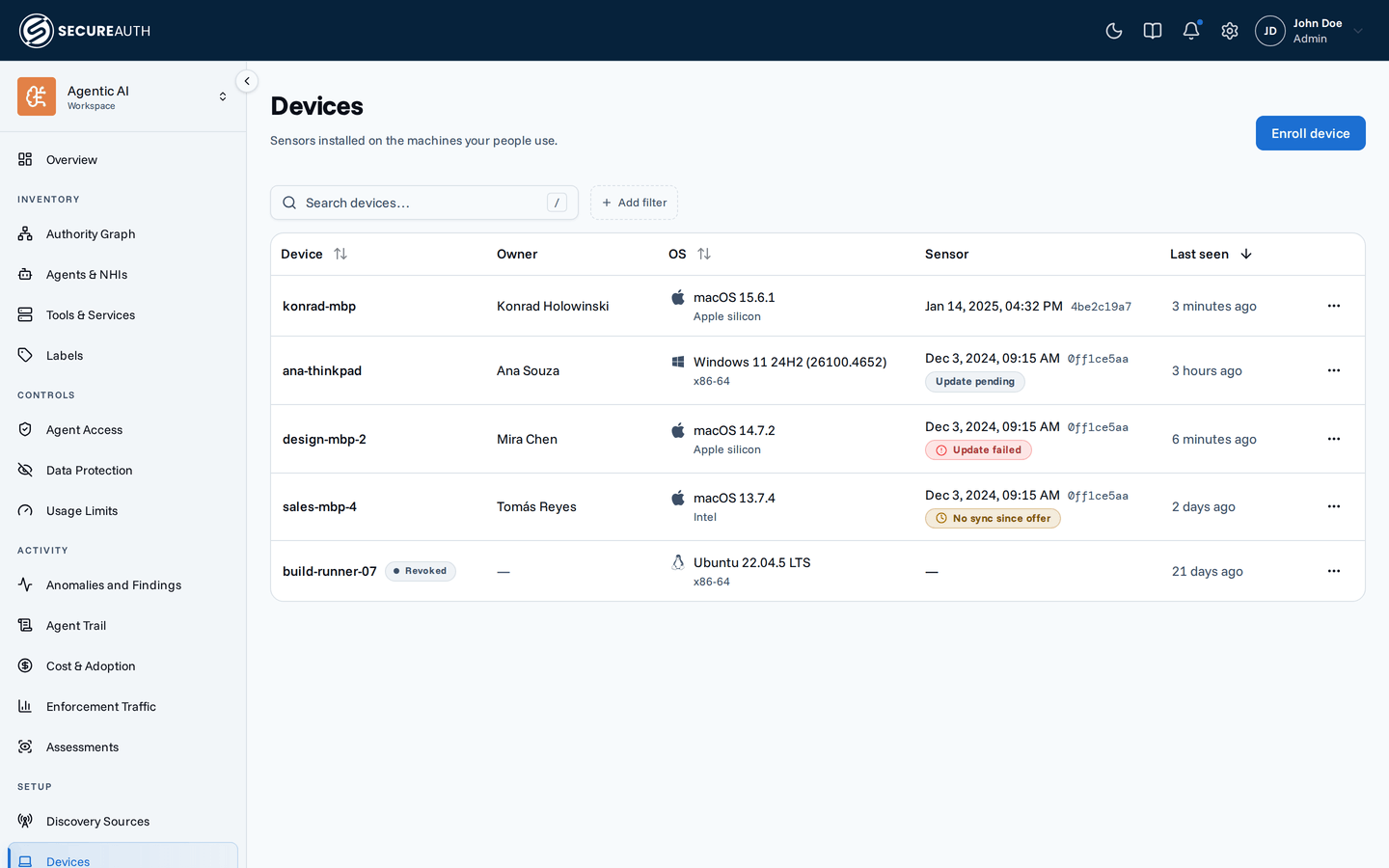
This screen lists the sensors installed on the machines your people use, one row per enrolled device. Use it to enroll a new machine, check that each sensor is on the current release, and revoke a lost or retired device.
Devices
| Column | Shows |
|---|---|
| Device | The device name, with a Revoked pill when the device is revoked |
| Owner | The user who owns the device, linked to their profile, or a dash when no owner is set |
| OS | The operating system and version, with the CPU architecture below it, or a dash before the first sync |
| Sensor | The installed sensor release, and its update status when an update is pending or has a problem |
| Last seen | How long ago the device last synced |
The Sensor column can show one of these update statuses:
- Update pending – a new release is offered, and the sensor installs it on its next sync.
- No sync since offer – a new release was offered and the device hasn't synced in over 24 hours since.
- Update failed – the new release failed to download, verify, install, or pass its self-test, and the device stays on its current release.
- Rolled back – the new release installed but never started capturing, so the previous release was restored.
- Reinstall to update – the device's platform doesn't support self-update, so you reinstall the sensor to move it to the new release.
Hover a status to see the release it refers to and the error the sensor reported.
Search, filter, and sort
Search devices… matches the device name, its client ID, its OS version, and the owner's name. Filter by Owner, Group, or OS (macOS, Windows, Linux). Sort by Device, OS, or Last seen. The list starts with the most recently seen devices.
When no device is enrolled, the screen shows No devices enrolled yet.
Actions
- Enroll device – generates a sensor installer for someone's machine. Choose an Owner (a user with an email address) and a Platform, then select Generate installer. The download is the only copy, and the credential inside it can't be shown again. The dialog shows the command the owner runs and the time by which they must run it. After that time, the installer stops being accepted and you generate a new one. Download again saves another copy of the same installer while the dialog is open.
- Copy device ID – copies the device's ID, from the row's actions menu.
- Copy client ID – copies the device's client ID, from the row's actions menu.
- Revoke – cuts off the device immediately, after you confirm. Its owner needs a new installer to enroll it again. The device stays in the list with a Revoked pill.
Permissions
The screen appears when the device_sensor feature flag is on for your organization and you hold view_devices for all users.
| Action | Needs |
|---|---|
| See the screen | view_devices |
| Enroll device | enroll_devices, for all users |
| Revoke | manage_devices |
Related
- Endpoint Controls overview – what the device sensor observes and enforces
- Install Endpoint Control – run the installer on a machine
- Devices guide – manage enrolled devices day to day