Discovery Sources
Issue ingest keys for coding agent telemetry and connect the directories that list your non-human identities.
In the console: Setup › Discovery Sources
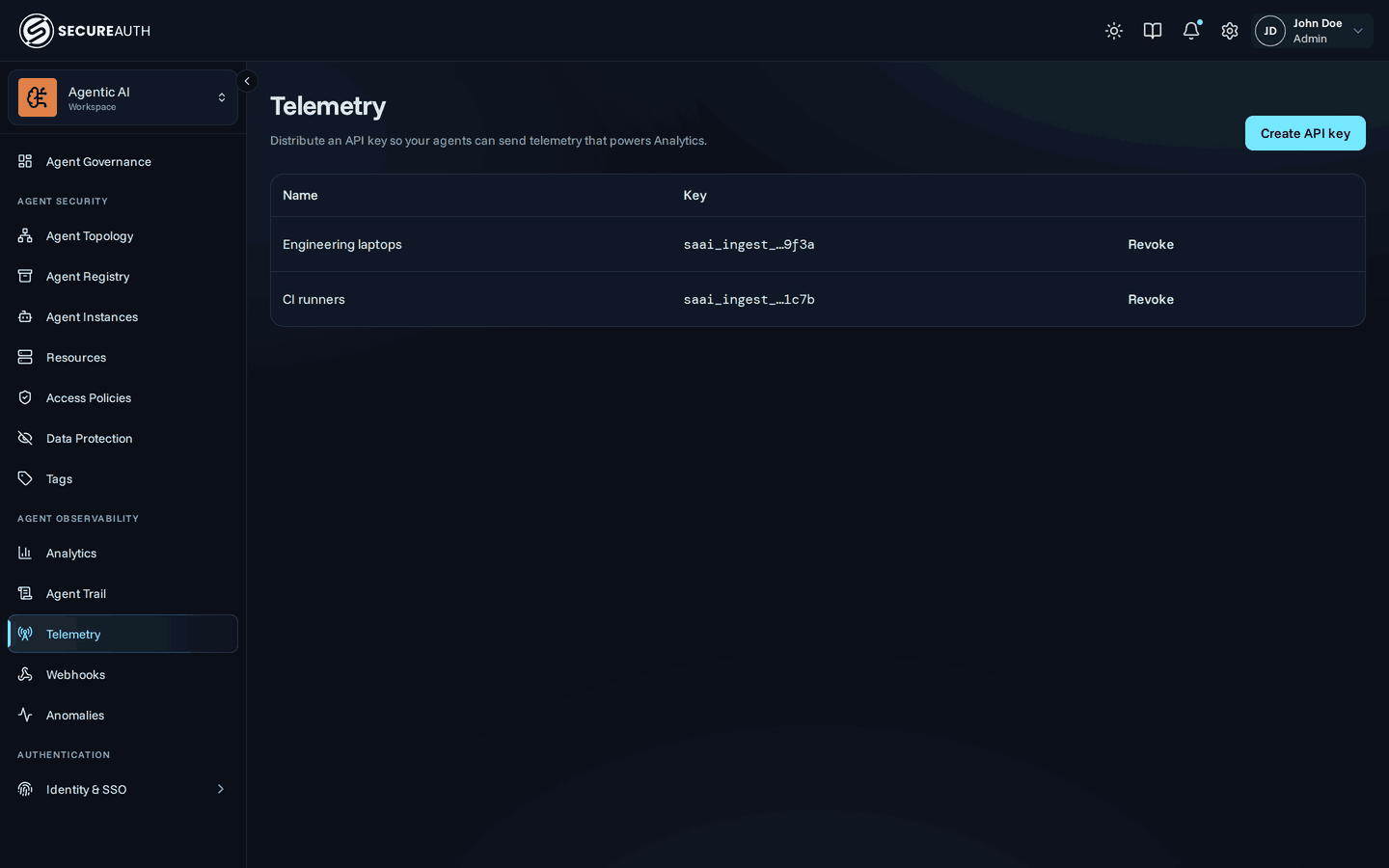
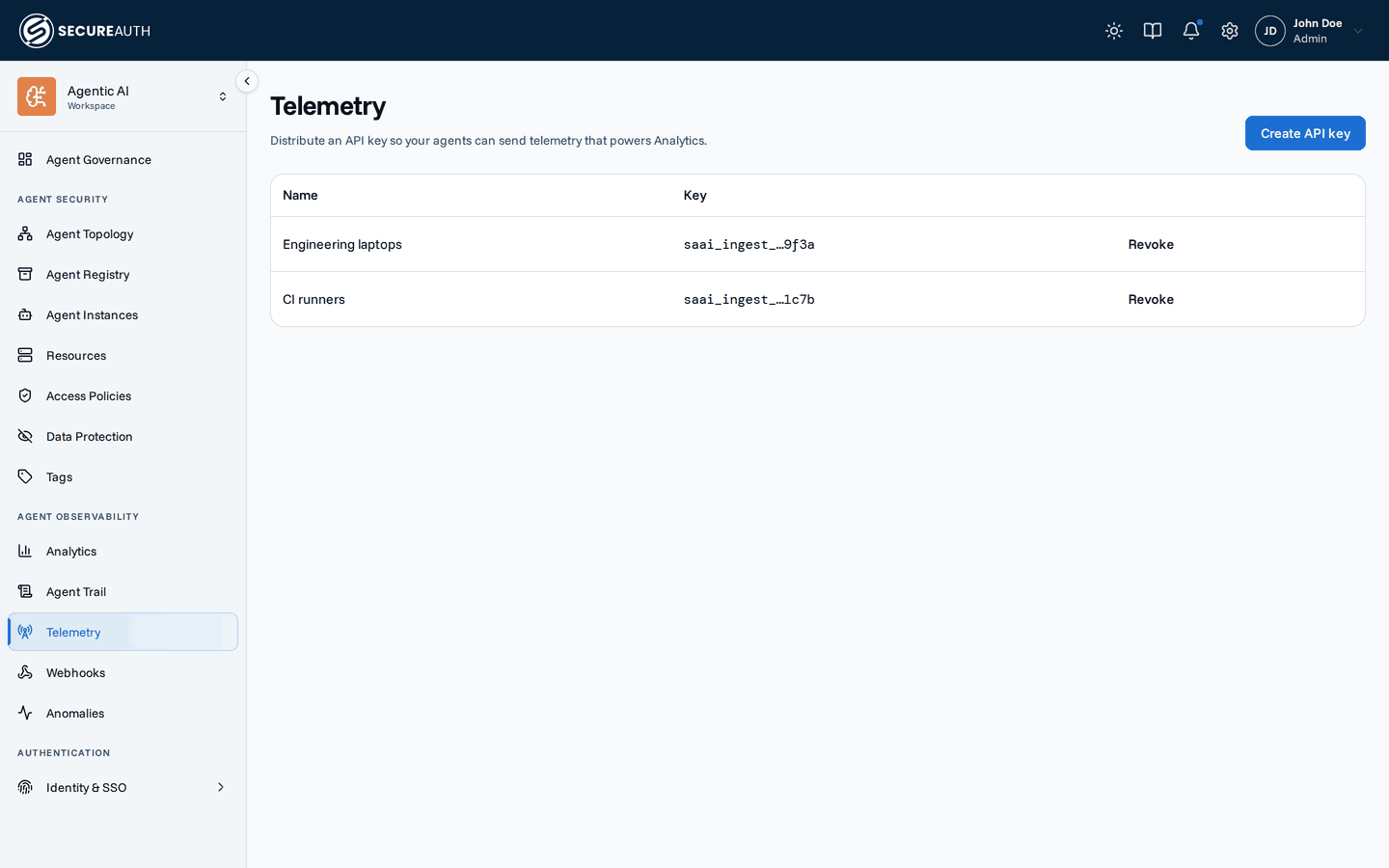
This screen manages the sources that feed the console: telemetry from coding agents, and the directories that hold your non-human identities (NHIs). Use it to connect a new agent fleet or directory, or to revoke a key or source you no longer trust.
Agent Telemetry
Coding agents send their usage to Agent Authority over OpenTelemetry (OTLP). What they report shows up on the LLM Usage tab of Enforcement Traffic and on Cost & Adoption.
The table lists your ingest keys. It appears once you have at least one key.
| Column | Shows |
|---|---|
| Name | The name you gave the key |
| Agent | The agent the key was created for, or Any agent |
| Key | The last four characters of the key, as saai_ingest_…1234 |
| Last used | When the key last sent telemetry, or Not used yet |
Below the table, the screen shows the OTLP/HTTP endpoint your agents send to. One ingest key works for every agent.
NHI Sources
The table lists the directories you connected. With none connected, the tab shows No NHI sources yet.
| Column | Shows |
|---|---|
| Provider | The source name, with the provider (such as Microsoft Entra) under it |
| Status | Authenticated when the last credential check passed, Error when it failed |
| Last checked | When SecureAuth last checked the credentials |
The table is paginated.
Actions
- Connect agent – opens Which agent should send telemetry?. Pick an agent (Claude Code, Claude Cowork, Codex, Copilot in VS Code, Copilot CLI, or Gemini CLI), enter a Name for the key, and select Create key and show setup. The dialog shows the ingest key and the agent's config with the key filled in, then waits for the first request on that key. The key is shown only once, so the dialog closes only through Done. Change switches to another agent's setup with the same key.
- Revoke – revokes an ingest key after you confirm. Agents using the key stop sending telemetry immediately.
- Add NHI source – opens Connect a directory. Pick a provider, enter a Name and the provider's credentials, and select Add source. For Microsoft Entra, the credentials are Directory (tenant) ID, Application (client) ID and Client secret. Test connection checks the credentials without saving them.
- Check now – re-checks a source's stored credentials and updates its Status.
- Edit – changes a source's name or credentials, with the same fields as Add NHI source.
- Delete – deletes a source and its stored credentials after you confirm. You can't undo this.
Permissions
The screen appears with either manage_ingest_keys or view_nhi.
- Agent Telemetry – needs
manage_ingest_keys, for viewing the keys as well as for Connect agent and Revoke. - NHI Sources – needs
view_nhiand the NHI feature turned on for your organization. Add NHI source, Check now, Edit and Delete needmanage_nhi.
With only one of the two permissions, the screen shows only that tab.
Related
- Discovery Sources overview – what each source type tells you and when to connect it
- Agent telemetry setup – per-agent config for sending telemetry
- Microsoft Entra – the app registration and Graph permissions an Entra source needs
- Non-human identities – the findings SecureAuth raises for the identities a source reads