Labels
Create and manage the tags you put on agents, resources and tools, and see which policies match on each.
In the console: Inventory › Labels
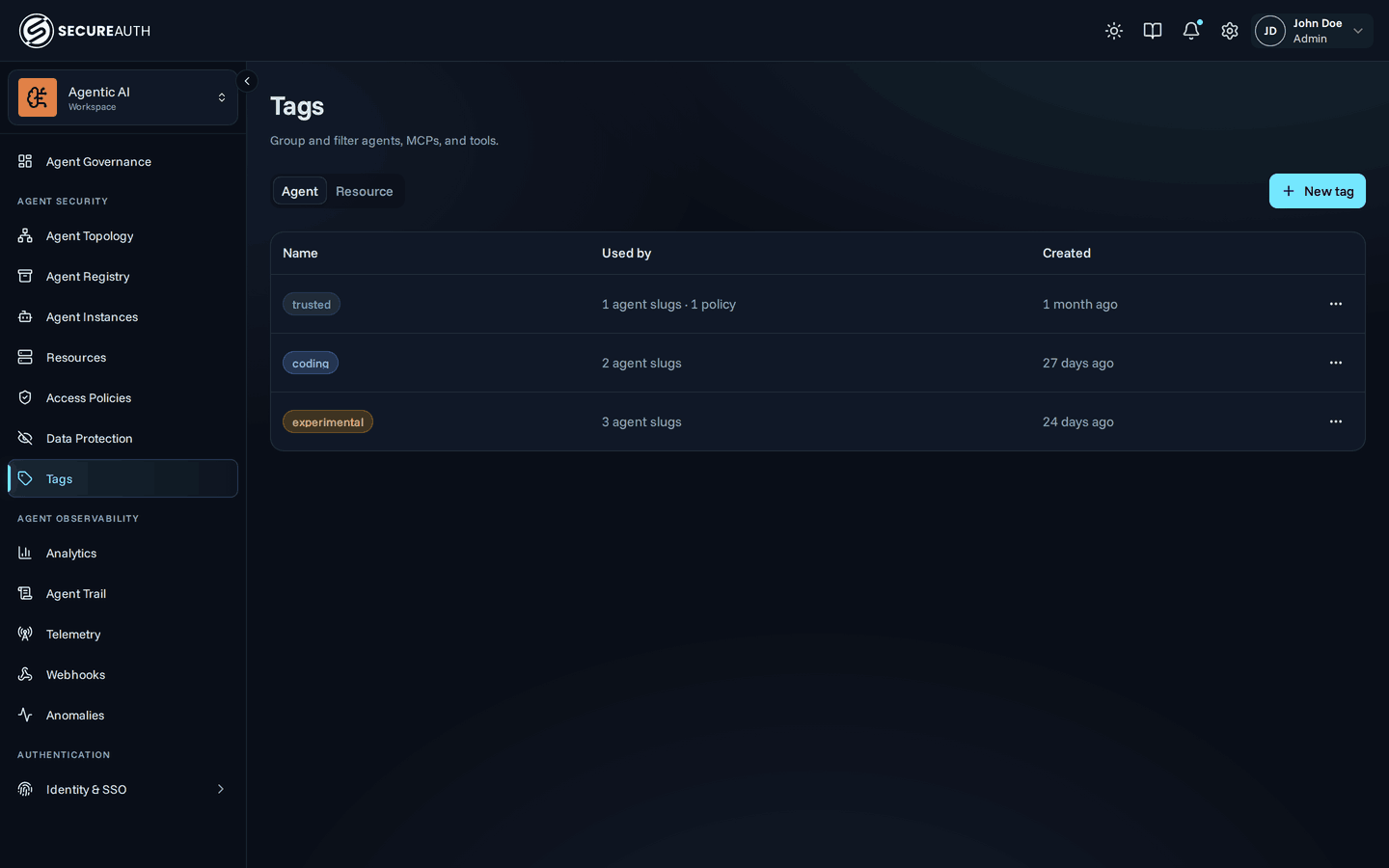
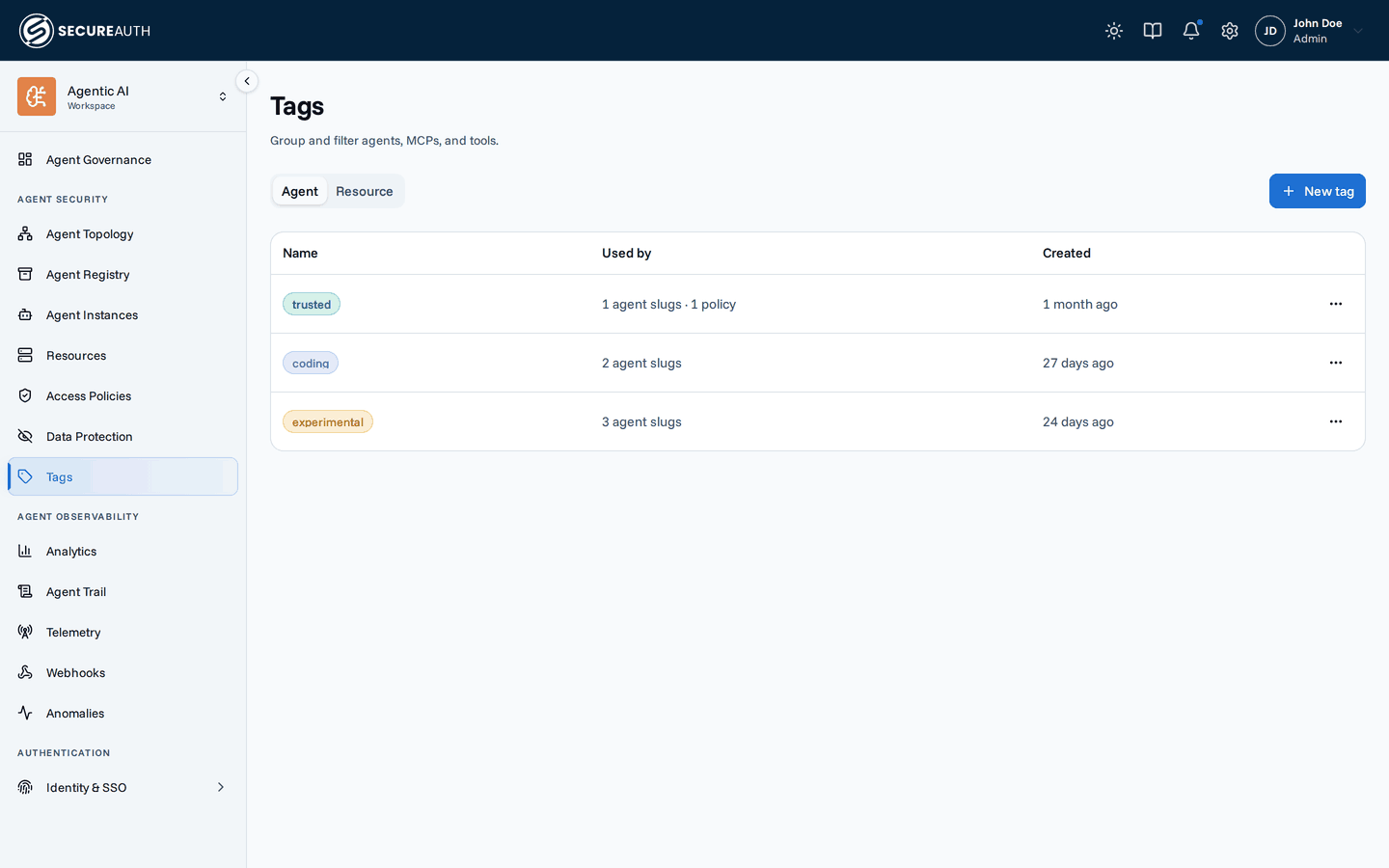
Labels lists your organization's tags, the names you attach to agents, resources and tools to group, filter and write policies against them. Use it to create a tag, rename or recolor one, or check what a tag is on before you delete it. Inside the screen, each label is called a tag.
Agent and Resource
The screen has two tabs, one per namespace: Agent for tags on agents, and Resource for tags on resources and their tools. Each tab lists your organization's own tags:
| Column | Shows |
|---|---|
| Name | The tag, in its color. |
| Used by | How many agent slugs, MCPs and tools carry the tag, and how many policies reference it. |
| Created | When the tag was created. |
With manage_tags, select a row to edit the tag.
With no tags in the namespace, the tab shows No tags yet. and, with manage_tags, a Create one link.
Built-in
Below your own tags, a Built-in table lists the tags SecureAuth provides, with each one's description and Used by. SecureAuth applies them to catalog tools, and to new tools from their MCP annotations. You can use them in policies and assign them to any tool, but you can't edit or delete them.
Actions
- New tag – creates a tag in the namespace of the open tab. Enter a Name, up to 50 characters, and pick a Color. A name a built-in tag already uses is rejected.
- Edit – from a row's actions menu, or by selecting the row, change the tag's Name and Color.
- Delete – from a row's actions menu. The confirmation says how many targets the tag is removed from, and lists each policy that references it, with its effect and status. Those policy rules stop matching by this tag.
Permissions
The screen needs both view_tags and view_policies, for all users.
New tag, Edit and Delete need manage_tags.
Related
- Tags – how tags group agents, resources and tools, and how policies match on them