Anomalies and Findings
Triage anomalies in agent activity and risk findings on non-human identities from one queue.
In the console: Activity › Anomalies and Findings
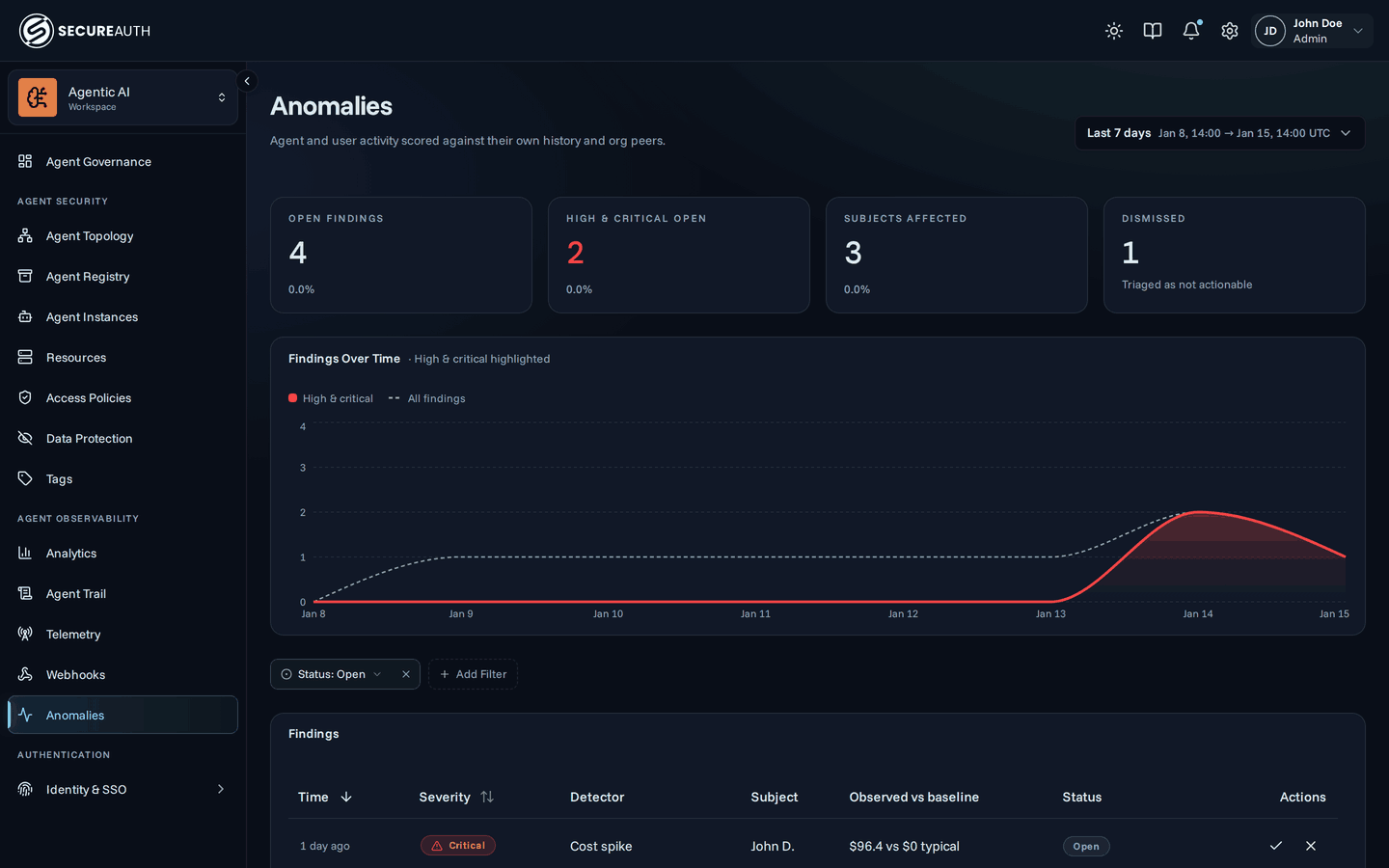
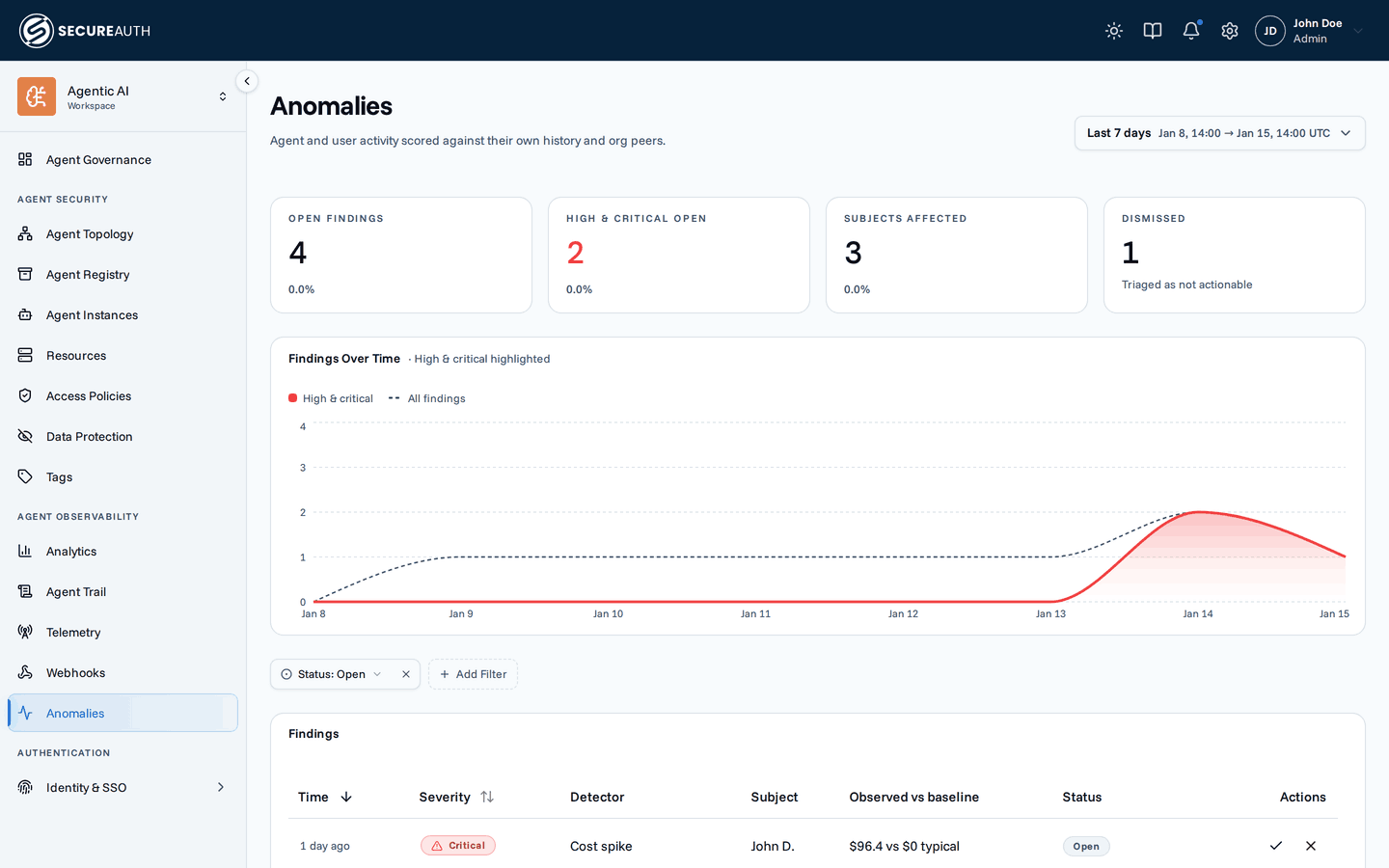
Anomalies and Findings holds what the gateway and your connected directories flagged for review. Use it to work through open items, mark each one as handled, and open the evidence behind it.
Anomalies
A date range picker sets the period. Above the table, cards show Open anomalies, High & critical open, Subjects affected, and Dismissed, each compared with the previous period. The Anomalies Over Time chart plots high and critical anomalies against all anomalies.
| Column | Shows |
|---|---|
| Time | When the flagged activity was last active |
| Severity | How severe the anomaly is |
| Detector | Which detector flagged it, such as Cost spike or Off-hours activity |
| Subject | The user or agent the anomaly is about |
| Observed vs baseline | The observed value next to the expected one |
| Status | Open, Acknowledged, Dismissed, or Resolved |
| Actions | The status changes available for the row |
Filter by Status, Severity, and Detector. The Status filter starts at Open. Sort by Time or Severity. With nothing in range, the tab shows All quiet.
Click a row to open a drawer with Why flagged (the scores and baseline behind the anomaly), Affected entity, and History.
Findings
The Findings tab lists risks that NHI monitoring found on non-human identities in connected directories.
| Column | Shows |
|---|---|
| Last seen | When the rule last matched the identity |
| Severity | The rule's severity |
| Rule | Which rule the identity breaks |
| Identity | The non-human identity |
| Kind | The identity's type, such as an application or service principal |
| Status | Open, Acknowledged, Dismissed, or Resolved |
| Actions | The status changes available for the row |
Filter by Status, Severity, Rule, Kind, Source (when you have sources), and Provider. The Status filter starts at Open. Sort by Last seen or Severity. With nothing to show, the tab shows No open findings. or No findings match these filters.
Click a row to open a drawer with Why flagged, Evidence, Identity, and History.
Actions
On either tab, from a row or the drawer:
- Acknowledge – marks an open item as seen.
- Dismiss – marks an open item as not actionable.
- Reopen – returns an acknowledged or dismissed item to open.
A resolved item has no actions.
Permissions
- To see the screen, you need
view_anomaly_detection. - To change an anomaly's status, you need
manage_anomaly_detection. - The Findings tab appears only when the
nhifeature flag is on and you haveview_nhi. - To change a finding's status, you need
manage_nhi.
Without a manage permission, the Actions column and the drawer actions are hidden.
Related
- Anomalies – what each detector looks for and how baselines work
- Findings – how to work through findings
- Non-human identities (NHI) – the rules behind the Findings tab