Data Protection
Add response filters that redact sensitive data from tool responses, and pick the judge model.
In the console: Controls › Data Protection
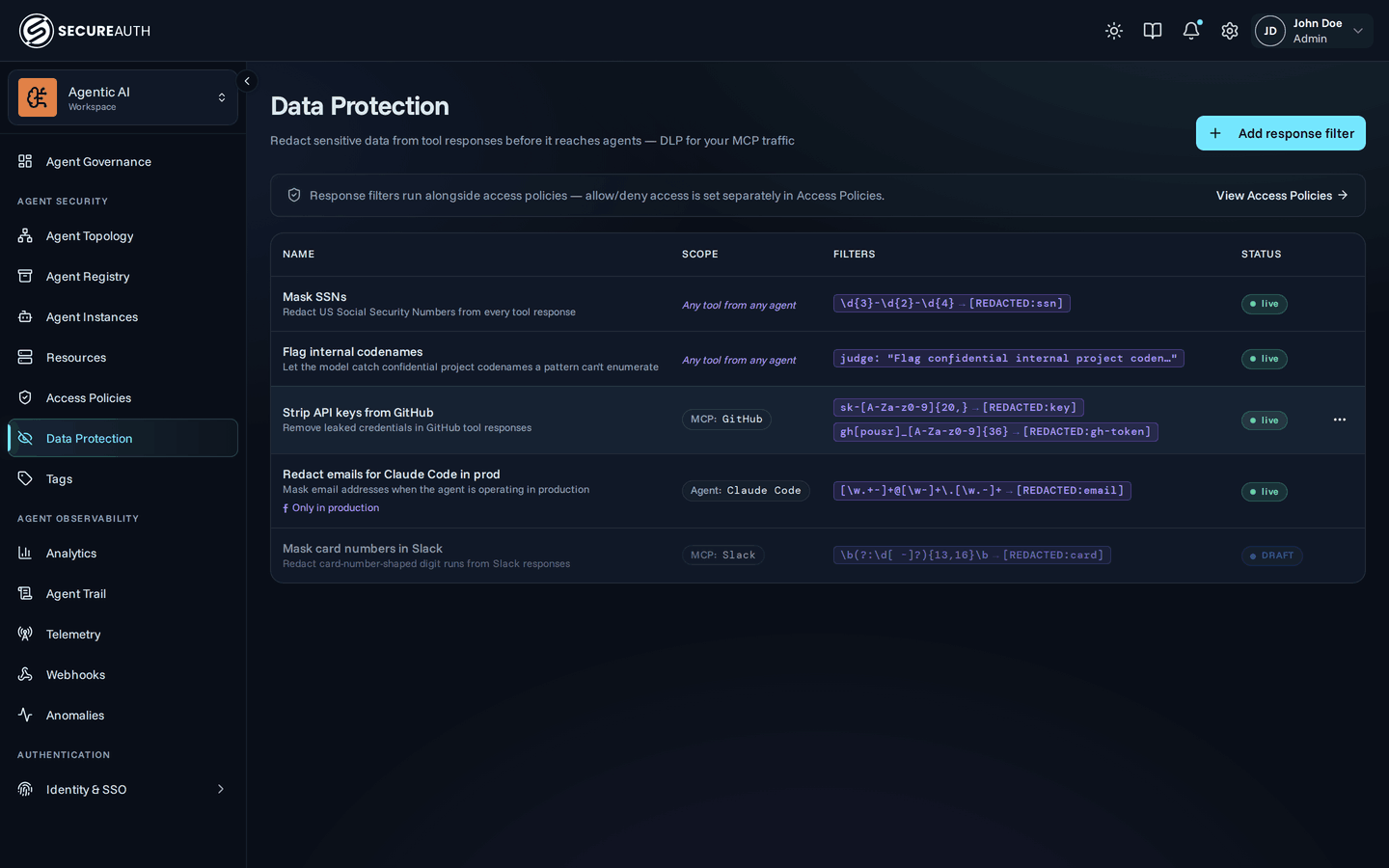
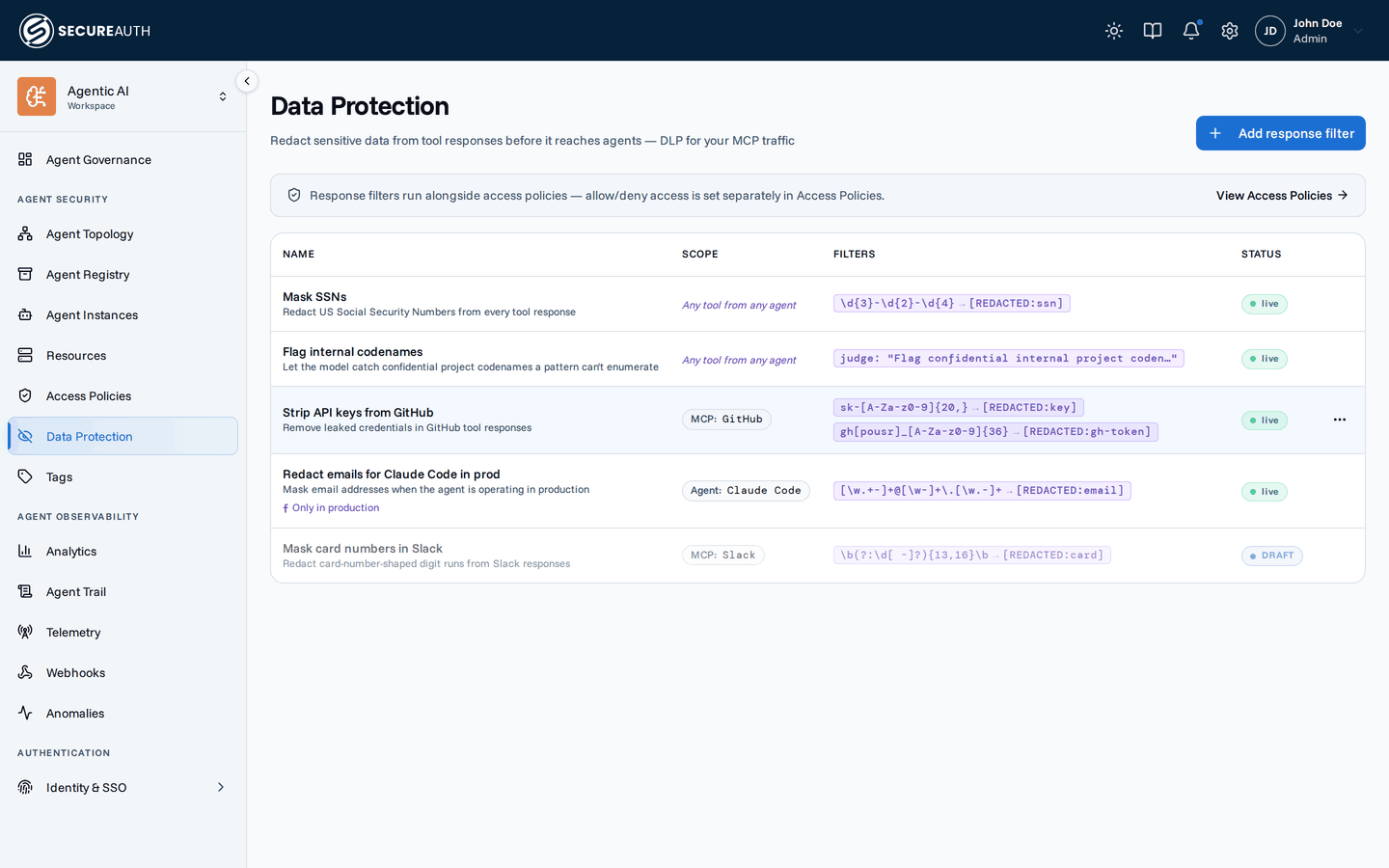
Data Protection lists your response filters: rules that redact sensitive data from tool responses before the agent receives them. Use it when you add or change a filter, or when you choose the model that runs AI judge filters.
Judge model
A strip at the top shows the Judge model that AI judge filters use: the model name, its provider, and whether it comes from an active candidate or the operator default. It warns Not configured or Provider unavailable when judge filters can't run, in which case they follow each rule's If the judge fails setting.
Open Candidates to see the judge model candidates, each with its connection and model, and which one is active.
Response filters
| Column | Shows |
|---|---|
| Name | The filter name and its condition, when it has one |
| Scope | Which agents, users, MCPs, and tools the filter applies to |
| Filters | Each pattern and its replacement ([REDACTED] when none is set), or the AI judge instruction |
| Status | Draft (saved, not enforced), Active (enforced), or Disabled (paused) |
A strip above the table links to Agent Access, because allow and deny are set there, not here. It appears only when you can view Agent Access.
With no filters, the screen shows No response filters yet and an Add your first filter button.
Actions
- Add response filter – opens the filter editor.
- Edit (row menu, or click the row) – opens the filter in the same editor.
- Delete (row menu) – asks you to confirm in a Delete response filter dialog. You can't undo it.
- Add candidate (under Candidates) – adds a judge model candidate. It asks for a Name, a Connection, and a Model.
- Set active (on a candidate) – makes that candidate the judge model.
- Delete (candidate menu) – removes a candidate after you confirm. Deleting the active candidate stops the judge until you activate another one.
The filter editor has a name field, a status picker, and a sentence that starts with Redact responses for, followed by the agents, users, MCPs, and tools it applies to. You can add a condition, written in CEL. Under Redaction filters, add one or more filters of two kinds:
- Pattern match – a regular expression (RE2) and its replacement. Use Browse presets to pick a ready-made pattern or bundle.
- AI judge – a plain-language instruction a model uses to find the data. Use Add judge.
For AI judge filters, If the judge fails decides what happens when the judge can't run: Block response or Allow unfiltered.
Permissions
- To see the screen, you need
view_data_protection. - To add, edit, or delete a filter, and to add, activate, or delete a judge candidate, you need
manage_data_protection. Without it, rows are read-only and the add buttons and menus are hidden.
Related
- Data Protection concepts – how filters are matched and how each filter type redacts