Release notes: SessionGuardian Desktop Service
Review new features, improvements, and fixes by release for SessionGuardian Desktop Service.
SG Desktop Service 2.21.2
October 2026
This maintenance release fixes an issue where SG Desktop could incorrectly unregister users.
Fixes
Users incorrectly unregistered. Fixed an issue introduced in 2.21.0 where SG Desktop could incorrectly unregister users after their device resumed from sleep or hibernation, or after a Remote Desktop connection. Their registrations were still valid, but they saw the message “Please contact Support or Admin. User profile registration is no longer valid.” An administrator had to reset their registration, and they had to register again. SG Desktop now checks with the server and unregisters users only after confirming a registration reset in SG Console.
SG Desktop Service 2.21.1
September 2026
This maintenance release improves stability, makes presence detection more accurate, and resolves security advisories in third-party components.
Analysis improvements
Face mismatch suppression. If the face of the user is briefly unrecognized, for example when viewed at an extreme angle, pose tracking now suppresses face mismatch events that last less than 10 seconds. To enable it, turn on Suppress Face Mismatch in SG Console. Suppression has no effect while Shoulder Surfing Protection is turned on.
Stronger pose tracking when a second person is present. Pose tracking no longer suppresses events while more than one face is in view. After a second person is seen, suppression stays off for a 10-second cooldown period. It resumes only after the authorized user is recognized again.
Smarter phone and camera detection. Phone and camera detection now runs only while the authorized user is present. This reduces CPU usage. The event reported when no authorized user or an unauthorized user is present is no longer replaced by a device detection event.
Reporting of unprotected monitors. If SG Desktop can't protect a monitor with the lock screen, watermark, or screen capture blocking, it now sends an
ENFORCEMENT_SURFACE_FAILUREevent to SG Console and retries automatically.
Fixes
Duplicate webcam failure events. A single webcam fault no longer generates hundreds of duplicate
WEBCAM_FAILUREevents in SG Console.Tray status. The tray status no longer changes briefly to “Not Activated” about every 30 seconds, which sometimes took keyboard focus from the application in use.
Crash on resume or monitor changes. Fixed a crash that could occur when you open a laptop lid, resume from sleep, or connect, disconnect, or dock monitors.
Security updates
Third-party components are upgraded to resolve published security advisories.
SG Desktop Service 2.21.0
August 2026
System requirements
SG Console 2.8.5 (recommended). This version works with earlier SG Console versions, and pose tracking is enabled by default. Upgrade to SG Console 2.8.5 to get the settings that control pose tracking, including shadow mode and a limit on how long pose is tracked. On earlier SG Console versions, those settings are not available.
.NET 10. This version requires the x64 .NET 10 Desktop Runtime to be installed on the machine before it will run. Prior versions required the x86 .NET 6 Desktop Runtime. The installer you download from the Microsoft .NET download site has a filename similar to
windowsdesktop-runtime-10.0.10-win-x64.exe. Any newer version in the 10.0.X series also works.64-bit. The product executables previously ran in a 32-bit execution context. As of this version, the product is fully migrated to 64-bit. This version no longer supports 32-bit systems, and the installation directory moves from
C:\Program Files (x86)toC:\Program Files. The upgrade preserves and carries over your existing user enrollment and settings, and you can still downgrade to prior 32-bit versions.Storage. New machine learning models increase the storage the installed application requires from approximately 250 MB to 460 MB. The product also stores downloaded software updates, so allocate 1 GB of storage.
Analysis improvements
Pose tracking. A new pose tracking machine learning model tracks your upper body to maintain continuity during periods when facial detection and recognition are lost. This reduces false positives caused by face rotation, for example when you look at another screen or down at the keyboard.
New computer vision engine. The analysis pipeline is rebuilt to streamline the flow of video frames from camera capture to the computer vision components. This provides the foundation for other improvements, such as the adaptive frame rate described below.
Adaptive frame rate. Mobile phone and camera device detections now raise the analysis frame rate briefly before the product sends events. This gives greater confidence in the detection and suppresses transient false positives.
Event oscillation suppression. Prior versions suppressed rapidly firing events of the same type, but could still send excessive events when events oscillated between two types, for example between “webcam covered” and “user not recognized”. The analysis algorithm now suppresses events that rapidly oscillate between two event types.
Improved event detail. Recognition event messages now include additional details that can help you diagnose problems.
User interface
Modernizations. The system tray popup and the debug window user interface are modernized.
Watermark and guard positioning. The positioning and scaling of the watermark and guard windows are improved when you use multiple monitors with different DPI settings.
Fixes
Bounded resolution. Some prior versions could be configured to use excessive camera resolutions that consumed more CPU for no benefit. Selected resolutions are now limited to 720p, which is more than enough for the computer vision models in use.
Camera selection. When the product falls back to an alternate camera because the configured camera is not available, it now keeps your configured camera choice and tries it again in future sessions.
Server connection improvements. Improved session lifecycle management when the product communicates with the server.
Log retention. The retention period for stored log files is increased.
Better error reporting for an invalid key. An invalid face recognition key is now a terminal error instead of a
WEBCAM_FAILUREretry loop.
SG Desktop Service 2.20.41
February 2026
Fixes and improvements
Performance. Improved memory management makes the service run more reliably.
SG Desktop startup. The application now starts correctly after your internet reconnects.
Watermark. The watermark now disappears when you disable the SG Desktop service.
Watermark. Date formatting now displays consistently in English regardless of your system language settings
Webcam. External webcams now work correctly after you select them, preventing repeated connection failures
Webcam. Webcam selection now properly matches the webcam name from the server using Windows Media Foundation.
Webcam. The system automatically switches to the first available webcam if your selected webcam disconnects.
Security improvements
Multiple security hardening improvements block unauthorized interprocess communication (IPC) access, prevent reverse engineering attempts, and stop path traversal vulnerabilities in SGE.IVA.AppClient.dll
SG Desktop Service 2.20.29
November 2025
This release introduces new functionality for device identification and server reconnection handling, along with several fixes that improve camera checks, screen protection, and overall client stability.
New Features
Retrieve device ID at session start. The desktop client now automatically obtains the device ID when a session begins, improving tracking and reporting reliability.
Improved server reconnection logic. Added a retry mechanism that attempts to reconnect to the server after receiving a 503 status code. This reduces dropped sessions and improves resilience during brief service interruptions.
Updated client branding. Updated client icons and logos to reflect current product branding.
Fixes and Improvements
System tray error resolved. Fixed an issue where the client displayed a “Failed to find an AppBar” error related to the system tray.
Camera readiness and integration fix. Resolved failures where the client could not confirm that the integrated camera was ready for use.
Webcam check freeze resolved. Fixed an issue where the webcam validation step could become stuck during device checks.
Main screen protection applied correctly. Ensured that the primary display is fully protected during an active session.
Watermark restored on secondary displays. Fixed a condition where the watermark did not appear on an additional monitor.
Camera access error fixed. Resolved errors that occurred when the desktop client attempted to access the camera.
SG Desktop Service 2.19.5
November 21, 2024
Improvements:
Removal of
ignoreAdminAccountparameterignoreAdminAccountis no longer available in SG Desktop Service configurations. End users (Agents) can only use non-Admin accounts on their PCs to run the application without having the ability to run it as Admins.If Administrators need to run the application as both Admin and non-Admin users, they are now required to have two accounts on their PCs. No alternative parameter in the configurations can be used as a workaround.
Bug fixes:
Customer Support Escalation
Desktop app has reset his profile locally when profile reset not requested.
Support Escalation
When 2.18.7 is auto updated to 2.18.9 all connections fail when on Internet only. Akamai identity token value is missing in registry which previously was added manually, not via the installer.
Important to note: Customer provided the identity token which SessionGuardian has input into the installer to resolve the issue with missing token value.
SG Desktop Service 2.18.9
November 13, 2024
Bug fixes:
Customer Support Escalation
identityTokenwas missing in an HTTP request when the desktop setup has no activated profile. Status of user could not be updated on SGE Server to "not invited" and was stuck at New.
SG Desktop Service 2.18.7
October 24, 2024
New Features:
HTTP Headers
Improvements:
Updated root folder name
Downgrade feature
Auto-update notification message display time
Uninstall process
Logs encryption (please see details in SG Logs Viewer documentation shared earlier)
Bug fixes:
Service reacting to Power Events: Suspend & ResumeSuspend events
HTTP Headers
In order to ensure that the Akamai is not marking SG Desktop requests as ones that come from bot, the teams collectively agreed to implement specific HTTP headers. Those are now added in all Client > Server requests which should help Akamai identify that the requests are coming from a trusted Client.
Please note: We added an extra parameter for this feature so the final installation command is:
msiexec /i "SessionGuardianDesktop_v2.18.7.msi" serverurl={endpoint} requesttoken={secretToken}In the future, if you need to change the token, you will be able to modify "IdentityToken" parameter in the Registry: HKEY_LOCAL_MACHINE\SOFTWARE\WOW6432Node\SGE.IVA.customerServiceBLL
Updated root folder name
Previously the root folder name was:
C:\Program Files (x86)\SessionGuardian Enterprise\SGE.IVA.
It is now changed to C:\Program Files (x86)\SessionGuardian Enterprise\SG.DesktopService.
Please note: with this version we also included a script which updates user profiles. With this script there is no need to reset registration manually for the users to ensure proper workflow of the service after the update of the root folder name.
Downgrade feature
SW Update global configuration allows to manage which version has to be up and running across all end-users. However, there could be cases when we need users to go back to an older version and that is also managed through SW Update configuration.
In cases when an older version is set, there is no need for any manual uninstallation or re-installation of the software.
SG Desktop supports the Downgrade process which is also automatic, like the auto-update.
Auto-update notification message display time
When a newer version of SG Desktop is selected in the SG Console as the version that has to be installed across all end-users, the end-users see a notification.
The notification states that there is a new version of the software and that it will be installed on the PC on the next shut down.
The notification remains open until the end-user closes it manually in order to avoid having users that miss the update.
Service reacting to Power Events: Suspend & ResumeSuspend events
There was an issue when a user had the service run all night while the PC was in hibernation. That resulted in 401 error upon the session start and blocked the user. In this SG Desktop version we cover such cases by tracking the power events to prevent error responses from the Server.
SG Desktop Service 2.16.13
August 2, 2024
Improvements:
Seamless auto-update when the PC is shut down
Improved performance on customer VPN connection - added ability to configure Proxy Address and Proxy Port in registry
Updated frequency of Antivirus check to avoid SG Service Desktop work interruptions
Bug fixes:
IVA_I51: Andy is getting server connection error in SG
IVA_I52: Abhishek has received user profile error once after restarting the laptop. Upon Screen lock/unlock, SG started working as expected.
Seamless auto-update on shut down
SessionGuardian is improving the auto-update process which ensures that there is no idle time on session security and the PC is protected. This version includes the initial changes that are required for the auto-update changes to work. However, the auto-update process itself will be happening on Shutdown/Log out starting from the next build. Same logic as it was when SG initially implemented and delivered the auto-update feature.
Starting with the next build, when a new version of SG Desktop Service is available to the end users, it will be downloaded and installed when the users shut down the PC.
The auto-update is not triggered by lock/ unlock action on the PC anymore.
The two cases when the download and installation of the newer builds are done are:
When the user shuts down the PC, turns it back on, logs in to Windows account;
When the user restarts the PC and logs back in to Windows account.
If the user performs a force quit on Windows, the Service will not upgrade.
Quick note, the auto-update is tied to Windows log on/log out. However, deletion of the older version in case of enabled auto-update is tied to the PC shutdown/turn on.
SG Desktop Service 2.16.5
July 4, 2024
New features:
SG Desktop Service switches proxy settings based on network environment (Proxy configuration)
Logging Level configuration
Improvements:
Broader error and event logging to help investigate incidents like IVA_I47 and IVA_I48
Bug fixes:
IVA_I44: If ALT+F4 pressed in desktop, Watermark is disappearing
IVA_I45: When VPN is connected during startup, SG software showing server connection error
IVA_I46: When VPN is connected during mid session, SG software showing server connection error
IVA_I47: UAT - Software fails to initialise once Paul has complete his photo registration without issue.
IVA_I48: UAT - Software is failing to initialise for Vicci.
Proxy configuration
SG Desktop Service switches proxy settings based on network environment (Proxy configuration).
What we did is we added proxy for the server API provider and external Internet check request. In case of a network change the proxy is overwritten automatically.
Logging Level
By default the level of logs was always WARN. In this build we ensured that when a user profile configuration, specifically logging level, changes in the SG Console to INFO, we pull all details that INFO level logs.
SG Desktop Service 2.15.29
June 19, 2024
New features:
Camera Device Detection
User Registration Status notifications
Improvements:
Status update on Deactivate Service action
Added retry on Auto-update to help with cases described in IVA_|35
Webcamera Covered event logic update (improved UX)
Bugs:
IVA_I21: Font size in watermarks is not getting changed after updating in console. Its only getting changed if the Across field is changed from 1 to multiple lines
IVA_I28: Webcam Covered, Unauthorized user detected and authorize user not present – these errors are coming randomly while working in laptop
IVA_I35: SG AutoUpdate service is on but SG software latest version (2.15.20) is not getting installed in system
IVA_I36: SG service is throwing up Authorized User not found for couple of times and not going off. As a result, laptop cannot be used until Lock/unlock is done. Once unlocked, the SG service is resumed, throwing up the same lock screen which is not going off.
IVA_I38: When AWS is offline (mid session), SG software is not locking the screen immediately when an event occurred (i.e. webcam covered, mobile phone detected etc.)
IVA_I43: Intermittently observed SG software is getting crashed while system is locked, upon unlocking the screen, SG software is working as expected.
Camera Device Detection
Camera Device Detection is part of the Phone Detection model but is configurable separately (please see more in the release notes for SG Console 2.4.1).
Camera Device Detection is aimed to find and trigger an alerts for cases when someone is trying to take a picture of the screen content using a camera device (
When SG Desktop Service is running with both Camera and Mobile device detections enabled, the system will log the event with higher confidence score. For example, if the system has 91% confidence in detection of a camera and 94% in detection of a mobile phone, Mobile Device Detected will be logged and, if Lock Screen enabled, corresponding image and text will appear on the end-user’s screen.
Please note: Camera Detection feature is using a newly trained model so the performance can provide false negative results. Please provide feedback on test runs so further improvements can be planned and implemented.
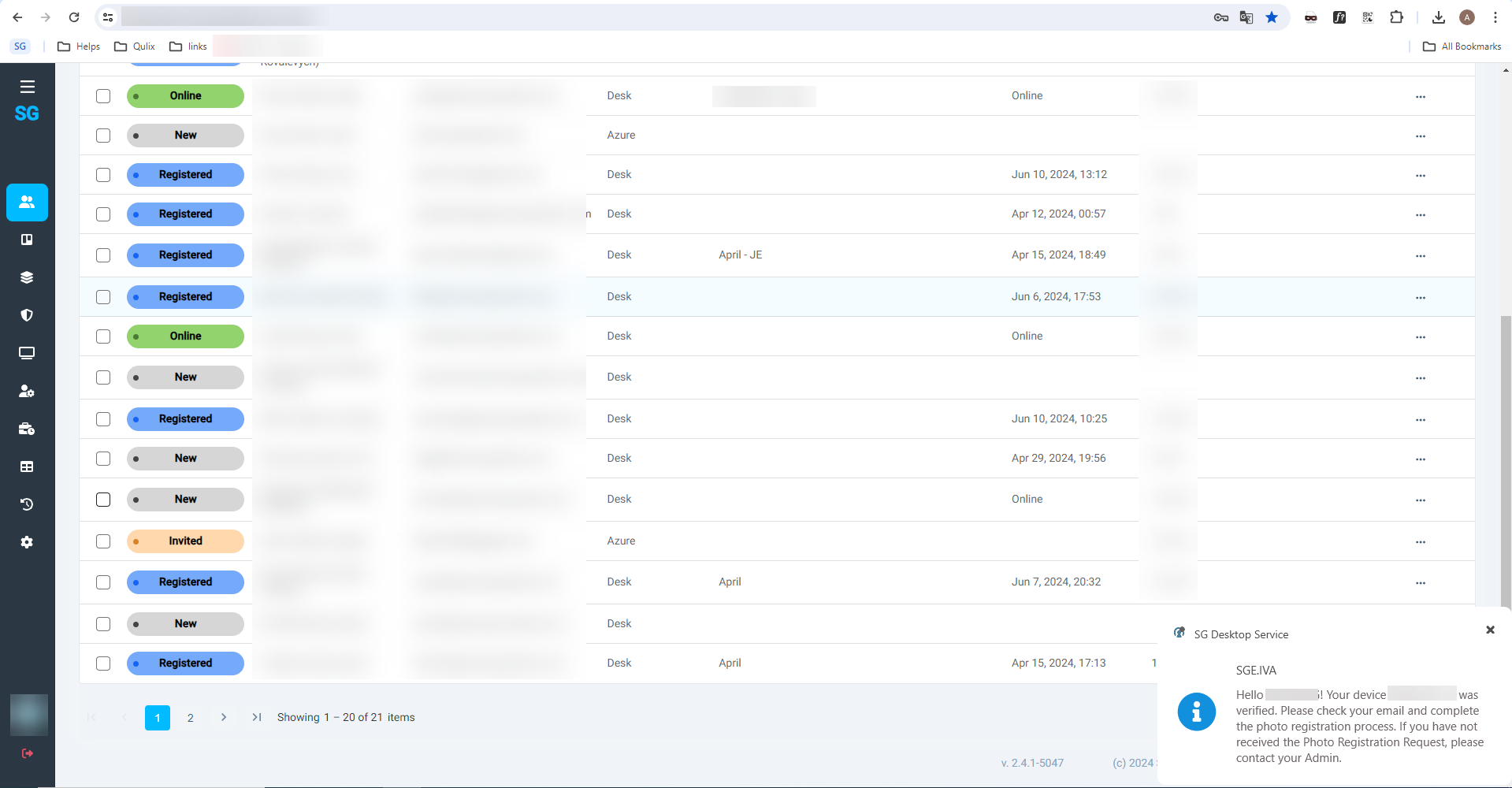
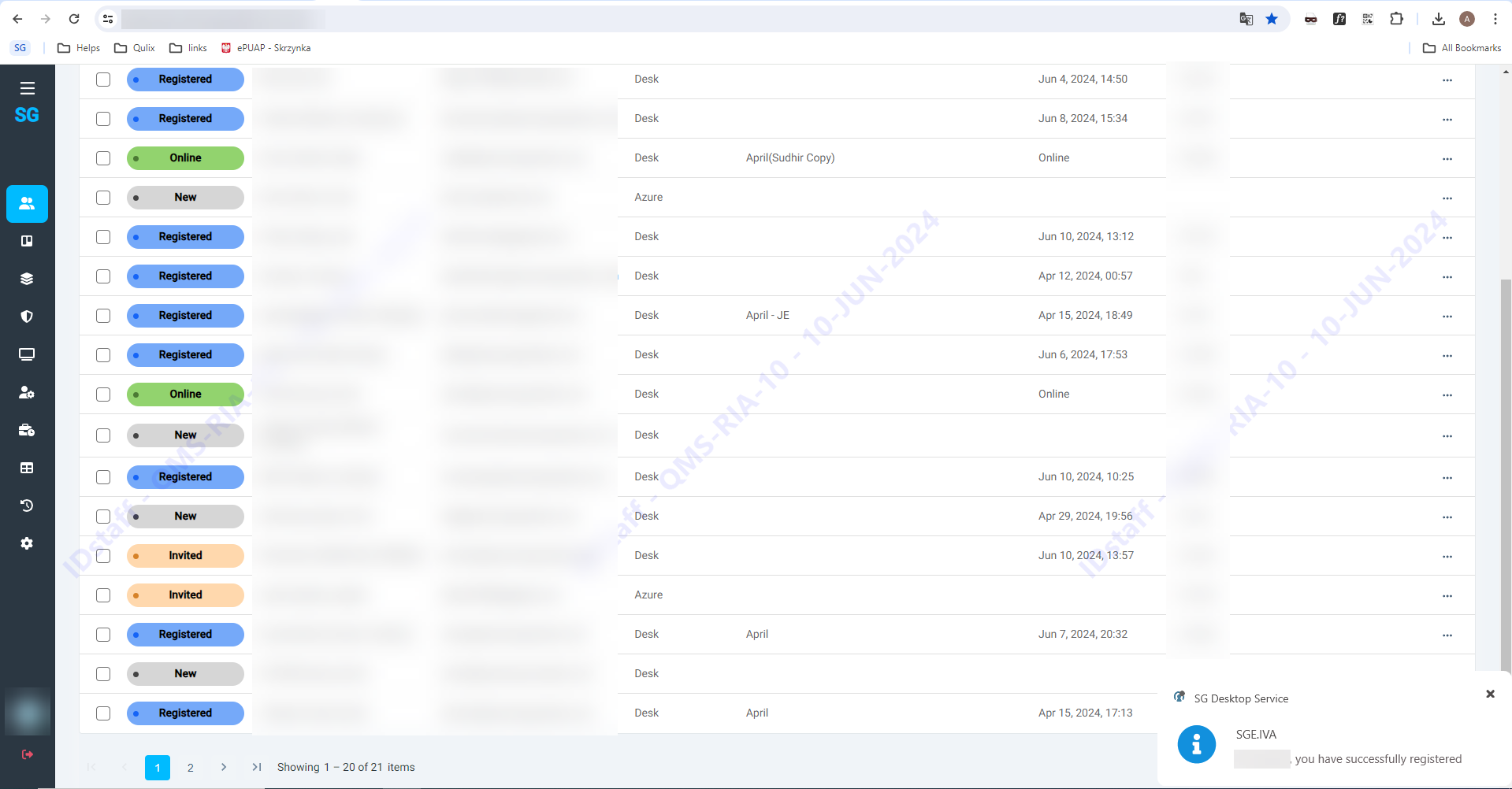
User Registration Status notifications
In order to ensure transparency on the registration process SG Service Desktop now shows user notifications for each activation step. See examples below:
 |
 |
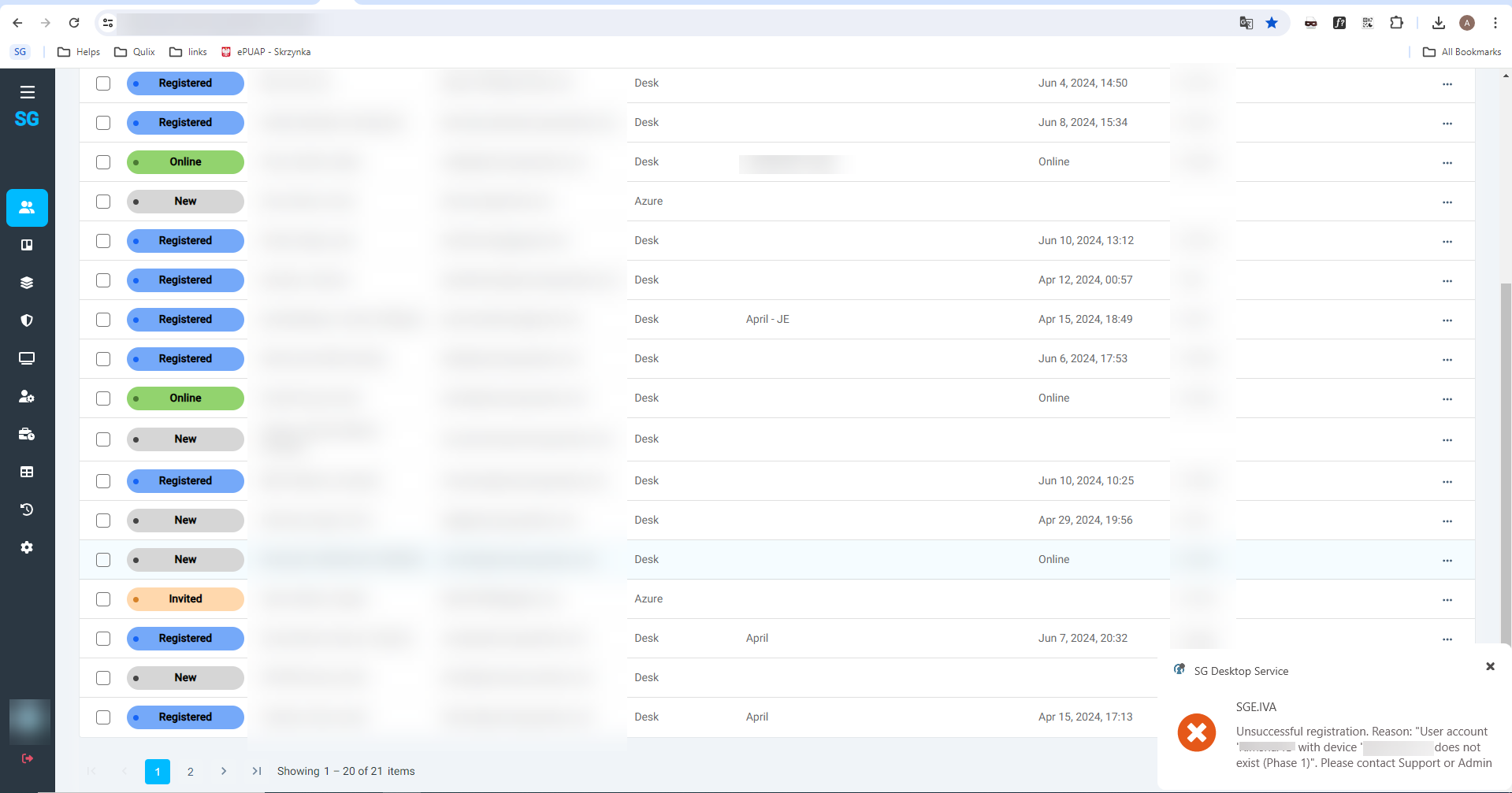
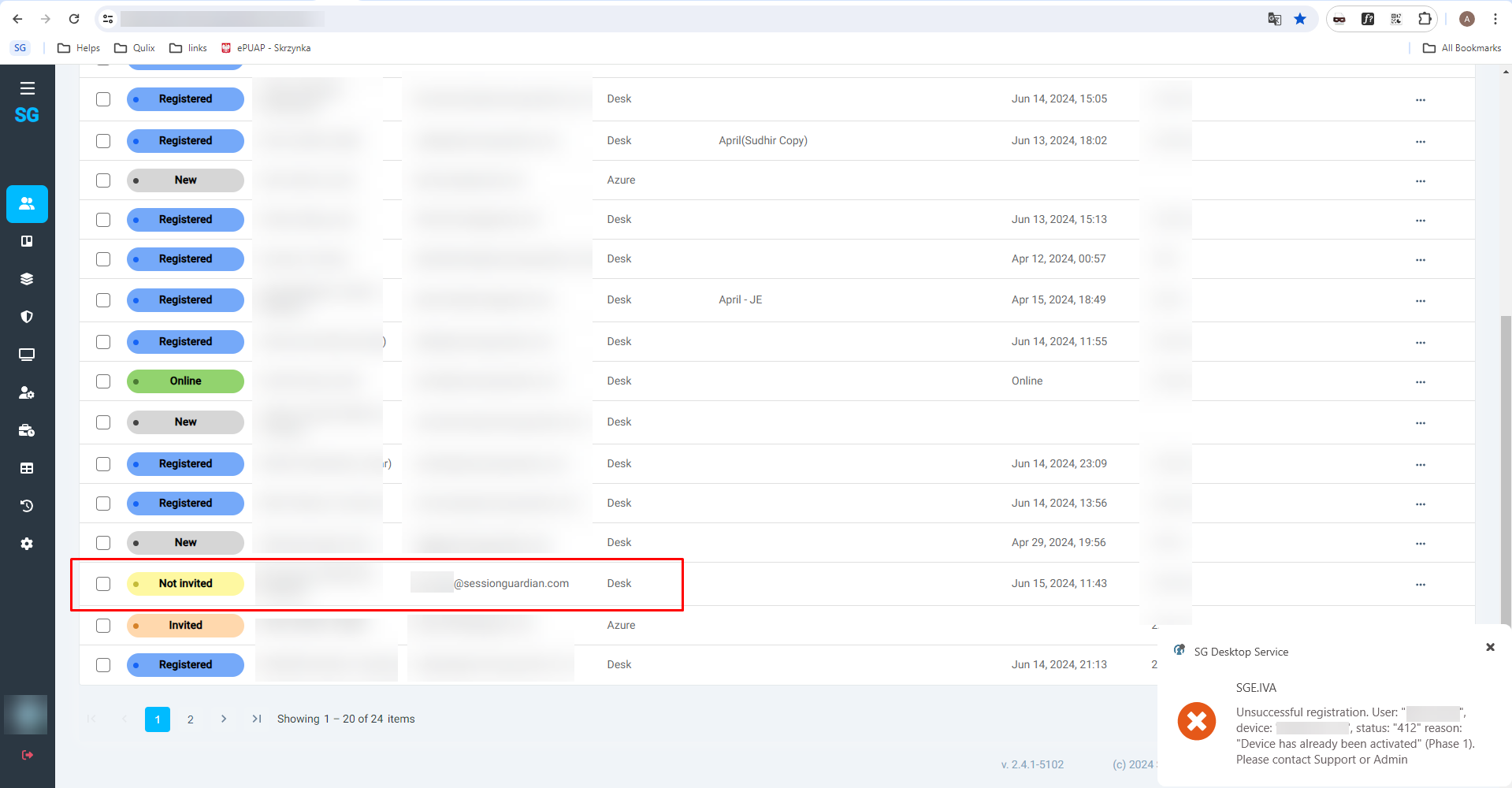
SG Desktop Service also shows the error message in case of any issues. See example below:
 |
 |
Status update on Deactivate Service action
To avoid confusion on User Profile and Service state, we added “Deactivated by Admin” status.
When the Agent’s Service is Deactivated through the console by the Admin, it will say “Deactivated by Admin”.
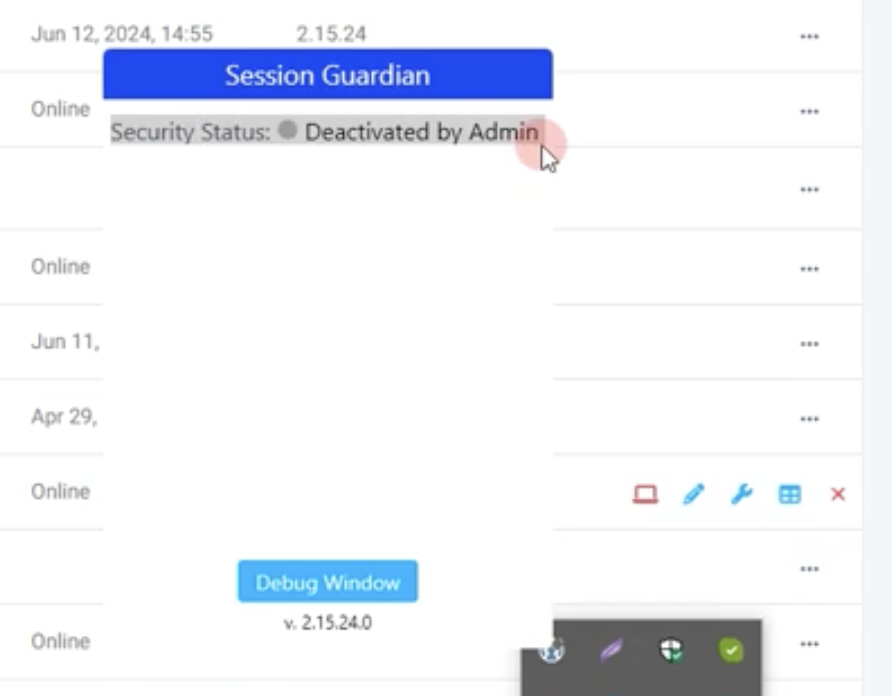 |
SG Desktop Service 2.15.20
June 6, 2024
Improvements:
Checking Service state at the initiation process (a change that fixes IVA_26 bug report)
If service has been deactivated through the Console and the Agent opens/unlocks his PC, the Service sends a request to the Server to check the state at the initiation to ensure it does not start (no watermarks are displayed, screen doesn’t lock on violations events, etc)
Version upgrade doesn’t force PC to reboot
When the auto-update happens (SG Desktop Service is upgraded) a sudden reboot was forced upon the end-user’s PC. Starting with this version, there is no forced reboot.
Bug Fixes:
IVA_I26 Even though profile has been deactivated through console, when a user is logging in laptop, SG service is getting started
IVA_I27 SG software is getting crashed if multiple times camera shutter is closed
IVA_I28 Webcam Covered, Unauthorized user detected and authorized user not present – these errors are coming randomly while working in laptop
SG Desktop Service 2.15.8
May 23, 2024
New features:
Additional Events for Webcam Blocking
Improvements:
Partial Face Detection configuration
Profile changes from SG Console are applied automatically
SG Desktop Service to work when Antivirus checks fails
Changes to the code to ensure SG Desktop Service’s proper performance under customer VPN
Bug fixes:
IVA_:17 Session Guardian software is not working when an Agent is connected to the VPN. Security status is showing as Failed.
IVA_:18 When an authorise user leaves and an unauthorize user seats Infront of the camera, system is waiting for 15 seconds and then it is showing authorize user not found message. Expectation - system should prompt the following message immediately - Unauthorized User Detected
IVA_:19 When an unauthorized user shoulder surf covering his half face (eyes open), system is not getting locked and Unauthorized User Detected - message did not displayed
IVA_:20 Profile has been deactivated for few days for a user. When user profile is re-activated through console, SG software is not getting turned on
Additional Events for Webcam Blocking
Webcam Covered is an event that is triggered in cases when a user intentionally or unintentionally covers his/her webcamera with a hand, with an object, or with a webcamera shutter.
This event is logged in the system, can trigger an email alert, and can enforce a screen lock.
Partial Face Detection
In order to cover the case described in customer ticket - When an unauthorized user shoulder surf covering his half face (eyes open), system is not getting locked and Unauthorized User Detected - message did not displayed - we added a “Partial Face Detection” parameter.
It can be configured Globally: Console > Configurations > Defaults > Recognition
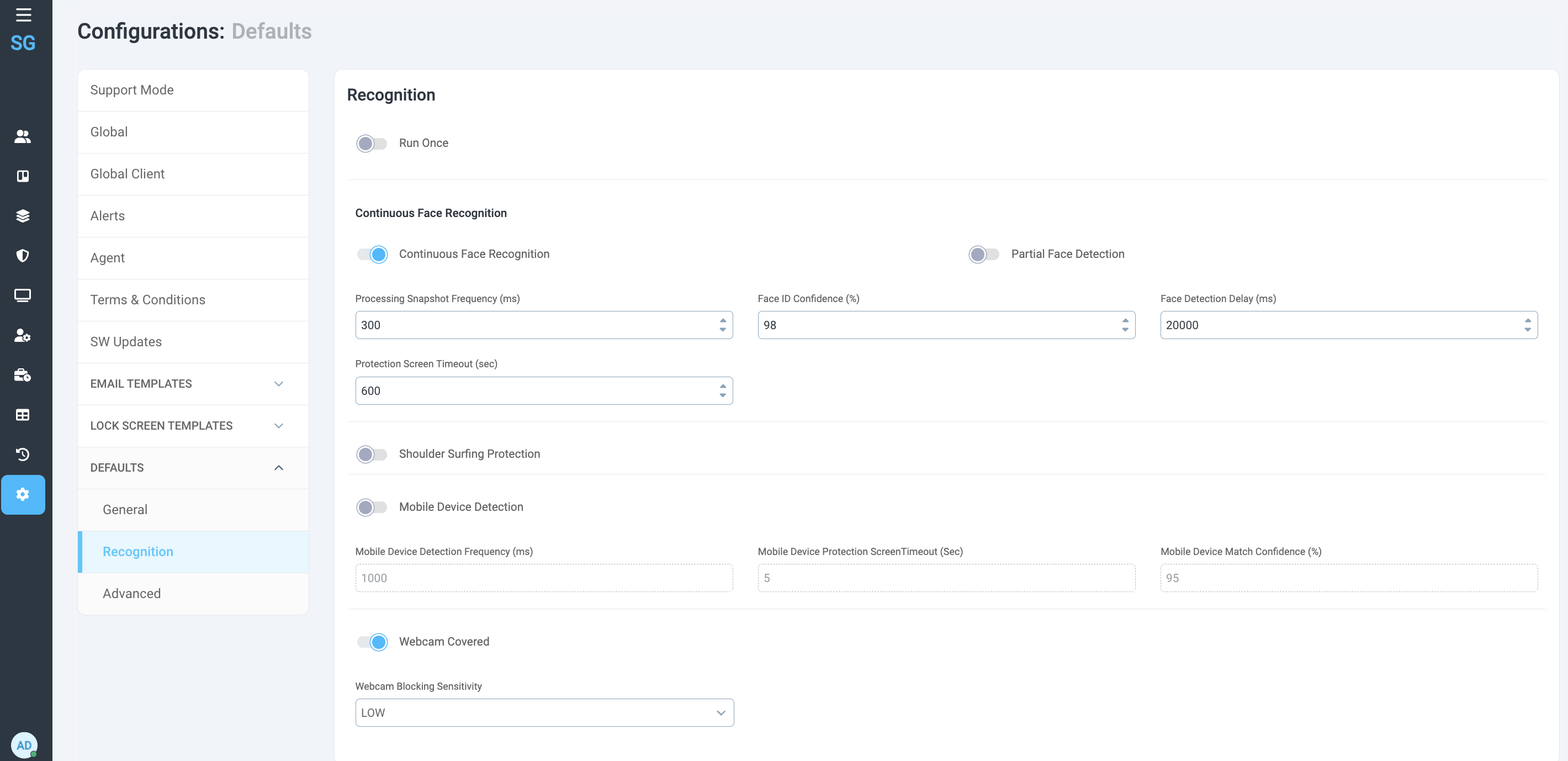 |
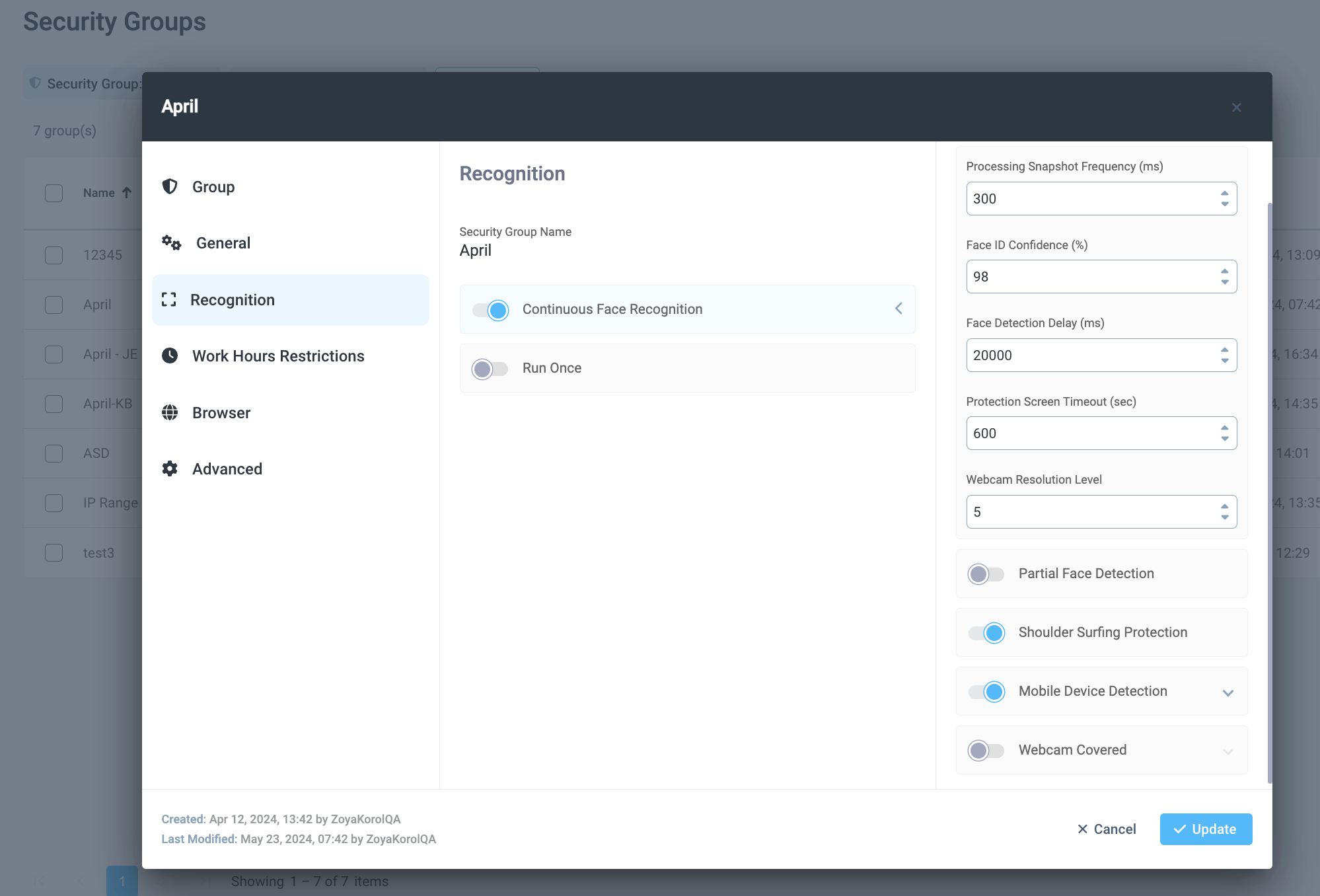
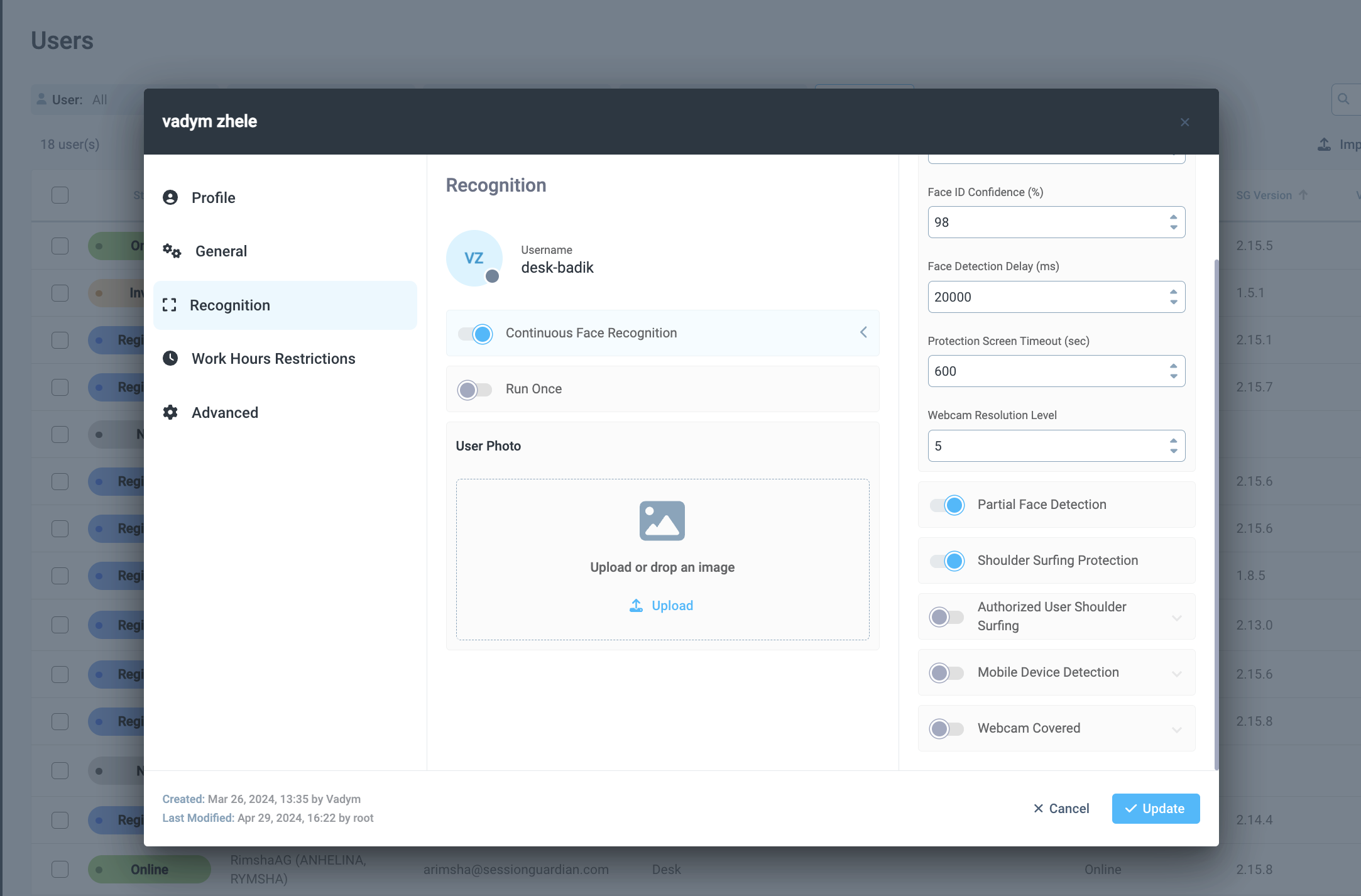
As well as on Security Group level and User Profile Level.
Go to a Security Group or any User Profile > Recognition > Continuous Face Recognition > Partial Face Detection.
 |
 |
Important notes on the Partial Face Detection parameter:
Shoulder Surfing Protection must be on for proper Unauthorized User Detection to work when the face is only partially visible.
Shoulder Surfing Protection must be to enable tracking of Unauthorized users (so to track Unauthorized User Detection events).
When Continuous Face Recognition is off, all configurations related to it are off automatically.
Additional improvements
Profile changes from SG Console are applied automatically
There is no more need for end user to lock/unlock the PC in order for changes done on the SG Console (server) to apply for the user (client).
SG Desktop Service to work when Antivirus checks fails
If there is a need to update the antivirus, SG Desktop Service would log that as Antivirus Check failure and won’t allow to start the work. In the latest build we made sure that in cases when AV Check fails, we allow the users to start and/or continue the work.
Changes to the code to ensure SG Desktop Service’s proper performance under customer VPN
To check the internet connection the external request is now sent from the service side, not desktop. Also, the check endpoint is now using https protocol instead of http.
SG Desktop Service 2.14.6
May 2, 2024
Improvements:
Removed requirement on presence of "https://" in Server URL
Server connection Time-out increase (from 10sec to 30sec)
Improved Camera Resolution Selection Algorithm
Bug fixes:
Fix Agent’s Status Not Activated (Abhishek’s issue with User Profile)
SG Desktop Service 2.14.5
April 29, 2024
Improvements:
Implemented additional logic with regards to Screen Capture feature.
SG Desktop Service 2.14.4
April 27, 2024
The latest versions of the SG Console and SG Desktop Service include the following
New features:
Screen Capture of desktop violations
Disable enforcement and monitoring based on IP Address
Ability to select Web Camera
Software Auto-update process
Bug fixes:
Service not stopping when Windows PC is in Sleep mode
Web Camera connection retry process improvement