FIDO2 Enrollment page
Applies to: Air-gapped deployments
Use this to create FIDO2 enrollment page for end users to register their FIDO2 devices as a login multi-factor (MFA) option in an air-gapped network.
Once end users register a FIDO2 device, it becomes available as a FIDO2 login option to authenticate their access to resources.
Prerequisites
SecureAuth Identity Platform (IdP) release 24.04 with update 24.5.0 or later
SecureAuth IdP realm with the following tabs configured:
Overview
Data / Directory integrations
Workflow
Multi-Factor Methods
Identity Platform configuration
In the Advanced Settings, go to the Post Authentication tab.
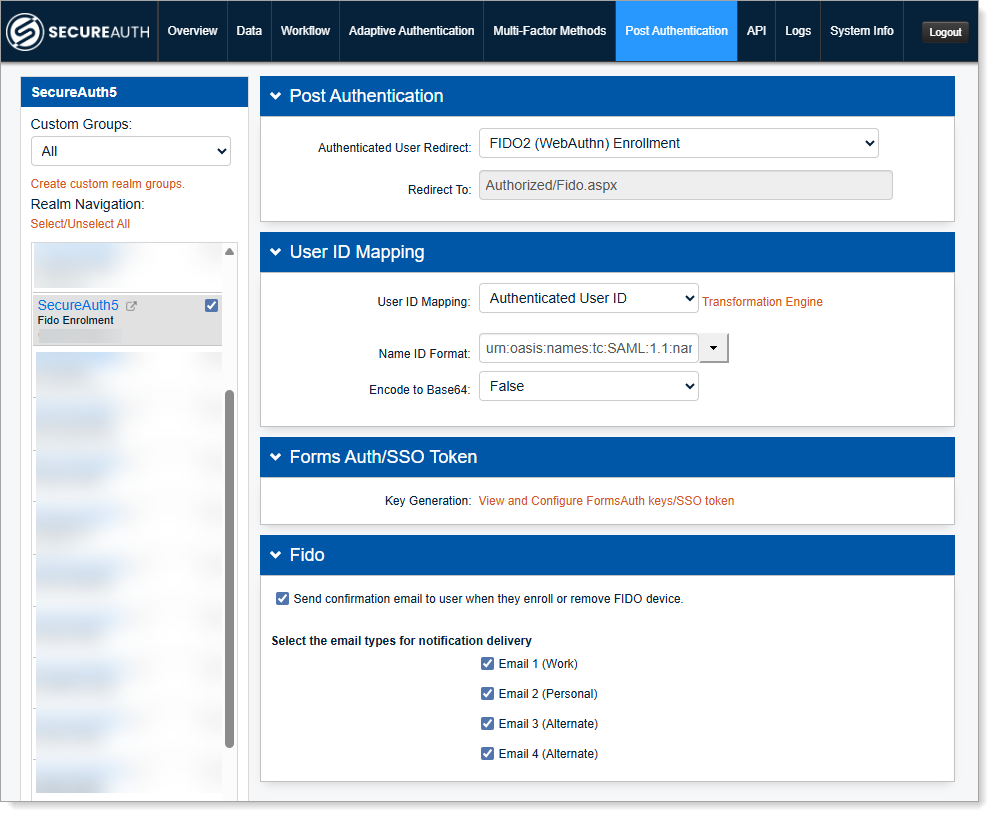
In the Post Authentication section, set the Authenticated User Redirect to FIDO2 (WebAuthn) Enrollment.
Set the required User ID Mapping, like Authenticated User ID.
In the FIDO section, select whether to send an email to the user when they enroll or remove a FIDO authenitcator in their profile.
Then, select which email to send to the user. Make sure you have the emails mapped and configured in your data store profile properties.
To customize the email see Optionally change the default email text.
Save your changes.
Optionally change the default email text
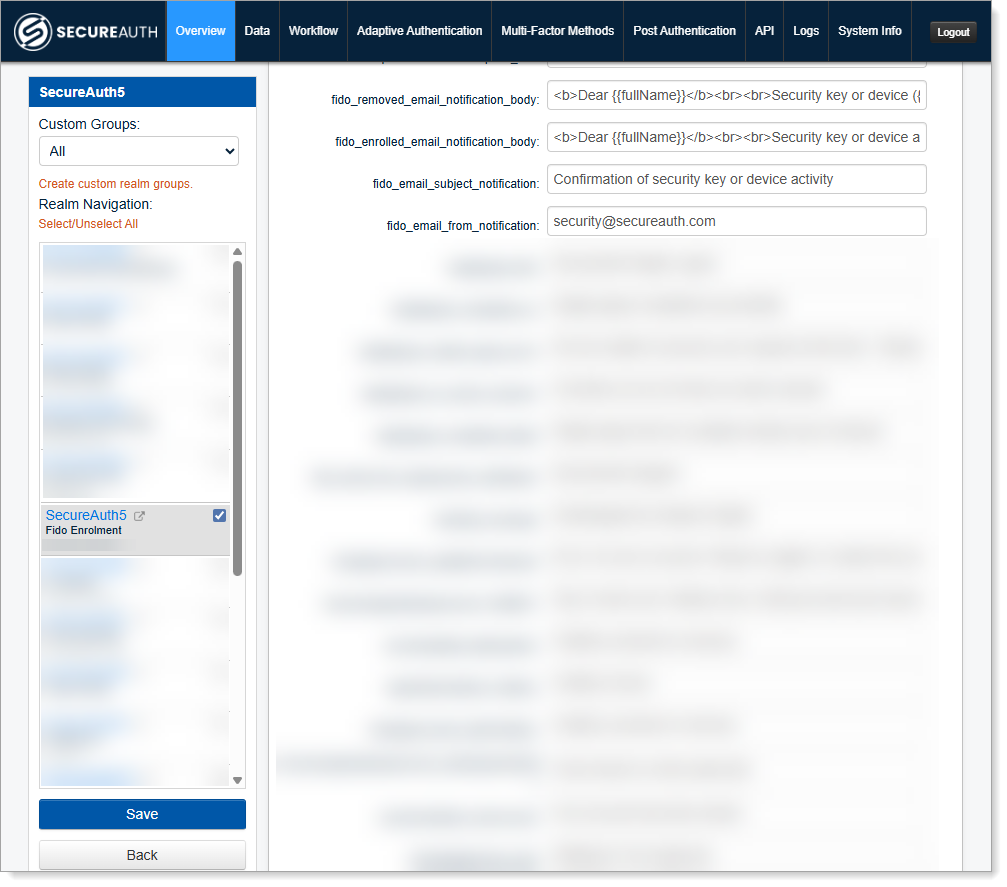
Select the Overview tab, scroll down to the Advanced Settings section, and click the Content and Localization link.
In the Verbiage Editor, scroll down to the bottom and edit any of these resource fields for the email output.
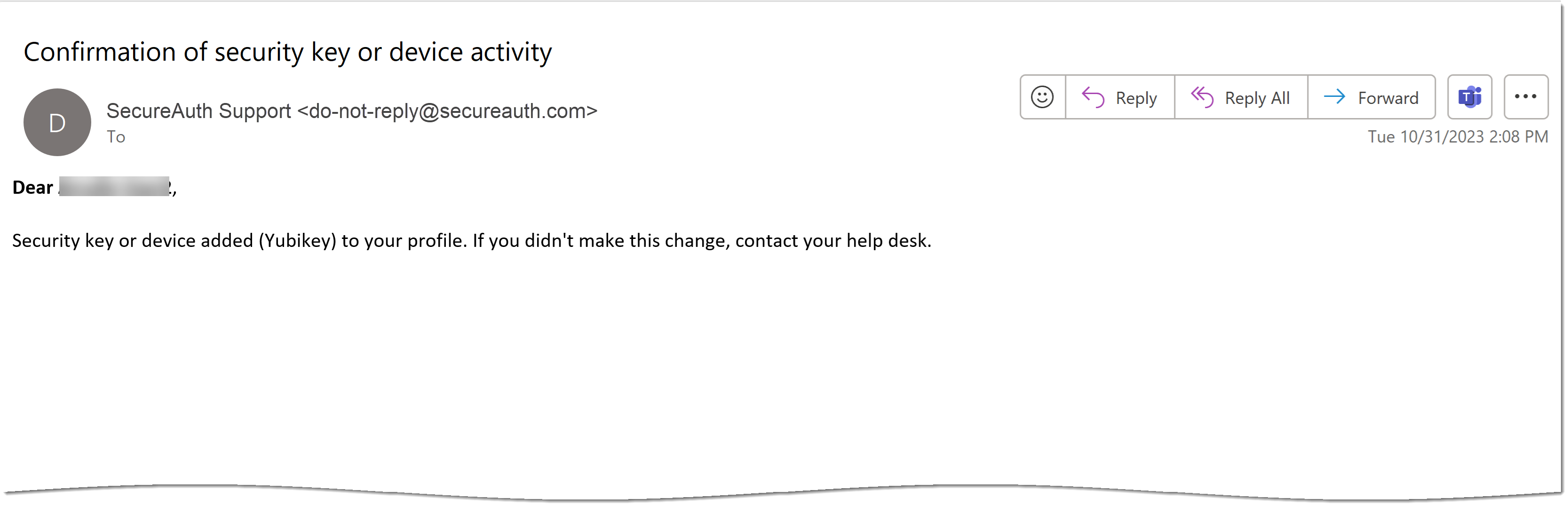
See the following example of an email confirmation.
 Resource fields
fido_removed_email_notification_body– Email body about removing a FIDO2 device from your profile. For example:<b>Dear {{fullName}}</b>,<br><br>Security key or device ({{deviceName}}) removed from your profile. If you didn't make this change, contact your help desk.fido_enrolled_email_notification_body– Email body about adding a FIDO2 device to your profile. For example:<b>Dear {{fullName}}</b>,<br><br>Security key or device added ({{deviceName}}) to your profile. If you didn't make this change, contact your help desk.fido_email_subject_notification– Email subject line. For example:Confirmation of security key or device activity
fido_email_from_notification– Sender email address. For example:security@secureauth.com
fido_email_from_displayname_notification– Display name of sender email address. For example:SecureAuth Support