FIDO2 WebAuthn MFA settings
Applies to: Air-gapped deployments
Allow users to register their FIDO2 authenticators as a login multi-factor authentication (MFA) option. Set how many devices users can register and whether users can remove their own devices. For FIDO2 authenticators, you can require user verification for device registration and authentication.
Note
In SecureAuth documentation, the terms FIDO2 authenticator, security key, and device refer to the same thing. Authenticators can be external (for example, a YubiKey) or built into the user's hardware (for example, Windows Hello or Touch ID)
When you configure and save the global settings for FIDO2, you will also need to set up a FIDO2 Enrollment page for users to register and manage their FIDO2 devices.
Once end users register a FIDO2 device, it becomes available as a FIDO2 login option to authenticate their access to resources.
Configure FIDO2 as a method
Follow these steps to enable FIDO2 devices in a SecureAuth IdP air-gapped deployment.
Access the SecureAuth IdP air-gapped instance as an administrator through your internal network.
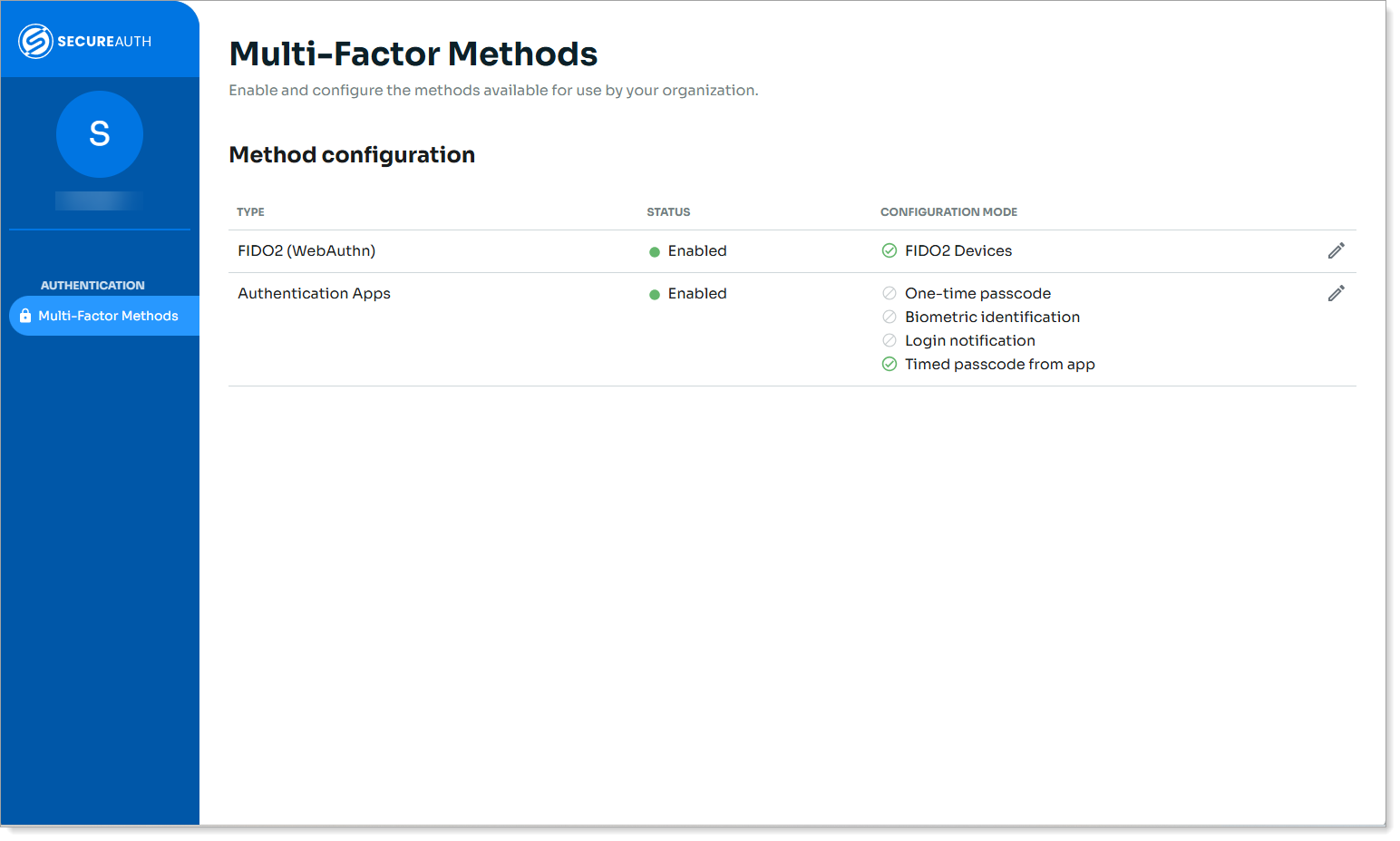
Click the pencil icon for FIDO2 Devices.
The configuration page for FIDO2 (WebAuthn) appears.
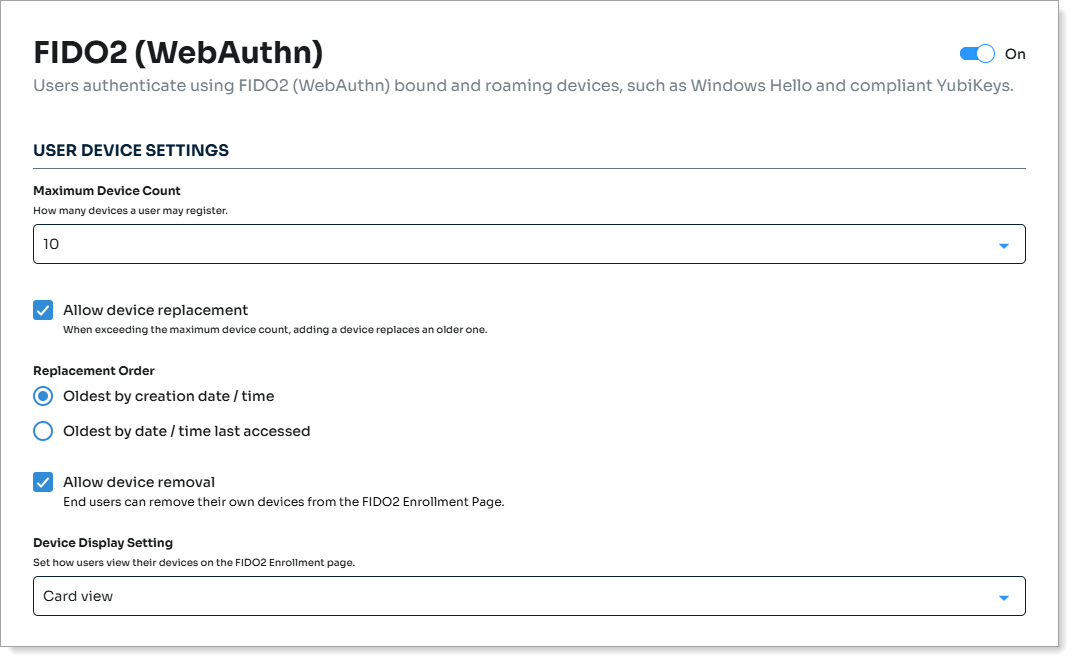
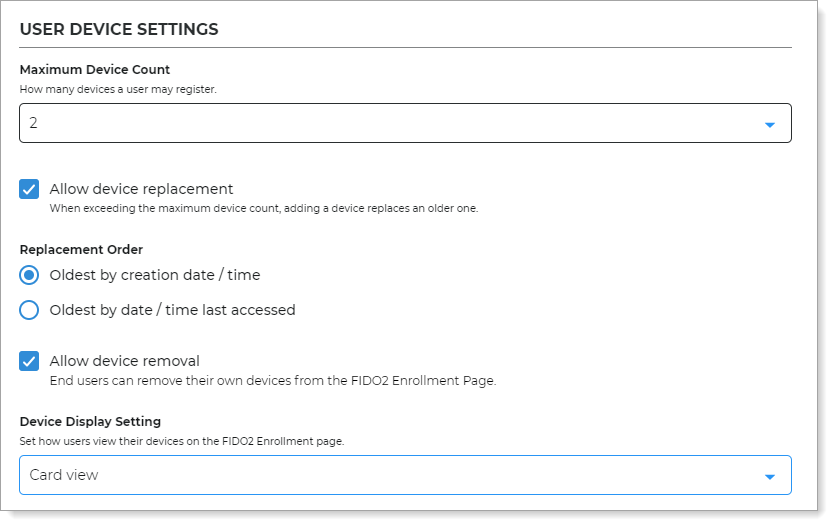
In the User Device Settings section, set the following configurations.
Maximum Device Count
Set how many FIDO2-enabled devices a user can register.
Valid values are No limit, or 1 through 10.
Allow device replacement
Set whether to allow replacement of a device when the user has reached the maximum number of registered devices.
The next admin setting determines which device to replace. This information is not displayed to the end user; they are only prompted to replace a device.
Replacement Order
This option is active only when the Allow device replacement option is selected. Choose which device to automatically replace:
Oldest by creation date/ time - when the user first registered the device
Oldest by date time last accessed - the last time the device was used in the system
Allow device removal
Set whether to allow users to remove their own device from the FIDO2 registration and management page.
Device Display Setting
Set how users view their devices on the FIDO2 enrollment page.
The options are:
Card view
Table view
In the Device Restriction section, set whether users must provide verification (for example, PIN) for enrollment and verification while using a FIDO2 authenticator, like a security key or mobile device.

In the Advanced Settings section, set whether to allow registration of any FIDO2 authenticator by default. Or, you can limit registrations to certain FIDO2 authenticator types.
Show Advanced Settings during enrollment
Indicate whether to show the Advanced Settings during enrollment of the FIDO2 authenticator.
Use this setting only for end users who understand the FIDO2 WebAuthn specifications. Otherwise, the default settings are correct for most users.
Attestation Type
Attestation type is a FIDO protocol that sends identifying data about the device model.
None. Do not send authenticator data to the server. (Default setting)
Indirect. Requires user consent. Send anonymized authenticator data to the server.
Direct. Requires user consent. Send authenticator data to the server.
Authenticator Type
Authenticator type enables you to allow or restrict certain authenticator types.
Unspecified. Allow all authenticator types like built-in biometric readers and separate (roaming) security keys. (Default setting)
Cross platform. Allow only separate (roaming) authenticators like smartphones and security keys (like YubiKey, Titan Security Key, etc.)
Platform (TPM). Allow only built-in (bound) authenticators on the same device like Touch ID, Face ID, and Windows Hello.
Default option
Recommended default settings are:
Attestation Type – None
Authenticator Type – Unspecified
If you change the default settings, take note of the following:
It will allow registration of new devices only to the selected Authenticator Type. Users with existing devices in this category can still authenticate.
It will block all existing devices that do not belong to the selected Authenticator Type. Users with existing devices in this category will not be able to authenticate.
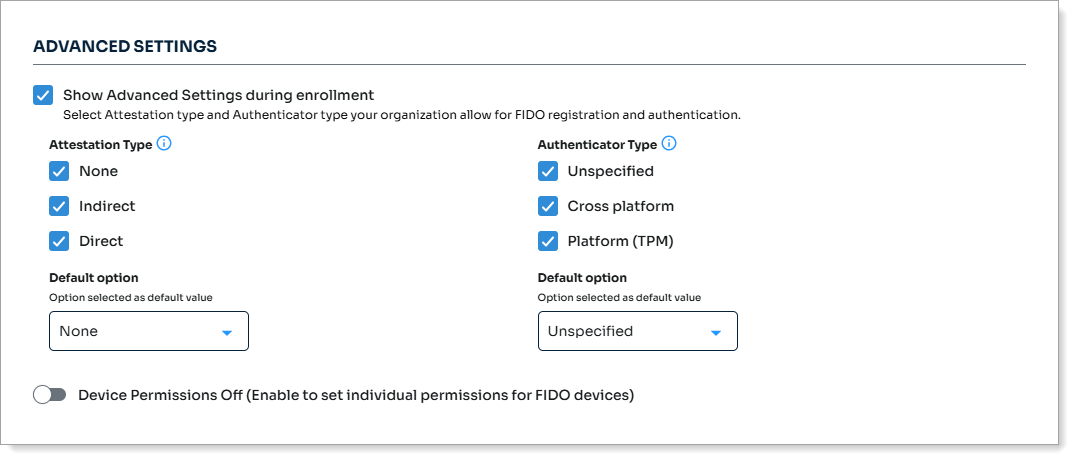
Optional. If you want allow or block certain FIDO devices, enable Device Permissions.
Result: When this setting is ON, it displays more settings for device permissions.
If you enabled Device Permissions, set the following:
In the Default Permission, section set the default setting for all devices:
Attest (verified) – Permit all devices verified by the FIDO Alliance, except those you choose to block.
Allow – Permit all devices, whether verified by the FIDO Alliance or not, except those you choose to block.
Block – Block all devices, except those you choose to choose to permit (allow or attest).
Next, in the Individual Device Permissions section, select the check box for each device and specify the following (as applicable):
Attest – Allow this device verified by the FIDO Alliance metadata service.
Allow – Allow this device whether verified by the FIDO Alliance or not.
Block – Block this device.
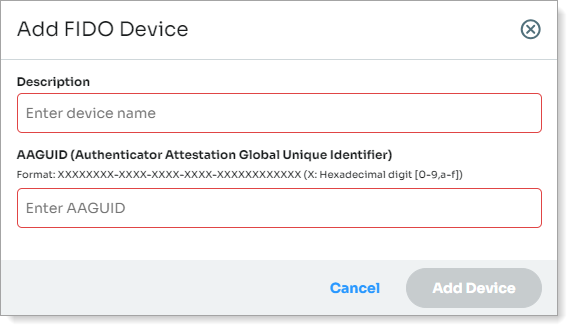
You can also Add a FIDO Device. You will need provide a description and the AAGUID (Authenticator Attestation Global Unique Identifier) of the device.
Result: All devices that you block, allow, or attest appear in a list below the Individual Devices Permissions section.
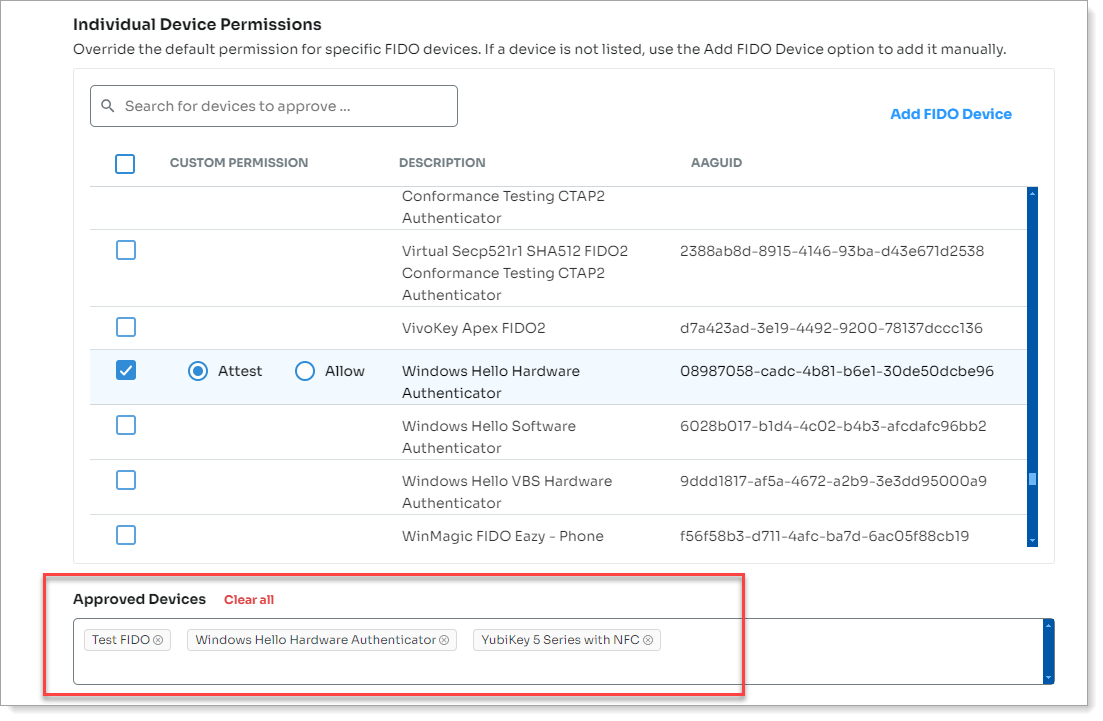
Blocked device after removal
A user enrolls FIDO2 device, but as an admin, you remove it later from the Individual Device Permissions list. The device will still show up for the user in their profile, but it will be blocked from use.
Save your changes.
End users can register their FIDO2 device on the FIDO2 Enrollment page. Share this internal network URL with your end users to register and manage their FIDO2 devices.
Enable FIDO2 devices in the Advanced Settings
Enable FIDO2 WebAuthn as authenticators for logins to realms created in the Identity Platform Advanced Settings (formerly Classic Experience).
In the Advanced Settings, select the Multi-Factor Methods tab.
In the Multi-Factor Configuration > FIDO2 (WebAuthn) Settings section, set the following:
FIDO2 Devices
Set to Enabled.
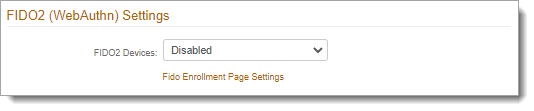
To continue with the FIDO2 enrollment page configuration, click the Fido Enrollment Page Settings link.
You will be redirected to the FIDO2 (WebAuthn) settings page in the New Experience.
Next steps
Set up the FIDO2 Enrollment page and share the URL with your end users so they can register their FIDO2 devices.