Authentication apps MFA settings
Applies to: Air-gapped deployments
Configure the authentication methods sent by SecureAuth Authenticate app. To authenticate into a resource in an air-gapped environment, users get a one-time passcode generated on their mobile device, Passcode Desktop app, or hardware token.
Authentication apps configuration
Access the SecureAuth IdP air-gapped instance as an administrator through your internal network.
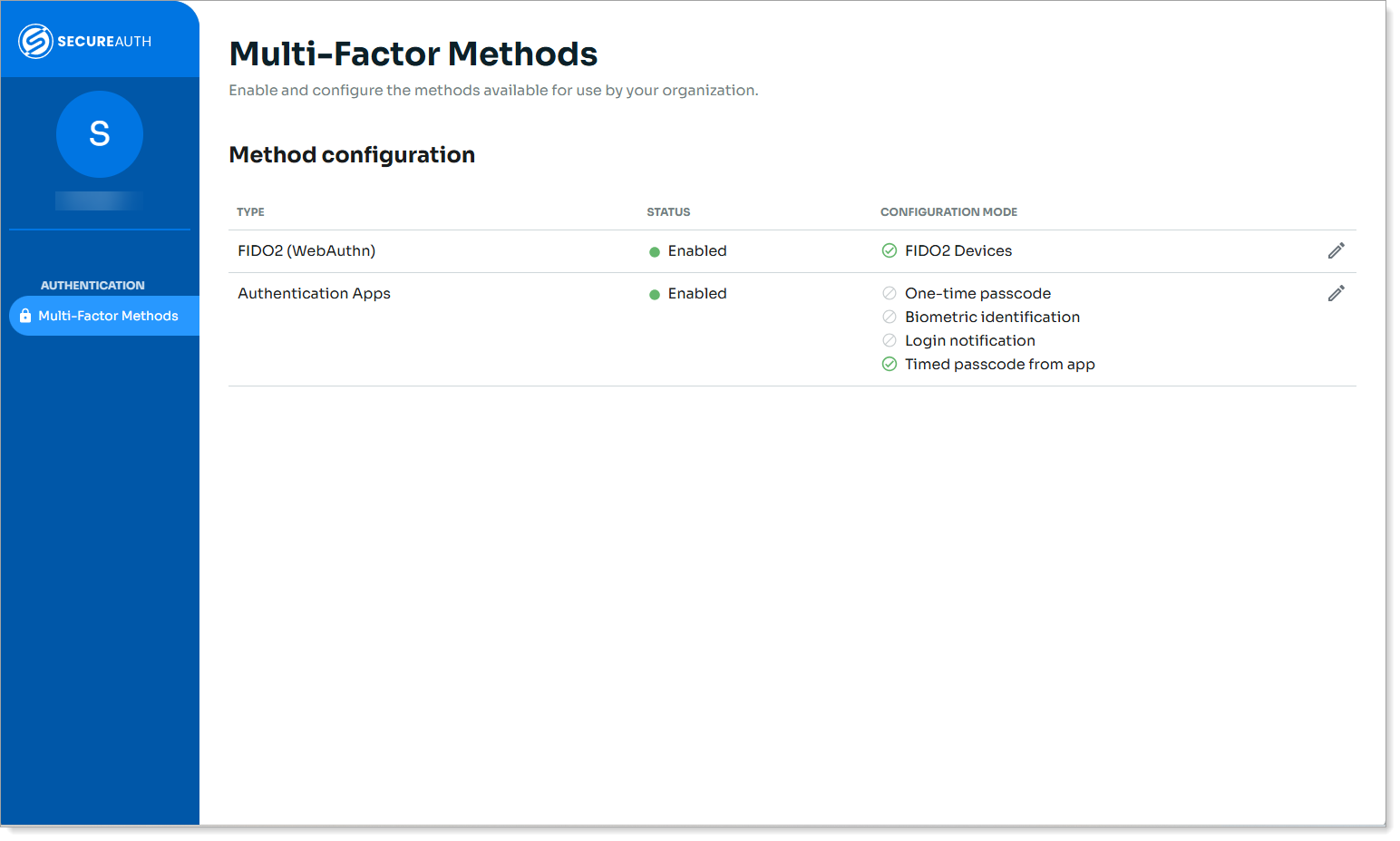
Click the pencil icon for Authentication Apps.
The configuration page for Authentication Apps appears.
To enable or disable the global Authentication Apps multi-factor method, slide the toggle On or Off.
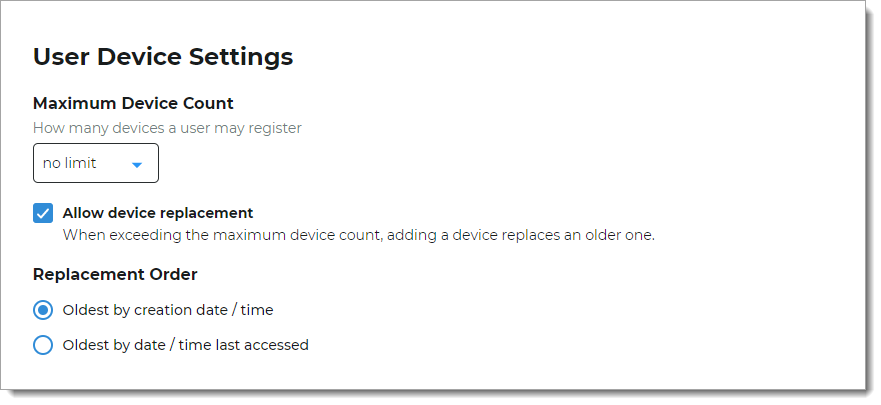
In the User Device Settings section, set the following configurations.
Maximum Device Count
Set the number of devices a user can register to receive authentication tokens. Values range from no limit or up to ten devices.
Allow device replacement
Indicate whether to allow device replacement when a user has reached the maximum number of devices.
Replacement order
Choose one of the following options for replacing an authentication token:
Oldest by creation date / time – replace the oldest authentication token with the newest one
Oldest by date / time last accessed – replace the least used and last accessed authentication token with the newest one
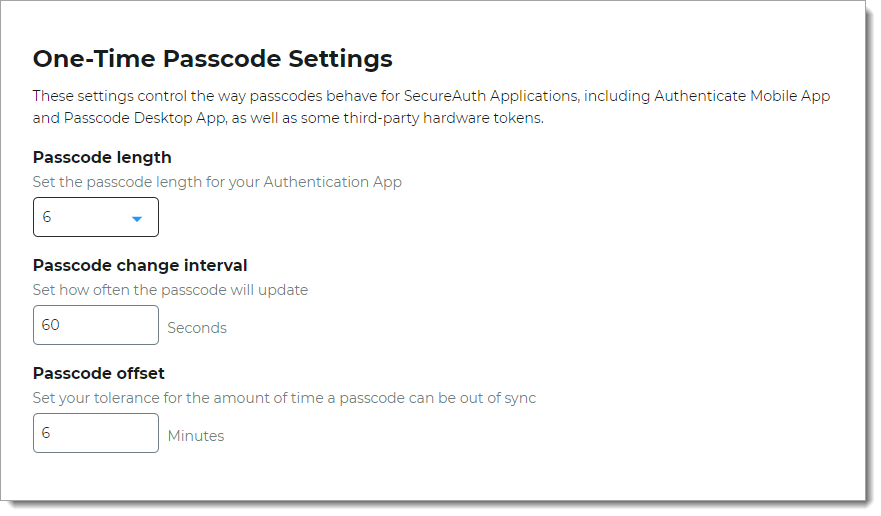
In the One-Time Passcode Settings section, set any of the following configurations that apply to the SecureAuth Authenticate mobile app and the SecureAuth Passcode desktop app.
Passcode length
Set the length of the passcode in the SecureAuth Authenticate app at six, eight, or nine digits.
Passcode change interval
Set how often in seconds, the passcode updates in the SecureAuth Authenticate app.
Passcode offset
To make up for time differences between devices and to enable prolonged validity after the code is no longer displayed, set the tolerance in minutes for the amount of time a passcode can be out of sync.
Save your changes.